Do Gaming Monitors Reduce Input Lag?
Every competitive gamer has felt that split-second delay between pressing a button and seeing the action on screen. That hesitation — input lag — can cost you a round, a match, or your rank. The question is simple: do gaming monitors actually reduce input lag? The short answer is yes, but the real answer is more nuanced. A gaming monitor is purpose-built to minimise specific types of delay, and understanding how it does that — and what it can’t fix — is the key to making a smart upgrade.
In this guide, we’ll break down the anatomy of input lag, explain exactly how refresh rate, response time, and adaptive sync technologies work together, and give you practical steps to optimise your setup. By the end, you’ll know whether a gaming monitor is the right investment for your rig and how to choose one that genuinely tightens your reaction window.
Understanding Input Lag: The Total Latency Chain
Input lag is the sum of every delay between your physical action and the visual result. It’s not just one thing — it’s a chain:
- Input device lag – the time your mouse, keyboard, or controller takes to register the press and send the signal.
- System processing lag – the time your PC or console needs to process the input, run game logic, and render the next frame.
- Transmission lag – the time the video signal travels from your GPU to the monitor over the cable.
- Monitor processing lag – the time the monitor’s scaler and image-processing chips take to interpret the signal and prepare it for the panel.
- Display lag (pixel response) – the time the liquid crystals or OLED pixels physically change colour.
A gaming monitor directly affects the last three links. The first two depend on your peripherals, CPU, and GPU. Good news: you can minimise those too, but the monitor is where the biggest gains are made for a reasonable cost.
Why Input Lag Matters More Than You Think
In casual games, 30–50 ms of total lag might go unnoticed. But in fast-paced shooters, fighting games, or rhythm games, every millisecond counts. Studies and competitive players consistently show that a delay of just 10–20 ms can reduce hit accuracy and reaction time. For example, in a game like Valorant or Counter-Strike, the difference between a 60 Hz monitor and a 144 Hz monitor can mean seeing an enemy 7–8 ms sooner — enough to win a peek duel.
How Gaming Monitors Cut Input Lag
 A modern gaming monitor engineered for low-latency performance, featuring a high refresh rate panel and adaptive sync support.
Refresh Rate: The Frames-Per-Second Advantage
The most publicised spec — refresh rate (measured in Hz) — tells you how many times per second the monitor redraws the image. A standard 60 Hz monitor shows a new frame every 16.7 ms. A 144 Hz monitor cuts that to 6.9 ms. A 240 Hz monitor drops it to 4.2 ms. This directly reduces the perceived input lag because the image on screen is more up to date.
In practice: If your system can push 144 frames per second, a 60 Hz monitor will only display 60 of them, discarding 84 frames. That means you’re reacting to information that’s already 8–10 ms old. A 144 Hz monitor displays all 144 frames, so you see the latest possible snapshot. The improvement is obvious — the game feels “snappier” immediately.
However, refresh rate alone doesn’t eliminate all lag. The monitor’s internal processing and pixel response also matter.
Response Time: The Ghosting Killer
Response time (usually grey-to-grey, or GtG) measures how fast a pixel can change colour. A slow response time — say 5–10 ms — causes motion blur and ghosting: trails that linger behind fast-moving objects. That blur makes it harder to track targets, which indirectly makes you feel like you’re reacting late.
Gaming monitors typically advertise 1 ms GtG (often with overdrive enabled). This ensures that pixels transition fast enough to keep up with the refresh rate. For example, a 240 Hz monitor has a 4.2 ms window per frame; if the response time is 5 ms, the pixel hasn’t finished changing before the next frame arrives, causing blur. A 1 ms response time avoids that.
Important caveat: Response time is not the same as input lag. A 1 ms response time doesn’t mean the monitor adds only 1 ms of total lag. It simply means the visual transition is clean. Total input lag is a separate measurement that includes processing delays. Always check independent reviews that measure real input lag using tools like Leo Bodnar’s lag tester.
Adaptive Sync: G-Sync and FreeSync
 Input lag comparison between a standard 60 Hz monitor and a 144 Hz gaming monitor, showing the reduced delay between frames.
Screen tearing and stuttering happen when your GPU’s frame rate doesn’t match the monitor’s fixed refresh rate. Traditional V-Sync fixes tearing but adds significant input lag (often 30–50 ms) because it forces the GPU to wait for the monitor. Adaptive sync technologies — NVIDIA G-Sync and AMD FreeSync — solve this by dynamically adjusting the monitor’s refresh rate to match the GPU’s frame output.
How they reduce lag: With adaptive sync, the monitor no longer has to wait for a fixed refresh interval. Each frame is displayed as soon as it’s ready, which eliminates the buffer delay of V-Sync. In practice, G-Sync and FreeSync can reduce total system input lag by 20–30 ms compared to V-Sync on, especially at lower frame rates.
- G-Sync uses a proprietary module in the monitor and works with NVIDIA GPUs. It often has a wider variable refresh rate (VRR) range.
- FreeSync is based on the VESA Adaptive-Sync standard and works with AMD GPUs (and some NVIDIA cards via HDMI). It’s more widely available and generally cheaper.
Both are excellent, but they only reduce input lag when frame rates are within the VRR range. If your frame rate drops below the monitor’s minimum (e.g., below 48 Hz), you’ll need Low Framerate Compensation (LFC) to keep things smooth.
Connection and Settings: The Overlooked Factors
Even the best gaming monitor can feel laggy if you’re using the wrong cable or settings.
- DisplayPort vs HDMI: For 144 Hz+ at 1440p or 4K, DisplayPort is still the most reliable choice for low latency. HDMI 2.1 is catching up (supports 4K 120 Hz with VRR), but older HDMI versions may limit bandwidth, forcing compression or lower refresh rates. Always use the cable that your monitor and GPU natively support at the highest refresh rate.
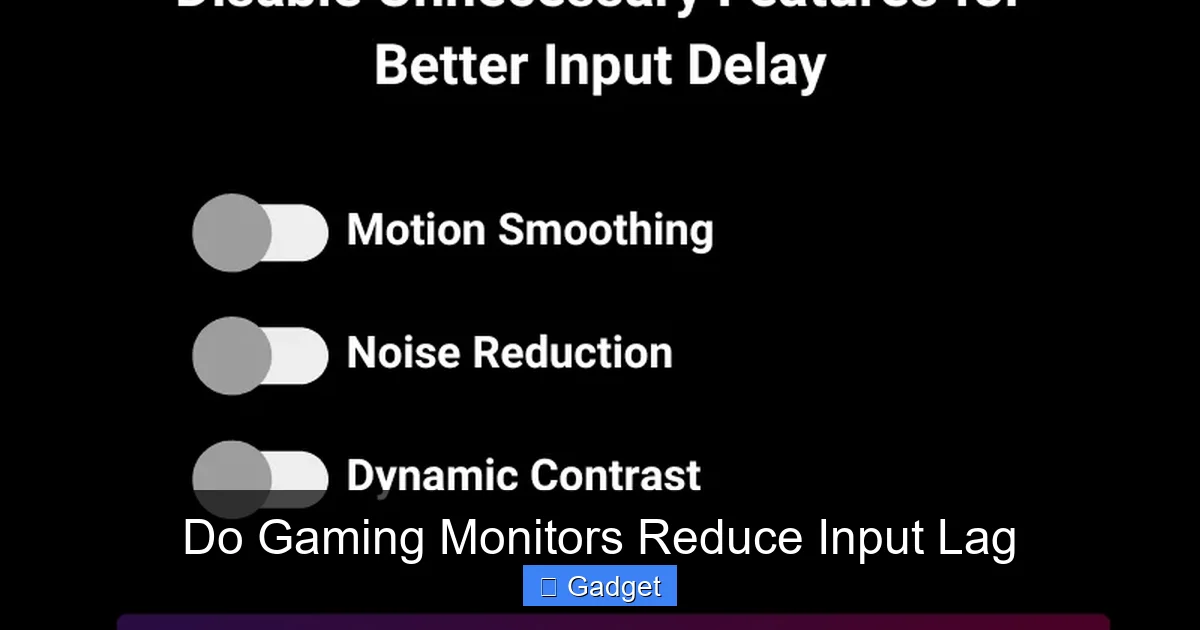
- Game Mode: Most gaming monitors have a “Game Mode” or “Low Input Lag” setting that disables unnecessary image processing (like motion smoothing, noise reduction, or sharpening). Turn this on — it often cuts monitor processing lag by 5–15 ms.
- Overdrive: Adjusting overdrive (response time acceleration) can reduce ghosting, but setting it too high can cause “inverse ghosting” (overshoot). Stick to the “Normal” or “Fast” setting unless you’re willing to test carefully.
Choosing the Right Monitor for Low Input Lag
Not all gaming monitors are created equal. A 144 Hz monitor with a 1 ms response time can still have high input lag if the internal processing is slow. Here’s how to pick the right one.
Specs That Matter Most
- Refresh rate: 144 Hz is the sweet spot for most gamers. 240 Hz offers diminishing returns but is noticeable in competitive shooters. 360 Hz is overkill unless you’re a professional.
- Response time: Look for 1 ms GtG (or 0.5 ms for OLED). Avoid monitors that advertise “1 ms MPRT” (Motion Picture Response Time) — that’s a marketing trick that uses backlight strobing, not actual pixel speed.
- Adaptive sync: Ensure compatibility with your GPU. If you have an NVIDIA card, look for “G-Sync Compatible” or native G-Sync. For AMD, “FreeSync Premium” or “FreeSync Premium Pro” is ideal.
- Panel type: TN panels have the lowest input lag but poor colour and viewing angles. IPS panels offer better colour and acceptable input lag. OLED panels have the fastest response times (0.1 ms) and near-zero input lag but are more expensive.
Read Real-World Benchmarks
Spec sheets lie. A monitor might claim 1 ms response time but only achieve it at a certain overdrive setting that causes overshoot. Independent sites like Rtings, TFT Central, and Hardware Unboxed measure actual input lag (including processing delay) and motion clarity. Always check their reviews before buying.
Consider Your Gaming Genre
- Competitive FPS / Fighting games: Prioritise the lowest input lag and highest refresh rate. 240 Hz or 360 Hz with a TN or fast IPS panel is ideal.
- RPGs / Strategy / Single-player: A 144 Hz IPS panel with good colour and FreeSync/G-Sync is fine. The extra input lag of a slower panel (5–10 ms) is rarely noticeable.
- Console gaming: New consoles (PS5, Xbox Series X) support 120 Hz and VRR. A 144 Hz monitor with HDMI 2.1 and VRR gives you the best console experience, but note that console input lag is often higher due to game engine processing.
Troubleshooting Input Lag: What to Do When It Still Feels Slow
 Adjusting monitor OSD settings to enable Game Mode and optimise overdrive for reduced input lag.
Even with a great monitor, you might still feel lag. Here are the most common culprits and fixes.
Check Your In-Game and GPU Settings
- Disable V-Sync unless you’re using adaptive sync. If you have G-Sync/FreeSync on, V-Sync should be turned off in the game.
- Enable “Low Latency Mode” in NVIDIA Control Panel (set to “On” or “Ultra”) or “Anti-Lag” in AMD Adrenalin. This reduces the render queue.
- Cap your frame rate slightly below your monitor’s refresh rate (e.g., 141 FPS on a 144 Hz monitor) to avoid tearing when using adaptive sync.
- Turn off motion blur and other post-processing effects in the game — they add visual delay.
Hardware and Connection Checks
- Use a high-quality cable: A cheap DisplayPort cable can cause signal degradation or drop the refresh rate to a lower standard. Stick to certified cables (e.g., VESA certified DisplayPort).
- Update your GPU drivers: Outdated drivers can cause stuttering and increased input lag.
- Close background apps: CPU-intensive background tasks (like Discord, web browsers, or streaming software) can increase system processing lag.
- Check your mouse/controller polling rate: A 1000 Hz polling rate is standard for gaming mice. Lower rates (125 Hz) add 8 ms of extra delay.
Consider the Whole System
Your monitor is only one part of the chain. If your CPU or GPU can’t maintain a steady high frame rate, even a zero-lag monitor won’t feel responsive. For competitive gaming, aim for a consistent 144+ FPS. If you’re on a budget, prioritise a 144 Hz monitor and a capable GPU over a 360 Hz monitor with a weak graphics card.
Frequently Asked Questions
What is the difference between input lag and response time?
Input lag is the total delay from input to display, including processing. Response time is solely how fast a pixel changes colour. A monitor can have a fast response time (1 ms) but still have high input lag due to internal processing. Both matter, but input lag is the more important metric for responsiveness.
Can a gaming monitor eliminate input lag completely?
No. Every monitor has some processing delay (typically 2–10 ms for modern gaming monitors), plus the inherent physical delay of pixel transitions. The goal is to minimise it, not eliminate it. Total system input lag is also influenced by your PC, peripherals, and game engine.
Is 1 ms response time necessary for gaming?
For competitive play, yes — 1 ms (or lower) reduces motion blur and ghosting, making it easier to track fast targets. For casual gaming, 4–5 ms is acceptable. Note that “1 ms” is often only achievable with overdrive, which may introduce overshoot. Check independent reviews for real-world response times.
Does G-Sync or FreeSync reduce input lag?
Yes, compared to V-Sync, which adds significant delay. Adaptive sync removes the buffer wait, so input lag is lower. However, if your frame rate is already above the monitor’s refresh rate, adaptive sync may add a tiny amount of latency compared to no sync at all. In practice, the smoothness gain outweighs the minimal lag.
What is the best refresh rate for competitive gaming?
For most players, 144 Hz is the best balance of cost and performance. 240 Hz offers a noticeable improvement for twitch shooters. 360 Hz and above are for professional esports athletes with extremely high frame rates. At 60 Hz, every frame is visible for 16.7 ms, which is a clear disadvantage.
Does HDMI 2.1 reduce input lag compared to DisplayPort?
HDMI 2.1 can support high refresh rates and VRR, but it may introduce slightly more latency than DisplayPort due to additional processing. In practice, the difference is negligible (1–2 ms) if both are used correctly. Use the connection that your monitor and GPU support natively at the highest refresh rate.
Conclusion
Yes, gaming monitors do reduce input lag — but the degree depends on the combination of refresh rate, response time, adaptive sync, and proper settings. A 144 Hz monitor with 1 ms response time and G-Sync/FreeSync will cut the perceived delay by 8–12 ms compared to a standard 60 Hz display, and it will eliminate the stutter and tearing that make games feel sluggish. For competitive gamers, that’s a game-changing difference.
However, no monitor can fix a weak system or a poorly configured setup. The best approach is to pair a proven low-latency monitor (check independent reviews for real input lag figures) with a capable GPU, a fast polling rate mouse, and correctly tuned in-game settings. If you’re planning a dual-monitor work-and-play setup, it’s worth understanding how different display technologies affect performance — for example, comparing OLED and microLED panels or learning how to plan your desk layout for multiple screens. Investing in the right monitor is one of the most impactful upgrades you can make for a responsive, competitive gaming experience.

Similar Posts





















