Is G-Sync Monitor Worth It for Gaming in 2026?
You’ve been saving for a new monitor, but every time you read a review, the term “G-Sync” pops up with a price tag that makes you pause. Is that extra $100–$300 really transforming your gaming experience, or is it just a marketing premium? The short answer: for many PC gamers, G-Sync delivers a genuinely smoother, tear-free picture that can change how you play. But the long answer depends on your GPU, your budget, and how much you value visual perfection.
This guide cuts through the hype. You’ll learn exactly how G-Sync works, what hardware you actually need, how it compares to FreeSync and Adaptive-Sync, and — most importantly — whether it’s the right upgrade for your specific setup. We’ll also cover common setup mistakes, troubleshooting tips, and the future of variable refresh rate (VRR) technology.
Key Takeaways
- G-Sync eliminates screen tearing by synchronizing your monitor’s refresh rate to your GPU’s frame rate in real time.
- You need an NVIDIA GeForce GPU — G-Sync is proprietary and does not work with AMD cards.
- G-Sync monitors cost more than FreeSync or standard models, but they often include higher-quality panels and tighter VRR ranges.
- G-Sync Compatible monitors (often FreeSync displays) offer a budget-friendly entry point, but the experience may vary.
- Not everyone needs it — if you consistently run frame rates above your monitor’s max refresh and don’t mind tearing, you can skip the premium.
What Is G-Sync and How Does It Work?
G-Sync is NVIDIA’s variable refresh rate technology. It solves two classic gaming headaches: screen tearing and stuttering.
In a traditional setup, your monitor refreshes at a fixed rate (e.g., 144 Hz) while your GPU outputs frames at a variable rate. When the GPU sends a new frame while the monitor is still drawing the previous one, you see a horizontal split — that’s tearing. When the frame rate drops below the refresh rate, the monitor has to repeat old frames, creating a stuttery judder.
G-Sync lets the monitor dynamically adjust its refresh rate to match the GPU’s frame output. The result is a smooth, tear-free image at any frame rate within the monitor’s supported range. The technology is built on a dedicated G-Sync module (in full G-Sync monitors) or through the Adaptive-Sync standard (in G-Sync Compatible monitors). For the official technical details, visit NVIDIA’s official G-Sync technology page.
The Real-World Benefits of G-Sync
1. Tear-Free Gameplay
The most immediate benefit is the complete elimination of screen tearing. Once you’ve played a fast-paced shooter or racing game with G-Sync enabled, going back to a standard monitor feels jarring. The image stays clean, allowing you to focus on the action rather than visual artifacts.
2. Smooth Frame Rate Transitions
When your GPU performance fluctuates — say, from 120 FPS down to 70 FPS during a busy scene — G-Sync keeps the motion smooth. Without it, you’d feel a stutter. With it, the transition feels like a natural slowdown, not a glitch.
3. Reduced Input Lag (Compared to V-Sync)
Many gamers have used V-Sync to stop tearing, but V-Sync introduces noticeable input lag because it forces the GPU to wait for the monitor’s refresh cycle. G-Sync eliminates the need for V-Sync, so you get tear-free visuals with much lower latency. In practice, this makes aiming and reaction times feel more responsive.
4. Immersion and Competitive Edge
In story-driven games, smooth visuals pull you deeper into the world. In competitive multiplayer titles, the combination of reduced input lag and fluid motion gives you a measurable edge. You spot enemies faster, track targets more smoothly, and react quicker.
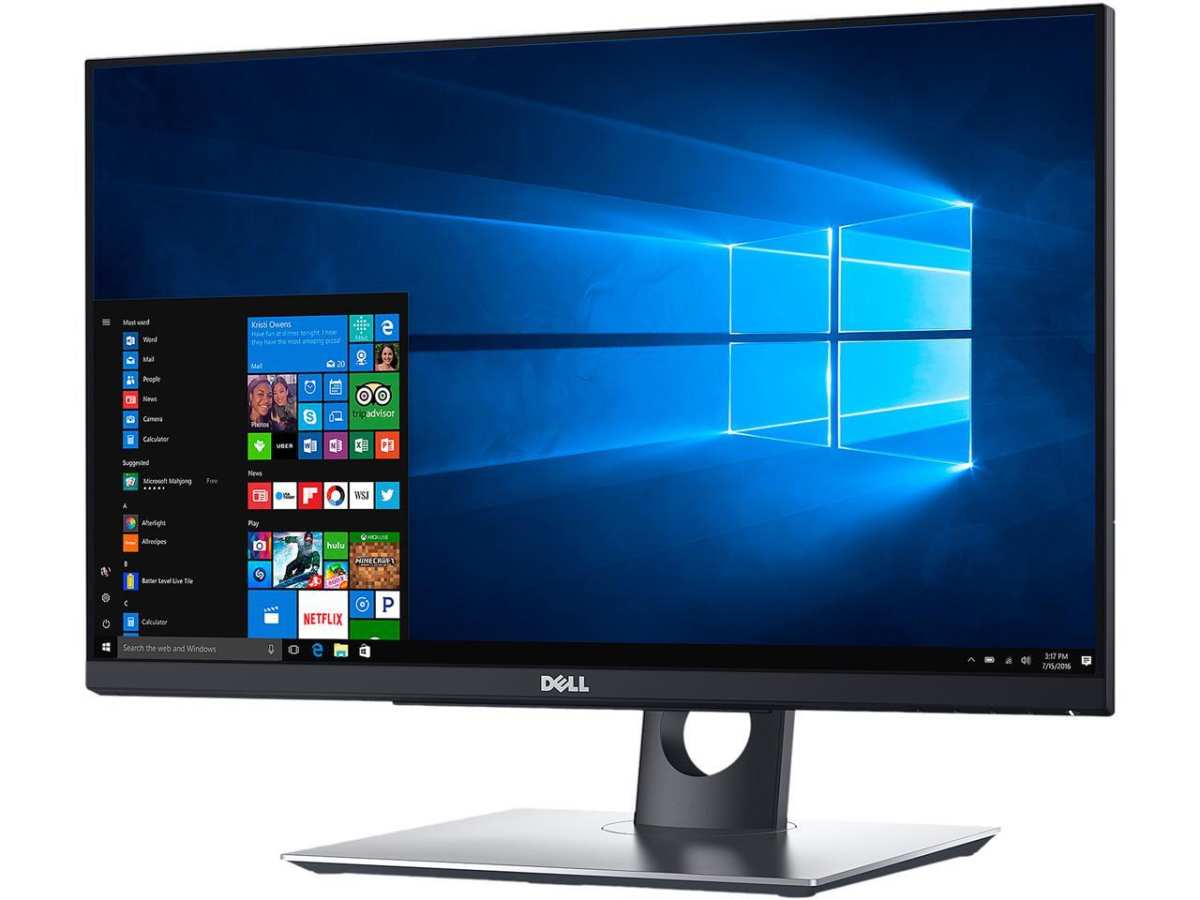
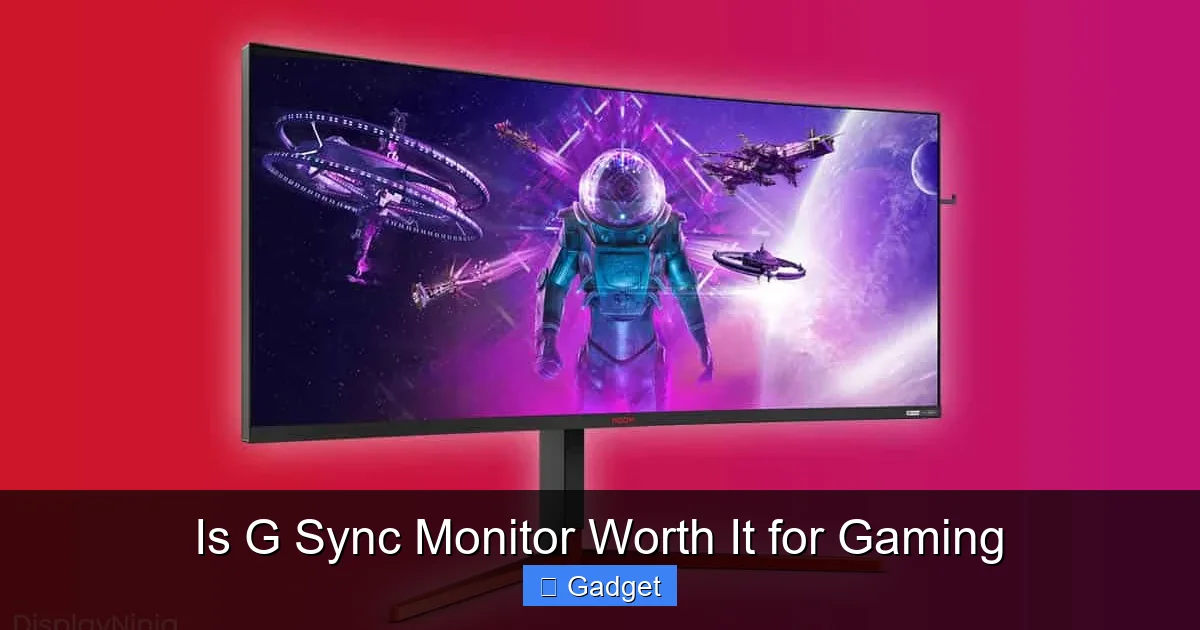 Seamless motion without tearing or stuttering — the core advantage of G-Sync in action.
What Hardware Do You Need?
- NVIDIA GeForce GPU — G-Sync requires a compatible NVIDIA card. All GTX 600-series and newer GPUs (including RTX models) support it. If you’re using an AMD Radeon card, G-Sync won’t work; you’ll need a FreeSync monitor instead.
- G-Sync certified monitor — Look for “G-Sync,” “G-Sync Ultimate,” or “G-Sync Compatible” in the specs. The first two use a dedicated hardware module; the third relies on the Adaptive-Sync standard and is often cheaper.
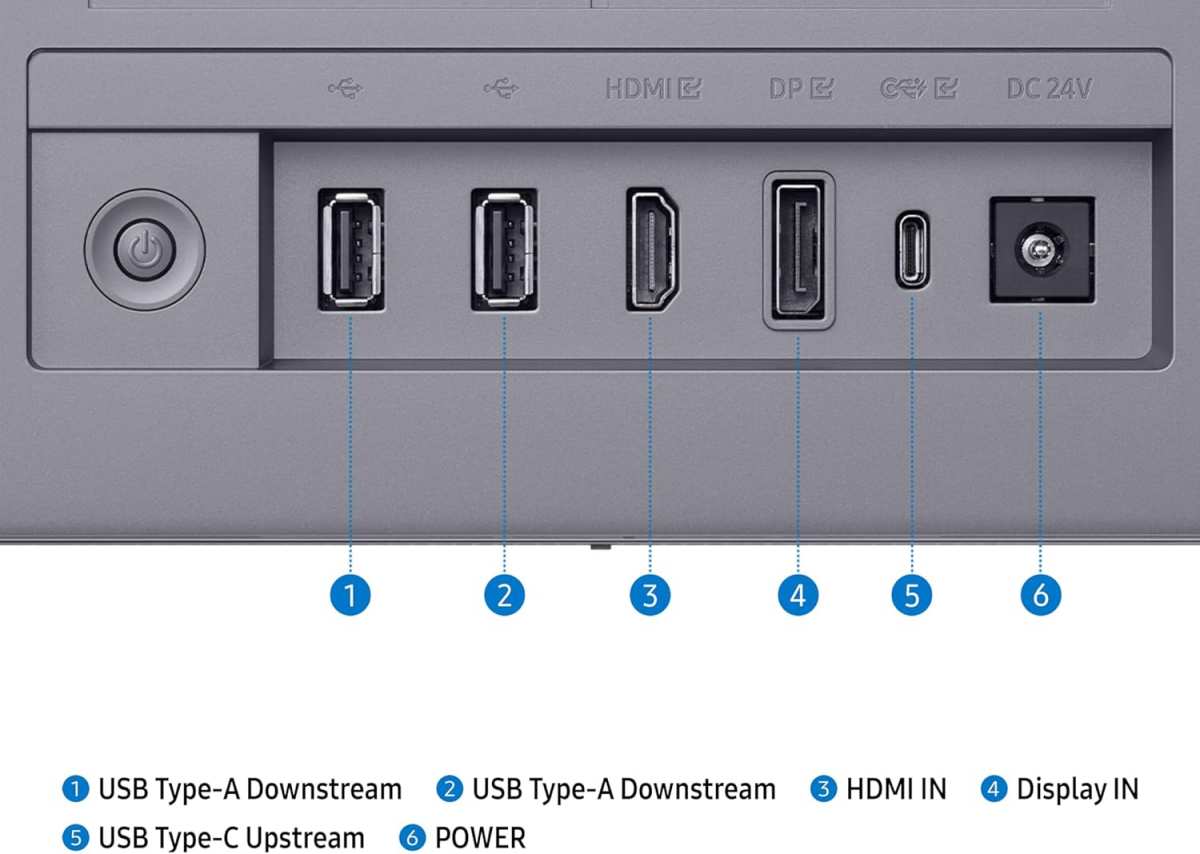
- DisplayPort cable — G-Sync traditionally requires DisplayPort. Some newer monitors with HDMI 2.1 also support VRR, but DisplayPort remains the most reliable for high refresh rates and resolutions.
- Latest NVIDIA drivers — Always keep your drivers up to date. After installation, enable G-Sync in the NVIDIA Control Panel under “Set up G-SYNC.”
G-Sync vs FreeSync vs Adaptive-Sync
| Feature | G-Sync (Full) | G-Sync Compatible | FreeSync (AMD) |
|---|---|---|---|
| GPU required | NVIDIA | NVIDIA | AMD (or some NVIDIA via G-Sync Compatible) |
| Hardware module | Yes (dedicated) | No (uses Adaptive-Sync) | No |
| Typical price | Highest | Moderate | Lowest |
| VRR range | Usually 1 Hz – max refresh | Varies, often 48 Hz – max | Varies, often 48 Hz – max |
| HDR support | G-Sync Ultimate only | Some models | FreeSync Premium Pro |
If you already own an NVIDIA card, a full G-Sync monitor offers the most consistent and widest VRR range. If you’re on a budget, a G-Sync Compatible monitor (often a FreeSync monitor that has passed NVIDIA’s certification) is a solid alternative. For AMD users, FreeSync is the only choice — and it works very well for the price.
When Is G-Sync Worth the Extra Cost?
Worth It For:
- NVIDIA GPU owners — especially if you have an RTX 3060 or higher.
- Competitive gamers — CS2, Valorant, Overwatch, Apex Legends: every millisecond and every smooth frame counts.
- Immersion-focused players — narrative games like Cyberpunk 2077 or Red Dead Redemption 2 look far better without tearing.
- Sensitivity to stutter and tearing — some people notice it immediately; others don’t. If you do, G-Sync is a game-changer.
- High-refresh-rate setups — 144 Hz, 165 Hz, 240 Hz monitors benefit enormously from G-Sync’s variable range.
Not Worth It For:
- AMD GPU owners — you simply can’t use it. Go with a FreeSync monitor.
- Budget-constrained buyers — a good standard monitor or a G-Sync Compatible model will save you money.
- Consistent high FPS with V-Sync off — if your GPU always pushes 200+ FPS on a 144 Hz monitor and you don’t see tearing, you may not notice the difference.
- Casual or turn-based gaming — slower games don’t amplify the benefit as much.
 Enabling G-Sync in the NVIDIA Control Panel — a critical step many gamers forget.
Setting Up G-Sync Correctly
A common mistake is enabling G-Sync but forgetting to cap the frame rate. If your FPS exceeds your monitor’s max refresh, G-Sync stops working and tearing can return. Always set a frame rate limit 2–3 FPS below your monitor’s refresh rate (e.g., 141 FPS on a 144 Hz display) using the NVIDIA Control Panel or in-game settings.
Second, choose “Enable for windowed and full-screen applications” in the G-Sync settings. This ensures G-Sync works in borderless windowed mode, which many gamers prefer.
Third, use a high-quality DisplayPort cable. A cheap cable can cause intermittent signal loss and flickering.
Troubleshooting Common G-Sync Issues
- G-Sync not activating — Check that your monitor is set to its highest refresh rate in Windows Display Settings. Also verify you’re using DisplayPort, not HDMI.
- Flickering at low frame rates — This happens when the frame rate drops below the monitor’s VRR range (e.g., below 30 Hz). Use a frame rate cap to keep FPS within range, or upgrade to a monitor with a wider VRR window.
- Windowed mode not working — Go back to the NVIDIA Control Panel and switch to “Enable for windowed and full-screen applications.”
- Stuttering after driver update — Perform a clean driver installation. Uninstall using DDU (Display Driver Uninstaller) and reinstall the latest version.
Future of VRR: Beyond G-Sync
G-Sync has been the gold standard for years, but the landscape is shifting. HDMI 2.1 now supports VRR without needing DisplayPort, and newer monitors use technologies like microLED that promise even faster response times and better contrast. For a deeper look at emerging display tech, see how microLED panels work and why microLED is considered next-generation display technology. You might also want to understand the differences between microLED and OLED to see how G-Sync fits into future panel designs.
If you’re planning a multi-monitor setup for gaming or productivity, remember that G-Sync works best with a single display. Adding a second monitor can complicate refresh synchronization. Check the desk space required for a multi-monitor rig before you commit.
Frequently Asked Questions
Does G-Sync work with AMD graphics cards?
No. G-Sync is proprietary to NVIDIA. AMD GPUs use FreeSync. Some FreeSync monitors are “G-Sync Compatible,” but that only works with NVIDIA cards. If you have an AMD GPU, buy a FreeSync or FreeSync Premium monitor.
What is the difference between G-Sync and G-Sync Compatible?
Full G-Sync monitors have a dedicated hardware module that guarantees a wide VRR range (often down to 1 Hz) and consistent performance. G-Sync Compatible monitors rely on the Adaptive-Sync standard and may have a narrower VRR range (typically 48 Hz to max). They are cheaper but can occasionally flicker at low frame rates.
Does G-Sync reduce input lag?
Compared to V-Sync, yes. G-Sync eliminates the frame buffering that causes V-Sync’s input lag. Compared to having V-Sync off, G-Sync does not add noticeable lag — and in many games, it feels more responsive because you avoid tearing without sacrificing smoothness.
Can I use G-Sync with HDMI?
G-Sync historically required DisplayPort. However, with HDMI 2.1, some monitors now support G-Sync over HDMI. Check your monitor’s specifications. If in doubt, use DisplayPort — it’s still the most reliable connection for G-Sync.
Is G-Sync worth it for a 60 Hz monitor?
The benefit is less dramatic on a 60 Hz panel because the VRR range is narrower. If you often drop below 60 FPS, G-Sync will smooth out the stutter, but the improvement is smaller than on a higher refresh rate monitor. In most cases, the money is better spent on a 120 Hz+ monitor.
Does G-Sync work with laptops?
Yes, if the laptop has a G-Sync-capable display and an NVIDIA GPU. Many gaming laptops with RTX graphics include a G-Sync screen. Check the laptop’s tech specs. External monitors connected via DisplayPort can also use G-Sync.
Conclusion and Final Verdict
So, is a G-Sync monitor worth it for gaming in 2026? If you own an NVIDIA GPU, play fast-paced or visually rich games, and screen tearing drives you crazy, the answer is a clear yes. The premium price buys you a buttery-smooth, tear-free experience that V-Sync simply can’t match — and the input lag is lower than you’d expect.
On the other hand, if you’re on a tight budget, use an AMD card, or rarely notice tearing, you can save money by choosing a G-Sync Compatible monitor or a standard FreeSync display. The technology is mature, and the gap between tiers has narrowed.
Take the next step — check your GPU model, decide your budget, and compare certified monitors today. Your eyes will thank you during every gaming session.
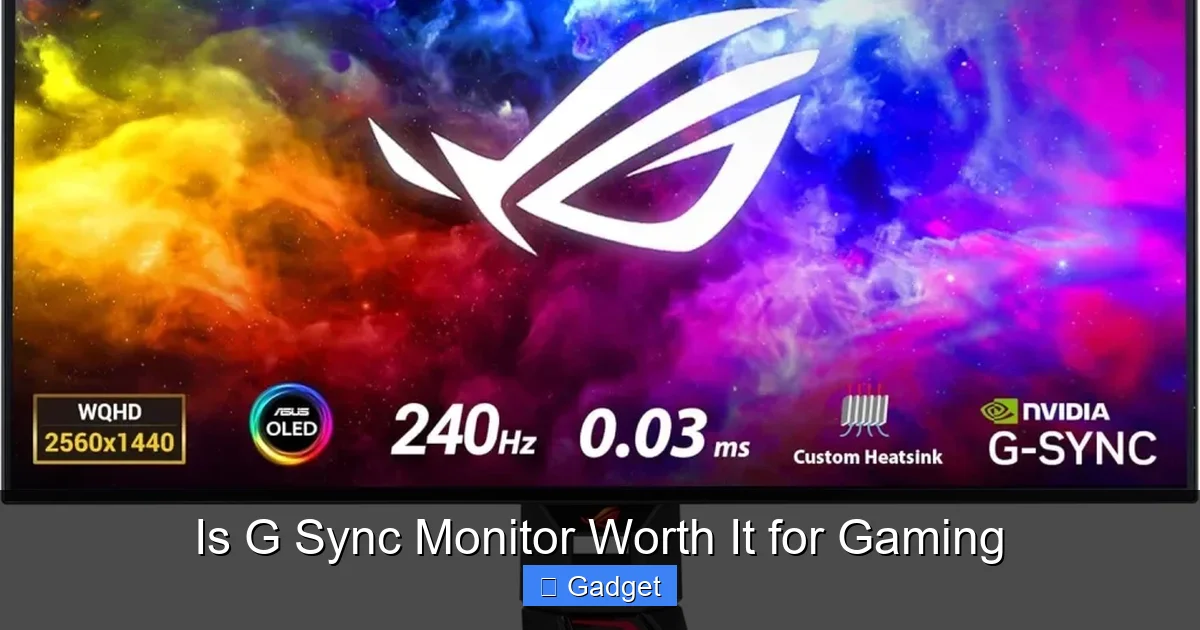 Side-by-side breakdown of the three VRR technologies — choose the one that fits your hardware and budget.
Related Reading and Next Steps
If you’re still weighing your options, a few more resources can help you decide. For a deeper dive into the display technology ecosystem, explore the inner workings of microLED displays — they’re the next frontier in gaming monitors. You might also want to read about how microLED compares to OLED, especially if you’re considering a premium panel. And if you’re planning a dual-monitor setup, understanding the desk space you’ll need is essential before you buy.
For those finalizing their purchase, remember that G-Sync is just one piece of a high-performance gaming rig. The same principles of smooth motion apply to your GPU choice, your connection cables, and your in-game settings. If you ever run into sync issues, the official VESA Adaptive-Sync standard provides the technical foundation behind G-Sync Compatible monitors — worth bookmarking for future reference.
Your gaming experience is only as good as the weakest link in your chain. Match a capable NVIDIA GPU with a certified G-Sync display, and you’ll unlock visuals that feel as fluid as they look. Make the upgrade that matches your hardware, your budget, and your need for speed.

Similar Posts