What Is Refresh Rate in Gaming Monitor
A blurry, choppy image can ruin even the best gaming session. Every time your character turns, the world smears. Enemies seem to teleport. Your aim feels a split-second behind. That disconnect often comes down to refresh rate — the unsung hero (or silent killer) of monitor performance. Understanding refresh rate is the single fastest way to improve visual fluidity and responsiveness, whether you’re a weekend racer or an esports grinder.
This guide strips away the jargon and gives you a clear, actionable breakdown of what refresh rate is, how it interacts with your graphics card, and exactly how to pick the right number for your gaming style and budget. You’ll never look at a “144Hz” sticker the same way again.
The Simple Science of Refresh Rate
Refresh rate, measured in Hertz (Hz), is the number of times your monitor redraws the entire image each second. A 60Hz monitor refreshes 60 times per second; a 144Hz monitor does it 144 times. Think of it like a digital flipbook — more pages per second means smoother motion, less flicker, and a sharper appearance during fast movement.
Refresh Rate vs. Frame Rate (FPS): The Critical Difference
Many gamers confuse refresh rate with frame rate. Here’s the distinction:
- Refresh rate (Hz) – a fixed specification of your monitor. It defines the maximum number of frames the screen can physically display per second.
- Frame rate (FPS) – a dynamic number your graphics card produces, depending on the game and settings.
Your monitor can only show up to its refresh rate, no matter how many FPS your GPU pumps out. Conversely, a high-refresh monitor won’t help if your GPU delivers only 30 FPS. The ideal is a balanced system where your GPU consistently outputs at or above your monitor’s refresh rate.
Why Higher Refresh Rates Transform Your Gameplay
The difference between 60Hz and 144Hz isn’t subtle — it’s a night-and-day jump in feel.
Smoother Motion and Less Blur
In a fast-paced shooter like Valorant or Apex Legends, 60Hz displays about 16.7 milliseconds of visual persistence per frame. At 144Hz, that drops to 6.9ms. Objects in motion appear clearer, ghosting is reduced, and tracking a rapidly moving target becomes far easier. The improvement is especially noticeable when spinning your camera quickly — the world stays readable instead of dissolving into a blur.
Lower Input Lag
Input lag is the delay between clicking your mouse and seeing the result on screen. Because a 60Hz monitor holds each frame for 16.7ms (on average), your click waits up to that long before the display updates. At 144Hz the average wait is 6.9ms. That 10ms difference might seem tiny, but in competitive play it can mean the difference between a headshot and a miss. For esports athletes using 240Hz or 360Hz monitors, input lag drops to around 4ms or less.
A Real Competitive Edge
Pro players on CS:GO or Overwatch often describe high refresh rate as “feeling like the game is reading your mind.” You react faster because your eyes receive updated visual information sooner. Enemies don’t appear to jump from one position to the next — they move smoothly, making them easier to track and anticipate.
The Refresh Rate Spectrum: From 60Hz to 500Hz
60Hz – The Baseline
Standard for decades, and still fine for strategy games, turn-based RPGs, or desktop use. For any game involving rapid motion, it feels sluggish once you’ve tried higher rates.
75Hz – Entry-Level Upgrade
A small but perceptible step. Many budget gaming monitors default to 75Hz, offering slightly smoother scrolling and less eye strain. Not a game-changer, but a worthwhile cheap bump.
120Hz / 144Hz – The Gamer’s Sweet Spot
This is where most enthusiasts should aim. The jump from 60Hz is massive — motion feels almost liquid, input lag drops noticeably, and the cost of 144Hz monitors has fallen dramatically. A mid-range GPU (like an RTX 3060 or RX 6600) can push 144 FPS in many titles at 1080p, making this the best value-for-performance tier.
240Hz and Beyond – Esports Territory
240Hz, 360Hz, and even 500Hz monitors exist primarily for competitive gamers who need every millisecond. The gains over 144Hz are smaller and subject to diminishing returns — you need an elite GPU (RTX 4070 Ti or higher) to maintain 240+ FPS in demanding games. For peak performance in Valorant or Fortnite, however, the difference can be measurable.
| Refresh Rate | Typical Use | GPU Requirement | Approximate Price Range |
|---|---|---|---|
| 60Hz | Casual / Desktop | Any modern GPU | $100–$200 |
| 75Hz | Budget light gaming | Entry-level GPU | $120–$220 |
| 144Hz | Mainstream gaming | Mid-range GPU | $200–$400 |
| 240Hz | Competitive esports | High-end GPU | $400–$700 |
| 360Hz+ | Professional esports | Top-tier GPU | $700+ |
Choosing the Right Refresh Rate for Your Setup
Match Refresh Rate to Your GPU’s FPS Capability
Don’t overspend on a 240Hz monitor if your GPU can only deliver 90 FPS in the games you play. You’ll be paying for capability you can’t use. Use benchmarks for your specific GPU and game combination to determine realistic FPS. If you often play less demanding titles (like League of Legends or Rocket League), a higher refresh rate makes more sense.
Consider Resolution and Panel Type
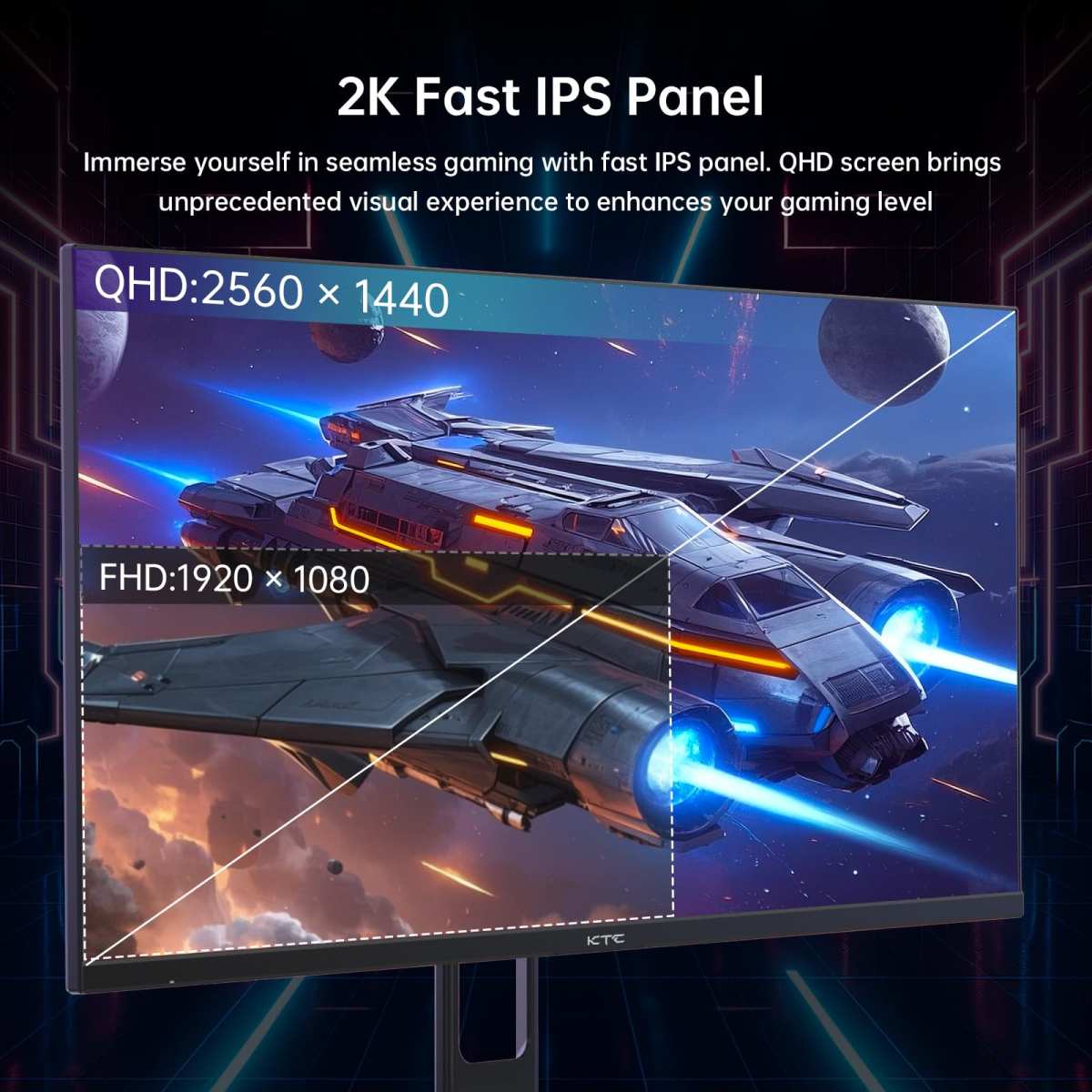
Higher resolutions (1440p, 4K) demand far more from your GPU, making it harder to sustain high FPS. Many gamers pair 1440p with 144Hz as a well-balanced compromise. Also, not all panels are equal: TN panels offer the fastest response times but poorer colors; IPS panels deliver vibrant colors with slightly slower response; microLED displays are emerging as a premium option with excellent response and brightness. If you’re curious about how these technologies stack up, check out our comparison of OLED versus microLED trade-offs.
Budget and Priorities
A high-quality 144Hz IPS monitor with G-Sync Compatible support often provides a better overall experience than a budget 240Hz TN panel. Spend your money on a well-rounded monitor rather than chasing the highest Hz number. For dual-monitor setups, refresh rate matching is important — mismatched rates can cause micro-stutters. Our guide on dual monitor productivity covers that in detail.
Adaptive Sync Technologies: G-Sync and FreeSync
Screen tearing occurs when your GPU sends a new frame while the monitor is still drawing the previous one, splitting the image into horizontal bands. Adaptive sync technologies eliminate this by dynamically matching the monitor’s refresh rate to the GPU’s frame rate.
- NVIDIA G-Sync (official page) uses a hardware module in the monitor to synchronize timing. It provides tear-free, stutter-free motion but adds cost.
- AMD FreeSync (official page) is a royalty-free standard that works over DisplayPort and HDMI without a hardware module, making it more affordable.
Most modern monitors support “G-Sync Compatible” mode, meaning they can work with NVIDIA GPUs even if not fully certified. Both technologies dramatically improve the smoothness of gameplay when your FPS fluctuates, especially if it dips below your monitor’s native refresh rate. If you’re looking into future-proof panel tech, understanding how microLED panels work can help you decide which adaptive sync implementation suits your next monitor.
Common Misconceptions and Mistakes
- “I need 240Hz for every game.” Not true. Slower-paced games benefit little from refresh rates above 144Hz. Save your money for a better GPU or higher resolution.
- “Higher refresh rate always looks better.” Only if your GPU can feed it. A 30 FPS game on a 240Hz monitor looks the same as on a 60Hz one — the monitor can’t magically create frames.
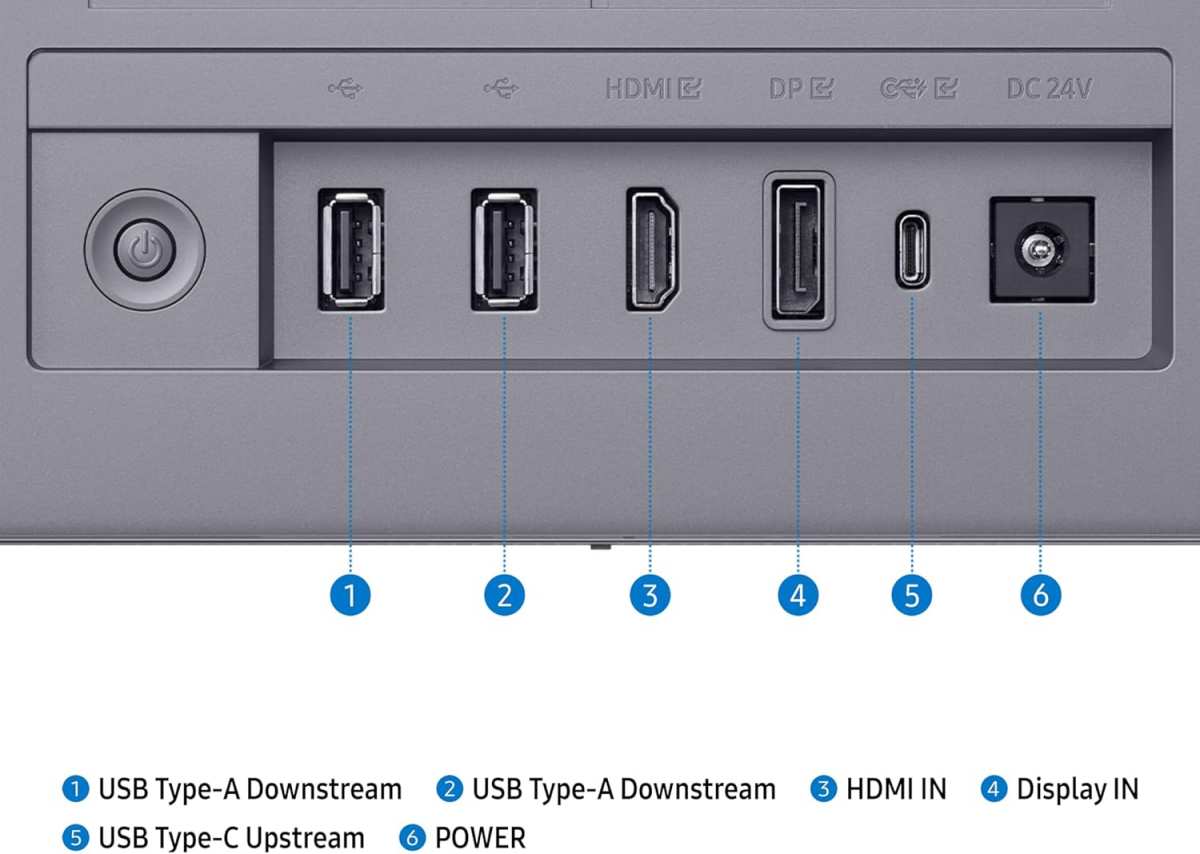
- “HDMI works for 144Hz.” It depends. Older HDMI 1.4 is limited to 1080p @ 60Hz. Use DisplayPort or HDMI 2.0/2.1 for higher refresh rates. Check the cable version.
- “Response time and refresh rate are the same.” They are related but distinct. Response time (measured in ms) is how quickly a pixel changes colour; refresh rate is how often the whole image updates. A slow response time can cause ghosting even at high refresh rates.
Setting Up Your Monitor’s Refresh Rate
Out of the box, many monitors default to 60Hz. To unlock the full refresh rate:
- Right-click on your desktop and select Display settings.
- Scroll down and click Advanced display.
- Under Choose a refresh rate, select the highest option available (e.g., 144Hz).
- If the option isn’t there, update your graphics drivers and ensure you’re using a DisplayPort cable or a high-speed HDMI cable. Some older cables cap the bandwidth.
For additional steps on optimizing your display, see our guide on freeing up Mac storage — not directly about monitors, but clearing clutter helps your system run smoother overall.
Frequently Asked Questions
What refresh rate do I need for casual gaming?
60Hz is sufficient for turn-based RPGs, strategy games, or single-player adventures. If you play any action title, even casually, 75Hz or 120Hz offers noticeably smoother motion without breaking the bank.
Can I use a 144Hz monitor with a console?
Yes, but most consoles are capped at 60Hz or 120Hz (on PlayStation 5 and Xbox Series X). A 144Hz monitor will still work perfectly — it will simply display at the console’s output rate. You won’t get 144 FPS unless the game supports it.
Is 60Hz to 144Hz a big difference?
Absolutely. It’s the most impactful upgrade you can make for gaming. Motion becomes dramatically smoother, input lag drops, and the game simply feels more responsive. Most gamers call it a “can’t go back” change.
What’s the difference between response time and refresh rate?
Response time (GtG or MPRT) measures how fast a pixel can change colour. Refresh rate measures how often the entire screen updates. Even if your monitor refreshes 144 times per second, a high response time (e.g., 5ms) can cause trailing on fast-moving objects. Look for response times of 1ms–4ms for gaming.
Do I need G-Sync or FreeSync?
Not strictly, but they eliminate screen tearing without enabling V-Sync (which adds input lag). If you have an NVIDIA GPU, look for “G-Sync Compatible” monitors. For AMD GPUs, FreeSync is widely supported. Both are highly recommended for a tear-free experience.
How do I check my monitor’s refresh rate?
On Windows, go to Settings > System > Display > Advanced display. The refresh rate is listed there. You can also test with online tools like testufo.com to verify motion clarity.
Conclusion
Refresh rate is the foundation of your gaming experience. It determines how smooth motion looks, how quickly you see your actions, and how connected you feel to the game. The right choice balances your gaming style, your GPU’s capability, and your budget — not just the highest number on the shelf.
Start by identifying the games you play most and benchmarking their FPS on your current hardware. Then match that to a refresh rate that your GPU can comfortably sustain. For most gamers, 144Hz at 1080p or 1440p offers the sweetest spot in 2026. If you’re eyeing even smoother motion for competitive play, make sure your rig can feed a 240Hz+ display. Pair your monitor with adaptive sync, use a proper cable, and you’ll unlock an experience that feels worlds apart from the blurry, laggy old days.
Ready to upgrade? Compare your top monitor candidates using our guide to next-generation display innovations — and level up your game.

Similar Posts