Why Is My Monitor Capped at 120Hz Not 144Hz
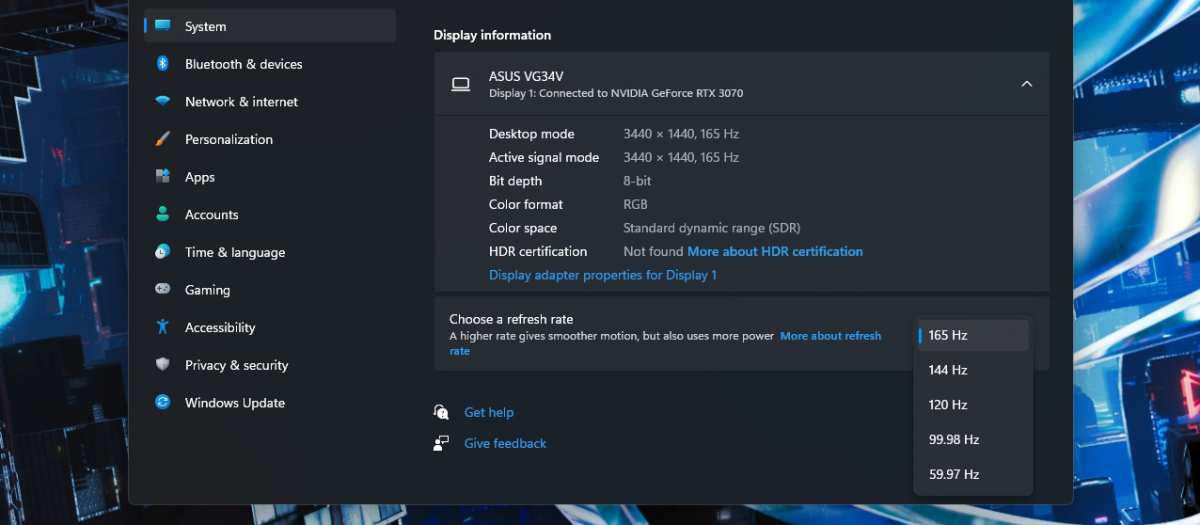
You've plugged in everything, fired up your system, and now you're wondering why is my monitor capped at 120hz not 144hz. It's a frustrating situation, but it's almost always fixable. The culprit is usually a single weak link in the chain between your graphics card and your display.
In most cases, the issue comes down to cable bandwidth, port selection, or a setting buried in your driver or monitor menu. Per VESA and HDMI Forum specifications, hitting 144Hz requires specific cable and port capabilities that not every setup delivers out of the box. Let's walk through each possibility until we find your fix.
Quick Answer
Your monitor is likely capped at 120Hz because of a cable, port, or settings limitation. The most common cause is using an HDMI cable that lacks sufficient bandwidth for 144Hz at your current resolution. Switching to a DisplayPort cable resolves the issue for most users.
If that doesn't work, check your GPU driver settings and monitor on-screen display for a refresh rate overclock option.
The Most Likely Culprit: Your Cable
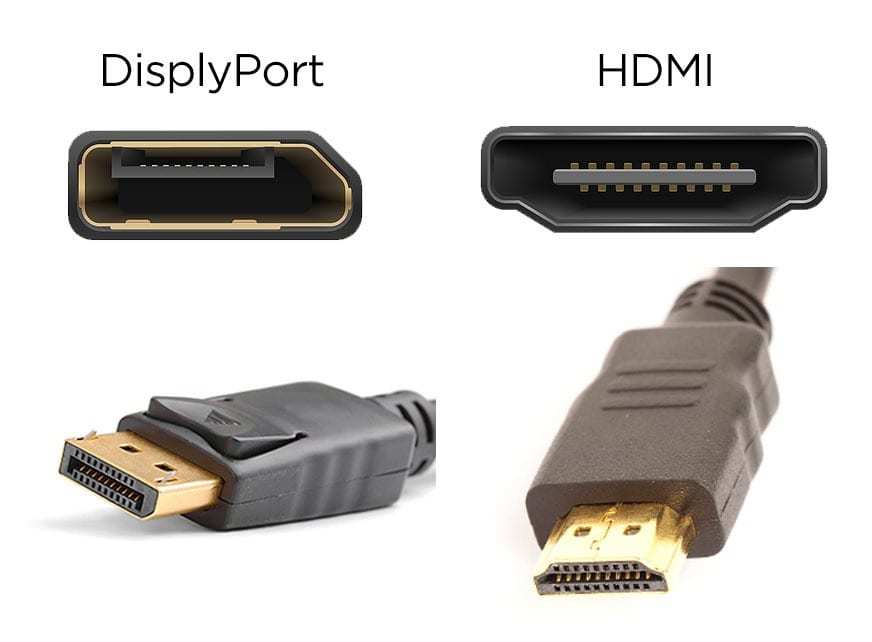
This is where the majority of people get stuck. Not every cable in your drawer can push 144Hz, even if it "works" for displaying an image. The cable is negotiating the highest refresh rate within its bandwidth limit, and 120Hz is often the ceiling.
Here's what each standard can actually handle:
| Cable Standard | Max at 1080p | Max at 1440p | Max at 4K |
|---|---|---|---|
| HDMI 1.4 | 144Hz (with reduced color) | 60-75Hz | 30Hz |
| HDMI 2.0 | 144Hz (with compromises) | 144Hz (with compromises) | 60Hz |
| HDMI 2.1 | 144Hz+ easily | 144Hz+ easily | 120Hz+ |
| DisplayPort 1.2 | 144Hz | 144Hz | 60Hz |
| DisplayPort 1.4 | 144Hz+ | 144Hz+ | 120Hz (with DSC) |
| DVI-D Dual Link | 144Hz | 60-75Hz | Not supported |
The most common scenario we see in aggregate user reports is someone using an old HDMI cable that came in the box a few years ago. It handles 120Hz just fine, but it doesn't have the headroom for 144Hz at the user's resolution and color depth.
What to do right now:
- Switch to a DisplayPort 1.2 or better cable. This single change fixes the problem for most people.
- If you must use HDMI, confirm both your cable and your GPU/monitor ports support at least HDMI 2.0.
- Avoid cheap uncertified cables. A proper cable from a known manufacturer removes an entire variable from the equation.
Is Your Port the Problem?
Even with the correct cable, you need to plug it into the correct port. This mistake happens more often than anyone wants to admit.
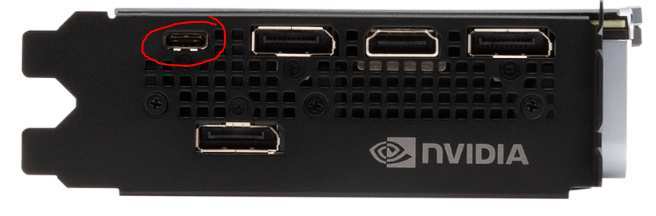
Desktop graphics cards: Make sure your cable connects to the ports on the graphics card itself, usually lower in the case. The video ports higher up near the motherboard run off your CPU's integrated graphics, which often cap well below 144Hz.
Laptops: Many laptops only route one specific port to the discrete GPU. Sometimes it's the USB-C or Thunderbolt port. Sometimes it's HDMI.
Sometimes it's a mini DisplayPort. Check your laptop's manual or spec sheet to confirm which port gives you full GPU output.
Multiple ports on your GPU: Some graphics cards mix different generation ports on the same bracket. You might have one HDMI 2.1 next to one HDMI 1.4. The ports aren't equal.
Try the other one if 144Hz isn't showing up.
GPU Driver Settings That Block 144Hz
Sometimes the hardware chain is fine, but the software layer doesn't know it's allowed to offer 144Hz. Your GPU driver is the middleman between Windows and the monitor, and it needs to be configured correctly.
For NVIDIA cards:
- Open NVIDIA Control Panel.
- Navigate to Display > Change Resolution.
- Look for 144Hz in the refresh rate dropdown.
- If it's not listed, click Customize, then Create Custom Resolution.
- Set the refresh rate to 144Hz and run the test.
- If the test passes, apply it.
For AMD cards:
- Open AMD Software (Adrenalin Edition).
- Go to the Display section.
- Check the available refresh rate toggle.
- If 144Hz isn't listed, use Custom Resolutions to add it.
Windows display settings:
- Right-click the desktop and select Display Settings.
- Click Advanced Display Settings.
- Select the correct monitor if you have more than one.
- Click Display Adapter Properties.
- Go to the Monitor tab.
- Select 144Hz from the Screen Refresh Rate dropdown.
If 144Hz doesn't appear anywhere across Windows, NVIDIA, and AMD settings, the problem is upstream. Go back and check your cable and port first.
Monitor OSD Settings Most People Miss
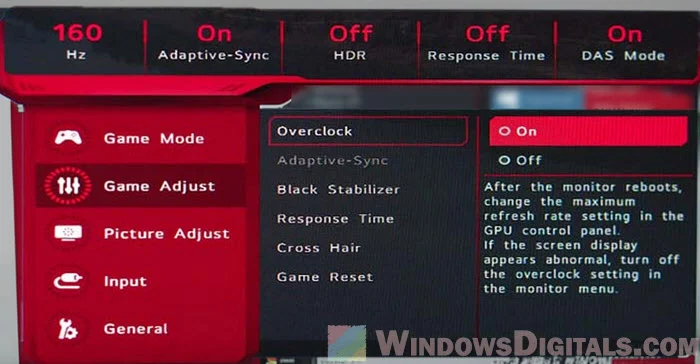
Here's one that catches a lot of people off guard. Some monitors treat 144Hz as an overclock that you have to manually enable in the monitor's own on-screen display menu. The hardware supports it, but the firmware defaults to 120Hz for safe out-of-box operation.
Look for these settings in your monitor's OSD:
- Overclock / OC: Set it to 144Hz or "Enabled."
- Refresh Rate / Display Mode: Switch from the default to the higher option.
- Adaptive Sync: Sometimes toggling FreeSync or G-Sync unlocks additional refresh rate options.
This is especially common with budget and mid-range 144Hz panels. Manufacturers ship them at 120Hz to reduce support issues, and it's on you to flip the switch.
Pro tip: Check your monitor's manual or the manufacturer's support page and search for "overclock" or "144Hz setting." Some brands bury the option in a submenu you'd never find by accident. Asus, Acer, LG, and Samsung have all used this approach on various models over the years.
When Resolution and Color Depth Steal Your Bandwidth
Refresh rate and resolution share the same bandwidth budget. If you're running 1440p or 4K, hitting 144Hz requires a much bigger pipe than at 1080p.
Here's the practical breakdown:
- 1080p at 144Hz: Achievable with HDMI 2.0 or DisplayPort 1.2.
- 1440p at 144Hz: Needs DisplayPort 1.4 or HDMI 2.1 for full RGB color.
- 4K at 144Hz: Requires DisplayPort 1.4 with Display Stream Compression or HDMI 2.1.
If you're at 1440p with an HDMI 2.0 cable, that cable probably maxes out around 120Hz at that resolution with full color depth. Drop your resolution to 1080p temporarily and check if 144Hz appears. If it does, you've confirmed it's a bandwidth issue, and a DisplayPort cable will solve it.
Color depth matters too. Running 10-bit color or HDR consumes additional bandwidth that could otherwise go toward a higher refresh rate. Try this quick test:
- Temporarily switch to 8-bit color in your GPU driver.
- Disable HDR in Windows settings.
- Check if 144Hz becomes available.
If that works, you're hitting a bandwidth ceiling. With DisplayPort 1.4 and DSC on a monitor that supports it, you can usually have both high refresh rate and high color depth. But not every monitor implements DSC, so you may need to choose your priority.
Firmware, EDID, and Other Hidden Blockers
Sometimes you've checked the cable, the port, the driver settings, and the monitor OSD. Everything looks correct. But 144Hz still won't show up.
That's when you need to look at the deeper stuff: firmware, EDID, and driver-level quirks.
Update your GPU driver and monitor firmware
It's not glamorous advice, but it fixes real problems more often than you'd expect. GPU driver updates frequently include updated timing standards and EDID profiles for popular monitors.
- NVIDIA and AMD both release driver updates that address refresh rate compatibility issues. Grab the latest version from the manufacturer's website rather than relying on Windows Update.
- Monitor firmware updates are less common but equally important. Check the manufacturer's support page for your exact model number. Some monitors have had 144Hz capability unlocked entirely through firmware patches.
Always reboot after updates. The EDID handshake between your GPU and monitor sometimes needs a fresh start to renegotiate the available refresh rates.
When EDID data gets corrupted
In rare cases, your graphics card is reading incorrect Extended Display Identification Data from the monitor. The EDID tells your GPU what the monitor can handle, and if the data is wrong or corrupted, 144Hz will never appear as an option.
Signs this is your problem:
- You've checked every hardware variable above.
- The same cable and monitor work at 144Hz on a different computer.
- You're stuck at 120Hz or 60Hz with no obvious limitation in the chain.
What to try:
- Use Custom Resolution Utility (CRU) to view and reset the EDID data.
- Perform a factory reset on the monitor through the OSD menu.
- Test the monitor on a different PC to confirm the panel itself supports 144Hz.
This is an edge case, but aggregate user reports indicate it happens more often with multi-monitor setups using different brands. The GPU may apply one monitor's EDID profile to the other by mistake.
Quick Troubleshooting Checklist
Here's a condensed reference of everything we've covered. Work through it top to bottom.
| Check | What to Look For | Action |
|---|---|---|
| Cable type | HDMI vs DisplayPort and version number | Use DisplayPort 1.2+ or HDMI 2.1 |
| Port used | GPU vs motherboard output | Move cable to the graphics card |
| Driver settings | Refresh rate dropdown in NVIDIA, AMD, or Windows | Add custom resolution if missing |
| Monitor OSD | Overclock or refresh rate setting | Enable 144Hz in monitor menu |
| Resolution | Higher res needs more bandwidth | Test at 1080p to isolate it |
| Color depth / HDR | 10-bit or HDR consuming bandwidth | Temporarily switch to 8-bit SDR |
| Drivers and firmware | Outdated software | Update GPU driver and monitor firmware |
| EDID | Incorrect capability data | Reset EDID, try a different PC |
Common Mistakes That Keep You Stuck at 120Hz
Let's call out the errors we see over and over in support forums and troubleshooting threads.
- Plugging into the motherboard instead of the GPU. This is the number-one mistake. The motherboard video ports run off integrated graphics, and they rarely support high refresh rates. Always plug into the card.
- Assuming any HDMI cable works. That cable from your old monitor or TV might be HDMI 1.4, which caps at 120Hz at 1080p with full color. Check the cable markings or just grab a known DisplayPort cable.
- Ignoring the monitor OSD overclock setting. Plenty of monitors ship at 120Hz by default. The 144Hz mode is there, but you have to enable it manually.
- Running 1440p or 4K through HDMI 2.0. At higher resolutions, HDMI 2.0 often maxes out around 120Hz. DisplayPort 1.4 with DSC or HDMI 2.1 is the way to go.
- Forgetting that color depth and HDR eat bandwidth. If you've got 10-bit color and HDR enabled, that might be enough overhead to push you below 144Hz. Temporarily disable one and check again.
- Skipping driver updates. A GPU driver from six months ago might not have the right EDID profile for your monitor. Update and reboot.
When to Use DisplayPort vs HDMI for High Refresh Rates
This comes up constantly, and the answer is straightforward: for high refresh rates at 1440p or above, DisplayPort is usually the safer choice.
| Situation | Best Choice | Notes |
|---|---|---|
| 1080p at 144Hz | Either works | Both HDMI 2.0 and DP 1.2 handle it fine |
| 1440p at 144Hz | DisplayPort 1.4 | HDMI 2.0 can do it but with color compromises |
| 4K at 120-144Hz | HDMI 2.1 or DP 1.4 with DSC | DSC support varies by monitor |
| Adaptive sync (FreeSync) | DisplayPort | FreeSync over HDMI is limited on many monitors |
| G-Sync Compatible | DisplayPort | NVIDIA recommends DisplayPort for G-Sync |
DisplayPort was designed with PC monitors in mind. It handles high bandwidth, adaptive sync, and multi-stream transport more naturally than HDMI. HDMI 2.1 closes the gap significantly, but DP 1.4 remains the more universally compatible option for most gaming monitors as of 2026.
If your monitor and GPU both have DisplayPort, just use it. One less thing to worry about.
Still Not Working? How to Isolate the Problem
If you've been through everything above and 144Hz still won't appear, it's time to isolate the faulty component. You need to determine whether the problem is the cable, the port, the GPU, or the monitor itself.
Step by step isolation process:
Try a different cable. Borrow one or buy a known-good DisplayPort 1.4 cable. This eliminates cable quality as the variable.
Try a different port. If your GPU has multiple DisplayPort outputs, switch to another one. Some cards have ports wired differently.
Try a different input on the monitor. Swap between HDMI and DisplayPort on the monitor side. One input might be wired to a different internal controller.
Test the monitor on another PC. If 144Hz works on a second system, the problem is with your GPU or its drivers, not the monitor.
Test a different monitor on your PC. If a second monitor also caps at 120Hz, your GPU or its driver configuration is the likely culprit.
Boot into safe mode and use basic display drivers. If 144Hz appears with generic drivers, a driver-level setting or profile is blocking it.
This process takes time, but it works. You'll find the weak link eventually. In most cases, it turns out to be the cable or a port that wasn't connected to the GPU.
Frequently Asked Questions
Can I damage my monitor by forcing 144Hz?
No. Enabling 144Hz through driver settings or the monitor OSD is within the panel's rated specification. The monitor was designed to run at that refresh rate.
You're not overclocking beyond its capability, just enabling the mode it was built for.
Does using HDMI instead of DisplayPort limit my refresh rate?
It depends on the HDMI version. HDMI 2.0 can handle 144Hz at 1080p but often caps at 120Hz at 1440p. For 144Hz at 1440p or above, DisplayPort 1.4 or HDMI 2.1 is the reliable choice.
Why does my monitor show 120Hz in Windows but 144Hz in the OSD?
This usually means Windows is reading a limited EDID profile. Update your GPU driver and check the refresh rate setting in both Windows and your GPU control panel. The OSD may show the panel's maximum capability while Windows uses a conservative default.
Will a custom resolution void my warranty?
No. Creating a custom resolution profile through NVIDIA or AMD software is a supported feature. However, if you use third-party tools like CRU to push timings beyond the monitor's spec, that could potentially void warranty coverage.
My monitor supports 144Hz but only shows 120Hz on my laptop. Why?
Many laptops route video output through the integrated GPU or limit bandwidth on certain ports. Check your laptop's manual to confirm which port connects directly to the discrete GPU. USB-C and Thunderbolt ports are more likely to offer full bandwidth.
Do I need a special cable for 144Hz?
You need a cable that supports sufficient bandwidth. A DisplayPort 1.2 cable or better handles 144Hz at 1080p and 1440p. For 4K at high refresh rates, DisplayPort 1.4 with DSC or HDMI 2.1 is required.
Certified cables from known manufacturers are the safest bet.

Similar Posts





















