Can 144Hz Monitor Run at 120Hz
So you've got a 144Hz monitor and you're wondering if it can drop down to 120Hz. Maybe you're hooking up a console, maybe you want smoother video playback, or maybe 120Hz is just what's showing up and you're not sure if something's wrong.
The short answer is yes, a 144Hz monitor can absolutely run at 120Hz in most cases. But whether that option actually appears in your settings depends on your cable, your graphics driver, and how your specific panel handles non-maximum refresh rates. Let's walk through exactly what's going on and how to get it working.
Quick Answer
Yes, most 144Hz monitors support 120Hz output. You select it through your GPU control panel or Windows display settings. The main blockers are outdated drivers, wrong cable types, or missing custom resolution profiles.
If 120Hz doesn't show up immediately, a driver update or cable swap usually fixes it.
Why 120Hz Might Not Show Up as an Option
Here's the frustrating part. You know your panel can do 144Hz, so 120Hz should be a piece of cake. But sometimes the option just isn't there in your display settings.
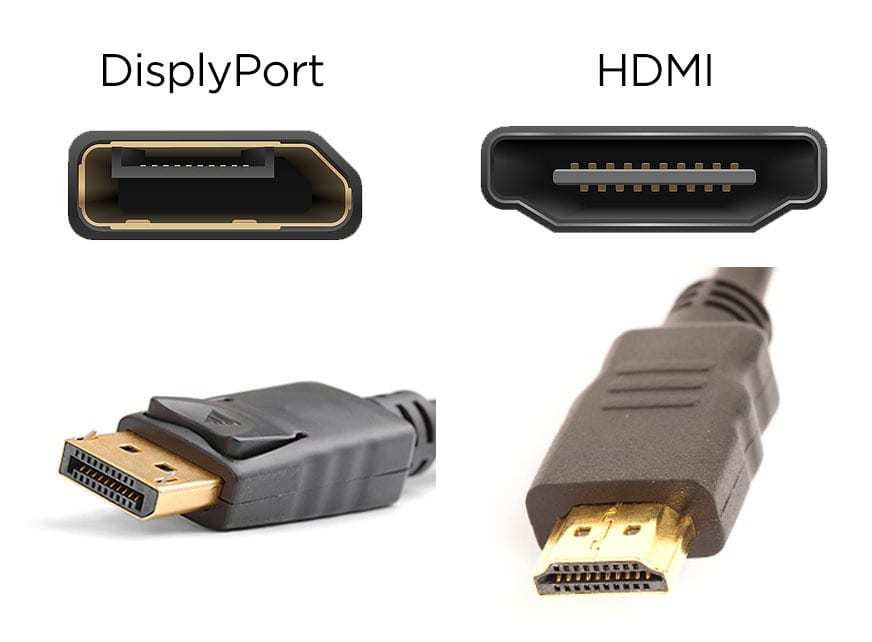
The most common culprit is the cable. Manufacturers often ship monitors with an HDMI 1.4 cable that maxes out at 1080p/120Hz or 1440p/60Hz. If you're running 1440p and only see 60Hz or 144Hz as options, that cable is likely the bottleneck.
Outdated graphics drivers are the second big offender. GPU manufacturers regularly update their driver packages to add support for new panels and refresh rate modes. If you haven't updated in a few months, you might be missing timing modes your monitor fully supports.
Less commonly, the monitor's EDID (Extended Display Identification Data) might not advertise 120Hz as a supported mode, even though the panel hardware can handle it. This happens more often with factory-overclocked panels where 144Hz is the marketed spec and lower rates weren't prioritized during EDID programming.
The Connection Type That Makes or Breaks It
Not every port on the back of your monitor is created equal. And not every cable in your drawer will carry the signal you need.
HDMI vs DisplayPort vs DVI Bandwidth Limits
Here's a breakdown of what each connection type can actually handle at common resolutions:
| Connection | 1080p Max | 1440p Max | 4K Max |
|---|---|---|---|
| HDMI 1.4 | 120Hz | 60Hz | 30Hz |
| HDMI 2.0 | 240Hz | 144Hz (often capped) | 60Hz |
| HDMI 2.1 | 240Hz+ | 240Hz+ | 120Hz+ |
| DisplayPort 1.2 | 240Hz | 144Hz+ | 60Hz |
| DisplayPort 1.4 | 240Hz+ | 240Hz+ | 120Hz+ |
| DVI-D Dual Link | 144Hz | 60Hz | Not supported |
If you're trying to run 1440p at 120Hz, HDMI 1.4 won't cut it. You need at least HDMI 2.0 or DisplayPort 1.2. For 1080p at 120Hz, HDMI 1.4 is fine, but DisplayPort is still the safer bet.
Cable Quality and Version Compatibility
Cable packaging can be misleading. Plenty of cables marketed as "high speed" or "4K capable" are actually HDMI 1.4 cables that won't carry a 120Hz signal at higher resolutions. Look for cables specifically labeled HDMI 2.0 or HDMI 2.1, or certified DisplayPort cables from reputable manufacturers.
DisplayPort cables are generally more straightforward. A standard DisplayPort cable (not Mini DisplayPort) will handle up to DisplayPort 1.4 speeds. Just avoid the cheapest no-name cables from sketchy marketplace sellers.
Step-by-Step: How to Enable 120Hz on Your 144Hz Monitor
Let's get this sorted. Follow these steps in order and you should have 120Hz running within a few minutes.
Check and Update Your Graphics Driver First
Before you touch any cables, make sure your GPU driver is current. Download the latest driver directly from NVIDIA, AMD, or Intel's website. Windows Update versions are often months behind and may not expose all available refresh rate modes.
For NVIDIA, use GeForce Experience or download from nvidia.com. For AMD, grab Adrenalin Software from amd.com. For Intel Arc or integrated graphics, use the Intel Driver & Support Assistant.
Set Refresh Rate Through Your GPU Control Panel
Windows display settings sometimes don't show every available mode. Your GPU control panel is where the full list lives.
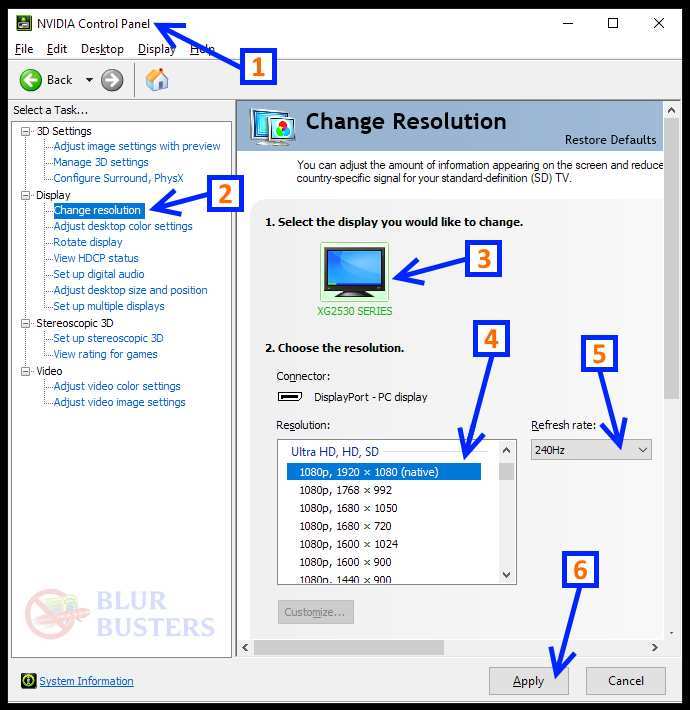
NVIDIA Control Panel: Right-click your desktop, open NVIDIA Control Panel, navigate to "Change resolution," and look at the refresh rate dropdown. If 120Hz is listed, select it and apply.
AMD Adrenalin: Open AMD Software, go to the Display tab, and look for the refresh rate toggle or custom resolution options.
Intel Graphics Command Center: Open the app, select Display, and check the refresh rate dropdown.
Create a Custom Resolution If 120Hz Is Missing
If 120Hz doesn't appear in any dropdown, you can manually create it. Both NVIDIA and AMD include custom resolution utilities in their control panels.
In NVIDIA Control Panel, go to "Change resolution" → "Customize" → "Create Custom Resolution." Set your native resolution and change only the refresh rate to 120Hz. Test it before saving.
In AMD Adrenalin, navigate to Display → Custom Resolutions and add a new profile with 120Hz at your native resolution.
Don't change the front/back porch values or sync polarity unless you know exactly what you're doing. Just adjust the refresh rate and let the GPU calculate the rest.
Verify It's Actually Working
Don't just trust the dropdown. Confirm the panel is actually refreshing at 120Hz.
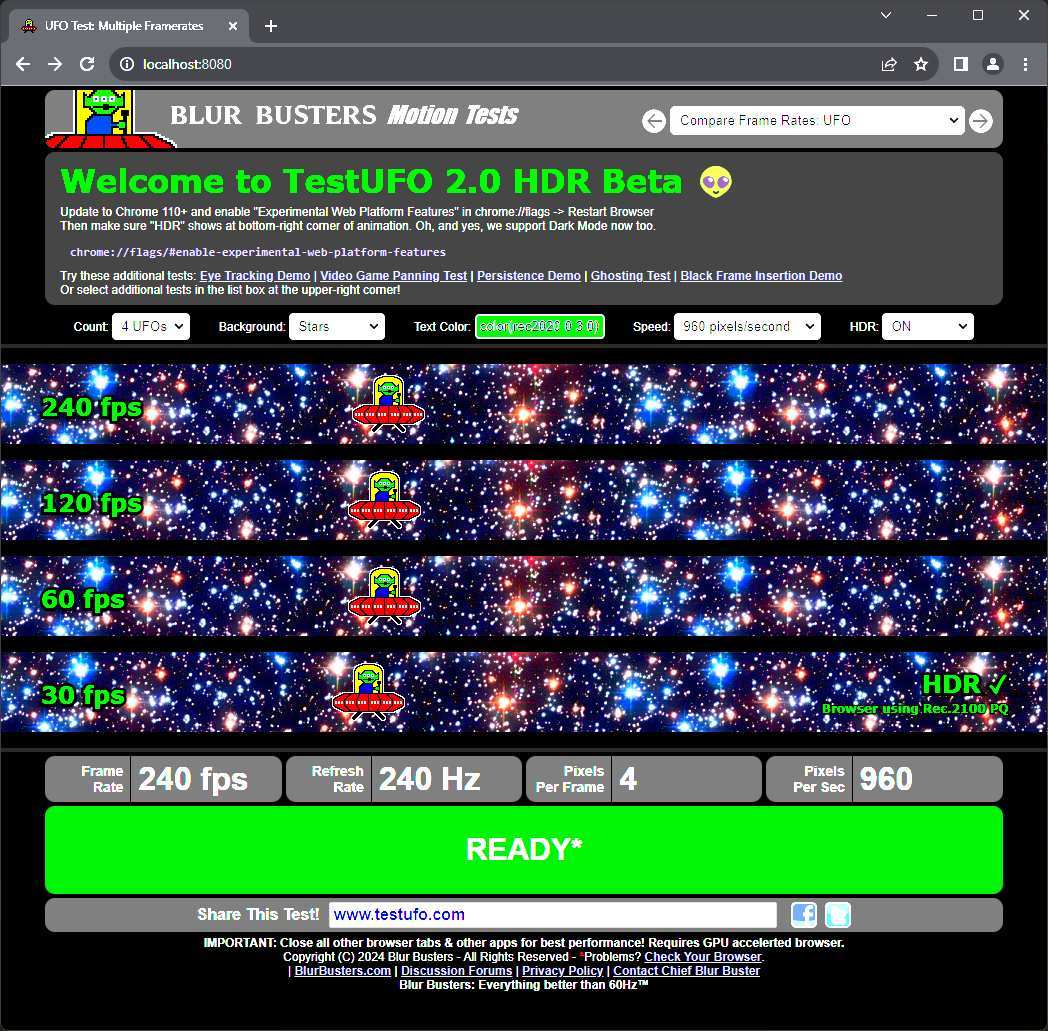
Head to testufo.com in your browser. The site displays your current refresh rate at the bottom of the screen. If it reads 120Hz, you're good.
If it shows something else, double-check your settings.
You can also check your monitor's on-screen display. Most monitors have an Information page in the OSD that shows the current input resolution and refresh rate.
When 120Hz Causes Problems
Running a 144Hz panel at 120Hz is usually seamless. But a few edge cases can introduce issues worth knowing about.
FreeSync and G-Sync Range Conflicts
Most adaptive sync panels operate within a fixed range, typically around 48, 144Hz. Since 120Hz falls well within that range, conflicts are rare. However, if your panel's lower boundary is set to 90Hz or something unusual, verify that 120Hz is explicitly covered.
Overdrive Artifacts at Non-Native Refresh Rates
Pixel overdrive is tuned for the panel's maximum refresh rate. At lower refresh rates, aggressive overdrive can cause inverse ghosting or overshoot. If motion looks weird at 120Hz but fine at 144Hz, check your monitor's overdrive setting and try switching it to a lower intensity.
HDR Mode Blocking Higher Refresh Rates
Some older or budget panels flip into a restricted mode when HDR is enabled. If 120Hz options disappear when you turn on HDR in Windows, that's likely the limitation. Toggle HDR off and check again.
Laptop Hybrid Graphics Limitations
If your laptop routes the display output through the integrated GPU instead of the discrete GPU, the iGPU might not expose 120Hz modes even if the panel supports them. Check your laptop manufacturer's documentation to confirm which GPU drives the external display output.
Why You'd Actually Want 120Hz on a 144Hz Monitor
Running your panel below its maximum isn't just troubleshooting. Several use cases genuinely benefit from 120Hz specifically.
Console Gaming: Xbox Series X and PS5 at 120Hz
Both current-gen consoles output at 120Hz when supported by the game. That's a clean 1:1 match on a 120Hz display. At 144Hz, the console's 120fps output doesn't divide evenly into the panel's refresh cycle, which can introduce subtle judder.
Dropping to 120Hz eliminates that mismatch entirely.
Video Content: Eliminating Judder for 24fps and 60Hz
Film content at 24fps divides perfectly into 120Hz (5:5 pulldown). NTSC video at 60Hz divides cleanly too (2:1). At 144Hz, neither divides evenly, which can cause micro-stutter that's visible during slow panning shots.
If your monitor doubles as a media display, 120Hz is arguably the better choice for video.
Lower Power Draw and GPU Workload
Running at 120Hz instead of 144Hz reduces the number of frames your GPU needs to render by about 17%. That translates to lower power consumption, less heat, and quieter fan curves. On laptops connected to external monitors, this can meaningfully extend battery life during light workloads.
VR Headset Mirroring at 120Hz
Many VR headsets run at 120Hz natively. Mirroring VR output to a monitor set at 120Hz avoids frame tearing without needing V-Sync. If you're developing VR content or just sharing your gameplay with someone watching on a TV, 120Hz keeps things smooth.
144Hz vs 120Hz: When Each Makes Sense
Here's a quick breakdown of when to use each refresh rate:
| Scenario | Best Refresh Rate | Why |
|---|---|---|
| Competitive FPS gaming | 144Hz | Maximum smoothness, lowest latency |
| Console gaming (120fps) | 120Hz | Perfect 1:1 frame matching |
| Film watching (24fps) | 120Hz | Clean 5:5 pulldown, no judder |
| Video editing (60fps timeline) | 120Hz | Even frame division |
| General desktop use | 120Hz | Lower power, less GPU strain |
| VR mirroring | 120Hz | Matches headset native refresh |
| Color-critical work | 144Hz | Some panels have better processing at max rate |
The practical takeaway is that 144Hz is ideal for PC gaming where every frame counts. For everything else, 120Hz often provides a better experience with fewer compromises.
Common Mistakes People Make
The most frequent error is assuming the cable that came in the box will support every refresh rate. Many 144Hz monitors ship with HDMI 1.4 cables that cap out at lower bandwidths. Swapping to a DisplayPort cable or HDMI 2.0+ cable resolves the majority of "missing refresh rate" complaints.
Another mistake is checking only Windows display settings. Windows doesn't always expose every available mode. Your GPU control panel is the authoritative source for what refresh rates your hardware chain can actually deliver.
People also overlook driver updates. A GPU driver from six months ago might not include the EDID profile for your specific monitor model. Keeping drivers current ensures you get the full range of supported refresh rates.
Finally, some users panic when they see motion artifacts at 120Hz and assume something is broken. In reality, this is often just overdrive behavior that was tuned for the panel's maximum refresh rate. Dialing back the overdrive setting usually fixes it.
Decision Guide: Should You Run 120Hz or Stick With 144Hz?
If you're primarily playing competitive PC games at high frame rates, stick with 144Hz. You'll get the smoothest motion and the lowest input latency your panel can deliver.
If you're connecting a console, watching film content, or using your monitor for mixed media work, switch to 120Hz. The frame rate matching benefits are real and noticeable.
For general productivity and web browsing, either works fine. Pick whichever feels smoother to your eyes and don't overthink it.
The flexibility to switch between refresh rates is one of those features you don't think about until you need it. Now you know exactly how to make it work.
Frequently Asked Questions
Can running 120Hz damage my 144Hz monitor?
No. Running below a panel's maximum refresh rate is completely safe. Monitor hardware is designed to operate across its entire supported range.
You're not stressing anything by dropping to 120Hz.
Why does my monitor only show 60Hz and 144Hz?
This usually indicates a cable bandwidth limitation or a driver that isn't exposing intermediate refresh rates. Try a DisplayPort cable or create a custom resolution profile through your GPU control panel.
Is 120Hz better than 144Hz for PS5?
Yes, if the PS5 is outputting at 120fps. The 1:1 frame matching eliminates judder that can occur at 144Hz. Set your monitor to 120Hz before launching PS5 games that support 120fps mode.
Does FreeSync work at 120Hz on a 144Hz panel?
In most cases, yes. FreeSync ranges typically cover 48, 144Hz, so 120Hz falls well within the active range. Check your specific monitor's FreeSync range in the OSD or manufacturer specs to confirm.
Will I notice the difference between 120Hz and 144Hz?
In fast-paced gaming, some people can perceive the difference. For general use and video content, most users won't notice a meaningful distinction. The bigger difference is in frame matching accuracy for console and video sources.

Similar Posts





















