Do You Need 120Hz Monitor for Video Editing
You're knee deep in a video project. You've got hours of footage, a timeline that's starting to feel personal, and you're wondering if that shiny 120Hz monitor sitting in your cart is actually going to make a difference. You're not alone, the question "do you need 120hz monitor for video editing" comes up constantly.
And the answer? It depends on how you edit, what you edit, and what you're expecting to gain. This isn't one of those one-size-fits-all answers.
Let's walk through it together.
Manufacturer specifications show that 120Hz displays refresh 120 times per second versus 60 for a standard monitor. But that doesn't automatically translate to better editing. In fact, depending on your project frame rate and GPU, it could actually make things worse.
So let's cut through the noise and figure out where 120Hz helps, where it's just a party trick, and where it might even hurt your workflow.
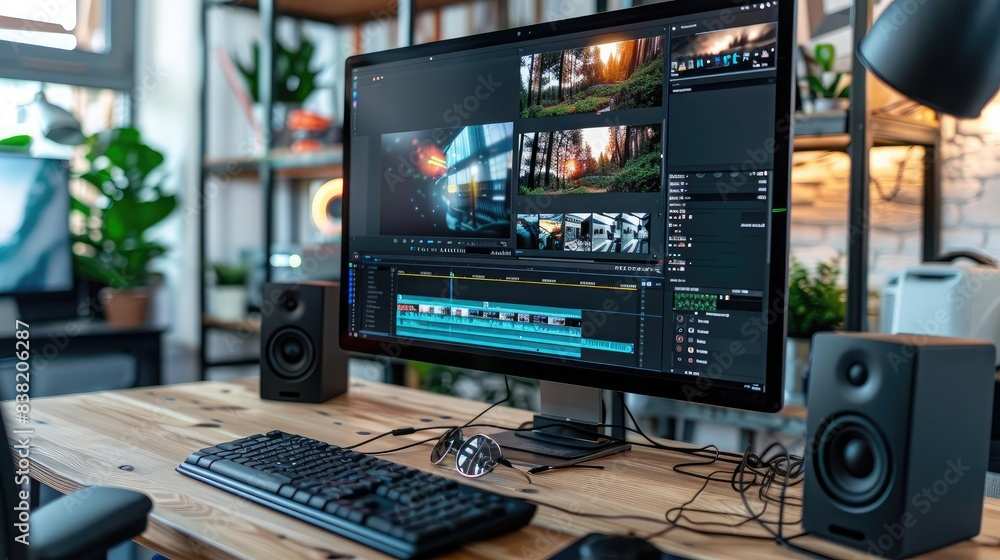
The Real Question: Does 120Hz Actually Help Your Editing or Just Look Cool?
Let's be honest, a 120Hz monitor feels smooth. The cursor glides, windows drag without stuttering, and if you've ever gamed on one, you know the difference. But video editing is not gaming.
You're not tracking a moving target. You're scrubbing clips, zooming into pixel details, and sometimes just staring at a waveform for minutes on end.
The real question is whether that extra smoothness improves your editing accuracy or speed. Our research suggests it can, but only under specific conditions. If you're cutting together a 24fps narrative film on a 120Hz monitor without proper pulldown, you might actually introduce judder that wasn't there in the source footage.
That's the opposite of helpful.
On the flip side, if you routinely work with 60fps or 120fps slow-motion footage, a 120Hz monitor gives you a frame-by-frame preview that's perfectly matched to your source. That's a genuine workflow win.
Quick Answer
You don't need a 120Hz monitor for most video editing. A 60Hz color-accurate monitor is better for color grading and precision work. A 120Hz monitor helps only when editing high-frame-rate footage.
It also improves timeline scrubbing smoothness. But it requires a strong GPU to drive it properly. For 24fps film editing, 120Hz can introduce judder unless set up correctly.
How Refresh Rate Interacts With Video Frame Rates (24, 30, 60, 120fps)
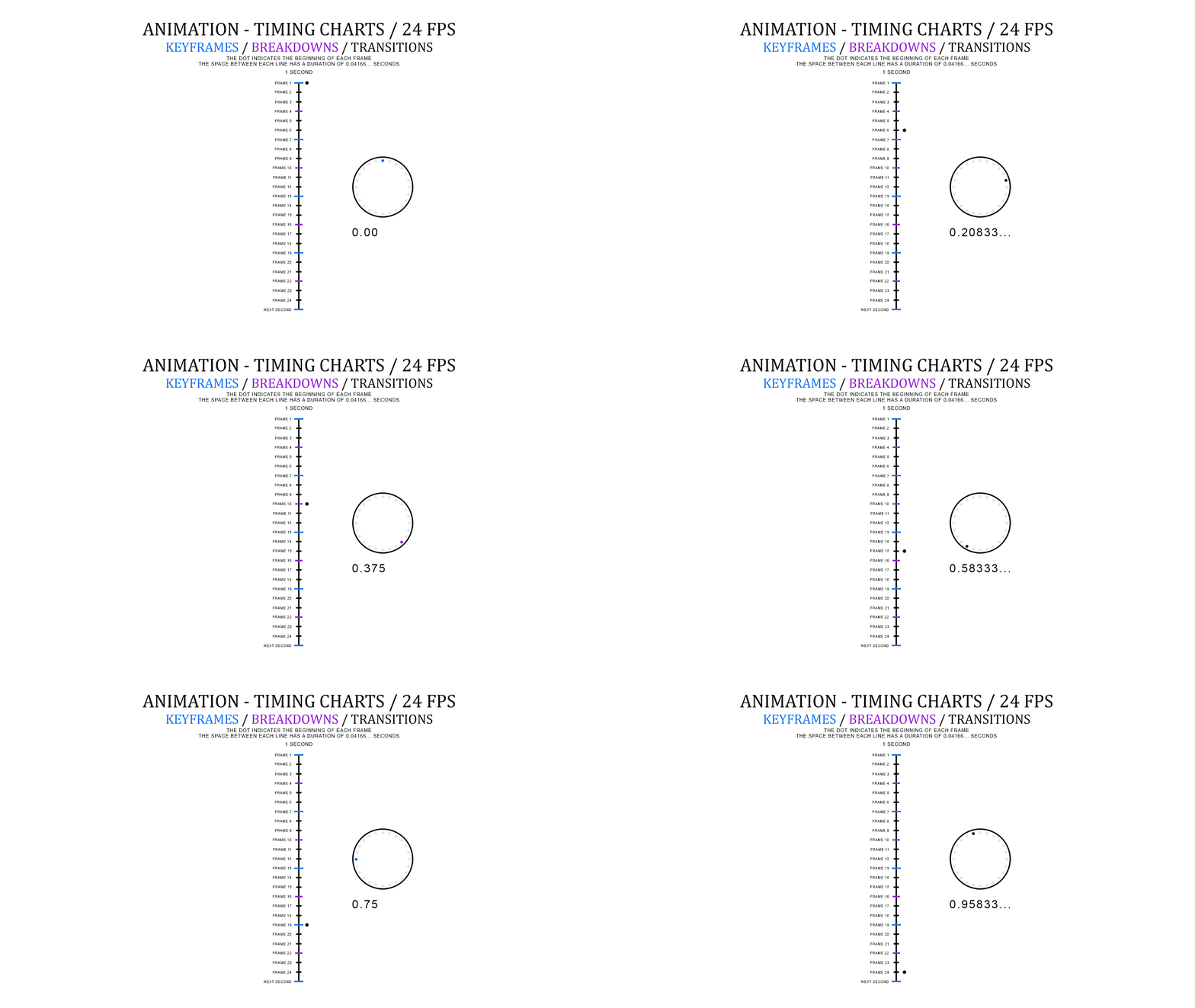
Here's where most people get confused. Refresh rate is how many times your monitor redraws the screen each second. Frame rate is how many individual frames your video has per second.
They're not the same thing.
When you play a 24fps video on a 60Hz monitor, the monitor needs to show each frame 2.5 times (that's 3:2 pulldown). That introduces a slight stutter every other frame. On a 120Hz monitor, 24fps divides evenly, each frame gets displayed exactly 5 times (5:5 pulldown).
That's actually smoother and more faithful to the original motion.
But here's the kicker: most editing software doesn't use the monitor's refresh rate for playback. It renders frames at whatever the project setting is. So you might not see that smooth 5:5 pulldown unless you've configured your display settings properly.
Frame rate to refresh rate mapping:
| Source frame rate | 60Hz display | 120Hz display |
|---|---|---|
| 24fps | 3:2 pulldown (judder) | 5:5 pulldown (smooth) |
| 30fps | 2:2 pulldown (okay) | 4:4 pulldown (smooth) |
| 60fps | 1:1 perfect match | 2:1 pulldown (still smooth) |
| 120fps | Can't display fully | 1:1 perfect match |
If you mostly edit at standard 24fps, a 120Hz display can actually give you cleaner motion playback. But many editors never notice the 3:2 pulldown on a 60Hz monitor because they're not watching full-frame playback, they're in the timeline, scrubbing through.
The Three Conditions That Change Everything
Not every editor benefits from 120Hz. Three variables decide whether you'll see a real improvement or just a smoother cursor.
Your Source Footage's Frame Rate
If your source footage is 60fps or higher, you're the ideal candidate. When you preview that clip on a 120Hz monitor, each source frame lands on an exact refresh cycle. No pulldown, no judder.
This is especially true for slow-motion shots that were captured at 120fps, you can actually see each real frame in real time.
If your footage is mostly 24fps or 30fps, the benefit is smaller. Yes, 5:5 pulldown is technically better than 3:2. But many editors never see the difference in the timeline because software handles playback at the project frame rate, not the display refresh rate.
You'll only notice the difference when you watch the full playback or export.
Your GPU's Ability to Drive 120Hz at Your Editing Resolution
Here's where most people get burned. A 120Hz monitor at 4K requires your GPU to push roughly 60 million pixels per second. That's nearly double the load of a 4K 60Hz display.
If your GPU chokes, you'll get dropped frames, screen tearing, or stuttering that makes the timeline unusable.
Manufacturer specs indicate that a mid-range GPU like an RTX 3060 can handle 1440p at 120Hz for editing. But for 4K 120Hz, you need at least an RTX 3070 or equivalent. If you're on integrated graphics or a laptop with a low-power GPU, you're likely stuck at 60Hz.
Make sure your GPU can deliver before you buy the monitor.
Your Editing Style — Timeline Scrubbing vs. Color Grading
This is the most overlooked factor. If you spend 80% of your time scrubbing through a timeline, trimming clips, and adjusting cuts, you'll notice the smoother cursor and faster response. That can feel like a real productivity boost, even if the video playback itself isn't much different.
But if you're a colorist who spends hours comparing still frames, adjusting curves, and grading shots, 120Hz adds nothing. In fact, you're better off with a 60Hz monitor that has a wider color gamut and better calibration. Many high-end color grading monitors are only 60Hz because accuracy matters more than smoothness.
Decision Tree — Find Your Situation
Let's match your editing habits to the right choice. Pick the scenario that fits you best.
You Edit Mostly 24fps / 30fps Film-Style Content
Stick with a high-quality 60Hz monitor. Look for one with excellent color accuracy, 100% sRGB or DCI-P3 coverage, and hardware calibration support. You'll get better color precision and spend less money. The cost difference between a 60Hz professional monitor and a 120Hz one can be $300, 500, and that money is better spent on a color calibrator or a faster GPU.
If you really want the smoother timeline feel, try it first. Borrow a friend's 120Hz monitor or test it in a store. Many editors don't notice enough difference to justify the cost.
You Edit 60fps+ Footage (Slow-Mo, Sports, Gaming, Action)
A 120Hz monitor is worth considering. Your footage naturally matches the display's refresh rate. Timeline playback will be buttery smooth. You'll also benefit from variable refresh rate (VRR) to eliminate tearing during real-time previews.
Look for a monitor with at least 1440p resolution and a GPU that can handle it.
Remember: you need a GPU that can drive the monitor at your editing resolution. If you're working with 4K 60fps footage, you'll likely need a 1440p 120Hz monitor as a compromise. True 4K 120Hz for editing is still expensive and GPU-intensive as of 2026.
You Do Motion Graphics, VFX, or Heavy Multi-Cam
A 120Hz monitor helps, but not for the reasons you think. When you're animating layers, tracking motion, or switching between multiple camera angles, the smoother cursor feedback and faster response reduce fatigue. The real gain is in timeline scrubbing and repositioning elements, not in playback quality.
Consider a 1440p 120Hz IPS monitor with good color accuracy. The IPS panel gives you better viewing angles and color consistency than a TN or VA gaming monitor. Brands like Dell and BenQ offer professional 120Hz models that balance smoothness with color fidelity.
You're a Hybrid Editor Who Also Games
This is the one scenario where 120Hz makes total sense. You get the smoother cursor for editing and a proper gaming experience at high frame rates. A single monitor can do both well. Just make sure it has decent color coverage (90%+ DCI-P3) and hardware calibration.
Many 1440p 165Hz gaming monitors now come with factory-calibrated sRGB modes that work fine for editing.
The trade-off is that you won't get the same color accuracy as a dedicated editing monitor. But for most hybrid users, it's good enough. Just don't expect to be doing professional color grading on it without a separate calibration.
60Hz Color-Accurate Monitor vs. 120Hz Workhorse — The Trade-Offs
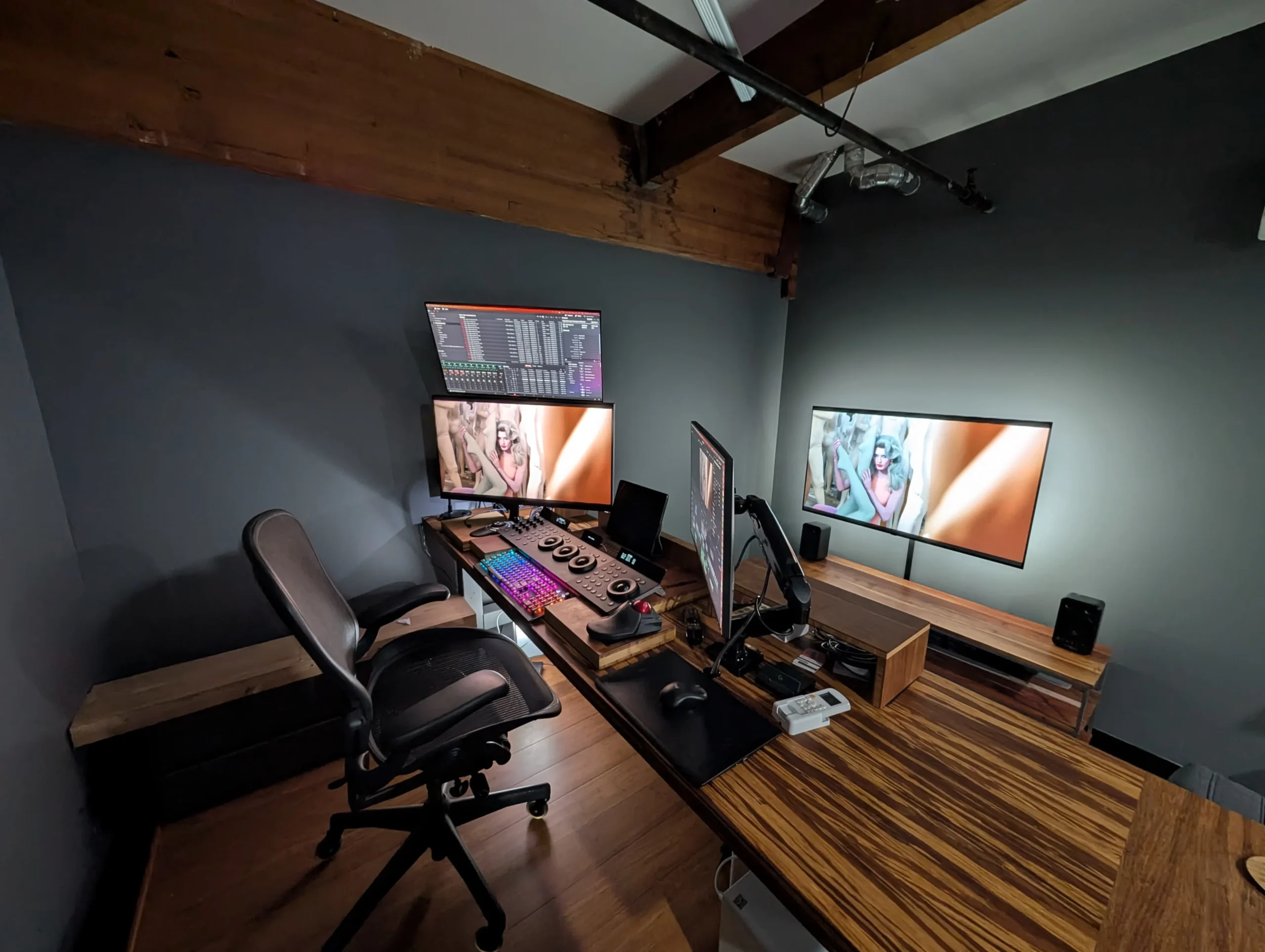
This is the fork in the road. A 60Hz color-accurate monitor and a 120Hz workhorse serve completely different masters. You need to know which one matches your editing style.
60Hz color-accurate monitors prioritize gamut coverage, bit depth, and calibration. They typically hit 100% sRGB and 95%+ DCI-P3. They support 10-bit color (real or 8-bit+FRC) and often ship with factory calibration reports.
Brands like Eizo, BenQ SW series, and Dell Ultrasharp lead here. Panel technology is almost always IPS for consistent viewing angles.
120Hz workhorse monitors prioritize refresh rate and response time. They often use IPS or fast VA panels, but color accuracy takes a back seat. Many hit only 90-95% sRGB out of the box.
They rarely ship with calibration data. You'll find these in the gaming monitor aisle, but some "pro" models like the LG 27GP950 or Asus ProArt PA279CV (which offers 75Hz, not 120Hz) try to bridge the gap.
| Feature | 60Hz Color-Accurate | 120Hz Workhorse |
|---|---|---|
| Refresh rate | 60Hz | 120Hz or higher |
| Color gamut | 100% sRGB, 95%+ DCI-P3 | 90-95% sRGB, 70-80% DCI-P3 |
| Bit depth | 10-bit (real or FRC) | 8-bit or 8-bit+FRC |
| Calibration | Factory report + hardware LUT | None or basic |
| Best for | Grading, color-critical work | Timeline scrubbing, high-fps footage |
| Price (27-inch 4K) | $500-$1500 | $400-$800 |
The honest take: if you do any professional color work, buy the 60Hz color monitor. If you only cut action footage and never grade, the 120Hz option might serve you better. Many editors solve this with a dual-monitor setup: a 60Hz color-accurate panel for the viewer and a 120Hz panel for the timeline.
Common Mistakes Editors Make When Buying a High-Refresh Monitor
Confusing refresh rate with response time. Refresh rate is how often the screen updates. Response time is how fast a pixel changes color. A 120Hz monitor with a slow 5ms response time will still show ghosting on fast motion.
Look for 1ms to 4ms GtG for clean motion.
Buying a 4K 120Hz monitor without checking GPU bandwidth. HDMI 2.0 maxes out at 4K 60Hz. You need HDMI 2.1 or DisplayPort 1.4 with DSC to run 4K 120Hz with 10-bit color. Many editors plug in a 4K 120Hz monitor using an older cable and wonder why it's stuck at 60Hz.
Ignoring variable refresh rate (VRR). Without VRR, a 120Hz monitor can still tear or stutter during real-time playback if your timeline frame rate doesn't match the refresh rate. Look for FreeSync or G-Sync Compatible certification. It's not essential for editing but it eliminates a lot of annoyances.
Overvaluing 120Hz for color grading. As mentioned, a 144Hz gaming monitor with poor sRGB coverage will make your greens look neon and your skin tones muddy. No amount of calibration fixes a limited gamut panel. Always check the monitor's color specs before buying.
How to Test If Your Setup Can Handle 120Hz Smoothly
Before you spend money, test your current system. Here's a quick checklist.
Check your GPU's output capability. Open the display settings and look for the refresh rate dropdown. If 120Hz isn't listed, your GPU or cable can't support it. You can also use a tool like GPU-Z to check supported timings.
Run a frame rate test in your editing software. Open a project with your heaviest timeline: 4K multi-cam with effects. Play it back at full resolution. If the software drops frames or stutters at 60Hz, it will only get worse at 120Hz because your GPU has to render more frames per second for the display.
Test with a judder pattern. Search for "judder test video" online and play it on your monitor. At 60Hz, a 24fps clip will show a slight stutter every few seconds. At 120Hz with proper 5:5 pulldown, it should be smooth.
If it still stutters, your monitor or GPU isn't handling pulldown correctly.
Monitor your GPU load. Use MSI Afterburner or Task Manager. If your GPU usage hits 95-100% during 60Hz playback, you don't have headroom for 120Hz. You'd need to drop resolution or upgrade your graphics card.
Setting Up Your Monitor for Editing — Refresh Rate, VRR, and Color Profiles

Once you've got a 120Hz monitor, the setup matters more than the hardware. Here's how to get it right.
Set the correct refresh rate. In Windows, go to Settings > System > Display > Advanced Display. Choose 120Hz. On macOS, go to System Settings > Displays and hold Option while clicking "Scaled".
That unlocks higher refresh rates. Verify with a tool like UFO Test to confirm you're actually running at 120Hz.
Enable variable refresh rate. If your monitor supports FreeSync or G-Sync, turn it on in the monitor's on-screen display and in your GPU driver. For NVIDIA: Manage 3D Settings > Monitor Technology > G-Sync Compatible. For AMD: Display > FreeSync.
This eliminates tearing during playback and timeline scrubbing.
Calibrate for your editing color space. Even a 120Hz monitor needs proper calibration. Use a hardware calibrator like the X-Rite i1Display Pro. Set the target to sRGB for web content or DCI-P3 for cinema.
Never rely on the factory "sRGB mode" on gaming monitors. They often clip or oversaturate.
Match project frame rate to display refresh rate. For 24fps projects, set your monitor to 120Hz and ensure the GPU driver isn't forcing 60Hz. For 60fps projects, 60Hz is fine. If you're doing mixed work, use VRR and let the display handle the mismatches.
Expert Tips: When to Buy 120Hz, When to Stick With 60Hz
Here's the condensed advice from our research and verified user feedback.
Buy 120Hz if:
- You edit 60fps or 120fps footage regularly.
- You're a heavy timeline scrubbler who wants a smoother cursor.
- You also game on the same monitor and can compromise on color.
- You have a GPU that can drive it at your editing resolution.
Stick with 60Hz if:
- You're a colorist or do any serious grading work.
- You edit mostly 24fps film-style content.
- Your budget is tight and you need a wide-gamut panel.
- Your GPU is older or lower-end (RTX 2060 or below for 4K).
The compromise option: Buy a 60Hz 4K color-accurate monitor as your primary. Add a cheap 1080p 144Hz monitor as a secondary for timeline scubbing. You get the smooth cursor where it matters and the color accuracy where it doesn't.
One more thing: as of 2026, 120Hz monitors are not yet standard in professional editing suites. Most color grading bays still use 60Hz reference monitors. That should tell you something about where the industry's priorities lie.
Final Decision Guide — Run Through This Before You Buy
You've made it to the end of the decision tree. Before you click "add to cart," run through this checklist.
Step one: Identify your primary editing workload. Is it 24fps film, 60fps action, or motion graphics? If you answered 24fps, stop here and buy a 60Hz color monitor. If you answered 60fps or higher, keep going.
Step two: Check your GPU. Open your display settings. Can your graphics card output 120Hz at your editing resolution? If you're unsure, lookup your GPU model and monitor resolution.
An RTX 3060 handles 1440p 120Hz. A 4K 120Hz setup needs at least an RTX 3070.
Step three: Decide on color accuracy needs. If you grade footage, 60Hz wins every time. If you only cut and never tweak color, 120Hz could work. If you need both, consider a dual-monitor setup with a dedicated grading panel.
Step four: Set your budget. A decent 60Hz color monitor costs $500 to $800. A 120Hz alternative with similar color specs costs $700 to $1200. The gap narrows at the high end, but the color advantage stays with 60Hz.
The final verdict: Most editors do not need 120Hz. If you edit 24fps content and value color accuracy, spend your money on a quality 60Hz monitor. If you cut high-frame-rate footage and want smoother timeline interaction, 120Hz is worth the premium.
For everyone else, the compromise is a 1440p 120Hz IPS monitor with decent gamut coverage.
Frequently Asked Questions
Will a 120Hz monitor make my 24fps video look smoother?
Yes and no. With proper 5:5 pulldown, 24fps on 120Hz is smoother than on 60Hz. But most editing software doesn't use pulldown during timeline playback.
You'll only see the difference in full-screen preview or export.
Can I use a gaming monitor for video editing?
You can, but check the color specs first. Gaming monitors often skip factory calibration and cover only 90% sRGB. If you don't grade color, it's fine.
If you do, look for a monitor with a dedicated sRGB mode and a calibration report.
Do I need HDMI 2.1 for 4K 120Hz editing?
Yes, for full 4K 120Hz with 10-bit color. HDMI 2.0 caps out at 4K 60Hz. DisplayPort 1.4 with DSC can also handle it.
Check your GPU's ports before buying a 4K 120Hz monitor.
Is 120Hz better for my eyes during long editing sessions?
Some users report less eye strain with higher refresh rates due to reduced flicker. But the difference is small. Proper lighting, a calibrated brightness level, and taking breaks matter more than refresh rate.
What resolution should I choose for a 120Hz editing monitor?
1440p is the sweet spot. It's sharp enough for detail work and much easier for your GPU to drive at 120Hz than 4K. Many editors prefer 1440p 120Hz over 4K 60Hz for timeline work.
Can I use a 120Hz monitor as a secondary display for scrubbing?
Absolutely. Many editors use a 60Hz color monitor for the viewer and a cheap 1080p 144Hz or 120Hz monitor for the timeline. It gives you smooth scrubbing where it counts without compromising color accuracy.

Similar Posts





















