How to Fix Slow Android Phone
Your Android phone used to fly. Now it stutters. Apps take forever to open, the keyboard lags, and you spend more time watching loading spinners than actually doing anything.
If you’ve been searching for how to fix a slow Android phone, you’re not alone, and the good news is, most slowdowns are reversible without buying a new device.
Manufacturer specifications indicate that Android devices running modern OS versions (Android 12 and later) need at least 4GB of RAM and 20% free storage to maintain consistent performance. As of 2026, many phones in use have less than that. The rest is software clutter, background bloat, or battery wear.
Let’s walk through the exact diagnostics and fixes that actually work.
Quick Answer
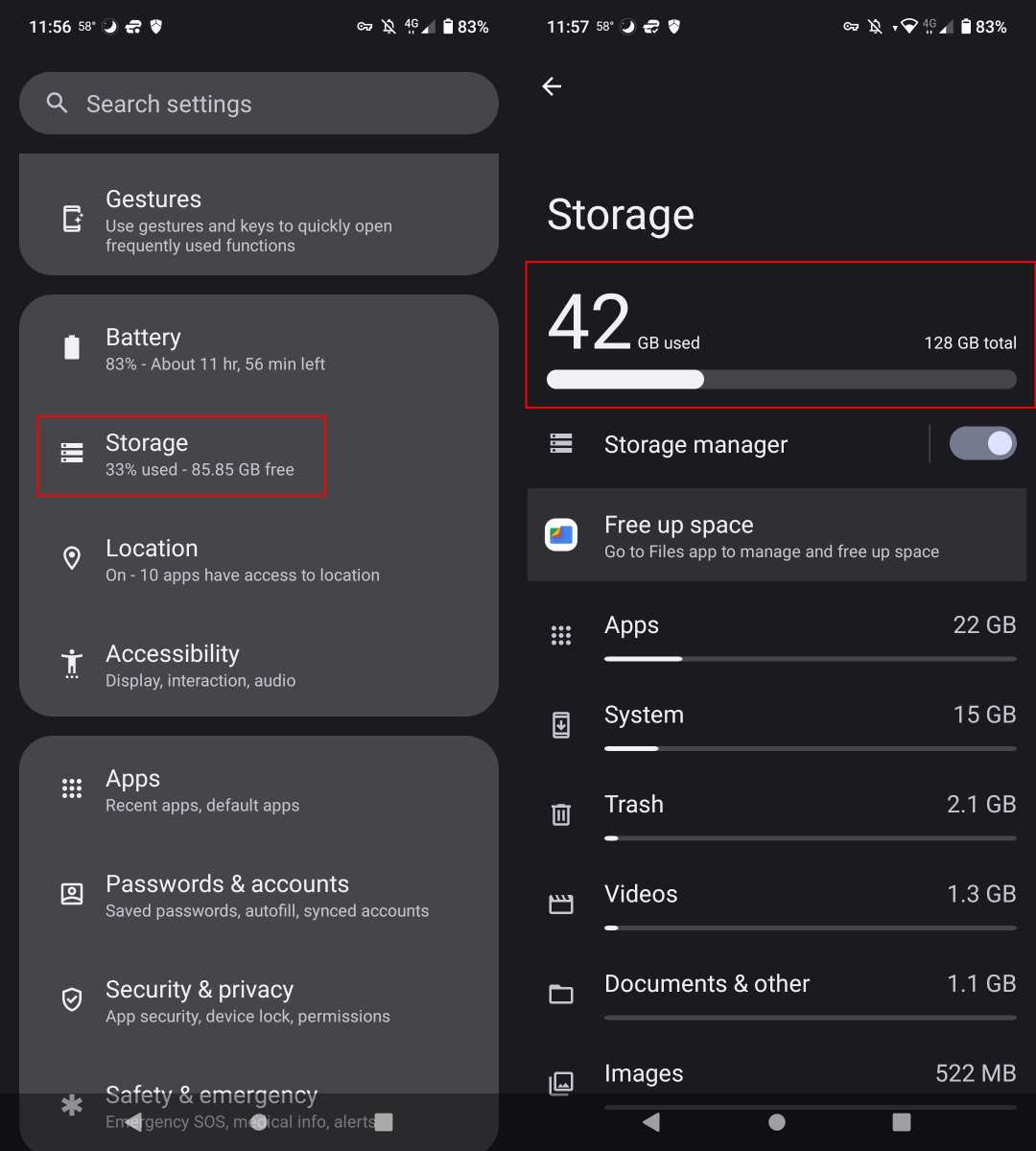
Check your free storage first. If under 15%, clear cache and remove unused apps. Restart your phone weekly.
Disable animations in Developer Options. Update all apps. If still slow, boot into Safe Mode to test for problem apps.
Factory reset as a last resort. Most fixes take under 10 minutes.
Why Your Android Phone Feels Sluggish (The Real Culprits)
A slow Android phone isn’t random. It usually points to one of four root causes. Knowing which one you’re dealing with saves you from wasting time on the wrong fix.
- Storage nearly full. Android needs free space for system caches and app operations. Once you cross about 85% capacity, the OS starts thrashing, constantly moving data around just to keep running.
- Too many background apps eating RAM. Every app you’ve ever opened that you haven’t manually closed (and even some you have) can stay in memory. When RAM runs low, Android starts killing background processes, which causes lag when you switch back.
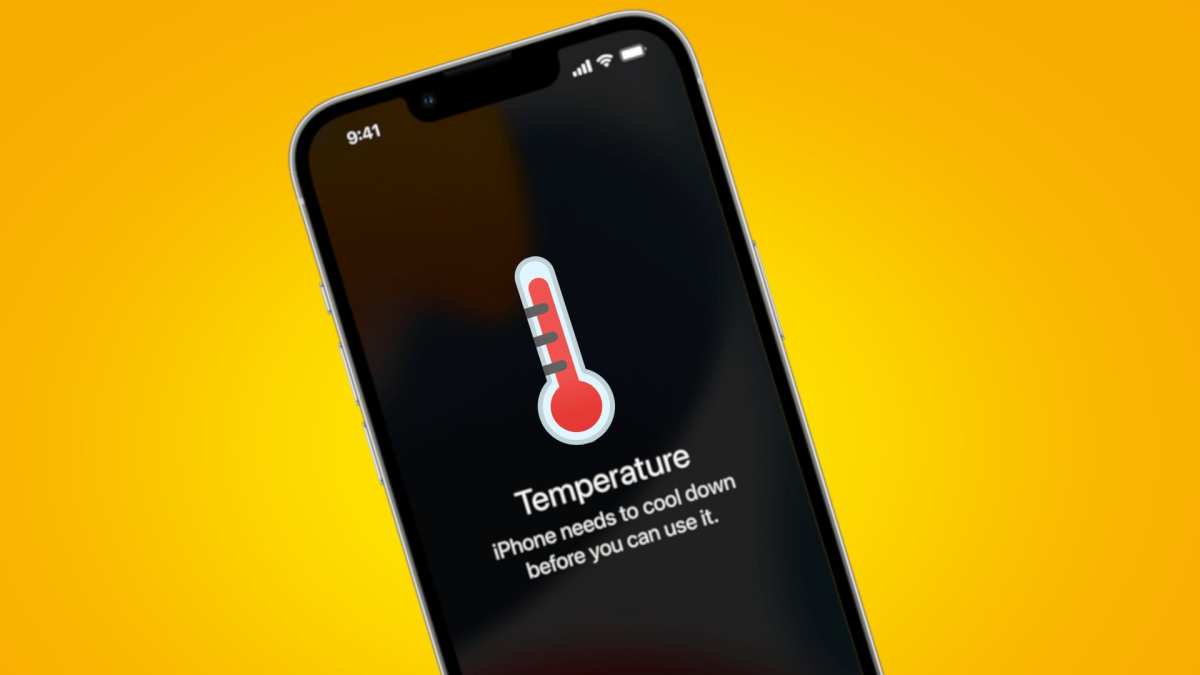
- Thermal throttling. If your phone feels hot, the processor intentionally slows down to protect itself. This happens during gaming, fast charging, or direct sunlight use.
- Post-update hiccups. Major Android version updates often leave behind corrupted cache data or incompatible app versions. A wipe of the cache partition usually resolves this.
Each cause has a distinct set of symptoms. That’s your starting point for the decision tree.
Quick Check: The One-Minute Diagnostic
Before diving into deeper fixes, run this rapid assessment. It takes less than a minute and tells you where to focus.
| Step | What to look at | Action |
|---|---|---|
| 1 | Settings > Storage | Write down the percentage used |
| 2 | Recent apps button | Count how many apps are open |
| 3 | Feel the back of the phone | Is it warm or hot? |
| 4 | Settings > About phone > Software update | Any pending update? |
Once you have the results, pick the symptom that matches best from the list below.
Decision Tree Starting Point: Pick Your Symptom
The right fix depends on exactly what kind of slowness you’re experiencing. Read each scenario and pick the closest match.
Branch 1: Storage Is Over 85% Full
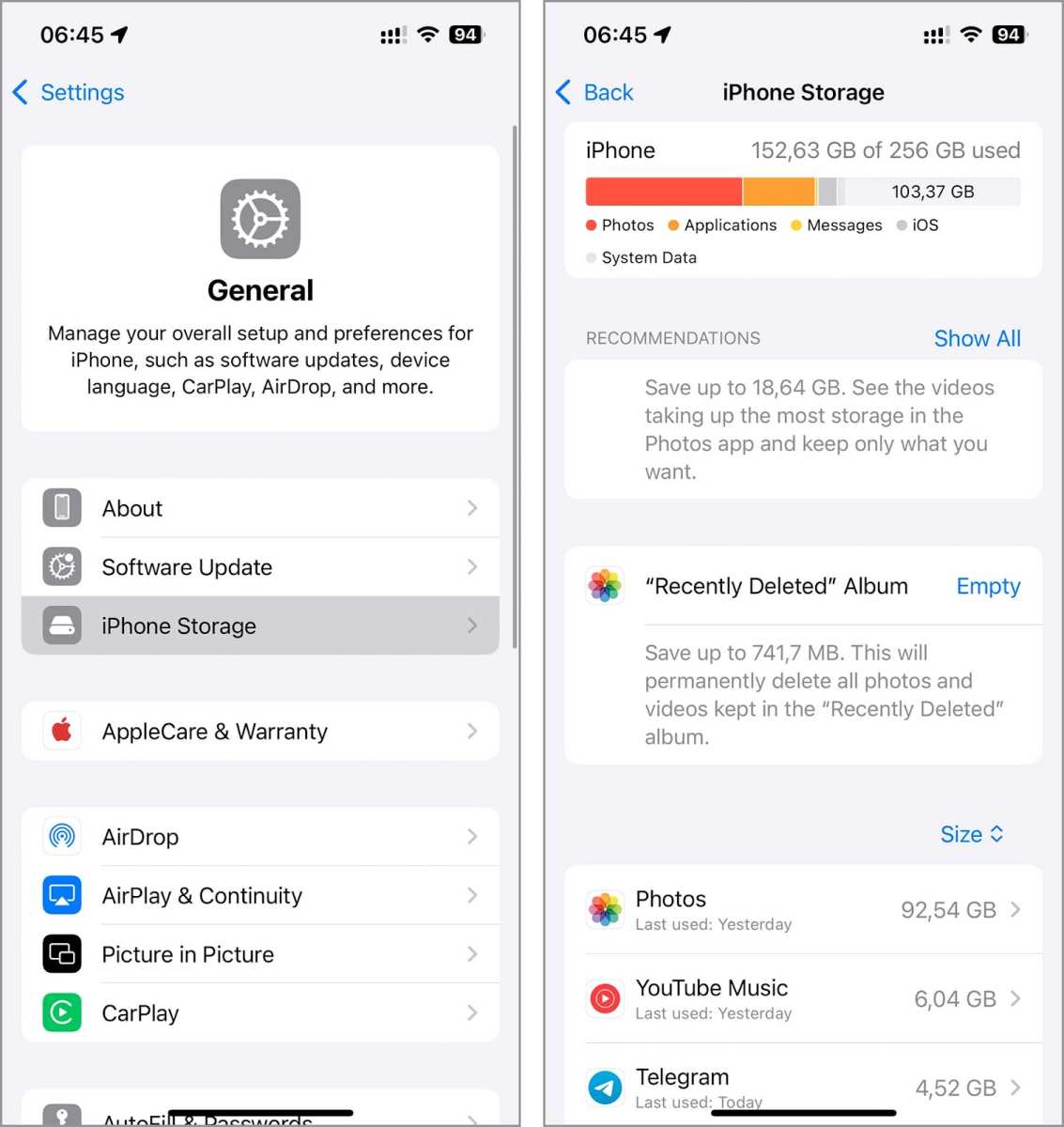
This is the most common cause of Android lag by a wide margin. When your phone’s internal storage fills up, the operating system has nowhere to put temporary files. App updates fail.
Photos refuse to save. The phone slows to a crawl.
- The fix: Free up space by clearing app caches, removing duplicate photos, deleting old downloads, and offloading rarely used apps. We’ll detail the exact steps in the next section.
Branch 2: Apps Take Forever to Open or Switch
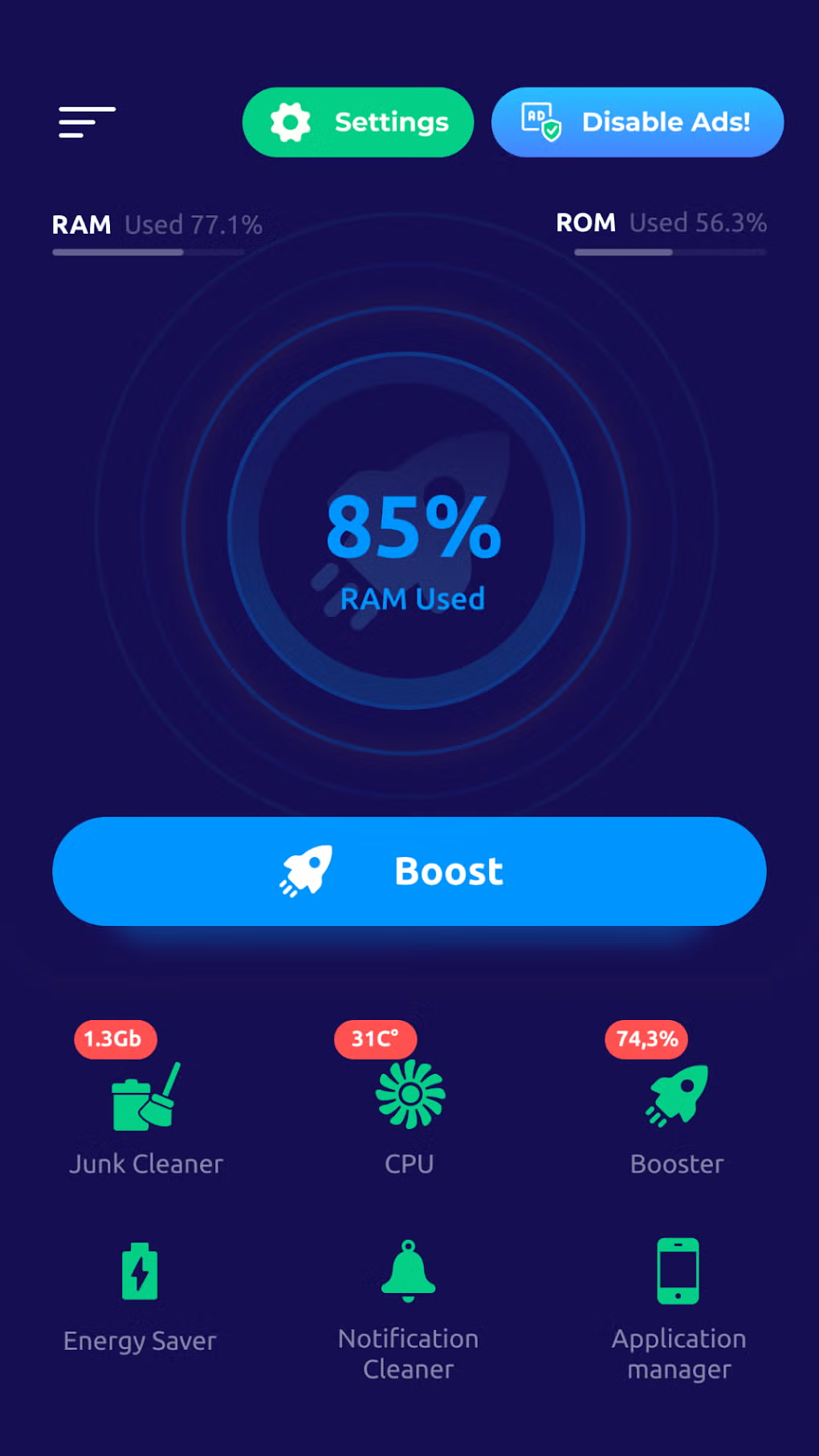
If your phone responds eventually but apps stall on the splash screen or take several seconds to swap, you’re likely dealing with low available RAM. Modern Android needs around 3, 4GB of free RAM to multitask smoothly. Heavy apps like Chrome or Instagram consume 200, 500MB each.
- Symptoms: Keyboard delay, home screen redraws after closing an app, recent apps list shows many entries.
- The fix: Reduce background app limits and tweak animation settings under Developer Options. Disable auto‑start for apps you rarely use. We’ll cover the exact toggle locations in the step‑by‑step section.

Similar Posts





















