How to Clean Mobile Storage
That notification hits at the worst possible time. You're trying to download a new app, record a video, or take a photo, and your phone stops you cold. "Storage Almost Full."
Learning how to clean mobile storage is one of those skills that saves you frustration again and again. The good news? You likely don't need to buy a new phone or pay for more cloud space.
Most phones running Android 14 or iOS 18 ship with 128GB as the base storage as of 2026, but system files, app caches, and media hoarding can eat 40 to 60GB of that before you know it. The fix depends entirely on what's filling your device and whether you're on Android or iOS. Let's walk through the decision tree so you know exactly which steps to take.
Quick Answer
Go to your phone's storage settings. Find what category uses the most space. Clear app caches on Android.
Offload unused apps on iOS. Delete old media from messaging apps. Move photos to cloud storage.
Empty the "Recently Deleted" folder. That covers 90 percent of cases.
Quick Diagnosis: Is It Android or iOS?
The first decision branch in this workflow is simple. Your phone's operating system determines the cleaning tools available to you. Android gives you direct access to file systems, app caches, and often an SD card slot. iOS keeps things locked down with a cleaner, more automated approach.
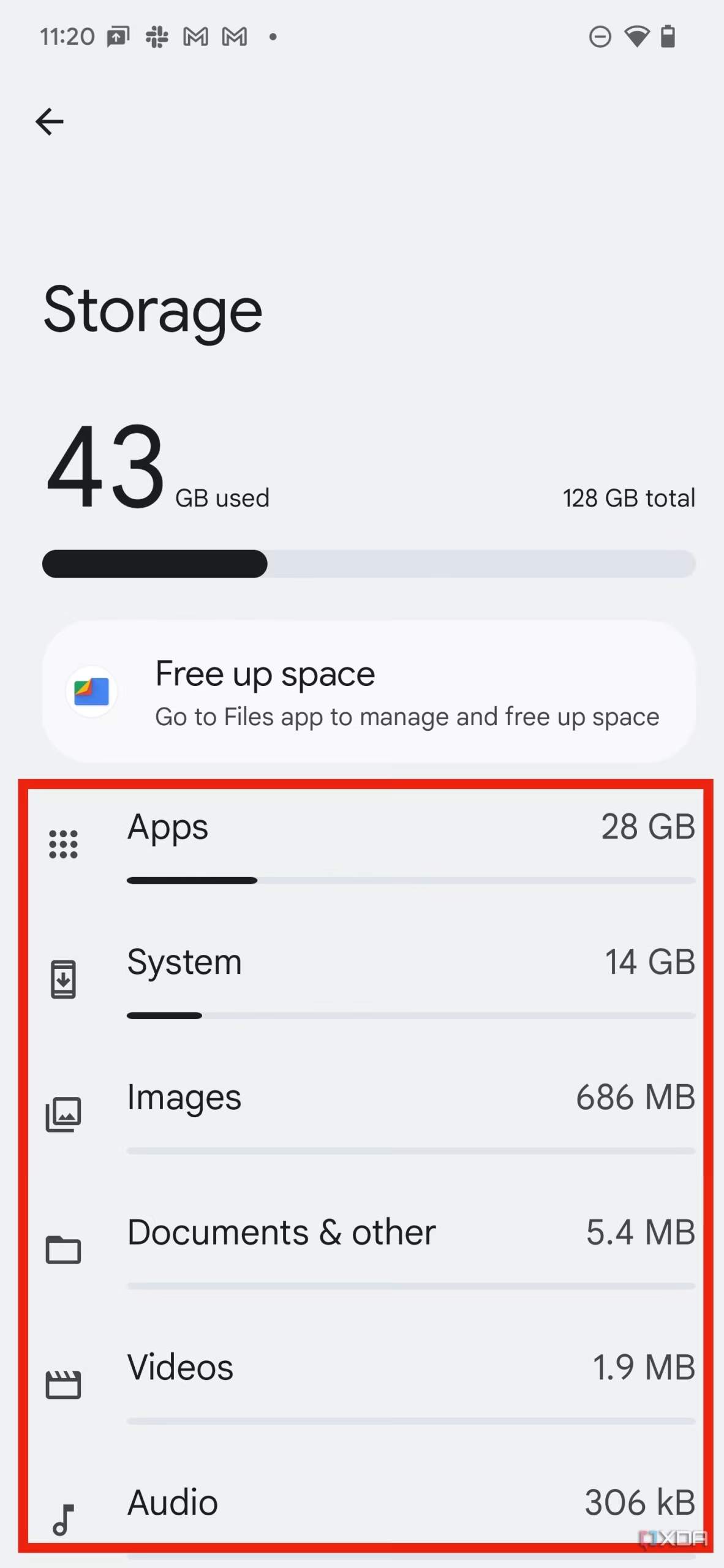
If you have an Android phone, you can clear individual app caches, delete files manually through a file manager, and move photos to an SD card (if your phone supports it). You also have access to Google's Files app, which includes a smart cleanup tool.
If you have an iPhone, your main tools are the iPhone Storage section in Settings, the Offload Unused Apps feature, and iCloud or Google Photos for offloading media. You cannot clear caches on a per-app basis the way Android users can. iOS manages that internally.
Run this quick check. Open Settings. Tap General on iPhone or Storage on Android.
Look at the top category. If "Photos" or "Media" is largest, you need cloud offloading or manual deletion. If "Apps" or "Cache" is largest, you need app management.
If "System" or "Other" is the culprit, you need a deeper approach.
Android: Three Main Culprits and How to Spot Them
Android phones are great because you have control. That same control also lets storage fill up in ways that aren't always obvious. Our research shows that three categories cause nearly all Android storage emergencies.
1. Bloated App Caches (Safe to Clear)
Every app you use stores temporary files. Your browser, your streaming apps, your social media apps, and your navigation apps all do this. These cached files help things load faster the next time you open the app.
The problem is that caches can grow to several gigabytes without you noticing.
Here is how to check and clear them.
Open Settings. Tap Apps or App Management. Select an app you use heavily like Chrome, YouTube, Instagram, or Spotify.
Tap Storage & Cache. Tap Clear Cache.
Do not tap Clear Data unless you want to reset the app completely. That logs you out and deletes your settings. Cache is safe.
Data is nuclear.
A single cache clear can free 500MB to 2GB depending on how long you have had the phone. Replace this as a monthly habit.
2. Messaging App Media Hoard (WhatsApp, Telegram, etc.)
If you are in group chats, your messaging apps are likely the biggest storage hogs on your phone. WhatsApp, Telegram, Signal, and iMessage all auto-download photos, videos, voice messages, and documents by default.
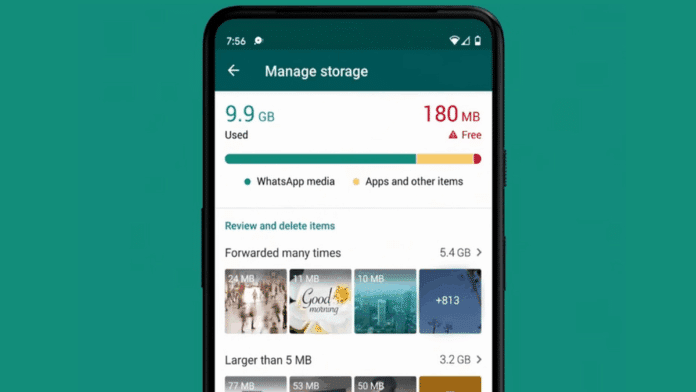
WhatsApp alone can store 10 to 20GB of media in a year. That is more than most people's entire photo library.
Here is the step-by-step for Android.
Open WhatsApp. Tap the three dots in the top right and go to Settings. Tap Storage and Data.
Tap Manage Storage. You will see a list of chats sorted by size. Tap the biggest one.
Review the media files and delete what you no longer need. Then go back to Settings and tap Storage Usage. Review the list again.
For Telegram, go to Settings, Data and Storage, Storage Usage and do the same thing.
Turn off auto-download in the future. In WhatsApp, under Storage and Data, switch Media Auto-Download to "Never" for mobile data and Wi-Fi. Download only when you tap a file.
3. Photo and Video Clutter (Local vs Cloud)
Your camera roll is the other major space consumer. A 12MP photo takes up about 3 to 5MB. A 4K video at 30 frames per second uses roughly 375MB per minute.
A two-minute video of your kid at the park is nearly a gigabyte.
Google Photos offers free high-quality backup that compresses files to 16MP and 1080p. That is more than enough for social media sharing and casual viewing. If you want original quality, you pay for Google One storage or you back up to a computer manually.
To free up space using Google Photos.
Open Google Photos. Tap your profile picture in the top right. Tap Free Up Space.
The app shows you which photos and videos are already backed up. Confirm the deletion, and those files are removed from your device while remaining in the cloud.
This single step can free 5 to 15GB instantly for most people.
4. The Mysterious "Other" Storage (System Logs, Old Backups)
The "Other" or "System" category in Android storage settings can be frustrating. It includes the operating system itself, preinstalled apps you may not use, system logs, cached firmware files, and old OTA update files. You normally cannot delete most of this without rooting your phone, which voids your warranty and creates security risks.
One safe option exists. Restart your phone. That clears temporary system logs and sometimes shrinks the "Other" category by a few hundred megabytes.
If "Other" is over 15GB on a 128GB phone, consider a factory reset after backing up your important files.
iOS: The Two-Step Storage Offload Strategy
Apple takes a different approach. iOS stores everything in containers that you cannot browse directly. That simplicity is a blessing and a curse. You cannot accidentally delete system files, but you also cannot manually clear app caches.
The iOS workflow has two main steps.
Step one is Offload Unused Apps. This feature removes the app itself but keeps its documents and data. When you reinstall the app later, your login and settings are restored. It is a safe way to reclaim space without losing anything important.
Go to Settings. Tap General. Tap iPhone Storage.
You will see a list of apps sorted by size. Tap any app you rarely use. Tap Offload App.
The icon stays on your Home Screen with a small cloud symbol. Tap it later to reinstall in seconds.
Step two is Review Large Attachments. In the same iPhone Storage screen, scroll down. iOS shows you a section called "Review Large Attachments." This includes old messages with videos, photos, and documents attached. Tap it. Delete the biggest items you no longer need.
This is often where gigabytes hide.
The combination of these two steps resolves most iOS storage issues without needing to delete anything important.
Decision Branch: Should You Use a Third-Party Cleaner App?
This is a common question and the answer depends on your situation.
If you have an Android phone and you are comfortable following the manual steps above, skip the cleaner app. The built-in tools and Google Files app cover everything you need. Third-party cleaner apps sometimes ask for broad permissions, display aggressive ads, or delete files you did not want removed. Some even run in the background and drain your battery.
If you prefer an automated tool for occasional deep cleaning, Google Files is the safest option. It is developed by Google, respects your privacy, and includes a "Clean" tab that suggests junk files, temporary files, and duplicate images. It does not require root access. It does not run constantly in the background.
It simply scans on demand and shows you options.
Avoid cleaner apps that promise "memory boost" or "RAM cleaning." Those are placebo features at best and malware risks at worst. Clearing RAM on modern Android phones does not improve performance and can actually make your phone slower because it has to reload apps from scratch. Stick to storage-specific tools.
Step-by-Step: Clean Like a Pro (Android)
This workflow works for any Android phone running Android 11 or newer. It covers the most common storage hogs in the right order.
Step 1: Run the Google Files Cleaner. Open the Files by Google app. Tap the Clean tab at the bottom. The app scans for junk files, temporary files, and duplicate images.
Tap Clean on the recommended items. This safely removes app cache leftovers, thumbnail caches, and residual files from uninstalled apps.
Step 2: Clear per-app caches for heavy apps. Go to Settings, Apps, then tap each large app individually. Clear Cache only. For apps like Chrome, YouTube, Instagram, and TikTok, this frees 200MB to 1GB per app.
Do this for the five biggest apps.
Step 3: Tame your messaging apps. Open WhatsApp or Telegram. Use the storage management tool inside each app. Delete old videos and voice messages from your biggest group chats.
Step 4: Free up Google Photos space. Open Google Photos, tap your profile icon, tap Free up space. Confirm deletion of already backed up photos. This step alone clears multiple gigabytes.
Step 5: Delete downloaded files you don't need. Open the Files app. Tap Downloads. Sort by size.
Delete old PDFs, APK files, ZIP archives, and anything you downloaded once and forgot.
Step 6: Move media to an SD card (if available). Open your file manager. Select the DCIM, Pictures, Videos, and Music folders. Tap Move or Copy.
Choose your SD card as the destination. This shifts the bulk of your media off internal storage.
Step 7: Review and uninstall unused apps. Go to Settings, Apps. Scroll through the list. Uninstall any app you haven't opened in more than three months.
You can always reinstall later.
Step-by-Step: Clean Like a Pro (iOS)
iOS is more restrictive, which makes the process simpler. You have fewer levers to pull, but the ones you have are effective.
Step 1: Enable Offload Unused Apps automatically. Go to Settings, General, iPhone Storage. Toggle on Offload Unused Apps. iOS will automatically remove apps you do not use while keeping their documents and data. The app icon stays on your Home Screen and reinstalls when tapped.
Step 2: Review your photo library. Open Photos. Scroll to Recently Deleted. Tap Select, then Delete All.
Those photos still count against your storage until you empty this folder. Go back to Albums. Tap Live Photos and tap Select All.
Delete any Live Photos you do not need. They take up roughly twice the space of a standard photo.
Step 3: Manage iMessage attachments. Go to Settings, General, iPhone Storage. Under the app list, tap Messages. Look for Review Large Attachments. iOS sorts attachments by file size.
Delete old videos and large image files you no longer need.
Step 4: Delete unused apps manually. On the same iPhone Storage screen, tap each app you rarely use. Tap Delete App (not Offload). Offloading keeps data.
Deleting removes everything. For apps like social media clients or games you have not opened in months, delete them outright.
Step 5: Clear Safari website data. Go to Settings, Safari. Tap Clear History and Website Data. This removes cached web pages and cookies.
You will stay logged in to most sites, but you may need to re-authenticate financial or banking sites.
Step 6: Check other large attachments. Go back to iPhone Storage. Scroll down past the app list. Look for messages with large attachments, old voice memos, and old podcasts.
Delete anything you have already listened to or viewed.
What About SD Cards and Cloud Offloading?
If your Android phone has a microSD card slot, you have a huge advantage. You can shift your entire photo and video library onto the card. Most Samsung, Motorola, and budget phones still include this slot.
Google Pixel and most flagships removed it after 2019.
Using an SD card. Buy a UHS Speed Class 3 (U3) or Video Speed Class 30 (V30) card for 4K video. These cards support sustained write speeds high enough for recording. Insert the card.
Open your file manager. Move DCIM, Pictures, Movies, and Music folders to the card. For future photos, set your camera app to save directly to the SD card.
Go to Camera settings, tap Storage location, select SD card.
The catch. Some Android apps cannot write to an SD card. If you run out of internal space again, repeat the cache clearing steps above. Also, SD cards are slower than internal storage.
Do not move game app data to the card. That causes lag.
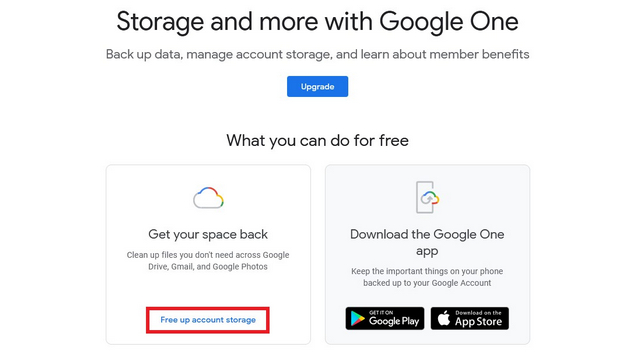
Cloud offloading is the primary option for iOS users and for Android users without an SD card slot. Google Photos offers 15GB of free storage shared across Google Drive and Gmail. Apple offers 5GB free with iCloud. If you hit those limits, you pay $1.99 per month for 100GB on either service.
For most people, 100GB is enough to offload photos and keep your phone clean.
The workflow is the same for both platforms. Back up your photos to the cloud. Delete the local copies using the app's free up space feature. Access those photos anytime from any device.
The cloud copies are slightly compressed (high quality on Google Photos, original on iCloud if you pay). For casual use, the difference is invisible.
Common Mistakes That Waste Time or Lose Data
Clearing data instead of cache. This is the number one mistake. When you tap "Clear Data" for an app, you delete your login, settings, and local files. You are forced to set up the app from scratch.
Always tap "Clear Cache" unless you intend to reset the app entirely.
Using a "cleaner" app that runs in the background. These apps often display aggressive ads and request unnecessary permissions like access to contacts and SMS. Some have been caught uploading user data. Stick to Google Files or the built-in tools.
Deleting photos without backing up first. You delete a photo you think you do not need. Later you realize it was the only copy. Cloud backup costs nothing for the first 15GB.
Enable it before deleting anything.
Deleting system files or unknown folders. If you are in a file manager and see a folder you do not recognize, do not delete it. System folders have names like system, data, obb, or cache at the root level. Deleting system files can brick your phone.
Leave them alone.
Forgetting to empty Recently Deleted. On both Android and iOS, deleted photos sit in a "Recently Deleted" folder for 30 days. They still count against your storage until you empty that folder manually. Go to the Photos app, find the Recently Deleted album, and tap Delete All.
Neglecting app update caches. When you update an app, the old version's temporary files sometimes remain. Clear the cache for the Google Play Store and App Store manually. This can free 500MB or more on Android.
Long-Term Maintenance: Stop the Storage from Filling Up Again
Cleaning once is good. Keeping it clean is better. Here are habits that work.
Enable auto offload on iOS. Turn on Offload Unused Apps in iPhone Storage settings. Let iOS manage apps you do not use monthly.
Schedule a monthly cache clear. Pick the first day of the month. Spend five minutes clearing caches for your five heaviest apps. Mark it on your calendar.
Turn off auto-download in messaging apps. In WhatsApp: Settings, Storage and Data, set Media Auto-Download to Never for both mobile data and Wi-Fi. Download specific files when you want them. In Telegram: Settings, Data and Storage, toggle off Auto-Download for each media type.
Review your photo library quarterly. Delete blurry photos, screenshots, and duplicate shots immediately. Do not let them accumulate.
Use a streaming-first mentality. Download music, movies, and podcasts only for offline use. Delete them once you are done listening or watching. Streaming apps like Spotify and Netflix let you re-download any time.
Keep your internal storage at least 10 percent free. Android and iOS both use available space for system processes, updates, and temporary files. If you run below 10 percent, performance degrades. Apps take longer to load.
The camera may stop recording. Keep that buffer.
When a Factory Reset Is Actually the Right Move
A factory reset is the nuclear option. It wipes everything. Your photos, apps, accounts, messages, settings, and downloaded files all disappear.
Use it only when other methods have failed.
You should consider a factory reset in these specific situations. Your phone reports less than 2GB of free space after you have cleared caches, offloaded photos, and deleted unused apps. Your phone is lagging badly and apps crash regularly.
You are selling or trading in the device.
Before you reset, back up everything you care about. Upload photos to Google Photos or iCloud. Sync contacts to your Google or Apple account.
Copy important documents to a computer or cloud drive. Export WhatsApp chat history if you need it. A factory reset without backup means permanent data loss.
To perform the reset on Android, go to Settings, System, Reset Options, Erase All Data. On iOS, go to Settings, General, Transfer or Reset iPhone, Erase All Content and Settings. The process takes 10 to 30 minutes.
After resetting, you set up the phone as new or restore from backup. Your storage returns to factory condition.
Quick Decision Guide: Pick Your Path Based on Free Space Left
| Free Space Remaining | Recommended Action | Time Required |
|---|---|---|
| Less than 1GB | Factory reset after backup | 30 minutes |
| 1GB to 5GB | Clear caches, offload photos, delete messaging media | 15 minutes |
| 5GB to 10GB | Monthly cache clear, turn off auto-download | 5 minutes |
| More than 10GB | No action needed. Maintain the 10 percent buffer. | None |
Frequently Asked Questions
How often should I clean my phone storage?
Clear app caches monthly. Review your photo library and messaging app media quarterly. Offload unused apps automatically if you use iOS.
This schedule keeps most phones running smoothly without constant maintenance.
Will clearing cache delete my login information?
No. Clearing cache removes temporary files like thumbnails and page previews. It does not affect your login credentials, app settings, or saved passwords.
Only clearing app data resets those.
Why does my phone show "Other" storage and can I delete it?
"Other" storage on iOS and "System" on Android includes the operating system, firmware, and essential system files. You cannot safely delete most of it. Restarting your phone clears temporary logs and may shrink it slightly.
Is Google Files safe to use for cleaning?
Yes. Google Files is developed by Google and does not request unnecessary permissions. It scans only for junk files, duplicate images, and temporary data.
It does not run in the background or collect personal data for advertising.
Do I need to buy more cloud storage?
Not necessarily. Google Photos offers 15GB free. iCloud offers 5GB free. That is enough to back up thousands of photos at high quality.
If you shoot 4K video or have a very large library, 100GB costs $1.99 per month on either service.

Similar Posts





















