How To Make Storage Space On Android Phone Efficiently
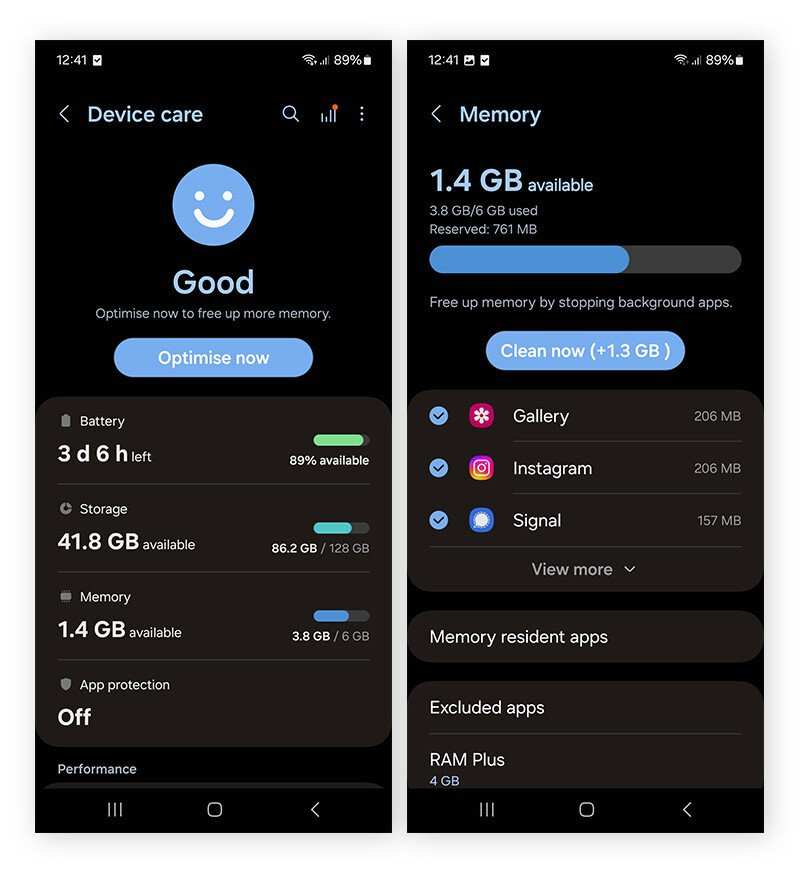
To make storage space on your Android phone, start by deleting unnecessary apps, clear app cache, and move files to an SD card. **This quick clean-up significantly frees up space.** If your storage remains tight, consider uninstalling unused apps or deleting old photos and videos. Knowing how to make storage space on Android phone helps keep your device running smoothly and speeds up response times. Keeping your phone clutter-free becomes simple with a few straightforward steps you can do anytime.

How to Make Storage Space on Android Phone
Keeping your Android phone running smoothly often means managing its storage carefully. Over time, your device can become cluttered with apps, photos, videos, and files that you no longer need. When storage space is limited, your phone feels sluggish, apps may crash, and you might struggle to take new photos or download new apps. Luckily, there are simple, effective ways to free up space and keep your device performing its best. In this guide, we’ll explore various strategies step by step to help you make more storage space on your Android phone quickly and easily.
Understanding Your Storage
Before diving into cleaning, it’s important to understand what’s taking up your storage space. Android devices typically have two main storage areas:
- Internal Storage: This is the built-in storage where your apps, photos, videos, and system data are saved. When this fills up, your phone’s performance drops.
- External Storage (SD Card): Some phones support SD cards, allowing you to expand your storage. You can save photos, videos, and even some apps here.
Knowing what consumes most space helps you decide where to focus your cleaning efforts. To check your storage usage:
- Open the Settings app on your phone.
- Scroll down and tap on Storage.
- Review what categories are taking up most space—Apps, Photos & Videos, Audio, Cached Data, etc.
Once you understand what’s using your space, you can target those areas more effectively.
Clear App Cache and Data
Apps store temporary data, called cache, so they load faster and work smoothly. However, this cache can accumulate and take up significant space over time.
How to Clear Cache for Individual Apps
- Go to Settings.
- Select Apps & Notifications.
- Choose See all apps.
- Tap on a specific app you want to clean.
- Tap Storage & Cache.
- Press Clear Cache.
Repeat this process for apps that you use frequently or those that store large cache files like social media apps, browsers, and streaming services.
Clear All Cached Data
Some Android versions allow you to clear cache for all apps at once:
- Navigate to Settings.
- Tap Storage.
- Look for an option labeled Cached Data.
- Tap on it and confirm the clearance.
*Note*: Clearing cache doesn’t delete your personal data or app settings. It just removes temporary files, freeing up space.
Uninstall Unused Apps
Apps you rarely use can occupy a surprising amount of space. Removing these apps is a simple way to free storage.
Identify Apps to Remove
- Open Settings.
- Tap on Apps & Notifications.
- Select See all apps.
- Review the list for apps you haven’t used in a while or don’t need anymore.
Uninstall the Apps
- Tap on the app you want to remove.
- Press Uninstall.
- Confirm your choice.
If you want to keep the app but save space, consider disabling it instead:
- Follow the same steps up to selecting the app.
- Tap Disable if available.
Note: Some pre-installed apps (bloatware) cannot be uninstalled but can often be disabled.
Manage Photos and Videos
Media files like photos and videos tend to take up the most space on smartphones. Managing these files can give you quick storage relief.
Use Cloud Storage Services
Services like Google Photos, OneDrive, or Dropbox allow you to upload your media and then delete local copies from your device.
- Open your preferred app (e.g., Google Photos).
- Sign in if needed and back up your media.
- Once uploaded, delete the photos and videos from your device to free space.
Transfer Files to a Computer or External Drive
Connect your phone to a computer using a USB cable and transfer your media files. This method keeps your memories safe while freeing up space.
Delete Unwanted Media Files
Go through your gallery and delete:
- Duplicate photos or videos.
- Blurry or unwanted images.
- Old videos you no longer watch.
Use gallery apps’ sorting features to find large or similar files quickly.
Manage Downloads and Files
Downloads folder often fills up without notice. Regularly cleaning it can clear large files that you no longer need.
How to Clean Downloads Folder
- Open your File Manager app.
- Navigate to Downloads.
- Select files you want to delete.
- Tap Delete.
Be cautious—check before deleting to avoid removing important documents or files.
Use Storage Management Apps
Some devices come with built-in storage management tools that automatically suggest files to delete or optimize storage.
Third-Party Apps
Apps like Files by Google, CCleaner, and SD Maid can help analyze your storage and recommend files for removal.
- Download and install your preferred app from the Play Store.
- Open the app and follow the setup instructions.
- Run the scan and review suggested files.
- Choose what to delete or optimize based on these recommendations.
Be careful with third-party apps—only use reputable ones to protect your privacy.
Optimize Your Storage Settings
Android offers built-in options to help you manage your storage more efficiently.
Enable Smart Storage
This feature automatically deletes backed-up photos or videos after a certain period, freeing space without your manual intervention.
- Navigate to Settings.
- Tap on Digital Wellbeing & Parental Controls.
- Select Manage storage or similar options.
- Activate features like Smart Storage if available.
Use Storage Sense or Similar Features
Some Android devices include a storage sense feature that periodically cleans junk files, cache, and temporary files.
Reset Your Device as a Last Resort
If your storage is still full after trying all these tips, consider performing a factory reset. **Be sure to back up** all your important data before doing this.
- Open Settings.
- Navigate to System >Reset Options.
- Select Erase all data (factory reset).
- Follow on-screen instructions to complete the reset.
This process wipes all data and gives your device a fresh start, often freeing up significant space.
Keep Your Storage Clean Regularly
The best way to maintain free space on your Android phone is to perform periodic clean-ups. Set reminders every few weeks to check your storage and remove unnecessary files. Regularly clearing cache, deleting unused apps, and managing media files ensures your device runs smoothly over time.
Remember, understanding what takes up space and acting proactively can keep your Android phone speedy and responsive. With these practical tips, you’ll find it much easier to make space and enjoy your device to the fullest.
Frequently Asked Questions
How can I identify which files are taking up the most space on my Android device?
To see which files consume the most space, open your device’s file manager or storage settings. Most Android phones have a built-in option that displays storage data by categories like apps, images, videos, and downloads. You can also use third-party apps designed to analyze storage usage, helping you locate large files or unnecessary data that you can delete.
What steps should I take to clear app cache and free up storage?
Go to your device’s settings and select ‘Apps’ or ‘Applications.’ Choose each app and tap on ‘Storage’ to find the option to clear cache. Doing this regularly removes temporary files, which can free up significant space without deleting app data. Be cautious not to clear important data; focus on cache files for safe cleanup.
Are there any recommendations for managing downloaded files effectively?
Regularly review your ‘Downloads’ folder and remove files you no longer need. Use your file manager to sort files by size or date to quickly identify unnecessary data. Organizing downloads into folders can prevent clutter, making it easier to delete outdated or irrelevant files and maintain ample storage space.
How can I optimize storage by removing unused applications?
Navigate to your device’s settings and select ‘Apps’ or ‘Applications.’ Review the list and uninstall apps you seldom use or no longer need. This process not only frees up storage but can also improve your device’s overall performance. Consider using app management tools to identify and remove rarely used applications efficiently.
Is it beneficial to move media files to external storage or cloud services?
Yes, transferring photos, videos, and music to an SD card or cloud storage services like Google Drive or Dropbox helps free space on your device. Set up automatic backups where possible and move large media files periodically. This practice ensures your data stays safe while keeping your device storage optimized.
Final Thoughts
To make storage space on your Android phone, start by deleting unnecessary apps and files. Clear app caches regularly to free up quick storage. Use cloud services to store photos and videos instead of keeping everything locally. These simple steps help optimize your device’s storage, ensuring better performance and more space for what matters.

Similar Posts































