How To Make Storage Space On Android: Practical Tips
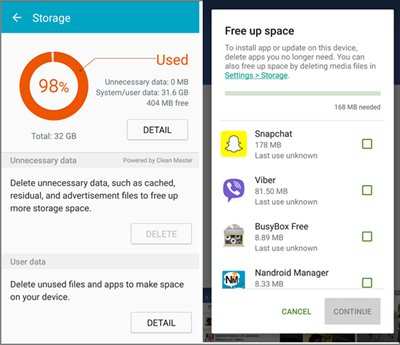

How to Make Storage Space on Android
Managing storage on your Android device can feel overwhelming, especially when you start noticing that your phone runs slowly or shows a ‘Storage Almost Full’ warning. The good news is, there are several effective ways to free up space, so your Android runs smoothly and you can keep all your favorite apps, photos, and files without worry. In this guide, we’ll explore all the methods you can use to make more storage space on your Android device, step by step.Understanding Your Android Storage
Before you start cleaning up your device, it’s helpful to understand how Android manages storage. Your device’s storage is divided into different categories:- Internal Storage: This is where your apps, system files, photos, videos, and downloads are stored. It’s the main space you want to free up.
- SD Card (if available): An external memory card that can store photos, videos, music, and some apps.
- App Data: Data stored by apps, including cached files, downloads, and temporary files.
Check Your Storage Usage
The first step in freeing up space involves checking what’s taking up most of your storage. To do this:Open Settings
– Tap the gear icon on your home screen or app drawer. – Scroll down to find ‘Storage’ or ‘Device care’ depending on your device model.Review Storage Breakdown
– You will see a visual breakdown of your storage: – Photos & videos – Apps – Audio files – Cached data – Other files This overview helps you identify which areas to focus on for cleaning.Clear App Cache and Data
Many apps store temporary data called cache, which can accumulate and take up large amounts of space. Clearing cache is quick and safe, and it helps reduce storage usage without deleting your personal data.How to Clear Cache
– Navigate to Settings > Storage. – Tap on ‘Apps’ or ‘Applications.’ – Select a particular app. – Tap on ‘Clear Cache.’ Repeat for apps known to store large amounts of data, such as social media apps, browsers, or games.Clear App Data (if necessary)
– Be cautious: deleting app data will remove stored login information and preferences. – To do this, follow the same steps as clearing cache, but select ‘Clear Data’ or ‘Clear Storage.’Uninstall Unused Apps
Apps you no longer use still occupy space. Removing these apps is one of the most straightforward methods to free up room.Steps to Uninstall
– Go to Settings > Apps or Apps & Notifications. – Browse through the list of installed apps. – Tap on the app you want to delete. – Select ‘Uninstall.’ – Confirm your choice. Tips: – Regularly review your apps and remove those you haven’t used in months. – For pre-installed apps that can’t be uninstalled, disable them to prevent background activity and save space.Manage Downloaded Files and Media
Your downloads folder can grow rapidly, especially if you frequently download files, images, or videos.Cleaning Downloads Folder
– Use the File Manager app to open your downloads folder. – Review files and delete those you no longer need. – Consider moving important files to an SD card or cloud storage before deleting.Delete Unnecessary Photos and Videos
Photos and videos often eat up most of your storage. Regularly reviewing and deleting unwanted media can free significant space.- Use the Gallery or Google Photos app to browse your media.
- Delete duplicates or blurry images.
- Backup important photos and videos to cloud services like Google Photos or Dropbox before deleting them from your device.
Utilize Cloud Storage Solutions
Storing files in the cloud helps save space without losing access to your data.Popular Cloud Services
- Google Drive
- OneDrive
- Dropbox
- Amazon Photos
Benefits of Using Cloud Storage
– Access files from any device. – Free up device storage. – Backup important data automatically.Tips for Using Cloud Storage Effectively
– Upload large media files regularly. – Delete local copies once backed up. – Organize files into folders for easy access.Delete Duplicate and Large Files
Duplicate files and large documents can silently clutter your storage. Use dedicated apps or manual methods to find and remove these files.Finding Duplicate Files
There are apps available that scan your device for duplicate images, music, or documents quickly. Some popular options include:- Remo Duplicate Files Remover
- Files by Google
Identifying Large Files
– Use the built-in Files or File Manager app. – Sort files by size. – Delete or move large files you no longer need.Optimize Storage Settings and Features
Android offers several built-in features to help you manage storage efficiently.Use ‘Smart Storage’ or ‘Device Maintenance’
– Access through Settings > Storage or Device Care. – Enable options like automatic cleanup of cached data or temporary files. – Set preferences for deleting old photos, videos, or app cache automatically.Offload or Move Apps to External Storage
If your device supports it: – Move or uninstall apps from internal storage. – Use SD cards for storing media files or apps compatible with external storage.Additional Tips for Maintaining Storage Health
Maintaining a clean device is easier with small habits:- Regularly review your storage usage.
- Back up data frequently to prevent losing important files.
- Uninstall unused apps promptly.
- Delete unnecessary files and media monthly.
Frequently Asked Questions
How can I identify which files are taking up the most space on my Android device?
To find out which files occupy the most space, open your device’s Settings and navigate to Storage. Many Android devices display a breakdown of storage usage, highlighting large files and folders. You can also use file management apps like Files by Google to explore your files and identify items that can be deleted or moved to free up space.
What steps should I take to clear app cache and data to free up storage?
Go to Settings and select Apps or Applications. Tap on an app that uses a significant amount of storage, then choose Storage. From there, you can clear the cache to remove temporary files or clear data if you no longer need the app’s stored information. Repeat this process for other apps to optimize your device’s storage.
How can I move media files such as photos and videos to an external SD card?
If your device supports an SD card, open your Gallery or File Manager app, select the media files you wish to move, and choose the option to move or copy. Select your SD card as the destination, and move the files to free up internal storage. This process helps keep your device running smoothly without losing important media.
Are there specific apps or tools that can help me automate storage management?
Yes, several apps like Files by Google, CCleaner, or SD Maid can automate cleaning processes. These tools scan your device for junk files, duplicate images, and unnecessary data. Regularly running such apps keeps your storage organized and prevents clutter from accumulating over time.
What are some best practices for maintaining sufficient storage on my Android device?
Regularly review and delete unnecessary files, clear app caches, and uninstall unused applications. Consider moving media files to cloud storage services or external devices. Keep your device updated, as updates often optimize storage management. These habits help you maintain enough space for smooth device performance.
Final Thoughts
To make storage space on Android, delete unnecessary apps and clear app caches regularly. Use built-in tools to identify large files and remove them. Transfer photos and videos to cloud services or external storage to free up space. Regular maintenance keeps your device running smoothly without clutter.
Similar Posts































