How To Make Storage On Android: Tips To Free Up Space
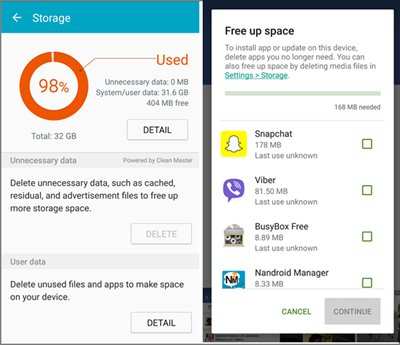
To make storage on Android, start by clearing cache and deleting unnecessary apps, files, and media. **This quick step frees up space instantly.** If you want more room, consider moving photos and videos to cloud services or a microSD card. Knowing how to make storage on Android helps keep your device fast and organized without hassle. Whether you’re running low or just want more space, these simple actions make a difference.

How to Make Storage on Android: A Complete Guide to Free Up Space and Organize Your Device
Having enough storage space on your Android device is essential for smooth operation and keeping your favorite apps, photos, and videos accessible. If your phone or tablet feels sluggish or you receive notifications about low storage, it’s time to take action. This guide will walk you through various effective ways to free up space and make more storage on your Android device. From cleaning up unnecessary files to using external storage options, you’ll learn practical tips to keep your device running efficiently.
Understanding Android Storage: What Takes Up Space?
Before you start deleting files, it’s good to understand what uses storage on your Android device. Typically, storage is occupied by:
- Apps and Games: Installed applications, including their data and cache.
- Photos and Videos: Memories captured with your camera or downloaded from the internet.
- Music and Audio Files: Songs, podcasts, and voice recordings stored locally.
- Documents and Downloads: Files you’ve downloaded or saved from other sources.
- System Files and Updates: Android operating system files and updates that require space.
- Caches and Temporary Files: Fast-access data stored to speed up app performance but often accumulates over time.
Knowing what consumes your storage helps you decide which files and apps to clear or move.
How to Check Storage Usage on Android
Start by checking how much space is available and what’s taking up most of it. Here’s how:
Using Settings Menu
- Open the Settings app on your device.
- Scroll down and select Storage or Device Care depending on your Android version.
- View the breakdown of storage usage, including categories like Apps, Photos, Videos, and Other Files.
Understanding this breakdown guides you to focus on the biggest space consumers.
Practical Ways to Make Storage on Android
Now, let’s explore specific methods to free up space and organize your device more efficiently.
Uninstall Unused Apps and Games
Apps often take up more space than we realize. To free a significant amount of storage:
- Go to Settings >Apps.
- Review the list of installed apps and identify those you no longer use.
- Select an app and tap Uninstall to remove it from your device.
Tip: Use the Sort by size option to see which apps consume the most storage.
Clear Cache and Temporary Files
Apps store cache data to load faster, but over time, this data can pile up. Clearing cache doesn’t delete app data but frees some space.
How to Clear Cache for Specific Apps
- Open Settings and go to Apps.
- Select an app and tap Storage.
- Tap on Clear Cache.
You can also clear cache for all apps at once:
Using Storage Settings
- Navigate to Settings >Storage.
- Tap on Cached Data or similar option.
- Confirm to clear cached data for all apps.
Delete Unnecessary Photos, Videos, and Files
Photos and videos often take up the most space. Use these tips to manage them:
- Review your gallery: Delete blurry or unwanted photos and videos.
- Use cloud storage: Upload media to Google Photos or other cloud services, then delete local copies.
- Remove duplicates: Use apps to find and delete duplicate files.
Manage Downloads and Files
Downloads folder can accumulate a lot of unnecessary files over time.
- Open your file manager app or use the My Files app.
- Navigate to the Downloads folder.
- Review files, and delete those you no longer need.
Use Cloud Storage Services
Storing files on the cloud helps save local space. Popular options include:
- Google Drive
- Dropbox
- OneDrive
Upload files you want to keep but don’t need immediate access to, then remove them from your device.
Move Files to External Storage
If your device supports microSD cards, use them to expand storage:
- Insert a microSD card into your device.
- Open the My Files or file manager app.
- Select files you want to move.
- Choose Move or Copy and select the SD card as the destination.
This method is cost-effective and easy.
Optimize App Data and Use Lite Versions
Many apps have lighter versions designed to use less storage:
- Check if your favorite apps have Lite versions (e.g., Facebook Lite, Messenger Lite).
- Install them to save space without sacrificing core functionality.
Additionally, some apps let you manage their data and cache within the app itself, so explore settings for options to reduce storage use.
Automate Storage Management
Automating storage cleanup helps maintain free space without manual effort:
Enable Google Photos Backup and Autosync
- Open Google Photos app.
- Go to Settings >Backup & Sync.
- Turn on backup, choose high-quality upload, and enable free storage options.
- Once photos are backed up, delete local copies to free space.
Use Storage Management Apps
Apps like Files by Google or CCleaner can:
- Identify large files and duplicate data.
- Offer one-tap cleaning options.
- Help organize your files efficiently.
Maintain Your Storage Space Regularly
Make a habit of checking storage and cleaning your device:
- Review your photos and videos monthly.
- Uninstall unused apps periodically.
- Clear cache and temporary files weekly.
- Update apps and system regularly to keep storage optimization features active.
Regular maintenance prevents storage issues and keeps your device running smoothly.
Final Tips for Managing Android Storage
– Always back up important data before deleting files.
– Avoid deleting system files; focus on user data and cache.
– Use external storage devices or cloud options to keep your device uncluttered.
– Be mindful of app permissions and data stored within apps.
Getting the most out of your Android device’s storage isn’t complicated. With some regular cleanups and smart management, you’ll enjoy a faster, more responsive device with plenty of space for new memories and fun apps. Keep these tips handy, and your device will stay in top shape for longer.
Frequently Asked Questions
What steps can I take to free up storage space on my Android device?
To free up storage on your Android phone, start by deleting unused apps and clearing cache data for apps that take up space. Remove unnecessary files, such as downloaded documents, images, or videos. Use the built-in file manager to identify large files and delete or move them to external storage or cloud services. Regularly review your device to ensure it runs smoothly and has enough space for new data.
How can I transfer files from my Android device to an external drive?
Connect your Android device to an external storage device, such as a USB flash drive or external hard drive, using an OTG (On-The-Go) cable. Once connected, your device should recognize the external drive, allowing you to browse and select files for transfer. Use the file manager app to move or copy files directly to the external device, freeing up space on your phone.
Are there any apps that help to manage storage effectively on Android?
Yes, several apps can assist in managing your Android storage. These apps analyze your device’s storage, identify large or duplicate files, and help clear cache and junk files. Popular options include Files by Google and CCleaner. These tools provide simple options to clean up unnecessary data and optimize storage, making it easier to maintain free space on your device.
What settings can I adjust to optimize storage on my Android phone?
You can adjust settings such as enabling automatic media removal for downloaded files, limiting app data usage, and disabling auto-download features for media. Additionally, setting your device to store photos and videos in the cloud rather than locally can save significant space. Reviewing app permissions and removing unused apps also supports better storage management.
How do I use cloud storage services to manage my Android device’s space?
Activate cloud storage options like Google Drive, Dropbox, or OneDrive to upload important files, photos, and videos. Set your device to automatically back up media, and then delete local copies to free up space. Managing your files via cloud ensures you keep access to your data without cluttering your device’s internal storage, providing an efficient way to handle large files.
Final Thoughts
Making storage on Android involves several simple steps. First, delete unnecessary files and uninstall unused apps to free up space. Use built-in tools like Storage Manager to identify large files. Consider moving media to cloud services or an SD card for additional capacity. Regular maintenance ensures your device runs smoothly and prevents storage issues. By following these tips, you can easily make storage on android and optimize your device’s performance.

Similar Posts































