How To Make Space On My Android: Simple Tips To Free Storage
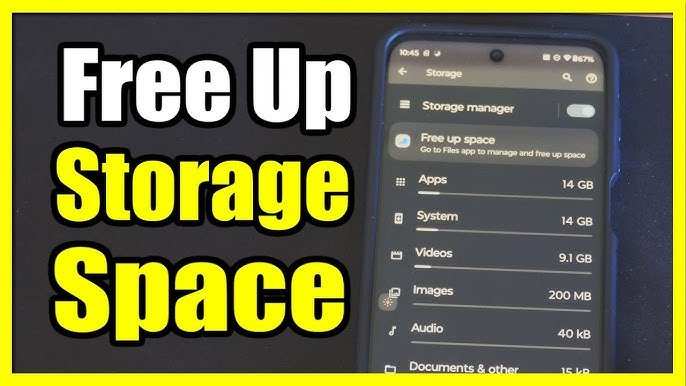

How to Make Space on My Android
When your Android device starts to feel sluggish or you notice that you can’t download new apps or updates, it’s often a sign that your storage is full. Many users face this common problem, but the good news is that cleaning up your phone doesn’t have to be complicated or time-consuming. In fact, there are simple steps you can take to free up space on your Android device. This guide will walk you through the most effective methods so you can optimize your phone’s storage and keep it running smoothly.Understanding Android Storage: What Takes Up Space?
Before you start deleting files, it’s helpful to understand what kinds of data consume your storage. Here’s a quick look at the main categories:- Apps and Games: These are the largest consumers of space, especially if you have many installed or some are very large.
- Photos and Videos: Media files tend to clutter storage quickly because they are often large in size.
- Downloads Folder: Files you’ve downloaded from the internet, emails, or messaging apps that accumulate over time.
- Cached Data: Temporary data saved by apps to speed up performance but can grow quite large.
- Old Files and Unused Apps: Applications you no longer use still take up space unless you remove them.
- Messages and Attachments: Texts, especially multimedia messages, can quickly fill your storage.
Check Your Storage Usage
To start, see exactly how much space you have and what’s using it:- Open your device’s Settings app.
- Tap on Storage. Depending on your Android version, this could be under Device Care, Device Maintenance, or directly listed as Storage.
- Review the breakdown of used and free storage. You will see categories like Apps, Photos, Files, and Cached Data.
Clear Apps and Browser Cache
Apps and browsers store temporary files to work faster, but these accumulate over time. Clearing cache can free up a significant amount of space without deleting important data.How to Clear Cache for Apps
- Go to Settings and select Apps or Applications.
- Choose the app you wish to clear cache for.
- Tap on Storage.
- Press Clear Cache. If you want to free more space, you can also clear data, but beware that this may log you out or delete local data.
Clear Browser Cache
- Open your preferred browser, such as Chrome.
- Go to the menu (three dots) in the top right corner.
- Select History or Settings.
- Choose Clear Browsing Data.
- Select Cached Images and Files and tap Clear Data.
Uninstall Unused Apps and Games
Over time, you install apps that you forget about or no longer use. Removing these can free large chunks of storage space.Steps to Uninstall Apps
- Open the Settings app.
- Select Apps or Applications.
- Browse the list and tap on any app you want to delete.
- Tap Uninstall and confirm.
Manage Photos and Videos
Media files often take up the most space. Managing them can dramatically improve storage.How to Free Up Space in Photos and Videos
- Use cloud services like Google Photos or OneDrive to back up your media files.
- After backing up, delete the local copies to free up space.
- To do this in Google Photos, open the app, go to your photos, then select and delete the ones you don’t need.
- Empty the trash or recently deleted album to permanently remove files.
Tips for Managing Media Files
- Create folders for different media types for easier organization.
- Regularly review and delete duplicate or blurry photos.
- Consider setting your camera to lower resolution if you don’t need high-quality images.
Delete Old Files and Downloads
Your Downloads folder often becomes a dumping ground for files you no longer need. Cleaning it regularly can free a surprising amount of space.How to Clean Downloads Folder
- Open the Files app or your device’s file manager.
- Navigate to the Downloads folder.
- Select files you no longer need.
- Tap Delete and confirm.
Remove or Reduce Cached Data
Cache data is temporary files stored by apps to speed things up, but it can grow very large, taking up unnecessary space.How to Clear Cached Data for Entire Device
- Visit Settings.
- Select Storage.
- Tap on Cached Data.
- Confirm to clear cached data for all apps.
Transfer Files to External Storage or Cloud Services
If freeing up space on your device isn’t enough, consider moving files to an SD card or cloud storage. This way, you keep your important files without cluttering your phone.Using an SD Card
- Insert an SD card into your device.
- Use the Files app to move photos, videos, or documents to the SD card.
- Set your camera app to save new media directly to the SD card to save space in your internal storage.
Using Cloud Storage
- Install apps like Google Drive, Dropbox, or OneDrive.
- Upload your media files and documents to the cloud.
- Delete local copies to free up space.
- Access files from anywhere and keep your device storage clear.
Resetting Your Device as a Last Resort
If your storage is severely overloaded and cleaning isn’t enough, performing a factory reset might be necessary. This process deletes everything, so back up important data first.Steps for Factory Reset
- Go to Settings.
- Select System or General Management.
- Tap on Reset or Reset Options.
- Choose Factory Data Reset.
- Follow the on-screen instructions to complete the reset.
Maintaining Your Storage in the Long Term
Making space on your Android isn’t a one-time activity. Regular maintenance keeps your device running smoothly and prevents storage from overflowing.- Set a monthly reminder to delete unnecessary files and apps.
- Back up media and documents consistently.
- Be mindful of what you download and keep your media libraries organized.
- Use storage management tools provided by your device or third-party apps to monitor and optimize space.
Frequently Asked Questions
How can I delete unnecessary apps to free up space on my Android?
Go to your device’s Settings and select Apps or Applications. Review the list of installed apps and uninstall those you no longer use or need. You can also long-press on an app icon directly from the home screen or app drawer and choose the Uninstall option. Removing unused apps helps free up significant storage space.
What steps should I take to clear cache data from my Android device?
Navigate to Settings > Storage > Cached data. Tap on Cached data and confirm to clear all cached files. Clearing cache removes temporary files that apps generate, freeing up storage without affecting your personal data. Regularly clearing cache can improve your device’s performance and create additional space.
How do I move my media files to an external SD card?
Open the File Manager app on your device and locate your media files, such as photos, videos, and music. Select the files you want to move, then choose the option to move or copy. Navigate to your SD card storage and paste the files there. Moving media to an SD card reduces internal storage usage and keeps your device running smoothly.
What are the best ways to delete old messages and download files?
Open your messaging app and delete old conversations or clear chat histories that are no longer needed. Go to your Downloads folder via a file explorer app and delete files you no longer require. Regularly removing unnecessary messages and downloads helps free up space and keeps your device organized.
How can I utilize cloud storage to save space on my Android?
Upload your photos, videos, and documents to cloud services like Google Drive, Dropbox, or OneDrive. Once uploaded, you can delete the local copies on your device. Using cloud storage allows you to access your files anytime without occupying space on your device, keeping your storage available for essential apps and files.
Final Thoughts
To make space on my android, start by deleting unused apps and clearing app caches. Transfer photos and videos to cloud storage or an external device. Regularly remove unnecessary files to keep your device running smoothly. Being proactive with storage management helps you avoid clutter and performance issues.
Similar Posts































