How To Make Space On My Android Phone

How to Make Space on My Android Phone
When your Android phone starts to slow down or shows a message saying there’s not enough storage, it’s time to free up space. Doing this can help your device run smoother and keep you from missing out on new apps, photos, or updates. Let’s explore simple and effective ways to clear space on your Android phone, so it stays fast and functional.Understanding Your Phone’s Storage
Before diving into cleaning your phone, it’s helpful to understand how storage works on Android. Your device usually has two types of storage:- Internal Storage: This is the main space used to store apps, photos, videos, music, and system files.
- External Storage (SD Card): Some phones have a slot for a microSD card, which can hold additional photos, videos, and files.
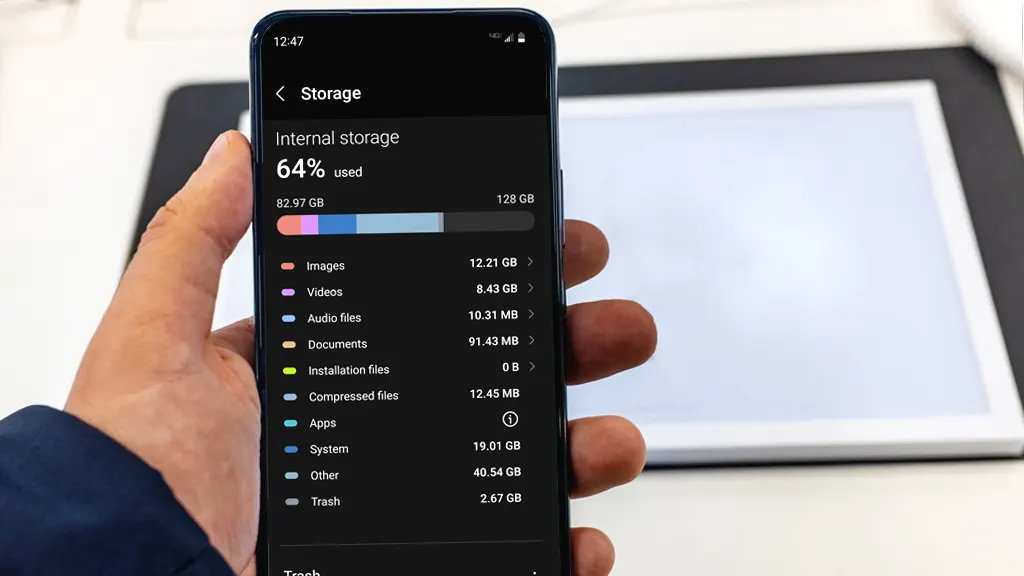
- Open your phone’s Settings app.
- Tap on “Storage” or “Device Care” then select “Storage.”
- View what categories are using the most space, like Apps, Photos, or Videos.
Delete Unnecessary Apps and Games
Apps and games can take up a lot of storage, especially ones you no longer use. Removing apps you don’t need is like freeing up a big chunk of space quickly.How to delete apps
- Go to Settings > Apps & Notifications > See all apps.
- Scroll through your list or use the search bar to find apps you no longer use.
- Tap on the app you want to delete.
- Select “Uninstall” and confirm.
Clear Cache Files
Many apps save temporary files called cache to load faster. Over time, these files can pile up and consume significant space.How to clear cache for individual apps
- Open Settings > Apps & Notifications.
- Select an app that uses a lot of cache, such as your browser or social media apps.
- Tap “Storage & Cache.”
- Choose “Clear Cache.”
Manage Photos and Videos
Photos and videos are often the biggest culprits when it comes to storage. Most smartphones take high-resolution images and videos that can quickly fill your storage.Tips for managing media files
- Back up photos and videos to cloud services like Google Photos, Dropbox, or OneDrive. This saves space on your device and keeps your memories safe.
- Once backed up, delete the local copies from your phone.
- Use an SD card for storing media if your device supports it.
Delete Downloaded Files and Documents
Your downloads folder can harbor many unwanted files that pile up over time.How to clean your Downloads folder
- Open your file manager app.
- Navigate to the “Downloads” folder.
- Remove files you no longer need by selecting and deleting them.
Remove Old Messages and Attachments
Text messages and chat apps like WhatsApp can contain large media files or lengthy conversations that occupy storage.Steps to free space in messaging apps
- In WhatsApp or similar apps, go to Settings > Storage and Data > Manage Storage.
- Review chat details and delete large files or conversations you no longer need.
- Delete old messages or archive important ones instead of keeping everything in your inbox.
Use Built-in Storage Optimization Tools
Most Android phones come with tools designed specifically to help manage storage.How to access storage optimization features
- Open Settings > Device Care or Storage.
- Tap “Optimize” or “Clean Now.”
- The device scans for junk files, residual data, and unused apps to suggest deletions.
Utilize Cloud Storage Solutions
Storing your files in the cloud saves space on your device and makes your data accessible from anywhere.Popular cloud services
- Google Photos and Google Drive
- Dropbox
- OneDrive
- Download the cloud app of your choice from the Google Play Store.
- Create an account or log in.
- Upload photos, videos, or documents.
- After uploading, delete local copies to free up space.
Factory Reset: Last Resort
If your device still struggles with storage even after cleaning, a factory reset may be necessary.Important tips before resetting
- Back up all important data to the cloud or your computer.
- Ensure your device is charged or plugged in.
- Follow your manufacturer’s instructions for resetting.
Summary of Quick Tips to Free Up Space
| Action | Description |
|---|---|
| Uninstall Unused Apps | Remove apps you no longer need or use. |
| Clear Cache Files | Delete temporary app data to save space. |
| Manage Media Files | Back up and delete unnecessary photos and videos. |
| Delete Downloads & Files | Remove old files stored in your device’s download folder. |
| Clean Messaging Apps | Delete old texts and media attachments. |
| Use Storage Tools | Leverage built-in cleaning features for quick results. |
| Utilize Cloud Storage | Save files online and free local space. |
| Consider Factory Reset | Reset your device if nothing else works. |
Frequently Asked Questions
How can I identify which files are taking up the most space on my device?
Check your device’s storage settings to see a breakdown of different file types. Use the built-in file manager or a third-party app to view large files, duplicated items, and apps that consume significant space. Sorting these files by size helps you decide what to delete or move elsewhere.
What steps can I take to clear cache data from my Android apps?
Go to your device’s Settings, then select Apps or Application Manager. Choose individual apps and tap on Storage or Storage & cache. From there, tap Clear Cache to remove temporary data that apps store, freeing up space without impacting your app usage.
Is it effective to move photos and videos to cloud storage or external devices?
Yes, relocating your media files to cloud storage services like Google Drive or using an SD card or external drive helps free up internal storage. This method ensures your files stay accessible while keeping your device’s space available for other uses.
How can uninstalling unused apps help in freeing up space?
Removing apps you no longer use deletes associated data and reduces clutter. Visit the Apps section in your device settings, select the unused apps, and tap Uninstall. This straightforward step can significantly increase available storage.
Are there any tools or apps that assist in cleaning up storage on Android devices?
Several reputable storage management apps can analyze your device and suggest files or apps to delete. These tools often automate the cleanup process and help identify junk files, duplicates, and large content, making it easier to maintain free space.
Final Thoughts
To make space on my android phone, start by deleting unused apps and clearing cache files. Transfer photos and videos to cloud storage or an external device to free up local space. Regularly review and remove unnecessary files to maintain optimal storage. Focusing on these steps helps you quickly free up space and keeps your device running smoothly.
Similar Posts































