How To Make Space On Your Android Phone Efficiently
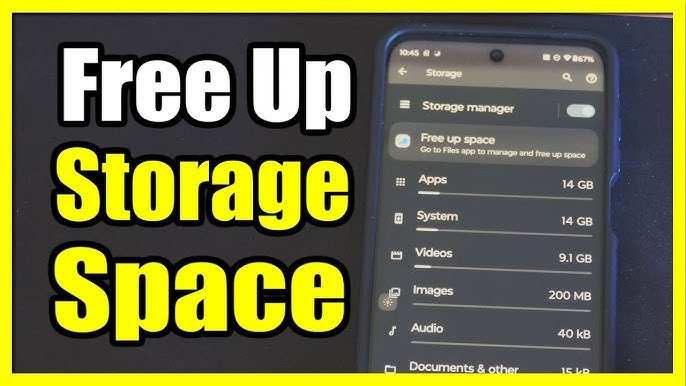

How to Make Space on Your Android Phone
Managing storage on your Android device can sometimes feel like a confusing task. Over time, your phone accumulates apps, photos, videos, and other files that take up valuable space. When storage gets full, your phone may slow down, and you might even struggle to download new apps or update existing ones. Fortunately, there are simple and effective ways to free up space and keep your Android running smoothly. In this guide, we’ll explore various strategies you can use to make space on your Android phone, from deleting unnecessary files to optimizing your storage settings.Understanding What Takes Up Space on Your Android Phone
Before diving into how to free up space, it’s helpful to understand what kinds of files and data occupy your device.Apps and App Data
Apps can take up significant space, especially games or apps with large media files. Additionally, app data such as cache files, logs, and downloads can consume extra storage.Photos and Videos
High-resolution photos and videos can quickly fill your storage. These are often the largest files on your device.Downloads Folder
Files you’ve downloaded from the internet often sit unnoticed in your Downloads folder, piling up over time.Messages and Attachments
Text message attachments like images, videos, or audio can add up, especially if you tend to send or receive many multimedia messages.Other Files and Cached Data
Your device also stores cached data from various apps, temporary files, and system data that can sometimes be cleared safely.Steps to Free Up Space on Your Android Phone
Now that you understand what occupies your storage, let’s look at practical steps to create more space.Review and Uninstall Unnecessary Apps
Start by examining the apps installed on your device. Some apps might no longer be needed, and removing them can free up a good chunk of space.- Go to Settings
- Select Apps or Applications
- Review the list and identify apps you rarely or never use
- Tap on an app and choose Uninstall
Clear App Cache and Data
Many apps store temporary files to work faster, but these can pile up over time.How to clear cache for individual apps
- Open Settings > Apps
- Select an app
- Tap on Storage
- Choose Clear Cache
How to clear cache for all apps at once
Some Android devices offer a dedicated option:- Go to Settings > Storage
- Tap on Cached Data and confirm clearing it
Manage Photos and Videos Effectively
Since photos and videos often take up the most space, managing these files is crucial.Backup and Delete Unnecessary Media
- Use cloud services like Google Photos or OneDrive to back up your media
- After backing up, delete the original files from your device to free space
Use Storage Management Tools
Many Android phones come with built-in storage management features:- Open Settings > Storage or Device Care
- Tap on “Free Up Space” or “Manage Storage”
- Review suggestions for deleting large files or duplicate photos
Remove Old Downloads and Files
Your Downloads folder can accumulate files over time that no longer serve a purpose.- Open the Files app or File Manager
- Navigate to Downloads
- Review and delete files you no longer need
Utilize Cloud Storage and External Devices
Storing files in the cloud or on external storage reduces the load on your device.- Upload photos, videos, and documents to Google Drive, Dropbox, or other cloud services
- Move large files or media to an SD card if your device supports expandable storage
Optimize Messages and Attachments
Many messaging apps store multimedia files from conversations that can be deleted to free space.- Open your messaging app
- Review conversations with large attachments
- Delete old messages or specific media files you no longer need
Use Storage Settings and Automated Tools
Most Android phones include tools that help manage storage automatically.Enable Storage Management Features
- Go to Settings > Storage or Device Care
- Activate options like “Optimize Storage” or “Auto-delete old files”
Advanced Tips for More Storage Space
Beyond basic cleaning, consider these advanced tips to maximize storage.Reset Your Device if Necessary
If your phone still runs out of space after cleaning, performing a factory reset can help. Remember to back up all important data first.Use Storage Analyzing Apps
Apps like Files by Google analyze storage and suggest files to delete. They identify large or redundant files, making cleaning easier.Manage Offline Content
Streaming apps like Spotify or YouTube may save offline files that take space. Review and delete older offline content to free up room.Keep Software Updated
System updates often include storage optimizations. Keeping your Android up to date can help improve storage management features.Monitoring Your Storage Regularly
To prevent storage issues in the future, make it a habit to review your storage periodically.- Use built-in storage analysis tools to identify what takes up most space
- Set reminders to clean unnecessary files and apps every few months
- Maintain good habits such as backing up media and deleting unused files promptly
Frequently Asked Questions
What are some effective ways to clear cache files on my Android device?
To free up space, you can clear cache files stored by your apps. Go to Settings, then Apps or Applications. Select the app you want to clear cache for, and tap on Storage. Then, tap on Clear Cache. Repeat this process for multiple apps to recover storage space and improve device performance.
How can I identify large files taking up space on my Android phone?
Use a file management app or built-in storage analysis tool to locate large files. Open the Files app or Settings > Storage, and look for categories such as Videos, Downloads, or Other. These sections will highlight files that consume significant space. Delete or transfer unnecessary large files to an external device or cloud storage to free up room.
Are there specific apps or tools that can help me manage my storage more efficiently?
Yes, several apps like Google Files or SD Maid assist in cleaning and managing storage. These tools can identify duplicate files, old downloads, and unused apps. Use them to uninstall unnecessary apps or remove redundant data, which simplifies keeping your device organized and maximizes available space.
What steps can I take to optimize app data storage on my Android device?
Regularly review app data and clear unnecessary files or history within apps. For apps that store a lot of data, go to Settings > Apps, select the app, and clear cache or data if possible. Also, consider uninstalling apps you no longer use to prevent them from accumulating additional data. This helps keep your storage neat and efficient.
How can I move media files such as photos and videos to an external storage or cloud service?
Connect your device to a computer or use a file transfer app to move media files to an external SD card or PC. Alternatively, upload your photos and videos to cloud services like Google Photos or Dropbox. This not only frees up local storage but also keeps your media safely backed up and accessible from other devices.
Final Thoughts
To make space on your android phone, start by deleting unnecessary apps and files. Clear cached data in your device settings to free up storage. Use a file manager to identify large and unused files, then remove them. Regularly backing up photos and videos to cloud services can also free up significant space and keep your device organized.
Similar Posts































