How To Make Spacebar Bigger On Android For Better Typing
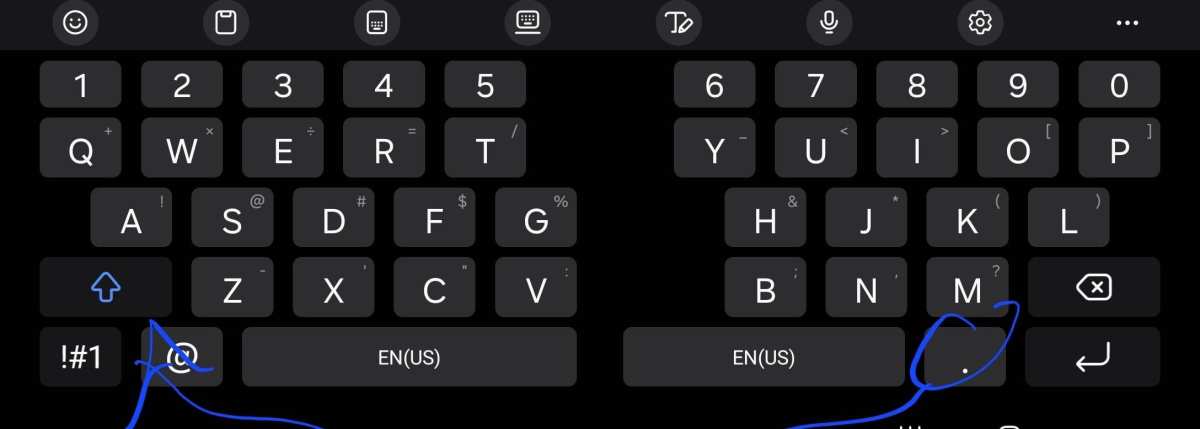

How to Make Spacebar Bigger on Android
Making the spacebar larger on your Android device can significantly improve your typing experience. Whether you’re playing games, sending messages, or filling out forms, a bigger spacebar can make typing easier and more comfortable. In this guide, we’ll walk through various methods to enlarge the spacebar, explore the settings you can tweak, and suggest some helpful apps and tools to customize your keyboard just the way you want.Understanding Why the Spacebar Size Matters
Before diving into how to change the spacebar size, it’s important to understand why this matters. The size of the spacebar affects how easily you can insert spaces between words. An inadequately sized spacebar can lead to accidental touches, typos, or frustration during typing. Some reasons to make your spacebar bigger include:- Improved accuracy while typing
- Reduced frustration, especially on smaller screens
- Enhanced comfort during long text sessions
- Better accessibility for users with larger fingers
Check Your Keyboard App Capabilities
Android devices come with a variety of keyboard apps, each with different customization features. Some popular options include Google Gboard, Samsung Keyboard, and SwiftKey. Not all keyboards let you manually resize the spacebar, so your first step is to identify what options your current keyboard offers.- Open your keyboard and look for a gear icon or settings option.
- Navigate to the keyboard’s settings menu.
- Check if there are options related to key size, layout, or customization.
Customizing the Spacebar in Google Gboard
Google Gboard is one of the most popular and versatile keyboard apps. It offers some customization options that can help you make the spacebar larger, although it doesn’t allow direct resizing of individual keys through settings. Instead, you can increase the overall keyboard size, which naturally enlarges the spacebar.Steps to enlarge the keyboard size in Gboard
- Open the Settings app on your Android device.
- Scroll down and tap on “System,” then select “Languages & input.”
- Tap on “Virtual keyboard,” then choose “Gboard.”
- Tap on “Preferences.”
- Look for “Keyboard height” or “Adjust keyboard size” option.
- Use the slider to increase the size of the keyboard to your preference.
Additional Tips for Using Gboard Effectively
– Enable “Split Keyboard” if you prefer a different layout for easier thumb typing. – Turn on “Floating Keyboard” to move the keyboard around on the screen. – Customize theme and appearance to reduce visual clutter and improve visibility.Using Third-Party Keyboards for More Customization
If Gboard doesn’t meet your needs, several third-party keyboard apps offer advanced customization, including resizing individual keys like the spacebar.- **Click Keyboard**: Known for high customization, allowing you to resize keys, change layouts, and tweak key placement.
- **AnySoftKeyboard**: An open-source option with extensive customization options, including key size adjustments.
- **Classic Keyboard**: Offers options to modify key size and layout, making it easier to enlarge the spacebar.
- Download your preferred keyboard app from the Google Play Store.
- Open your device’s Settings, go to “System” or “Language & input.”
- Select “Keyboard & input methods” or “Virtual keyboard.”
- Tap on “Manage keyboards” or “Add keyboard.”
- Enable the new keyboard app and set it as the default.
- Follow the specific app’s instructions to customize the key sizes, especially the spacebar.
Adjusting Keyboard Layouts for Larger Spacebars
Some keyboards allow you to customize the layout to include larger keys or different arrangements that put more space around the spacebar.Switch to a Custom Layout or Theme
– Many keyboard apps provide a variety of themes and layouts. – Select or create a layout with a wider spacebar. – Adjust the spacing between keys to increase the spacebar size visually.Using Split or Floating Keyboard Modes
– These modes offer more flexibility in positioning and sizing keys. – Experiment to see which mode provides the best spacebar size and accessibility.Tips for Improving Your Typing Experience
– Increase the overall keyboard size for better key visibility. – Use a stylus or larger finger tips to improve accuracy if the keys are small. – Choose themes with high contrast to make the keys more distinct. – Enable haptic feedback for better tactile response.Additional Tools and Accessories to Help
Sometimes, software adjustments aren’t enough. Consider using accessories or tools to enhance your typing experience:- Screen magnifiers: Apps that enlarge parts of the screen and make keys easier to press.
- External keyboards: Connecting a wireless or wired external keyboard can eliminate size concerns altogether.
- Stylus: Using a stylus can improve precision in pressing smaller keys.
Troubleshooting Common Issues
– **Keyboard not resizing after adjustments?** Restart your device, or reinstall the keyboard app. – **The spacebar is still too small?** Switch to a third-party keyboard with more advanced customization. – **Typing feels awkward or laggy?** Reduce keyboard size or switch to a simpler theme to improve responsiveness. Making the spacebar bigger on your Android device enhances your overall typing comfort and accuracy. You have options to adjust your current keyboard’s size, switch to a more customizable keyboard app, or even tweak layouts for better accessibility. Remember to explore different settings, experiment with sizes, and choose tools that best fit your usage style. With a little effort, you’ll find the perfect setup that makes typing easier and more enjoyable on your Android device.Frequently Asked Questions
Can I adjust the size of the spacebar on my Android keyboard manually?
Most Android keyboards do not offer a direct option to resize the spacebar manually. However, you can customize the overall keyboard size, which indirectly affects the size of the spacebar. To do this, go to your keyboard’s settings and look for options related to ‘Keyboard Size’ or ‘Layout.’ Adjust the slider to increase or decrease the overall keyboard size, which will make the spacebar larger or smaller accordingly.
Are there specific keyboard apps that allow resizing of the spacebar?
Yes, some third-party keyboard apps like Gboard or SwiftKey provide more customization options, including adjusting key sizes. In these apps, navigate to the settings menu, select the layout or appearance options, and look for features that let you modify the size of individual keys or the entire keyboard. These apps generally give you more control over the size and placement of keys, including the spacebar.
How can I change the layout to make the spacebar appear larger on my Android device?
Switching to a different keyboard layout or mode may enhance the visibility and size of the spacebar. For example, some keyboards offer a split or compact mode that reduces key sizes. To change the layout, open your keyboard app’s settings, explore the themes, layouts, or advanced options, and select a mode that emphasizes larger keys or more prominent spacebars. This adjustment can improve your typing experience when you prefer a bigger spacebar.
Final Thoughts
To make spacebar bigger on android, you can adjust your keyboard settings or try third-party keyboard apps that offer customization options. Many keyboards allow you to resize keys directly within their settings menu. Alternatively, installing a keyboard like Gboard provides more flexibility for key size adjustments. Making the spacebar bigger on android enhances typing comfort and accuracy. These simple steps help you tailor your keyboard to fit your needs perfectly.
Similar Posts































