How To Make Text Keyboard Bigger On Android For Better?
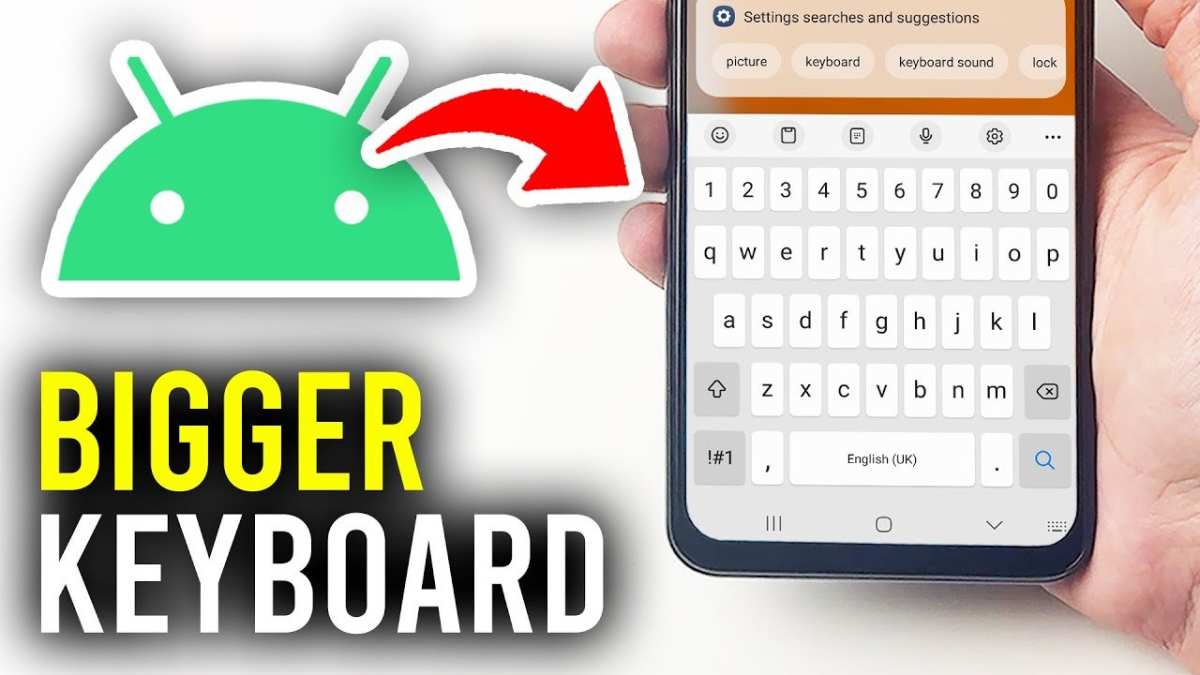

How to Make Text Keyboard Bigger on Android
Having difficulty seeing the keys on your Android keyboard? You’re not alone. Many users find that their keyboard size feels too small, especially if they have trouble with vision or simply prefer larger keys for more comfortable typing. Luckily, there are several ways to increase the size of your text keyboard on Android devices. In this guide, we’ll explore everything you need to know to make your keyboard bigger, from built-in settings to third-party apps. Let’s dive into each method, so you can type with ease and confidence.Understanding Why Your Keyboard Might Be Small
Before jumping into solutions, it’s helpful to understand why your keyboard feels small in the first place. Here are some common reasons:- Default keyboard size set by the keyboard app
- Device screen size and resolution
- Display scaling settings on your Android device
- Custom keyboard apps with limited customization options
Adjusting Keyboard Size Using Built-in Settings
Many Android devices and their default keyboard apps offer options to resize or customize the keyboard. Here’s how to do it with the most common keyboard apps:Gboard (Google Keyboard)
Gboard is one of the most popular Android keyboard apps, and it provides simple options to adjust keyboard height.- Open any app where you can type, such as Messages or Notes.
- Tap on the text input field to bring up the keyboard.
- Tap the gear icon to open Settings, or tap the three dots and select “Settings.”
- Select “Preferences.”
- Scroll down to find the “Keyboard height” option.
- Choose between Small, Normal, Large, or Extra Large, depending on your preference.
- Exit the settings — your keyboard will now display at the selected size.
Samsung Keyboard
Samsung devices come with their own keyboard, which also allows for size customization.- Access Settings on your device.
- Tap on “General management.”
- Select “Samsung Keyboard settings.”
- Tap on “Flexboard height” or “Keyboard size.”
- Adjust the slider to increase or decrease the keyboard size.
- Test out the new size in any text field.
Changing Display Settings to Enlarge Keyboard
If your keyboard does not offer resizing options, or you want a more universal solution, modifying the display settings can help.Increase Font Size and Display Scaling
By enlarging text and UI elements on your device, the keyboard’s keys become proportionally larger.- Open Settings on your Android device.
- Go to “Display.”
- Select “Font size” and increase it to a larger setting.
- If available, choose “Display size” and move the slider towards “Large.”
Use Accessibility Features for Larger Keys
Android offers accessibility options that can make typing easier:- Navigate to Settings > Accessibility.
- Look for features like “Magnification” or “Interaction controls.”
- Enable features that enlarge touch areas, which can make pressing keys more comfortable.
Using Third-Party Keyboard Apps for Bigger Keys
If built-in options do not meet your needs, you can download third-party keyboard apps that offer extensive customization, including larger keys.Popular Customizable Keyboard Apps
- SwiftKey
- Fleksy
- Grammarly Keyboard
- Chrooma Keyboard
How to Install and Customize Third-Party Keyboards
- Download your preferred keyboard app from the Google Play Store.
- Open the app and follow the on-screen instructions to enable it as your default keyboard.
- Access the keyboard’s settings menu.
- Look for options related to size, layout, or spacing.
- Adjust the settings to make keys larger and more comfortable to press.
- Test the new keyboard in any app and make further tweaks if needed.
Tips for Better Typing Experience with Larger Keys
Making your keyboard bigger is just half the story. Here are some tips to improve your overall typing comfort:- Use a stable surface or a stand for your device to prevent accidental presses.
- Enable haptic feedback so you get a little vibration when you press a key.
- Increase the keyboard’s delay setting to prevent accidental repeated presses.
- Practice typing on the larger keys to build familiarity and speed.
Summary of Methods to Make Your Text Keyboard Bigger on Android
| Method | Description | Best For |
|---|---|---|
| Built-in Keyboard Settings | Adjust size directly within your keyboard app options like Gboard or Samsung Keyboard. | Users looking for quick and easy resizing. |
| Display Scaling and Font Size | Increase overall display elements to make keys appear larger. | Users wanting a broader accessibility boost. |
| Third-Party Keyboard Apps | Use customizable keyboards with adjustable key sizes and layouts. | Users seeking extensive customization options. |
Frequently Asked Questions
Can I change the size of my Android keyboard without installing additional apps?
Yes, many Android devices allow you to adjust the keyboard size directly through the system settings. You can usually find this option within your keyboard’s settings menu. Look for options labeled as “Resize” or “Keyboard Height” to make the keys larger or smaller according to your preference.
How do I access keyboard settings to increase the size on my Android phone?
Open your keyboard by tapping any text input area. Then, tap the gear icon or three-dot menu on the keyboard to access settings. From there, navigate to options like “Preferences” or “Appearance” where you may find controls to adjust the keyboard height or size. Some keyboards also have a dedicated resizing handle you can drag to change size directly.
Are there specific keyboard apps that offer better options for customizing size on Android?
Yes, keyboard apps like Gboard, SwiftKey, and Fleksy include customization options that let you modify the keyboard size. You can usually find these settings within the app’s preferences. Installing one of these keyboards might give you more control over the size and layout compared to the default keyboard.
What should I do if I cannot find size adjustment options in my current keyboard?
If your current keyboard lacks size adjustment features, consider switching to a third-party keyboard app that allows more customization. Download and install a different keyboard from the Google Play Store, then follow its setup instructions and explore the settings to find size options that suit your needs.
Can I set different keyboard sizes for different apps on my Android device?
Yes, some keyboard apps let you customize the size for specific apps. Open your keyboard settings, look for options like “Per-App Settings” or “Customization,” and adjust the size for each app individually. This ensures you have optimal typing experiences tailored to your preferences in different contexts.
Final Thoughts
To make text keyboard bigger on Android, adjust the font size settings in your device’s display options. You can also modify the keyboard size through third-party keyboard apps that offer customization. Increasing font size improves readability and enhances your typing experience efficiently. In summary, if you want to make text keyboard bigger on Android, explore system settings or use customizable keyboard apps. This simple step can make a noticeable difference in your daily device use.
Similar Posts































