How To Free Up Storage Space On Macbook Efficiently
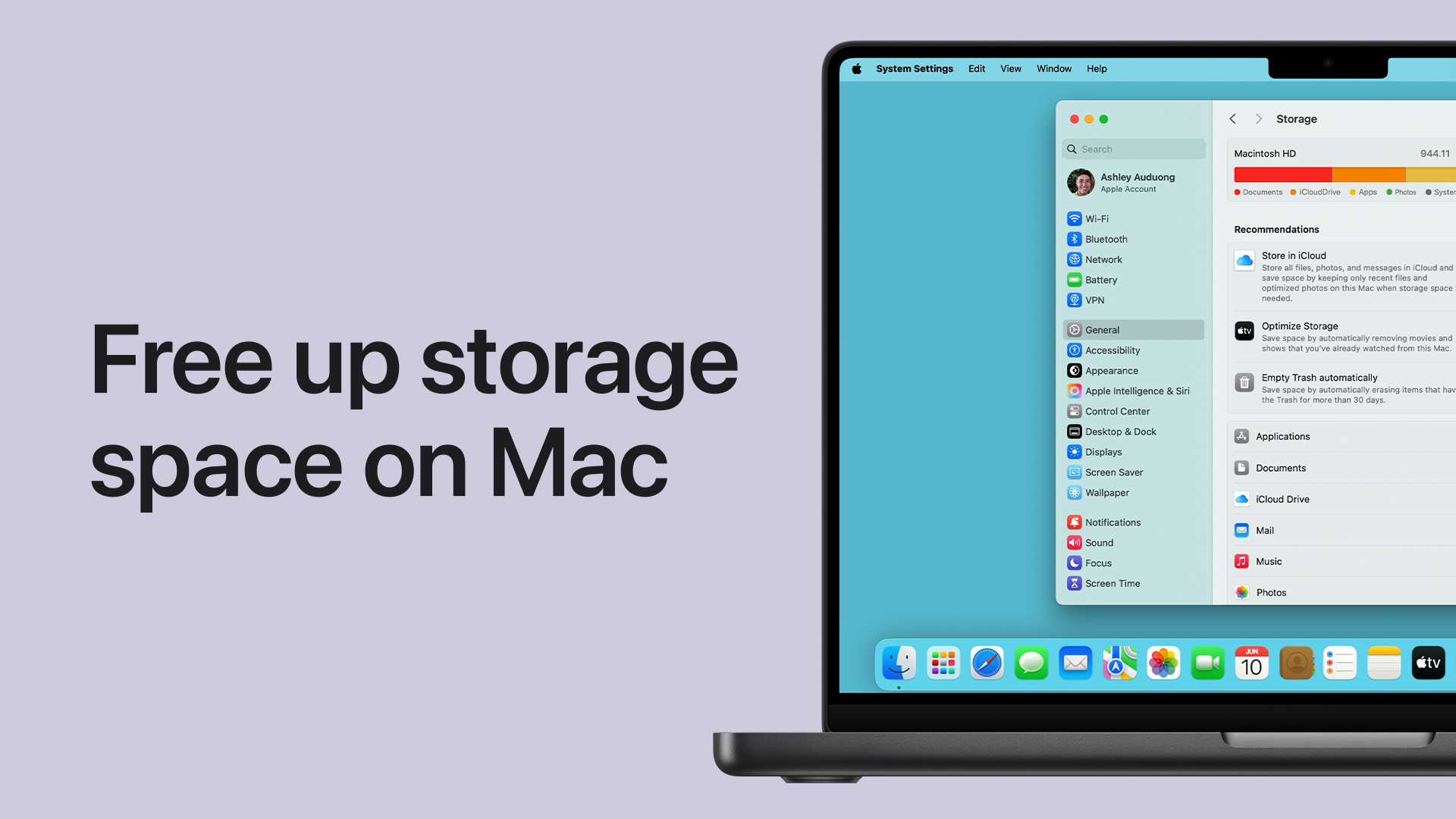

How to free up storage space on MacBook
Understanding Your Storage Needs
Knowing how much space your MacBook needs is the first step. Check your current storage to identify what types of files are taking up the most room. Your Mac provides a built-in tool called “Storage Management” that offers clear insights into your data.Check Your Storage Usage
To view your storage:- Click on the Apple menu in the top-left corner of your screen.
- Select “About This Mac.”
- Click on the “Storage” tab.
Identify Large Files and Folders
Use Finder to locate large files:- Open Finder and select “Go” from the menu bar.
- Choose “Home,” then “Documents” or “Downloads.”
- Sort files by size to find the biggest ones.
Efficiently Manage Storage with Built-in Tools
macOS offers optimized tools to help clear space quickly. These features are designed to automate some cleanup processes, saving you time and effort.Optimize Storage Through Apple’s Recommendations
In the Storage Management window:- Click “Manage” next to your storage bar.
- Review the suggestions provided, such as “Store in iCloud” and “Optimize Storage.”
Empty Trash Regularly
Deleting files doesn’t free space until you empty the Trash:- Right-click the Trash icon in your Dock.
- Select “Empty Trash.”
Removing Unused Applications
Apps can occupy significant storage if not managed properly. Removing unused apps frees up both space and system resources.Uninstall Applications Properly
To uninstall:- Open Finder and go to the “Applications” folder.
- Drag unused applications to Trash.
- Empty Trash to permanently delete them.
Using Third-Party Uninstallers for Deep Cleaning
Tools like CleanMyMac or AppCleaner can help remove leftover files:- Download and install a reputable uninstaller.
- Select the app you want to delete.
- Follow the app’s instructions for thorough removal.
Managing Photos and Videos
Photos and videos are usually the largest files on a Mac. Proper management can free up considerable space.Use iCloud Photos
Activate iCloud Photos to store images in the cloud:- Go to System Preferences > Apple ID > iCloud.
- Enable “Photos.”
- Select “Optimize Mac Storage.”
Delete Unwanted Photos and Videos
Regularly review your media:- Open the Photos app.
- Delete duplicates and blurry images.
- Empty the “Recently Deleted” album.
Clearing Cache and Temporary Files
Caches and temporary files can accumulate over time, taking up space unnecessarily.Manually Clear Cache Files
To clear cache:- Open Finder and select “Go” > “Go to Folder.”
- Type “~/Library/Caches” and press Enter.
- Delete unnecessary folders or files.
Use Disk Cleanup Software
Third-party tools like CCleaner or Disk Inventory X can automate cache removal:- Download a trusted cleaning app.
- Run the scan to identify cache and temporary files.
- Remove files selectively or automatically.
Managing Mail Storage
Email attachments and old messages can consume space over time.Delete Unnecessary Attachments
Clear attachments from Mail:- Open Mail and go to your inbox.
- Select emails with large attachments.
- Delete or archive old messages.
Disable Mail Attachments Download
Change settings to prevent automatic downloads:- Open Mail > Preferences.
- Click on “Accounts” and select your email account.
- Under “Mailbox Behaviors,” choose “Download Attachments Manually.”
Managing Files Stored in Cloud Services
Cloud services are great for storage, but local copies can take up space.Use Cloud Storage Wisely
If you use Dropbox, Google Drive, or OneDrive:- Review sync settings.
- Move rarely accessed files to the cloud only.
- Remove local copies of files stored in the cloud.
Integrate iCloud Drive for Better Storage
iCloud Drive can help:- Enable it in System Preferences > Apple ID > iCloud.
- Set “Desktop & Documents Folders” to sync with iCloud.
- Choose “Optimize Mac Storage” to keep only recent files locally.
Advanced Tips for Storage Management
For users comfortable with Terminal and deeper system settings:- Use terminal commands to locate large files or clean system logs.
- Consult Apple’s support resources or a professional before executing advanced cleaning methods.
Prevent Future Storage Buildup
Adopt good habits to maintain free space:- Regularly review your files and delete what you no longer need.
- Set up automatic backups and cleanups.
- Keep your macOS updated to benefit from storage optimization features.
How to free up storage space on Mac | Apple Support
Frequently Asked Questions
How can I identify which files are taking up the most space on my MacBook?
To find out which files occupy the most storage, open the Apple menu and select “About This Mac.” Click on the “Storage” tab and then on “Manage.” Here, you’ll see a breakdown of your storage usage by categories such as Documents, Apps, and Other Files. For a detailed view, use the “Reduce Clutter” feature or browse through large files manually in Finder by sorting files by size. This approach helps you pinpoint and remove unnecessary large files effectively.
What steps should I take to clear cache and temporary files on my MacBook?
Clear cache and temporary files to free up space by opening Finder, then selecting “Go” from the menu bar and choosing “Go to Folder.” Enter ~/Library/Caches and delete the contents of each folder. Repeat the process with /Library/Caches to target system caches. Empty your browser cache through the browser settings, and consider using disk cleanup tools to automate this process. Regularly removing these files can free significant space and improve system performance.
Are there any built-in Mac tools that help optimize storage without deleting personal files?
Yes, macOS offers built-in tools to optimize storage. Navigate to Apple menu > About This Mac > Storage > Manage. Use features like “Optimize Storage” to automatically remove iTunes movies and TV shows you’ve already watched, and “Empty Trash Automatically” to delete items after 30 days. You can also review and delete large or unnecessary files directly through this interface, which helps maintain available space without risking essential data.
How can I safely delete applications and their associated files to free up space?
To remove applications safely, first drag the app from the Applications folder to Trash, then empty the Trash. To delete associated files, open Finder, select “Go” > “Go to Folder,” and enter ~/Library/Application Support/. Locate and delete folders related to the app you removed. Repeat the process in other Library subfolders like ~/Library/Preferences/ and ~/Library/Caches/ to ensure all related data is cleared. Using dedicated uninstaller apps can also help remove residual files thoroughly.
What are some effective ways to manage large media files on my MacBook to save space?
Start by reviewing your Photos, Music, and Videos folders to identify large media files. Compress or resize videos that are not frequently accessed, or transfer them to external storage devices or cloud services. Consider using built-in tools like Photos app, which offers options to optimize storage by keeping smaller versions locally while storing originals in iCloud. Regularly deleting unused media files also helps maintain free space on your device.
Final Thoughts
Freeing up storage space on your MacBook involves deleting unnecessary files, uninstalling unused applications, and organizing your data. Use the built-in storage management tool to identify large files and clear cache data regularly. Moving files to an external drive or cloud service can also free up valuable space. In conclusion, knowing how to free up storage space on MacBook helps maintain optimal performance and prevents clutter from building up. By following these steps, you ensure your device stays efficient, making daily tasks smoother.
Similar Posts