How To Make Video Memes On Android For Fun

How to Make Video Memes on Android
Creating funny and shareable video memes on your Android device has become easier than ever. With a little creativity and the right tools, you can produce hilarious videos that will entertain your friends and followers. In this guide, we’ll walk through the essential steps to help you make amazing video memes directly on your Android phone or tablet.Choosing the Right Video Meme Maker App for Android
The first step in making video memes is selecting an app that suits your needs. There are many options available on the Google Play Store, each offering different features.- InShot: A popular app for editing videos with features like trimming, adding music, and inserting text.
- CapCut: Known for its user-friendly interface and advanced editing options, perfect for creating high-quality memes.
- Funimate: Offers fun effects and animations that make your memes more engaging.
- VivaVideo: Provides multiple editing tools, including stickers, filters, and transitions.
- Mematic: Though primarily for images, it facilitates quick meme creation with overlays and text.
- Ease of use – is the interface simple enough for novices?
- Availability of editing tools like text, stickers, filters, and music
- Export quality and file size options
- Whether it supports overlaying images or GIFs onto videos
Gathering Content for Your Video Meme
A great meme starts with good content. Start by picking the video clips or images you want to turn into memes. You can use:- Existing videos from your gallery
- Short clips from movies, TV shows, or viral videos (make sure to respect copyright)
- Clips you’ve recorded yourself
Editing Your Video Meme Step-by-Step
Once you have your content, follow these steps to craft your video meme:trimming and cutting
Start by trimming your video to focus on the funniest, most relevant part. Most editing apps have a trimming tool:- Open your app and import your video
- Use the trimming tool to cut out unnecessary sections
- Make the clip short and punchy for maximum impact
Adding Text and Captions
Text adds context or punchlines to your meme. To add text:- Select the text tool in your app
- Type your caption or joke
- Adjust font size, style, and color for visibility
- Place the text at the top, middle, or bottom of the video, depending on your design
Inserting Music and Sound Effects
Adding audio can make your meme more engaging:- Import music tracks or use built-in sound effects
- Sync music with the video’s timing for comedic effect
- Adjust volume levels to ensure clarity
Using Effects, Stickers, and Overlays
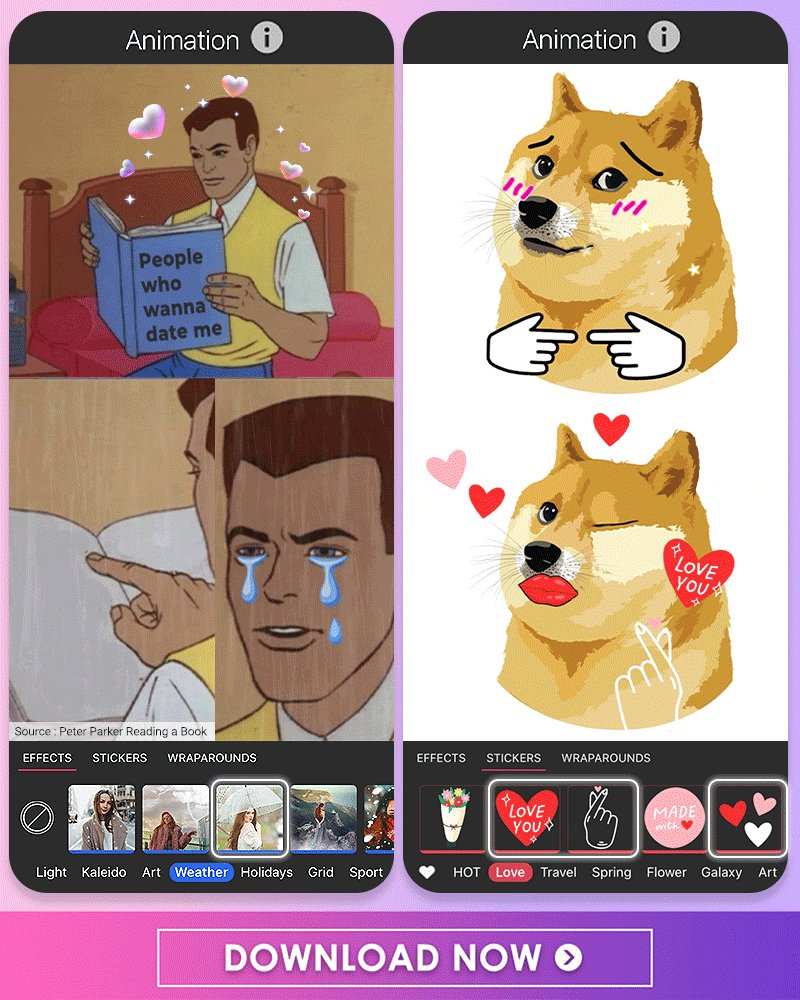
Enhance your meme with fun effects:- Add stickers like sunglasses, funny faces, or emojis to emphasize reactions
- Apply visual effects or filters to make your video more vibrant
- Overlay images, GIFs, or memes onto your video for extra humor
Exporting and Sharing Your Video Meme
Once your editing is complete, it’s time to export and share your masterpiece:- Choose the appropriate resolution and quality settings for your meme. Higher quality is better for sharing on social media.
- Save the video to your device’s gallery or directly upload it to platforms like TikTok, Instagram, WhatsApp, or Facebook.
- Make sure your meme complies with platform policies to avoid removal or bans.
Tips for Making Viral Video Memes on Android
To increase the chances of your meme becoming viral, keep these tips in mind:- Stay Relevant: Use trending topics or current events to make your meme relatable.
- Keep It Short: Shorter videos tend to perform better because they’re easier to watch and share.
- Be Funny and Creative: Use clever captions, unexpected effects, and witty humor.
- Use High-Quality Content: Clear visuals and good audio help your meme stand out.
- Share on Multiple Platforms: Post your meme on various social media sites for wider reach.
Additional Resources and Tools for Meme Creators on Android
Below are other helpful tools and resources to make your video meme creation process even smoother:- Online Meme Templates: Use websites like Imgflip or Canva for idea inspiration and templates.
- Sound Libraries: Access free sound effects and music on sites like Freesound or YouTube Audio Library.
- Video Tutorials: Watch YouTube tutorials for advanced editing techniques and trends.
Frequently Asked Questions
What are some user-friendly apps to create video memes on Android?
Several apps simplify the process of making video memes on Android devices. Popular options include Meme Maker & Video Editor, InShot, and KineMaster. These apps offer intuitive interfaces, built-in editing tools, and a variety of templates to help you craft humorous and engaging video memes quickly.
How can I add funny captions or text to my video memes on Android?
Most video editing apps for Android, such as InShot or KineMaster, allow you to add text overlays easily. Simply import your video, select the text tool, and type your caption. Customize the font, size, color, and position to match your meme’s style. Preview your video and make adjustments before exporting the final version.
What tips can help improve the quality of my video memes on Android?
To enhance your video memes, ensure your source videos are clear and well-lit. Use stable shots and avoid shaky footage. Incorporate timely captions and sound effects to boost humor. Keep the clips short and punchy to maintain viewer engagement. Exploring different editing features can also make your memes more lively and entertaining.
Final Thoughts
To make video memes on android, start by choosing a user-friendly app like MemeMaker or InShot. Import your favorite videos and add funny captions or effects to enhance humor. Keep your clips short and engaging to capture viewers’ attention. Editing tools allow you to trim, speed up, or add music easily, making the process quick and fun. Once finished, save and share your meme directly on social media platforms. In conclusion, making video memes on android is straightforward with the right apps and creative editing. Follow these steps to produce entertaining clips effortlessly.
Similar Posts































