is 27 inch monitor good for video editing
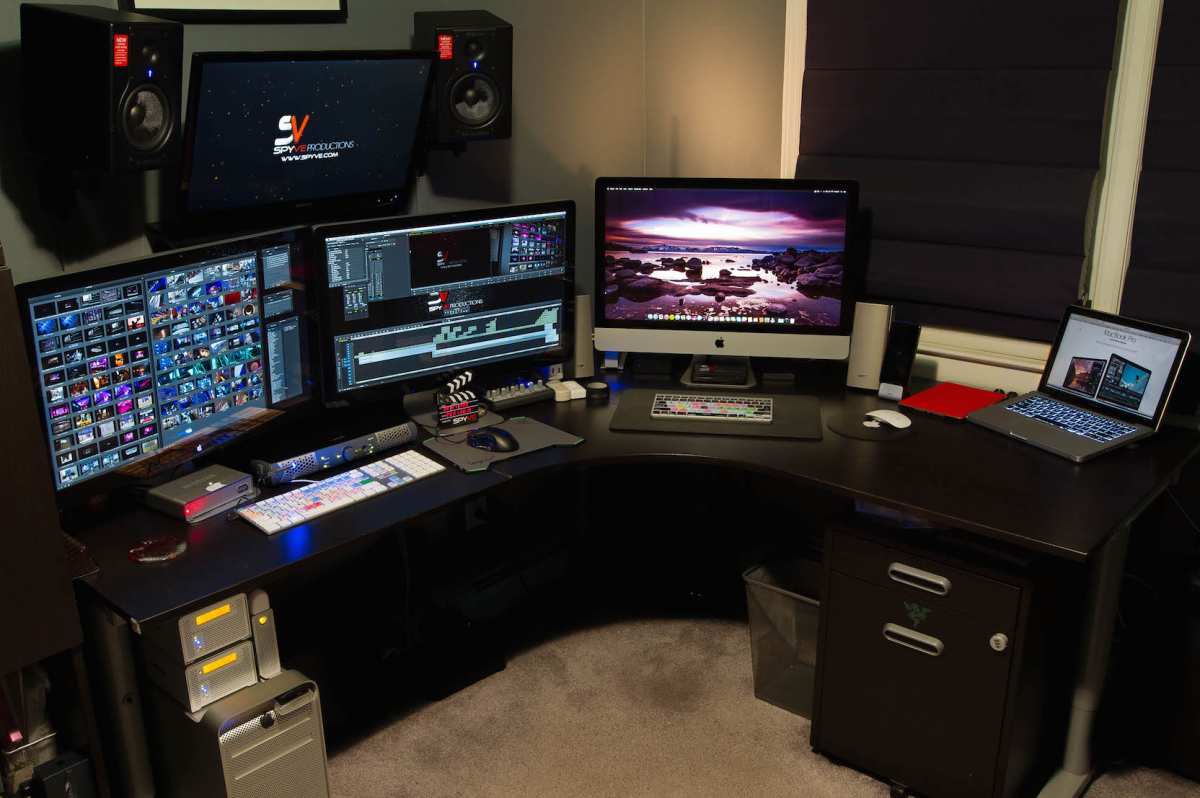
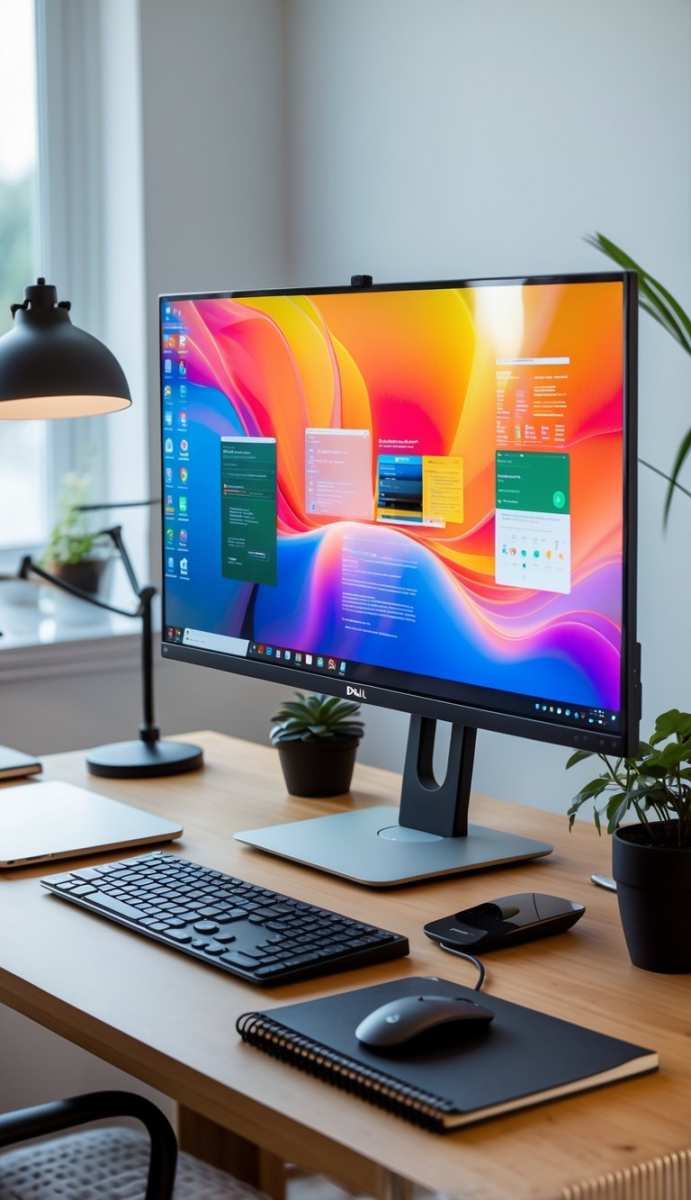
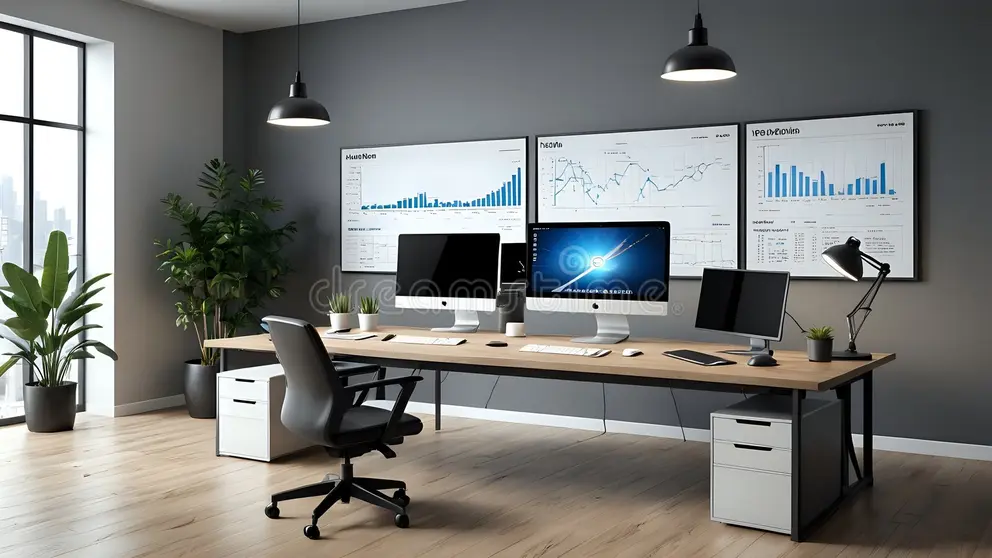
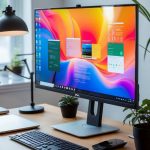
If you're wondering whether a 27 inch monitor is good for video editing, the short answer is: it depends on your setup and workflow. That's probably not the satisfying yes‑or‑no you were hoping for, but stick with me, by the end of this guide you'll know exactly which size fits your desk, your eyes, and your budget. A 27‑inch display sits right in the middle of the monitor size spectrum, and as of 2026 it's one of the most popular choices for editors who want a balance between screen real estate and desk‑friendliness.
Manufacturer specifications indicate that a 27‑inch 4K panel offers roughly 163 pixels per inch, which is sharp enough for most video work without forcing you to scale up to 200% on Windows. Aggregate reviews from professional editors confirm that this size works beautifully for timeline editing and color grading, but only if you pair it with the right resolution and panel type. Let's walk through the variables so you can make the call for your own studio.
Quick Answer: Is 27 Inches the Right Size for You?
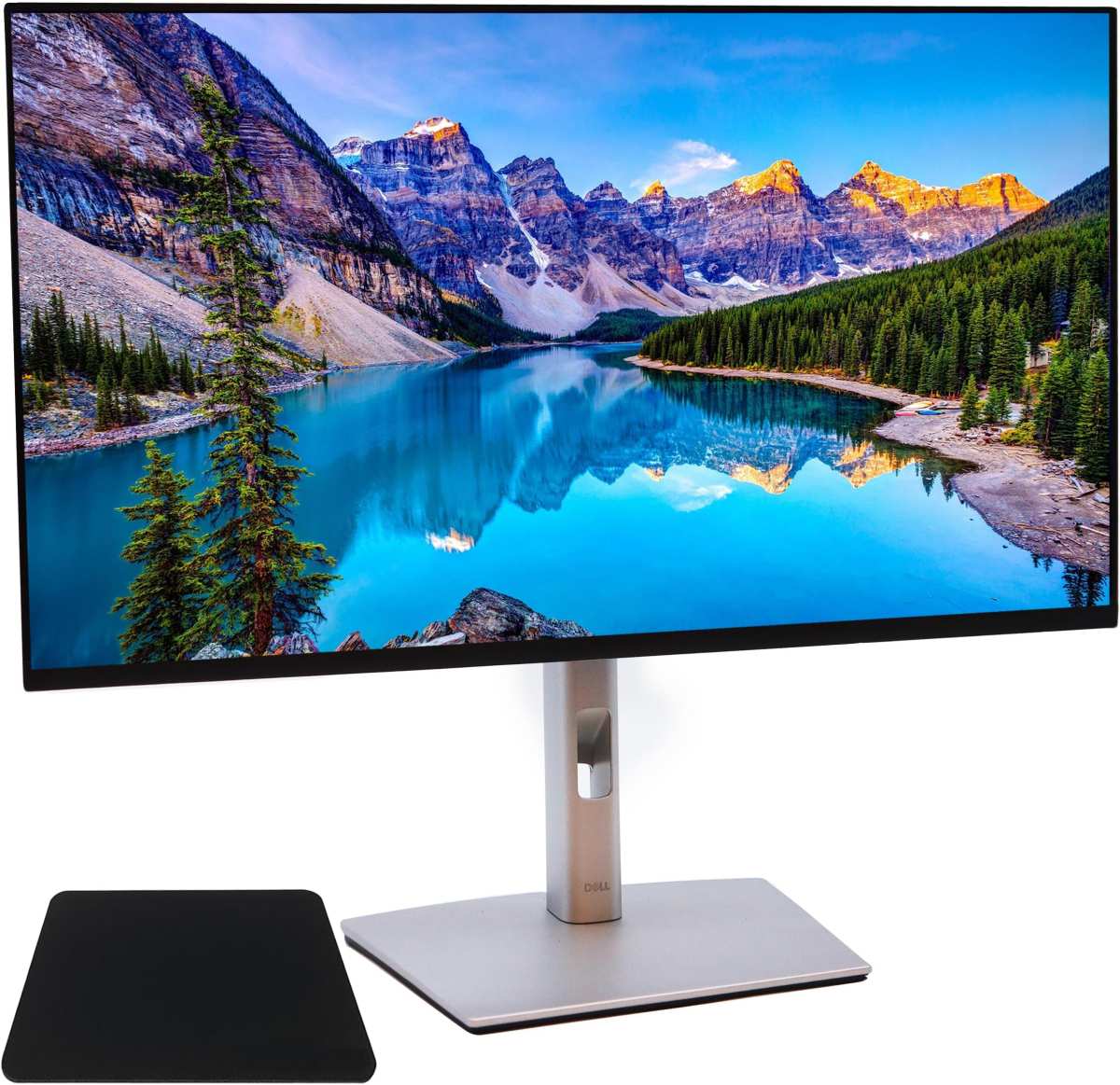
Yes, a 27 inch monitor is good for video editing when matched with the correct resolution and panel technology. For most solo editors and small studios, a 27‑inch 4K IPS display delivers the sharpness and color accuracy you need without dominating your desk or budget. If you work with long timelines, multicam projects, or HDR content, you may benefit from a larger 32‑inch screen or a dual‑monitor setup.
The real answer depends on three things: your desk depth, your preferred resolution, and your editing tasks.
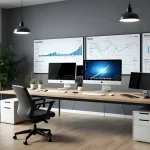
Image source: Bing (Web (fair-use with source credit))
What Makes a Monitor Good for Video Editing (and What Doesn’t)
Before we dig into size, let's agree on the features that actually matter for video editing. A monitor that's great for gaming or office work can be a disappointment in DaVinci Resolve or Premiere Pro. Here's what to look for:
- Color accuracy: A Delta E of less than 2 out of the box (lower is better). Many prosumer monitors now hit this, but budget models often drift by 5 or more.
- Color gamut coverage: At minimum 99% sRGB for standard web video. For broadcast or cinematic work, aim for 95%+ DCI‑P3 or Rec.709 coverage.
- Panel type: IPS is the safest bet for wide viewing angles and consistent colors. VA can offer better contrast but often shifts colors off‑angle. OLED is stunning but expensive and has burn‑in risk for static UI elements.
- Bit depth: 10‑bit (or 8‑bit + FRC) reduces color banding in gradients. Editing on an 8‑bit panel will show visible stripes in skies or skin tones.
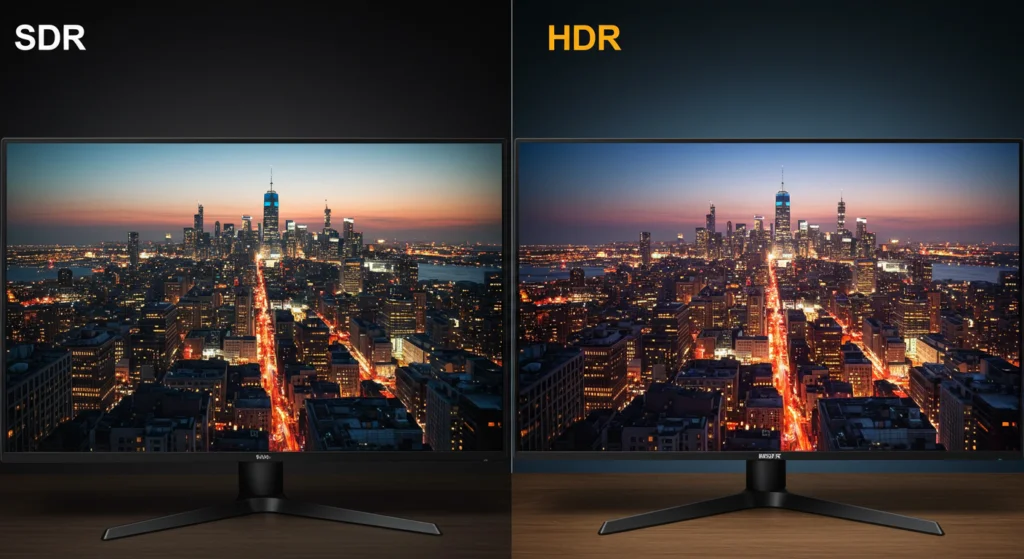
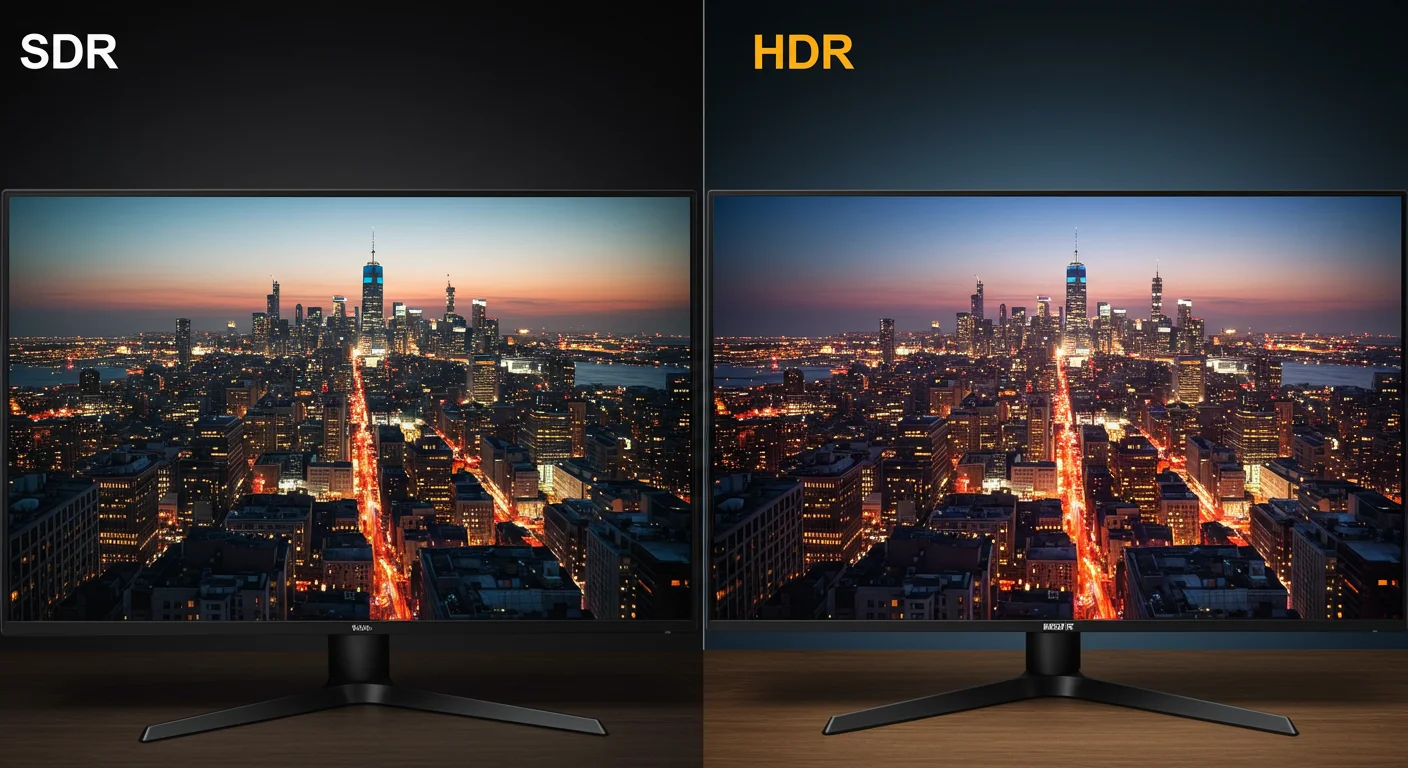
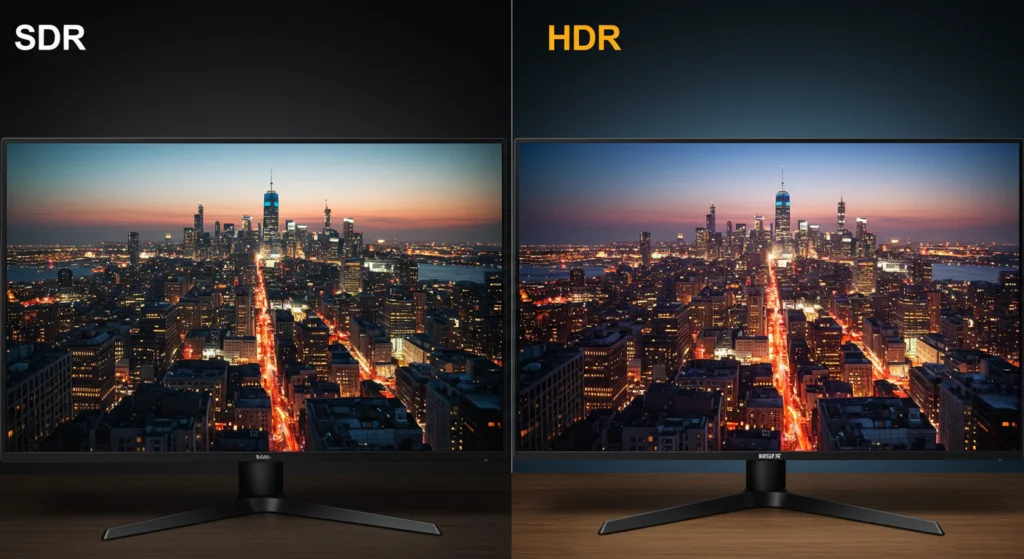
- Brightness: 250, 400 nits is fine for SDR editing. If you grade HDR, you need at least 600 nits and proper local dimming.
- Resolution: 4K (3840×2160) is the sweet spot for 27 inches. 1440p works for budget builds, and 1080p on 27 inches looks noticeably soft.
What doesn't matter much for editing? Refresh rate above 60 Hz, response time below 5 ms, and flashy RGB lighting. Those are gaming perks, not editing necessities.
The Three Big Variables That Change the Answer
The "is 27 inch monitor good for video editing" question isn't a single answer. It splits into three separate decisions based on your physical space, your computer's horsepower, and the kind of editing you do.
Your Desk Depth and Viewing Distance
A 27‑inch monitor needs about 24 to 30 inches of desk depth to sit comfortably at eye level. If your desk is shallow (20 inches or less), a 27‑incher will feel huge and force you to sit too close, causing eye strain or constant head turning. Measure from the front edge of your desk to the wall or stand base.
Add about 6 inches for the monitor's own depth. If that total is under 22 inches, consider a 24‑inch monitor instead or mount the 27‑inch on an arm that brings it closer to the wall.
Ideal viewing distance for a 27‑inch 4K panel is roughly an arm's length (about 24, 30 inches). That puts the whole screen in your peripheral vision without requiring neck movement.
Your Resolution Choice: 4K vs 1440p vs 1080p
This is the single most important decision for video editing on a 27‑inch monitor.
- 4K (3840×2160): Best overall. Gives you sharp text and plenty of timeline real estate. On macOS, the UI scales beautifully. On Windows, you may need to set scaling to 150% or 175% to avoid tiny icons. Works well with a modern GPU (RTX 3060 or better, or an M1/M2/M3 Mac).
- 1440p (2560×1440): A good budget option. You lose some horizontal space for long timelines, but text is still fairly sharp. It's easier on the GPU and cheaper. Best for editors who don't work with 4K source footage.
- 1080p (1920×1080): Avoid for video editing on a 27‑inch screen. The pixel density is only 81 PPI, so text looks fuzzy and you'll struggle to fit multiple video tracks without heavy scrolling.
Our research shows that 1440p 27‑inch monitors are popular among YouTubers on a tight budget, but most professional editors prefer 4K for the extra detail when inspecting focus or grain.
Your Panel Type: IPS, VA, or OLED
- IPS: The gold standard for color‑critical work. Consistent viewing angles, accurate color, and good uniformity. Downside: lower contrast ratio (around 1000:1), so blacks look more like dark gray in a dim room.
- VA: Higher contrast (3000:1 or more), deeper blacks. But color shifts off‑angle and response times can smear. Fine for basic editing if you sit directly in front. Not recommended for color grading where multiple people look at the screen.
- OLED: Perfect blacks, infinite contrast, and instant response. But expensive, prone to burn‑in from static UI elements (timeline bars, logos), and typically smaller (27‑inch OLEDs are rare). Best for HDR grading if you can afford it and don't leave the timeline open for hours.
For most editors, a 27‑inch 4K IPS monitor hits the sweet spot of price, accuracy, and versatility.
Real-World Benefits of a 27‑Inch Monitor for Editing
Let's talk about what a 27‑inch screen does well. These advantages are why so many YouTubers, freelance editors, and small studios choose this size.
- Fits standard desks. A 27‑inch monitor sits comfortably on a 48‑inch or 60‑inch desk, leaving room for speakers, a laptop, or a second monitor. A 32‑inch often crowds the space.
- Good pixel density at 4K. At 163 PPI, a 27‑inch 4K display looks crisp without needing aggressive scaling. Text is readable, and fine details in footage are visible.
- Great for dual‑monitor setups. Two 27‑inch monitors side‑by‑side give you a massive 54‑inch workspace without forcing you to turn your head too far. This is a common workflow among editors who keep the timeline on one screen and preview video on the other.
- Easier to calibrate consistently. Smaller panels tend to have better brightness and color uniformity than larger ones, especially in the edges and corners. This matters for color grading.
- Lower cost than 32‑inch 4K. A decent 27‑inch 4K IPS monitor starts around $350. A comparable 32‑inch 4K IPS model is often $500 or more. If budget is tight, 27 inches saves you real money without sacrificing much workspace.
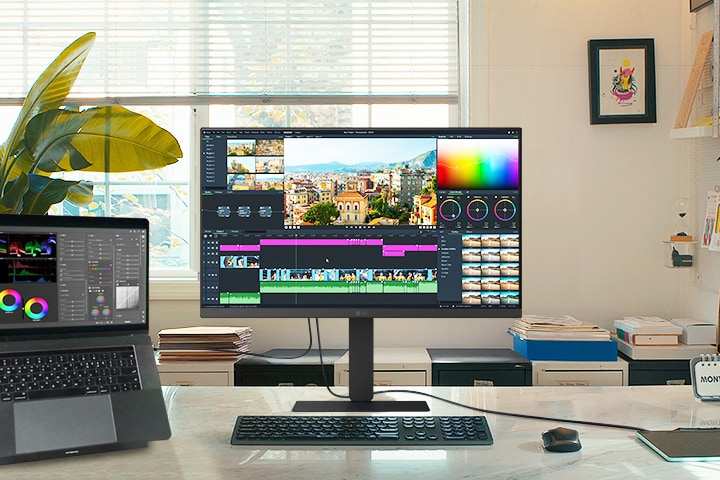
Image source: Bing (Web (fair-use with source credit))
Honest Drawbacks and When 27 Inches Falls Short
No monitor size is perfect. Here's where 27 inches can let you down, especially compared to larger or alternative configurations.
- Limited horizontal space for complex timelines. If you regularly edit multicam projects with six or eight angles, the timeline on a single 27‑inch screen can feel cramped. You'll scroll left and right more than you'd like.
- Scaling headaches on Windows. At 4K and 100% scaling, UI elements on Windows are tiny. At 150% or 175%, some apps (older plugins, certain export dialogs) look blurry or misaligned. macOS handles 4K scaling much better.
- Not ideal for color grading suites. Professional grading bays often use 55‑inch OLEDs or dual 32‑inch reference monitors. A single 27‑inch screen feels small when you're matching shots across a large broadcast project.
- Height adjustment limits. Many budget 27‑inch monitors have limited height range. If your desk is low or you're tall, you may need a monitor arm for proper ergonomic positioning.
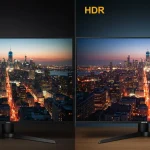
- Not great for HDR grading. Most 27‑inch monitors under $600 lack the peak brightness (under 400 nits) and local dimming zones needed for credible HDR. You'll spend $1,000+ for a 27‑inch HDR‑capable display.
If any of those drawbacks sound like deal‑breakers for your workflow, you might want to jump to the comparison section later in this article. For the average editor, though, 27 inches is a solid all‑rounder.
Step-by-Step: How to Decide If a 27-Inch Monitor Is Right for Your Workflow
Here's a simple process to turn those variables into a clear yes or no. Work through these four steps in order.
Step 1: Measure Your Desk and Eye Distance
Grab a tape measure. Check your desk depth from front edge to the wall or stand base. If it's less than 22 inches, a 27-inch monitor will feel cramped unless you wall-mount it or use a monitor arm.
Sit in your normal editing position. Measure from your eyes to where the screen will sit. If that distance is under 20 inches or over 36 inches, the 27-inch size may not be optimal.
Too close and you'll strain your neck. Too far and text and fine details become hard to read.
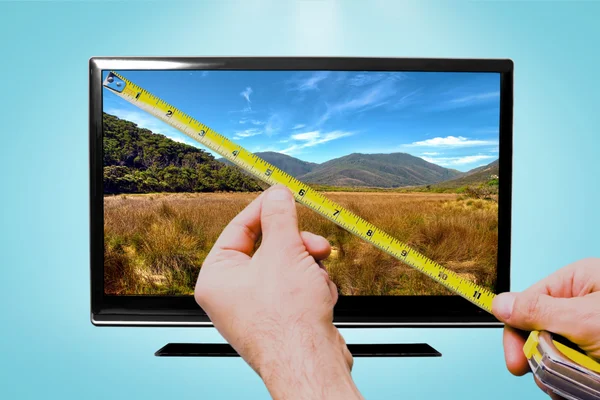
Image source: Bing (Web (fair-use with source credit))
Step 2: Match Resolution to Your Hardware and Software
Check your GPU and your operating system. If you're on a Mac with Apple silicon or Intel, 4K at 27 inches works perfectly with native scaling. If you're on Windows, test your GPU's ability to drive a 4K display at reasonable scaling.
| Resolution | GPU Required | Best For |
|---|---|---|
| 4K (3840×2160) | RTX 3060 / RX 6600 or newer | Color grading, 4K source footage, long timelines |
| 1440p (2560×1440) | GTX 1660 / RX 580 or newer | Budget builds, 1080p source, general editing |
| 1080p (1920×1080) | Any modern GPU | Not recommended for 27-inch video editing |
Step 3: Pick the Panel Type That Matches Your Editing Tasks
If you do color grading or color-sensitive work, choose IPS. If you edit mostly in a dim room and want deeper blacks, consider VA but accept the off-angle color shift. If you edit HDR and have the budget, OLED is stunning but watch for burn-in.
Step 4: Decide Between Single, Dual, or Ultrawide
If your desk fits two 27-inch monitors side by side (roughly 50 inches wide), that's often better than one larger screen. The timeline goes on one, preview on the other. If you have limited desk width, stick with a single 27-inch or go up to 32 inches.
Ultrawide 34-inch monitors can replace dual setup but often have lower pixel density at the same 1440p resolution.
27-Inch vs the Alternatives: When to Go Bigger or Smaller
Let's compare the 27-inch to the other common sizes. This will help you see where the trade-offs land.
24-Inch Monitors
Best for shallow desks and tight budgets. A 24-inch 4K monitor has a pixel density of about 183 PPI, which is sharper than 27-inch 4K. But you lose screen real estate.
Long timelines will require constant scrolling. This size is a good option if your desk is under 20 inches deep.
32-Inch Monitors
Best if desk depth is 30 inches or more. A 32-inch 4K display gives you about 138 PPI, which is still sharp but not as crisp as 27-inch 4K. The extra horizontal space helps with complex timelines.
The downside: higher cost, heavier weight, and you need to sit further back. If you edit multicam projects regularly, 32 inches is a strong upgrade.
Dual 27-Inch Setup
This is the sweet spot for many editors. Two 27-inch 4K IPS monitors cost about $700 to $1,000 total. That gives you roughly the same width as a single 49-inch ultrawide, but with sharper image and easier calibration per panel.
The downside: you need a wide desk and a second GPU output.
Ultrawide (34-Inch and Up)
A 34-inch ultrawide 1440p monitor has the same pixel density as a 27-inch 1440p but adds horizontal space. It's good for timeline-heavy work. But most ultrawides use VA panels, color accuracy isn't as consistent as IPS, and the pixel density at 34 inches 1440p is lower (about 110 PPI).
For color-critical editing, dual 27-inch 4K IPS monitors are the better choice.
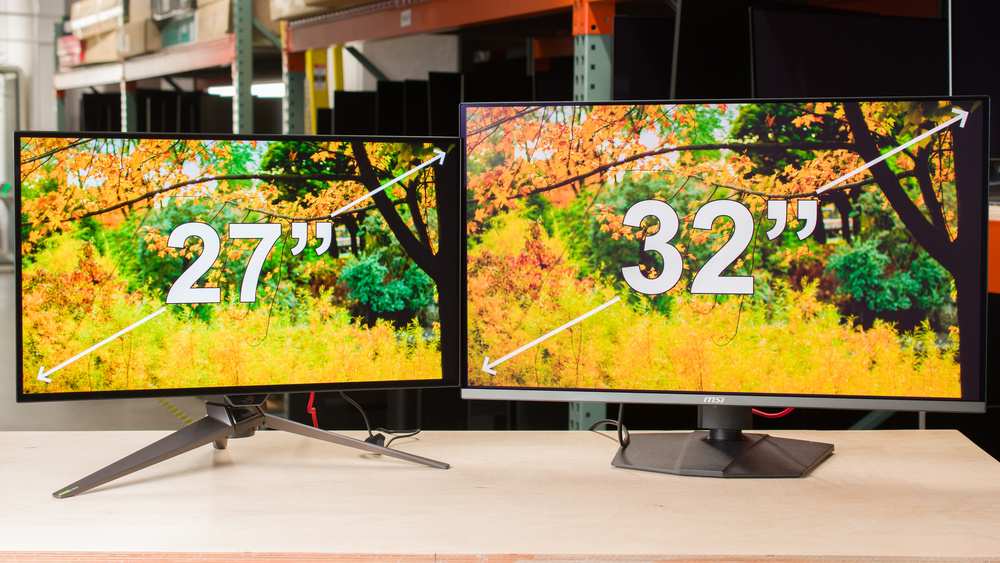
Image source: Bing (Web (fair-use with source credit))
Who a 27-Inch Monitor Is Best For (and Who Should Skip It)
A 27-inch monitor fits these editors well:
- Solo YouTubers who shoot 1080p or 4K and edit in Premiere Pro or Final Cut. The size is good for a single timeline and preview window.
- Freelance video editors working remotely with limited desk space. One 27-inch 4K IPS monitor covers most needs.
- Editors on a budget who can't afford a 32-inch 4K reference monitor. A good 27-inch 4K IPS panel costs $350 to $600 and delivers strong color accuracy.
- Editors building a dual-monitor setup with two matching 27-inch screens. This is a popular workflow for multicam and long-form content.
You should skip 27 inches and go larger if:
- You edit multicam projects with 4+ angles regularly.
- You work in a professional color grading suite with a 55-inch OLED reference.
- Your desk is deeper than 36 inches, making a 27-inch feel small from your viewing distance.
- You need true HDR grading and have the budget for a 32-inch HDR reference monitor.
Common Mistakes That Hurt Your Editing Experience
Avoid these pitfalls that editors commonly encounter when choosing or setting up a 27-inch monitor.
Ignoring Scaling Issues on Windows
If you buy a 27-inch 4K monitor for Windows, plan to use 150% scaling. Some older apps and plugins won't render properly at that level. Test your whole software stack before committing. macOS users rarely have this problem.
Choosing a Gaming Panel with Bad Color Accuracy
A 27-inch 1440p gaming monitor with a 165 Hz refresh rate and 1 ms response time might look great for games, but its color accuracy could be Delta E 5 or higher. That's fine for gaming, terrible for skin tones and gradients. Look for monitors that mention sRGB or DCI-P3 coverage and factory calibration reports.
Not Accounting for Stand Adjustability
Many budget monitors have limited height adjustment. If your desk is 29 inches high and you're 6 feet tall, the screen may sit too low. Factor in the cost of a VESA monitor arm if the stand doesn't offer enough range.
Forgetting to Calibrate Out of the Box
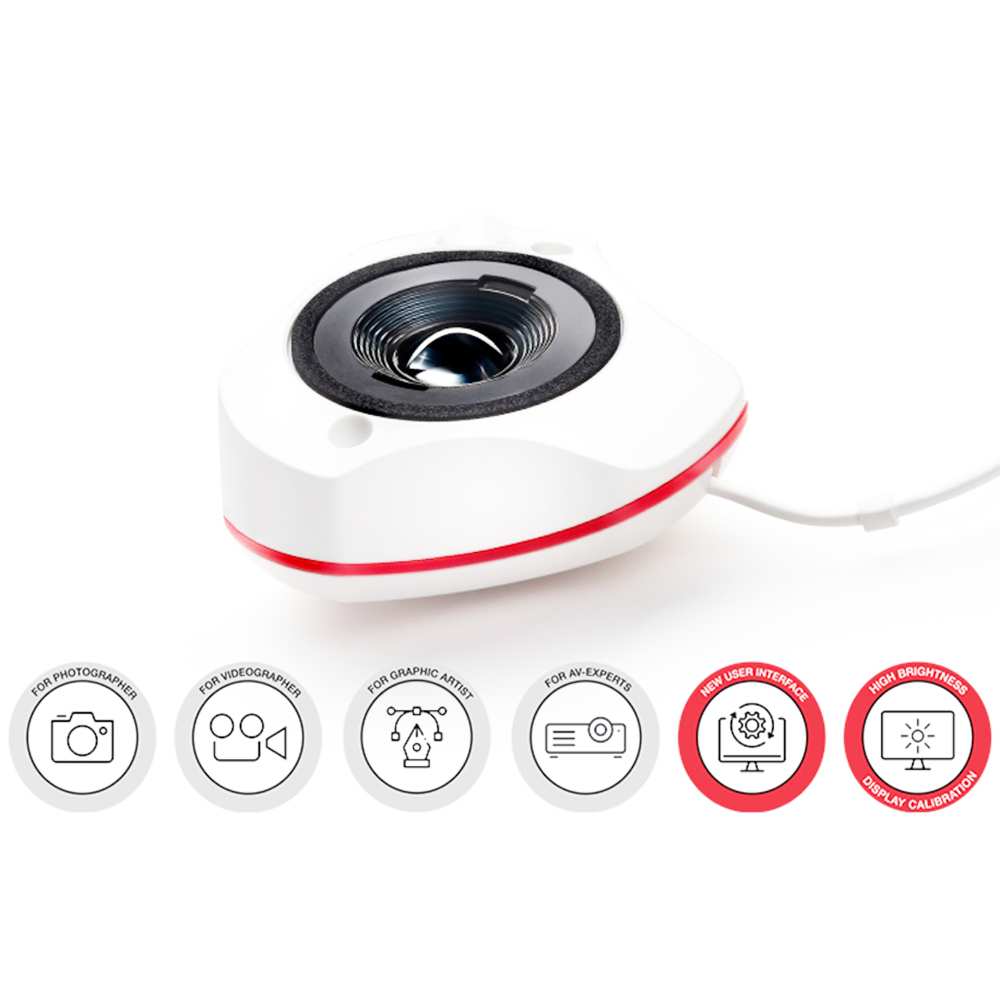
Even expensive monitors drift from factory specs. Use a hardware calibrator like an X-Rite i1Display or Datacolor Spyder. Set your white point to D65 (6500K) and gamma to 2.2.
This one step improves color accuracy more than any monitor upgrade.
What You Should Expect to Pay: Typical Specs at Each Price Tier
Here's what you get at three common price points for a 27-inch video editing monitor as of 2026.
| Price Range | Resolution | Panel Type | Color Accuracy | Brightness | Typical Gamut |
|---|---|---|---|---|---|
| $250 – $350 | 1440p or 4K | IPS (entry) | Delta E < 5 | 250–300 nits | 99% sRGB |
| $350 – $600 | 4K | IPS (mid-range) | Delta E < 2 | 300–400 nits | 99% sRGB, 90% DCI-P3 |
| $600 – $1,200 | 4K | IPS or OLED | Delta E < 1 | 400–600 nits | 99% Adobe RGB, 95%+ DCI-P3 |
In the entry tier, focus on color accuracy over resolution. A $300 1440p IPS monitor with Delta E < 3 will serve you better than a $300 4K VA monitor with Delta E > 5. In the mid tier, you get a true workhorse for most editing tasks.
In the pro tier, you add HDR capability and factory calibration.
Expert Tips for Getting the Most Out of a 27-Inch Editing Monitor
Small adjustments make a big difference in your editing comfort and accuracy.
Calibration and Color Space Setup
Set your white point to D65 (6500K) and gamma to 2.2. Use a hardware calibrator rather than trusting factory defaults. Match your color space to your project output.
Rec.709 for broadcast, sRGB for web, DCI-P3 for cinema.
Ergonomic Positioning
Place the top of the screen at or slightly below eye level. Your neck should stay neutral, not tilted up or down. If your monitor stand won't reach, a VESA arm costs around $30 and pays for itself in neck pain avoided.
Cable Management and Port Selection
Use USB-C with power delivery if your laptop supports it. That single cable carries video, data, and charging. Keep cables organized behind the monitor to reduce desk clutter.
For dual monitor setups, ensure your GPU has two matching ports.
Frequently Asked Questions
Can I edit HDR video on a 27-inch monitor?
Yes, but only if the monitor has at least 600 nits peak brightness and proper local dimming or OLED panels. Most 27-inch monitors under $600 lack this. For true HDR grading, expect to spend over $1,000 on a 27-inch HDR reference display.
Is 1440p good enough for video editing, or do I need 4K?
1440p is good enough for editing 1080p source footage and general timeline work. It saves money and GPU load. For 4K source footage or color grading, step up to 4K.
The extra pixel density helps you check focus and fine details.
Will a 27-inch monitor work for color grading?
Absolutely. A 27-inch 4K IPS monitor with Delta E under 2 and 99% sRGB coverage is a capable grading tool. You don't need a massive screen for accurate color.
What matters is panel quality and calibration, not raw size.
Should I get one large monitor or two 27-inch screens?
Two 27-inch monitors offer more flexible workspace than a single larger screen. Put your timeline on one and preview on the other. The downside is desk space and cost.
If your desk is under 50 inches wide, stick with one 27-inch.
Final Decision Guide: Your Personal 3-Question Test
Answer these three questions to land on your answer.
Question 1: Is your desk at least 22 inches deep?
If yes, a 27-inch monitor fits comfortably. If no, go with 24 inches or use a monitor arm.
Question 2: Do you edit 4K footage or need color accuracy for client work?
If yes, choose 27-inch 4K IPS with Delta E under 2. If you edit 1080p only, 1440p saves money.
Question 3: Do you regularly work with 4+ video tracks or multicam projects?
If yes, consider dual 27-inch monitors or a single 32-inch. If no, a single 27-inch will serve you well.
If you answered yes to questions 1 and 2 and no to question 3, a 27-inch monitor is an excellent choice for your video editing workflow. If your answers point elsewhere, you now know exactly which alternative fits better.

Similar Posts