How to Use HDR Monitor with Ps5
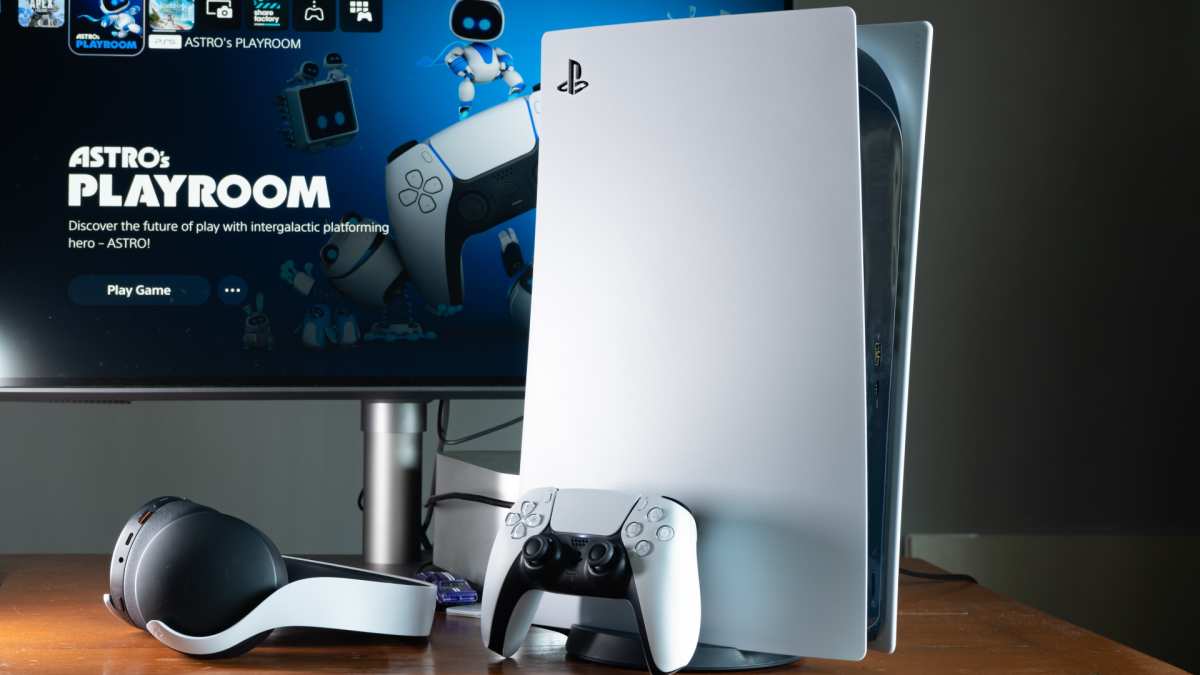
HDR on PC gaming monitors is a mess of hidden settings, mismatched expectations, and manufacturer-specific menu names that nobody warns you about. If your PS5 isn't outputting HDR, or it looks washed out instead of vibrant, the fix usually lives in your monitor's OSD, not the console. Here's how to get it working properly.
The PS5 supports HDR10 over HDMI and nothing else for gaming, no Dolby Vision, no HDR10+. That means your monitor needs to accept an HDR10 signal through the correct HDMI port with the right internal setting enabled, and that setting is almost never turned on by default. Once you clear that hurdle, the rest is calibration and knowing when to toggle HDR off entirely for certain games.
Quick Answer
To use an HDR monitor with your PS5, enable HDMI Deep Color or HDMI Ultra HD Enhanced mode in your monitor's on-screen display menu first. Then go to PS5 Settings > Screen and Video > Video Output and set HDR to On. Calibrate each game's HDR individually in the game's own settings.
If HDR looks washed out, check that your monitor actually has local dimming or high peak brightness, many budget HDR monitors don't.
Why Your PS5 HDR Might Look Terrible (And How to Fix It)
Here's the thing nobody tells you when you plug a PS5 into an HDR monitor: HDR looking worse than SDR is not a bug. It's the expected outcome on most monitors sold as "HDR-compatible."
The PS5 sends an HDR10 signal. Your monitor receives it. But whether that signal gets tone-mapped correctly depends entirely on the display's hardware capabilities and internal processing.
A monitor with a VESA DisplayHDR 400 certification has a peak brightness of around 400 nits and typically no local dimming zones. That means bright highlights don't actually get brighter than the rest of the screen, and dark areas can't go truly dark because the backlight is always on across the whole panel.
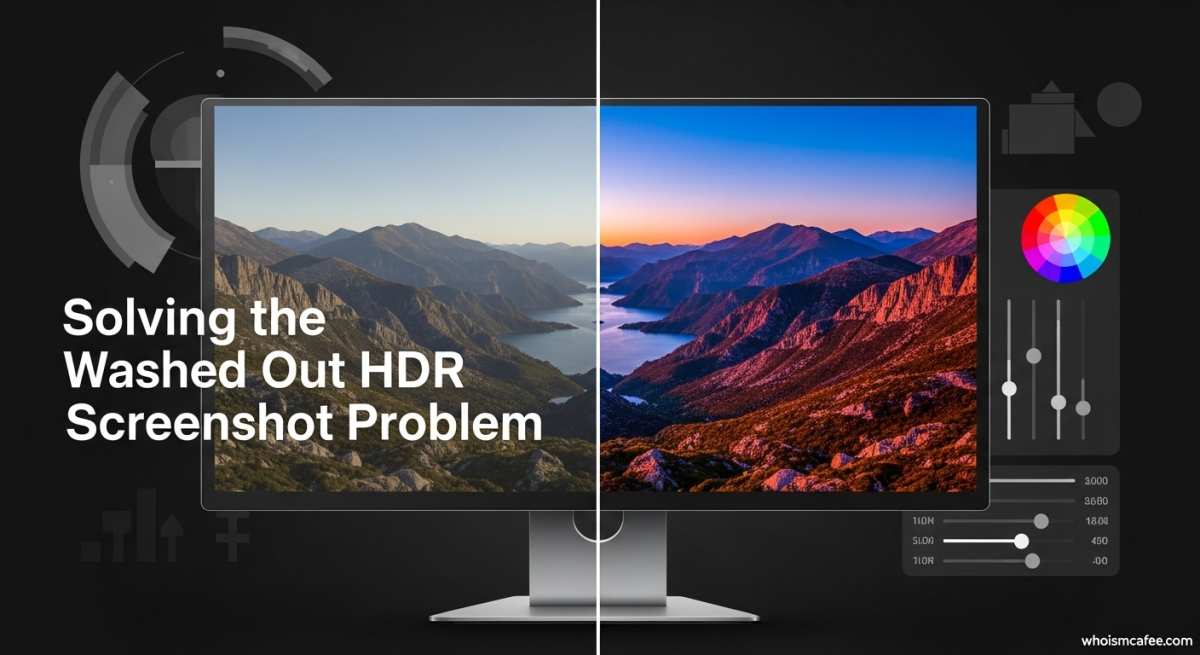
The result? An image that looks flat, gray, and washed out compared to a well-calibrated SDR image on the same screen. This isn't the PS5's fault.
It's a limitation of budget HDR hardware.
What actually makes HDR look good:
- Peak brightness of 600 nits minimum, ideally 1000+
- Full-array local dimming with at least dozens of zones
- 10-bit color depth (native, not 8-bit + FRC)
- Good tone mapping firmware baked into the monitor
If your monitor hits at least two of those three marks, HDR on your PS5 looks noticeably better than SDR. If it only hits one, you're probably better off leaving HDR off and enjoying a well-calibrated SDR image with better tone mapping.
First: Does Your Monitor Actually Support HDR the Way PS5 Expects?
Before touching anything on the PS5, confirm what your monitor can actually do. Manufacturer marketing and reality don't always line up.
Check your monitor's real HDR format
Pull up your monitor's exact model spec sheet from the manufacturer's website. Look for "HDR10" support specifically. That's the only HDR format the PS5 outputs for gaming.
If your monitor lists Dolby Vision or HDR10+ support, those are dead ends on PS5. The console doesn't support either format for games. Streaming apps on PS5 added Dolby Vision support starting in late 2023 for select services like Netflix and Disney+, but gaming remains HDR10-only as of 2026.
Some monitors accept HDR10 but process it poorly. A few common scenarios:
| Monitor HDR Claim | What It Actually Means | PS5 HDR Experience |
|---|---|---|
| "HDR Ready" or "HDR Compatible" | Accepts HDR signal, no hardware to display it properly | Washed out, avoid |
| VESA DisplayHDR 400 | 400 nits peak, no local dimming required | Marginal improvement |
| VESA DisplayHDR 600 | 600 nits peak, some local dimming | Noticeable improvement |
| VESA DisplayHDR 1000+ | 1000+ nits, full-array local dimming | Genuinely impressive |
Why HDMI Ultra HD Deep Color matters more than you think
Every major monitor brand uses a different name for the same setting. And that setting controls whether your monitor's HDMI port accepts a wide enough signal bandwidth to carry HDR.
Common names for the same setting:
- LG: "HDMI Ultra HD Deep Color"
- Samsung: "HDMI UHD Color" or "Input Signal Plus"
- ASUS: "HDMI Ultra HD" or "HDMI Deep Color"
- Gigabyte: "HDMI 2.0 Features" or "HDMI UHD"
- Dell/Alienware: "HDMI 2.0 UHD Color" or "HDMI Deep Color"
- MSI: "HDMI UHD Color" or "Enhanced HDMI Mode"
- BenQ: "HDMI 2.0 UHD"
- ViewSonic: "HDMI Ultra HD Deep Color"
This setting is almost always OFF by default on new monitors. The HDMI port works fine for SDR content without it. But HDR with 4K resolution requires the higher bandwidth that this setting enables.
Without it turned on for the specific HDMI port your PS5 is connected to, the console won't even see HDR as an available option.
The 1440p HDR situation
The PS5 didn't support 1440p output at launch. Sony added it via a system software update in July 2022. If you're running a 1440p monitor, make sure your PS5 system software is current.
Getting HDR to work at 1440p adds another variable. Some monitors handle 4K HDR fine but glitch at 1440p HDR. If you're getting a black screen or no signal when enabling HDR on a 1440p panel, try setting the PS5 resolution to 1080p temporarily, enable HDR, then switch back to 1440p.
It forces a fresh handshake.
Step-by-Step: How to Enable HDR on Your PS5 the Right Way
Skip nothing in this order. Each step depends on the one before it.
Step 1: Cable and port check
Use the Ultra High Speed HDMI cable that came in the PS5 box. It supports 48Gbps, which is what you need for 4K HDR at 120Hz.
If you're using a third-party cable, verify it's certified Ultra High Speed HDMI. Not "High Speed." Not "Premium High Speed." Ultra High Speed. The packaging or cable itself should have the official HDMI certification QR label.
Also confirm you're plugged into the correct HDMI port on your monitor. Many monitors with multiple HDMI ports have different capabilities per port. Only one port might support the full bandwidth needed for HDR.
Check your monitor's manual. The capable port is usually labeled HDMI 2.0 or HDMI 2.1, sometimes both, sometimes just one.
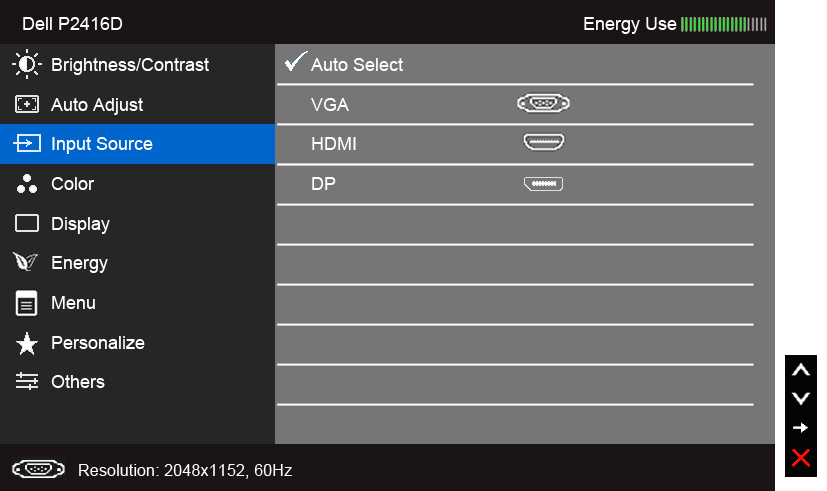
Step 2: Enable the hidden setting in your monitor's OSD
This is where most people get stuck. Plug in the PS5, turn everything on, go to PS5 settings… and HDR isn't even listed as an option. That's because the monitor's HDMI port is in a bandwidth-limited mode.
Open your monitor's on-screen display. Navigate to the input or HDMI settings section. Find the setting by whatever name your brand uses (see the list above).
Turn that setting ON for the specific HDMI port where your PS5 is connected.
On some monitors, you need to power cycle the monitor after toggling this setting for the change to take effect. The manual won't always tell you this. If the setting looks enabled but you're still not seeing HDR options on the PS5, turn the monitor off and back on.
Step 3: Turn on HDR in PS5 system settings
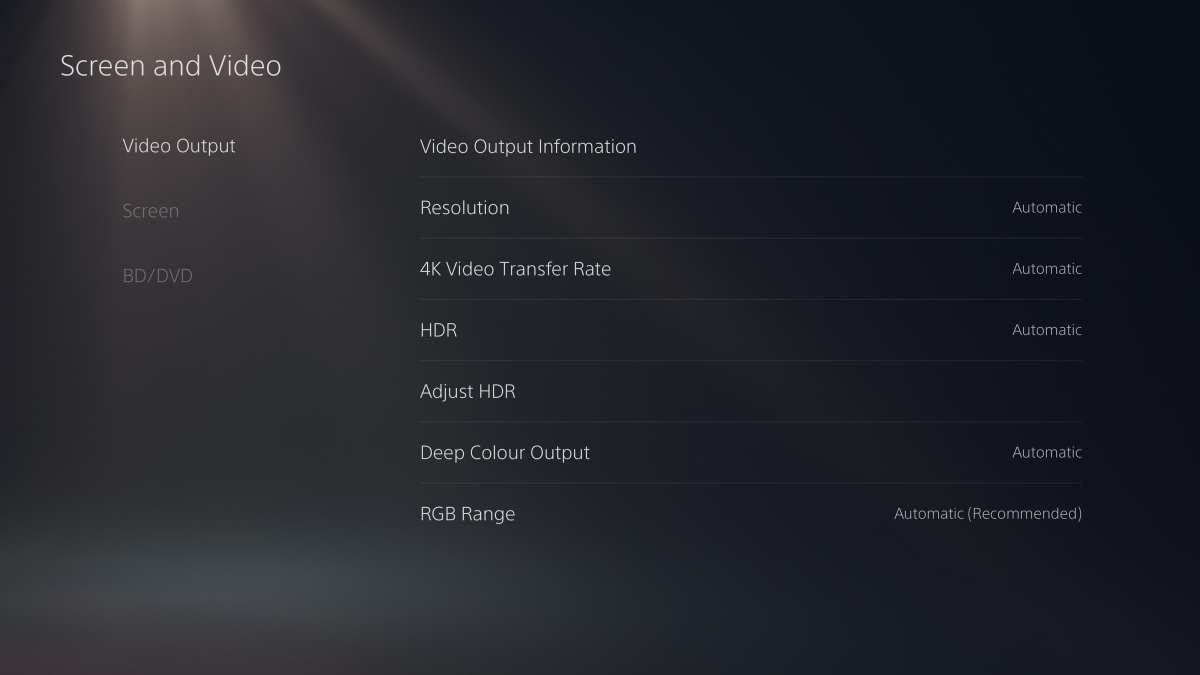
Once the monitor's HDMI port is unblocked:
- Go to Settings (gear icon) on your PS5
- Select Screen and Video
- Select Video Output
- Set HDR to On (not "Automatic," just "On")
Setting it to "Automatic" works fine but "On" removes any ambiguity. The PS5 will now output HDR metadata when a game or app requests it.
You can also reach this setting via Settings > Screen and Video > Video Output Information to confirm what the PS5 actually sees. If it shows "HDR: Supported," your handshake worked. If it still shows "HDR: Not Supported," go back to Step 2 and verify you enabled the right setting on the right port.
Step 4: Match the RGB range between monitor and console
This one flies under the radar and causes the most "why does my picture look wrong" complaints.
The PS5's RGB range setting controls how the console defines black and white levels:
- Limited: Black is at level 16, white at level 235 (TV standard)
- Full: Black at level 0, white at level 255 (PC standard)
Monitors can default to either range. If your PS5 is set to "Full" but your monitor expects "Limited," you get crushed blacks: dark areas that should show detail become a solid black blob. If it's the reverse, blacks look gray and washed.
Go to Settings > Screen and Video > Video Output > RGB Range. Set it to Automatic first. In most cases, Automatic correctly detects and matches the monitor's expectation.
If you're still seeing crushed blacks or a grayish image, manually set it to Limited and test, then try Full.
Step 5: Calibrate HDR per game
Every PS5 game handles HDR differently. Each one has its own in-game HDR calibration menu. There is no single system-level HDR calibration that adjusts every game.
When you launch a new game, go into its display or video settings immediately. Look for:
- Peak Brightness or Max Luminance: Set this to the highest value before highlight detail disappears
- Paper White or UI Brightness: Controls how bright UI elements appear
- Tone Mapping or Black Level: Adjusts where the darkest tones clamp to black
A good rule of thumb: for peak brightness, increase the slider until the logo or indicator just barely disappears, then back it down one tick. For paper white, set it to a comfortable level that doesn't blast your eyes in menus.
Some of the best HDR implementations on PS5 right now include Ratchet & Clank: Rift Apart, Horizon Forbidden West, Ghost of Tsushima Director's Cut, and Demon's Souls. If your HDR looks good in those but bad in another title, the issue is that specific game's HDR implementation, not your setup.
Step-by-Step: How to Enable HDR on Your PS5 the Right Way
- Verify monitor supports HDR10 input over HDMI 2.0+
- Use the included PS5 Ultra High Speed HDMI cable
- Plug into the correct high-bandwidth HDMI port on your monitor
- Enable Ultra HD Deep Color / HDMI Enhanced mode in monitor OSD for that port
- Power-cycle the monitor if needed
- On PS5, go to Settings > Screen and Video > Video Output
- Set HDR to "On"
- Set RGB Range to "Automatic" (troubleshoot manually if crushed)
- Confirm "HDR: Supported" in Video Output Information
- Calibrate HDR settings in each individual game
When HDR Looks Worse Than SDR (And What to Do About It)
This is the number one complaint aggregate user reviews surface. You turn on HDR, excited for the upgrade, and the image immediately looks flatter, grayer, and somehow less impressive than what you had before.
Your monitor's HDR is the bottleneck, not the PS5
Here's the hard truth: most "HDR" monitors sold today display HDR the way a $300 phone plays hi-res audio. Technically compatible. Practically mediocre.
VESA DisplayHDR 400, the most common HDR certification on budget and mid-range gaming monitors, requires only 400 nits peak brightness and doesn't mandate any local dimming zones. The panel accepts the HDR signal. It just can't display the meaningful brightness differences HDR is supposed to deliver.
A bright explosion on screen and the dark cave it's happening in both look roughly the same brightness, that's what creates that washed-out, flat appearance.
Local dimming changes everything. FALD (Full-Array Local Dimming) monitors divide the backlight into zones that brighten or dim independently. A monitor with 32 or more dimming zones can show a genuinely bright sun in a scene while keeping shadows deep.
That's the contrast HDR was designed for. Without it, you're just running an SDR panel with expanded color data and no real brightness range to show it.
Monitors with 1000+ nits and good FALD deliver the transformative HDR people expect. Monitors below 600 nits with no dimming almost never do. If you're in that second group and HDR looks bad, turn it off.
A properly calibrated SDR image on a good panel beats broken HDR every time.
Tone mapping problems you can actually fix
Beyond hardware limits, the monitor's tone mapping, the process that maps the HDR signal's brightness data to what the panel can actually produce, plays a huge role. Most monitors ship with mediocre tone mapping firmware.
A few things you can try:
Check for a game mode or HDR picture mode toggle in the monitor's OSD. Some monitors have multiple HDR picture modes: one that tries to be accurate and one that artificially pumps saturation. Cycle through them.
One might look significantly more natural than another.
Turn off any dynamic contrast or dynamic backlight features that the monitor might have alongside HDR. Running both HDR and a manufacturer's dynamic contrast feature simultaneously often crushes detail and creates an unnatural image. HDR is already doing tone mapping.
Let it.
Lower the in-game peak brightness slider if highlights look blown out. Many PS5 games default their HDR calibration sliders too high for monitors that can't actually hit the brightness levels the game expects. Dropping that slider 10 to 20 percent often recovers highlight detail and makes the overall image look more balanced.
When to just stick with SDR
No shame in it. Consider staying in SDR if:
- Your monitor is DisplayHDR 400 certified with no local dimming
- HDR looks noticeably worse after proper calibration
- You primarily play competitive multiplayer games where visual fidelity matters less than input lag
- Your monitor exhibits higher input latency in HDR mode (check reviews for your specific model)
Some monitors add 10 to 20 milliseconds of processing latency when HDR is active. In a fighting game or competitive shooter, that's a real disadvantage. Reviews from Display Unboxed and RTINGS often measure this specifically.
The RGB Limited vs. Full Mismatch — The Silent Killer of HDR
You've got HDR enabled. Colors look richer. But something's off with the dark areas.
Either they're crushed into solid black or they look gray and milky.
This is almost certainly an RGB range mismatch between your PS5 and your monitor.
RGB Limited reserves levels 16 to 235 of the 0 to 255 range for visible detail. RGB Full uses the entire 0 to 255 range. They're two different definitions of where "true black" and "true white" sit.
When the console and display disagree on which standard to use, the image looks wrong in a way that's easy to misdiagnose as an HDR problem.
If blacks look like a featureless black blob with no shadow detail visible, the PS5 is probably outputting Full range while the monitor expects Limited. The monitor is treating everything below level 16 as the same black.
If blacks look gray and washed out with no real depth to dark areas, the reverse is happening. The PS5 outputs Limited range but the monitor expects Full. The monitor is treating level 16, which should be black, as a dark gray.
Fix it by going to Settings > Screen and Video > Video Output > RGB Range on the PS5 and switching between Limited and Full. On most monitors, Limited is the correct setting for HDR content. Set it there and check whether shadow detail returns.
Some monitors have their own RGB range setting in the OSD, sometimes labeled "HDMI Black Level" or "Black Level Adjust." If both the PS5 and monitor have the setting, they need to match. If the PS5 is Limited, the monitor's black level should be set to its Low or Normal equivalent. If one is set to Low and the other to High, you get the exact same crushed or washed-out symptoms.
The last HDR-specific setting that gets overlooked: the PS5's video output information panel. Hit that and confirm the console actually reports HDR as supported. If it shows "HDR: Not Supported" after you've enabled Deep Color and swapped cables, the handshake failed somewhere.
One last power cycle of both devices, monitor fully off then on, sometimes resolves a stale HDMI handshake.

Similar Posts





















