How to Disable HDR on Monitor
So you figured out how to disable HDR on monitor settings, but something still looks off. Maybe your desktop colors are washed out, or your screen is blasting your eyes with brightness every time you open a spreadsheet. You're not alone.
This is one of the most common display issues people run into once HDR gets enabled, whether by Windows, a game, or the monitor itself.
The good news is you've got several ways to shut HDR off, and most of them take less than a minute. The tricky part is knowing where to look, because the setting lives in different places depending on your GPU, your monitor, and how the HDR signal is being delivered. Let's walk through every method so you can get your display looking normal again.
The Quick Answer: Disable HDR in 30 Seconds
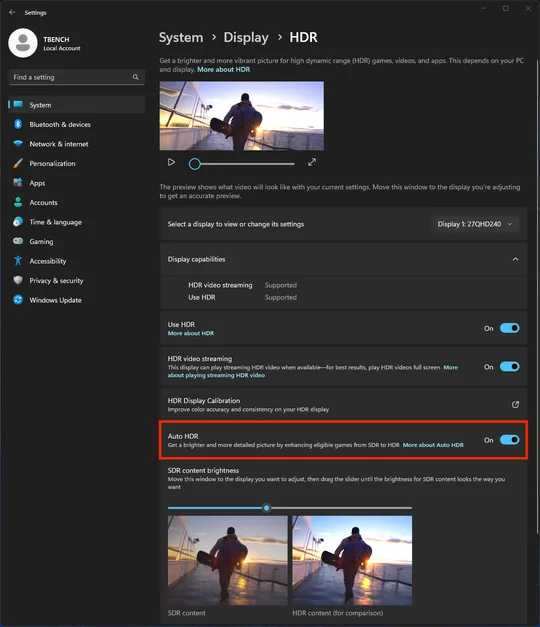
Here's the fastest path. Open Windows Settings, go to System, then Display, and look for the HDR toggle. Switch it off.
If the toggle isn't there, your GPU or cable might not be delivering an HDR signal. Check your monitor's on-screen display menu for an HDR or picture mode setting and switch it to Standard or sRGB.
Why You Might Actually Want to Turn HDR Off
HDR looks fantastic when it's done right. A proper HDR10 signal on a VESA DisplayHDR 600 or higher monitor can genuinely improve your gaming and movie experience. But that's a big "when it's done right." In practice, most people deal with HDR in less-than-ideal conditions, and that's exactly why they end up hunting for the off switch.
Here's what usually drives people to disable HDR:
- Washed-out SDR content. Your desktop, browser, and most apps are still standard dynamic range. When HDR is enabled globally, SDR content often looks desaturated and oddly bright because Windows is tone-mapping everything into the HDR signal.
- Eye strain during everyday use. HDR monitors can hit 400, 600, or even 1,000 nits of peak brightness. That's great for specular highlights in a dark scene. It's terrible for reading email in a bright room.
- Budget HDR monitors that don't do HDR well. VESA DisplayHDR 400 monitors are common, and many of them lack local dimming. On these displays, enabling HDR often makes the picture look worse than plain SDR.
- Color accuracy work. If you're editing photos or video in sRGB or DCI-P3, having HDR enabled can throw off your gamma and color perception. Most color-grading workflows expect an SDR signal.
- Inconsistent behavior across apps. Some games handle HDR natively. Some rely on Windows Auto HDR. Some apps ignore it entirely. The inconsistency gets old fast.
The bottom line is simple. If you're not actively consuming HDR content, there's usually no good reason to leave it on.
How to Tell If Your Setup Is Even Sending an HDR Signal
Before you start toggling settings, it helps to understand whether your system is actually outputting HDR. Sometimes the problem isn't that HDR is on. It's that something in the chain isn't working correctly, and the setting appears to be stuck or missing.
Here's what to check:
- Does the HDR toggle appear in Windows Display Settings? If it's completely absent, Windows doesn't think an HDR-capable display is connected. That points to a cable, port, driver, or EDID issue.
- What cable are you using? HDR requires at least HDMI 2.0 or DisplayPort 1.4. Older cables or ports may not carry the bandwidth needed for the HDR metadata.
- Is HDR enabled in your monitor's OSD? Many monitors have a separate HDR toggle in their on-screen display menu. If the monitor's HDR mode is off, Windows may not offer the toggle even if the hardware supports it.
- What GPU do you have? NVIDIA GTX 10-series and newer support HDR. AMD RX 480 and newer support HDR. Intel integrated graphics from 10th-gen onward generally support HDR, though the experience varies.
If all those boxes are checked and you still don't see the toggle, the issue is likely a driver or cable problem. We'll cover that in Method 4.
Method 1: Turn Off HDR Through Windows Settings (Windows 10 and 11)
This is the most straightforward method and the one most people should try first. Windows has a built-in HDR toggle in the Display Settings panel, and turning it off here stops Windows from sending an HDR signal to your monitor.
Here's the step-by-step:
- Right-click on your desktop background and select Display settings.
- Click on the display you want to adjust if you have multiple monitors.
- Scroll to the HDR section (Windows 11) or click Windows HD Color settings (Windows 10).
- Toggle Use HDR to Off.
On Windows 11, you'll also see a few related toggles in the same section:
- Use HDR. The main toggle. Turn this off to stop the HDR signal.
- Auto HDR. This is a separate feature that forces HDR on games that don't natively support it. If you want to keep HDR for native HDR games but stop Auto HDR from messing with older titles, leave the main toggle on and turn Auto HDR off instead.
- SDR content brightness. This slider adjusts how bright SDR content appears when HDR is enabled. If you don't want to fully disable HDR but SDR apps look too dim or too bright, try adjusting this first.
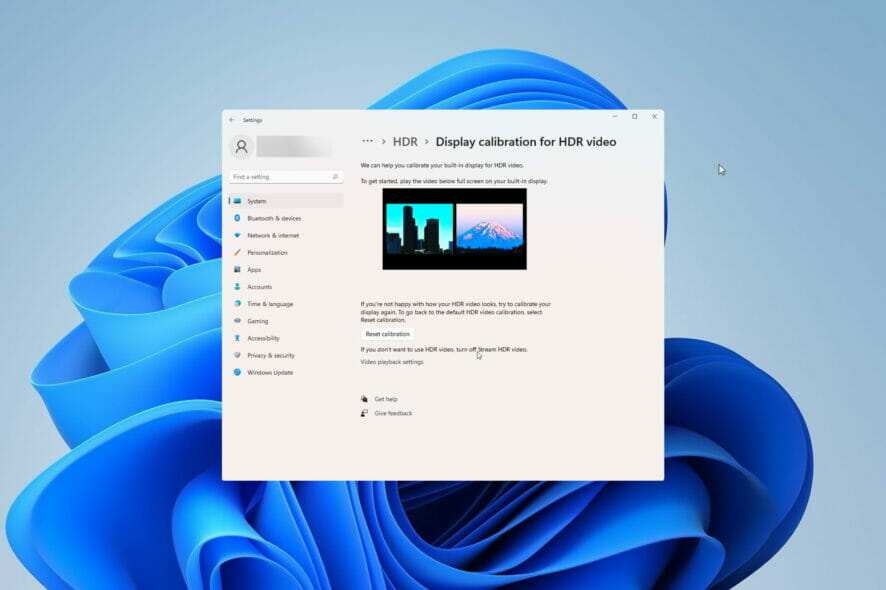
What if the HDR toggle is missing entirely? This is a common frustration. If you don't see any HDR option in Display Settings, skip ahead to Method 4. The issue is almost always a cable, port, or driver problem.
What if HDR turns back on after a reboot? Some Windows updates and driver updates reset HDR preferences. If this keeps happening, check your GPU control panel (Method 2) and make sure there's no conflicting setting forcing HDR on.
Method 2: Disable HDR Through Your GPU Control Panel
Your graphics driver has its own display configuration options, and sometimes these override or interact with Windows settings in unexpected ways. If the Windows toggle isn't doing the trick, or if you want more granular control over the signal format, the GPU control panel is the next place to look.
NVIDIA Control Panel
- Right-click the desktop and select NVIDIA Control Panel.
- Navigate to Display → Change resolution.
- Select the HDR-capable display.
- Look at the settings under Apply the following settings.
- Check the Output color depth and Output color format. For SDR, you want 8-bpc (bits per color) and RGB format.
- If the depth is set to 10-bit or 12-bit, change it to 8-bit. This effectively removes the HDR-capable signal format.
Some NVIDIA driver versions also show an HDR toggle directly in the Adjust desktop color settings panel. If you see it, turn it off.
AMD Radeon Software
- Open AMD Radeon Software (Adrenalin Edition).
- Click the Settings gear icon.
- Go to the Display tab.
- Find the HDR toggle and switch it off.
AMD's software also lets you toggle FreeSync and HDR independently. If you're having issues with both, disabling them one at a time helps isolate the cause.
Intel Graphics Command Center
- Open Intel Graphics Command Center.
- Go to Display → select the HDR-capable display.
- Look for the HDR toggle and turn it off.
- You can also adjust Color Depth here. Set it to 8-bit for SDR.
Intel integrated graphics sometimes expose HDR capabilities that the monitor or cable can't fully support, which leads to a degraded picture. If you're on integrated graphics and HDR looks bad, disabling it through Intel's panel is often the cleanest fix.
Method 3: Turn Off HDR in Your Monitor's On-Screen Display
This is the method most people overlook, and it's often the one that actually solves the problem. Your monitor has its own internal processing, and many monitors have a dedicated HDR mode in the on-screen display menu. If the monitor is set to HDR mode, it will apply HDR tone mapping to whatever signal it receives, even if Windows is sending plain SDR.
Here's how to find it:
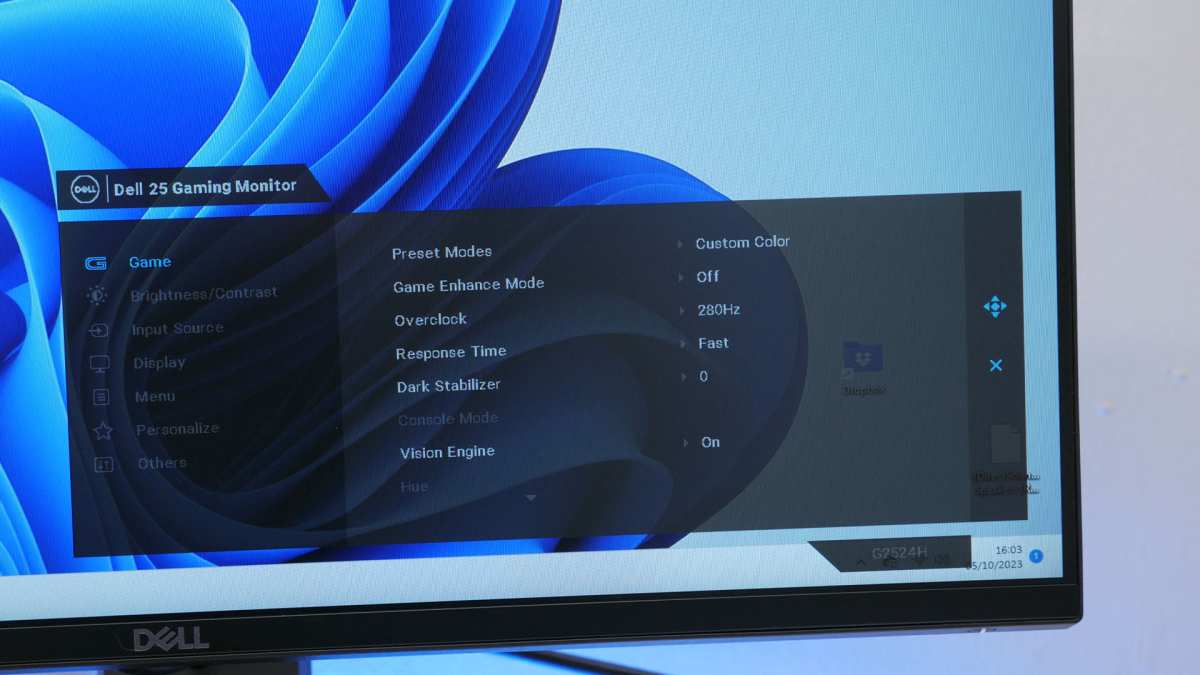
- Press the physical buttons on your monitor to open the OSD menu.
- Navigate to Picture, Display, or Game settings (the exact name varies by brand).
- Look for HDR Mode, HDR, or Dynamic Contrast.
- Switch it to Off, Standard, or sRGB mode.
Different brands label this setting differently:
| Brand | Typical OSD Label | What to Select |
|---|---|---|
| Dell / Alienware | HDR Mode | Off or Standard |
| LG | HDR Effect / HDR Mode | Off |
| Samsung | HDR+ Mode or HDR10+ | Off |
| ASUS | HDR | Off or sRGB |
| BenQ | HDRi | Off |
| Acer | HDR | Off |
Switching to sRGB mode is often the better choice if your monitor offers it. sRGB mode clamps the color gamut to the standard sRGB space, which means colors will look accurate for web content, office work, and most SDR applications. It also typically locks the gamma to 2.2, which is what Windows expects for SDR content.
Some monitors require a restart after changing the HDR setting in the OSD. If the picture doesn't look right immediately, power the monitor off and back on.
Method 4: Fix the Connection or Driver Issue Blocking HDR Control
If the HDR toggle is missing from Windows, or if you turn it off and nothing changes, the problem is likely in the connection chain between your GPU and your monitor. This is where most people get stuck, because the fix isn't a simple toggle. It's a process of elimination.
Check Your Cable and Port
HDR requires specific bandwidth. Here's what you need:
- HDMI 2.0 minimum for HDR at 4K 60Hz with 10-bit color.
- HDMI 2.1 for HDR at 4K 120Hz or higher refresh rates.
- DisplayPort 1.4 minimum for HDR at 4K 60Hz with 10-bit color.
- DisplayPort 2.0 / 2.1 for higher resolutions and refresh rates with HDR.
If you're using an old HDMI 1.4 cable or a DisplayPort 1.2 cable, the HDR signal either won't work or will fall back to a degraded mode. Swap the cable first. It's the cheapest and most common fix.
Also check which port you're plugged into. Some monitors only support HDR on specific ports. For example, HDMI 1 might be 2.0 while HDMI 2 is only 1.4.
Check your monitor's manual or spec sheet to confirm which ports support HDR.
Update or Roll Back Your GPU Drivers
Driver updates can change how HDR is handled. If HDR suddenly appeared or disappeared after an update, the driver is the culprit.
- NVIDIA: Use GeForce Experience or download directly from nvidia.com. If a recent update caused issues, try the previous driver version using a clean install.
- AMD: Use the AMD Auto-Detect tool or download from amd.com. AMD's Adrenalin updates occasionally reset display settings.
- Intel: Download from intel.com or use the Intel Driver & Support Assistant.
After updating, restart your PC and check Display Settings again. The HDR toggle should appear if the hardware supports it.
Check for EDID Handshake Issues
EDID (Extended Display Identification Data) is how your monitor tells your GPU what it's capable of. If the EDID handshake fails or returns incorrect data, Windows won't offer HDR even if the monitor supports it.
This can happen with:
- KVM switches that don't pass EDID correctly.
- USB-C hubs or docks that alter the EDID information.
- Damaged or low-quality cables that drop data lines.
Try connecting the monitor directly to the GPU with a known-good cable. If the HDR toggle appears, the intermediary device was the problem.
Update Your Monitor Firmware
Some monitors receive firmware updates that fix HDR compatibility issues. Check the manufacturer's support page for your specific model. Dell, LG, Samsung, and ASUS all host firmware updates on their support sites.
The update process usually involves downloading a file to a USB drive and plugging it into the monitor's USB port.

What to Do When the HDR Toggle Is Missing Entirely
This deserves its own section because it's one of the most searched variations of this topic. You go to Display Settings, and there's no HDR option anywhere. Not grayed out.
Not hidden. Just gone. Here's how to systematically figure out why.
Step 1: Confirm your monitor actually supports HDR. Not all monitors do. If your monitor's spec sheet doesn't mention HDR10, VESA DisplayHDR, or any HDR certification, Windows won't offer the toggle. You can't enable HDR on hardware that doesn't support it.
Step 2: Check your cable. As covered in Method 4, an HDMI 1.4 or DisplayPort 1.2 cable won't carry HDR. Swap to a certified HDMI 2.0 or DisplayPort 1.4 cable and check again.
Step 3: Check your port. Plug into a different port on both the GPU and the monitor. Some ports on some GPUs don't support HDR. Refer to your GPU's spec sheet.
Step 4: Update your GPU drivers. A clean install using Display Driver Uninstaller (DDU) in Safe Mode, followed by a fresh driver install, resolves most phantom HDR issues.
Step 5: Check for conflicting software. Some third-party display management tools, like f.lux or custom color profile utilities, can interfere with HDR detection. Temporarily disable them and check if the toggle appears.
Step 6: Test with a different monitor or cable. If possible, connect a known HDR-capable monitor. If the toggle appears with a different monitor, the issue is with your original monitor's EDID or firmware.
HDR Off vs. SDR Brightness Sliding: Which Approach Is Right for You
You've got two main options when HDR is enabled, and they serve different needs.
Full HDR disable is best when:
- You want accurate SDR color for photo editing, design work, or general desktop use.
- Your monitor's HDR implementation looks worse than SDR (common with DisplayHDR 400 monitors).
- You experience eye strain from the elevated brightness.
- You want a consistent look across all apps without tone-mapping surprises.
SDR content brightness slider is best when:
- You want to keep HDR enabled for games and movies but need SDR content to look normal.
- You're on a good HDR monitor (DisplayHDR 600 or higher) and the HDR experience is worth keeping.
- You only find SDR content too dim or too bright, not discolored.
The slider is found in the same HDR settings panel in Windows 11. It adjusts the brightness of SDR content within the HDR signal without disabling HDR itself. It's a compromise, but a useful one if your monitor handles HDR well.
Common Mistakes People Make When Disabling HDR
Even when people find the right setting, a few common mistakes keep the problem from actually going away.
- Only turning off Windows HDR but leaving the monitor in HDR mode. The monitor's OSD HDR setting and the Windows HDR toggle are independent. If both are on, you get double tone-mapping or a stuck HDR look. Turn off both.
- Forgetting about Auto HDR in Windows 11. Auto HDR is a separate toggle from the main HDR switch. If you turn off "Use HDR" but leave Auto HDR on, some games will still get forced into an HDR signal.
- Not restarting the monitor after OSD changes. Some monitors apply OSD changes immediately. Others need a power cycle. If you change the monitor's HDR setting and the picture doesn't update, turn the monitor off and on.
- Assuming it's a software problem when it's the cable. A surprising number of "HDR won't turn off" issues trace back to a cable that's degrading the signal enough to confuse the EDID handshake.
- Using the wrong color depth after disabling HDR. If you manually set 10-bit color in your GPU control panel to enable HDR, remember to set it back to 8-bit afterward. 10-bit on an SDR signal can cause subtle color banding in some content.
Quick Decision Guide: What to Try First Based on Your Situation
Not every situation calls for the same approach. Here's a fast way to figure out which method to try first.
"I just want my normal colors back."
Go to Windows Display Settings → HDR → toggle Use HDR off. Then check your monitor's OSD and switch to Standard or sRGB mode. Done.
"I want HDR in games but not on my desktop."
Keep the main HDR toggle on. Turn off Auto HDR if it's enabled. Use the SDR content brightness slider to adjust desktop brightness.
In games that support native HDR, it'll work. Everything else stays SDR-looking.
"The HDR toggle is gone and I don't know why."
Start with the cable. Swap to a known-good HDMI 2.0 or DisplayPort 1.4 cable. Then update your GPU drivers.
If the toggle still doesn't appear, check your monitor's OSD for an HDR mode that needs to be enabled first.
"I have two monitors and only one supports HDR."
Windows can be finicky with mixed HDR/SDR setups. Disable HDR on the HDR-capable monitor if you don't need it. If you do need HDR on one monitor, make sure you're adjusting the correct display in Display Settings.
Click the monitor thumbnail at the top of the Display settings page before changing HDR settings.
"My monitor is HDR400 and HDR looks terrible."
This is extremely common. DisplayHDR 400 monitors lack local dimming and don't get bright enough for meaningful HDR. Disable HDR in both Windows and the monitor OSD.
Switch to sRGB mode if available. Your picture will look better immediately.
Frequently Asked Questions
Does disabling HDR affect gaming performance?
No. Disabling HDR removes the HDR signal processing, which can actually reduce GPU workload slightly. You won't lose performance by turning it off.
If anything, you might gain a small amount of headroom since the GPU no longer needs to process HDR tone mapping.
Why does HDR keep turning back on after I disable it?
Windows updates, GPU driver updates, and some game launchers can reset HDR preferences. Check that Auto HDR is off in Windows 11. Also verify that your GPU control panel isn't forcing an HDR-compatible signal format.
Can I disable HDR for specific apps only?
Windows doesn't offer per-app HDR toggles natively. However, you can disable Auto HDR and only allow native HDR in games that support it. For everything else, keep the main HDR toggle off.
Some games also have in-game HDR settings you can disable independently.
Is it bad to leave HDR on all the time?
It's not harmful to your hardware. But on most monitors, especially budget HDR models, leaving HDR on degrades the quality of SDR content. Your desktop, browser, and most apps will look washed out or overly bright.
It's fine to leave on if you have a high-end HDR monitor and don't mind the trade-offs.
How do I know if my monitor supports HDR?
Check the model's spec sheet for HDR10, VESA DisplayHDR certification, or Dolby Vision support. If none of those are listed, the monitor doesn't support true HDR. Some monitors marketed as "HDR-ready" or "HDR-compatible" merely accept an HDR signal but can't actually display it properly.

Similar Posts





















