How to Check HDR Settings on Monitor
So you've got an HDR-capable monitor but something looks off, or maybe you're not even sure HDR is actually turned on. Figuring out how to check HDR settings on your monitor can be surprisingly confusing because the setting lives in multiple places at once. Your monitor's own menu, Windows, your GPU driver, and even your cable all play a role.
Here's the thing. HDR isn't a single toggle you flip and forget about. It's a chain of settings that all need to align, from the physical connection between your PC and the display to the software configuration in your operating system.
VESA's DisplayHDR standard defines minimum performance tiers starting at 400 nits of peak brightness, but the certification alone doesn't guarantee everything's configured correctly on your end. Let's walk through each step so you can verify every link in that chain.
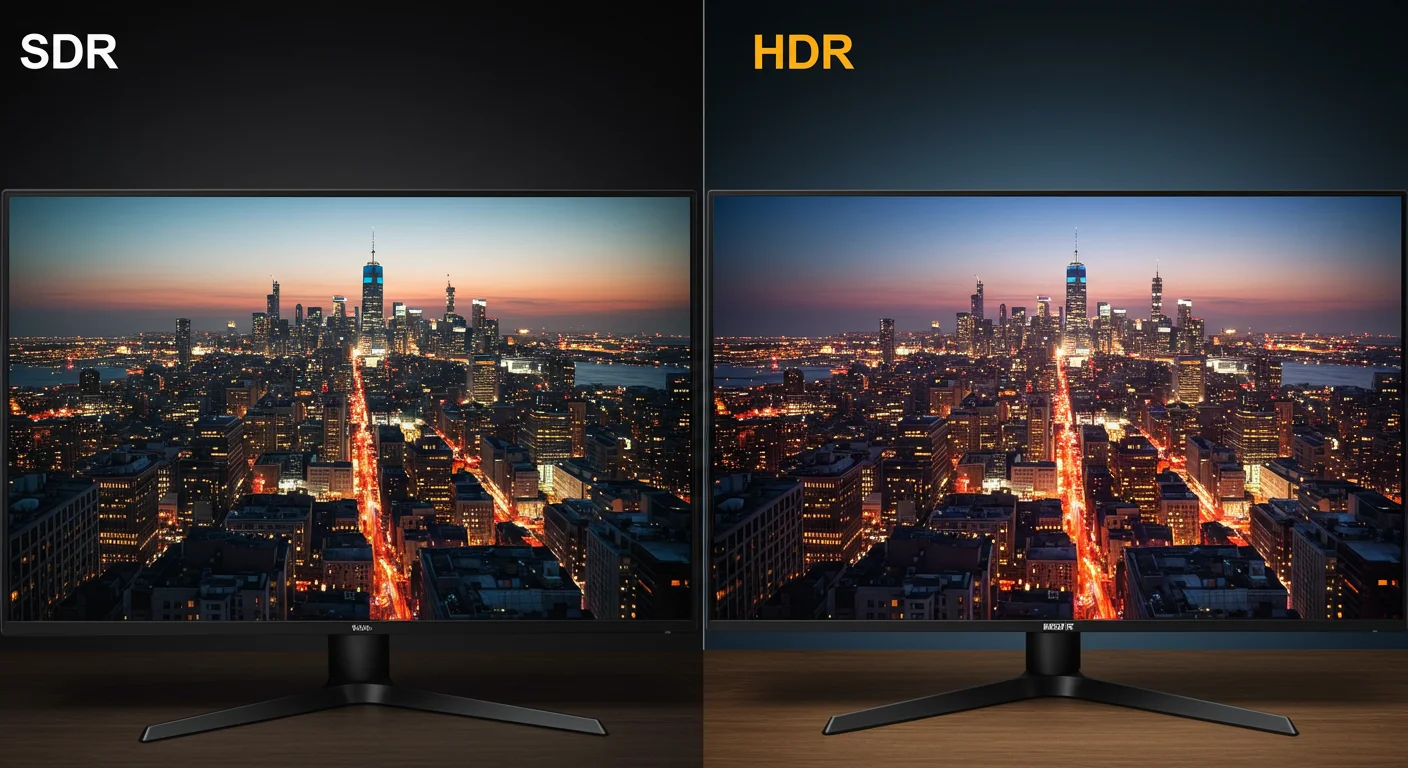
The Quick Answer: Is HDR Actually Enabled Right Now?
To check your HDR settings on your monitor, open Windows Display Settings, select your monitor, and look for the "HDR" toggle under the "Brightness and color" section. If it's there and turned on, Windows is sending an HDR signal. Next, check your monitor's on-screen display (OSD) menu to confirm the monitor itself is set to accept HDR input.
Finally, verify your GPU control panel is configured for the correct color format and bit depth.
How HDR Works End-to-End: Signal, Panel, and Settings
Before diving into the steps, it helps to understand why there are so many places to check. HDR isn't like flipping a light switch. It's a pipeline, and every stage needs to be configured correctly or the whole thing falls apart.
The signal chain from pixel to panel
Here's the basic path your HDR content takes:
- Your GPU generates an HDR signal (10-bit color, wide color gamut, PQ curve)
- The signal travels through your cable (DisplayPort or HDMI)
- Your monitor receives the signal via its input controller
- The monitor's OSD settings determine how it processes that signal
- The panel renders the image based on its hardware capabilities (peak brightness, local dimming)
If any single link in that chain breaks, you won't get proper HDR. You might get a washed-out image, no signal at all, or the HDR toggle simply won't appear in Windows.
Why your monitor's OSD matters just as much as Windows
This is the part most people miss. You can enable HDR in Windows all day long, but if your monitor's OSD is set to the wrong picture mode or the wrong input format, it won't process the HDR signal correctly. Some monitors have a dedicated "HDR" picture mode.
Others require you to set the color format to a specific option. And some budget HDR monitors technically accept an HDR signal but lack the peak brightness to display it meaningfully.
Manufacturer specifications indicate that monitors with VESA DisplayHDR 600 or higher certification generally handle this more reliably at the hardware level. DisplayHDR 400 panels, which are the entry-level tier, often accept the signal but can't produce the brightness range that makes HDR visibly different from SDR.
The role of cables and ports (this trips people up constantly)
Your cable and port version matter more than you'd think. HDR at 4K resolution and 60Hz requires more bandwidth than most people realize.
| Connection | Max Bandwidth | HDR at 4K/60Hz | Notes |
|---|---|---|---|
| HDMI 2.0 | 18 Gbps | Marginal (chroma subsampling likely) | Works but often forces YCbCr 4:2:2 |
| HDMI 2.1 | 48 Gbps | Full support | Best for console and PC HDR |
| DisplayPort 1.4 | 32.4 Gbps | Yes (with DSC) | Most common for PC monitors |
| DisplayPort 2.1 | 77.4 Gbps (UHBR20) | Full support, headroom to spare | Newer GPUs and monitors only |
If you're using an HDMI 2.0 cable with a 4K HDR monitor, you might get the HDR toggle to appear but find that your refresh rate drops to 30Hz or the image looks compressed. That's a bandwidth limitation, not a defective monitor.
Step-by-Step: How to Check and Enable HDR on Your Monitor
Let's go through the process in order. Follow these steps sequentially because each one depends on the previous one being correct.
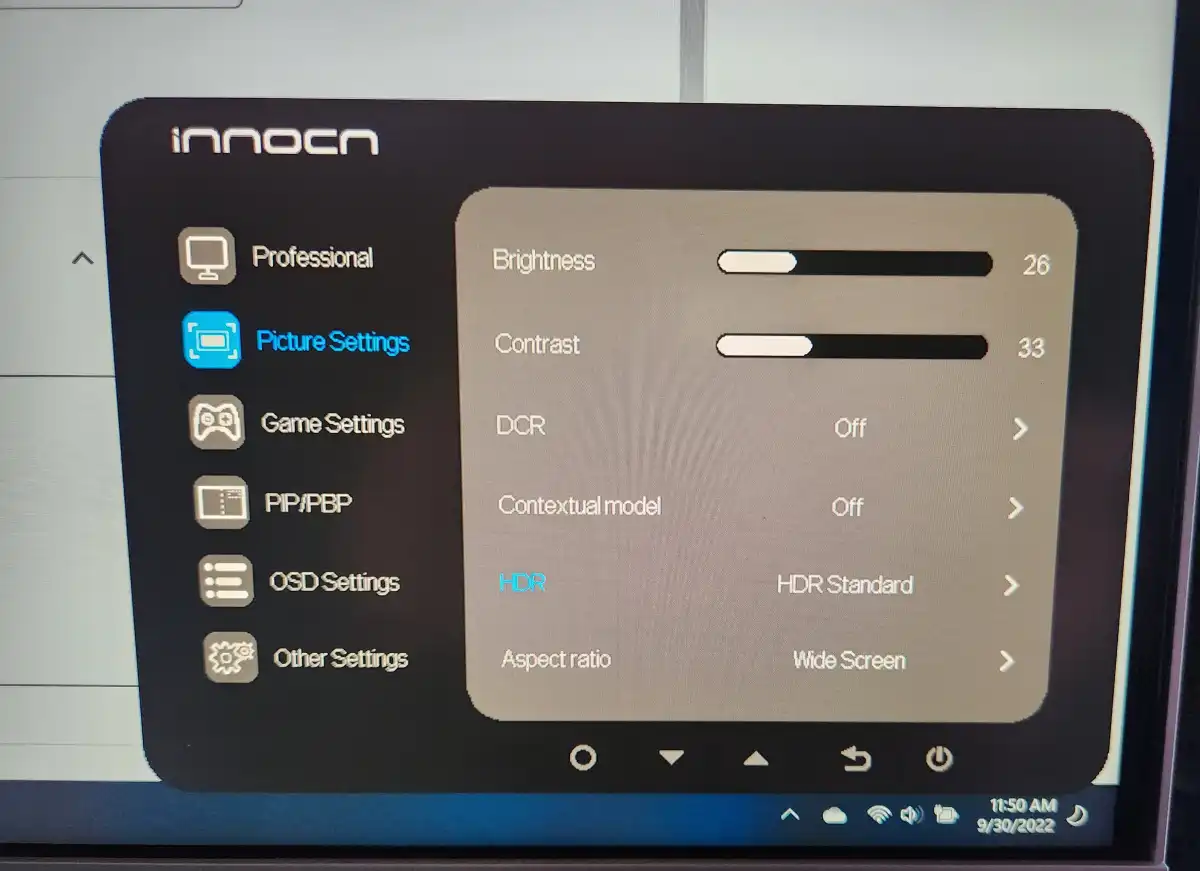
Step 1: Check your monitor's OSD first
Before touching any software settings, grab your monitor's physical buttons or joystick and open the on-screen display menu. Look for one of the following:
- HDR Mode: Some monitors have a direct HDR on/off toggle in the OSD
- Picture Mode: Set to "HDR," "Game HDR," or "Cinema HDR" rather than "sRGB" or "Standard"
- Color Format / Input Color Format: May need to be set to a specific option for HDR to activate
- HDMI Ultra HD Deep Color (LG monitors): Must be enabled per HDMI port
- Input Signal Plus (Samsung monitors): Same concept, enables full bandwidth input
The exact naming varies by manufacturer. Dell calls it "HDR Mode" in their gaming monitors. ASUS often buries it under "Display" or "Image" settings.
LG and Samsung tend to label it based on the input type. If you can't find it, check your monitor's manual for the specific OSD path.
Step 2: Verify your cable and port support HDR
This is where a lot of people get stuck. You've enabled everything in the OSD, but the HDR toggle still won't show up in Windows. Check these things:
- Cable rating: Make sure you're using a cable that's rated for the bandwidth you need. For HDMI, that means "Premium High Speed" (HDMI 2.0) or "Ultra High Speed" (HDMI 2.1). For DisplayPort, use a DP 1.4 or DP 2.1 certified cable.
- Port version: Not all ports on your GPU or monitor are equal. Some monitors have one HDMI 2.1 port and one HDMI 2.0 port. Check which one you're plugged into.
- Adapter usage: Active adapters, especially USB-C to HDMI or DisplayPort to HDMI converters, can strip HDR metadata. If you're using an adapter, try a direct connection first.
A quick test: if your refresh rate options in Windows drop to 30Hz when you enable HDR, you're almost certainly hitting a bandwidth ceiling on your cable or port.
Step 3: Enable HDR in Windows display settings
Now let's check the software side. On Windows 10 and Windows 11, the path is nearly identical:
- Right-click on your desktop and select Display settings
- Select the monitor you want to configure (if you have multiple)
- Scroll to the Brightness and color section (Windows 11) or HDR section (Windows 10 may label it "Windows HD Color")
- Look for the Use HDR toggle
If the toggle is present and you can turn it on, Windows has detected that your monitor supports HDR. If the toggle is missing entirely, something upstream is wrong. We'll cover that in the troubleshooting section.
Once you toggle HDR on, you should see the screen flicker briefly as the signal switches. The desktop will look slightly different, and colors may appear slightly muted. That's normal for SDR content displayed within an HDR container.

Step 4: Configure your GPU control panel for HDR
Windows handles the HDR signal at the OS level, but your GPU driver controls the color format, bit depth, and dynamic range. These settings need to match what your monitor expects.
For NVIDIA GPUs:
- Open NVIDIA Control Panel
- Navigate to Display > Change resolution
- Check that the color depth is set to 10 bpc (bits per component) if your monitor supports it
- Under Adjust desktop color settings, ensure Dynamic range is set to Full
For AMD GPUs:
- Open AMD Radeon Software (Adrenalin Edition)
- Go to Display tab
- Verify Color Depth is set to 10-bit if available
- Check that Pixel Format is set to RGB 4:4:4 Full or the highest available option
For Intel integrated graphics:
- Open Intel Graphics Command Center
- Go to Display
- Check that the color depth and format options match your monitor's capabilities
If your GPU is set to 8-bit color or limited dynamic range, HDR content won't display with the full range of brightness and color it's supposed to have. The signal might technically be "HDR" but it won't look right.
Step 5: Test with actual HDR content
Having the toggle on doesn't mean HDR is actually working visually. You need to test with real HDR content to confirm:
- YouTube HDR: Search for "HDR" on YouTube and play a known HDR video. Look for the "HDR" badge in the quality settings
- Windows HDR calibration app: Download the "Windows HDR Calibration" app from the Microsoft Store. It generates test patterns to verify your display is rendering the full HDR range
- HDR games: Most modern AAA games have in-game HDR settings. Launch a game you know supports HDR and check its display options
- HDR test patterns: You can find HDR test images and videos online that show specific brightness levels. A proper HDR display should show distinct separation between very bright and very dark areas
If the HDR badge appears in YouTube quality settings and the video looks noticeably brighter and more vivid than the SDR version, you're good. If everything looks the same, something in the chain isn't configured correctly.
What to Do When the HDR Toggle Is Missing or Grayed Out
This is one of the most common frustrations. You know your monitor supports HDR, but Windows simply won't show the option. Here's how to troubleshoot it systematically.
GPU driver issues
Outdated or corrupted GPU drivers are the single most common reason the HDR toggle disappears. Try these steps:
- Update to the latest GPU driver from NVIDIA, AMD, or Intel's official website
- If you recently updated and the toggle disappeared, roll back to the previous driver version
- Perform a clean driver installation (NVIDIA and AMD both offer this option in their installers)
- Restart your PC after driver changes, even if it doesn't prompt you to
Cable or port limitations
As we covered earlier, bandwidth is a hard requirement. If your cable or port can't handle the bandwidth needed for HDR at your current resolution and refresh rate, Windows won't offer the toggle. Try:
- Switching to a different port on your GPU or monitor
- Using a certified high-bandwidth cable
- Temporarily lowering your resolution or refresh rate to see if the toggle appears
If the HDR toggle shows up at 1080p but not at 4K, you've found your bandwidth bottleneck.
Monitor firmware and EDID problems
Sometimes the issue is that your monitor isn't correctly telling Windows what it supports. The EDID (Extended Display Identification Data) is the data block your monitor sends to your PC to declare its capabilities. If it's missing HDR information, Windows won't know HDR is available.
- Check your monitor manufacturer's website for firmware updates
- Some monitors require a specific OSD setting to be enabled before they report HDR support via EDID
- Try power cycling the monitor (full power off, unplug for 30 seconds, plug back in)
- If your monitor has a "Factory Reset" option in the OSD, try that
In rare cases, you may need to use a custom EDID override or CRU (Custom Resolution Utility) to force Windows to recognize HDR support. That's an advanced step and not recommended unless you're comfortable with display configuration tools.
Why HDR Looks Washed Out (and How to Fix It)
You've got HDR enabled. The toggle is on. But everything looks flat, washed out, and worse than SDR.
Don't panic. This is almost always fixable.
SDR content in an HDR container
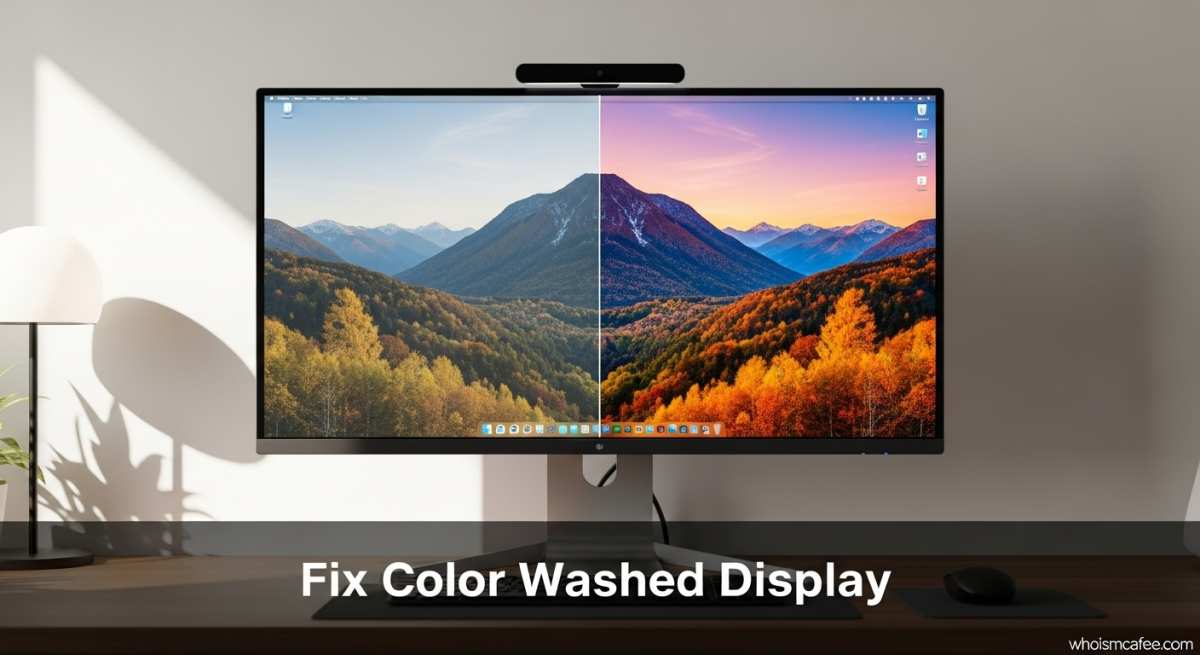
When you enable HDR in Windows, the entire desktop runs in an HDR signal. But your desktop, your browser, your file explorer, and most applications are SDR content. Windows has to map that SDR content into the HDR signal, and it doesn't always do a great job by default.
This is the most common reason people think HDR looks bad. They enable HDR, look at their desktop, see washed-out colors, and immediately turn it off. The thing is, HDR is primarily meant for HDR content, not for general desktop use.
The SDR brightness slider in Windows
Windows includes a slider specifically for this problem. In the same HDR settings panel where you toggle HDR on, look for SDR content brightness. This controls how bright SDR content appears within the HDR signal.
- If it's set too low, SDR content looks dim and washed out
- If it's set too high, SDR content looks blown out and you lose detail
- Start around 40-50 and adjust to taste
This slider doesn't affect HDR content. It only changes how SDR content is mapped into the HDR container. So crank it up for comfortable desktop use without worrying about ruining your HDR games or videos.
Auto HDR vs. native HDR in games
Windows 11 introduced a feature called Auto HDR that attempts to convert SDR games into HDR in real time. It's impressive technology, but it doesn't always look right. Some games look great with Auto HDR enabled.
Others look oversaturated, too bright, or just off.
You can toggle Auto HDR on or off independently from the main HDR toggle. If a specific game looks wrong with Auto HDR, try disabling it for that game and see if the game has its own native HDR implementation instead. Native HDR, when the game developer built it into the engine, almost always looks better than Auto HDR's approximation.
Local dimming and panel limitations
If your monitor has a DisplayHDR 400 certification, it likely has no local dimming or only basic edge-lit dimming. That means the entire backlight is essentially one zone. HDR content relies on being able to show very bright highlights next to very dark areas simultaneously.
Without local dimming, the monitor can't do that effectively. The result is a picture that looks like it has HDR metadata but doesn't deliver the contrast you'd expect.
This isn't a settings issue. It's a hardware limitation. Monitors with DisplayHDR 600 or higher typically have meaningful local dimming that makes a visible difference.
If you're on a DisplayHDR 400 panel and HDR looks washed out no matter what you adjust, the panel itself is the bottleneck.
HDR Formats Explained: HDR10, HDR10+, Dolby Vision, and HLG
Not all HDR is created equal. The format your content uses affects how the brightness and color metadata are handled, and your monitor needs to support the right one.
Side-by-side comparison
| Format | Metadata Type | Licensing | Common Use Cases | Monitor Support |
|---|---|---|---|---|
| HDR10 | Static (one set for entire content) | Free, open standard | UHD Blu-ray, most PC games, streaming | Universal |
| HDR10+ | Dynamic (per-scene) | Free, open standard | Samsung TVs, Amazon Prime Video | Limited outside Samsung ecosystem |
| Dolby Vision | Dynamic (per-scene or per-frame) | Licensed (paid) | Netflix, Disney+, Apple TV+, premium | Requires license, found on higher-end monitors |
| HLG | Hybrid (SDR-compatible) | Free, no license fee | Broadcast TV (BBC, NHK) | Growing support, especially on TVs |
HDR10 is the baseline. Every HDR-capable monitor supports it. If you're getting HDR working with the steps we covered earlier, you're almost certainly running HDR10.
Dolby Vision and HDR10+ offer better scene-by-scene optimization, but they require specific hardware support in the monitor.
DisplayHDR Certifications: What They Actually Mean
VESA's DisplayHDR certification is supposed to tell you what you're getting. In practice, the tiers vary wildly in real-world performance.
VESA DisplayHDR tier breakdown
| Tier | Peak Brightness | Black Depth | Color Gamut | Local Dimming | Real-World Experience |
|---|---|---|---|---|---|
| DisplayHDR 400 | 400 nits | LCD standard | 95% sRGB minimum | Not required | Marginal improvement over SDR |
| DisplayHDR 600 | 600 nits | LCD standard | 95% DCI-P3 minimum | Required (limited) | Noticeable improvement, decent highlights |
| DisplayHDR 1000 | 1000 nits | LCD standard | 95% DCI-P3 minimum | Required (full array) | Strong HDR, convincing highlights |
| DisplayHDR 1400 | 1400 nits | LCD standard | 95% DCI-P3 minimum | Required (full array, many zones) | Excellent HDR performance |
DisplayHDR 400 is where things get misleading. A monitor can be certified HDR400 while having no local dimming and a peak brightness that barely exceeds a good SDR display. The certification confirms the monitor accepts an HDR10 signal.
It doesn't confirm the monitor can actually display HDR in a way that looks meaningfully different from SDR.
If you're shopping for HDR or trying to understand why your current HDR experience is underwhelming, check which tier your monitor actually falls into. The certification level is usually listed in the monitor's spec sheet or on VESA's official DisplayHDR verified product list.
Common Mistakes People Make with Monitor HDR
After covering the setup process, it's worth calling out the mistakes we see most often. These are the things that make people think their HDR is broken when it's actually a configuration issue.
- Enabling HDR and leaving it on for everything: HDR is best toggled on when you're about to consume HDR content, then toggled off for general desktop use. Leaving it on all day means every SDR application runs through the HDR container, which often looks worse.
- Ignoring the OSD entirely: Windows can send an HDR signal, but if the monitor's OSD is set to sRGB mode or a non-HDR picture profile, the monitor will clamp the signal back to SDR range. Always check both sides.
- Using the wrong cable: A cheap HDMI cable that worked fine for SDR at 4K/60Hz might not have the bandwidth for HDR at the same resolution. HDR adds more data to the signal. That cable becomes the bottleneck.
- Not adjusting the SDR brightness slider: This is the number one reason people think HDR looks bad. They enable HDR, see their desktop looks washed out, and assume HDR is broken. The SDR content brightness slider exists specifically to fix this.
- Expecting DisplayHDR 400 to look like a high-end HDR display: It won't. The hardware isn't there. If your monitor is HDR400, manage your expectations accordingly.
- Forgetting to check in-game HDR settings separately: Many games have their own independent HDR toggle and configuration. Windows HDR being on doesn't automatically enable HDR in every game.
Expert Tips for Getting the Best HDR Experience
Once you've got the basics working, a few extra adjustments can make a noticeable difference.
- Use the Windows HDR Calibration app: It's free on the Microsoft Store and generates custom color profiles for your specific display. This helps Windows tone-map HDR content more accurately for your panel's actual capabilities.
- Set your GPU to output 10-bit color when available: HDR10 content is mastered in 10-bit. If your GPU is outputting 8-bit, you're losing color gradation even if the HDR signal is technically active.
- Match your monitor's refresh rate after enabling HDR: Some monitors drop to 30Hz when HDR is first enabled due to bandwidth renegotiation. Go back into Windows display settings and confirm your refresh rate is still set correctly.
- Disable HDR when doing color-critical work: If you're editing photos or video for SDR output, turn HDR off. The HDR signal shifts how colors are rendered on screen, which can lead to inaccurate edits.
- Check for monitor firmware updates regularly: Manufacturers sometimes fix HDR handshake issues and EDID reporting bugs through firmware updates. This is especially common with newer monitor models in their first year of release.
Frequently Asked Questions
Does enabling HDR affect gaming performance?
Enabling HDR itself has a negligible performance impact on your GPU. The rendering workload is essentially the same. However, some games that implement HDR rendering pipelines may have slightly different performance characteristics.
The bigger concern is bandwidth. If enabling HDR forces your connection to a lower refresh rate, you'll feel that as reduced smoothness.
Why does my screen flicker when I turn HDR on?
The brief flicker when toggling HDR is normal. Your monitor is switching between SDR and HDR signal modes, which requires a brief re-handshake between the GPU and the display. If the flickering continues or the screen goes black for more than a second or two, that indicates a handshake problem, usually related to cable quality or EDID communication.
Can I use HDR with an HDMI 2.0 connection?
Yes, but with limitations. HDMI 2.0 can handle HDR at 4K/60Hz, but it often requires chroma subsampling (YCbCr 4:2:2 instead of RGB 4:4:4), which slightly reduces color resolution. For the best HDR experience at 4K/60Hz or above, DisplayPort 1.4 or HDMI 2.1 is recommended.
How do I know if my monitor actually supports HDR?
Check the manufacturer's specifications for HDR support and DisplayHDR certification level. You can also look in Windows Display Settings. If the "Use HDR" toggle appears, Windows has detected HDR capability.
For a more detailed check, look up your monitor model on VESA's DisplayHDR verified product list to see its certified tier.
Should I keep HDR on all the time or turn it off?
It depends on your workflow. If you frequently watch HDR videos or play HDR games, leaving it on is convenient. If you primarily browse the web and use productivity applications, you'll likely prefer turning HDR off and only enabling it when needed.
The SDR content brightness slider helps, but SDR content still generally looks better on an SDR signal.
Why does HDR look worse than SDR on my monitor?
This usually comes down to one of three things. Your monitor may have a low HDR certification tier (like DisplayHDR 400) that can't produce meaningful HDR contrast. The SDR content brightness slider may be set too low, making everything look washed out.
Or your monitor's local dimming may be disabled or absent, preventing the display from showing the brightness range HDR content requires.
Final Checklist: Is Your Monitor HDR Set Up Correctly?
Here's a quick verification list you can run through to confirm every link in the HDR chain is solid:
- Monitor OSD shows HDR mode enabled or correct picture profile selected
- Cable is rated for sufficient bandwidth (DP 1.4 or HDMI 2.1 recommended)
- Windows Display Settings shows the "Use HDR" toggle and it's turned on
- GPU control panel is set to 10-bit color depth and full dynamic range
- Refresh rate hasn't dropped after enabling HDR
- SDR content brightness slider is adjusted to your preference
- Tested with known HDR content and confirmed visible difference from SDR
If all of those check out, your HDR is configured correctly. If something still looks off, the issue is likely your panel's hardware limitations rather than a settings problem. Not every HDR-capable monitor delivers a transformative HDR experience.
Knowing what your hardware can actually do is half the battle.

Similar Posts





















