How to Adjust Brightness on HDR Monitor
Figuring out how to adjust brightness on HDR monitor setups is harder than it should be. You'd expect one slider. You get at least three different controls that each affect something different, and almost nobody explains which one does what.
The core issue is that HDR and SDR brightness are handled by separate systems. Windows, your GPU driver, and your monitor's own OSD each have a say. Once you understand which control affects which layer, the whole thing clicks into place.
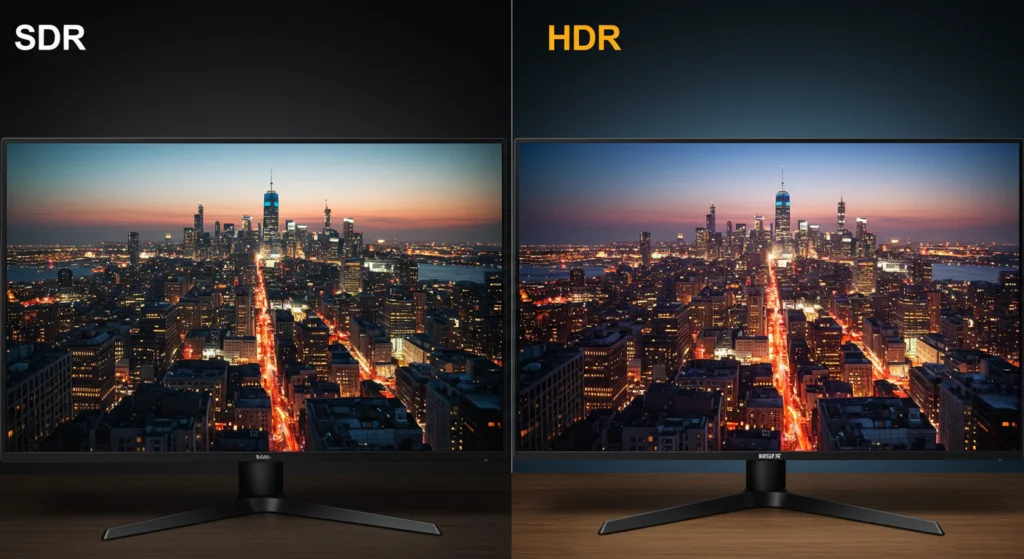
Quick Answer
You adjust HDR monitor brightness at two levels. Use the Windows SDR content brightness slider for desktop apps. Use the HDR peak luminance slider for HDR games and video.
Your monitor's OSD brightness knob mostly affects SDR signal levels, not true HDR output.
The Two Layers Nobody Clearly Explains
Most people hunt for one brightness slider and wonder why nothing looks right. That's because you're dealing with two completely separate brightness controls stacked on top of each other.
The Two Layers Nobody Clearly Explains
Here's the breakdown that makes everything else make sense.
Layer 1: SDR content brightness in an HDR desktop. When you turn on HDR in Windows, your entire desktop runs inside an HDR signal chain. Your browser, taskbar, file explorer, all of it gets treated as SDR content mapped into an HDR container. Windows gives you a slider specifically for this.
It controls how bright that SDR content appears while HDR is active.
Layer 2: HDR peak luminance. This controls how bright actual HDR content can get. HDR games, HDR video on Netflix or YouTube, and HDR photos all use this ceiling. Windows has a separate slider for this too, and it directly affects how intense specular highlights and bright scenes render.
Layer 3: Monitor OSD brightness. This adjusts the physical backlight or panel signal level. On most monitors, this primarily affects the SDR luminance range. True HDR peak brightness is governed by the monitor's hardware limits and the HDR metadata it reports to Windows, not by turning the OSD knob.
Per VESA DisplayHDR certification standards, a monitor's peak luminance in HDR mode is locked to its hardware capability. The OSD brightness knob typically can't push beyond that ceiling.
So when someone asks how to adjust brightness on an HDR monitor, the real answer depends entirely on what they're looking at. Desktop apps in HDR mode? That's the SDR content slider.
HDR games looking too dim or blown out? That's the HDR luminance slider. Everything looking off and you're not even in HDR mode?
Start with the monitor OSD.
Windows HDR Settings: Your Starting Point
Windows gives you the most accessible HDR controls. They're right in the display settings, and they're the first place to check no matter what GPU you have.
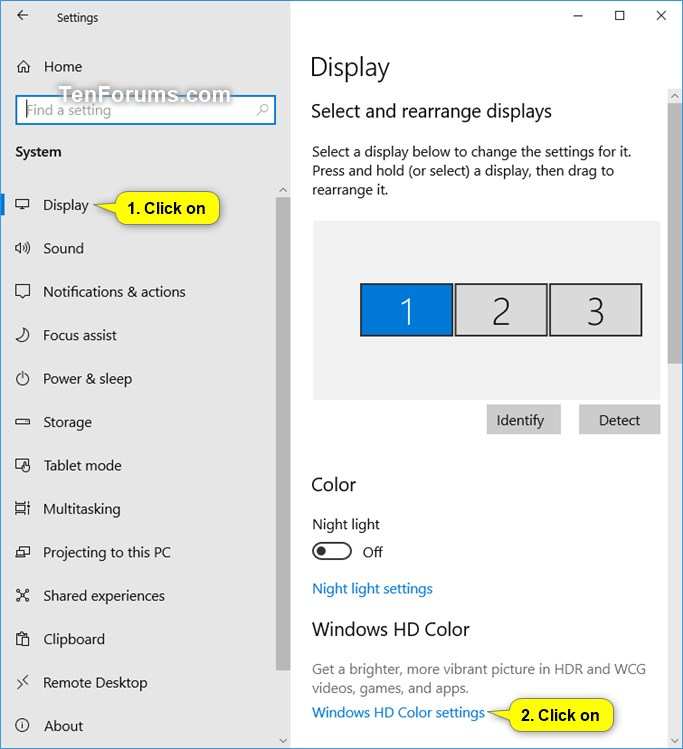
Where to Find the HDR Sliders on Windows 10 and Windows 11
The path is nearly identical on both operating systems.
Open Settings. Go to System, then Display. Look for the HDR section (on Windows 11) or HD Color settings (on Windows 10).
If you see the toggle for HDR, your setup supports it. If you don't see it, skip to the troubleshooting notes below.
Once HDR is turned on, you'll see two sliders.
- SDR content brightness. This controls how bright standard content looks while HDR mode is active. Slide it up if your desktop looks washed out. Slide it down if SDR content looks unnaturally bright compared to HDR material.
- HDR content brightness (sometimes labeled peak luminance or HDR brightness). This controls the ceiling for HDR content. Higher values let highlights get brighter. Lower values compress the HDR range.
Windows 11 adds a third feature here called Auto HDR. It attempts to add HDR-like effects to games that only support SDR. It has its own brightness behavior and can look wrong in games that already have native HDR support.
More on that later.
When Windows HDR Sliders Disappear or Don't Work
This is one of the most common frustration points. You go to the display settings and the HDR toggle is just gone. Here's what usually causes it.
- Cable doesn't have enough bandwidth. HDR requires at least HDMI 2.0 or DisplayPort 1.4. Older cables will physically connect but won't carry an HDR signal. You'll get a blank screen or the OS will simply hide the option.
- GPU driver issue. An outdated or corrupted GPU driver is the second most common cause. Update to the latest driver from NVIDIA, AMD, or Intel. Then restart. The HDR option should reappear.
- Monitor not reporting HDR support. The monitor sends its capabilities to Windows through something called EDID. If the EDID data doesn't include HDR support flags, Windows won't show the option. Check for a firmware update from the monitor manufacturer.
- Wrong input selected. Some monitors only support HDR on specific inputs. HDMI 1 might support it while HDMI 2 doesn't. Check your monitor's manual for which ports carry HDR.
On Windows 11 specifically, there's also a known issue where enabling HDR on a multi-monitor setup can cause the toggle to vanish on the secondary display. Disabling HDR on the primary, applying, then re-enabling on the secondary sometimes resolves it.
Monitor OSD Brightness: What It Actually Controls in HDR Mode
Here's where most people go wrong. They crank the monitor's physical brightness knob and expect HDR to get brighter. On most monitors, it doesn't work that way.
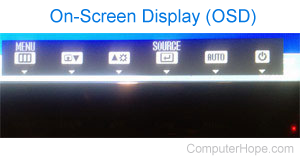
Why Turning the OSD Brightness Knob Often Doesn't Help With HDR
When your monitor receives an HDR signal, it switches into a different operating mode. In this mode, the panel drives to its maximum rated peak luminance for highlights. That ceiling is set by the monitor's hardware, its backlight design, and the HDR metadata it receives from Windows.
The OSD brightness knob typically operates within the SDR luminance range. Turning it up or down shifts how bright midtones and shadows appear, but it doesn't raise the peak HDR brightness ceiling. Think of it this way.
The HDR signal tells the monitor "make this highlight 600 nits." The monitor does that regardless of whether your OSD brightness is at 30 or 80.
There are exceptions. On some edge-lit monitors without full local dimming, the OSD brightness can influence the overall HDR backlight level. On monitors with per-zone local dimming, the OSD may control the backlight baseline while individual zones still hit their rated peak for highlights.
But as a general rule, if your HDR content looks too dim, the Windows HDR luminance slider is the right tool, not the OSD.
Monitor-Side HDR Features You Should Know
Your monitor's OSD likely has a few HDR-specific settings worth understanding.
- HGIG mode. The HDR Gaming Interest Group standard disables the monitor's own tonemapping and lets the game handle it directly. Competitive gamers prefer this because it preserves the developer's intended look without the monitor second-guessing the image. If your monitor supports HGIG, try it. It often produces more accurate HDR than the monitor's default processing.
- Dynamic contrast or dynamic tone mapping. This feature actively adjusts the backlight and gamma on the scene by scene basis. It can make HDR look punchier, but it also introduces visible brightness shifts and can crush shadow detail. For accurate HDR, turn it off. For a more dramatic look on a budget monitor, it can help.
- HDR preset modes. Many monitors ship with named presets like HDR10, Dolby Vision, or Game HDR. These presets often lock certain settings. The HDR10 preset might lock peak luminance at the panel's maximum, while the Game preset might unlock additional sliders. Check what each preset changes before committing to one.
Fixing the Most Common HDR Brightness Problems
Now let's apply all of this to the actual situations people run into. Each problem below maps to a specific control.
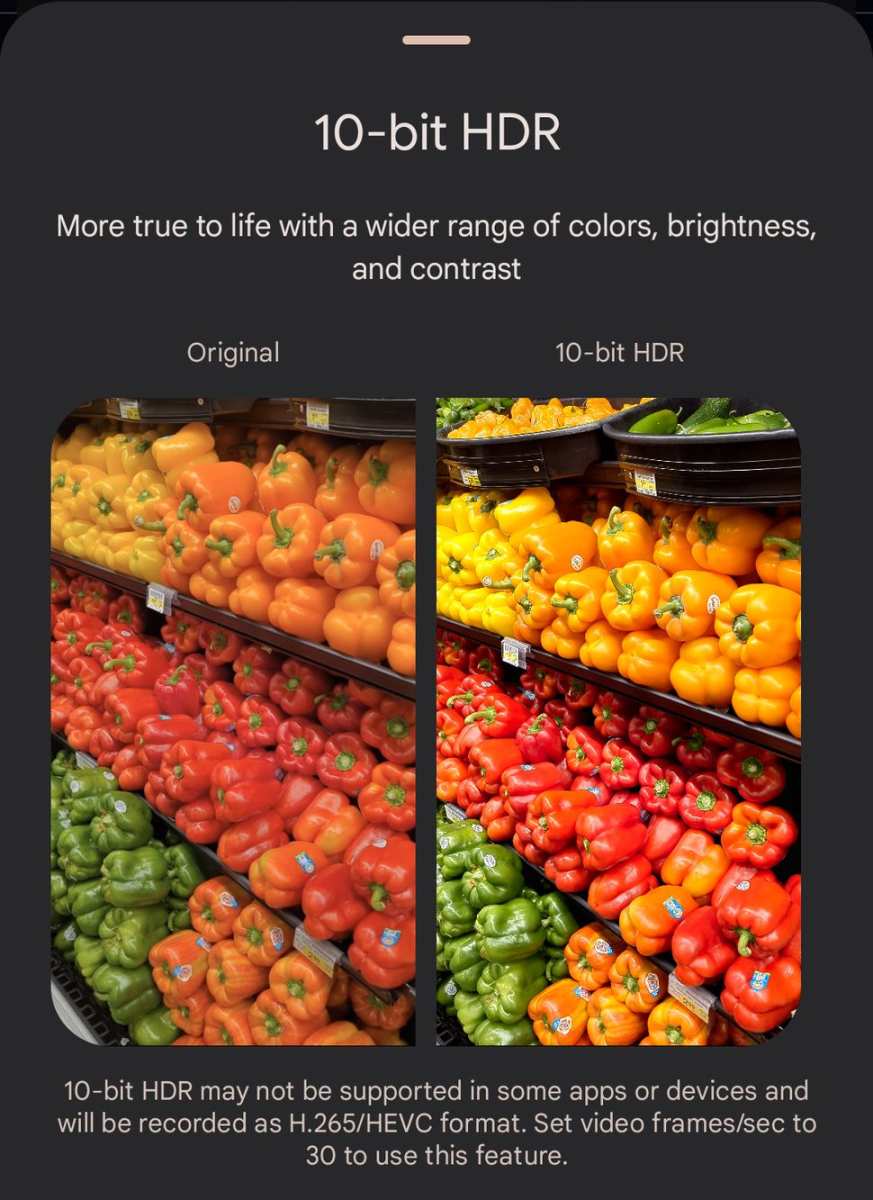
Problem: HDR Desktop Looks Washed Out or Faded
This is the number one complaint. You turn on HDR, and suddenly your desktop, browser, and apps look pale and low-contrast. The fix is almost always the Windows SDR content brightness slider.
Open Settings, go to Display, find the HDR section, and look for "SDR content brightness." Start around 40 to 50 as a baseline. Adjust up or down until white backgrounds look white, not gray. Most people land somewhere between 30 and 60 depending on their monitor's SDR luminance and ambient room lighting.
Don't touch the monitor OSD for this. It won't fix the underlying issue, which is that Windows is mapping SDR content into an HDR signal at a default brightness level that doesn't match your panel.
Problem: HDR Content Looks Too Dim Despite Bright Monitor
Your monitor is rated for 600 nits or more. HDR games still look flat and dim. The culprit is usually the Windows HDR peak luminance slider being set too low.
Go back to the HDR settings and find the HDR content brightness or peak luminance slider. Push it up. On most monitors, maxing this out tells Windows to use the panel's full reported peak luminance.
If the monitor reports 600 nits max, this slider tells Windows to allow highlights up to 600 nits.
Also check local dimming. If your monitor has local dimming and it's disabled, HDR will look significantly dimmer because the entire backlight has to share its power budget across the whole screen. Enable local dimming in the monitor OSD.
Set it to high or the highest available level for HDR content.
Problem: HDR Games Look Inconsistent From One Game to Another
This one's tricky because three different systems might be handling HDR simultaneously.
- Native HDR games use the game's own tonemapping engine. They read your monitor's capabilities directly and render accordingly.
- Auto HDR (Windows 11 only) is a system layer that adds HDR-like effects to SDR games. It has its own brightness behavior independent of the game.
- Game HDR is a newer Windows 11 feature that provides a system-level calibration layer for games that support it.
If a game looks wrong, first determine which path is active. Check the game's settings for an HDR toggle. If it has one, it's native HDR.
If Windows shows an HDR badge when you Alt-Tab, Auto HDR might be active. Disable Auto HDR for games that already support HDR natively. The two systems fighting each other is a common cause of dim or oversaturated HDR.
For native HDR games, use the in-game calibration screen. Most HDR games have one. It typically asks you to adjust until a logo disappears or until a gradient reaches a specific point.
This calibration is per-game and usually more accurate than any system-level slider.
Problem: Colors or Brightness Shifted After Driver or Windows Update
GPU driver updates occasionally reset HDR and color settings. Windows feature updates have been known to do the same.
The quick restoration checklist.
- Re-enable HDR in display settings if it got toggled off.
- Reset the SDR content brightness slider to your preferred value.
- Reset the HDR luminance slider.
- Check that your ICC profile is still assigned. Go to Settings, Display, Advanced display settings, and look at the color profile. If it's missing or wrong, reinstall the profile from the manufacturer.
- On NVIDIA GPUs, open the NVIDIA Control Panel and verify that color depth is set to 10-bit (if supported) and the output color format is correct.
- On AMD GPUs, check Radeon Software for any color or HDR settings that reverted to defaults.
This is tedious. But it's a known behavior, and knowing the checklist saves a lot of confusion.
GPU Driver Brightness Controls vs. Windows HDR
Your GPU driver sits between Windows and the monitor. It has its own color and brightness controls. But their role in HDR is more limited than most people think.
NVIDIA Control Panel: What It Adjusts and What It Doesn't
NVIDIA's Control Panel offers brightness, contrast, and gamma sliders under the "Adjust desktop color settings" section. These controls operate on the SDR signal chain. They do not affect HDR content once the HDR pipeline is active.
The settings that actually matter for HDR are under "Change resolution." Look for the color depth dropdown. For proper HDR, you need 10-bit color depth where supported. If your monitor and cable support it, set this to 10-bit per channel.
You'll also see the color format options. RGB full range is typically correct for PC monitors.
There's an HDR-specific toggle in some NVIDIA driver versions under the "Set up G-SYNC" or display configuration area, but as of 2026 the primary HDR control path remains Windows itself. NVIDIA defers to the Windows HDR pipeline on most modern driver branches.
One gotcha. Some users report that enabling digital vibrance in the NVIDIA Control Panel can oversaturate HDR content. HDR already has a wider color gamut.
Stacking saturation boosts on top tends to clip colors.
AMD Radeon Software: Color and HDR Controls
AMD's Radeon Software handles things similarly. The Color tab under Display settings offers temperature, brightness, and saturation adjustments. Like NVIDIA, these are SDR-chain controls.
Radeon Software does have an HDR toggle in some versions under the Display settings. This toggle sometimes overrides or conflicts with the Windows HDR setting. If your HDR options look wrong, check both locations and make sure they agree.
AMD's Radeon Anti-Lag and Radeon Boost features can interact with HDR rendering in rare cases. Aggregate user reports indicate occasional brightness flickering in HDR games when these features are enabled. If you see pulsing or flickering in HDR, try disabling them as a test.
Intel Graphics Command Center: HDR on Integrated Graphics
Intel's integrated graphics have supported HDR since roughly the 11th generation Core era, but the experience is more limited. The Intel Graphics Command Center has an HDR toggle under Display settings.
Intel iGPUs are more constrained by bandwidth and processing power. HDR at 4K 60Hz is typically the ceiling over HDMI. DisplayPort output varies by laptop manufacturer and implementation.
Laptop users should be aware that many laptop displays don't support HDR at all. The HDR output goes to an external monitor only. But some laptop manufacturers route the HDR signal through the internal panel's limited brightness range, resulting in a dim HDR experience regardless of settings.
Check your laptop's display specifications before spending time troubleshooting HDR brightness on the built-in panel.
Choosing the Right Setup by Use Case
Not every HDR use case benefits from the same configuration. Here's how to think about it.
For HDR Gaming (Native HDR Games)
Turn on Windows HDR. Set the HDR peak luminance slider to maximum. Enable local dimming on your monitor if available.
Use HGIG mode if your monitor supports it. Calibrate each game individually using its built-in HDR slider.
Don't leave Auto HDR enabled for games that already have native HDR. The two systems will conflict.
For HDR Video Playback (Streaming, Blu-ray, Local Files)
Turn on Windows HDR or use a media player that handles HDR passthrough. MPC-BE and VLC (recent versions) both support HDR output. Set the Windows HDR luminance slider to match your monitor's rated peak brightness.
Many streaming apps in the Microsoft Store support HDR natively. The Netflix app and Disney Plus app both output HDR when available. Browser-based streaming is more limited.
Microsoft Edge supports HDR on Windows 11. Chrome's HDR support has been inconsistent as of 2026.
For General Desktop Use With HDR Left On
Most people are better off turning HDR off for daily desktop work and only enabling it for specific applications. If you leave HDR on full-time, crank the SDR content brightness slider up to compensate. Aim for a desktop brightness that matches what you'd see in SDR mode.
Eye strain is a real concern here. Running an HDR desktop with a misconfigured SDR brightness level forces your eyes to constantly adapt between the bright HDR signal range and the mapped SDR content. This causes fatigue over long sessions.
For Color-Critical Creative Work (Photo/Video Editing in HDR)
You need a monitor with a high VESA DisplayHDR tier, ideally DisplayHDR 1000 or above. You need accurate factory calibration or hardware calibration with a colorimeter. You need to disable all dynamic tone mapping and dynamic contrast features.
Windows 11's system color management has improved, but professional HDR editing workflows still benefit from dedicated calibration tools. Calman and DisplayCAL both support HDR profiling. Create an ICC profile specifically for HDR mode and a separate one for SDR.
Key Specs That Determine How Much Brightness Control You Actually Have
What you can and can't adjust depends heavily on your monitor's hardware and how it reports itself to Windows.
VESA DisplayHDR Tiers and What They Mean for Brightness
VESA DisplayHDR certification gives you a rough idea of what to expect.
| Tier | Peak Luminance | Local Dimming | Color Gamut | What It Means for Brightness Control |
|---|---|---|---|---|
| DisplayHDR 400 | 400 nits | Not required | 95% sRGB | Limited HDR impact. Brightness control mostly via OSD. HDR slider has narrow range. |
| DisplayHDR 600 | 600 nits | Required (8 zones) | 95% DCI-P3 | Noticeable HDR highlights. Windows HDR slider has meaningful range. |
| DisplayHDR 1000 | 1000 nits | Required (16+ zones) | 95% DCI-P3 | Strong HDR impact. Full slider range. Local dimming matters significantly. |
| DisplayHDR 1400 | 1400 nits | Required (32+ zones) | 95% DCI-P3 | Premium HDR. Brightness control is most flexible here. |
A DisplayHDR 400 monitor will never produce the same HDR highlight intensity as a DisplayHDR 1000 unit. No slider adjustment changes that. The hardware sets the ceiling.
Peak Luminance (Nits) and Why It Matters for HDR Brightness Headroom
Nits measure luminance. One nit equals one candela per square meter. For HDR, peak luminance determines how bright the brightest part of the image can get.
A monitor rated at 400 nits peak can only produce 400 nits for HDR highlights. A 1000-nit monitor can hit 1000 nits. That 2.5x difference is visible and significant.
Specular highlights on metal, sun reflections, and explosions all benefit from higher peak luminance.
The Windows HDR luminance slider maps the content's luminance values to your monitor's reported range. If the monitor reports 600 nits max, the slider controls how the content's 0 to 600 nit range maps to what you see. Setting it too low compresses highlights.
Setting it too high can clip detail in bright areas.
Connection Interface Impact (HDMI 2.0 vs. 2.1 vs. DisplayPort 1.4)
Your cable and port determine what signal can reach the monitor.
| Interface | Max Bandwidth | HDR at 4K 60Hz | HDR at 4K 120Hz | Notes |
|---|---|---|---|---|
| HDMI 2.0 | 18 Gbps | Yes (4:2:0 chroma) | No | Works for HDR but may require chroma subsampling |
| HDMI 2.1 | 48 Gbps | Yes (full chroma) | Yes (with DSC) | Best for console HDR and high-refresh PC HDR |
| DisplayPort 1.4 | 32.4 Gbps | Yes (with DSC) | Yes (with DSC) | Standard for PC-to-monitor HDR |
| DisplayPort 2.0 | 77.4 Gbps | Yes (no DSC needed) | Yes (no DSC needed) | Future-proof. Limited adoption as of 2026. |
If your HDR toggle is missing, check your cable. An HDMI 1.4 cable physically fits but cannot carry an HDR signal at 4K. You need at least HDMI 2.0 or DisplayPort 1.4.
Mistakes People Make When Adjusting HDR Brightness
These come up constantly. Avoid them.
- Cranking monitor OSD brightness to 100 and calling it calibrated. This doesn't raise the HDR peak ceiling on most monitors. It just shifts the SDR mapping and can crush shadow detail.
- Confusing SDR content brightness with HDR peak brightness. They're two different sliders controlling two different things. Mixing them up causes half the "HDR looks bad" complaints online.
- Leaving Auto HDR on for games that already have native HDR. Auto HDR and native HDR fighting each other produces dim, oversaturated, or flickering results. Turn Auto HDR off for native HDR titles.
- Ignoring local dimming entirely. On a monitor with local dimming, leaving it off means the entire backlight runs at a flat level. HDR highlights can't reach their rated peak. Enable it.
- Not updating monitor firmware. Several manufacturers have released firmware updates that fix HDR brightness bugs. Check the support page for your specific model.
- Using an HDMI cable that can't carry the full HDR signal. The cable that came in the box with a budget monitor is sometimes HDMI 1.4. It fits the port but it won't carry HDR properly.

Similar Posts





















