How to Adjust Brightness on Ips Monitor
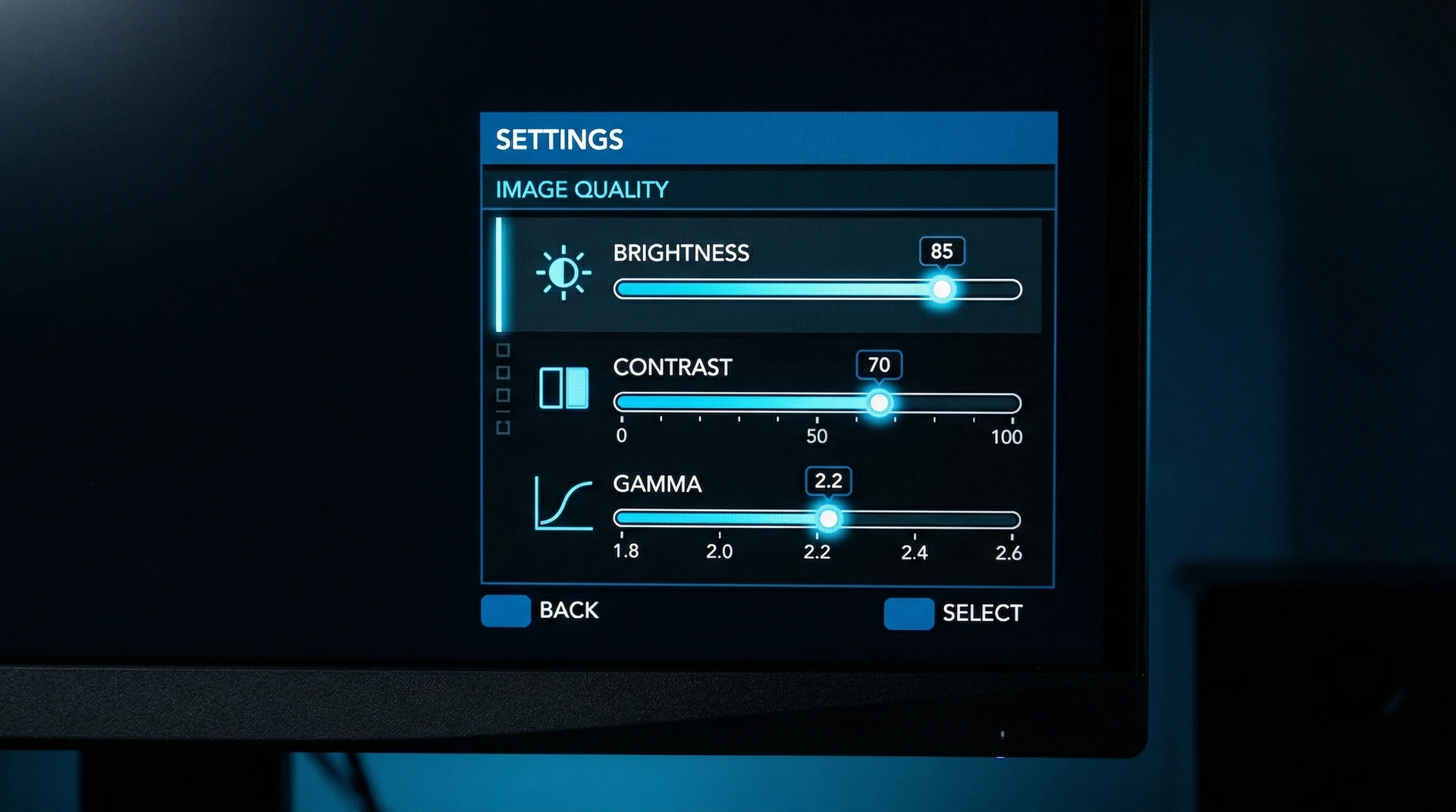
Why Your IPS Monitor Brightness Control Isn't Working the Way You Expect
If you've ever gone looking for a brightness slider that simply wasn't there, you're not alone. The reason comes down to how your IPS monitor communicates with your computer. Some monitors expose brightness controls directly through the operating system.
Others keep those controls locked behind the monitor's own on-screen menu. Knowing which category yours falls into saves you a lot of frustration.
Per the VESA Monitor Control Command Set standard, monitors can accept brightness commands over the display cable. But many IPS panels ship with DDC/CI disabled by default, so your PC never sees that slider in the first place.
Quick Answer
Here's how to adjust brightness on an IPS monitor. You have three main paths to control brightness. Use your monitor's physical OSD buttons for guaranteed control.
Enable DDC/CI to unlock OS-level or software control. Third-party tools work well when built-in options fail.
Method 1: Using the Monitor's Physical OSD Buttons
This always works. Every IPS monitor ships with an on-screen display menu that dials in brightness. The trick is finding the buttons and knowing where to look in the menu.
Where the buttons actually are on different IPS monitors
Button placement varies by manufacturer. Here's where you'll typically find them:
| Monitor Brand | Button Location | Control Type |
|---|---|---|
| Dell UltraSharp | Bottom-right bezel | Physical buttons or joystick |
| LG IPS | Bottom-center or rear | Joystick (most models) |
| ASUS ProArt / ROG | Bottom-right bezel | Joystick or buttons |
| BenQ | Bottom-right or right side | Physical buttons |
| AOC | Bottom bezel | Physical buttons |
| ViewSonic | Bottom bezel or rear | Physical buttons |
Step-by-step: navigating the OSD to brightness
The exact menu path depends on your model, but the general flow is consistent.
- Press the Menu button (or push the joystick) to open the OSD.
- Navigate to Brightness/Contrast or Display settings.
- Select Brightness and adjust using left/right or up/down.
- Set your target. Most IPS monitors use a 0-100 scale in the OSD.
- Exit the menu. Some monitors auto-close after a few seconds of inactivity.
Dell UltraSharp monitors, for example, typically place Brightness under the "Display" or "Picture" menu section. LG models often have a dedicated quick-access route. Press the joystick once to bring up the quick menu, then go straight to brightness.
ASUS ProArt monitors take calibration seriously. They expose brightness alongside color temperature and gamma in the main OSD. Settings stick across reboots, which is nice.
When joystick controls replace traditional buttons
Most IPS monitors released since 2020 use a small joystick instead of multiple buttons. The joystick sits under the bottom bezel, usually near the center or right edge. Push it in to open the menu.
Tilt it to navigate. It takes a minute to get used to, but it's faster than cycling through five separate buttons once you've got the feel for it.
Method 2: Adjusting Brightness Through Windows or macOS
You'd think the operating system would handle this for you. Sometimes it does, sometimes it doesn't. The monitor needs DDC/CI enabled and the driver needs to expose the controls.
Windows brightness slider — and why it might be missing
Windows shows a brightness slider in Settings > System > Display when the graphics driver tells it there's a controllable display attached. If you see the slider, drag it left or right. Done.
If you don't see it, your brightness control comes through the monitor's OSD menu exclusively. That's by design, not a bug.
A few things affect whether the slider appears. The monitor must have DDC/CI enabled in its OSD. The display driver must be installed and working.
Some generic drivers skip brightness control entirely. If your Device Manager lists the monitor as "Generic PnP Monitor," the slider may not show. Installing the manufacturer's INF driver can bring it back.
macOS external monitor brightness (the tricky one)
Apple makes this easy for their own displays. External IPS monitors are a different story. macOS doesn't natively send DDC brightness commands to third-party monitors. You won't find a brightness slider for an external LG, Dell, or ASUS in System Settings.
You'll use the monitor's physical OSD buttons instead. If you want software control on a Mac, you need a third-party utility. MonitorControl is the most popular option.
It sends DDC commands from your Mac to the monitor, giving you a menu bar slider and keyboard shortcuts. We'll cover that in Method 3.
Linux brightness control with ddcutil and xrandr
Linux users have good tools for this job. The command-line utility ddcutil sends DDC/CI commands directly to your monitor. Most distributions include it in their package repositories. xrandr handles software brightness, though that dims the signal rather than adjusting the backlight.
For true hardware brightness control on Linux, ddcutil is what you want. A typical command looks like ddcutil setvcp 10 50 to set brightness to 50 percent. Check with ddcutil capabilities first to confirm your monitor exposes the brightness VCP code.
Method 3: Third-Party DDC/CI Software (When Built-In Options Fail)
When the OS slider is gone and you're tired of fiddling with OSD menus, third-party software takes over.
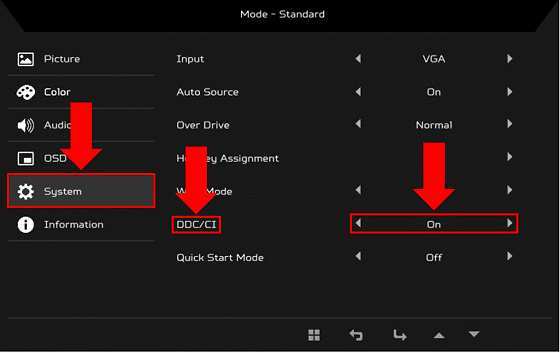
Enabling DDC/CI in your monitor's OSD first
Before any software can control brightness over the display cable, you need to switch on DDC/CI in the monitor itself. This setting lives in the OSD menu under System, Setup, or Display settings, depending on the brand. On Dell monitors it's under "Display" then "DDC/CI." On LG it's in "General" > "DDC/CI." Toggle it on.
Once enabled, brightness must be controlled primarily through software; many monitors remove it from the OSD.
ClickMonitorDDC for Windows
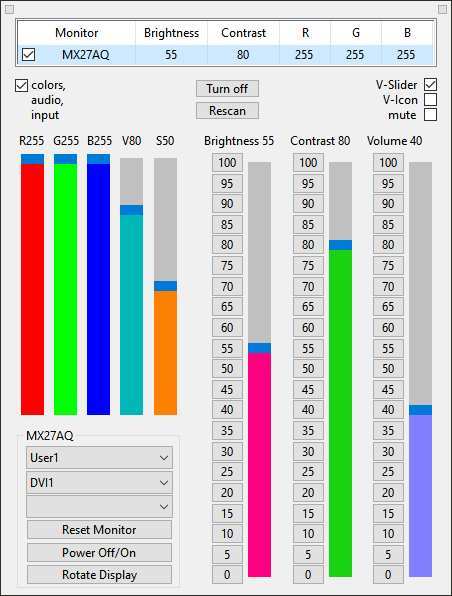
ClickMonitorDDC is a lightweight, free utility for Windows. It reads and writes brightness values over the DDC/CI channel. The interface is straightforward, showing sliders for brightness and contrast.
You can also set up command-line shortcuts. This lets you bind brightness changes to keyboard shortcuts or scripts. Run it and use the number 10 command to read brightness command 10 to set a value.
With a line like ClickMonitorDDC.exe 10 70 you set brightness to 70 percent.
MonitorControl and Twinkle Tray
MonitorControl is a free, open-source menu bar app for macOS. It adds brightness and volume controls for external monitors using DDC/CI. Install it, grant accessibility permissions, and you get a neat little slider in your menu bar.
Keyboard controls work too, so you can adjust brightness without touching the monitor's buttons.
Twinkle Tray serves a similar purpose on Windows. It adds system tray icons for each connected display with brightness controls. Syncing brightness across multiple monitors is also supported.
If you've got a multi-monitor IPS setup, this is handy.
Why Your Brightness Slider Disappeared in Windows
Your monitor's brightness slider appeared yesterday, but now it's gone. You haven't changed cables or monitors, so what happened?
DDC/CI is disabled on the monitor
The most common reason? DDC/CI got turned off in the OSD. Sometimes this happens after a factory reset or firmware update.
Brightness control reverts to the hardware OSD. Open your OSD menu and check the DDC/CI toggle. Switch it back on and the slider should reappear.
Generic PnP Monitor driver instead of manufacturer driver
Windows uses a basic "Generic PnP Monitor" driver for most displays. This driver often doesn't expose brightness controls. You'll need the INF file from the monitor manufacturer's support page.
Dell, LG, ASUS, and BenQ all provide model-specific drivers. Install it through Device Manager, and the slider should come back.
GPU driver override blocking the slider
Some graphics driver software overlays monitor-level brightness controls. NVIDIA Control Panel and AMD Radeon Software both can interfere with standard DDC/CI brightness. A driver update may reset permissions.
Roll back or reinstall the monitor driver beyond those utilities to restore access.
Fixes that actually work
Try these in order:
- Check DDC/CI in your monitor's OSD, ensure it's enabled.
- Reinstall the monitor driver from the manufacturer's website.
- Reinstall or update your graphics driver from NVIDIA, AMD, or Intel.
- Try a different cable, DDC/CI requires specific pin connections. Some cheap HDMI or DisplayPort cables don't pass the DDC channel reliably.
- Test with a different port on your graphics card.
- UseClickMonitorDDC as a workaround if the OS slider refuses to return.
If none of that works, your monitor's DDC/CI hardware may be non-functional. That's rare but it happens. In that case, stick with the physical OSD buttons.
Common Brightness Problems and How to Fix Them
Brightness resets after reboot or sleep
This usually points to DDC/CI toggling itself off somehow. A firmware glitch can do it on some models. Check that DDC/CI stays enabled after a full power cycle.
Some monitors have a separate setting for "Power Saving" or "Eco Mode" that overrides your brightness on startup. Turn those off in the OSD.
IPS glow gets worse at low brightness
IPS glow looks like light bleed at the corners, glowing whitish or yellowish when the brightness is low and the room is dark. Lowering brightness makes it more obvious because the surrounding screen is darker. The only fixes workarounds: raise brightness a bit, add bias lighting behind the monitor, or reduce the viewing angle slightly.
Brightness controls work in OSD but not in software
DDC/CI is probably disabled. Open your monitor's OSD and find the DDC/CI toggle. Switch it on.
If it's already on, check your cable. DDC/CI over HDMI uses pin 15 (SCL) and pin 16 (SDA) in the VGA-style wiring. Some cheap HDMI cables don't wire those pins.
Try another cable with proper shielding.
Brightness only goes down to 50 percent or 20 percent
Some monitors have a minimum brightness floor built into firmware. You can't go below that minimum through the OSD. Software can sometimes push lower.
ClickMonitorDDC or MonitorControl might let you send values below the OSD floor by sending direct VCP commands. That can be useful in a very dark room.
Can adjusting brightness too low damage the monitor?
No. Lowering brightness won't harm the IPS panel itself. In fact it may extend backlight life.
Most IPS LED backlights are rated for 30,000 to 50,000 hours. Keeping brightness at 50 instead of 100 roughly doubles that lifespan.
Adaptive Brightness Overriding Your Manual Settings
Windows has a feature called "Change brightness automatically when lighting changes." It's designed for laptops with built-in ambient light sensors. When you connect an external monitor the system can still try to adjust what it thinks is the display brightness. This can cause your screen to dim randomly.
How to turn it off in Windows
Go to Settings > System > Display. Under the brightness slider there's a checkbox that says "Change brightness automatically when lighting changes." Uncheck it. If you don't see that checkbox, your monitor doesn't report light sensor data and this feature isn't active.
The real culprit then lies elsewhere, like power saving mode or a third-party app.
On some systems the setting lives in the Power Plan. Control Panel > Hardware and Sound > Power Plan > Change Plan Settings > Change Advanced Power Settings > Display > Enable Adaptive Brightness. Make sure it's set to Off.
macOS doesn't have this problem
macOS doesn't do ambient adaptive brightness for external monitors. Your Dell, LG, or BenQ stays where you set it. If your screen dims at night on a Mac, that's a different feature, Night Shift or True Tone.
Linux backlight behavior
Some Linux desktop environments, especially GNOME, try to manage ambient light with sensors that might not exist on external monitors. Check your power settings. Most distros let you disable "automatic brightness" through Settings > Power.
Matching Brightness Across Multiple IPS Monitors
Running two or more panels at different brightness profiles gets distracting fast. Each model and each unit has different factory defaults. Calibrating by eye alone rarely works.
Software tools make matching them easier.
Using ClickMonitorDDC for multi-monitor control
ClickMonitorDDC can address each monitor by its display index. Bind each to a specific brightness. Run ClickMonitorDDC.exe /m 1 1 80 to set monitor 1 to 80 percent.
Running ClickMonitorDDC.exe /m 2 2 80 sets monitor 2 the same. With a small script or hotkey you can bring both to the same level simultaneously.
Using the OSD for exact matching
Manual matching through the OSD works best when both monitors are the same model. Use the same OSD brightness number, the same contrast setting, and the same preset mode. Display a pure white test image in a dark room.
Tweak each until they look identical. This is a time investment: expect 5 to 15 minutes for a clean match.
What Brightness Level Should You Actually Use
Brightness isn't a set-it-and-forget-it setting. The ideal level depends on the room you're in, the task, and how long you've been staring at the screen.
Recommended brightness for different scenarios
| Scenario | Recommended cd/m² | OSD Scale (0-100) |
|---|---|---|
| Bright office with sunlight | 250-350 cd/m² | 70-90 |
| Normal office lighting | 120-180 cd/m² | 40-55 |
| Dim room / home office | 80-120 cd/m² | 25-40 |
| Dark room (movie viewing) | 60-80 cd/m² | 15-30 |
| Color-critical work (photo/video) | 120 cd/m² | 35-40 |
| HDR content | 400+ cd/m² (peak) | Varies by model |
Color-critical work targets around 120 cd/m² per the ICC specification reference viewing conditions. Most factory presets on IPS monitors land around 280-350 cd/m². That's suitable for a bright room.
In a normal home office though, it's too much for comfortable long sessions.
Frequently Asked Questions
Can lowering IPS monitor brightness save power?
Yes. Lowering brightness from 100 to 50 percent typically cuts monitor power consumption by 15 to 30 percent, depending on the model. A typical 27-inch IPS display draws around 25 watts at full brightness but around 15-18 watts at 50 percent.
Why is my brightness slider missing in Windows 11?
The most common cause is DDC/CI being disabled in the monitor's OSD. Another possibility is the generic PnP Monitor driver not exposing controls. Check both.
If you're using a USB-C or DisplayLink adapter, many of those don't pass DDC/CI through.
Does brightness affect IPS response time on gaming monitors?
No. The panel overdrive setting handles response time and motion blur. Brightness control adjusts the backlight current, which doesn't change pixel transition speed.
Can I adjust brightness on an external monitor with a MacBook?
Not from macOS System Settings natively. Use a third-party app like MonitorControl or Lunar. Both send DDC commands to the external monitor.
Install, grant accessibility permissions, and you get a keyboard slider.
How do I set brightness on a Dell UltraSharp IPS monitor?
Press the joystick under the bottom bezel. Go to Menu > Display > Brightness/Contrast. Adjust from there.
For software control, install the Dell Display Manager or use ClickMonitorDDC with DDC/CI enabled in the OSD.
Pro Tips for Controlling Brightness Like a Seasoned User
Use bias lighting to let you run lower brightness
A simple LED strip behind your monitor lets you drop brightness 20-30 percent without losing perceived contrast. Your eyes relax. The screen still looks punchy.
Bias lighting at 6500K white is the standard recommendation.
Bind brightness to a keyboard shortcut
ClickMonitorDDC supports command-line parameters. Create a shortcut with ClickMonitorDDC.exe 10 40 for focus mode. Another with ClickMonitorDDC.exe 10 75 for normal work.
You'll never touch the OSD again.
Save OSD presets for quick switching
Most IPS monitors with joystick controls let you save custom presets. Set one for day, one for night, one for photo editing. Switching takes two seconds.
Check your OSD under "Save" or "Custom Mode."
Calibrate once, then leave it alone
If you do color-critical work, calibrate with a colorimeter like a SpyderX or i1Display Pro. The calibration software sets the exact cd/m² target and creates an ICC profile. After that, don't touch brightness.
The profile depends on that specific backlight level.

Similar Posts





















