How to Know If Monitor Supports HDR
If you've ever flipped through your monitor's settings or stared at a Windows toggle wondering why HDR won't turn on, you're not alone. Figuring out how to know if monitor supports hdr is one of those questions that sounds simple but quickly gets messy. The answer depends on your specific monitor model, your graphics card, your cable, and your operating system all agreeing with each other.
The frustrating part is that "HDR" on a spec sheet doesn't always mean what you think it means. A monitor can accept an HDR signal and still deliver a washed-out, underwhelming picture. The Video Electronics Standards Association (VESA) created the DisplayHDR certification system to cut through the confusion, but plenty of monitors skip it entirely.
Let's walk through exactly how to check whether your setup can actually do HDR properly.

Quick Answer
To know if your monitor supports HDR, check four things in order. First, look up your monitor's exact model number and confirm it lists HDR10 support or a VESA DisplayHDR certification in the manufacturer's specifications. Second, verify your graphics card supports HDR output over your connection type.
Third, make sure you're using a cable with enough bandwidth, such as HDMI 2.0 or DisplayPort 1.4. Fourth, confirm HDR is enabled in both your monitor's on-screen menu and your operating system's display settings.
Why Real Monitor HDR Support Is Confusing
Here's the core problem. The word "HDR" on a monitor box is not a guarantee of anything specific. One manufacturer might use it to mean the panel can technically receive an HDR10 signal.
Another might mean the display hits 1000 nits of peak brightness with full-array local dimming. Those are wildly different experiences.
VESA's DisplayHDR standard tried to fix this by creating clear tiers. But as of 2026, plenty of monitors still ship with vague "HDR" or "HDR-compatible" labels and no certification at all. Budget monitors with HDR400 certification often disappoint because the standard only requires 400 nits peak brightness and doesn't mandate local dimming.
You get the HDR signal, but the picture doesn't look meaningfully better than SDR.
The other layer of confusion is that HDR support isn't just about the monitor. Your entire chain needs to cooperate. The GPU has to output HDR metadata.
The cable has to carry enough bandwidth. The operating system has to have the toggle switched on. The content you're watching or playing has to be mastered in HDR.
Break any one of those links and you get nothing.
The Definitive Checklist That Confirms Your Monitor Actually Supports HDR
Don't rely on a single check. Work through all four layers below. If any one of them fails, your HDR experience will either not work at all or look worse than standard dynamic range.
Layer 1: The Monitor Itself
Look up your exact model number on the manufacturer's website. Don't trust the retail box or the product listing on a store page. Find the official spec sheet and look for one of these:
- VESA DisplayHDR certification (400, 600, 1000, or 1400). This is the gold standard because VESA tests and verifies the display.
- HDR10 support listed explicitly. This means the panel can decode HDR10 metadata, which is the most common HDR format.
- Dolby Vision or HDR10+ support. Less common on monitors but a strong signal of real HDR capability.
If the spec sheet only says "HDR ready" or "HDR compatible" without citing a specific standard, be skeptical. That phrasing often means the monitor accepts an HDR signal but doesn't have the brightness, color depth, or contrast to display it well.
Layer 2: The Graphics Card
Your GPU needs to support HDR output over the specific connection you're using. Most modern GPUs handle this fine, but here's what to check:
- NVIDIA: GTX 900 series and newer support HDR over DisplayPort 1.4 and HDMI 2.0b or later.
- AMD: Radeon RX 400 series and newer support HDR over DisplayPort 1.4 and HDMI 2.0b or later.
- Intel: Integrated graphics from 8th-gen Core (Coffee Lake) and newer support HDR over DisplayPort 1.4 and HDMI 2.0.
If you're running an older GPU, it might output a signal the monitor can't interpret as HDR, even if the monitor itself is fully capable.
Layer 3: The Cable
This is where a lot of people get tripped up. Not all HDMI and DisplayPort cables are created equal.
| Cable Type | Max Bandwidth | HDR Support |
|---|---|---|
| HDMI 1.4 | 10.2 Gbps | No native HDR |
| HDMI 2.0 | 18 Gbps | HDR at 4K 60Hz (4:2:0 or 4:2:2 chroma) |
| HDMI 2.1 | 48 Gbps | HDR at 4K 120Hz+ (4:4:4 chroma) |
| DisplayPort 1.2 | 17.28 Gbps | Limited HDR |
| DisplayPort 1.4 | 32.4 Gbps | Full HDR at 4K 60Hz+ (with DSC for higher) |
| DisplayPort 2.0 | 80 Gbps | Full HDR at 4K 240Hz+ |
If you're using an old HDMI 1.4 cable between a capable GPU and a capable monitor, HDR simply won't work. Swap in a certified high-speed HDMI 2.0 or 2.1 cable, or a DisplayPort 1.4 cable, and the option should appear.
Layer 4: The Operating System and Settings
Even with perfect hardware, HDR won't activate unless the software side is configured correctly.
On Windows 10 or 11, go to Settings → System → Display. If your monitor and cable support it, you'll see an "HDR" toggle (called "Use HDR" in Windows 11). If the toggle is greyed out, the issue is almost always the cable, the GPU output settings, or the monitor's internal HDR mode being turned off in its own menu.
On macOS, go to System Settings → Displays. HDR-compatible monitors will show an "High Dynamic Range" toggle. Apple handles HDR handshaking a bit differently than Windows, so a monitor that works in HDR on a Mac might need different settings on a PC.
On Xbox Series X/S, go to Settings → General → TV & display options → Video modes and check "Allow HDR10" and "Auto HDR."
On PlayStation 5, go to Settings → Screen and Video → Video Output → HDR and set it to "On When Supported."
X Factor: The VESA DisplayHDR Certification
VESA's DisplayHDR certification is the closest thing the monitor industry has to a trustworthy HDR label. Unlike vague marketing terms, each tier has specific, tested requirements for brightness, color gamut, black level, and color depth.
Here's what each tier actually demands:
| Tier | Peak Brightness | Black Level | Color Gamut | Color Depth | Local Dimming |
|---|---|---|---|---|---|
| DisplayHDR 400 | 400 nits | ≤0.40 cd/m² | ≥95% sRGB | 8-bit + FRC | Not required |
| DisplayHDR 500 | 500 nits | ≤0.10 cd/m² | ≥99% sRGB, ≥90% DCI-P3 | 10-bit | Required |
| DisplayHDR 600 | 600 nits | ≤0.10 cd/m² | ≥99% sRGB, ≥90% DCI-P3 | 10-bit | Required |
| DisplayHDR 1000 | 1000 nits | ≤0.05 cd/m² | ≥99% sRGB, ≥90% DCI-P3 | 10-bit | Required |
| DisplayHDR 1400 | 1400 nits | ≤0.02 cd/m² | ≥95% DCI-P3, ≥65% Rec. 2020 | 10-bit | Required |
The jump from DisplayHDR 400 to 500 is massive because 500 requires local dimming and true 10-bit color. A DisplayHDR 400 monitor can technically show HDR content, but without local dimming, bright highlights bloom into dark areas and the overall picture looks flat. If you're choosing between a cheap HDR400 panel and a DisplayHDR 600 or higher panel, the difference in actual viewing experience is night and day.
You Got an "HDR400" Sticker. Wait, Not So Fast.
This is the trap that catches most people. You see "HDR400" on the box and assume you're getting a real HDR experience. In practice, DisplayHDR 400 is the bare minimum entry point and often delivers results that are barely distinguishable from a good SDR display.
The reason comes down to what the standard doesn't require. DisplayHDR 400 doesn't mandate local dimming, so the entire backlight is one uniform zone. It doesn't require wide color gamut beyond standard sRGB.
And the 8-bit + FRC color depth means the panel is simulating 10-bit color rather than displaying it natively.
Manufacturer specifications for HDR400 monitors often list "HDR support" in their feature bullet points, which is technically true. The monitor accepts an HDR10 signal and processes it. But the panel's physical limitations mean you won't see the dramatic brightness range and color volume that HDR is supposed to deliver.
If your monitor is HDR400 and you've turned on the HDR toggle in Windows, you might actually prefer leaving it off. Many users report that HDR400 looks washed out compared to SDR because the tone mapping isn't aggressive enough to compensate for the panel's limited brightness range. This is a legitimate reason to keep HDR disabled on lower-tier displays.
For a genuinely good HDR experience on a monitor, you're looking at DisplayHDR 600 or higher with full-array local dimming, or an OLED panel with per-pixel dimming. Those are the displays where HDR content actually looks the way the creator intended.
Step-by-Step: Enable HDR on your PC
Once you've confirmed your hardware chain supports HDR, you need to turn it on in the right order. Do it out of sequence and you'll end up with a greyed-out toggle or a picture that looks worse than before.
Step 1: Enable HDR in Your Monitor's On-Screen Display
Before touching any software settings, grab your monitor's physical buttons and open its on-screen display (OSD) menu. Look for a setting labeled "HDR Mode," "HDR10," "HDMI Ultra HD Deep Color," or something similar. On many monitors, this setting is buried under a "Picture" or "Color" submenu.
Some monitors have an "Auto" HDR setting that detects the signal and switches automatically. Others require you to manually enable it for each input. If you don't turn this on at the monitor level, Windows won't see the display as HDR-capable.
Step 2: Set the Correct Output Format in Your GPU Control Panel
Open your GPU's control software. For NVIDIA, that's the NVIDIA Control Panel. For AMD, it's Radeon Software.
For Intel, it's the Intel Graphics Command Center.
Navigate to the display or resolution settings and confirm the following:
- Color depth: Set to 10 bpc (bits per channel) if available. Some monitors only support 8 bpc, but 10-bit is ideal for HDR.
- Color format: Set to RGB or YCbCr 4:4:4. Avoid 4:2:0 or 4:2:2 unless bandwidth forces you to.
- Output dynamic range: Set to "Full" rather than "Limited."
If these options aren't available, your GPU might not be detecting the monitor's HDR capability. Go back and check the cable and monitor OSD settings.
Step 3: Turn On HDR in Windows
Go to Settings → System → Display in Windows 10 or Windows 11. Select the correct display if you have multiple monitors. Toggle "Use HDR" to On.
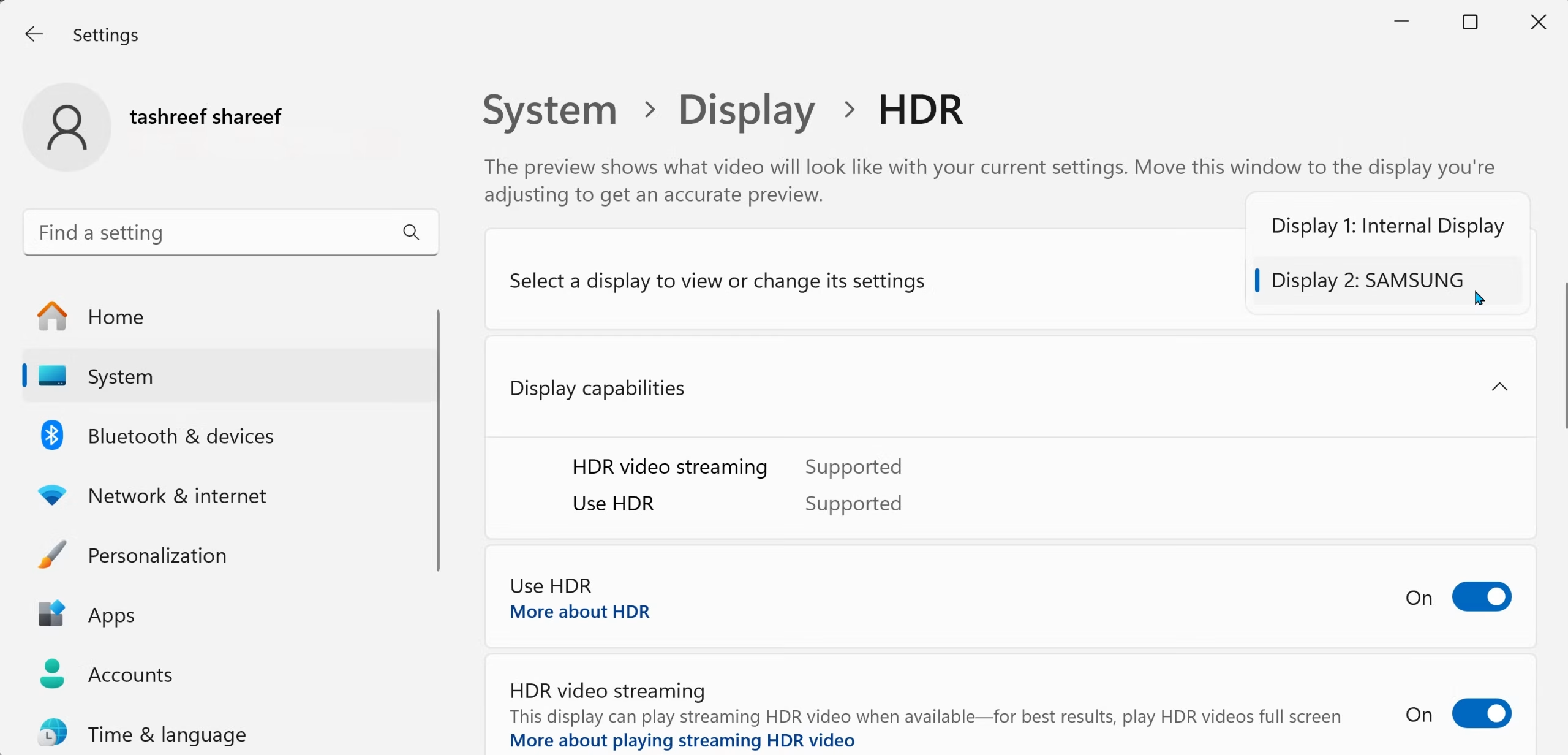
In Windows 11, you'll also see an "HDR" section with additional toggles for "Use WCG apps" and "Auto HDR." Auto HDR is a feature that attempts to add HDR-like effects to SDR games. It works surprisingly well in some titles and looks odd in others, so toggle it per-game based on your preference.
Step 4: Adjust the SDR Content Brightness Slider
When you enable HDR in Windows, SDR content (your desktop, most apps, web browsers) gets tone-mapped into the HDR signal. By default, this can look washed out or dim. Windows provides an "SDR content brightness" slider specifically for this.
Drag the slider until your desktop and regular apps look natural to you. This doesn't affect HDR content, only how SDR content appears while HDR mode is active. Most people find a setting somewhere between 30 and 60 works well, depending on the monitor's peak brightness.
Step-by-Step: Enabling HDR on Xbox and PlayStation
Console HDR setup is simpler than PC, but there are still a few gotchas.
Xbox Series X and Series S
Go to Settings → General → TV & display options → Video modes. Check the boxes for "Allow HDR10" and "Allow Dolby Vision" if your monitor supports them. Also check "Auto HDR" to let the console apply HDR-like processing to older games.
If the HDR options are greyed out, the console isn't detecting HDR capability from the display. This usually means the monitor's internal HDR mode is off, the cable is wrong, or the monitor is connected through a switch or adapter that strips the HDR signal.
PlayStation 5
Go to Settings → Screen and Video → Video Output → HDR. Set it to "On When Supported." The PS5 will then test the display and enable HDR automatically when you launch compatible content.
The PS5 also has an "Adjust HDR" option that walks you through a calibration sequence. Run this after enabling HDR. It helps the console map its output to your specific display's brightness range.
Console-Specific Gotches
Some monitors support HDR over DisplayPort but not over HDMI, or vice versa. Consoles only output over HDMI, so if your monitor's HDR works exclusively on DisplayPort, you're out of luck with a console. Check your monitor's manual to confirm which inputs support HDR.
Another common issue is refresh rate conflicts. If your monitor supports 4K HDR at 60Hz but only 4K HDR at 120Hz over HDMI 2.1, make sure you're using an Ultra High Speed HDMI cable. A standard high-speed HDMI cable will cap you at 4K 60Hz with reduced chroma subsampling.
Why Colors Look Wrong After You Turn on HDR
This is the number one complaint from people who enable HDR and immediately regret it. The desktop looks washed out. Reds are oversaturated.
Everything has a weird blue or yellow tint.
The root cause is that HDR and SDR use different gamma curves and color spaces. SDR content is mastered for a gamma of 2.2 and the sRGB color space. HDR content uses the perceptual quantizer (PQ) curve and the Rec. 2020 or DCI-P3 color space.
When you force SDR content into an HDR container without proper tone mapping, the colors get stretched and the brightness gets misinterpreted.
Windows handles this with the SDR content brightness slider mentioned earlier. But some monitors do their own tone mapping on top of Windows' processing, which can double-process the image and make it look even worse.
If colors look off, try these fixes in order:
- Adjust the SDR content brightness slider in Windows HDR settings.
- Check your monitor's color preset. Some monitors switch to a different color profile when HDR is active. Look for a "Game," "Cinema," or "HDR" picture mode and experiment.
- Disable any "dynamic contrast" or "auto brightness" features in the monitor's OSD. These can conflict with HDR's own brightness management.
- Update your GPU driver. HDR tone mapping has improved significantly in recent driver releases from both NVIDIA and AMD.
Your Cable Can Trip You Up
We touched on cable specs earlier, but this deserves its own section because it's the single most common reason HDR fails to work despite everything else being correct.
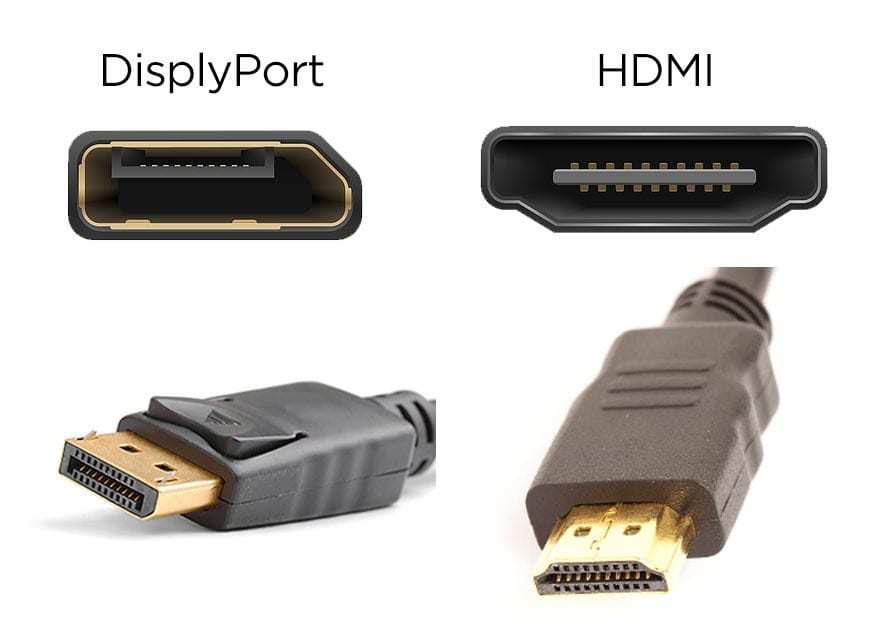
The problem is that cables rarely have their version number printed on them. An HDMI cable from 2015 might look identical to one from 2024, but the older one might only support HDMI 1.4 bandwidth. That means no HDR at 4K, period.
Here's a practical rule of thumb. If you bought the cable bundled with your monitor or GPU, it's usually the right version. If you pulled it out of a drawer and can't remember when you got it, assume it's too old until proven otherwise.
For DisplayPort, the situation is slightly better. DisplayPort 1.4 cables are widely available and backward compatible. If you're buying new, look for a cable certified for DisplayPort 1.4 or labeled as "8K ready." Those will handle HDR at any common resolution and refresh rate.
For HDMI, buy a cable explicitly labeled "Ultra High Speed HDMI" for HDMI 2.1, or "Premium High Speed HDMI" for HDMI 2.0. These labels are certified by the HDMI Licensing Administrator and mean the cable has been tested to meet the bandwidth requirement.
Avoid adapters if possible. An HDMI-to-DisplayPort adapter might work for SDR, but many of them strip HDR metadata or fail to pass through the full bandwidth. If you must use an adapter, buy an active adapter that specifically lists HDR support in its specs.
Common Mistakes People Make with Monitor HDR
After working through the setup steps above, you'd think HDR would just work. But there are several recurring mistakes that trip people up even after everything is configured correctly.
Mistake 1: Leaving HDR on all the time. HDR is designed for HDR content. Keeping it enabled while browsing the web, writing documents, or doing spreadsheet work forces all that SDR content through tone mapping. On a good monitor with proper calibration, this is fine.
On most monitors, it looks worse than just leaving HDR off and switching it on only when you need it.
Mistake 2: Expecting HDR to work in every game. A game has to be specifically mastered for HDR. Many older titles and some current ones only output SDR. Forcing HDR on in Windows while playing an SDR game doesn't magically add HDR, it just tone-maps the SDR signal into an HDR container.
Mistake 3: Ignoring the monitor's own HDR mode. Some monitors have multiple HDR modes in their OSD, like "HDR Cinema," "HDR Game," and "HDR Vivid." These apply different tone mapping curves and color profiles. If one looks terrible, try the others before giving up.
Mistake 4: Using a KVM switch or capture card that strips HDR. Many KVM switches and USB-C hubs don't pass through HDR metadata. If your monitor is connected through one of these devices, try connecting directly to the GPU and see if the HDR toggle appears.
Mistake 5: Not updating GPU drivers. HDR support has evolved significantly over the past few years. An older driver might not expose HDR options that a current driver does. Keep your GPU driver updated, especially if you recently bought a new monitor.
Mistake 6: Assuming all HDMI ports on the monitor are equal. Some monitors only support HDR on specific HDMI ports, often HDMI 1 or the one labeled "HDMI 2.1." Check your manual to confirm which input supports HDR at full bandwidth.
Mistake 7: Forgetting to enable HDR in the app or game itself. Even with Windows HDR on, many applications and games have their own HDR toggle. Netflix, YouTube, and Disney+ all require HDR to be enabled in their playback settings. Games like Cyberpunk 2077 and Forza Horizon 5 have separate HDR calibration menus that need to be configured.
Confirm It's Working: How to Test HDR on Your Monitor
The HDR toggle being on doesn't always mean HDR is actually displaying. Here's how to verify it's working for real.
Use the Windows HDR Calibration app from the Microsoft Store. It walks you through brightness, contrast, and color tests that confirm your display is receiving and rendering the HDR signal properly. As of 2026, this app is the most straightforward tool Microsoft provides for verifying HDR output.
For video content, play a known HDR title on Netflix or Disney+ like "Our Planet" or a recent Marvel film. Netflix shows a small "HDR" or "Dolby Vision" badge next to the title if it's streaming in that format. YouTube also has HDR test clips.
Search for "HDR 4K demo" and confirm the video quality settings show "HDR" as an option.
For gaming, load a title with a built-in HDR calibration screen. Cyberpunk 2077, Forza Horizon 5, and Spider-Man Remastered all have detailed HDR settings menus. If the game's HDR options are available and adjustable, your pipeline is working.
After You Enable: Optimizing the Best HDR Experience
Once HDR is confirmed working, a few tweaks can make a noticeable difference.
Set your monitor to its dedicated HDR picture mode rather than using it in SDR mode with the HDR signal forced through. Disable dynamic contrast if it conflicts with content. Use the per-game HDR calibration screens rather than relying on default settings.
On Windows, fine-tune the SDR content brightness slider by eye until desktop apps look natural without being grey.
Frequently Asked Questions
Does my monitor support HDR if it only says "HDR ready"?
Probably not in any meaningful way. "HDR ready" usually means the panel accepts an HDR signal but lacks the brightness, color depth, or dimming zones to display it properly. Look for VESA DisplayHDR certification or explicit HDR10 support in the manufacturer's spec sheet.
Why is the HDR toggle missing from Windows?
Windows hides the HDR toggle when it doesn't detect an HDR-capable display. Check your cable first, then confirm HDR is enabled in your monitor's on-screen menu. Update your GPU driver and make sure you're using the correct input on the monitor.
Is DisplayHDR 400 worth it?
For most people, no. DisplayHDR 400 requires no local dimming and only mandates 8-bit + FRC color. The result is often washed-out highlights and minimal improvement over SDR.
DisplayHDR 600 or higher, or an OLED panel, is where HDR starts looking genuinely good.
Can I use HDR with a KVM switch?
Most KVM switches strip HDR metadata or don't pass through enough bandwidth. Some newer models support HDR passthrough, but check the specifications carefully. For the most reliable HDR experience, connect directly to the GPU.
Does my HDMI cable support HDR?
If it's labeled "Premium High Speed" or "Ultra High Speed HDMI," yes. If it's an old cable from before 2016 with no certification label, probably not. When in doubt, buy a new certified cable.
They're inexpensive and eliminate cable as a variable.
So Is Your Monitor Good for HDR?
Run back through the four-layer checklist: monitor specs, GPU support, cable bandwidth, and OS settings. If all four check out and you've confirmed HDR content displays correctly with proper brightness and color, your setup is solid. If any layer fails or the picture looks worse with HDR on, either fix that specific link or leave HDR off until you upgrade the weak point in the chain.

Similar Posts





















