Do Office Monitors Come with Speakers
The Short Answer: It Depends on the Monitor
Not all office monitors ship with speakers. Some do. Many don't.
It comes down to the specific model, the product line, and the manufacturer's target use case. Before you assume or get caught off guard, you need to check the exact specs.
We'll break down how to figure out where your monitor lands, what your options are if it's speakerless, and how to avoid the most common audio pitfalls at your desk.
Why Most Office Monitors Don't Include Speakers (and Which Ones Do)
Here's the reality: most business and office-focused monitors are designed to do one thing well, display visuals. Audio is often treated as an afterthought or stripped out entirely to keep costs down and the design clean. Manufacturers assume most corporate environments either use headsets, external speakers, or laptop audio anyway.
Our research into current product lines as of 2026 shows a pretty mixed picture across the major players:
| Brand / Series | Speakers Included? | Notes |
|---|---|---|
| Dell UltraSharp (e.g., U2723QE) | Yes (some models) | Higher-end models more likely to include speakers |
| Dell P-Series (e.g., P2722H) | Varies | Check individual model specs carefully |
| HP EliteDisplay | Rarely | Most models omit built-in speakers |
| LG UltraFine / UltraGear | Select models | Consumer lines more likely than business lines |
| Samsung Business Monitors | Rarely | Some Odyssey gaming models include them |
| ASUS ProArt | Rarely | Professional color-graded displays focus on visuals |
| BenQ Business Series | Varies | Some models include basic speakers |
Gaming monitors tend to include speakers more often than office monitors, because the target buyer expects plug-and-play convenience. Office displays, especially those rated for corporate procurement, frequently leave audio out. It saves the manufacturer a few dollars per unit, and honestly, most office workers use a headset or their laptop's built-in speakers for calls.
The key thing to remember is that even within a single product line, one model might have speakers while the next size up doesn't. A Dell UltraSharp 27-inch might, while the 32-inch version in the same family won't. Manufacturers change features based on price tier, not just screen size.
So never assume.
How to Tell If a Specific Monitor Has Built-In Speakers Before You Buy
This is where most people get tripped up. The product listing might not scream "SPEAKERS INCLUDED" in bold letters. You actually have to look for it.
Here's how to check reliably.
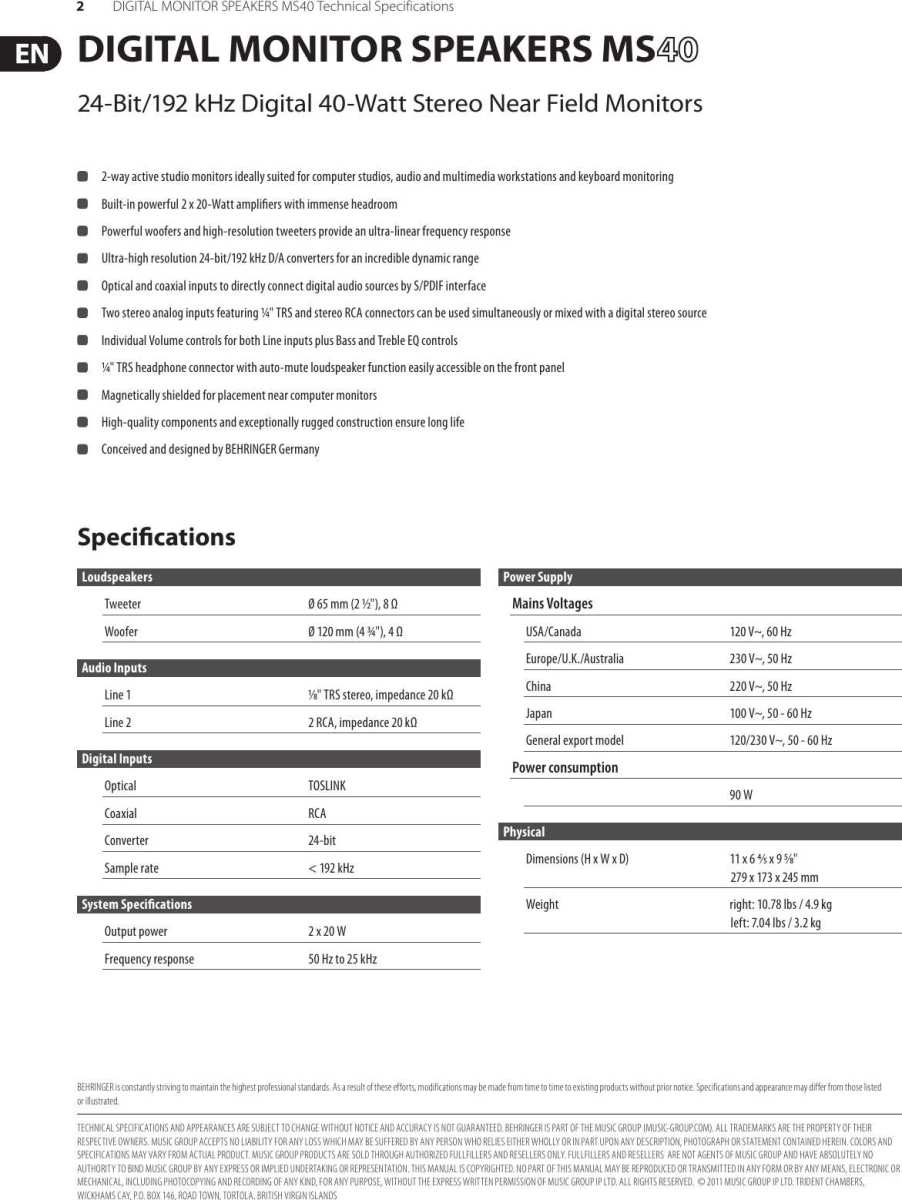
Step 1: Check the official spec sheet. Every manufacturer publishes a detailed specification page for each monitor model. Look under sections like "Audio," "Multimedia," or "I/O Ports." If you see terms like "1W x 2 speakers" or "built-in speakers," that confirms it.
Step 2: Look at the physical product photos. Most monitor spec sheets or product images show small speaker grilles along the bottom edge or the back of the bezel. If you notice a row of tiny holes on the monitor's front or bottom chin, speakers are likely inside.
Step 3: Search the model number directly. Type the exact model number into a search engine with the word "speakers" after it. For example: Dell P2722H built-in speakers. This pulls up forum discussions, Q&A sections, and product pages that answer the question faster than digging through spec sheets manually.
Step 4: Read the "Audio" section of the user manual. Manufacturers include a section on audio controls only when there are speakers to control. No audio control section in the manual usually means no speakers on the hardware side.
Step 5: Check for a headphone jack on the monitor. This isn't a guarantee of built-in speakers, but monitors with speakers almost always include a 3.5mm headphone jack for private listening. If the monitor has both a headphone jack and an audio input, the odds are high it has internal speakers.
A quick note on misleading spec language. Some monitors say they "support audio" in the specs. This usually means the monitor can pass audio through HDMI or DisplayPort from your computer, but it doesn't mean there are actual speakers built in.
The audio just routes to whatever output device is connected. Read the fine print carefully.
What to Do If Your Monitor Has No Speakers
So you've checked and your monitor is speakerless. Don't worry. This is extremely common, and you have several solid options depending on what you need audio for and how much you want to spend.
Option 1: Use your laptop's built-in speakers. If your laptop is sitting right there on the desk and you're using an external monitor, your laptop speakers might be perfectly fine for calls and casual listening. No extra purchase needed.
Option 2: Plug in external desktop speakers. A small pair of USB-powered or 3.5mm speakers takes about 30 seconds to set up. They sit right next to your monitor and give you much better sound than most built-in monitor speakers anyway.

Option 3: Use a headset or earbuds. If your main use case is video calls and meetings, a USB or Bluetooth headset gives you both audio output and a built-in microphone. This is honestly the most practical solution for remote workers and corporate environments.
Option 4: Mount a soundbar. Some monitor soundbars clip or mount directly to the top or bottom of your display. These look clean and sound decent, but they're bulkier than small external speakers.
Here's a quick comparison to help you decide:
| Option | Cost | Sound Quality | Best For |
|---|---|---|---|
| Laptop speakers | Free | Basic | Minimal use, quick calls |
| External desktop speakers | $15–$80 | Good | Music, media, calls |
| Headset / earbuds | $20–$150 | Good to excellent | Calls, focus work, privacy |
| Monitor soundbar | $30–$100 | Good | Clean desk setup, media |
The honest truth? External speakers almost always sound better than the built-in ones you'd get in a monitor. Most monitor speakers top out at 1W to 5W per channel, which means they're thin and quiet.
If audio quality matters to you at all, spending even $20 on a basic external pair is worth it.
Monitor Speakers vs. External Speakers: Which Makes Sense for Your Desk
This comes down to what you value more: convenience or quality. Built-in monitor speakers are the definition of convenient. There's nothing extra to buy, no extra cable, no extra clutter.
You connect your monitor via HDMI or USB-C, and sound just comes out. That's it.
But that convenience comes with real trade-offs.
Built-in monitor speakers typically sound weak. Most run between 1W and 5W per speaker. They handle system notification sounds and basic call audio fine. Music sounds tinny.
Videos lack bass. If you're on a Zoom call and just need to hear your coworkers, you're covered. If you want to listen to a podcast while working, you'll notice the difference immediately.
External speakers give you control. You pick the size, the sound profile, and the volume range. A $30 pair of Logitech speakers will outperform almost any built-in monitor speaker on the market. You also get physical volume controls, which are faster than digging through software menus.
Desk space matters too. If your desk is tight, adding speakers means finding room for them. Built-in speakers solve that problem entirely by living inside the monitor you already have.
Here's a simple decision framework:
- You mainly take calls and don't care about audio quality. Built-in speakers (or even your laptop speakers) are fine. Don't overthink it.
- You watch videos, listen to music, or care about sound. Get external speakers. The upgrade is immediate and noticeable.
- You share a workspace or need privacy. Headsets are the better move regardless of what your monitor offers.
- You want a clean, minimal desk with as few devices as possible. Built-in monitor speakers win here, as long as your monitor actually has them.
For most home office setups as of 2026, a basic external speaker pair or a good headset is the smarter long-term choice. The monitor speaker is a nice bonus when it's there, but it shouldn't be the deciding factor when you're picking a display.
Common Mistakes People Make With Monitor Audio
Even people who've been working at a desk for years get tripped up by monitor audio. Here are the most common mistakes we see.
Mistake 1: Assuming the monitor has speakers because it has an HDMI port. HDMI carries audio, yes. But that doesn't mean the monitor has speakers to play it. Without built-in speakers, the audio simply passes through to whatever output you've connected.
The HDMI port is for input, not output.
Mistake 2: Buying a monitor purely for built-in speakers. Monitor speakers are almost always mediocre. You're better off buying a monitor for its display quality and handling audio separately. Let the screen be the star of your decision.
Mistake 3: Not checking Windows or macOS audio output settings. Sometimes the monitor does have speakers, your connection supports audio, and the sound still comes out of your laptop. The fix is usually as simple as clicking the speaker icon in your taskbar and selecting the monitor as the output device. No hardware problem at all.
Mistake 4: Confusing "audio output jack" with "built-in speakers." A 3.5mm headphone jack on your monitor means you can plug in external speakers or headphones through the monitor. It doesn't automatically mean there are speakers inside the monitor itself. Check the specs to be sure.
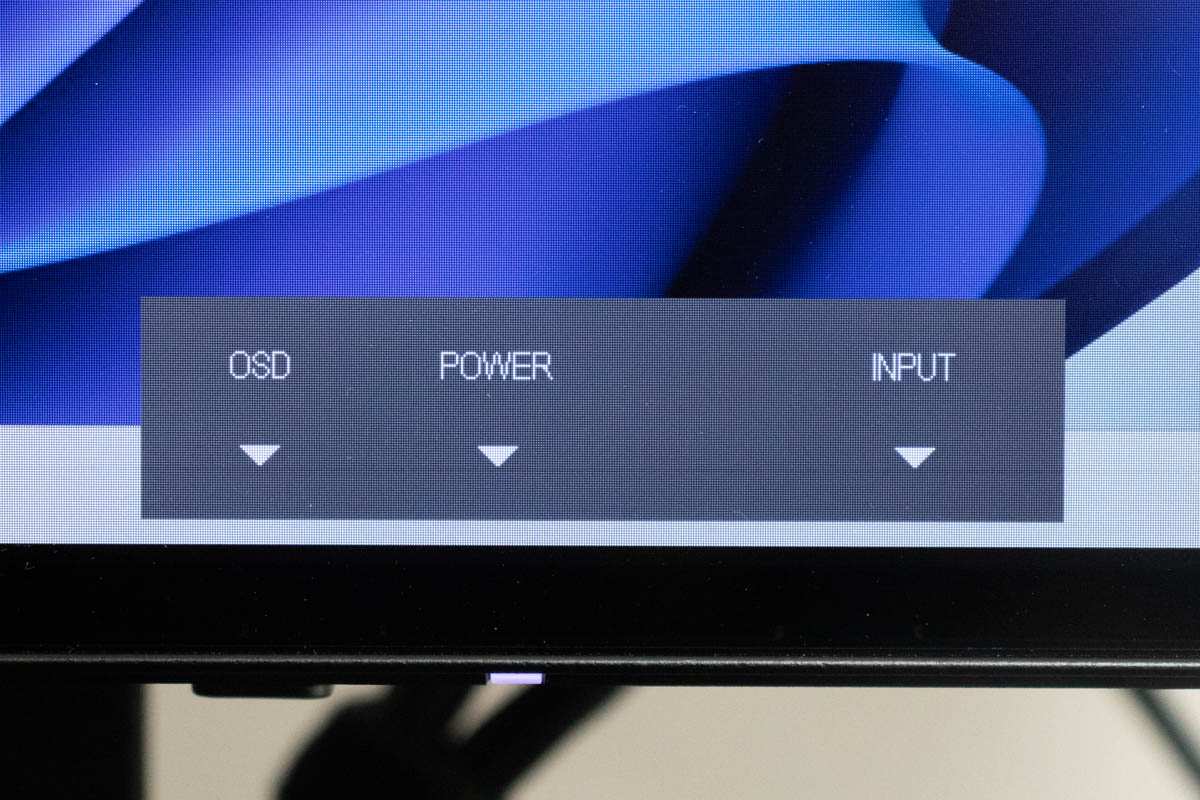
Mistake 5: Ignoring the monitor's on-screen display (OSD) menu. If your monitor does have speakers, the volume and audio settings live in the OSD, accessible through physical buttons or a joystick on the monitor. Many people never check this menu and assume the speakers are broken when they just need a volume adjustment.
Mistake 6: Forgetting to update audio drivers. If your monitor shows up as an audio device but still won't play sound, outdated or missing drivers on your computer are often the culprit. A quick driver update through your operating system or the manufacturer's website usually fixes this.
The takeaway is simple. Don't assume. Check the actual specs, verify your OS audio settings, and don't judge a monitor's audio capability by its price tag or brand alone.
Real-World Scenarios: Who Actually Benefits From Monitor Speakers?
Not every desk setup needs built-in monitor speakers, but some situations genuinely benefit from having them.
Scenario 1: The hot-desking worker. In shared offices and hot-desking environments, employees rotate between desks throughout the day. Having speakers built into the monitor means everyone has a consistent audio experience without carrying external speakers or relying on personal headsets for quick tasks.
Scenario 2: The corporate meeting room display. Conference room monitors used for screen sharing and presentations benefit from integrated speakers. When an employee connects their laptop to present, the audience hears everything without needing a separate speaker system.
Scenario 3: The minimalist home office worker. Some people genuinely prefer a clean, single-cable setup. A monitor with speakers, a USB-C connection, and a built-in webcam reduces desk clutter to almost nothing. If audio quality for calls and notifications is "good enough," this setup works well.
Scenario 4: The contact center or call center agent. Agents who spend eight hours on calls typically use headsets. But when stepping away from their desk to review notes or training materials, built-in speakers let them hear content without putting the headset back on constantly.
Scenario 5: The budget-conscious student. A college student who uses a monitor for online lectures and study sessions gets real value from built-in speakers. Spending extra on external speakers isn't always in the budget, and monitor speakers handle lecture audio perfectly fine.
If none of these scenarios match your situation, you're probably better off without relying on built-in monitor speakers. But if one hits close to home, knowing which specific models include them can save you real hassle down the road.
How to Check and Enable Audio on a Monitor That Does Have Speakers
Found out your monitor has speakers but the sound isn't working? Don't panic. This is almost always a settings issue, not a hardware problem.
Let's walk through the fixes.
Step 1: Verify the physical connection. Make sure your HDMI, DisplayPort, or USB-C cable is fully seated on both ends. A loose cable can carry video but drop the audio signal.
Step 2: Set the monitor as your default audio output in your OS.
- Windows 11: Right-click the speaker icon in the taskbar. Select "Sound settings." Under "Output," choose your monitor from the device list.
- macOS: Open System Settings. Go to Sound. Under "Output," select your monitor from the dropdown menu.
Step 3: Check the monitor's own volume. Use the physical buttons on the monitor to open the on-screen display menu. Navigate to the audio or sound section. Make sure the volume isn't muted or set to zero.
This catches more people than you'd expect.
Step 4: Confirm the cable supports audio. Almost all HDMI and DisplayPort cables carry audio by default. But a cheap or damaged USB-C cable might only handle power and data. If you're using USB-C, make sure the cable explicitly supports "Alt Mode" with audio.
Step 5: Restart the audio service. Sometimes the OS just needs a refresh.
- Windows: Open Task Manager, find "Windows Explorer," right-click and select "Restart." This refreshes the audio stack.
- macOS: Open Terminal and type
sudo killall coreaudido(yes, that typo exists in common guides, the actual command issudo killall coreaudiod), then press Enter.
Step 6: Update your audio drivers. Outdated drivers can prevent the monitor from appearing as an audio device at all. Visit your computer manufacturer's support page or the GPU manufacturer's site to grab the latest audio drivers.
Step 7: Test with a known audio source. Open a YouTube video or system sound settings test tone. If you hear audio through the monitor speakers now, you're all set. If not, the internal speakers may actually need repair or replacement, in which case external speakers become your fallback.
The whole troubleshooting process usually takes under five minutes. And in most cases, the fix is just selecting the right output device in your operating system's sound settings.
Frequently Asked Questions
Do all Dell UltraSharp monitors have speakers?
Not all of them. As of 2026, many Dell UltraSharp models do include built-in speakers, but it varies by specific model and generation. Always check the individual product specification page on Dell's official website to confirm whether speakers are included for the exact unit you're looking at.
Why does my monitor show up as an audio device but no sound comes out?
This usually means your monitor supports audio pass-through via HDMI or DisplayPort but doesn't have built-in speakers. The monitor appears as an output device in your operating system, but there's actually no hardware inside to produce sound. Look for speaker grilles on the monitor body or check the specs sheet.
Are monitor speakers good enough for Zoom calls?
Yes, for basic voice calls they work fine. Built-in monitor speakers handle speech frequencies well enough to understand your colleagues. They won't sound rich or loud, but they're functional.
If you're leading presentations or need better clarity, a headset or external speakers will serve you better.
Can I add speakers to a monitor that doesn't have them?
Absolutely. You can connect external desktop speakers to your computer's 3.5mm audio jack, USB port, or Bluetooth. You can also mount a soundbar designed for monitors.
You don't need to replace the monitor itself. A basic external speaker pair costs between $15 and $30 and sounds noticeably better.
Do HP business monitors come with speakers?
Most HP EliteDisplay and Z Display product lines do not include built-in speakers as of 2026. HP tends to feature integrated speakers more in their consumer-oriented displays and OMEN gaming monitors. For business-class panels, assume speakers are not included unless the specs explicitly state otherwise.
How do I know if my monitor's built-in speakers are enabled?
Open your monitor's on-screen display menu using the physical buttons on the unit. Look for an "Audio" or "Sound" section. If the menu shows volume controls, speaker on/off toggles, or audio input selection, your speakers are enabled.
Also verify your operating system is set to output audio to the monitor device.
The Bottom Line: A Quick Decision Guide
Here's the simplest way to think about it when you're shopping or setting up your desk.
If your priority is a clean, minimal desk with the fewest possible devices: Look for a monitor that includes built-in speakers. Models like the Dell UltraSharp U2723QE or select LG UltraFine panels deliver both solid display quality and adequate audio in one package. Just manage your expectations on sound quality.
If you care at all about sound quality, listen to media, or need reliable call audio: Skip the monitor speaker debate entirely. Buy the best display you can afford, then pair it with a dedicated external speaker or headset. You'll get better audio, more control, and a setup that's easier to upgrade over time.
If you're shopping right now and wondering whether a specific model has speakers: Pull up the official spec sheet, search for "audio" or "speakers" in the document, and look for speaker grilles in the product photos. Thirty seconds of checking saves you the frustration of an unexpected silent monitor on day one.
Do office monitors come with speakers? Some do, plenty don't, and the only reliable way to know is to check the exact model. Now you know how.
What If You Want Better Audio Without External Speakers?
Most desk setups benefit from external speakers for better audio quality, but they take up space. If your monitor does include speakers and you want better sound without cluttering your desk, there are a few paths worth considering.
Use a USB soundbar that mounts to your monitor. These sit flush against the bottom bezel and add meaningful volume and clarity without taking up desk space. The MSI Soundbar and Razer Audio Both are designed for exactly this purpose. Prices range from $30 to $80 as of 2026.
Route audio to a Bluetooth speaker. If your computer supports Bluetooth, you can pair a compact speaker and place it behind the monitor or under your desk. It's not built into the display, but it keeps your desk surface clean. Adhesive-backed cable clips help keep wires off the desk if you are using a USB-powered speaker.
Use a headphone stand with a built-in DAC. Some headphone stands include a small digital-to-analog amplifier and audio processing. Plug your headphones into the stand for better sound. This approach doesn't improve the monitor's speakers directly, but it gives you a dedicated audio zone without external speakers on the desk.
If true audio quality matters to you, the most reliable path remains external speakers. But these options close the gap for minimalist setups that want adequate audio without extra gear taking up space.
When Monitor Speakers Are Worth It, and When They Are Not
Not every desk setup needs built-in monitor speakers, and they are not a universal upgrade. Their value depends entirely on how you use your computer and what compromises you are willing to accept.
Worth it when: You attend calls occasionally and don't care about music quality. You work in a hot desks rotation and need plug-and-play convenience without extra hardware to carry between workstations. You need audio for notifications and quick tasks but prefer the simplicity of a single cable carrying power, video, and audio through USB-C.
Not worth it when: You listen to music, video, or podcasts frequently and are picky about sound. You process audio professionally, such as video editors, podcasters, or mixing assistants. Built-in monitor speakers distort at higher volumes, and a 3W speaker will lose clarity at around 70% volume.
You prefer compact desktop speakers that deliver better sound for a similar or lower price than the monitor speaker premium.
The decision is not about whether built-in speakers are good or bad. They work for casual calls. The real issue is skipping this check entirely during a purchase and ending up surprised on day one.
Many manufacturers price monitors with speakers only slightly higher than the same model without them, but the default models sold in bulk usually lack speakers.
If you encounter a monitor with average sound and higher cost, consider whether external speakers would supplement it more effectively. Use this as a tipping factor when comparing two nearly identical specs.
Making Your Final Decision: A Practical Checklist
Before you buy or overhaul your setup, run through this checklist to make a deliberate choice about monitor audio.
- Step 1: Identify your primary audio use. Calls only, versus music and media, versus professional audio monitoring.
- Step 2: Check your desk space budget. Open room for external speakers versus a single-monitor setup where built-in speakers matter.
- Step 3: Find the monitor model's actual spec sheet. Confirm whether the model includes built-in speakers. Don't rely on a similar model name. Look for "speakers" on the spec sheet.
- Step 4: Assess what audio gear you already own. An unused headset or Bluetooth speaker could let you skip built-in speakers entirely.
- Step 5: Calculate the actual cost difference. Assume $20 to $30 for external speakers if you don't own any audio gear yet. Compare that against the monitor's price with built-in speakers.
Building a monitor choice around speaker presence alone is a mistake. But ignoring it entirely and ending up with a silent setup is just as bad. The best approach is to start with the display quality, refresh rate, and ergonomics you need, then verify whether speakers are present.
If they are, great. If they aren't, you already know your next move: a simple $20 external speaker pair.

Similar Posts





















