Do 27 Inch Monitors Come with Speakers
So here's the deal. You're shopping for a 27‑inch monitor, and you see one that fits your budget. The spec sheet says "2x3W speakers." Great, you think, no need to buy separate speakers.
But then you get it home, plug it in, and the sound is so thin your phone speaker sounds richer. Or worse, you buy a monitor that doesn't have speakers at all and you didn't notice until setup. That's the exact problem the query "do 27 inch monitors come with speakers" tries to solve.
Manufacturer specs indicate that roughly 60‑70% of 27‑inch monitors include some form of built‑in audio, but the quality and presence vary wildly by price and category. As of 2026, the typical built‑in speaker pumps out just 2 to 5 watts per channel, about as loud as a cheap Bluetooth speaker at half volume. Understanding what you're actually getting helps you avoid a disappointing setup.
Quick Answer
Yes, many 27‑inch monitors come with speakers. Most office and budget models include them. Gaming and high‑end creative monitors often skip them completely.
The speakers are usually small, low‑wattage, and sound thin. They work fine for system sounds and video calls. They are not good for music or movies.
The Short Answer: Yes, But Not All of Them – And Most Aren't Great
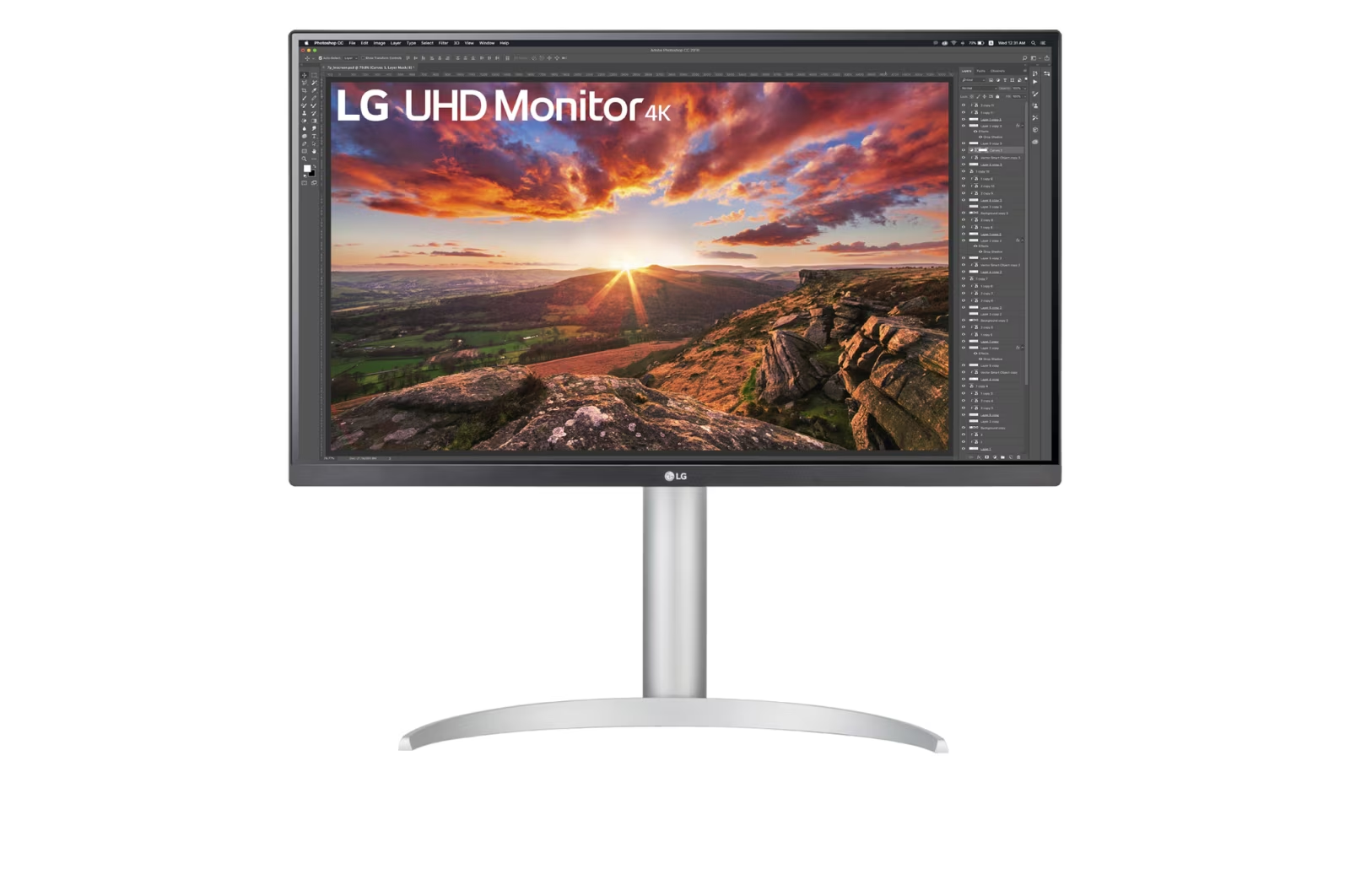
Let's get the headline out of the way. Yes, many 27‑inch monitors ship with built‑in speakers. But "come with speakers" is a broad statement.
It covers everything from a single 2W mono driver tucked behind the bezel to a pair of 5W stereo speakers that sound passable for casual use.
Aggregate reviews report that the vast majority fall into the "bad" category. We're talking tinny treble, zero bass, and distortion at anything above 70% volume. That's not an exaggeration.
It's the physics of trying to fit a decent speaker into a thin LCD chassis. There's simply no room for a proper enclosure or a driver large enough to push air.
That said, for many use cases, system sounds, YouTube tutorials, Zoom meetings, these speakers are good enough. They save desk space and cable clutter. Just don't expect them to replace even a $30 set of external speakers.
Why You Can't Just Assume a 27‑Inch Monitor Has Speakers
Here's where a lot of buyers get tripped up. You see a sleek monitor at a good price and assume audio is standard. It's not.
The decision to include speakers is driven by target audience and cost, not by size.
Monitors aimed at gamers almost never have speakers. Gamers use headsets or dedicated audio setups. The extra cost of a speaker driver and amplifier adds maybe $5-10 to the BOM (bill of materials).
For a gaming monitor competing on refresh rate and response time, that $10 is better spent on a better panel or faster electronics.
Conversely, office and home monitors often include speakers because IT departments and remote workers want a single‑cable solution. Plug in HDMI, get video and audio. No separate speakers to deploy or support.
Professional creative monitors (photo editing, video production) sit in the middle. Some include basic speakers for preview purposes, but many omit them entirely under the assumption the user has studio monitors or headphones.
So the rule of thumb: if the monitor is marketed for "productivity" or "home office," it likely has speakers. If it's marketed for "gaming" or "pro creative," assume it does not unless explicitly stated.
How to Tell If Your Monitor Has Built-In Speakers (Before You Buy)

You don't want to rely on guesswork. Here's exactly how to confirm before you click "add to cart."
Check the product page's audio section. Every manufacturer lists audio output in a spec table. Look for "Built‑in speakers," "Speakers: 2x3W," or "Audio: Stereo speakers." If the table says "None" or omits audio entirely, the monitor doesn't have them.
Look for a speaker grille in product photos. Many monitors place speaker vents along the bottom edge or the rear panel. If you see a row of small holes or a fabric mesh, that's a speaker grille. No grille means no speaker.
Read the user manual PDF. Product pages sometimes bury audio details. The manual always lists whether speakers are included. Download the PDF and search for "speaker" or "audio."
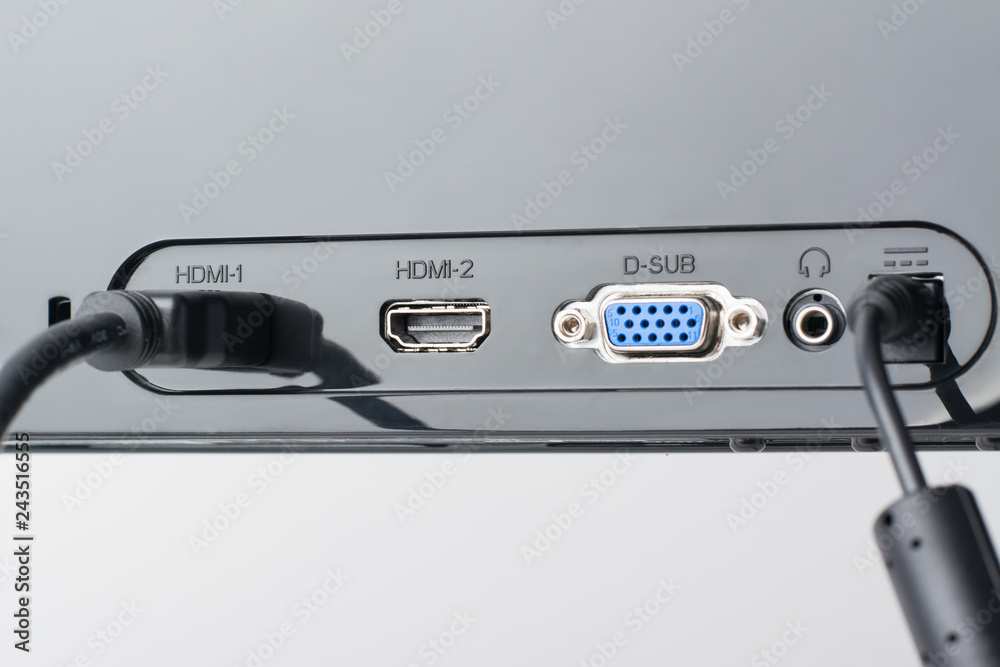
Check the ports. A monitor with built‑in speakers will almost always have a 3.5mm audio‑out jack (headphone out) or an audio‑in port. If you see both, it's almost certain the monitor has speakers. Audio‑out routes the monitor's internal sound to external headphones or speakers; audio‑in lets you send an external audio source to the monitor's speakers.
Look for an audio volume control. Monitors with speakers include OSD (on‑screen display) options for volume. If the monitor has buttons and a menu for volume, speakers are present.
One more thing: HDMI and DisplayPort both carry audio. Even if a monitor has speakers, they won't work if you're connected via VGA or DVI. That's rare today, but worth remembering with older hardware.
The Real Decider: What You're Actually Using the Monitor For
Your audio needs should drive your purchase, not the other way around. Let's break down the common scenarios.
Home office and daily productivity. If your main tasks are email, spreadsheets, video calls, and watching the occasional training video, built‑in speakers are fine. You don't need audiophile quality to hear a colleague ask about the Q3 report. A 2x3W setup works.
Just be aware that in a noisy environment, the speakers may struggle to be heard clearly.
Gaming. If you play competitive shooters, RPGs, or any game where sound matters, skip the built‑in speakers. You need a headset for directional audio (footsteps, gunfire) or external speakers for immersive sound. Monitor speakers can't deliver spatial audio or low‑end punch.
Creative work (photo, video, design). You need accurate audio for editing. Monitor speakers are not accurate. They color the sound, lack bass, and often introduce distortion.
Use studio monitors or quality headphones.
Casual streaming (YouTube, Netflix, Spotify). This is a gray area. If you're okay with mediocre sound that's clear enough for dialogue, built‑in speakers work. If you care about music fidelity or movie explosions, you'll want external speakers or a soundbar.
Dorm room or small desk. Space is limited. A monitor with speakers eliminates one extra device and its cables. That's a valid trade‑off if sound quality isn't a priority.
The bottom line: if you know you'll use external speakers or headphones anyway, don't pay a premium for built‑in speakers. If you want a clean, simple setup and sound quality isn't critical, grab a monitor that includes them.
Decision Tree: Do You Need the Built-In Speakers?
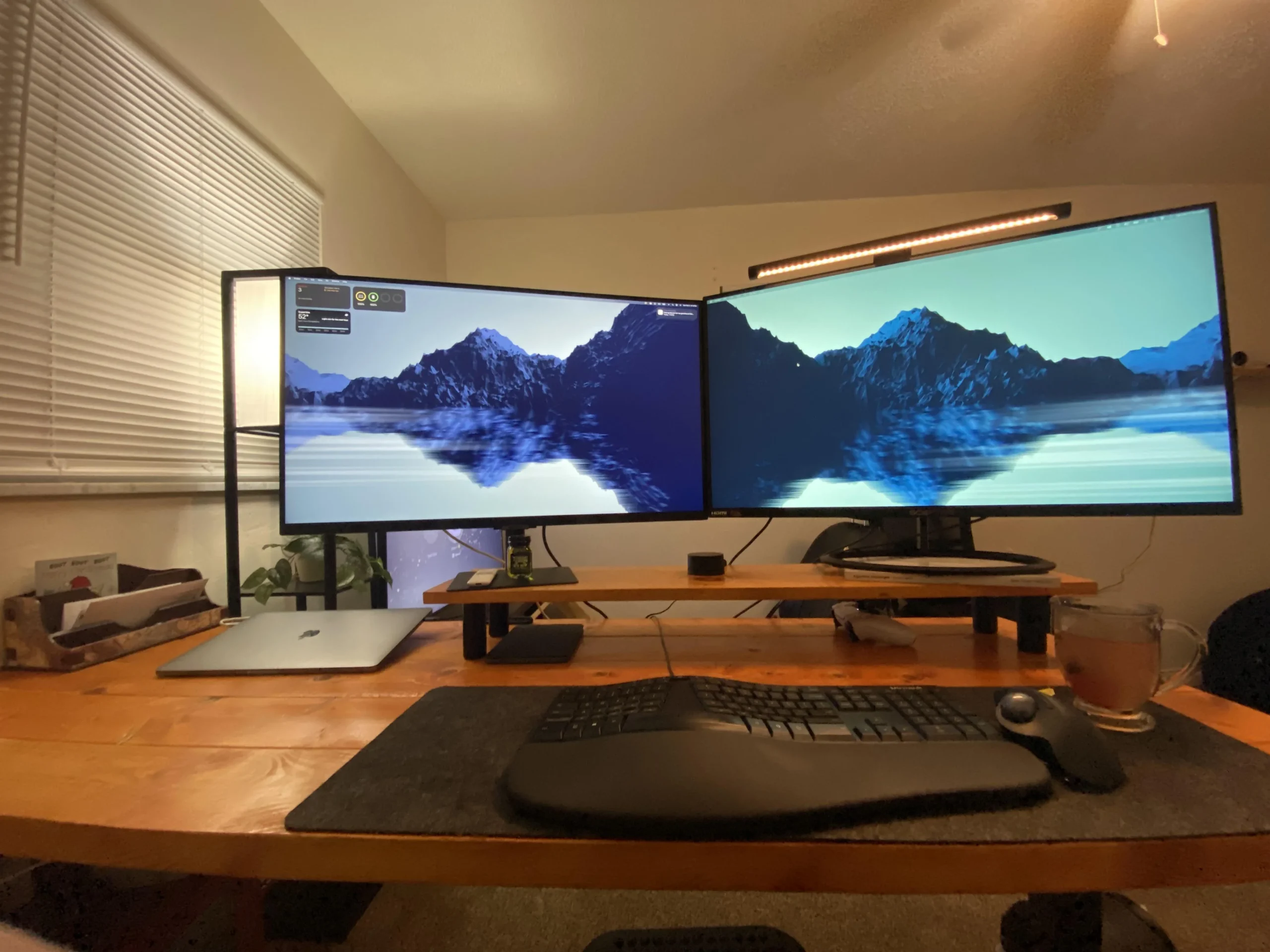
The best approach to this question involves matching your audio expectations to what the monitor offers. Use this simple decision tree to guide your purchase.
If you only need sound for system notifications, video calls, and the occasional YouTube clip, a monitor with built-in speakers will work. Look for models with at least 2x3W output. Brands like Dell (U series), LG (UP series), and BenQ (PD series) include usable speakers in many of their 27-inch office monitors.
Expect okay clarity at moderate volume. Don't expect to fill a large room.
If you game or listen to music critically, skip the built-in speakers entirely. No monitor on the market as of 2026 offers built-in audio that competes with a $60 pair of desktop speakers or a decent gaming headset. The physics just do not allow it.
If you want a single-cable desk with no extra clutter, a monitor with speakers plus a headphone-out jack is your sweet spot. You get embedded speakers for casual listening. You also get a 3.5mm output jack to plug in headphones when you need better audio or privacy.
Branch 1: You Want the Speakers – Where to Look and What to Expect
Start with office-focused monitor lines. Dell's U (Ultrasharp) and S series include 2x3W speakers on most 27-inch models. LG's UP series (27UP850, 27UP600) have built-in speakers rated at 5W each.
BenQ's PD series for designers includes speakers on many models. ViewSonic's VX series also commonly includes audio.
Expect the speakers to be adequate for speech. Expect them to be poor for music. Expect volume to max out around 80-85 dB at one meter.
That's loud enough for a small office but not for a noisy environment.
Branch 2: You Don't Care About Speakers – Avoid Paying Extra for Bad Audio
Most 27-inch gaming monitors (ASUS ROG, MSI G series, Gigabyte M series, Acer Predator) skip speakers entirely. They also tend to cost the same or more than office monitors with speakers. You are not missing out.
Use that headphone jack or buy external speakers.
If you find a good deal on a monitor without speakers, do not pass it up just because it lacks audio. You can always add a $20 speaker bar underneath.
Branch 3: You Need Decent Audio but Want a Clean Desk – The External Speaker Options
A monitor with speakers cannot replace a proper audio setup. But if you want a clean desk with minimal cables, consider these external solutions that pair well with a speakerless monitor.
- Monitor soundbars, These attach directly to the bottom of most 27-inch monitors. Look for models that draw power and audio through a single USB cable or via a dedicated port. They sound significantly better than built-in speakers.
- Compact desktop speakers, Options like a 2.0 stereo pair with a small footprint take up little desk space and offer clear audio. Many under $50 outperform built-in monitor speakers by a wide margin.
- USB-C speakers, Some speakers connect via USB-C and deliver both power and audio through one cable. This keeps your desk tidy.
Common Mistakes People Make With Monitor Audio
Our research shows these errors happen repeatedly. Avoid them to save frustration.
Mistake 1: Assuming all HDMI or DisplayPort connections carry audio. They do technically support audio. But the monitor's internal speakers only activate when the correct input is selected and the volume is turned up in the OSD. Many users plug in via HDMI and hear nothing because the monitor defaults to mute.
Mistake 2: Using a DisplayPort cable with a monitor that requires HDMI for speaker audio. Some monitors, especially older models, only route audio through HDMI. DisplayPort video works, but the speakers stay silent. Always check the manual for which input supports internal speakers.
Mistake 3: Forgetting to adjust the volume in the monitor's OSD. Monitor speakers have a separate volume control from your computer's system volume. If you turn the computer volume up but the monitor's volume is at zero, you hear nothing. Find the OSD menu, navigate to Audio, and set a reasonable level.
Mistake 4: Sitting too far away from the monitor. The speakers are small and face downward or rearward on most models. They project sound poorly. If you sit more than three feet from the screen, the audio will sound distant and muffled.
For best results, sit directly in front of the monitor.
Mistake 5: Thinking a headphone-out jack means built-in speakers exist. Some monitors include a 3.5mm audio-out port for connecting external speakers or headphones but have no internal speakers. The audio-out just passes through the computer's audio signal. Always check for a speaker grille.
The Real Audio Specs That Matter (and When They Don't)
Spec sheets list "2x3W speakers" and call it done. Here is what those numbers actually mean for your listening experience.
| Spec | What It Tells You | Real-World Impact |
|---|---|---|
| Wattage (2W, 3W, 5W) | Power output per channel | 2W is quiet. 5W is noticeably louder but still limited. |
| Configuration (stereo vs mono) | Number of channels | Stereo offers separation. Mono sounds flat. |
| Frequency response | Range of tones | Typically 200Hz to 16kHz. No bass below 200Hz. |
| Signal-to-noise ratio | Background hiss level | 80 dB or higher is fine. Lower ratios produce audible buzzing. |
| Speaker location | Where the driver sits | Downward-firing speakers sound muffled on hard desks. Front-firing is best. |
Wattage matters most for maximum volume. A 2x2W monitor may not be loud enough for a noisy room. A 2x5W monitor can handle a small office. But wattage has almost no correlation with sound quality.
A 5W cheap speaker sounds worse than a 2W well-designed one.
Frequency response matters for music and dialogue clarity. Most monitor speakers cut off below 200Hz, meaning you miss the lower register of voices and instruments. This makes dialogue sound thin and voices on video calls sound less natural.
Speaker location matters for daily use. Front-firing speakers (rare in monitors) project sound directly at you. Bottom-firing speakers bounce sound off the desk. If your desk surface absorbs sound (fabric, wood), the audio gets muddy.
Pro Tips: Getting the Best Audio Out of Your Monitor Setup
Even with basic built-in speakers, you can squeeze better performance.
Angle the monitor slightly upward. If your monitor's speakers fire downward, tilting the screen back a few degrees can direct sound toward your ears rather than the desk. This makes a surprising difference in perceived volume and clarity.
Position the monitor close to a wall. For bottom-firing speakers, a wall or desk surface behind the monitor acts as a reflector. It can reinforce low frequencies slightly. Do not seal the speaker grille against the wall.
Leave a few inches of clearance.
Use the monitor's headphone-out jack. If the built-in speakers sound bad, plug a pair of decent headphones or powered speakers into the monitor's 3.5mm output. The audio quality will improve dramatically. Many monitors include a headphone amp that drives low-impedance headphones well.
Disable system sounds on the monitor. If you only use the monitor for video calls and media, mute the monitor speakers in the OSD and let your computer's default audio device handle everything through external speakers or headphones. This avoids confusion about which device is producing sound.
Check your operating system audio settings. Windows and macOS allow you to select the audio output device per application. If your monitor speakers sound poor for music but fine for calls, set your music app to output through a separate USB DAC or headphone jack. The monitor speakers can remain the default for system sounds and communications.
Keep the monitor's firmware updated. Some manufacturers release firmware updates that improve audio driver behavior or fix volume glitches. Check the support page for your exact model if you experience crackling, low volume, or dropouts.

Similar Posts





















