How to Use ChatGPT Memory
If you've ever had to re-explain your job, your preferences, or your project to ChatGPT every single time you open a new chat, you're not alone. Learning how to use ChatGPT memory solves that problem by letting the assistant remember key details across conversations so you don't have to repeat yourself.
ChatGPT's memory feature stores facts, preferences, and instructions you give it, then pulls those into future chats automatically. As of 2026, memory is available across Free, Plus, Team, and Enterprise tiers, though the limits and controls vary by plan. Let's walk through exactly how it works, how to set it up, and when to use it versus the other personalization options.
Quick Answer
ChatGPT memory stores your preferences and facts across conversations. You save memories by telling ChatGPT to "remember" something, or it auto-detects details. Manage everything in Settings, then Personalization, then Memory.
You can view, edit, delete, or turn off memories anytime. Free and Plus users get access with some storage limits.

What ChatGPT Memory Actually Is (And What It Isn't)
ChatGPT Memory is a persistent storage feature that saves specific facts, preferences, and instructions you share with the assistant. When you start a new conversation, ChatGPT can recall those saved details and apply them without you re-typing anything.
Here's what trips people up. Memory is not the same thing as Custom Instructions, and it's not the same thing as referencing your past chats. These are three separate features that work differently and serve different purposes.
Memory stores discrete facts. Things like "I'm a marketing manager at a B2B SaaS company" or "I prefer responses in bullet points" or "I'm vegetarian." Each memory is a standalone entry that ChatGPT can pull into any future conversation.
Custom Instructions, on the other hand, are broader guidelines. They tell ChatGPT how to behave across all conversations rather than storing specific factual details about you. Think of Custom Instructions as the rulebook and Memory as the fact sheet.
Reference past chats is yet another separate feature. It lets ChatGPT search through your previous conversations for relevant context. It doesn't store anything permanently.
It just looks backward when needed.
The key distinction is this: Memory is proactive and persistent, Custom Instructions are behavioral guidelines, and past chat reference is reactive and temporary. Most people benefit from using Memory and Custom Instructions together, but we'll get into that later.
How Memory Works Under the Hood
When you tell ChatGPT to remember something, it creates a saved entry in your account's memory storage. This entry lives on OpenAI's servers and gets associated with your account, not with any specific conversation.
When you start a new chat, ChatGPT checks your saved memories and loads relevant ones into its context window. It doesn't load everything all the time. It uses semantic matching to figure out which memories are relevant to your current conversation.
This is why sometimes a memory doesn't surface. If you ask about cooking but your saved memory is about your job title, ChatGPT may not pull that memory into the conversation because it doesn't seem relevant to the topic at hand.
There are two types of memory entries you'll encounter.
Saved vs. Auto-Saved: Two Different Memory Types
Manual saves happen when you explicitly tell ChatGPT to remember something. You might say "Remember that I work in healthcare" or "Remember I prefer concise answers." ChatGPT confirms it saved the memory, and you can view it later in your settings.
Auto-saved memories happen when ChatGPT detects relevant information on its own during a conversation. You didn't ask it to save anything, but it stored a detail anyway because it seemed useful for future interactions. This feature rolled out broadly in 2024 and has been refined since.
Both types show up in the same memory management dashboard. You can edit or delete either kind. The difference is just how they got there.
One important note. Memory is not unlimited. OpenAI doesn't publish an exact number for the storage cap, but aggregate user reports suggest you can store roughly 40 memories before you start hitting limits on some tiers.
When you're near the limit, you'll need to delete old memories to make room for new ones.
Step-by-Step: How to Use ChatGPT Memory
Let's get practical. Here's exactly how to save, manage, and control your memories across both the web app and mobile app.
How to Save a Memory Manually
During any conversation, just tell ChatGPT what you want it to remember. Natural language works fine.
Examples that work well:
- "Remember that I'm a software developer working in Python."
- "Remember I prefer short, direct answers without extra commentary."
- "Remember that my business has 50 employees and sells to enterprise clients."
ChatGPT will confirm it saved the memory. You'll typically see a small confirmation message like "Got it, I'll remember that" or a note that memory was updated.
You can also save memories from the dashboard. Go to Settings, then Personalization, then Memory. There's an option to add a new memory directly without being in a conversation.
How to View, Edit, and Delete Saved Memories
Here's the full management flow:
- Click your profile icon in the bottom-left corner (web) or top-right (mobile).
- Select Settings.
- Go to the Personalization section.
- Tap or click Memory.
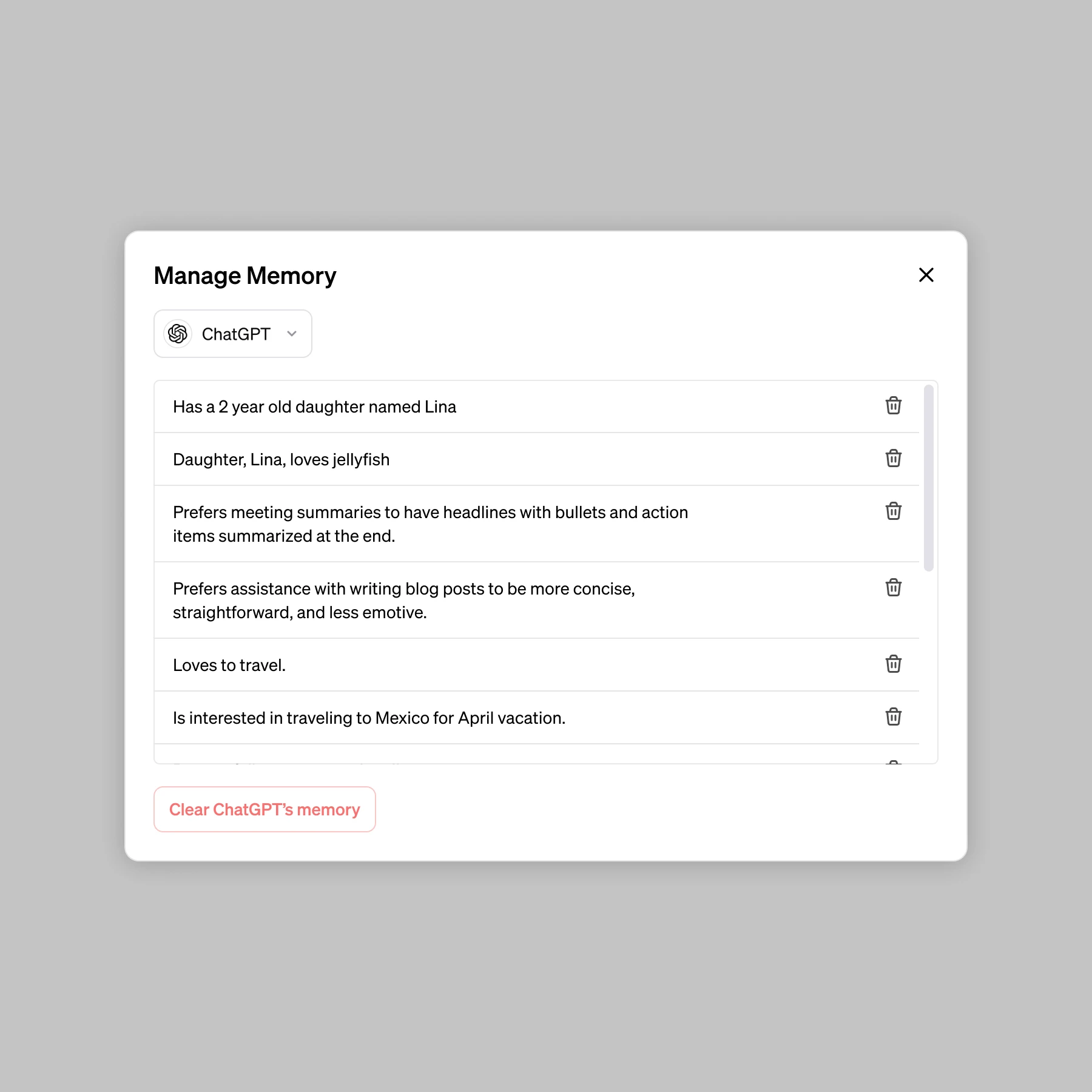
You'll see a list of all your saved memories. Each one shows the stored text and when it was created or last updated.
From here you can:
- Edit any memory by clicking on it and modifying the text.
- Delete individual memories with the trash icon or delete button.
- Clear all memories at once if you want a fresh start.
Deleting a memory is permanent. ChatGPT won't retain any record of it after you confirm the deletion. If you're unsure, editing is safer than deleting.
How to Turn Memory On or Off
If you want ChatGPT to stop using memory entirely without deleting your saved entries:
- Go to Settings, then Personalization, then Memory.
- Toggle the Memory switch to Off.
This stops ChatGPT from loading your memories into new conversations. Your saved memories stay stored. They just won't be active until you toggle it back on.
This is useful if you're going through a period where your context is changing. Maybe you switched jobs or you're working on a project that needs different parameters than your usual setup.
How to Use Temporary Chat to Bypass Memory
Temporary Chat is a lesser-known feature that starts a conversation without loading any of your saved memories or Custom Instructions. It also doesn't save the conversation to your history afterward.
To use it:
- Click your profile icon.
- Select Temporary Chat from the menu.
This opens a clean session. No memories load. No history saves.
It's the closest thing to an incognito mode in ChatGPT.
Temporary Chat is great when you're asking about something sensitive, working on a one-off project that doesn't match your usual context, or just want a neutral response without your personalization layer.
How to Set Up Custom Instructions to Complement Memory
Custom Instructions work alongside Memory but serve a different purpose. While Memory stores facts about you, Custom Instructions define how ChatGPT should behave.
To set them up:
- Go to Settings, then Personalization.
- Click Custom Instructions.
You'll see two boxes. One asks "What would you like ChatGPT to know about you to provide better responses?" The other asks "How would you like ChatGPT to respond?"
The first box is where you put broad context. The second is where you define tone, format, and style preferences.
Here's how they work together in practice:
| Use Memory For | Use Custom Instructions For |
|---|---|
| Your job title and company | How formally ChatGPT should write |
| Your dietary preferences | Whether to use bullet points or paragraphs |
| Your tech stack or tools | The depth of technical explanations |
| Specific project details | Tone and personality of responses |
| Personal facts and preferences | Formatting rules and length guidelines |
The combination is powerful. Memory gives ChatGPT the "what" (facts about you), and Custom Instructions give it the "how" (behavior and style). Most power users set up both.
Memory by Tier: What You Get on Free, Plus, Team, and Enterprise
Not every ChatGPT plan handles memory the same way. Here's the breakdown as of 2026.
| Tier | Memory Access | Storage Limits | Notes |
|---|---|---|---|
| Free | Yes | Limited capacity | Access rolled out broadly; may hit limits faster |
| Plus ($20/month) | Full access | Higher capacity | Best value for individual power users |
| Team ($25/user/month) | Full access | Per-user storage | Memories are individual, not shared across team |
| Enterprise (custom pricing) | Full access | Highest capacity | Admin controls over memory usage |
Free tier users do get memory access now, which wasn't always the case. OpenAI initially restricted it to paying customers but expanded availability. That said, Free users report hitting storage limits more quickly and occasionally experience slower memory recall.
Plus users get the smoothest experience. You're less likely to bump into capacity issues, and the feature works consistently across both web and mobile apps.
Team and Enterprise users should know that memories are tied to individual accounts, not the workspace. Your teammates can't see your memories, and you can't see theirs. This is by design for privacy, but it surprises people who assume team features include shared memory.
If you're on a shared or family computer, remember that anyone who logs into your OpenAI account can see and edit your memories. That's worth keeping in mind for shared devices.
Common Problems and How to Fix Them
Memory is useful, but it doesn't always behave the way you'd expect. Here are the most common issues people run into and what to do about them.
Memory Didn't Save Even Though I Told It To
This happens more often than it should. You tell ChatGPT to remember something, it says it saved, but the memory doesn't show up later.
First, check that Memory is actually turned on in your settings. It's possible to toggle the feature off globally without realizing it. Go to Settings, Personalization, and confirm the Memory toggle is enabled.
Second, verify you're logged into the right account. If you have multiple OpenAI accounts, the memory saves to whichever one is active in that session. People who switch between personal and work accounts run into this constantly.
Third, check if you've hit your storage limit. If you're near capacity, new memories may fail to save silently. Try deleting a few old memories and then saving again.
Memory Isn't Showing Up in New Conversations
ChatGPT uses semantic matching to decide which memories are relevant. If your new conversation doesn't trigger the right associations, a memory might not surface even though it's saved.
For example, if you saved "I work in healthcare" but your new chat is about meal planning, ChatGPT might not pull that healthcare memory because it doesn't seem contextually relevant.
The fix is to be more explicit in your memory phrasing. Instead of "I work in healthcare," try "I work in healthcare, and this affects my schedule, my stress levels, and how I plan meals." The broader phrasing gives ChatGPT more semantic hooks to match against.
Another option is to manually reference the memory in your prompt. Something like "Using the info I told you about my job, help me plan…" gives ChatGPT the nudge it needs.
I Hit the Memory Limit. Now What?
When you're near or at your storage capacity, you have three options.
Delete old or outdated memories. Go through your memory list and remove anything that's no longer accurate or useful. This is the most common fix.
Consolidate related memories. If you have five separate memories about your business, try combining them into one or two comprehensive entries. ChatGPT doesn't need five fragments. One well-written paragraph works better.
Upgrade your tier. If you're consistently hitting limits on Free, upgrading to Plus gives you more headroom. Enterprise users get the most capacity.
ChatGPT Saved Something Wrong or Outdated
Auto-saved memories are convenient, but they sometimes capture incorrect information. Maybe ChatGPT misunderstood what you said, or maybe your situation has changed since it saved the memory.
Go to your Memory dashboard and edit the entry directly. You can also delete it and write a new, corrected version.
A good habit is to audit your memories every few weeks. OpenAI doesn't send notifications when memories become stale, so it's on you to keep them current. Outdated memories can actually make ChatGPT's responses worse because it's working from wrong information.
When to Use Memory vs. Custom Instructions vs. Neither
This is where most people get confused, and honestly, the naming doesn't help. Here's a practical framework.
Use Memory when you have specific facts or preferences that ChatGPT should know about you. Your name, your role, your tools, your constraints, your preferences. These are things that might change over time and that ChatGPT needs to "know" rather than "follow."
Use Custom Instructions when you want to define how ChatGPT behaves. Tone, formality, response length, formatting preferences, areas of expertise to emphasize. These are rules, not facts.
Use neither when you're having a one-off conversation that doesn't relate to your usual context. Maybe you're helping someone else with their project, or you're exploring a topic you never plan to revisit. In those cases, Temporary Chat is your best friend.
Use both together when you're setting up ChatGPT for regular, ongoing use. Memory tells it who you are. Custom Instructions tells it how to talk to you.
The combination produces the most personalized experience.
Here's a quick decision guide:
| Situation | Best Option |
|---|---|
| "I want ChatGPT to know my job title" | Memory |
| "I want ChatGPT to always use bullet points" | Custom Instructions |
| "I'm helping a friend with their resume" | Temporary Chat |
| "I want ChatGPT to write in my brand voice" | Custom Instructions |
| "I want ChatGPT to remember my dietary restrictions" | Memory |
| "I'm asking about something sensitive" | Temporary Chat |
| "I want shorter responses from now on" | Custom Instructions |
| "I switched careers and need to update my context" | Edit Memory |

Privacy, Security, and Data Concerns
Memory is convenient, but it stores information on OpenAI's servers tied to your account. That raises real questions about privacy and data handling.
What Happens to Your Memories on Shared or Work Accounts
Memories are tied to your individual OpenAI account. On a Team or Enterprise plan, your teammates cannot see your memories. Your admin also cannot view the content of your saved memories.
However, on a shared personal account, anyone who logs in can see and edit every memory you've saved. If you're sharing a Plus account with family members, they'll have full access to your memory dashboard.
For shared computers, always log out of your OpenAI account when you're done. Stored memories persist even after you close the browser, so the next person using that device could see them if you stay logged in.
Sensitive Information: What Not to Store
Some things should never go into ChatGPT Memory. The list is straightforward but worth stating explicitly.
Do not store:
- Passwords or login credentials
- Financial account numbers
- Social Security or national ID numbers
- Medical diagnoses or protected health information
- Confidential business data covered by NDAs
- API keys or secrets
ChatGPT's memory storage is encrypted, but it's not designed to be a secure vault for sensitive credentials. OpenAI's privacy policy states that your data may be used to improve their models, though they say they take steps to anonymize it. Still, the safest approach is to keep truly sensitive information out of any AI system's persistent storage.
If you accidentally saved something sensitive, delete it immediately from your Memory dashboard. You can also submit a data deletion request through OpenAI's privacy portal if you need assurance that server-side copies are removed.
GDPR and Your Right to Delete Memory Data
If you're in the European Union or the United Kingdom, you have specific rights under GDPR and UK GDPR regarding your memory data.
You can request complete deletion of all your stored data, including memories, through OpenAI's privacy settings. This is a broader deletion than just clearing your memory dashboard. It removes your data from OpenAI's systems entirely.
To exercise this right:
- Go to your OpenAI account settings.
- Navigate to the Data & Privacy section.
- Request data deletion or export.
You can also export your data to see exactly what OpenAI has stored, including all your memory entries. This is a good exercise to run at least once, just to see what's being kept on their servers.
For EU business users, Enterprise plans offer additional data processing agreements and regional data storage options. Check with your organization's IT administrator to confirm your company's data handling configuration.

Real Scenarios: How Different Users Actually Use Memory
Let's look at how different types of users put memory into practice. These examples show what effective memory entries look like in real workflows.
The Content Creator
A freelance writer uses memory to store their content niche, preferred tone, and client details. Their memories include things like "I write long-form blog posts for fintech startups" and "Use a conversational but authoritative tone." They also save specific client names and project briefs so they can jump back into work without re-explaining the context each time.
Their Custom Instructions complement this by specifying formatting preferences, like always including subheadings and preferring active voice. The combination means every new chat starts with the writer's full context already loaded.
The Small Business Owner
A bakery owner stores memories about their business size, location, and service type. Entries like "I run a small bakery in Austin, Texas" and "We specialize in custom wedding cakes" help ChatGPT give relevant advice on marketing, pricing, and operations. They also save memories about their monthly budget constraints so financial suggestions stay realistic.
When they switch to planning a holiday promotion, they don't have to re-explain their business from scratch. ChatGPT already knows the basics and can jump straight into strategy.
The Student
A graduate student saves memories about their program, research area, and academic level. "I'm a second-year PhD student studying computational biology" gives ChatGPT enough context to adjust its explanations appropriately. They also save their citation style preference and the fact that they're writing in English as a second language, which helps ChatGPT calibrate its writing assistance.
The Developer
A software engineer stores memories about their tech stack, role, and common tasks. Entries like "I work primarily in React and Node.js" and "I'm a senior frontend developer at a mid-size startup" help ChatGPT tailor its code suggestions. They also save that they prefer concise code comments and want explanations of why something works, not just the code itself.
Their Custom Instructions specify that code responses should include error handling and follow modern best practices. Together, these save significant time on every coding conversation.
Expert Tips Most People Miss
Write memories like you're explaining to a stranger. ChatGPT doesn't have your internal context. "I work at the company" means nothing. "I work at Acme Corp, a 200-person logistics software company in Chicago" gives ChatGPT something useful.
Consolidate relentlessly. Five weak memories about your business are worse than one strong paragraph. ChatGPT recalls longer, well-written entries more reliably than scattered fragments.
Set a monthly calendar reminder to audit your memories. Most people never clean them out. Over time, outdated memories pile up and create conflicting signals. Fifteen minutes once a month solves this problem completely.
Use Temporary Chat for anything you don't want influencing your personalized experience. Sensitive queries, someone else's project, or experimental topics. It keeps your memory clean and your privacy intact.
Frequently Asked Questions
Can ChatGPT remember things from previous conversations automatically?
No. ChatGPT doesn't automatically carry context between conversations unless you use the memory feature or reference past chats. Without memory enabled, each conversation starts fresh.
How many memories can ChatGPT store?
OpenAI doesn't publish an exact number. Aggregate user reports suggest roughly 40 memory entries before hitting limits on some plans. Enterprise users report higher capacity.
Does ChatGPT memory work the same on mobile and web?
The core feature works on both platforms. Some users report slight differences in how memories display in the settings panel, but saving and recalling work the same way.
Can other people see my ChatGPT memories?
No. Memories are tied to your individual account. On shared accounts, anyone logged in can see them.
On Team or Enterprise plans, memories stay private to each user.
What happens to memories if I delete my ChatGPT account?
Deleting your account removes all associated data, including saved memories, from OpenAI's systems. This is permanent and cannot be undone.
Does memory work with GPT-4o and older models?
Memory works with GPT-4o and GPT-4o mini, which are the primary models powering ChatGPT as of 2026. Availability with older models may vary.
Final Decision Guide: Should You Use ChatGPT Memory?
Memory is worth using if you have recurring conversations with ChatGPT and you're tired of re-explaining your context. The setup takes about five minutes. The payoff compounds over every future conversation.
Turn on memory if you use ChatGPT regularly for work, creative projects, or learning. You have stable preferences that don't change weekly. You want a more personalized assistant experience.
Skip memory if you use ChatGPT rarely for one-off questions. You're on a shared account with privacy concerns. Your context changes so frequently that memories would go stale within days.
Combine memory with Custom Instructions if you're a power user who wants both factual awareness and behavioral guidelines. This is the setup that produces the closest thing to a truly personal AI assistant.
For most people, the answer is straightforward. Turn it on, save a handful of useful memories, audit them occasionally, and enjoy not having to repeat yourself. That's the whole strategy.

Similar Posts