Why Do Companies Use Multiple Office Monitors
If you've ever sat at a desk with two or three screens staring back at you, you've probably wondered whether all that glass actually makes a difference or if it just looks impressive. Understanding why do companies use multiple office monitors comes down to a mix of productivity data, workflow demands, and some practical trade-offs that don't always make it into the marketing brochures.
The short answer: for many roles, the extra screen real estate genuinely speeds things up. But it's not a universal win, and the benefits depend heavily on what kind of work gets done, how the setup is configured, and whether the company invests in proper ergonomics. Let's break it all down.

Quick Answer
Companies use multiple monitors to reduce time spent switching between windows. Multi-screen setups let employees view two or more applications side by side. Research consistently shows productivity gains of 20 to 30 percent for multi-task workflows.
The benefit depends heavily on job type and proper ergonomic setup.
The Real Productivity Impact: What the Data Actually Shows
Here's where things get interesting, and a little messy. You'll see headlines claiming multi-monitor setups boost productivity by 30 percent or more. That number gets thrown around a lot.
The reality is more nuanced.
Research published through the Human Factors and Ergonomics Society (HFES) and studies out of the University of Utah found measurable improvements in task completion speed when participants used dual monitors instead of a single screen. The gains showed up most clearly in tasks that required cross-referencing information, dragging data between applications, or monitoring multiple information streams simultaneously.
But here's the catch. Those productivity numbers aren't flat across the board. For someone doing mostly email and word processing, a second monitor might shave a few seconds off their day.
For a financial trader watching six data feeds, or a developer with code on one screen and documentation on another, the impact is significantly larger.
A frequently cited Jon Peddie Research report noted that multi-monitor users reported higher satisfaction scores and perceived efficiency gains, even when raw output metrics didn't always match the enthusiasm. Perception matters, though. If employees feel more in control of their workflow, that often translates into better focus and fewer errors over time.
The key takeaway: multi-monitor setups don't magically make everyone faster. They remove friction from specific types of work. If your workflow involves constant window-switching, side-by-side comparison, or monitoring live data, the benefit is real.
If it doesn't, you might just be adding desk clutter.
Single Monitor vs. Dual Monitor vs. Ultra-Wide: Which Setup Wins?
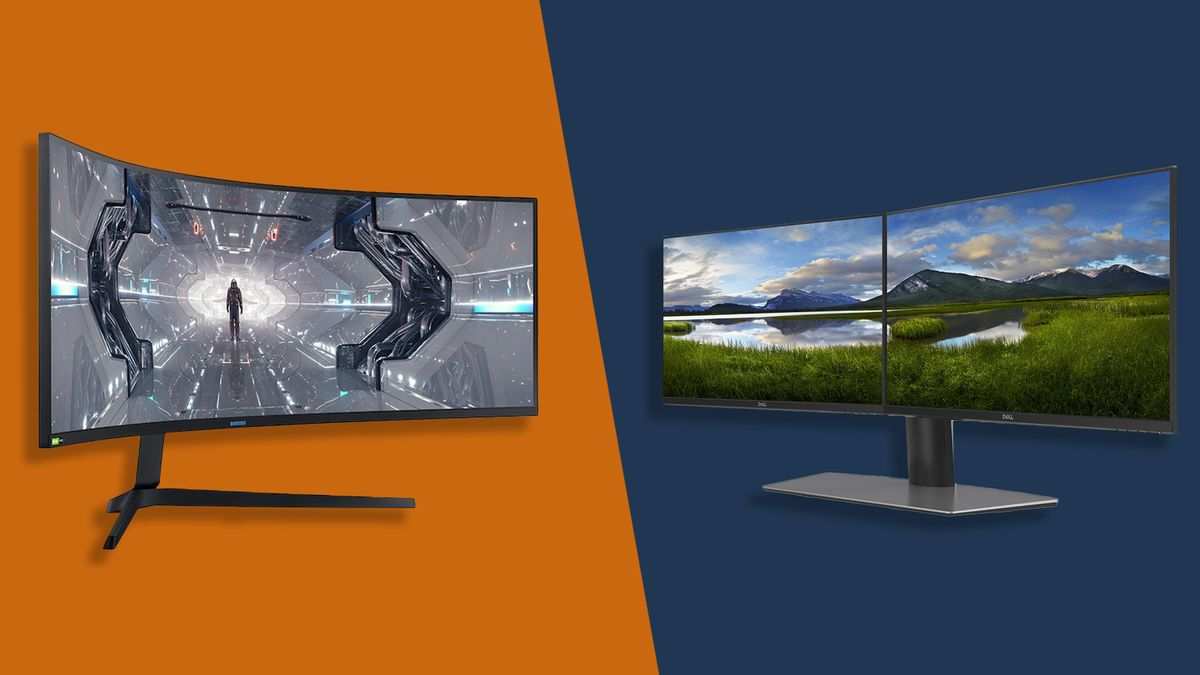
This is the comparison most people actually need. There are three main contenders in the office display space right now, and each one wins in a different scenario. Let's lay them out side by side.
Side-by-Side Comparison Table
| Factor | Single Monitor | Dual Monitor | Ultra-Wide (21:9 or 32:9) |
|---|---|---|---|
| Best for | General admin, light tasks | Multi-app workflows, developers, analysts | Traders, editors, anyone wanting seamless screen |
| Productivity gain | Baseline | 20-30% for multi-task roles | Comparable to dual, with less bezel interruption |
| Desk space needed | Low | Moderate to high | Moderate (one wide screen, less depth) |
| Typical cost | $150-$300 | $300-$600 (two monitors + arm) | $400-$1,200 |
| Setup complexity | Minimal | Moderate (cables, mounting, GPU outputs) | Low to moderate (one cable, but may need dock) |
| Bezel gap | None | Visible gap between screens | None (single panel) |
| Ergonomic risk | Low | Moderate (neck turning) | Moderate (wide viewing angle) |
| GPU requirements | Single output | Two outputs or docking station | Single output (high resolution may need stronger GPU) |
When a Single Monitor Is Enough
Not everyone needs more than one screen. If the work is primarily document-based, email-heavy, or involves one application at a time, a single quality monitor is perfectly fine. A 27-inch 1440p display gives plenty of room for split-screen multitasking within one panel.
Administrative roles, basic customer service positions, and environments where employees mainly use a single web-based application don't benefit much from adding a second screen. In those cases, the money is better spent on one good monitor with solid ergonomic adjustability rather than two mediocre ones.
When Dual Monitors Make a Real Difference
Dual monitors shine when the workflow demands it. Software developers keep their IDE on one screen and documentation or a terminal on the other. Data analysts pull up spreadsheets next to dashboards.
Customer support agents reference knowledge bases while handling tickets.
The physical separation between screens also creates a psychological boundary that some people find helpful. Email lives on the left, your main work lives on the right. That spatial organization can reduce the cognitive load of managing multiple tasks.
The sweet spot for most office workers is two 24 to 27-inch monitors at 1080p or 1440p resolution. Going larger or higher-resolution beyond that point tends to yield diminishing returns unless the work specifically demands it.
When an Ultra-Wide Beats Both
Ultra-wide monitors (21:9 or 32:9 aspect ratios) have gotten genuinely good as of 2026, and for certain workflows they're the better pick. Video editors get a full timeline spread across the screen. Financial traders can tile multiple data windows without a bezel cutting through the middle.
The main advantage is the seamless experience. No bezel gap, no mismatched colors between two different panels, and often simpler cable management. A single 34-inch ultra-wide replaces two 24-inch monitors with less physical hassle.
The downside? Ultra-wides are more expensive, and some operating systems still don't handle window management across such a wide canvas as gracefully as people expect. You may end up needing third-party software like DisplayFusion or Magnet to get the snapping and tiling behavior you want.
Who Benefits Most? Role-by-Role Breakdown
Not every job benefits equally from extra screen real estate. Here's a practical breakdown of where multi-monitor setups earn their keep and where they're overkill.
Software developers and engineers. This is one of the strongest cases. Code on one screen, documentation or terminal on the other, and maybe a browser for testing on a third. Most developers who use dual monitors say they'd genuinely struggle to go back.
Financial traders and analysts. This is practically non-negotiable. Trading desks routinely run three, four, or more monitors. Real-time data feeds, charting tools, news feeds, and order management systems all need to be visible simultaneously. Missing a data point because you had to alt-tab could cost money.
Data analysts and business intelligence. Working with dashboards, SQL editors, and spreadsheet tools side by side makes cross-referencing faster and reduces errors. When you're pulling data from one source and visualizing it in another, two screens cut out a lot of back-and-forth.
Graphic designers and video editors. The editing application takes one screen while tool palettes, asset browsers, or preview monitors take another. Video editors especially benefit from a dedicated preview display that shows the timeline output without clutter.
Customer support and help desk agents. Ticketing systems, knowledge base articles, and communication tools running simultaneously mean faster resolution times. Agents who use dual monitors often handle more tickets per hour.
Project managers and coordinators. Gantt charts, email, Slack or Teams, and reporting dashboards all compete for attention. Having dedicated screen space for each reduces the constant context-switching that eats into their day.
Writers and researchers. Source material on one screen, writing application on the other. It sounds simple, but anyone who's tried to write a research-heavy document with a single screen knows how much the constant window-juggling slows things down.
Executive assistants and office managers. Calendar, email, scheduling tools, and communication platforms all need to be visible at once. The workflow is similar to project management but with more emphasis on real-time communication.
General admin and data entry. This is where the benefit starts to thin out. If the work is mostly sequential (open file, enter data, save, repeat), a second monitor adds less value. A single good screen with split-screen capability covers it.
Remote and hybrid workers. Many remote employees already use a laptop screen plus an external monitor as their default setup. This dual-screen habit has become so common that companies shipping equipment to home offices often include a second monitor as standard.
The pattern is clear. If the role involves monitoring multiple information streams, cross-referencing data, or working across several applications at once, multi-monitor setups pay for themselves quickly. If the work is linear and single-app focused, the ROI drops off.
The Hidden Costs Nobody Talks About
Companies often budget for the monitors themselves and stop there. That misses a chunk of the actual cost of making multi-monitor setups work well.
Mounting and desk infrastructure. Most office desks aren't designed to hold two monitors out of the box. Monitor arms or dual-monitor stands run anywhere from $30 for a basic clamp-on setup to $200 or more for gas-spring arms with full adjustability. That's per workstation.
Cables and connectivity. Each monitor needs a video cable (HDMI, DisplayPort, or USB-C) and a power cable. Multiply that across a department and you're dealing with a cable management problem. Docking stations, which simplify laptop-to-multi-monitor connections, run $100 to $350 per unit as of 2026.
GPU and hardware requirements. Driving multiple displays requires sufficient video outputs. Many business laptops only support one or two external displays natively. Adding a third might require a discrete GPU, a DisplayPort MST hub, or a docking station with its own display controller.
That's an added hardware cost that IT needs to plan for.
Power consumption. Each monitor draws 20 to 40 watts during normal use. Across a company with hundreds of workstations, that adds up on the electricity bill. It's not dramatic per station, but it's not zero either.
IT support complexity. More monitors mean more potential points of failure. Display driver issues, resolution mismatches, docking station firmware problems, and cable faults all increase when you double the number of screens per user. Help desk tickets related to display issues go up.
Desk space. Two monitors, a keyboard, a mouse, and a monitor arm take up a meaningful chunk of desk real estate. In open-plan offices where desk sizes are shrinking, fitting a dual-monitor setup comfortably can be a genuine spatial challenge.
Employee onboarding and standardization. When every workstation has a different monitor configuration, training and support get harder. Smart companies standardize on one or two setups so IT can support them efficiently and new employees know what to expect.
The bottom line: budget for the full ecosystem, not just the screens. A realistic per-workstation cost for a proper dual-monitor setup, including arms, cables, and a docking station if needed, lands somewhere between $400 and $900 depending on the monitor tier chosen. That's a meaningful investment at scale, and it only makes sense if the productivity gains justify it for the specific roles involved.
Common Mistakes Companies Make With Multi-Monitor Setups
Even when the decision to go multi-monitor is the right one, the execution often goes sideways. These are the most frequent issues that show up in workplace feedback and IT support data.
Buying monitors in mismatched pairs. It's tempting to reuse an existing monitor and just add a new one. The problem is that different sizes, resolutions, or panel types create visual inconsistency. Your eyes constantly adjust when moving between a 27-inch 1440p screen and a 24-inch 1080p screen.
That causes fatigue faster than you'd expect.
Ignoring the GPU output limit. Not every computer can drive two or more external displays. Many integrated graphics solutions max out at one external output. Employees end up with a second monitor that simply won't connect without a docking station or a discrete GPU upgrade.
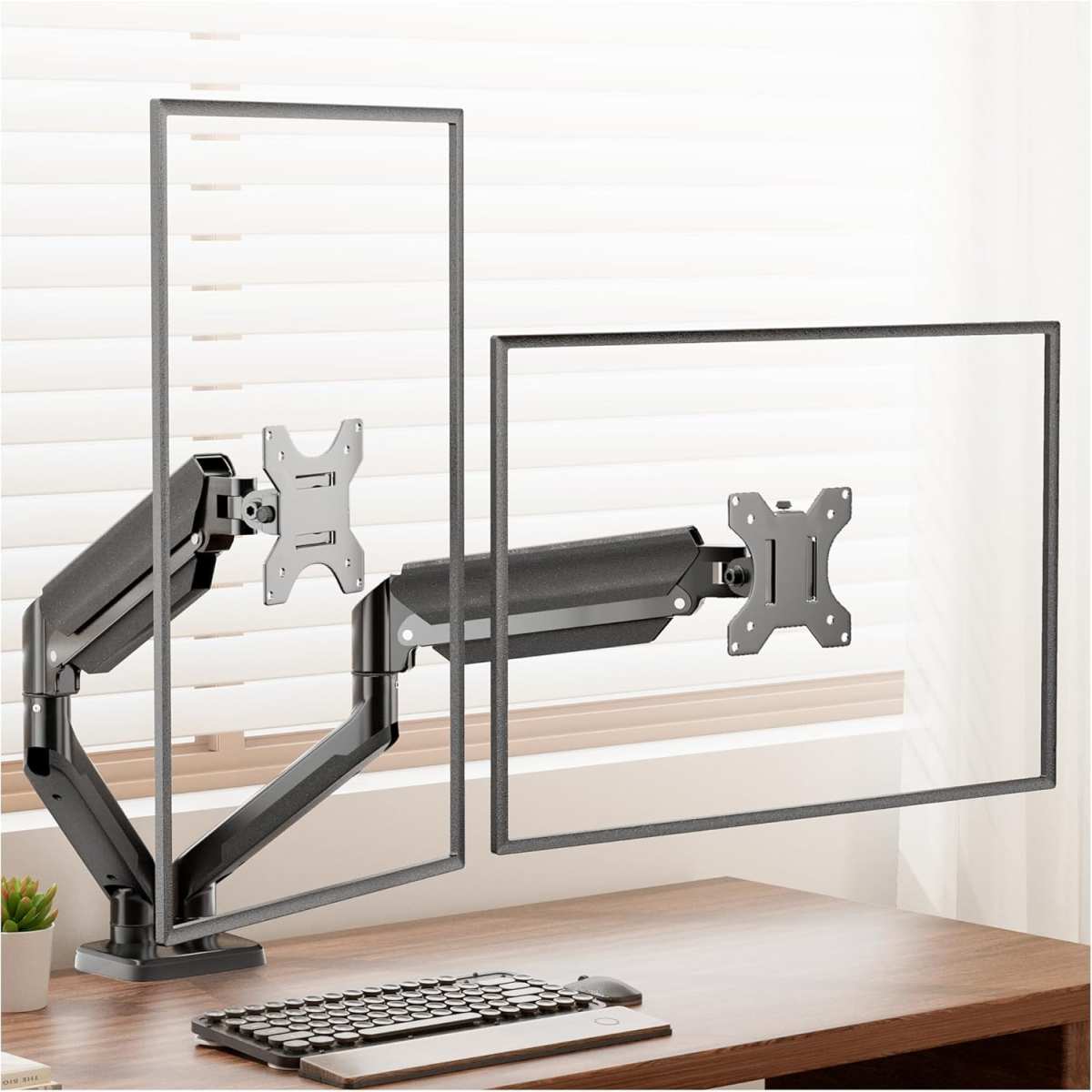
Skipping the monitor arms. Placing both monitors on their default stands eats desk space and limits positioning flexibility. Monitor arms let you align the screens at the correct height and angle. Without them, people end up hunching or craning their neck, which leads to the ergonomic issues we'll cover shortly.
Running cables everywhere with no management plan. Two monitors means at least two video cables and two power cables on top of everything else. Without proper cable routing, it becomes a tangled mess that collects dust and gets snagged whenever someone moves their desk. Simple trays or clips solve this for a few dollars.
Setting both monitors to the same scaling without checking. This sounds minor but it's a real annoyance. If one monitor is 1080p and the other is 1440p, Windows or macOS may apply different scaling factors. That makes text and icons appear different sizes across the two screens.
It's fixable in display settings, but most people don't think to check.
Assuming everyone wants the same setup. Some employees genuinely prefer a single large screen. Forcing a dual-monitor setup on someone who doesn't need it creates frustration, not productivity. The best approach is to standardize a baseline configuration and let teams request alternatives when the workflow justifies it.
How to Set Up a Multi-Monitor Workstation the Right Way
Getting the hardware on the desk is the easy part. Configuring it properly is what separates a productive setup from a daily annoyance.
Step 1: Check your video outputs first. Before buying anything, verify how many displays your computer supports. Look at the spec sheet for available HDMI, DisplayPort, or USB-C/Thunderbolt outputs. If you're using a laptop, check whether the manufacturer supports dual external displays over a single USB-C connection.
Not all of them do.
Step 2: Choose matching monitors when possible. Ideally, both screens should be the same size, resolution, and panel type. If budget forces a mismatch, at least match the resolution so text scaling stays consistent across both displays.
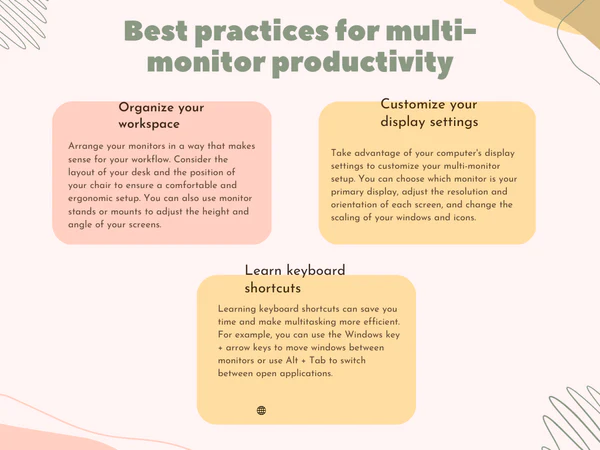
Step 3: Mount them properly. A dual-monitor arm with VESA compatibility (the standard 100x100mm or 75x75mm mounting pattern) gives you the most flexibility. Position the primary monitor directly in front of the user at arm's length. The secondary monitor goes to the dominant side, angled inward about 15 to 20 degrees.
Step 4: Configure display arrangement in the OS. In Windows, go to Settings > System > Display and drag the monitor icons to match their physical arrangement. In macOS, go to System Settings > Displays and arrange them the same way. This ensures your mouse cursor moves between screens in the direction you expect.
Step 5: Set the primary display. The primary monitor is where new windows open and where the taskbar or dock lives. Set it to the screen the user looks at most. This sounds obvious, but it gets overlooked constantly.
Step 6: Calibrate brightness and color. Even identical monitor models can look slightly different out of the box. Adjust both screens to similar brightness levels (around 120 cd/m² for office work) and a consistent color temperature. Most monitors have built-in presets for this.
Step 7: Test for a full workday. Spend a full day with the setup before declaring it done. Watch for glare, neck strain, eye fatigue, or any window management quirks. Small adjustments in angle or height make a big difference over eight hours.
Ergonomics and Health: What Companies Need to Get Right
This is where multi-monitor setups can either help or genuinely hurt your employees. The difference comes down to proper configuration.
The ANSI/HFES 100 standard provides guidance on display positioning. The top of the primary monitor should be at or slightly below eye level. Viewing distance should be roughly 20 to 26 inches.
These guidelines apply to each screen in a multi-monitor array.
Neck strain is the biggest risk. When a secondary monitor sits too far to the side, users rotate their head repeatedly throughout the day. Over hours and days, that adds up. The fix is keeping the secondary screen within a 30-degree angle from center and raising it to the same height as the primary.
Eye strain increases with more screens. More display area means more visual information to process. Blue light exposure goes up proportionally. Encourage employees to follow the 20-20-20 rule: every 20 minutes, look at something 20 feet away for 20 seconds.
It sounds trivial, but it genuinely helps reduce end-of-day eye fatigue.
Glare management gets harder with two screens. A single overhead light might not cause glare on one monitor but catches the other at a bad angle. Position screens perpendicular to windows rather than directly facing or backing them. Anti-glare monitor coatings help, but positioning matters more.
Sit-stand desk compatibility matters. If your office uses adjustable-height desks, make sure the monitor arm is compatible with the desk's movement range. Some arms need re-tensioned when the desk height changes. Others don't travel well and need re-adjusted at each height setting.
OSHA's computer workstation guidelines apply to multi-monitor setups just as they do to single-screen configurations. Employers have a duty of care to ensure that display equipment is positioned safely. This isn't optional compliance.
It's a genuine workplace health obligation.
The Verdict: What I'd Actually Recommend
After looking at the research, the hardware realities, and the practical trade-offs, here's the honest recommendation.
For most knowledge workers, dual monitors are worth it. The productivity gains are real for anyone who works across multiple applications. Developers, analysts, project managers, and support agents all benefit measurably. The investment pays for itself within weeks to a few months in most cases.
For single-application or sequential-task roles, save the money. If the work is primarily email, data entry into one system, or document review, a single quality monitor with good ergonomic positioning is the smarter spend. Put the budget toward a better chair or a sit-stand desk instead.
For traders, editors, and specialized roles, go as wide as the workflow demands. These are the cases where three monitors or an ultra-wide display earn their keep. The cost is justified by the nature of the work.
Standardize your approach. Pick one or two configurations and deploy them consistently. A common setup for most office workers: two 24-inch IPS monitors at 1080p or 1440p, mounted on a dual-arm VESA mount, connected via a USB-C docking station for laptop users. Keep a few ultra-wide monitors in stock for roles that specifically benefit from them.
Don't forget the human factor. Ask your employees what they need. The best setup is one that people actually use effectively, not one that looks impressive on a procurement spreadsheet.
Frequently Asked Questions
How many monitors does the average office worker use?
Most office workers use one or two monitors. Dual-monitor setups have become the default in many corporate environments, especially for roles involving data analysis, development, or communication-heavy workflows. Single-monitor setups remain common for administrative and general office roles.
Is dual monitor better than one large screen?
It depends on the workflow. Dual monitors create a physical separation between tasks that some people find helpful. A single large or ultra-wide screen offers a seamless viewing area without a bezel gap.
For most multi-application office work, dual monitors offer more flexible window management.
Do multiple monitors use a lot of electricity?
Each monitor typically draws 20 to 40 watts during normal use. Two monitors add roughly 40 to 80 watts to a workstation's power draw. Over a year, that translates to a modest increase in electricity cost, noticeable at scale across hundreds of workstations but minor per individual user.
Can any laptop support two external monitors?
Not all laptops can. Many business laptops with USB-C or Thunderbolt ports support at least one external display natively. Supporting two external displays often requires a docking station with DisplayPort MST capability or a laptop specifically designed with multiple video output support.
Always check the manufacturer's specifications before purchasing monitors.
What is the best monitor size for a dual setup?
24 to 27 inches is the sweet spot for most office dual-monitor configurations. At this size, both screens fit comfortably on a standard desk without requiring excessive head movement. Resolution-wise, 1080p works fine at 24 inches, while 1480p looks sharper at 27 inches.
Do multiple monitors cause eye strain?
They can if not set up properly. Excessive brightness, glare from poor positioning, and prolonged close-up viewing all contribute to eye strain. Following ergonomic guidelines for monitor distance, height, and brightness significantly reduces the risk.
The 20-20-20 rule helps during long work sessions.

Similar Posts





















