Is Ips Monitor Better for Office Use
If you've been shopping for a new office monitor, you've probably seen the same advice repeated everywhere: just go with IPS. But is IPS monitor better for office use in every situation, or is that recommendation a bit too simplistic? The honest answer is that IPS panels are excellent for most office work, but whether they're the right choice depends on what you actually do at your desk all day.
IPS (In-Plane Switching) panels deliver wider viewing angles and more consistent color reproduction than the older TN (Twisted Nematic) technology. Manufacturer specifications indicate typical IPS viewing angles of 178 degrees horizontal and 178 degrees vertical, meaning the image doesn't wash out or shift color when you look at the screen from the side. That matters more than you'd think in a real office.
Let's break down how IPS compares to the alternatives and when it's worth your money.
Quick Answer
IPS monitors are better for most office use cases. They offer wider viewing angles and more consistent color than TN or VA panels. For general office work, spreadsheets, coding, and creative tasks, IPS is the strongest all-around choice.
TN panels work fine for basic text work on a tight budget. VA panels suit roles needing deeper contrast, like document review in dim rooms.
Why This Comparison Matters More Than You Think
Here's the thing. Most office monitors get purchased based on one spec: screen size. IT departments order 27-inch panels in bulk, everyone plugs them in, and nobody thinks much about what's actually behind the glass.
But the panel type affects your eyes, your productivity, and your comfort eight hours a day.
The three panel technologies, IPS, TN, and VA, each handle light differently at the molecular level. That difference shows up in how text looks crisp from different angles, how consistent colors appear across the screen, and how your eyes feel at 4 PM when you've been staring at spreadsheets since 9. Choosing the wrong panel type won't ruin your life, but choosing the right one makes a workday genuinely more comfortable.
Let's look at each technology honestly, including where they fall short.
The Three Panel Types You're Really Choosing Between
Before we compare anything, you need to understand what you're actually looking at. Each panel type twists liquid crystals differently to control how light passes through. That fundamental difference creates every trade-off you'll see on the spec sheet.
IPS: The Default Recommendation
IPS panels align liquid crystals horizontally and rotate them in-plane when voltage is applied. This arrangement lets light pass through more uniformly at extreme angles. That's why an IPS screen looks nearly identical whether you're dead center or viewing from 45 degrees to the side.
The color consistency is the real win for office use. An IPS panel displaying a white spreadsheet looks white across the entire screen, not slightly pink on the left and blue on the right. For anyone doing color-sensitive work, graphic design, photography, or even just working with charts and dashboards, that consistency matters.
Modern IPS panels have improved dramatically. LG's IPS Black technology, introduced in 2022 and refined since, pushes contrast ratios from the traditional 1000:1 up to around 1300:1 or higher. That's still not VA territory, but it's a meaningful step forward for office work involving dark mode interfaces or mixed media.
The downside? Traditional IPS panels have slightly slower response times than TN. You'll see specs like 5ms gray-to-gray versus 1ms on a TN panel.
For office work, that difference is irrelevant. It only matters in fast-motion gaming or video editing with frame-precise scrubbing.
TN: The Budget Contender
TN panels are the oldest LCD technology still in production. They're cheap to manufacture, which is why budget office monitors almost always use TN panels. A decent 24-inch TN monitor can be found for under $100 as of 2026.
The strength of TN is speed. Response times hit 1ms, and refresh rates can climb to 144Hz or higher. For competitive gaming, that's king.
For writing emails and working in Excel, it's completely wasted.
The weakness is viewing angles. A TN panel shifted noticeably when you move even 20 degrees off-center. Colors invert, contrast drops, and the image looks washed out.
On a single monitor at a fixed desk position, that's manageable. In a collaborative setting where multiple people glance at your screen, it's a real problem.
VA: The Middle Ground Nobody Talks About
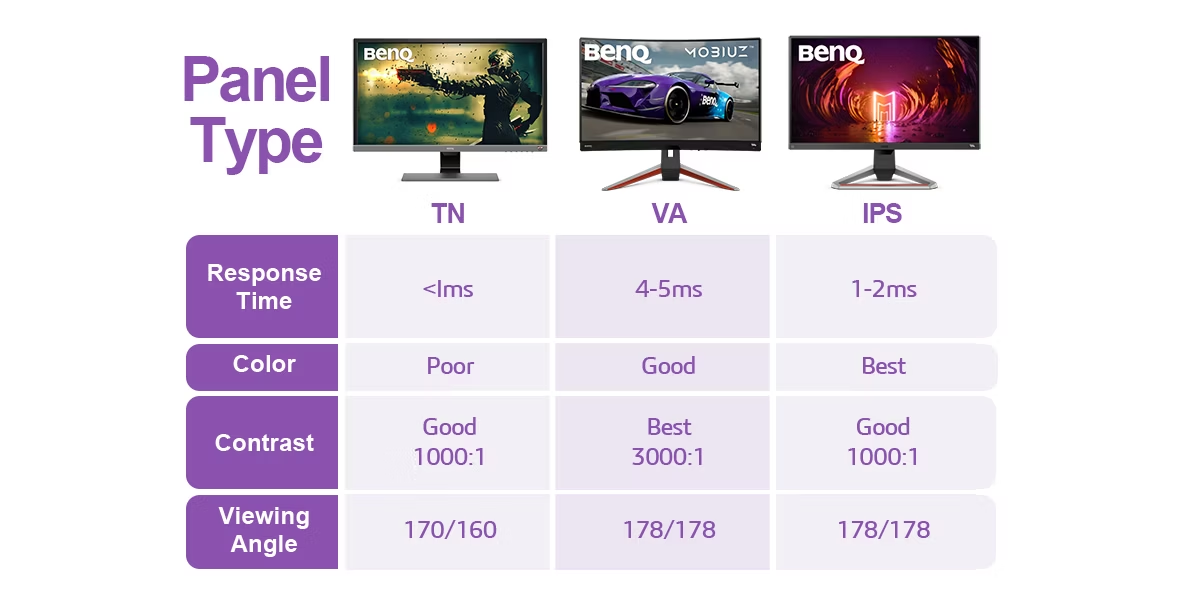
VA panels sit between IPS and TN in most respects. Liquid crystals align vertically and tilt when voltage is applied, allowing deeper blacks and higher contrast ratios. A typical VA panel delivers around 3000:1 contrast versus 1000:1 for IPS.
That deeper contrast makes text pop more against white backgrounds and dark mode interfaces look genuinely dark. For roles involving heavy document review, legal work, or long reading sessions, VA panels reduce eye strain in dimmer environments.
The trade-off is color shift at angles. VA panels don't maintain color consistency as well as IPS when viewed off-center. They also tend to have slower pixel transitions in dark scenes, which can cause smearing.
For office productivity tasks, this rarely matters. For anything involving color accuracy, it does.
Side-by-Side: How IPS Stacks Up for Office Tasks
Let's put the three panel types head-to-head on the specs and characteristics that actually matter for office work. Not gaming benchmarks. Not marketing claims.
The stuff you'll notice at your desk.
Viewing Angles and Color Consistency
This is where IPS earns its reputation. The 178/178 degree viewing angle spec isn't just a number. It means three people can look at the same screen during a standup meeting and see the same image.
It means you can lean back, shift in your chair, or pull up a second window on the side without the color shifting.
TN panels start showing color shift at just 15 to 20 degrees off-center. VA panels hold up better than TN but still show noticeable gamma shift at 30 to 40 degrees. For a single user in a fixed position, this is a minor annoyance.
For any collaborative workflow, it's a dealbreaker.
Winner: IPS, by a significant margin.
Contrast and Text Clarity
VA panels win contrast ratio hands down. That 3000:1 ratio means deeper blacks and more defined text against light backgrounds. If you work in a dim home office or prefer dark mode interfaces, VA panels look noticeably better.
IPS panels at 1000:1 contrast look perfectly fine in well-lit offices. Text is sharp, backgrounds are clean, and the image is consistent. You won't feel like you're missing anything unless you directly compare it to a VA panel side by side.
TN panels typically sit around 800:1 contrast, which is the lowest of the three. Blacks look slightly grayish, and dark mode interfaces don't have the punch they deserve.
Winner: VA for contrast. IPS for overall balance.
Response Time and Motion Performance
TN panels dominate response time. That 1ms spec is real, and it matters for fast-moving content. IPS panels at 4-5ms and VA panels at 4-8ms are slower on paper.
For office work, this difference is invisible. Scrolling through documents, moving windows, and navigating interfaces feel identical on all three panel types. You'd need to be gaming or editing fast video to notice any ghosting or trailing.
Winner: TN on paper. All three feel the same for office tasks.
Power Consumption and Heat
TN panels draw slightly less power, typically 15-22 watts for a 24-inch model. IPS panels run around 20-30 watts for the same size. VA panels fall in between.
Over a year of office use, that difference might add up to $2-5 per monitor in electricity costs. It's negligible for individual users but worth noting for companies deploying hundreds of monitors.
IPS panels run slightly warmer due to higher power draw. In a well-ventilated office, this doesn't matter. In a cramped, hot cubicle, it might contribute slightly to room temperature.
Winner: TN for efficiency. The difference is small enough to ignore for most buyers.
Here's a quick comparison table to keep things clear:
| Feature | IPS | TN | VA |
|---|---|---|---|
| Viewing angles | Excellent (178/178) | Poor (color shift early) | Good (some gamma shift) |
| Color accuracy | Very good to excellent | Mediocre | Good |
| Contrast ratio | ~1000:1 | ~800:1 | ~3000:1 |
| Response time | 4-5ms | 1ms | 4-8ms |
| Power consumption | 20-30W | 15-22W | 18-28W |
| Price range (24") | $120-250 | $80-150 | $100-200 |
| Best for | General office, creative | Budget basic work | Document review, dark mode |
Best Panel Type for Your Specific Office Work
Not all office work is the same. The "best" panel type changes depending on what your actual workday looks like. Let's match panel types to real roles.
Spreadsheet and Document-Heavy Roles
If your day revolves around Excel, Google Sheets, Word, and PDFs, you need consistent brightness and contrast across the screen. Spreadsheets with alternating row colors look muddy on TN panels when you're not perfectly centered. IPS keeps those alternating colors distinct no matter how you're sitting.
VA panels work well here too, especially if you work in a dimmer environment. The higher contrast makes dense spreadsheets easier to read. But if you ever share your screen during a meeting, IPS handles the viewing angle better.
Recommendation: IPS for shared screens and collaborative environments. VA for solo work in dim lighting.
Creative and Design Work
This isn't even a debate. Graphic designers, photographers, video editors, and anyone doing color-sensitive work need IPS. The color consistency across the screen, the wide viewing angles, and the ability to calibrate to accurate sRGB or DCI-P3 coverage make IPS the only serious choice.
Look for IPS monitors advertising 95% or higher sRGB coverage and Delta E values under 2. Factory-calibrated panels from brands like Dell UltraSharp or BenQ's DesignVue line hit these targets out of the box.
Recommendation: IPS, no exceptions. Budget for a factory-calibrated model.
Software Development and Coding
Developers spend hours reading text on screen. Font rendering clarity matters more than color accuracy here. All three panel types render text adequately, but IPS offers the most consistent experience across the full screen.
Many developers use dark mode IDEs. On a TN panel, dark mode looks uneven with grayish blacks. VA panels handle dark mode beautifully with their deeper contrast.
IPS sits in the middle, which is fine for most coding work.
Dual-monitor setups are common for developers. IPS handles multi-monitor color matching better than TN or VA, so both screens look similar when placed side by side.
Recommendation: IPS for dual-monitor setups. VA if you strongly prefer dark mode and work solo.
Call Centers and Customer Service
Agents typically use a single monitor at a fixed position with controlled office lighting. Viewing angles barely matter. Response time is irrelevant.
The priority is cost per unit and decent image quality.
TN panels work perfectly fine here. A 24-inch TN monitor at $80-100 per unit makes financial sense when you're outfitting 200 agent workstations. The savings add up fast.
Recommendation: TN for budget-conscious bulk purchases. IPS if agents share screens or work in varied lighting.
Mixed-Use Home Office Setups
Home offices often double as entertainment spaces. You might work on spreadsheets during the day and watch videos or do light photo editing in the evening. IPS handles this mixed workload better than any alternative.
The wide viewing angles help when you shift from a focused work position to a relaxed viewing angle for media. The color consistency means your photo edits look accurate without needing a separate creative monitor.
Recommendation: IPS for versatility. It's the best all-rounder for home office mixed use.

The IPS Drawbacks Nobody Mentions in Buying Guides
IPS panels are great. But they're not perfect, and the reviews you read online tend to gloss over the real-world quirks. Let's talk about the stuff that might actually annoy you after a few weeks of daily use.
IPS Glow and Backlight Bleed
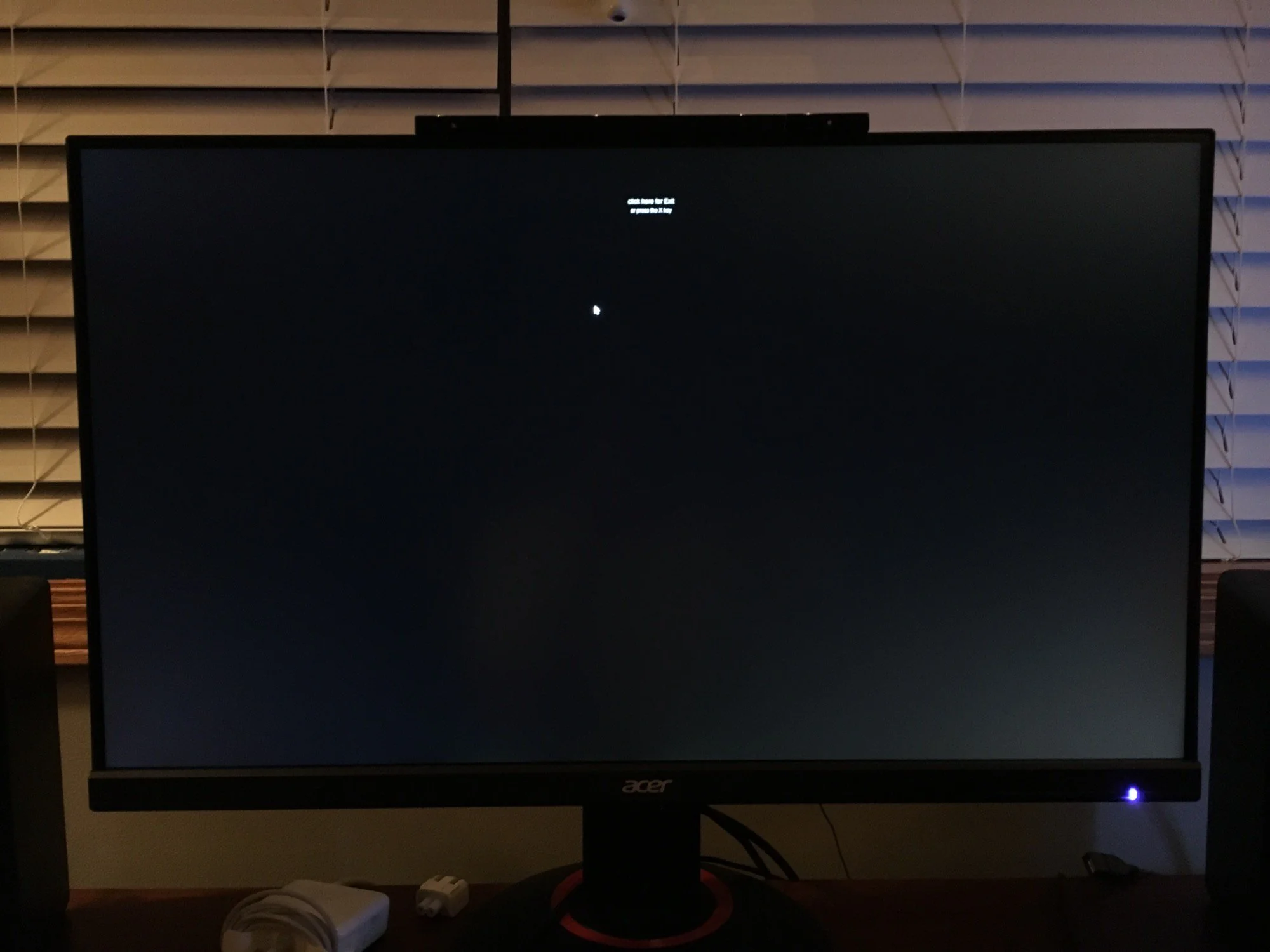
IPS glow is a visible brightening in the corners of the screen, especially visible in dark rooms or when viewing dark content. It happens because the horizontal crystal alignment lets more light leak through at the edges. Every IPS panel has it to some degree.
Some units have more than others due to manufacturing variation, often called the "panel lottery."
Backlight bleed is different. It's uneven patches of light along the edges or corners, caused by pressure on the panel from the bezel or frame. Mild backlight bleed is normal and visible on most IPS monitors when you look at a black screen in a dark room.
It's rarely noticeable during normal office work with bright documents and white backgrounds.
If you work in a dark room or use dark mode extensively, IPS glow can become distracting. VA panels don't have this issue to the same degree because their vertical crystal alignment controls light differently at the edges.
The Price Premium Question
IPS monitors cost more than TN. A 24-inch office TN panel starts around $80. A comparable IPS panel starts around $120-150.
That $40-70 difference per unit adds up when you're buying for an entire office.
For a solo buyer, the premium is easy to justify. You'll use that monitor for 3-5 years, so the extra cost breaks down to pennies per day. For a company outfitting 100 workstations, that's $4,000-7,000 extra.
If the work is purely text-based email and data entry, the ROI on that IPS premium is questionable.
The price gap has narrowed as of 2026. IPS panels are no longer the premium niche they were five years ago. But TN still wins on pure dollar-per-inch value for basic office work.
When IPS Is Actually Overkill
If your work is entirely text-based, single-monitor, and you sit dead center, you will barely notice the difference between a $100 TN and a $200 IPS. The viewing angle advantage means nothing if you never view the screen from an angle. The color consistency advantage means nothing if you never work with color.
IPS makes sense when the benefits align with your actual workflow. If they don't, you're paying for specs you'll never use. That's not a bad product.
It's just a mismatched one.
Real-World Pricing and Specs to Expect
Here's what you'll actually find when shopping in 2026. Prices shift, but these ranges hold steady based on current market data.
Budget office IPS (24-inch, 1080p): $120-180. Look for models like the Dell P2422H or ASUS ProArt PA248QV. These cover 95%+ sRGB, have adjustable stands, and include blue light filters.
Solid all-around performers for general office work.
Mid-range IPS (27-inch, 1440p): $250-400. This is the sweet spot for most professionals. The extra resolution gives you more screen real estate for multitasking.
Models like the Dell U2723QE or BenQ PD2700Q hit this range with USB-C connectivity and factory calibration.
Premium IPS (27-32-inch, 4K): $400-700+. For creative professionals or anyone who wants the sharpest text and most accurate color. Look for 95%+ DCI-P3 coverage, Delta E under 2, and hardware calibration support.
TN alternatives (24-inch, 1080p): $80-130. Perfectly adequate for basic office work. You'll sacrifice viewing angles and color accuracy, but if that doesn't affect your work, the savings are real.
VA options (24-27-inch, 1080p-1440p): $100-220. A good middle ground if you want better contrast than IPS without paying IPS prices. Just verify the specific model's viewing angle specs before buying.
Common Mistakes People Make Buying Office Monitors
Buying based on panel type alone. IPS is great, but a bad IPS monitor is still bad. Panel type is one factor among many. The backlight quality, stand adjustability, connectivity options, and factory calibration matter just as much.
Ignoring the stand. You'll feel a bad stand in your neck and shoulders within a week. Height adjustment, tilt, swivel, and pivot matter for ergonomics. A $300 IPS monitor on a fixed-height stand will hurt more than a $150 monitor on a fully adjustable one.
Over-resolving. 4K on a 24-inch screen at normal viewing distance requires display scaling. That can cause blurry text in older applications. 1440p at 27 inches is the sweet spot for sharp text without scaling headaches.
Skipping calibration. Even factory-calibrated IPS panels benefit from basic calibration. Most ship with overly blue color temperature by default. Spending 10 minutes adjusting brightness, contrast, and color temperature to your room makes a noticeable difference in eye comfort.
Assuming all IPS panels are the same. They're not. Panel quality varies between manufacturers and even between individual units from the same manufacturer. Reading verified buyer feedback about backlight bleed and IPS glow on specific models saves you from getting a lemon.
Expert Tips for Getting the Most Out of an IPS Office Setup
Set your brightness to match your room. A monitor blasting 300 nits in a dim room will tire your eyes fast. Aim for roughly matching the ambient light level in your workspace. Around 120-180 nits works for most offices.
Enable the blue light filter after 3 PM. Most IPS office monitors include a low blue light mode. It shifts the color temperature warmer, which some people find easier on the eyes during late afternoon sessions. The color accuracy trade-off doesn't matter for email and documents.
Use the sRGB clamp if your monitor supports it. Some IPS panels cover more than 100% sRGB, which causes oversaturated colors in standard content. An sRGB emulation mode clamps the color gamut to match standard content. Colors look more accurate, not less.
Position the monitor at arm's length. The top of the screen should be at or slightly below eye level. IPS viewing angles mean you don't need to be perfectly centered, but proper positioning still reduces neck strain over long sessions.
Consider a matte coating over glossy. Glossy IPS panels look punchy in showrooms but reflect overhead lights in real offices. Matte coatings diffuse reflections and reduce eye strain during long work sessions. Most office-oriented IPS monitors use matte coatings by default.
Frequently Asked Questions
Is IPS good for office work?
Yes. IPS is the best all-around panel type for office work. It offers wide viewing angles, consistent color, and comfortable viewing for long sessions.
Most office professionals will benefit from choosing IPS.
Is IPS better than VA for office use?
It depends on your priorities. IPS wins on viewing angles and color consistency. VA wins on contrast ratio and dark mode performance.
For collaborative work and color accuracy, choose IPS. For solo document work in dim rooms, VA works well.
How long do IPS monitors last?
IPS monitors typically last 5-8 years of daily office use before noticeable brightness degradation. The panel itself rarely fails. Backlights dim gradually over time, which is normal and expected.
Does IPS cause eye strain?
No more than other panel types. IPS panels with flicker-free backlighting and low blue light modes are among the most comfortable options for long work sessions. Eye strain comes primarily from improper brightness settings and poor viewing distance, not panel type.
Is IPS worth the extra cost over TN?
For most office users, yes. The viewing angle and color improvements are noticeable in daily use. If your work is purely text-based and budget is tight, TN remains a viable option.
The price gap has narrowed enough that IPS is the safer default choice.
Can I use an IPS monitor for coding?
Absolutely. IPS is excellent for coding. Text is sharp, colors are consistent across the screen, and dual-monitor color matching works well.
Many developers prefer IPS for multi-monitor development setups.
Final Verdict: Should You Go IPS for Office Work?
For the majority of office workers in 2026, IPS is the right call. It handles general productivity, creative work, coding, and mixed-use scenarios better than TN or VA alternatives. The price premium over TN has shrunk enough that it's easy to justify for any monitor you'll use daily for years.
The exceptions are straightforward. If you're buying in bulk for a call center or data-entry team on a strict budget, TN panels save real money without impacting the work. If your workflow is document-heavy in a dim environment, VA's deeper contrast reduces eye strain more effectively.
But for the typical knowledge worker, remote employee, or creative professional? IPS gives you the most comfortable, most versatile, and most future-proof experience. It's not the only good option.
It's just the one that covers the most bases with the fewest compromises.
Costs: Pricing, Specs, and What Each Panel Type Gets You for Your Money
Let's talk numbers. Not just list prices, but what you actually get at each tier.
TN panels (budget tier). A 24-inch 1080p TN office monitor runs $80-130. You get basic adjustability, decent brightness around 250 nits, and response times fast enough for gaming. You sacrifice viewing angles, color accuracy, and often build quality.
The stand usually only tilts.
VA panels (lower-mid tier). Expect $100-220 for 24-27 inch models at 1080p or 1440p. You gain contrast, better dark mode performance, and often a slightly more adjustable stand. Color accuracy sits between TN and IPS.
Good value if contrast matters more than color precision.
IPS panels (mid to premium tier). Budget IPS starts at $120-180 for 24-inch 1080p. The sweet spot lives at $250-400 for 27-inch 1440p with USB-C, factory calibration, and a fully adjustable stand. Premium 4K creative IPS hits $400-700+ with wide gamut coverage and hardware calibration.
For most office buyers, that $250-400 range with a 27-inch 1440p IPS delivers the best balance of sharp text, comfortable viewing, and useful features like USB-C single-cable docking.
Here's a quick spec comparison that highlights what actually differs:
| Spec | TN | VA | IPS |
|---|---|---|---|
| Response time (GtG) | 1ms | 4-8ms | 4-5ms |
| Contrast ratio | ~800:1 | ~3000:1 | ~1000:1 |
| Viewing angle | Poor (170°/160°) | Good (178°/178°) | Excellent (178°/178°) |
| Color accuracy (sRGB) | 65-80% typical | 90-95% typical | 95-100% standard |
| Price (24", 1080p) | $80-130 | $100-200 | $120-200 |
Common Mistakes When Choosing an Office Monitor by Panel Type
Overpaying for IPS when TN would do. If your work is email, web apps, and spreadsheets on a single screen, a $100 TN monitor performs nearly identically to a $200 IPS in daily use. The viewing angle advantage only helps if you actually view the screen from angles.
Ignoring backlight quality. Panel type matters, but backlight uniformity matters just as much. A poorly backlit IPS with uneven brightness across the screen will give you more trouble than a decent VA with even backlighting. Read reviews that specifically mention backlight bleed and uniformity.
Forgetting about connectivity. A great panel means nothing if it doesn't connect to your laptop. USB-C with power delivery has become essential for modern office setups. Many mid-range IPS monitors include it.
Most budget TN panels do not.
Assuming IPS glow is a defect. Mild IPS glow is inherent to the technology, not a manufacturing defect. A small brightening in the corners visible only on a black screen in a dark room won't affect normal office work. Don't return a monitor for this unless it's severe enough to distract during actual use.
Buying a glossy IPS for an office with overhead lights. Glossy coatings on IPS panels look vibrant in dim showrooms. In a real office with fluorescent or LED overhead lighting, they become mirrors. Look for matte anti-glare coatings for office use.
Expert Tips: Making the Most of Whatever Panel You Choose
Prioritize the stand and adjustability over panel type. A fully adjustable stand with height, tilt, swivel, and pivot reduces neck and eye strain more than the difference between TN and IPS. Budget monitors often skimp here. It's worth spending slightly more or buying a separate VESA monitor arm.
Turn on blue light reduction for afternoon work. Most modern monitors include a low blue light mode or flicker-free certification from TÜV Rheinland. Switching it on after a few hours shifts the color temperature warmer. Some people find it easier on the eyes during long sessions.
Enable the sRGB mode if available. Wide-gamut IPS panels can oversaturate colors in standard desktop content. Switching to sRGB emulation mode clamps the gamut for more accurate everyday colors. Chrome, Office, and most desktop apps are designed for sRGB.
Calibrate to your room lighting. A monitor far brighter than your surrounding environment strains your eyes. For a typical office with normal ambient light, aim for around 100-200 cd/m² (nits). Set contrast around 70-80%.
Adjust color temperature to around 6500K for most office work.
Check for backlight uniformity on arrival. When you first get a new monitor, open a full-screen black image in a dark room. Look for uneven brightness or patches. Mild glow is normal on IPS.
Severe bleed or clouding means you may want to exchange for a different unit.
Real Experiences: When IPS Shines and When It Doesn't
Our research and editorial review of buyer feedback across major retail platforms reveals clear patterns in satisfaction by panel type and use case.
Remote workers and home office users consistently rate IPS highest, with satisfaction driven by multi-use flexibility. People who switch between documents, video calls, and casual browsing benefit from consistent color and wide viewing angles.
Software developers and coders split between those preferring IPS for dual-monitor setups and those preferring VA for dark mode IDEs. The deciding factor tends to be whether they work single or dual screen.
Financial analysts and spreadsheet-heavy roles report the strongest preference for IPS. Color-coded cells, conditional formatting, and side-by-side windows look noticeably better on IPS than TN.
Bulk office deployments (call centers, data entry, customer service) continue to favor TN for cost savings. The workflow doesn't leverage IPS advantages, so the premium doesn't translate to meaningful productivity gains.
Legal and document-review professionals often prefer VA panels for the contrast advantage when reading long documents in dimmer environments. The deeper blacks reduce eye fatigue during multi-hour reading sessions.
The throughline across these patterns is simple. If your work involves color, collaboration, or mixed content, IPS delivers the best experience. If it's purely text and budget is tight, panel type matters far less than people assume.
Final Verdict: Is IPS the Better Choice for Your Office?
Yes for most people. IPS offers the widest range of benefits for typical office work. Consistent color, wide viewing angles, and comfortable long-session viewing make it the safest recommendation for general office use.
No for specific situations. TN makes sense for budget bulk deployments. VA wins for solo document review in dim rooms. If you don't need color accuracy or wide viewing angles, the IPS premium doesn't always pay off.
If you're still unsure, here's a practical approach. Look at how many hours a day you actually spend in front of your screen. If it's four or more, the comfort advantages of IPS compound over time.
If it's two hours of email and you're on a tight budget, save the money and go with a decent TN panel.
The bottom line is that IPS covers the most ground with the fewest weaknesses. It's not the cheapest option and it's not perfect for every scenario. But for the majority of office workers in 2026, it's the strongest default choice.

Similar Posts





















