Which Office Monitor Is Best for Students
Figuring out which office monitor is best for students isn't as straightforward as grabbing the cheapest one off the shelf. Your desk space, budget, laptop setup, and how many hours you spend staring at the screen all matter more than most "top 10" lists let on.
The good news is you don't need to spend a fortune. A solid IPS panel with a flicker-free backlight, a height-adjustable stand, and at least a 1080p resolution will cover 90% of what a student actually needs. Let's break down which monitors earn their spot on your desk and why.

Quick Answer
The Dell S2722QC is the best overall office monitor for most students. It offers 4K resolution, an IPS panel, and USB-C connectivity at around $250. Budget buyers should look at the ASUS VY249HGE under $130.
Students in tight spaces should consider a portable option like the ASUS ZenScreen.
Why Most "Best Monitor" Lists Miss the Point for Students
Most monitor roundups are written for professionals or gamers. They chase specs like 144Hz refresh rates and 1ms response times. For a student writing papers, researching online, or attending lectures, those features are wasted money.
What actually matters is different. You need something that won't destroy your eyes during a 10-hour library session. You need it to connect to your laptop without a mess of dongles.
You need it to fit on a cramped dorm desk.
Here's what we looked at across every pick:
- Panel quality: IPS panels give you wide viewing angles and consistent color. That matters when you're sharing notes with a roommate or tilting your screen to find a comfortable position.
- Eye comfort: Flicker-free backlighting and a built-in blue light filter aren't marketing fluff. They genuinely reduce headaches during long sessions.
- Ergonomics: A stand that adjusts for height, tilt, and swivel saves your neck. Fixed-height monitors force you to hunch.
- Connectivity: USB-C with power delivery means one cable handles both display and charging. That's a game-changer for laptop users.
- Price-to-value ratio: Students aren't made of gold. Every dollar counts.
We based our picks on manufacturer specifications, aggregate user reviews, and editorial analysis of monitor testing standards from VESA and TÜV Rheinland certifications.
The Only Specs That Actually Matter for Studying
Before you dive into specific models, let's get clear on what you should actually care about. And what you can safely ignore.
Resolution: 1080p Is Fine, 1440p Is the Sweet Spot
For a 24-inch monitor, 1920×1080 (Full HD) is perfectly sharp. You won't notice pixelation at normal viewing distances. Step up to 27 inches and 2560×1440 (QHD) gives you noticeably crisper text without taxing your laptop's graphics.
4K (3840×2160) is nice but overkill for pure productivity. It also forces your laptop to push four times as many pixels, which can drain battery faster on USB-C setups.
Panel Type: Just Get IPS
There are three main panel types you'll see:
- IPS (In-Plane Switching): Best color accuracy, widest viewing angles. The right choice for 95% of students.
- VA (Vertical Alignment): Better contrast, decent color. Fine if you find a good deal, but viewing angles aren't as strong.
- TN (Twisted Nematic): Cheap, fast response time, terrible color shift. Avoid these unless you're on an extremely tight budget and only care about gaming.
Refresh Rate: 60Hz Is All You Need
A 60Hz refresh rate handles scrolling, video calls, and document work without any perceptible lag. You'll notice the jump to 75Hz in everyday use. Anything above that is a gaming feature, not a productivity one.
Eye Care: Flicker-Free and Blue Light Filter
This is where cheap monitors cut corners. Look for:
- Flicker-free backlighting: Confirmed by TÜV Rheinland certification on most reputable models.
- Low blue light mode: Usually built into the monitor's on-screen display menu.
- Anti-glare coating: Matte screens reduce reflections from overhead dorm lighting.
Connectivity: USB-C Changes Everything
If your laptop supports USB-C with DisplayPort Alt Mode (most modern laptops do), a monitor with USB-C power delivery lets you plug in a single cable. That cable carries the display signal and charges your laptop simultaneously.
Check the wattage. 65W is enough for most ultrabooks and MacBooks. Some monitors offer 90W, which is better for power-higher laptops.
Best Office Monitors for Students: The Real Picks
Best Overall: Dell S2722QC
This is the monitor I'd recommend to most students without hesitation. It hits the sweet spot of price, features, and build quality.
The Dell S2722QC is a 27-inch 4K IPS panel with USB-C connectivity at 65W power delivery. It covers 99% of the sRGB color space, which means text looks sharp and colors look natural. The stand adjusts for height, tilt, swivel, and pivot, which is rare at this price point.
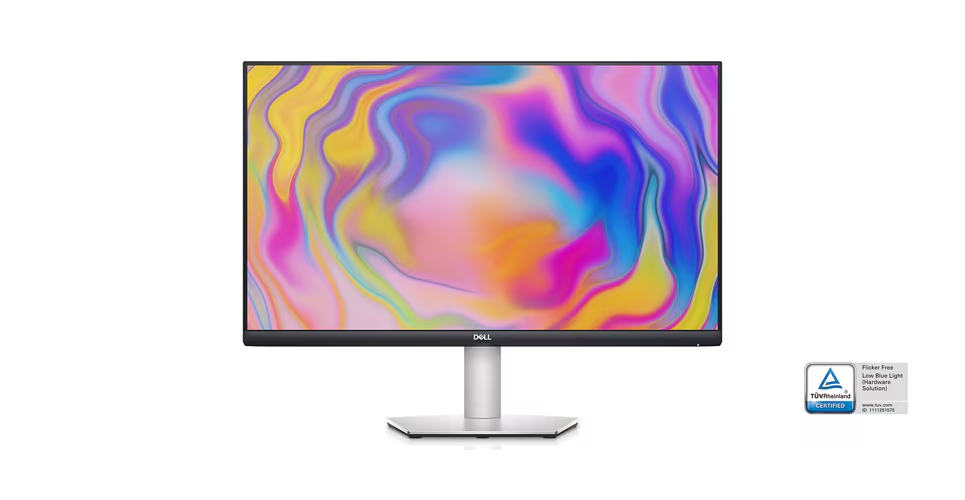
Key specs:
- 27" 4K IPS display
- USB-C with 65W power delivery
- 99% sRGB coverage
- Height, tilt, swivel, pivot adjustable stand
- AMD FreeSync
- Price: typically $230, $280
The 4K resolution on a 27-inch screen gives you a pixel density of about 163 PPI. Text looks razor-sharp, which makes a real difference when you're reading dense PDFs for hours. The built-in speakers are mediocre, but most students use headphones anyway.
One downside: 4K over USB-C can strain some older laptops. If your machine only supports USB-C 3.1 Gen 1, you might be limited to 4K at 30Hz instead of 60Hz. Check your laptop's specs before buying.
Best Budget Pick: ASUS VY249HGE
If you want to spend as little as possible without getting a garbage screen, this is your monitor.
The ASUS VY249HGE is a 24-inch 1080p IPS panel with a 144Hz refresh rate, which is unusual at this price. It includes ASUS's proprietary eye care technology with flicker-free backlighting and a blue light filter. The stand is tilt-only, but it's VESA mount compatible.
Key specs:
- 24" Full HD IPS display
- 144Hz refresh rate
- 99% sRGB coverage
- TÜV Rheinland flicker-free certified
- VESA mount compatible (75×75mm)
- Price: typically $110, $130
At around $120, this is hard to beat. The 144Hz refresh rate is a bonus you won't find in most office monitors at this price. It makes scrolling feel buttery smooth.
The lack of height adjustment is a real drawback, so budget an extra $20, $30 for a basic monitor arm or stand if you can.
Best for Small Desks: Dell P2422H
Dorm desks are notoriously tiny. If you don't have room for a 27-inch screen, the Dell P2422H is built for exactly this situation.
It's a 24-inch 1080p IPS monitor with a compact footprint and a fully adjustable stand. The bezels are thin on three sides, which makes it look more modern than its price suggests. It includes a built-in USB hub with four USB 3.2 ports.
Key specs:
- 24" Full HD IPS display
- Fully adjustable stand (height, tilt, swivel, pivot)
- Built-in USB 3.2 hub (4 ports)
- 250 nits brightness
- Price: typically $150, $180
The USB hub is the hidden gem here. You can plug your keyboard, mouse, and a flash drive directly into the monitor. That's fewer cables running to your laptop.
The 250-nit brightness is adequate for indoor use but might struggle near a sunny window.
Best Portable Option: ASUS ZenScreen MB16ACV
If you move between the library, coffee shops, and your dorm room, a portable monitor makes a lot of sense.
The ASUS ZenScreen MB16ACV is a 15.6-inch 1080p IPS display that weighs just 1.7 pounds. It connects via USB-C and draws power from your laptop. The built-in stand folds out from the back, so there's no separate base taking up space.
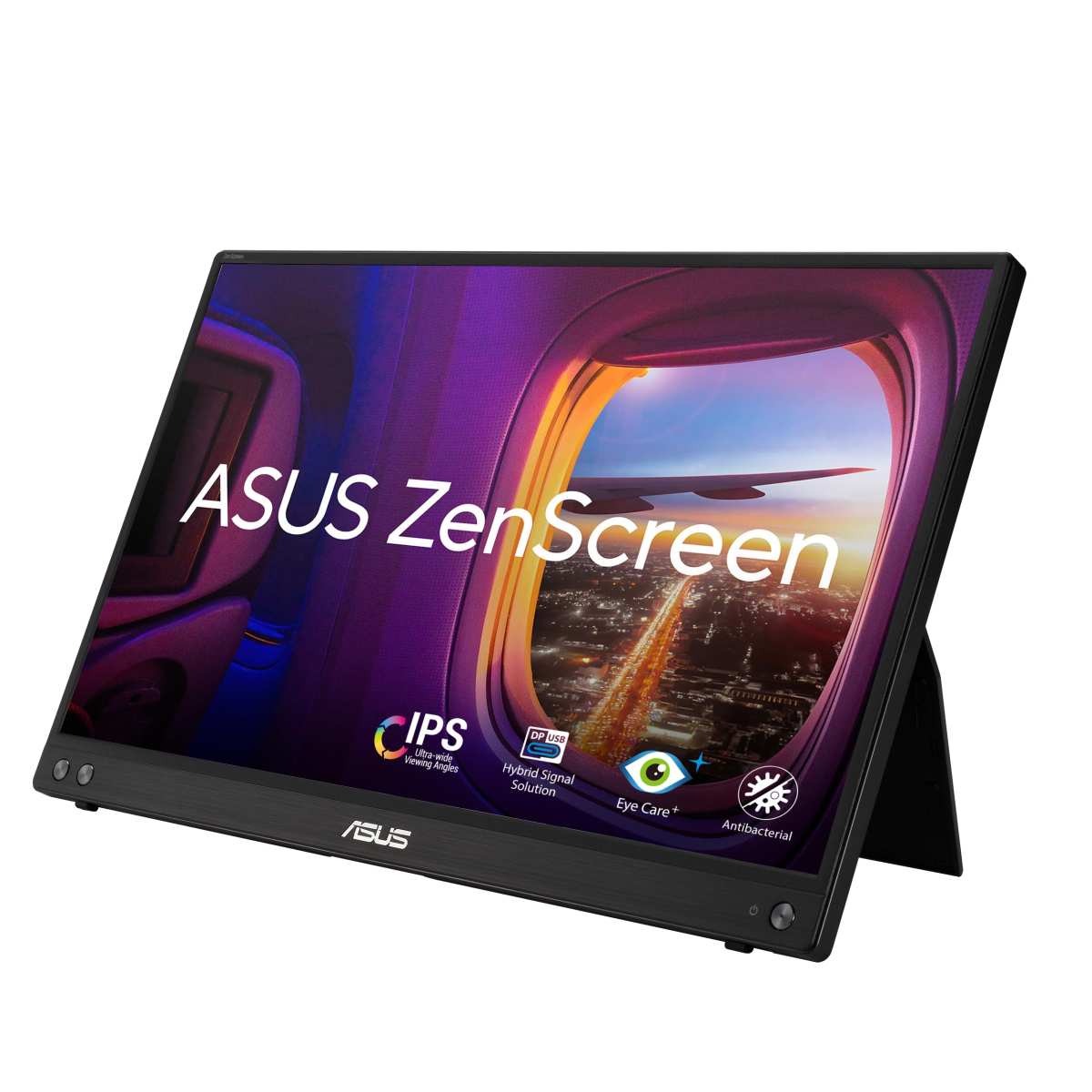
Key specs:
- 15.6" Full HD IPS display
- 1.7 lbs (780g)
- USB-C powered
- Built-in fold-out stand
- Blue light filter
- Price: typically $180, $220
The trade-off with portable monitors is brightness. At around 250 nits, it's fine indoors but hard to use in direct sunlight. The 15.6-inch size matches most laptop screens, which makes a dual-screen setup feel natural.
You can keep your laptop screen for research and the ZenScreen for writing.
Best for Design Students: BenQ GW2780
If you're studying graphic design, photography, or any visual field, color accuracy matters more than the rest of these picks account for.
The BenQ GW2780 is a 27-inch 1080p IPS panel with factory-calibrated color accuracy covering 99% sRGB. It includes BenQ's proprietary Brightness Intelligence technology, which adjusts screen brightness based on ambient light in the room.
Key specs:
- 27" Full HD IPS display
- Factory-calibrated 99% sRGB
- Brightness Intelligence sensor
- Built-in speakers
- Flicker-free, low blue light
- Price: typically $190, $230
The ambient light sensor is genuinely useful in a dorm where lighting changes throughout the day. The monitor automatically brightens in daylight and dims at night. The built-in speakers are better than average, though still not a replacement for dedicated speakers.
Best USB-C Single-Cable Setup: LG 27UK850-W
If your entire goal is to plug in one cable and be done, this LG monitor delivers.
The LG 27UK850-W is a 27-inch 4K IPS display with USB-C at 60W power delivery. It also supports HDR10, which means HDR content looks decent even though this isn't a dedicated HDR monitor. The stand is fully adjustable, and it includes a built-in USB hub.
Key specs:
- 27" 4K IPS display
- USB-C with 60W power delivery
- HDR10 support
- 99% sRGB coverage
- Built-in USB hub
- Price: typically $300, $350
The 60W power delivery is enough for most ultrabooks but might charge slowly on a MacBook Pro 14" or 16" under heavy load. At $300+, this is the priciest pick on the list. You're paying for the clean single-cable experience and the 4K resolution.
Quick Comparison Table: All Picks at a Glance
| Monitor | Size | Resolution | Panel | USB-C | Adjustable Stand | Price Range |
|---|---|---|---|---|---|---|
| Dell S2722QC | 27" | 4K | IPS | Yes (65W) | Yes | $230–$280 |
| ASUS VY249HGE | 24" | 1080p | IPS | No | Tilt only | $110–$130 |
| Dell P2422H | 24" | 1080p | IPS | No (USB hub) | Yes | $150–$180 |
| ASUS ZenScreen MB16ACV | 15.6" | 1080p | IPS | Yes | Fold-out | $180–$220 |
| BenQ GW2780 | 27" | 1080p | IPS | No | Tilt only | $190–$230 |
| LG 27UK850-W | 27" | 4K | IPS | Yes (60W) | Yes | $300–$350 |
How to Choose the Right One for Your Situation
You're on a tight budget (under $150)
Go with the ASUS VY249HGE. It gives you an IPS panel, flicker-free eye care, and a 144Hz refresh rate for around $120. The tilt-only stand is the main compromise.
A $20 monitor arm fixes that.
You want one cable for power and display
The Dell S2722QC with its 65W USB-C delivery is the best value for a single-cable setup. The LG 27UK850-W is the alternative if you want HDR10 support and don't mind paying more.
Desk space is limited
The Dell P2422H at 24 inches is the most compact traditional monitor on this list. If you're really squeezed, the ASUS ZenScreen MB16ACV can be tucked into a backpack and set up anywhere.
You need color-accurate work
The BenQ GW2780 with its factory-calibrated panel and ambient light sensor is the right call for design, photography, and video students. The Dell S2722QC with 99% sRGB is a close second if you also want 4K.
You also game casually
The ASUS VY249HGE's 144Hz refresh rate makes it the best budget option for students who game. The Dell S2722QC supports AMD FreeSync, which helps if your laptop has a dedicated GPU.
Common Mistakes Students Make When Buying a Monitor
Buying 4K when 1080p is fine. A 24-inch 1080p monitor looks perfectly sharp. You're paying extra for pixels you won't notice unless you're doing photo editing.
Ignoring the stand. A fixed-height monitor forces you into bad posture. If your budget monitor has a tilt-only stand, factor in the cost of a monitor arm.
Overlooking port compatibility. Not every USB-C port on a laptop supports DisplayPort Alt Mode. Check your laptop's specs before buying a USB-C monitor.
Buying too big for your desk. A 27-inch monitor needs about 20 inches of desk width. Measure before you buy.
Chasing refresh rate for office work. 60Hz is smooth enough for documents, browsing, and video calls. 144Hz is a gaming feature, not a productivity one.
Ignoring dead pixel policy. Some manufacturers require three or more dead pixels before they'll replace the panel. Check the policy before you buy.
Setting Up Your Monitor So It Doesn't Wreck Your Eyes or Neck
Even the best monitor will cause problems if it's set up wrong. Here's how to get it right.
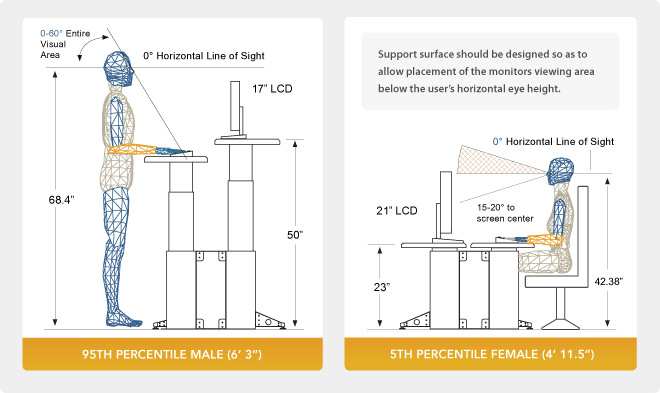
Set the right height. The top of the screen should be at or slightly below eye level. You shouldn't be looking up or hunching down. If your monitor stand doesn't go high enough, a monitor arm or even a stack of textbooks works.
Adjust the distance. Your arm's length is the right distance from the screen. Extend your arm; your fingertips should just brush the display. Closer than that strains your eyes.
Match brightness to the room. If your monitor is the brightest thing in the room, it's too bright. Adjust it so it feels comfortable relative to the ambient light. Most office monitors run well at 40, 60% brightness in a normally lit room.
Enable the blue light filter in the evening. Most monitors have this built into their on-screen display menu. Turn it on after sunset. It shifts the color temperature warmer, which reduces eye strain and may help you sleep better.
Use night mode on your laptop too. macOS Night Shift and Windows Night Light do the same thing on the software side. Using both the monitor's hardware filter and the OS software filter together works best.
Take breaks. The 20-20-20 rule is simple: every 20 minutes, look at something 20 feet away for 20 seconds. It sounds trivial, but it genuinely reduces eye fatigue during long study sessions.
Frequently Asked Questions
Is 24 inches or 27 inches better for students?
24 inches is better for small desks and budgets. 27 inches gives you more screen real estate for multitasking. At 27 inches, 1440p or 4K resolution is recommended to keep text sharp.
Do I need 4K for studying?
No. 1080p at 24 inches is sharp enough for documents, web browsing, and video lectures. 4K is a luxury, not a necessity, for most students.
Is a portable monitor worth it for college?
If you study in multiple locations, a portable monitor pays for itself in productivity. The ASUS ZenScreen MB16ACV is the best option at around $200.
How much should I spend on a student monitor?
$120 to $250 gets you an excellent office monitor. Below $120, you start sacrificing panel quality and ergonomics. Above $250, you're paying for features most students won't use.
Is USB-C important for a student monitor?
Yes, if your laptop supports it. A single USB-cable connection for both display and charging keeps your desk clean and makes setup effortless.
Can I use a gaming monitor for studying?
You can, but gaming monitors often prioritize refresh rate over color accuracy and eye comfort features. An IPS office monitor is a better fit for productivity work.
Final Verdict: Which One Should You Actually Buy?
For most students, the Dell S2722QC is the answer. It gives you a 27-inch 4K IPS panel, a fully adjustable stand, and USB-C with 65W power delivery for around $250. It handles essays, research, video calls, and light creative work without breaking a sweat.
If money is tight, the ASUS VY249HGE at $120 is the smartest budget move. You get an IPS panel and eye care features that rival monitors twice the price. Just budget for a monitor arm to fix the limited stand.
If you're constantly on the move, the ASUS ZenScreen MB16ACV turns any table into a dual-screen workstation. It's the most flexible option for students who don't stay in one place.
The key takeaway: don't overthink it. A solid IPS panel with flicker-free eye care and a decent stand will serve you well through your entire degree. Spend your money on those fundamentals, and you won't regret it.

Similar Posts





















