Can Office Monitors Improve Posture
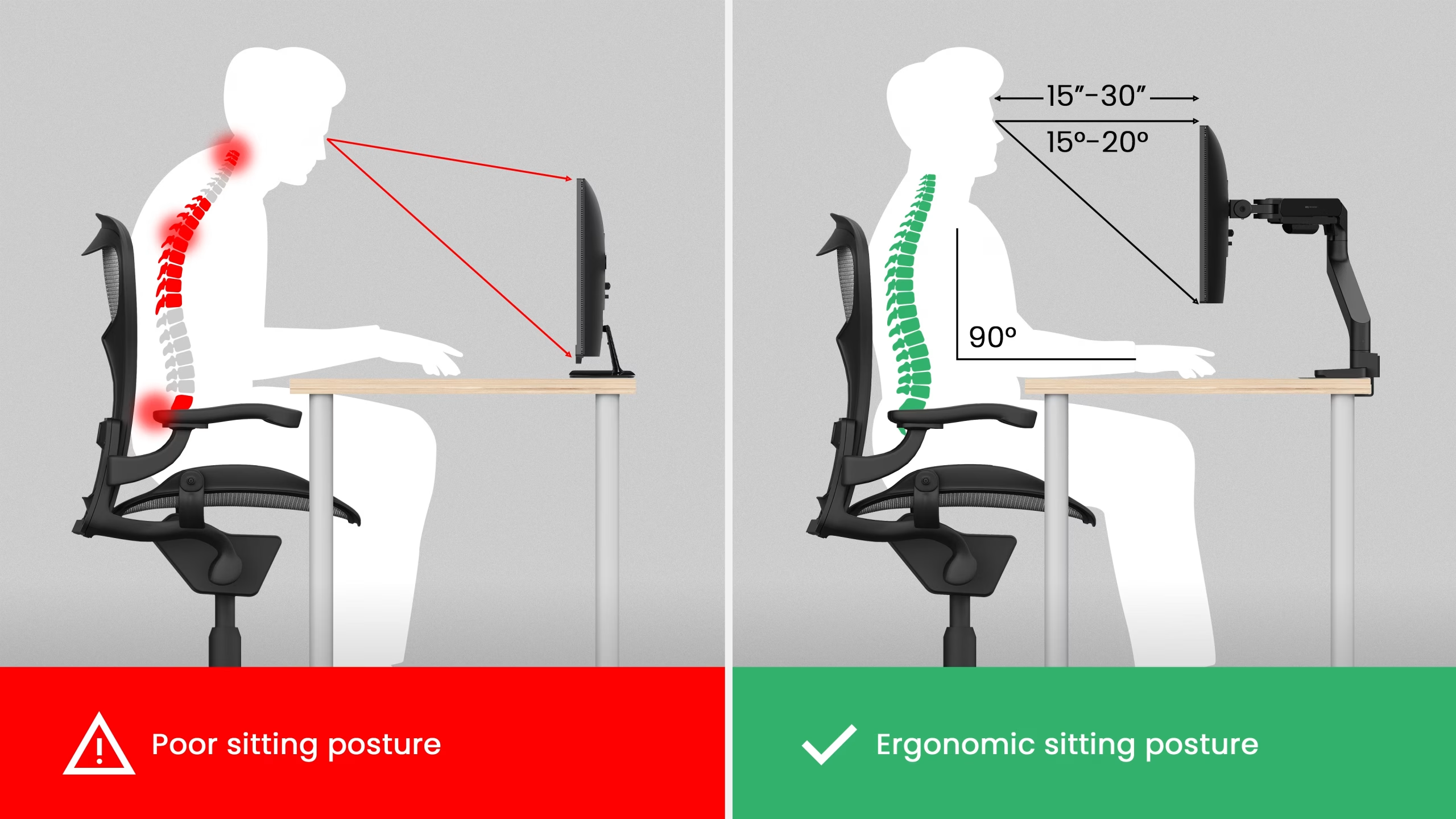
Can office monitors improve posture? Yes, but only if you position them correctly and understand they're one piece of a bigger picture. A well-adjusted monitor can reduce neck strain, ease upper back tension, and help you maintain better spinal alignment through long workdays.
The catch is that most people never set up their screen properly in the first place.
Research on workplace ergonomics consistently shows that monitor position directly affects cervical spine load and forward head posture. Per guidelines from the Occupational Safety and Health Administration (OSHA) and the ANSI/HFES 100 standard, your screen height, viewing distance, and tilt all matter. Get these right and you'll likely feel the difference within days.
Get them wrong and you could be adding pressure to your neck without realizing it.
Quick Answer
Office monitors can improve posture when positioned correctly. The top of your screen should sit at or slightly below eye level. Your viewing distance should be 20 to 28 inches.
Proper setup reduces strain on your cervical spine. But monitor position alone won't fix posture if you sit still all day.
Why monitor position matters more than monitor quality
The biomechanics of what happens to your neck
Your head weighs about 10 to 12 pounds when it's balanced directly over your spine. That's the neutral position your body is built for. The moment you tilt your head forward to look at a screen that's too low or too close, that effective load on your cervical spine increases dramatically.
A widely cited analysis published in Surgical Technology International by Dr. Hansraj broke this down with striking numbers. At a 15-degree forward tilt, your neck effectively supports about 27 pounds.
At 30 degrees, roughly 40 pounds. Push to 45 degrees and you're looking at close to 49 pounds of force on structures that were never designed to handle that load for hours at a time.

That extra load doesn't just stay in your neck. Over weeks and months of daily screen use, it cascades into upper back tension, shoulder tightness, compressed discs, and chronic headaches. The medical literature on this is well established.
Forward head posture is linked to increased thoracic kyphosis, reduced lung capacity, and persistent cervicogenic pain.
Why an expensive monitor on a bad stand still hurts you
This is something that surprises people. A high-end 4K IPS monitor with perfect color accuracy does absolutely nothing for your posture if it's sitting on a fixed stand that puts the screen two inches below your eye level. The panel quality, resolution, and refresh rate have zero bearing on how your skeletal system aligns during use.
What determines your postural position while working is the spatial relationship between the screen and your eyes. Height, distance, and angle. That's it.
A $150 monitor on an adjustable arm positioned correctly will do far more for your neck than a $700 monitor sitting too low on a fixed stand.
What the research and standards say
OSHA's computer workstation guidelines and the ANSI/HFES 100 standard both reference the same core principles. The top of the viewing surface should be at or below eye level so your natural gaze angle is slightly downward, typically 15 to 20 degrees below horizontal. This keeps your cervical spine closer to neutral without requiring you to tilt your head back or crane your neck forward.
The American Optometric Association also notes that a slight downward gaze reduces the exposed surface area of the eye, which helps minimize dryness during prolonged screen use. So proper positioning is doing double duty for both your spine and your eyes.
What correct monitor positioning actually looks like
Height: the eye-level rule and when it flexes
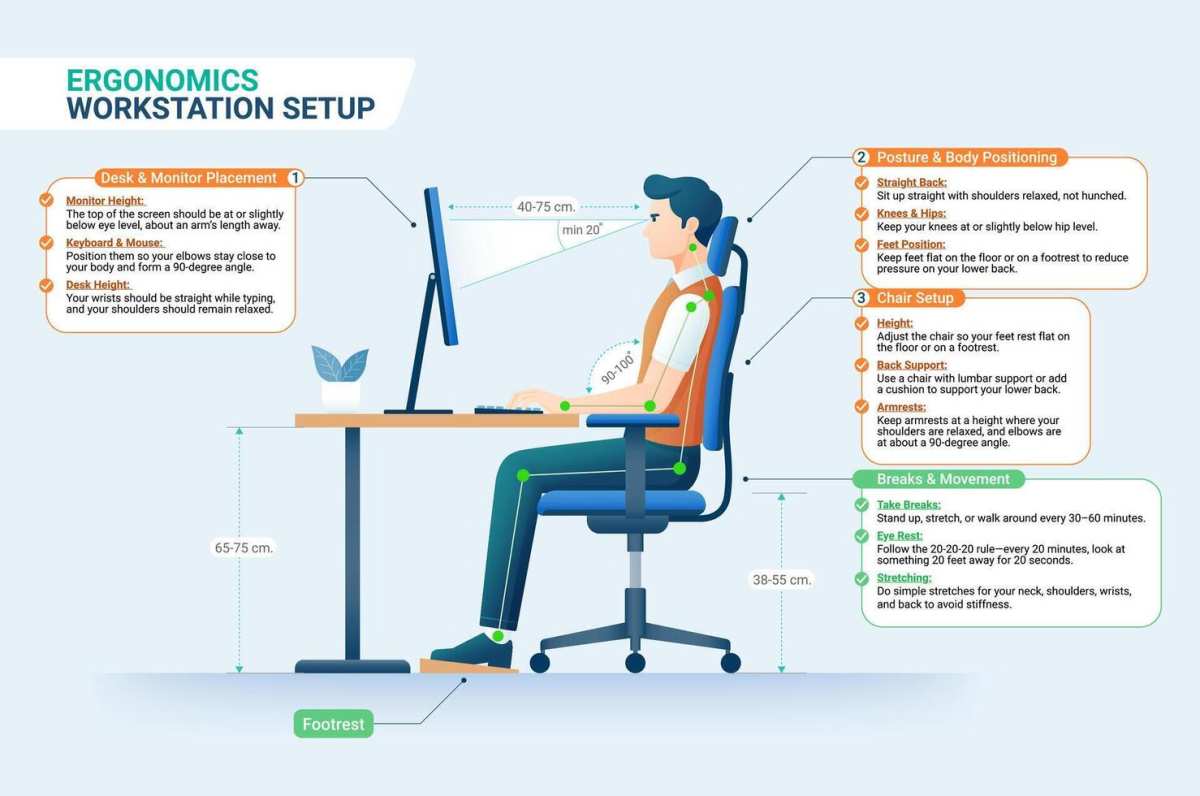
The general guideline is straightforward. Position your monitor so the top edge of the visible screen is at or roughly 2 to 3 inches below your eye level. This lets you view the majority of the screen with a slight downward gaze, which keeps your neck closer to neutral.
But here's where body proportions matter. If you're 5'2" and using a fixed desk designed for someone around 5'10", a standard monitor stand might still leave the screen too low relative to your seated eye height. Taller users often face the opposite problem, with screens pushing their gaze upward.
This is why adjustable monitor arms have become a standard recommendation in workplace ergonomics. They let you dial in the exact height your body needs, not the height the manufacturer assumed.
Distance: how far away your monitor should actually be
The recommended viewing distance for most computer monitors falls between 20 and 28 inches, roughly an arm's length away. This range works well for standard screen sizes from 24 to 27 inches at 1080p or 1440p resolution.
For larger screens, 32 inches and above, or for ultrawide displays, you may need to push the monitor back slightly. The goal is to be able to read text comfortably without leaning forward while still seeing the full width of the screen without excessive head turning. If you find yourself squinting or pushing your chair back to read, the screen is probably too close or the resolution is too low for that distance.
Tilt angle: the detail most people skip
Tilt matters more than people realize. A slight backward tilt of 10 to 20 degrees, meaning the top of the screen angles slightly away from you, reduces glare and aligns the screen surface more perpendicular to your gaze line. This cuts down on the subtle neck adjustments you'd otherwise make all day.
If your monitor is completely vertical with no tilt, you might unconsciously jut your chin forward to find a more comfortable viewing angle. Over hours, that micro-posture becomes a habit your muscles reinforce.
A quick self-check
Sit in your normal working position. Close your eyes. Let your head settle into whatever feels neutral.
Open your eyes. Where are you naturally looking? If it's at the bottom third of your screen, your monitor is probably too low.
If you're staring at the top edge or above the screen, it's too high. Your natural gaze should land roughly in the upper third of the display, which means the bulk of the screen falls into your comfortable downward viewing range.
The setups that cause more problems than they solve
Laptops alone are designed to force bad posture
Here's the uncomfortable truth about laptops. The screen and keyboard are physically attached, which means you cannot position both correctly at the same time. If the screen is at the right height for your eyes, the keyboard is too high for comfortable typing.
If the keyboard is at the right height for your hands, you're looking down at the screen and craning your forward.
This isn't a design flaw you can overcome with willpower. It's a geometric problem. Using a laptop as your primary display for extended periods almost guarantees some degree of forward head posture.
The solution is either an external monitor paired with a separate keyboard and mouse, or a laptop stand that raises the screen to eye level with an external keyboard.
The dual-monitor trap
Dual monitors sound great until you realize that people often place them flat side by side with the bezels touching. If you spend significant time looking at both screens equally, you're either sitting off-center to one monitor or turning your neck repeatedly throughout the day.
Neither option works well. A better arrangement is to angle the two monitors slightly inward in a V-shape, so both face you more directly. The center seam should align with the center of your desk and your nose.
If one monitor is your primary and the other secondary, put the primary directly in front of you and angle the secondary at about 30 degrees to the side.
Ultrawide monitors: the edge problem
Ultrawide displays, 34 inches and up, are fantastic for productivity. But the far edges of the screen require neck rotation that adds up over a workday. If you frequently reference content on the left or right extremes of an ultrawide, you're making hundreds of small neck movements that can lead to asymmetrical tension.
The fix is to use software window management to keep your most-used content in the central portion of the screen. Reserve the far edges for reference material you glance at occasionally rather than stare at for minutes at a time.
The stack-of-books problem
We've all seen it. A ream of paper or a couple of hardcover books shoved under a monitor to raise it up. It works in a pinch, but it's infinitely adjustable in the wrong direction.
You can only go up in fixed increments, and if you change chairs or desks, the whole makeshift solution falls apart. More importantly, people settle for "close enough" with a fixed stack when what they need is precise adjustability.
A proper monitor arm or even a purpose-built riser gives you continuous height adjustment. That flexibility matters because your ideal screen height depends on your chair height, your desk height, your torso length, and even whether you wear single-vision or progressive lenses.
What to actually do: a step-by-step setup guide
Step 1: Set your chair and desk height first
Before you touch your monitor, get your body in the right position. Adjust your chair so your feet are flat on the floor, your knees are roughly at 90 degrees, and your lower back is supported. Your elbows should be close to 90 degrees when typing on a keyboard at desk height.
This matters because your monitor position is relative to where your eyes are when you're sitting properly in your chair. If you fix your monitor first and then change your chair height, you've undone your work. Manufacturer specifications from most ergonomic furniture makers confirm that the correct sequence is always chair first, then desk, then screen.
Step 2: Position your primary screen
Once you're sitting in your correct working posture, place your primary monitor so the top of the screen is at or 2 to 3 inches below your seated eye level. Set it at arm's length, roughly 20 to 28 inches from your eyes. Angle it back 10 to 20 degrees to align with your natural gaze line.
If you're using a single monitor, center it directly in front of you. Your nose should point at the center of the screen. This seems obvious, but plenty of people work with their monitor offset to one side for hours because they've placed it around other desk items.
Step 3: Set tilt and rotation for comfort
Fine-tune the tilt so you're not fighting glare overhead or from windows behind you. If you wear bifocals or progressive lenses, you might need a slightly steeper tilt or a lower screen position because you're looking through the lower portion of your lens, which naturally angles your gaze higher. In that case, lowering the monitor slightly prevents you from tilting your chin up to compensate.
If your monitor supports rotation into portrait mode, that can help for tasks like reading documents or coding, where vertical space matters more than horizontal. Just make sure you re-adjust height when you rotate.
Step 4: Add a secondary screen the right way
If you use a second monitor equally throughout the day, position both at the same height and distance, angled inward in a V-shape. If one is primary and the other is secondary, put the primary centered in front of you and angle the secondary about 30 degrees to whichever side feels more natural.
Avoid placing a secondary monitor directly to the side at a 90-degree angle unless you very rarely look at it. That arrangement forces repeated full-range neck rotation that adds up fast over a workday.
Step 5: Adjust for sit-stand transitions
If you use a height-adjustable desk, your monitor needs to move with you. When you stand, your eye level rises, so the monitor should go up too. A monitor arm makes this adjustment easy.
With a fixed stand, you'll need to reposition or accept a suboptimal viewing angle each time you switch positions.
Some people mount their monitor arm to the desk and adjust the arm height when they switch between sitting and standing. Others use a taller arm with enough vertical range to accommodate both positions without much fuss. Either way, your screen position should change when your body position changes.
Step 6: Test and fine-tune over several days
Initial adjustments rarely feel perfect right away. Your body has spent months or years adapting to a bad position, so a sudden correction can feel "wrong" even when it's correct. Give any new setup 2 to 3 days of consistent use before making additional changes.
Pay attention to where you feel tension at the end of each day. Neck pain usually means the screen is too low or too close. Upper back tightness can indicate you're leaning forward or hunching.
Headaches that start behind the eyes might point to a screen that's too close or lighting issues. Use those signals to make small incremental adjustments rather than big swings.
Monitor arms vs. stands vs. risers: which one actually helps
Fixed monitor stands: when they work and when they don't
Most monitors ship with a fixed stand that offers maybe 2 to 3 inches of height adjustment, if that. For someone whose seated eye level happens to align with that narrow range, a fixed stand can work fine. The problem is that "fine" depends entirely on your body proportions and chair setup.
If you're using a non-adjustable chair or a desk that's too tall or too short for you, a fixed stand gives you no way to compensate. You end up adjusting your body to fit the screen instead of the other way around. Over months, that's how people develop chronic forward head posture without ever realizing the setup is the cause.
Monitor arms: what you're actually paying for
A monitor arm gives you continuous height adjustment, usually anywhere from 6 to 12 inches of vertical travel depending on the model. You also get tilt, swivel, and rotation. That flexibility means you can set the screen exactly where your eyes are, not where the manufacturer guessed they'd be.
Most quality arms use a VESA mount, either 75x70mm or 100x100mm patterns, which covers the vast majority of modern monitors. Gas-spring arms hold position without knobs or clamps loosening over time. Manufacturer specs for reputable arms typically list weight capacities from about 4 to 20 pounds per arm, which handles everything from a 24-inch office display to a heavy 35-inch ultrawide.
Aggregate user reviews across major retail platforms consistently highlight one theme: people who switch from a fixed stand to an arm report noticeable reduction in neck and shoulder tension within the first week. The adjustment precision is the real benefit, not the arm itself.
Desk risers and shelf solutions: budget-friendly with trade-offs
A monitor riser shelf sits on your desk and elevates the screen by a fixed amount, usually 3 to 6 inches. They're cheap, often under $30, and they work if your only problem is that the screen is too low and you don't need fine-tuning.
The downside is obvious. You get one height, take it or leave it. If you share a desk with someone of a different height, or if you use a sit-stand desk, a fixed riser doesn't adapt.
It's a step up from a stack of books, but it's still a compromise.
Which setup fits which situation
| Situation | Best option | Why |
|---|---|---|
| Single user, fixed desk, budget under $30 | Monitor riser shelf | Gets the screen up without breaking the bank |
| Single user, needs precise adjustment | Gas-spring monitor arm | Full range of motion for exact eye-level alignment |
| Shared desk or hot-desking | Monitor arm with quick-adjust | Different users can reposition in seconds |
| Sit-stand desk user | Monitor arm with tall vertical range | Screen moves up and down with desk transitions |
| Laptop + external monitor combo | Arm for monitor, stand for laptop | Each device gets positioned independently |

The mistakes people make even after they "fix" their monitor
Setting the screen correctly but never moving their body
This is the biggest one. You can have perfect monitor height, ideal distance, and flawless tilt, and you'll still end up with back and neck problems if you sit motionless for six hours. Your body isn't designed to hold any single position all day, even a "correct" one.
Research on sedentary behavior consistently shows that regular movement breaks matter more than static posture. Standing up every 30 to 45 minutes, walking for two minutes, even just shifting your weight and rolling your shoulders, does more for your spine than any monitor position ever could. The screen sets the stage.
Movement does the real work.
Copying someone else's setup without adjusting for your proportions
Your coworker might swear by their monitor arm set at maximum height. That doesn't work for you if you're eight inches shorter. Eye level, arm length, torso height, and even the type of glasses you wear all affect where your screen should be.
Use the guidelines as a starting point, then adjust based on where your natural gaze falls when you're sitting properly.
Ignoring mouse and keyboard position
Your posture doesn't stop at your neck. If your keyboard is too high, your shoulders hike up. If your mouse is too far to the side, you reach and rotate your shoulder inward.
These positions compound whatever your monitor is doing. Keep your keyboard and mouse close, at a height where your elbows stay near 90 degrees and your wrists stay neutral.
Forgetting that eye prescription changes affect screen distance
If you wear glasses and your prescription changes, your comfortable viewing distance changes too. People with progressive lenses sometimes tilt their chin up to see the screen through the lower portion of the lens, which puts their neck in extension. If you've updated your prescription and suddenly feel neck tension, your monitor position might need to shift to match your new lenses.
When monitor adjustments aren't enough
Signs you need more than an ergonomic tweak
If you've set up your monitor correctly and you're still waking up with neck pain, getting headaches by midday, or feeling tension between your shoulder blades every evening, the problem likely goes beyond screen position. Chronic postural issues often involve weakened deep neck flexors, tight chest muscles, and poor thoracic mobility. These need targeted exercises and sometimes professional treatment.
Numbness or tingling in your hands, persistent pain that doesn't improve with position changes, or headaches that radiate from the base of your skull all warrant a visit to a healthcare provider. These symptoms can indicate disc issues or nerve compression that no amount of ergonomic furniture will resolve.
When to see a professional
A physical therapist can assess your specific postural patterns and give you exercises tailored to your weaknesses. An ergonomics specialist can evaluate your entire workstation, not just the screen. If your employer offers ergonomic assessments through HR or a workplace wellness program, take advantage of it.
In the US, OSHA guidelines encourage employers to provide workstation evaluations when employees report discomfort.
What a professional evaluation covers
A proper assessment looks at your chair, desk, monitor, keyboard, mouse, lighting, and how you actually move throughout the day. It's not just about measurements. It's about watching how you work and identifying the habits that undermine good posture even when the equipment is set up right.
Frequently Asked Questions
Can a monitor alone fix bad posture?
No. A correctly positioned monitor reduces strain on your neck and spine, but it can't override the effects of sitting still all day, weak postural muscles, or poor movement habits. Think of proper monitor setup as removing one source of damage, not as a complete solution.
How high should my monitor be?
The top of your screen should sit at or 2 to 3 inches below your seated eye level. This lets you view the screen with a slight downward gaze of about 15 to 20 degrees, which keeps your cervical spine close to neutral.
Is a monitor arm worth it?
For most people, yes. A gas-spring monitor arm gives you precise, continuous height adjustment that fixed stands can't match. If you use a sit-stand desk or share your workspace with others, the flexibility pays for itself quickly.
How far should I sit from your monitor?
About 20 to 28 inches for most 24 to 27-inch screens. Larger displays or ultrawide monitors may need to be slightly farther back. The test is being able to read text comfortably without leaning forward.
Does screen resolution affect posture?
Indirectly. If the resolution is too low for your screen size, you might lean forward to read small text. Higher resolution displays at the same physical size let you sit back at a comfortable distance without squinting.
What about blue light filters and posture?
Blue light filters don't affect posture directly. They're for eye comfort and sleep quality. But if eye strain is causing you to lean closer to the screen, reducing that strain with a filter or proper lighting can help you maintain a better viewing distance.

Similar Posts





















