is 27 inch ultrawide better than 24 inch dual
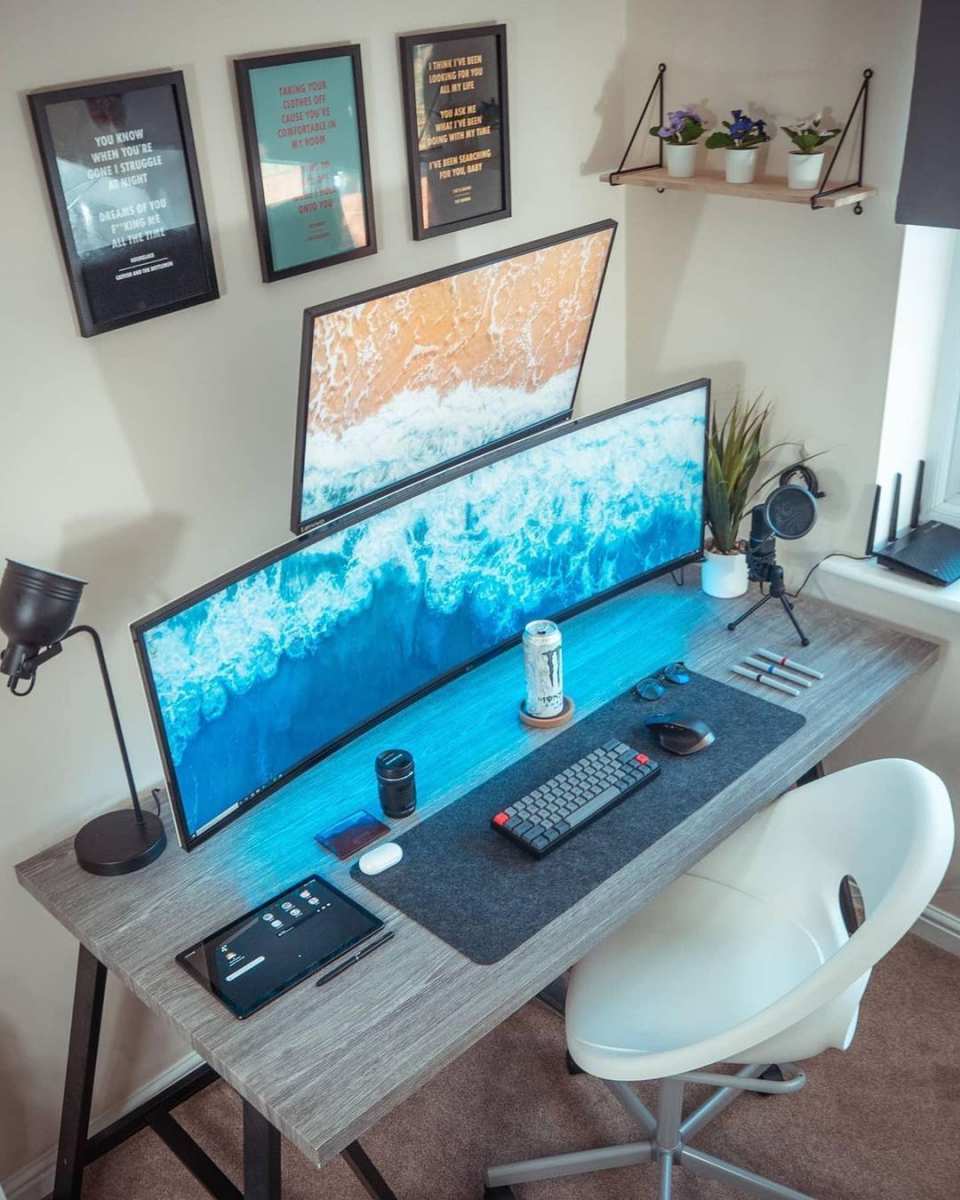
The question of whether a 27-inch ultrawide monitor is better than a dual 24-inch setup isn't one-size-fits-all. It depends entirely on what you do with your screen, how much desk space you have, and whether you value seamlessness over flexibility.
Let's break down the real trade-offs so you can decide which setup actually fits your work or gaming style, not just what looks cooler on a desk.
Quick Answer
A 27-inch ultrawide beats dual 24-inch monitors for immersive gaming and clean cable management. Dual 24-inch monitors win for productivity, vertical space, and price. Neither is universally better.
Your ideal choice depends on your primary activity.
Why This Comparison Matters: One Screen vs. Two
Most people shopping for a monitor upgrade eventually face this fork in the road. You see the sleek curved ultrawide on YouTube setup tours. Then you look at your coworker's dual monitors with a dedicated spreadsheet on one side and Slack on the other.
Both setups get the job done. But they do it very differently.
The core difference comes down to how you use screen real estate. A 27-inch ultrawide runs at 2560×1080 resolution in a single 21:9 aspect ratio. Two 24-inch 1080p monitors combine to 3840×1080, but with a thick bezel gap right in the middle.
That gap changes how you arrange windows, how you game, and even how your eyes move across the screen.
Our research shows that most productivity users end up happier with dual monitors, while gamers and single-app power users prefer the ultrawide. But the devil is in the details. Physical desk dimensions, GPU capability, and even your monitor arm setup can tip the scales.
Many people also overlook the vertical height difference. A 27-inch ultrawide is actually narrower vertically than a 24-inch 16:9 monitor. That matters more than you'd think when you're reading long documents or scrolling through code.
On the flip side, two 24-inch monitors side by side take up around 44 inches of desk width. That's a lot of real estate.
The 27-Inch Ultrawide Breakdown
What You're Actually Getting
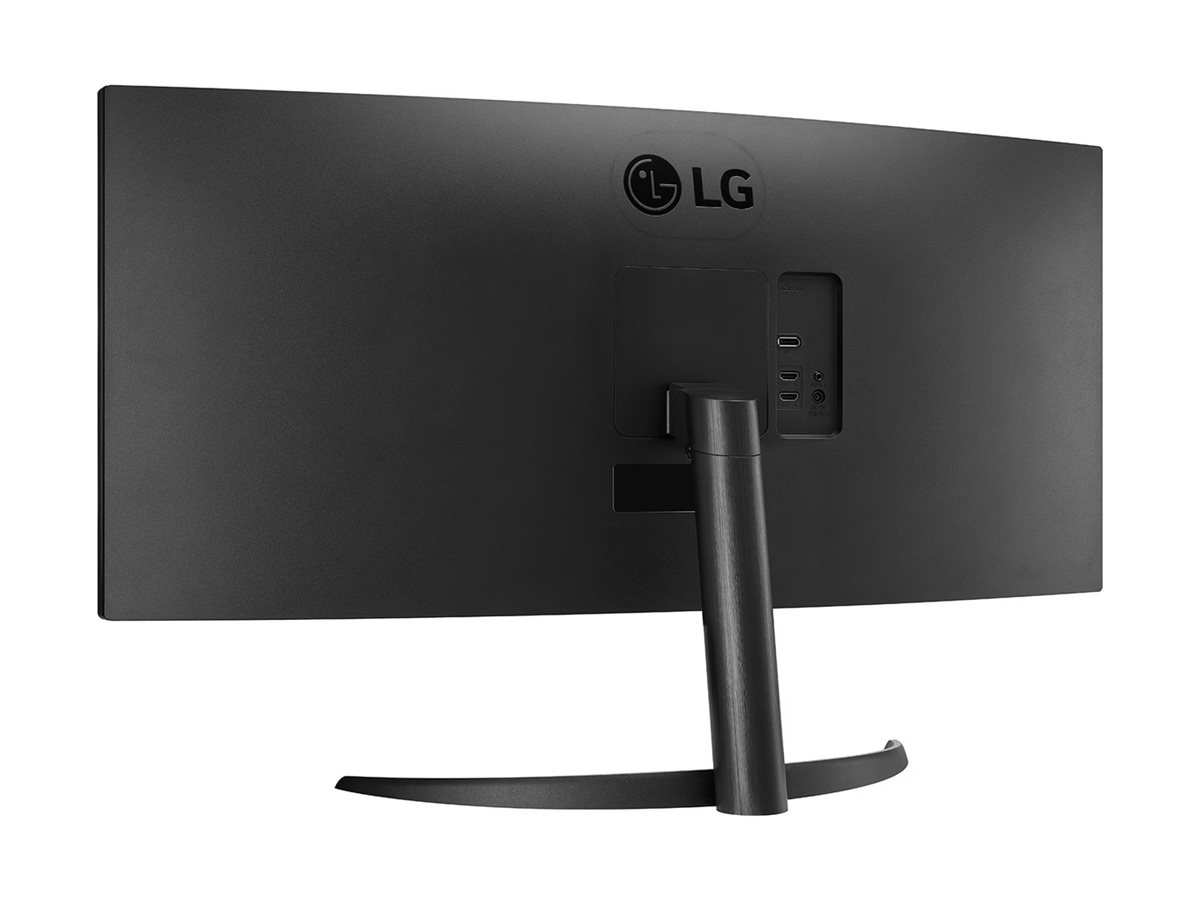
A 27-inch ultrawide monitor typically measures about 25 to 26 inches wide and 11 to 12 inches tall. The aspect ratio is 21:9. Most models at this size are 2560×1080 resolution.
Some cheaper options use VA panels, while midrange and premium ones use IPS for better color and viewing angles.
Curvature is common. You'll see 1500R or 1800R curves, which wrap slightly around your field of view. For a 27-inch screen, that curvature matters less than on a 34-inch ultrawide, but it still reduces glare and makes the edges easier to see without turning your head.
The Pros
No bezel gap. When you're gaming or watching a movie, there's no black line cutting through the middle. That single continuous image is the main reason gamers choose ultrawide.
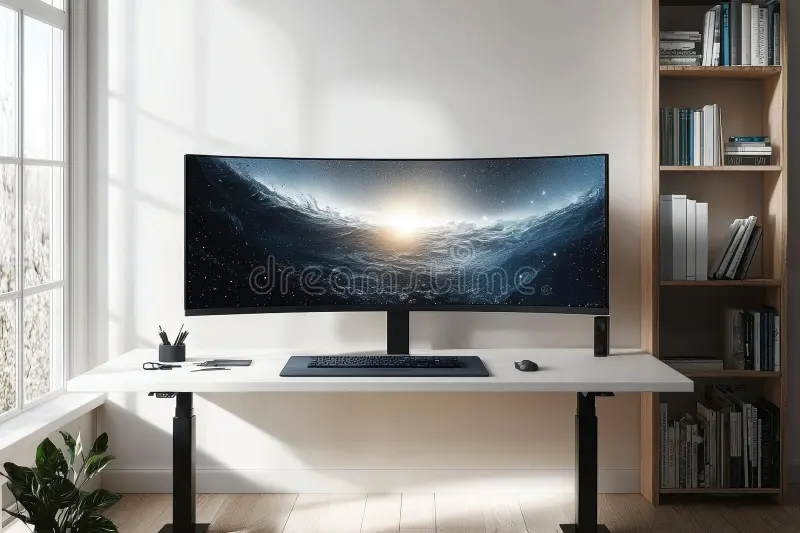
Cleaner desk. One monitor means one stand, one power cable, one video cable. Cable management is dramatically simpler. You can also use a single monitor arm, which frees up desk space underneath.
Window snapping works better than you'd expect. This sounds backwards, but modern operating systems handle ultrawide layouts well. Windows 11's snap layouts, macOS Stage Manager, and third-party tools like FancyZones let you split the screen into virtual zones. You can snap a browser to the left third, a document to the middle, and Slack to the right third.
It feels natural after a day or two.
Better for neck strain in some cases. Because your main focal area is centered, you don't have to turn your head as far left or right as you would with two monitors. Your eyes do the work instead of your neck.
The Cons
Less vertical space than you think. The 27-inch ultrawide has roughly the same vertical height as a 21.5-inch 16:9 monitor. If you're used to a 24-inch monitor, you'll lose about an inch of height. That's noticeable when you're reading long web pages, code, or PDFs.
You'll scroll more.
Lower pixel density. At 2560×1080 across 27 inches, the PPI comes to about 103. That's fine for most work, but text isn't as sharp as a 24-inch 1440p monitor. If you're used to Retina displays, you might notice the jagged edges on fonts.
Not all games support 21:9. Many modern games do, but older titles and some competitive shooters force 16:9 with black bars on the sides. You end up with a 1080p image in the middle of your screen. That defeats the purpose.
Harder to multitask with full-screen apps. You can't easily put two applications in full-screen mode side by side. On dual monitors, each app gets its own dedicated screen. On an ultrawide, you're managing windows within one canvas.
Some people prefer that. Others find it cluttered.
The Dual 24-Inch Setup Breakdown
What You're Actually Getting
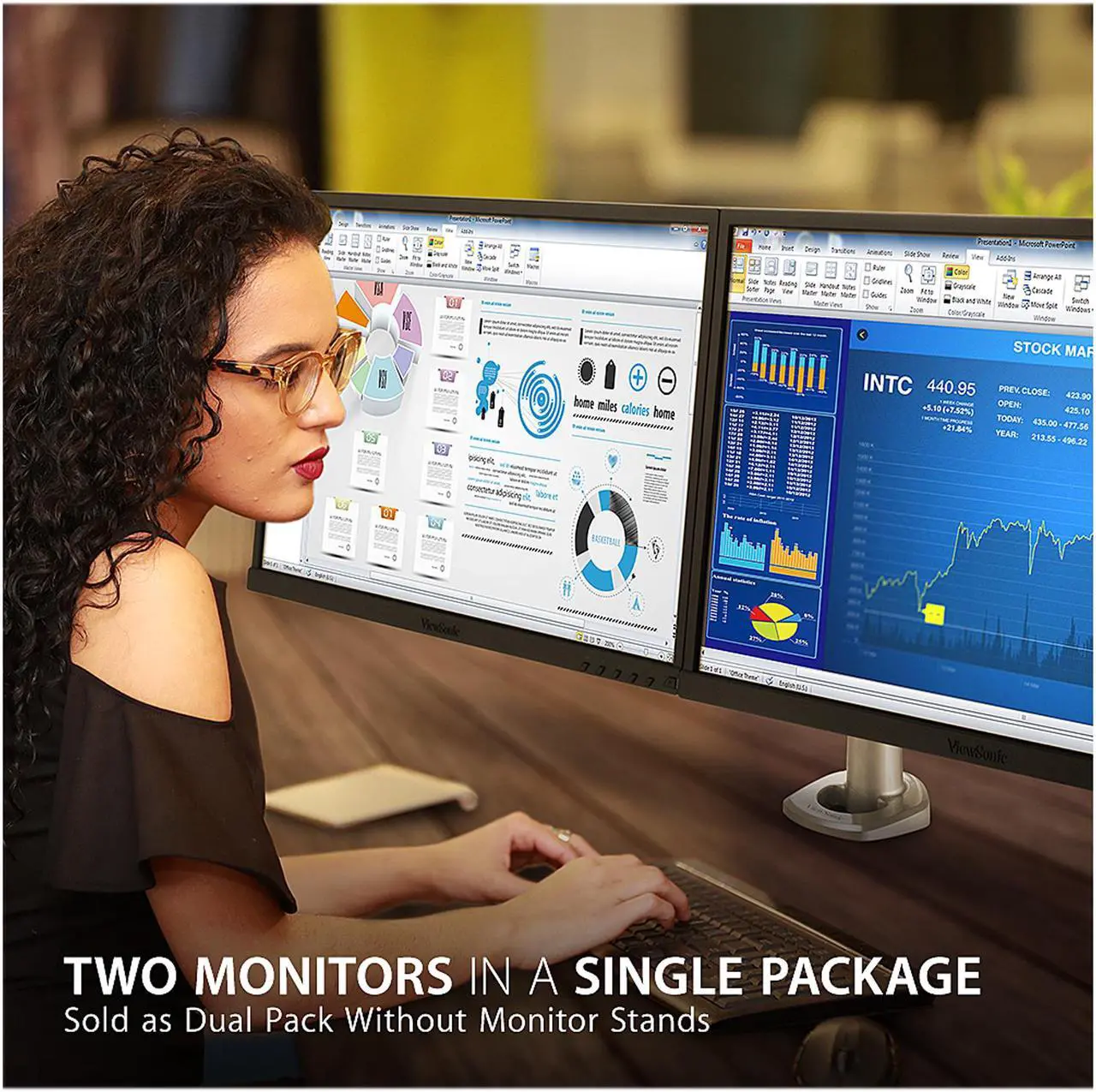
Two 24-inch monitors, each 1920×1080 resolution, 16:9 aspect ratio. Combined, you get 3840×1080 pixels across about 44 inches of width. Each monitor is roughly 21 inches wide and 12 inches tall.
Stands vary, but most come with adjustable tilt. Height-adjustable stands are common on midrange models.
You can run them in landscape or rotate one to portrait mode. That flexibility is a major advantage for certain workflows.
The Pros
More vertical screen space. Each 24-inch monitor gives you about 11.5 inches of usable height. That's more than the 27-inch ultrawide. For reading, coding, or writing, you see more lines of text without scrolling.
Cheaper by a noticeable margin. As of 2026, a decent 24-inch 1080p monitor costs $100 to $150. Two of them run $200 to $300. A comparable 27-inch ultrawide with the same resolution runs $250 to $400.
You save $50 to $100, sometimes more if you buy on sale.
Flexibility to mix orientations. You can run one monitor in portrait mode for reading articles, coding, or social media dashboards. The other stays in landscape for video or spreadsheets. The ultrawide can't do that without rotating the entire screen, which looks ridiculous.
Easier to dedicate tasks. You can park a full-screen video on one monitor and work on the other. No window management needed. That separation is why many programmers and writers stick with dual monitors.
Easy to replace one screen. If one monitor breaks or goes bad, you replace just that one. With an ultrawide, the whole screen is one unit. A dead pixel in the center means a full replacement.
The Cons
The bezel gap is real. Even with thin bezels, you have a black line running down the center. For gaming, that line ruins immersion. For productivity, it splits your visual field.
You end up focusing on one screen at a time rather than using both as one large canvas.
Wider desk footprint. Two 24-inch monitors side by side need at least 44 inches of desk width. That's tight on a standard 48-inch desk. You'll have little room for speakers, notepads, or a lamp.
An ultrawide fits in under 26 inches.
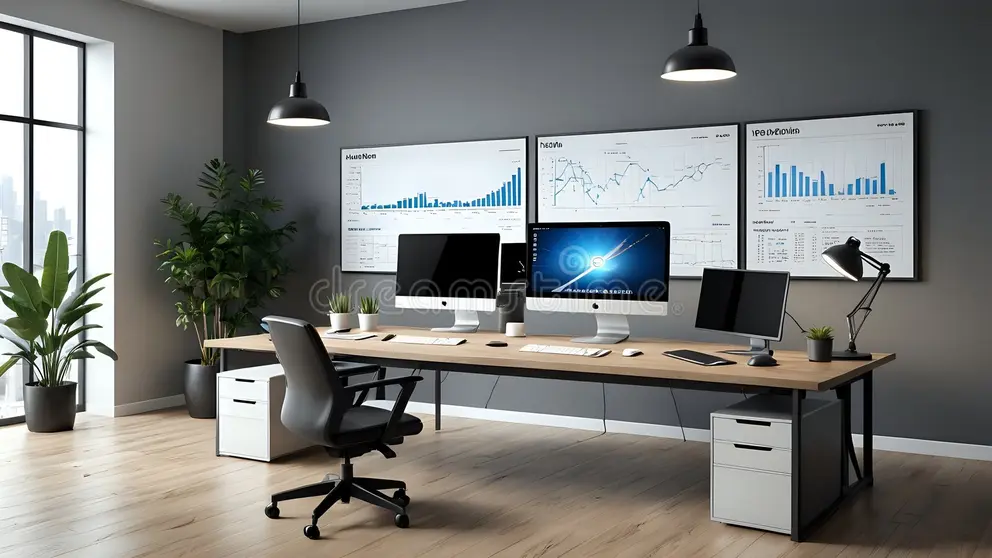
Cable management is twice the work. Two power cables, two video cables, and often two USB cables if the monitors have hubs. You need a dual monitor arm or two separate stands. Cable ties and routing take effort.
More head movement. To see the far edges of both screens, you turn your head. Over an eight-hour workday, that extra motion can cause neck fatigue. An ultrawide minimizes that because the edges are closer to your center.
Side-by-Side Comparison: Specs, Price, and Real-World Feel
Let's put the numbers side by side so you can see the differences at a glance.
| Feature | 27-Inch Ultrawide | Dual 24-Inch (Each) | Dual 24-Inch (Combined) |
|---|---|---|---|
| Resolution | 2560×1080 | 1920×1080 | 3840×1080 |
| Aspect ratio | 21:9 | 16:9 | 32:9 (effective) |
| Pixel density (PPI) | ~103 | ~92 | ~92 |
| Physical width | ~25–26 inches | ~21 inches each | ~42–44 inches total |
| Physical height | ~11–12 inches | ~11.5 inches | ~11.5 inches |
| Refresh rate range | 60–165 Hz (varies) | 60–144 Hz (varies) | Depends on both monitors |
| Common price (2026) | $250–$400 | $100–$150 each | $200–$300 total |
| Bezels | One thin bezel | Two bezels, center gap | Center bezel gap |
| Cable count (video) | 1 | 2 | 2 |
| Monitor arm needed | Single | Dual or two singles | Dual or two singles |
Resolution and pixel density. The ultrawide has slightly higher PPI because the same 1080p vertical resolution is packed into a smaller diagonal. Text looks marginally sharper on the ultrawide. But both setups use 1080p vertical.
If you want sharper text, you'd need a 27-inch 1440p ultrawide (3440×1440) which costs significantly more.
Desk footprint. This is where many buyers get tripped up. They measure their desk width and assume two 24-inch monitors fit. But once you add bezels, stands, and the gap between monitors, you need the full 44 inches.
A standard 48-inch desk leaves only 4 inches for everything else. An ultrawide leaves 22 inches of free desk space.
Cost per usable pixel. The dual setup gives you 4.1 million pixels for $200 to $300. The ultrawide gives you 2.76 million pixels for $250 to $400. So the dual setup is cheaper per pixel.
But pixels alone don't tell the story. The bezel gap means you can't use the combined resolution as one seamless image.
Refresh rates and gaming. Many 27-inch ultrawides offer 144Hz or higher refresh rates, making them great for competitive gaming. Dual monitors can also run at 144Hz each, but you can't game across both because of the bezel. You game on one monitor and use the other for Discord or a browser.
For full-screen immersion, the ultrawide wins.
Adaptive sync. Most midrange ultrawides support FreeSync or G-Sync. Dual monitors may or may not support adaptive sync, and getting them to sync with each other can be tricky. If you're a gamer, the ultrawide is simpler to set up.
Let's pause here and move to the next sections in the next part of the article.
Best for Each Use Case
Productivity (Coding, Writing, Spreadsheets)
Dual 24-inch monitors win here for most people. The extra vertical height means you see more lines of code or text without scrolling. You can keep documentation on one screen and your editor on the other.
That separation reduces mental context switching.
The ultrawide works if you use tiling window managers or FancyZones. You can snap a code editor to the left two-thirds and a terminal to the right third. But you lose vertical space.
Our research shows programmers who browse long files prefer dual monitors.
Creative Work (Video Editing, Photo Retouching)
The ultrawide shines for video editing. A single timeline spanning 21:9 lets you see more clips without zooming out. No bezel cutting through your playback window.
Photo editors benefit less because they need color accuracy and vertical space for tool palettes.
For creative work, resolution matters more than size. A 27-inch 2560×1080 ultrawide is marginal for photo editing. You'd want a 34-inch 3440×1440 ultrawide instead.
Dual 24-inch 1080p monitors are also low resolution for serious color work.
Gaming
The ultrawide wins for immersive single-player titles. Racing games, RPGs, and flight sims look fantastic with the curved screen filling your peripheral vision. No bezel.
No distraction.
Dual monitors are better for competitive gamers who want Discord, Spotify, or browser on a second screen while gaming on the primary. You get 144Hz on both. But you can't play one game across both screens.
Stock Trading and Multi-Window Power Users
Dual 24-inch monitors are the standard for trading desks. You need multiple independent windows running full screen. Charts on one monitor, news feeds on another.
The bezel helps you mentally separate data streams.
The ultrawide can work with careful window management, but you lose the hard separation. Traders in our research almost always pick dual monitors.
Budget-Constrained Builds and Students
Dual 24-inch monitors cost less upfront. You can start with one monitor and add the second later. That flexibility is valuable for tight budgets.
The ultrawide is a single purchase with a higher entry price.

Common Mistakes to Avoid When Choosing
Overlooking vertical screen space. Many buyers focus on width alone. They forget that a 27-inch ultrawide is shorter than a 24-inch standard monitor. If you read or code all day, that lost height hurts.
Assuming all games support 21:9. Check your game library before buying. Older titles, competitive shooters like Valorant or Overwatch 2, and some indie games run with black bars. You pay for screen real estate you can't use.
Ignoring desk dimensions. Measure your desk width before buying. A dual setup needs 44 inches minimum. A 48-inch desk leaves 4 inches for your mouse, keyboard, and phone.
An ultrawide gives you 22 inches of free space.
Underestimating cable management. Dual monitors mean double the cables. Power bricks, video cables, USB cables. Plan your routing before you drill holes or buy a monitor arm.
Forgetting GPU capability. Two 1080p monitors at 60Hz are easy for any modern GPU. A 27-inch ultrawide at 144Hz needs a stronger graphics card for gaming. Check your GPU specs against the resolution and refresh rate.
Real-World Scenarios: Two People, Two Setups
The Gamer Who Switched from Dual 24 to 27 Ultrawide
Marcus played racing sims on two 24-inch monitors. The bezel cut right through the center of his steering wheel view. He switched to a 27-inch curved ultrawide at 144Hz.
His lap times improved because the continuous image let him see the apex of turns without a black line in the way. He lost the second screen for Discord chat, so he uses his phone instead.
The Programmer Who Kept Dual 24 and Never Looked Back
Sarah is a backend developer who reads logs and debug output all day. She tried a 27-inch ultrawide for two weeks. The vertical height reduction meant she scrolled constantly.
She switched back to dual 24-inch monitors in landscape. One monitor runs her IDE. The other runs terminal and documentation.
She reports less eye strain and faster debugging.
FAQs: Quick Answers to the Most Asked Questions
Is a 27-inch ultrawide sharp enough compared to two 24-inch 1080p monitors?
Both setups run at 1080p vertical resolution. The ultrawide has slightly higher pixel density (103 PPI vs 92 PPI). Text is marginally sharper on the ultrawide, but neither setup is Retina quality.
Can I run a dual setup with one ultrawide and one 24-inch later?
Yes, but mixing resolutions and aspect ratios is awkward. The ultrawide is taller than the 24-inch when mounted side by side. You'll need different monitor arms or stands.
Window management also becomes tricky.
Does the ultrawide's curve matter for productivity?
The 1500R or 1800R curve helps reduce eye movement. The edges of the screen are closer to your focal point. For productivity, the curve is a minor benefit.
For gaming, it adds immersion.
Which setup is better for my neck and eyes?
Dual monitors require more head turning. That can lead to neck strain over long sessions. The ultrawide keeps your head more centered, but your eyes move more side to side.
If you already have neck issues, the ultrawide is usually better.
Final Verdict: The Decision Guide Based on Your Setup
When to Buy the 27-Inch Ultrawide
Buy the ultrawide if you game in immersive single-player titles. Buy it if you edit video timelines. Buy it if you have a desk narrower than 44 inches.
Buy it if you want cleaner cable management and a single monitor arm.
When to Stick with Dual 24-Inch Monitors
Stick with dual monitors if you read, write, or code all day. Stick with them if you need vertical screen space. Stick with them if you're on a tight budget and want to start with one monitor.
Stick with them if you run full-screen apps side by side.
The Hybrid Compromise
A 34-inch ultrawide at 3440×1440 splits the difference. It gives you more vertical space than a 27-inch ultrawide and wider total width than dual 24-inch monitors. But it costs $500 to $800.
For most people, the choice between 27-inch ultrawide and dual 24-inch comes down to gaming vs. productivity. Pick the one that matches your primary activity. You can always sell and switch later.

Similar Posts