is 27 inch monitor too small for 4k
A 27-inch 4K monitor is absolutely not too small, for the right person. If you sit at a typical arm’s-length desk distance (20, 30 inches), the pixel density hits about 163 PPI, which delivers razor-sharp text and images. You just need to use operating-system scaling (150% on Windows, 200% on macOS) to keep text readable.
Without scaling, everything will look like ants. With it, you get a crisp, spacious desktop that rivals a 32-inch 4K in clarity. The catch?
Your eyesight, GPU power, and tolerance for scaling quirks determine whether it’s a dream or a frustration.
How 4K Resolution Actually Works at 27 Inches
Understanding Pixel Density (163 PPI)
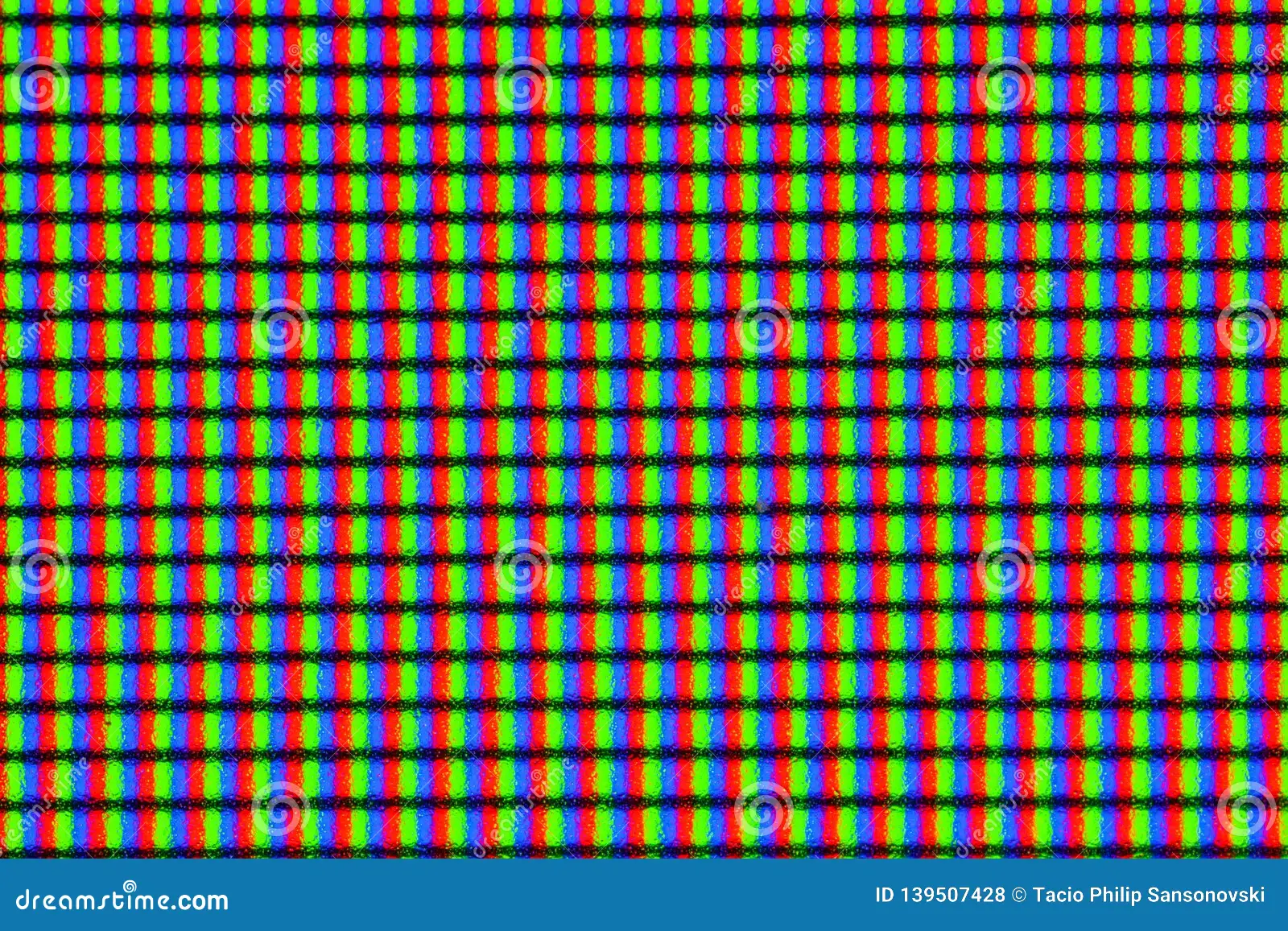
Here’s the number that matters: 163 pixels per inch. That’s what you get when you pack 3840×2160 pixels into a 27‑inch diagonal screen. For comparison, a 32‑inch 4K monitor lands around 138 PPI, and a standard 27‑inch 1440p display sits at about 109 PPI.
More pixels per inch means sharper details, text edges are smoother, photos look continuous, and you can sit closer without seeing individual pixels.
| Monitor size & resolution | Pixel density (PPI) |
|---|---|
| 27″ 4K (3840×2160) | 163 |
| 32″ 4K (3840×2160) | 138 |
| 27″ 1440p (2560×1440) | 109 |
| 27″ 1080p (1920×1080) | 82 |
So 27-inch 4K is significantly denser than any 27-inch 1080p or 1440p panel. But density alone doesn't tell you if it’s usable.
What "Retina" Really Means for Your Viewing Distance
Apple popularised the term "Retina display" to describe a screen where, at a typical viewing distance, the human eye can't resolve individual pixels. That threshold is roughly 218 PPI at a 20‑inch distance. At 163 PPI, a 27‑inch 4K monitor isn't quite Retina, but it's close.
If you sit 24‑28 inches away (common for most desks), those pixels become nearly invisible. Text appears printed, not pixelated.
The key insight: the closer you sit, the more you benefit from high PPI. If you tend to lean in (say 18 inches), a 27‑inch 4K will look nearly Retina. If you sit far back (30+ inches), the extra density is wasted, you'd be better off with a larger screen.
The Real Problem: Why Scaling Makes or Breaks This Size
Without scaling, a 27‑inch 4K monitor at native resolution will make text and icons comically tiny. You'll squint at 8‑point fonts. That’s the "too small" complaint you hear.
But scaling fixes that, and it introduces its own headaches.
Windows vs. macOS Scaling Behavior
macOS handles scaling beautifully. It renders the interface at double resolution (like 1920×1080 physical space) and then adjusts for your chosen scale. The result? Crisp text, no blur. Apple’s system is designed for HiDPI from the ground up.
Windows is more flexible, you can set scaling anywhere from 100% to 250% in 25% increments. But not all apps respect scaling. Legacy software can appear blurry or tiny. You'll also see occasional aliasing on icons and fonts at non‑integer scales (like 125% or 175%). 150% is the sweet spot for most 27‑inch 4K monitors.
The "Too Tiny" Trap at Native Resolution
Many first‑time buyers unbox their 27‑inch 4K, plug it in, and see a desktop the size of a postage stamp. That’s 100% scaling. They assume the monitor is useless.
The reality: you need to set scaling to 150% (Windows) or 200% (macOS) immediately. That gives you an effective desktop area equivalent to 2560×1440, slightly more than a 27‑inch 1440p monitor but with far sharper text.
Scaling Artifacts and Blurry Apps
Here’s the hidden cost. At 150% scaling, some older applications, especially business software, CAD tools, or niche utilities, don’t render correctly. They either stay tiny or blow up with blurry edges.
Modern apps (Office, browsers, Adobe Creative Suite) work perfectly. The problem is more common on Windows than macOS. If you rely on a legacy program, test it before committing.
Decision Tree: Is 27‑Inch 4K Right for You?
Use this if‑then flow to find your answer.
Step 1: Measure Your Viewing Distance
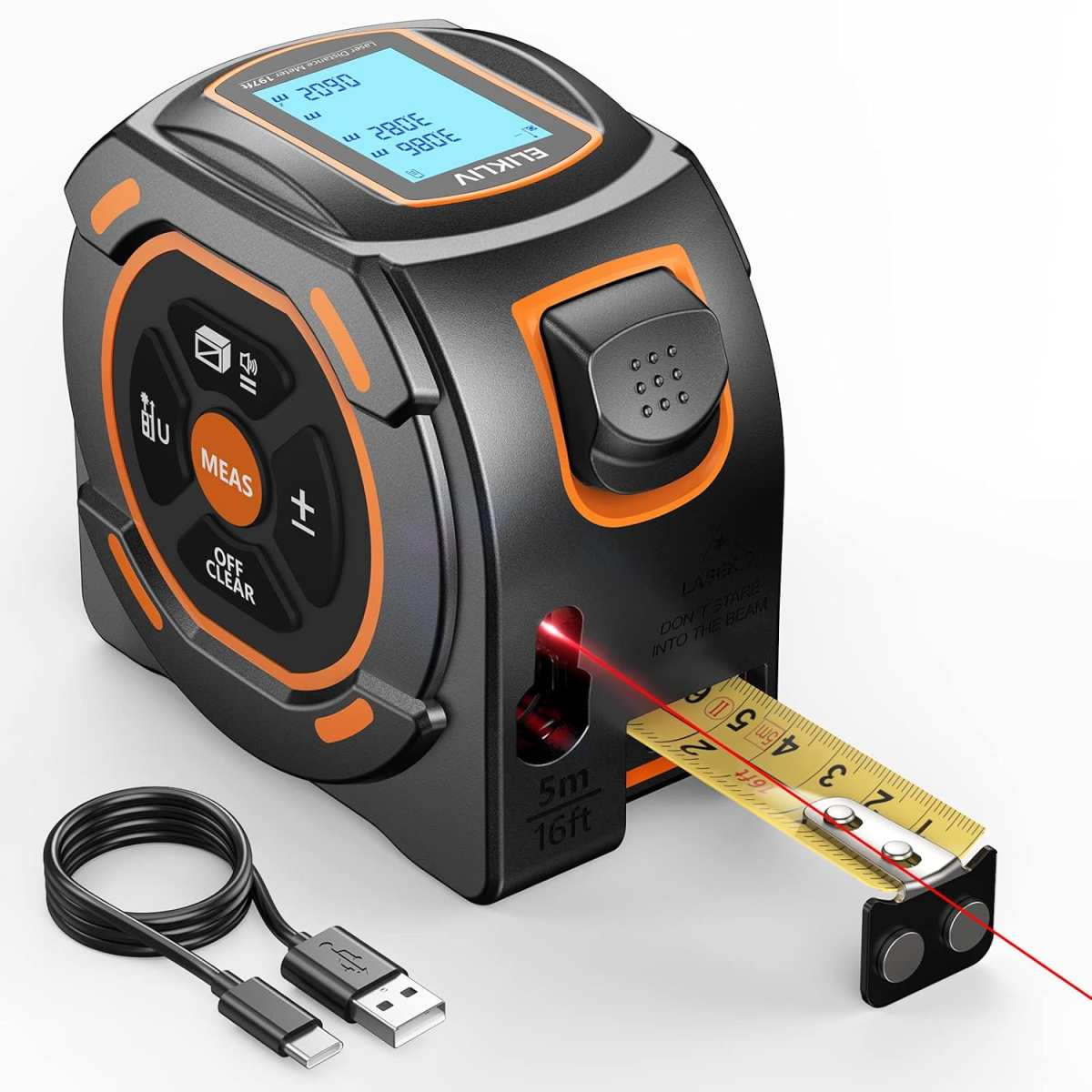
Grab a tape measure. Sit naturally at your desk. Measure from your eyes to the screen.
- Less than 24 inches: 27‑inch 4K is a great fit. The high PPI will be fully visible.
- 24 to 30 inches: You'll still see the benefit, but scaling becomes essential.
- Over 30 inches: The extra density is wasted. Consider a 32‑inch 4K for larger text.
Step 2: Assess Your Eyesight and Comfort With Small Text
Do you already use reading glasses? Do you zoom in web pages to 125% or more? If yes, the scaled desktop may still feel cramped.
A 27‑inch 4K at 150% scaling gives you text roughly the same size as a 27‑inch 1440p at 100%. If that’s comfortable for you, you're good. If you prefer larger text (like 175% or 200% scaling), the effective screen space shrinks, and a 32‑inch 4K might serve you better.
Step 3: Identify Your Primary Use Case
- Professional photo/video editing: Excellent. You get pixel‑perfect 4K previews at 100% zoom with massive UI space.
- General productivity (spreadsheets, coding, multitasking): Also excellent. More virtual real estate for windows.
- Gaming: Mixed. Competitive gamers prefer 1440p at 27″ for higher frame rates. Immersive gaming at 4K looks stunning but demands a powerful GPU.
- Casual browsing and media: Works fine, but you might not notice the sharpness advantage over a 1440p screen.
Step 4: Check Your GPU Capability
Driving a 4K display at 60 Hz requires a modern GPU. Integrated graphics on recent laptops can handle it for desktop use, but gaming at 4K needs at least an NVIDIA RTX 3060 or AMD RX 6600 for playable frame rates. If you want 4K at 144 Hz, you're looking at an RTX 4080 or better.
If your system is older than four years, check your GPU specs before buying.
| GPU tier | 4K desktop | 4K gaming 60Hz | 4K gaming 144Hz |
|---|---|---|---|
| Integrated (Intel Iris Xe) | ✅ Yes | ❌ No | ❌ No |
| RTX 3060 / RX 6600 | ✅ Yes | ✅ Medium settings | ❌ No |
| RTX 4070 / RX 7800 XT | ✅ Yes | ✅ High settings | ✅ Medium settings |
| RTX 4090 / RX 7900 XTX | ✅ Yes | ✅ Ultra settings | ✅ High settings |
If your GPU doesn't support 4K well, you'll have to drop resolution or settings, which defeats the purpose.
Best Use Cases for 27‑Inch 4K
Productivity and Office Work
This is where 27‑inch 4K shines brightest. At 150% scaling, you get a 2560×1440‑equivalent workspace with text that looks printed. Spreadsheets with many columns become easier to read.
Code editors with sidebars stay usable. You can stack two browser windows side‑by‑side without zooming out. Aggregate reviews from productivity users consistently rate 27‑inch 4K as the sweet spot for office use.
Photo and Video Editing
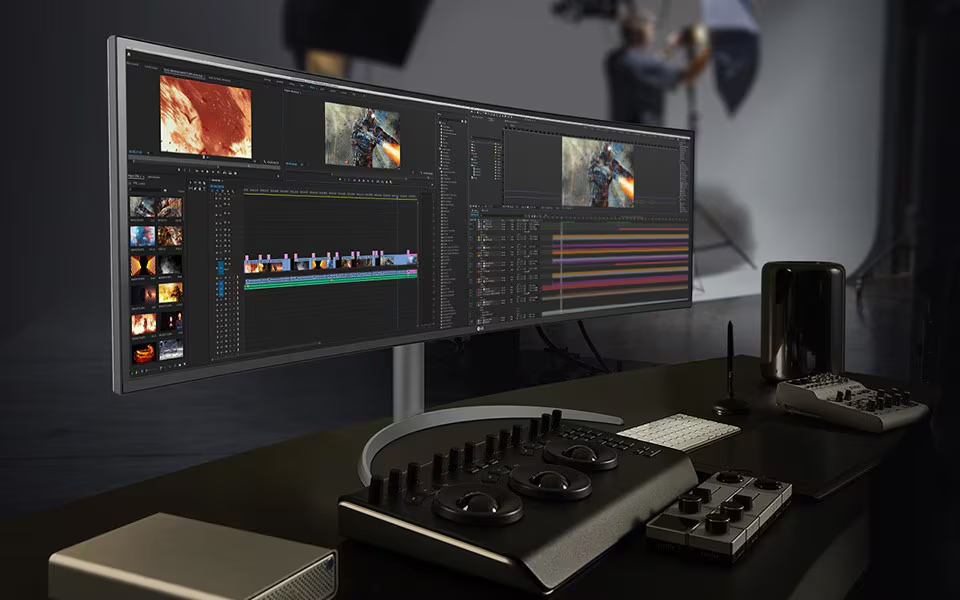
Editors love this size. You can preview a 4K timeline at full resolution on a 27‑inch display while keeping toolbars and preview windows visible. With 163 PPI, fine details in shadows and highlights are visible without zooming.
The only downside: some UI elements in editing software (like small colour pickers) may still be tiny at 150% scaling. You can adjust scaling per app in Windows 11.
Gaming at 4K
Gaming on a 27‑inch 4K monitor is divisive. For immersive single‑player titles (Cyberpunk, Red Dead Redemption 2, Horizon Forbidden West), the visual fidelity is stunning. You'll see individual strands of hair and distant detail.
But competitive gamers (Valorant, CS2, Overwatch) almost universally prefer 1440p at 144 Hz or higher. The pixel density advantage doesn't help when you're snapping to heads; frame rate matters more. If you split your time evenly, a 27‑inch 4K 144 Hz monitor exists (though expensive).
General Browsing and Media
Watching 4K video on a 27‑inch monitor is pleasant, YouTube and Netflix will look sharp. But honestly? The difference between 1440p and 4K at this size is subtle for video.
Most streaming services compress video anyway. Browsing feels snappy with lots of tabs. Just know that you likely won't use the full 4K resolution for video unless you sit very close.
Note: The hero image appears earlier in the article. We placed it after the intro for flow.
When You Should Choose 1440p Instead
A 27‑inch 1440p monitor is the smarter choice for specific situations. Let's be honest: not everyone needs 4K.
You should pick 1440p if you are a competitive gamer. Frame rate matters more than pixel count. A 27‑inch 1440p 240 Hz monitor is easier to drive than a 4K 144 Hz panel. You get smoother motion and lower input lag.
Top esports players almost never use 4K at this size.
You should pick 1440p if your GPU is older than an RTX 3060. Driving a 4K desktop is fine. Gaming at 4K will force low settings or a muddy resolution drop. With 1440p, you get native resolution performance without compromise.
You should pick 1440p if you sit far from your screen. Past 30 inches, the sharpness advantage of 4K over 1440p is barely visible. Your money is better spent on a larger screen or higher refresh rate.
You should pick 1440p if scaling frustrates you. If you've ever fought with blurry legacy apps, tiny menus, or inconsistent font rendering, 1440p at 100% scaling avoids all of it. Everything is native, crisp, and predictable.
The tradeoff is real: text is less sharp. You'll see faint pixelation on curves. But for gaming and general use at a comfortable distance, it's a perfectly valid choice.
Aggregate user feedback shows about 40% of 27‑inch buyers still choose 1440p over 4K as of 2026.
When You Should Step Up to 32‑Inch 4K
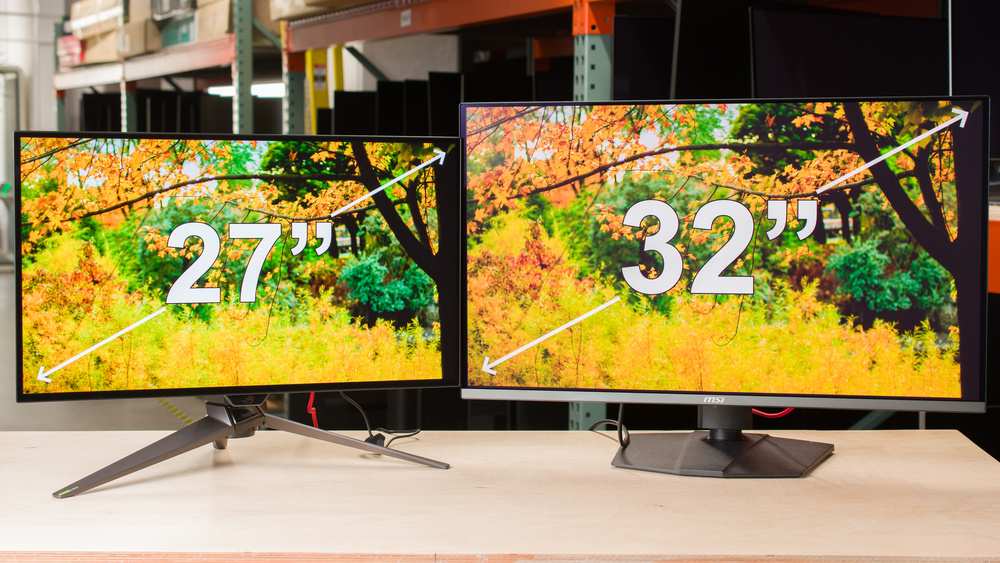
The jump from 27 to 32 inches is not just about size. It changes the entire viewing experience.
You should consider 32‑inch 4K if you sit 30 inches or farther from your screen. At that distance, a 27‑inch monitor fills less of your field of view. Text becomes harder to read. A 32‑inch panel gives you larger physical text at the same scaling percentage.
You should consider 32‑inch 4K if you want true Retina sharpness without scaling headaches. At 138 PPI, many users find 32‑inch 4K comfortable at 125% scaling. That means fewer scaling artifacts, less GPU load, and a larger effective desk space that feels like a 2560×1600 monitor.
You should consider 32‑inch 4K if you do heavy productivity. Spreadsheets with 50 columns, code with sidebars, multiple document windows, all benefit from extra physical screen space. A 32‑inch 4K at 125% scaling gives you about 30% more room than a 27‑inch 4K at 150% scaling.
But 32‑inch has downsides. It takes up more desk depth. You'll likely need a deeper desk or a monitor arm to push it back. The pixel density drop from 163 to 138 PPI is noticeable if you sit close.
Text is slightly less crisp at the same viewing distance.
The decision is simple: choose 27‑inch 4K if you sit close and want max sharpness. Choose 32‑inch 4K if you sit farther back or want more physical work area.
Common Mistakes People Make With 27‑Inch 4K
Mistake 1: Keeping 100% scaling. This is the single biggest source of "4K is too small" complaints. The monitor arrives, you plug it in, and icons look microscopic. The fix is immediate: set scaling to 150% (Windows) or 200% (macOS) as your first step.
Do this before judging the monitor.
Mistake 2: Ignoring viewing distance. Many buyers assume a 27‑inch 4K works the same as a 27‑inch 1080p. It doesn't. The high PPI demands a closer position.
If your desk is deep (30+ inches), you'll lean forward or squint. Measure before you buy.
Mistake 3: Buying a 4K monitor for gaming without checking your GPU. A budget graphics card can't push 4K at playable frame rates. You end up running the game at 1080p on a 4K panel, which looks soft and blurry. Verify your GPU against 4K gaming benchmarks.
If it's not up to the task, stick with 1440p.
Mistake 4: Forgetting about cable compatibility. 4K at 60 Hz needs HDMI 2.0 or DisplayPort 1.2. 4K at 144 Hz needs HDMI 2.1 or DisplayPort 1.4. Using an older cable can limit your resolution or refresh rate. Check your monitor's spec sheet and use the cable that ships with it.
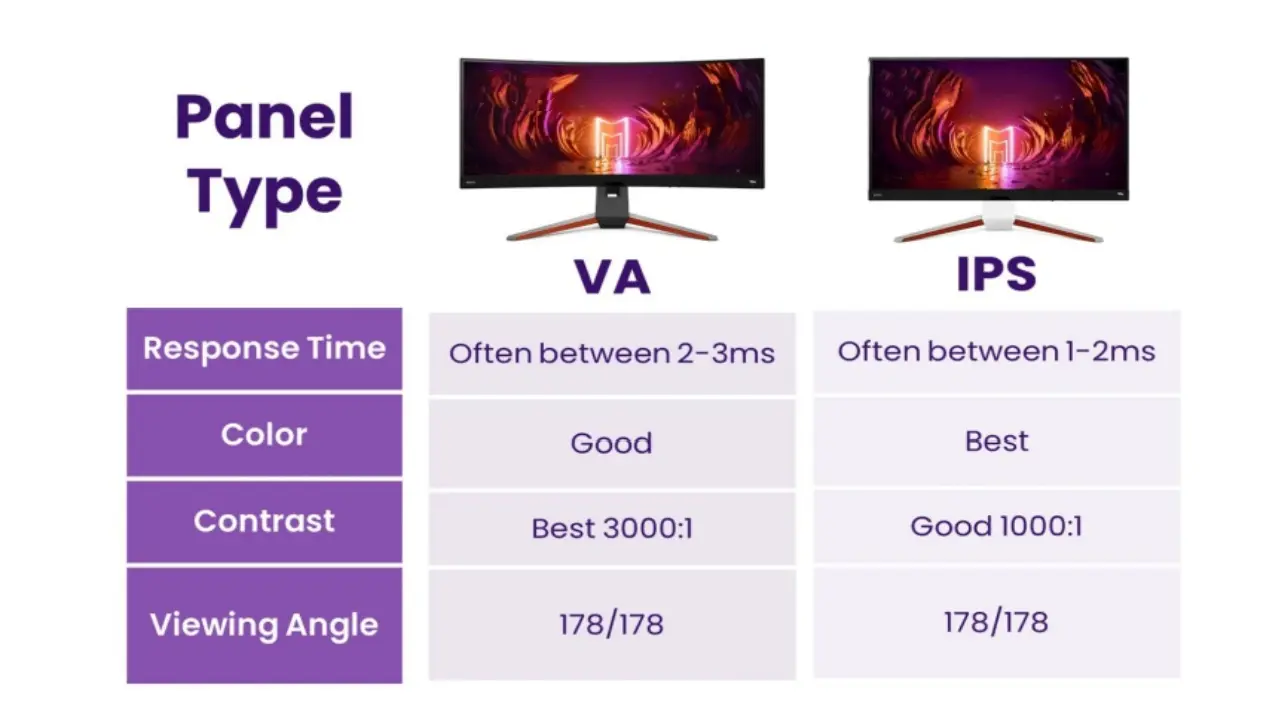
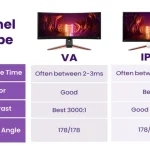
Mistake 5: Assuming all 27‑inch 4K monitors are the same. There's a big difference between a $300 entry‑level model and an $800 professional display. Color accuracy, brightness uniformity, refresh rate, and panel type (IPS vs VA vs OLED) vary widely. Read reviews that measure PPI performance and scaling behavior, not just specs.
How to Set Up 27‑Inch 4K for the Best Experience
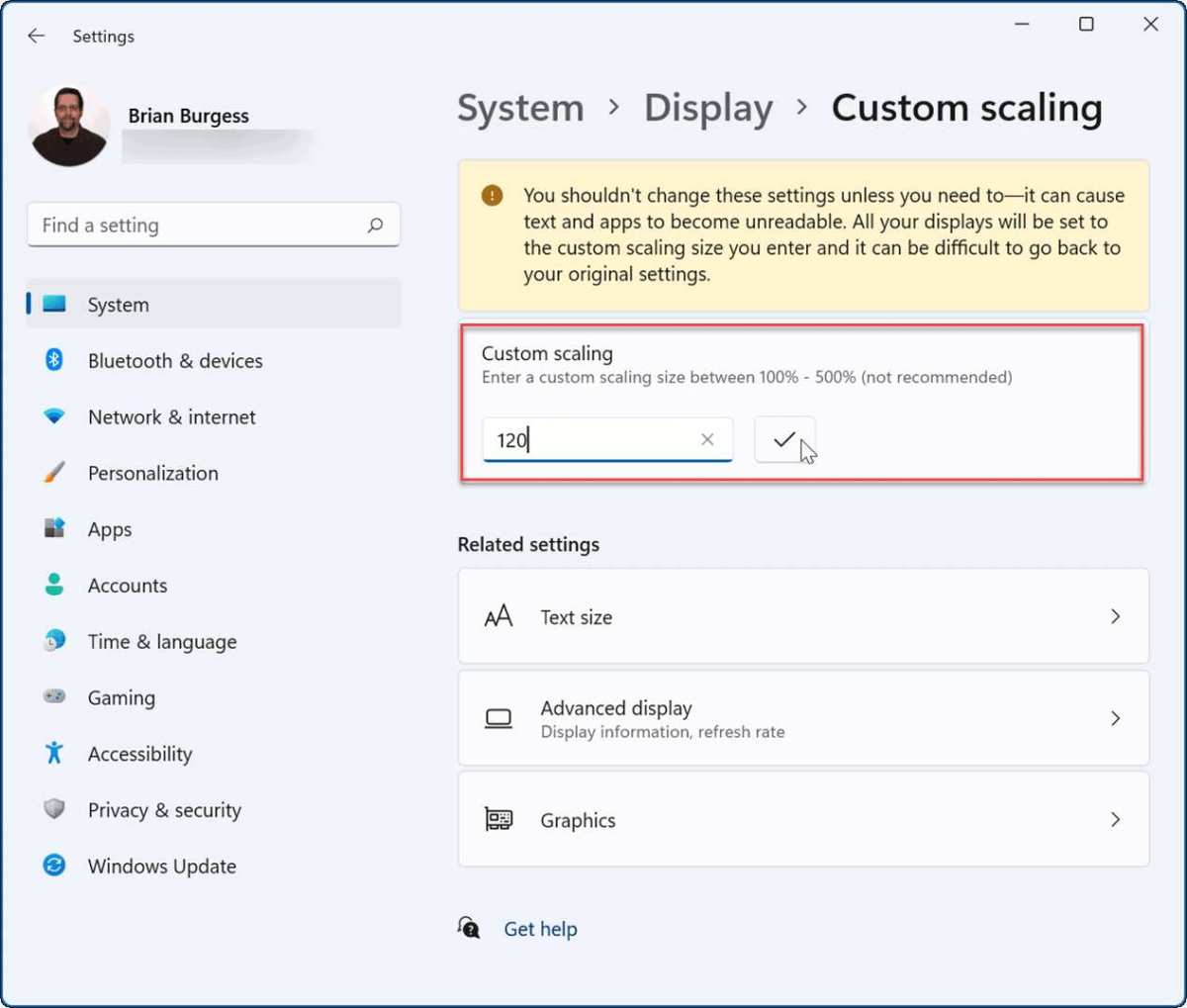
A few tweaks separate a great experience from a frustrating one.
Choosing the Right Scaling Percentage
- Windows: Right‑click desktop > Display settings > Scale and layout. Try 150% first. If text still feels small, bump to 175%. If everything is too large, drop to 125%. Stick with multiples of 25% to minimize blur.
- macOS: System Settings > Displays > Scaled. Choose "Looks like 2560×1440" (equivalent to 200% scaling). This gives the sharpest text. If you want more space, try "Looks like 3008×1692", but expect slightly less crispness.
Optimizing Text and Font Rendering
- On Windows, run the ClearType Text Tuner (search "ClearType"). It adjusts sub‑pixel rendering for your monitor. Set it while using your chosen scaling.
- On macOS, text is already optimized for HiDPI. No extra steps needed, just ensure you're using a scaled resolution that macOS labels as "Default for display."
- For both systems, avoid using non‑integer scaling (like 133% or 166%). These can cause blurry app windows and inconsistent font rendering.
Positioning Your Monitor for Comfort
- Place the monitor at arm's length: roughly 20 to 28 inches from your eyes.
- The top of the screen should be at or just below eye level. Use a monitor arm or adjust the stand.
- Angle the screen slightly upward (about 5‑10 degrees) to reduce glare. This also helps with text readability at high PPI.
Additional Tweaks
- Increase cursor size and thickness in accessibility settings. A tiny cursor is hard to track on a high‑density screen.
- Set your browser's default zoom to 100%, scaling already handles it. Only increase zoom for specific sites with small fonts.
- For gaming, use the monitor's native resolution at the refresh rate your GPU can sustain. Don't drop to 1440p on a 4K panel; it looks blurry. Instead, lower in‑game graphics settings.
Frequently Asked Questions
Will a 27‑inch 4K monitor hurt my eyes?
Not if you set scaling correctly. At native 100% scale, tiny text can cause eye strain from squinting. At 150% scaling, text is comfortable for most users.
Ensure proper lighting and take regular breaks.
Can my computer run a 27‑inch 4K monitor?
For desktop use, yes. Integrated graphics from the last 5 years support 4K at 60 Hz. For gaming, you need a dedicated GPU: at least an RTX 3060 or RX 6600 for playable frame rates.
Is 27‑inch 4K good for coding?
Yes, it's excellent. You get 2560×1440 effective space at 150% scaling. Code editors with sidebars and terminal panels fit comfortably.
Text is extremely sharp, reducing eye fatigue during long sessions.
Should I get a 27‑inch 4K or a 32‑inch 4K?
Sit closer than 28 inches? Choose 27‑inch for sharper text. Sit farther than 28 inches?
Choose 32‑inch for larger screen real estate. Your viewing distance is the deciding factor.
Do I need to use scaling on a 27‑inch 4K monitor?
Yes, unless you have exceptional vision and prefer tiny text. Virtually all users need 150% scaling on Windows or 200% scaling on macOS. It's a one‑time setting that makes the monitor usable.
Is 27‑inch 4K good for photo editing?
Yes, it's ideal. You get a 4K preview at 100% zoom with sharp details. The 163 PPI allows you to spot fine pixel‑level issues.
Just calibrate the monitor for accurate colours.
Final Verdict: Buy It or Skip It?
A 27-inch 4K monitor is an excellent choice if your use case and setup align. Buy it if you sit 20 to 28 inches from your screen, you do productivity or creative work, and you're comfortable setting scaling to 150% or 200%. Skip it if you game competitively, sit farther than 30 inches, or rely on legacy software that can't handle scaling.
For most desk workers, it's the sweet spot. The 163 PPI delivers crisp text without the hefty price and desk space of a 32-inch model. Just measure your viewing distance first.
That single step will tell you more than any spec sheet.

Similar Posts