What Is the Lifespan of an Ips Monitor
What is the lifespan of an IPS monitor? It's one of those questions that seems like it should have a simple answer, but it doesn't. The number you'll see quoted most often, something like 50,000 to 60,000 hours, is a backlight rating measured under controlled lab conditions. Real life doesn't work that way.
How you use your monitor, where you keep it, and what you expect from it all shape how long it actually serves you well.
Manufacturer specifications from panel makers like LG Display and AUO typically cite MTBF (Mean Time Between Failures) ratings in the 30,000 to 60,000 hour range. But here's the thing most articles skip. Your monitor will probably feel outdated or degraded long before it technically "dies." Let's break down what actually determines how long an IPS monitor lasts in practice.
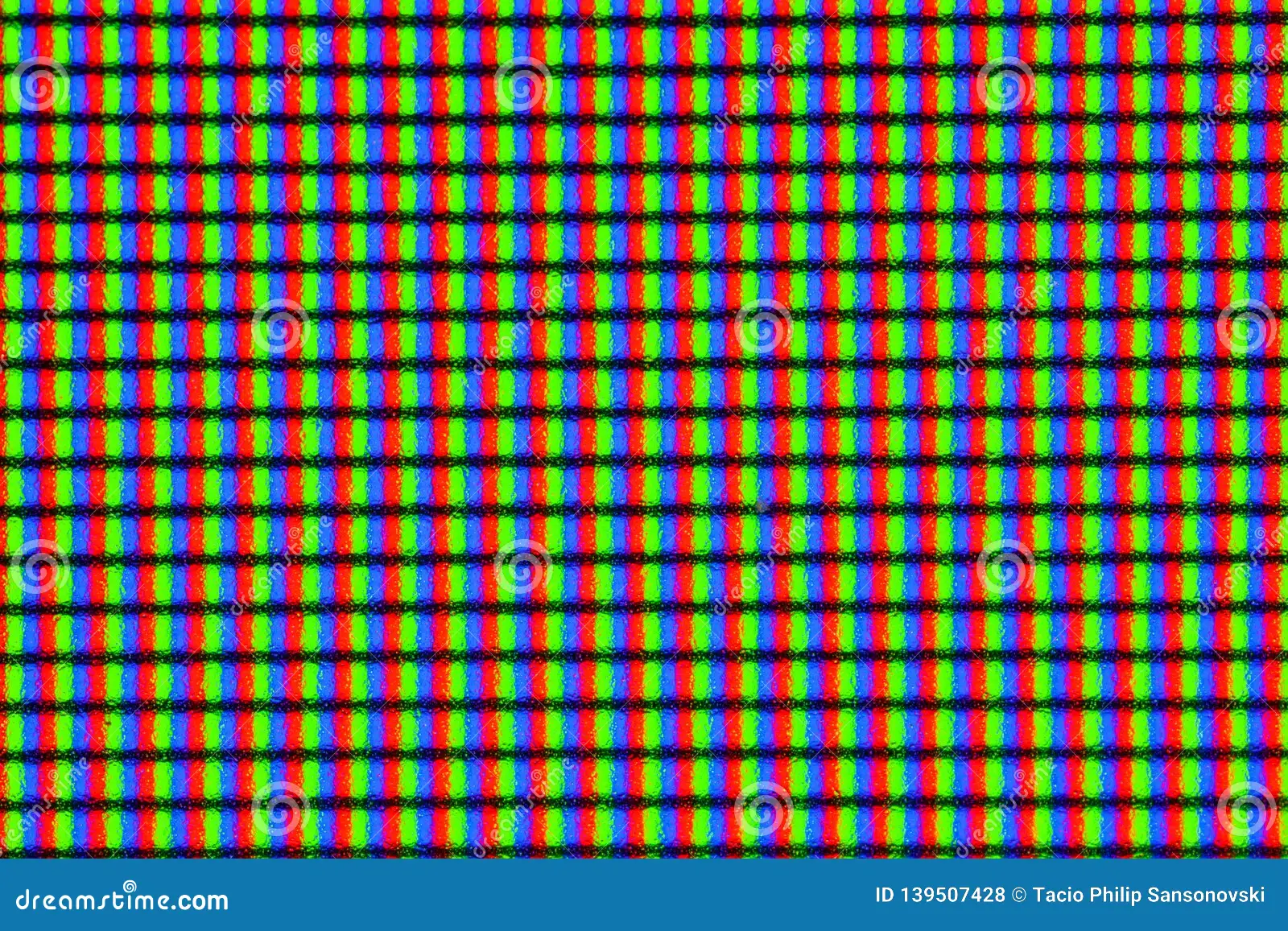
Quick Answer
An IPS monitor typically lasts 50,000 to 60,000 hours before the backlight dims to half brightness. That translates to roughly 7 to 10 years of normal daily use. Color accuracy usually degrades noticeably after 3 to 5 years of professional work.
Component failures can occur earlier depending on build quality and operating conditions.
Why the Number Everyone Quotes Is Wrong
The 50,000-hour figure gets thrown around like gospel. It's not wrong exactly, but it's wildly misleading without context. That number refers specifically to LED backlight half-life.
Meaning the point at which the backlight dims to 50% of its original brightness. Your monitor still turns on at that point. It still functions.
It's just noticeably dimmer and often yellower than when it was new.
Here's what that number doesn't tell you. It doesn't account for color drift, which matters far more if you do any kind of visual work. It doesn't factor in capacitor aging on the power board, which is actually one of the more common failure points.
And it completely ignores your tolerance for degradation. A graphic designer will notice a 15% color shift that a casual browser never would.
The MTBF rating is a statistical average across a large batch of units. Individual units vary significantly. Some monitors from the same production run will fail at 20,000 hours.
Others will cruise past 80,000. Manufacturing tolerances, thermal environment, and plain old luck all play a role.
What actually matters is understanding the three distinct failure modes. Backlight dimming, color drift, and sudden component failure. Each follows a different timeline and responds to different factors.
Once you understand those, you can make a much more realistic prediction for your specific situation.
The Three Things That Actually Kill Your IPS Monitor
Backlight Degradation: The Real Lifespan Clock
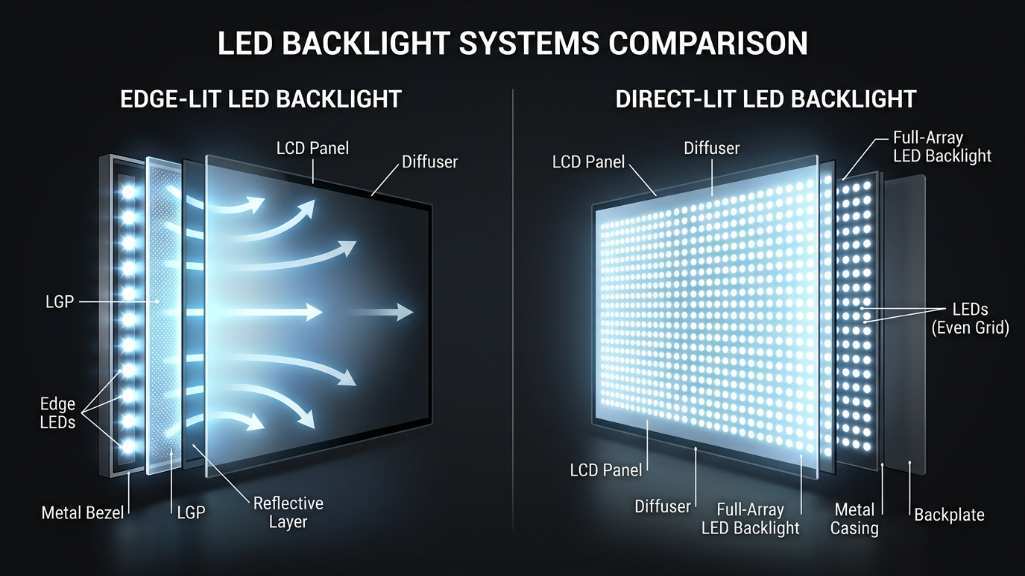
The LED backlight is the primary lifespan bottleneck in any IPS monitor. Every hour the backlight runs, it loses a tiny fraction of its maximum output. This is gradual and cumulative.
You won't notice it day to day. But after a few years, the difference becomes obvious.
White LEDs, which backlight the vast majority of IPS monitors, actually use a blue LED with a yellow phosphor coating. Over time, that phosphor degrades unevenly. The result is a gradual shift toward warmer, yellower tones.
Your whites stop looking white. They look cream-colored or slightly amber.
The rate of degradation depends heavily on brightness setting. A monitor running at 100% brightness in a bright office will lose noticeable output within 2 to 3 years. The same monitor at 40% brightness in a dim room might look acceptable for 6 to 7 years.
Heat accelerates this process too. If your monitor runs hot, the backlight ages faster.
This is why professional monitors intended for color-critical work often include hardware calibration and built-in color sensors. They compensate for the drift by adjusting the internal LUT (Look-Up Table). But they can't compensate forever.
Eventually, the backlight simply can't produce the required brightness or color temperature range anymore.
Color Drift: When "Good Enough" Becomes Not Good Enough
Color drift is separate from backlight dimming, though the two are related. The liquid crystal layer itself changes characteristics over time. The alignment layers can degrade.
The voltage thresholds for each pixel shift slightly. This means the relationship between the signal sent to the panel and the color it produces becomes less accurate.
For casual users, this is mostly invisible. Websites still look colorful. Movies still look fine.
But for anyone doing photo editing, video color grading, or design work, this is the real lifespan limiter. A monitor that's technically "working" but can't reproduce accurate colors is effectively dead for professional use.
Most users doing color-critical work will recalibrate every 2 to 4 weeks using a hardware colorimeter. That extends the useful professional lifespan significantly. But even with regular calibration, most IPS panels start hitting their limits after 3 to 5 years.
The color gamut shrinks slightly. The gamma curve shifts. The uniformity across the screen degrades.
This is the dirty secret of monitor longevity discussions. The backlight might last 7 to 10 years. The panel's professional-grade color accuracy might only hold up for 3 to 5.
Which number matters depends entirely on what you use the monitor for.
Component Failure: The Sudden End Nobody Talks About
Backlight degradation and color drift are gradual. Component failure is not. And it's more common than most people realize.
The power supply board is usually the culprit. Electrolytic capacitors on that board degrade over time, especially in warm environments or areas with unstable power.
Capacitor failure can manifest in several ways. The monitor might start flickering. It might not turn on from cold but works after being unplugged and plugged back in.
It might make a high-pitched whine. In worst cases, it can cause complete failure with no warning.
The good news is that power board replacement is often repairable. A qualified technician can swap the board for $50 to $150 in parts plus labor. The bad news is that most people don't know this is an option.
They assume the monitor is dead and buy a new one. This is a significant contributor to electronic waste.
Other component failures include the scaler board (which handles input processing), the OSD controller, and occasionally the panel itself. Panel failure is usually a death sentence. Replacement panels often cost more than a new monitor.
But power board and scaler board failures are worth investigating before you recycle the unit.
Your Monitor's Lifespan Based on How You Use It
This is where the decision tree part comes in. Your usage pattern dramatically changes the realistic lifespan you should expect. Let's walk through the most common scenarios.
Heavy Professional Use (10+ Hours Daily)
If you're running your IPS monitor 10 or more hours a day for professional work, you're in the most demanding category. That's roughly 3,650 hours per year. At that rate, the backlight half-life of 50,000 hours hits in about 13.7 years.
But color accuracy will be your limiting factor, not the backlight.
Expect to recalibrate monthly. Plan on the monitor feeling inadequate for color-critical work within 3 to 4 years. The backlight will still be functional for much longer, but the color drift will push you toward replacement.
Budget for a professional-grade replacement cycle of 3 to 5 years in this usage tier.
Standard Office / Home Use (6-8 Hours Daily)
This is the sweet spot for IPS longevity. At 6 to 8 hours daily, you're looking at roughly 2,200 to 2,900 hours per year. The backlight will take 17 to 22 years to reach half-brightness.
You'll almost certainly replace the monitor for other reasons long before the backlight gives out.
Color drift will still happen but at a slower pace. For office work, web browsing, and general productivity, most users won't notice significant degradation for 5 to 7 years. The monitor will likely feel outdated due to resolution, refresh rate, or feature improvements before it actually wears out.
Gaming Daily (3-6 Hours Daily)
Gaming use is moderate in terms of hours but introduces some unique factors. Many gamers run their monitors at high brightness and with features like local dimming or HDR enabled. HDR content, in particular, can push the backlight harder and generate more heat.
At 3 to 6 hours daily, you're looking at roughly 1,100 to 2,200 hours per year. The backlight should last 20+ years at this rate. But gamers often care about motion performance and input lag.
These don't degrade with age, but newer models improve noticeably. Most gamers replace monitors every 4 to 6 years for feature upgrades, not because the old one failed.
Digital Signage / 24/7 Operation
This is the worst-case scenario for IPS lifespan. Running 24 hours a day means 8,760 hours per year. The backlight half-life hits in under 6 years.
Heat management becomes critical. And commercial signage often runs at maximum brightness to remain visible in ambient light.
If you're running an IPS monitor as digital signage, plan on 3 to 5 years of acceptable performance. Commercial signage panels are rated for this use case and often have better thermal management. Consumer IPS monitors pushed into 24/7 duty will age faster than their ratings suggest.
Multi-Monitor Setup Considerations
Running multiple monitors doesn't change the lifespan of each individual unit. But it does change your perception of degradation. When three monitors are side by side, slight color differences between them become obvious.
One monitor aging slightly faster than the others creates a visible mismatch.
This is a common pain point in professional environments. A matched set of monitors purchased together will age similarly. But replacing one monitor in a set often reveals how much the others have drifted.
Many studios and offices replace all monitors at once to maintain consistency.
Does Build Quality Change the Math?
Absolutely. The panel itself is only part of the equation. The power supply quality, thermal design, and overall build quality vary enormously between budget and professional-grade monitors.
And those differences directly impact real-world lifespan.
A $200 IPS monitor and a $1,200 IPS monitor might use the same class of panel. But the power supply, cooling, and component quality will be very different. Budget monitors often use cheaper capacitors that fail sooner.
They run hotter because the thermal design is minimal. And the panel binning (quality sorting) is usually less strict.
Professional-grade monitors from lines like Eizo ColorEdge, ASUS ProArt, or Dell UltraSharp typically use higher-quality components. They often come with 3 to 5 year warranties compared to the 1 to 2 years on budget models. And they're designed for longer, more intensive use.
Here's a rough comparison of what to expect based on build quality:
| Factor | Budget IPS ($150-$350) | Mid-Range IPS ($350-$700) | Professional IPS ($700+) |
|---|---|---|---|
| Typical Warranty | 1-2 years | 2-3 years | 3-5 years |
| Power Supply Quality | Basic | Good | Premium |
| Thermal Design | Minimal | Adequate | Engineered |
| Expected Functional Lifespan | 5-7 years | 7-10 years | 8-12+ years |
| Color Accuracy Hold | 2-3 years | 3-5 years | 4-6+ years |
| Component Failure Risk | Moderate | Low | Low |
The panel technology itself is similar across tiers. The difference is everything around it. A well-built monitor with good thermal management and quality capacitors will outlast a budget unit by a significant margin.
Sometimes by years.
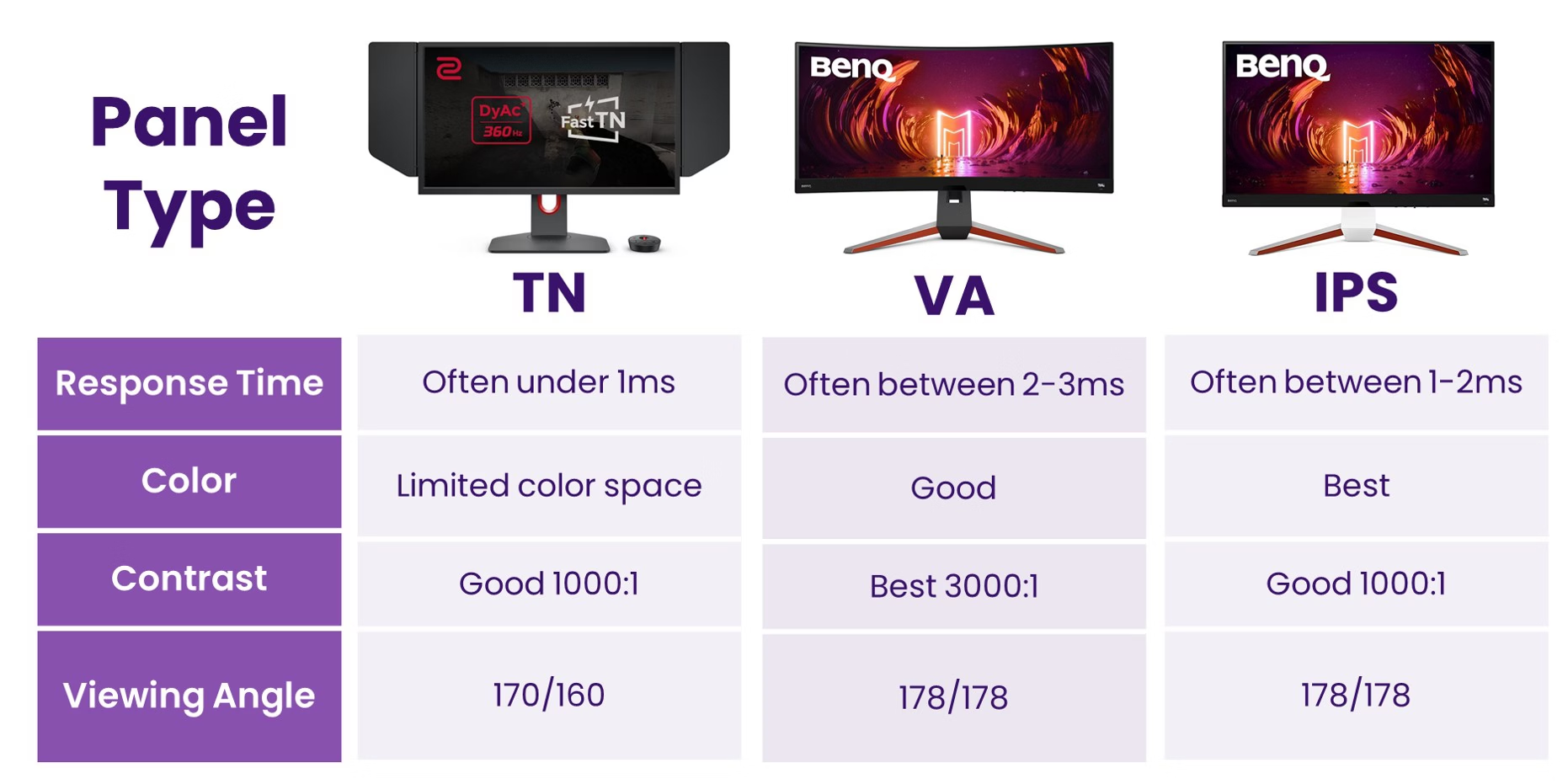
How IPS Compares to Other Panel Types on Longevity
IPS isn't the only panel technology out there. And the alternatives each have their own lifespan characteristics that are worth understanding. If you're weighing options, longevity might factor into your decision.
IPS vs TN Panels
Twisted Nematic (TN) panels generally have simpler construction and fewer components to fail. The backlight system is the same LED technology. So the backlight lifespan is roughly equivalent.
But TN panels typically use cheaper power supplies and components, especially at lower price points.
The practical lifespan difference is small. Both panel types will likely be replaced for performance reasons before they fail. TN's main weakness is viewing angle degradation over time, which is more noticeable than on IPS.
For most users, this isn't a meaningful longevity difference.
IPS vs VA Panels
Vertical Alignment (VA) panels have a more complex liquid crystal arrangement. They tend to have better contrast ratios out of the box. But the VA cell structure can be more prone to long-term alignment issues.
Some VA panels exhibit color shift uniformity problems that worsen with age.
Backlight lifespan is similar across both technologies since both use LED arrays. The difference is in the panel layer itself. VA panels may hold contrast better in some cases, while IPS maintains viewing angle consistency longer.
It's roughly a wash for most consumers.
IPS vs OLED: A Different Conversation
OLED lifespan is a completely different discussion. OLED panels suffer from organic compound degradation and burn-in risk. The blue sub-pixels degrade fastest.
Static elements like taskbars or channel logos can leave permanent ghost images within a year or two of heavy use.
IPS doesn't suffer from burn-in at all. The liquid crystal layer doesn't degrade in the same way organic compounds do. For 24/7 signage or use cases with static UI elements, IPS will dramatically outlast OLED.
The tradeoff is that OLED offers perfect blacks and infinite contrast that IPS can't match.
For most desktop monitor use cases, IPS wins on pure longevity. OLED wins on image quality. Your priority determines which matters more.
Warning Signs Your IPS Monitor Is Reaching End of Life
Your monitor won't just die one morning without warning. There are usually signs weeks or months before failure. Knowing what to look for helps you plan a replacement rather than scrambling when it finally gives out.
Visible brightness loss. If you're constantly cranking brightness higher than you used to, the backlight is aging. When you hit 100% and it still looks dim, the end is near.
Yellow or amber tint. Whites looking cream-colored or warm despite color temperature adjustments. This is phosphor degradation. Software calibration can only compensate so much.
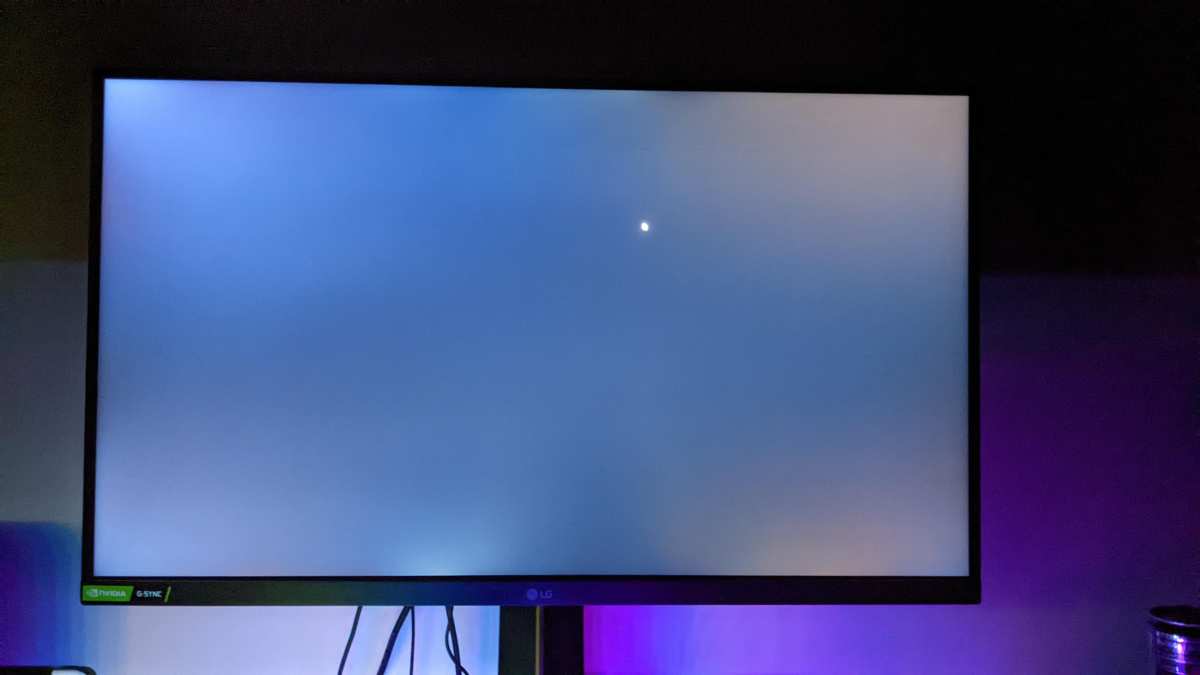
Uneven backlight. Dark patches, clouding, or brighter edges that weren't there before. This indicates LED string degradation. Some individual LEDs are failing faster than others.
Color shift you can't calibrate out. If calibration software reports increasingly large delta-E errors or can't achieve target values, the panel is reaching its limits.
Flickering or intermittent shutdowns. This often points to power supply capacitor issues. Sometimes this is repairable. But it signals the monitor is entering its failure phase.
Dead or stuck pixels. A few dead pixels are normal. But a sudden increase suggests panel degradation is accelerating.
When Repair Makes Sense vs. Time to Replace
Not every failure means buying a new monitor. Some issues are worth fixing. Others aren't.
Here's how to think about it.
Worth repairing:
- Power supply board failure (capacitor replacement)
- Backlight LED string failure (if parts are available)
- OSD board malfunction
- Generally any repair under $150 in parts for a monitor worth $400+
Not worth repairing:
- Panel failure (replacement panels cost too much)
- Multiple simultaneous failures (indicates overall end of life)
- Budget monitors under $250 (repair cost approaches replacement cost)
- Monitors over 6 years old (other components will likely fail soon)
Get a repair estimate before assuming replacement is necessary. Many local repair shops can diagnose power issues for a small fee. That $30 diagnostic could save you $400 on a new monitor you don't actually need.
Extending Your IPS Monitor's Real-World Lifespan
You can't stop physics. But you can slow it down. A few habits make a measurable difference in how long your monitor stays usable.
Brightness Management
Running at 50% brightness instead of 100% can roughly double your backlight's useful life. Most people run monitors far brighter than necessary anyway. In a normal room, 40-60% brightness is usually plenty.
Your eyes will thank you too.
Thermal Environment
Heat is the enemy of electronics. Keep your monitor out of direct sunlight. Ensure ventilation around the unit isn't blocked.
If your monitor feels hot to the touch, it's running too warm. A small USB fan pointed at the back can help in tight enclosures.
Pixel Maintenance Routines
Run a pixel refresh or screen saver periodically. While IPS doesn't suffer from burn-in like OLED, keeping pixels active prevents stuck pixels. Many monitors have built-in pixel shift features.
Enable them. They're subtle but effective.
Cleaning and Physical Care
Clean the screen with a microfiber cloth and distilled water. Never use household glass cleaners. They damage the anti-glare coating over time.
Dust the vents regularly to maintain airflow. Physical maintenance matters more than most people realize.
Power Management
Use a surge protector. Power surges kill monitors prematurely. Consider turning the monitor off during extended non-use rather than leaving it in standby.
Standby mode still ages components, just slower.
Frequently Asked Questions
Does HDR mode shorten IPS lifespan?
HDR content often pushes the backlight harder, especially with local dimming. This generates more heat and accelerates aging slightly. Occasional HDR use won't meaningfully impact lifespan.
But running HDR mode at maximum brightness daily will contribute to faster degradation.
Do IPS monitors suffer from burn-in?
IPS panels are essentially immune to permanent burn-in. You may experience temporary image retention in rare cases, but it always clears. This is a significant advantage over OLED for static-content use cases.
Is it worth calibrating an aging monitor?
Yes, for as long as the monitor can hit your target values. Calibration compensates for drift. Once calibration software can't achieve acceptable delta-E values, the panel has reached its professional end of life.
Does standby mode count toward lifespan?
Standby mode ages components much slower than active use. But it's not zero aging. Power supply components in particular experience thermal cycling stress from repeated on/off cycles.
It's minor compared to active hours, but it's not nothing.
Should I replace at first sign of degradation?
Not necessarily. Slight brightness loss or minor color drift is normal and often manageable with calibration. Replace when the degradation impacts your actual use case.
For casual browsing, that threshold is high. For color-critical work, it's much lower.
Final Verdict: Should IPS Lifespan Affect Your Buying Decision?
For most people, no. IPS monitor lifespan is long enough that other factors should drive your purchase decision. Resolution, color accuracy out of the box, refresh rate, connectivity, and price matter more than longevity projections.
IPS monitors last long enough to become obsolete before they fail. You'll want to upgrade before you need to. The technology is mature and reliable.
Buy the monitor that fits your needs and budget today. Don't overthink the 7-year lifespan question.
The exception is professional users who depend on color accuracy. For that group, plan on a 3 to 5 year replacement cycle regardless of whether the monitor still works. The industry moves fast.
Newer panels offer wider gamuts and better efficiency. Your aging monitor might still function, but it'll fall behind current standards.
For everyone else, use the brightness management and maintenance tips from this article. Your IPS monitor will serve you well for years. And when it finally does show its age, you'll know exactly what to look for in its replacement.

Similar Posts





















