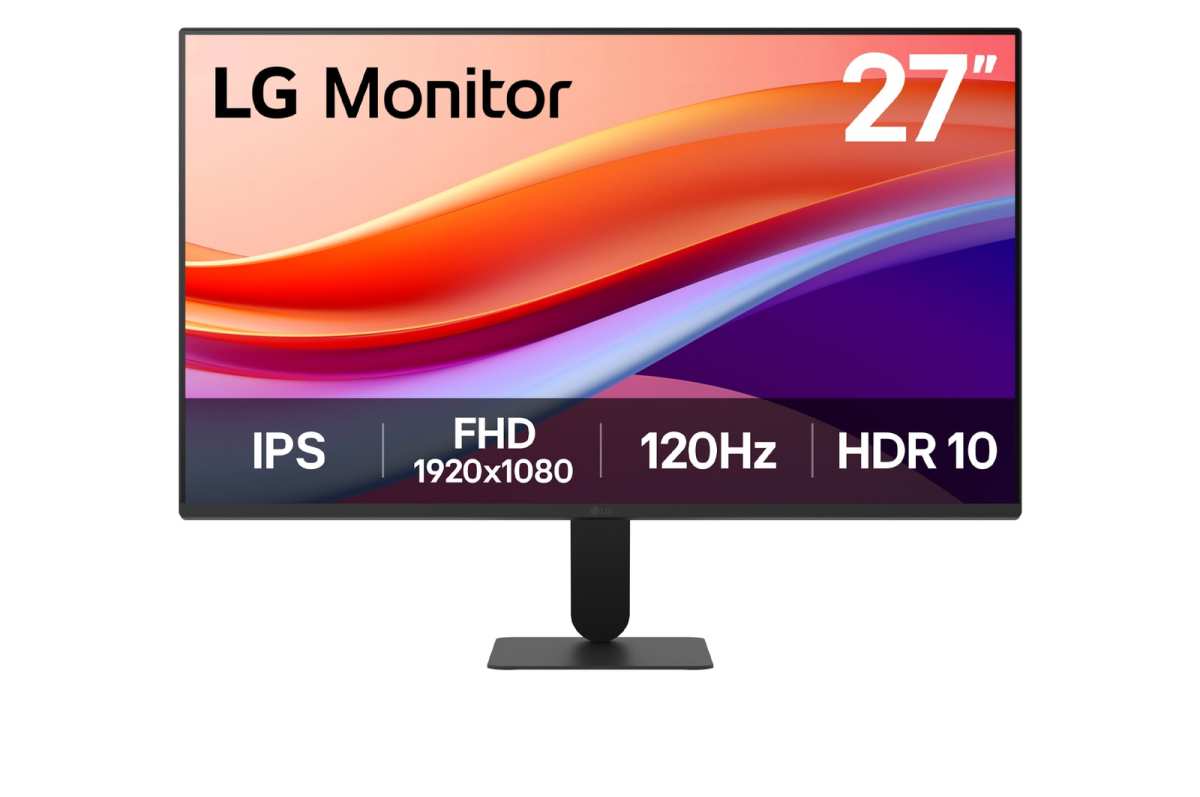
can you use two 27 inch monitors side by side
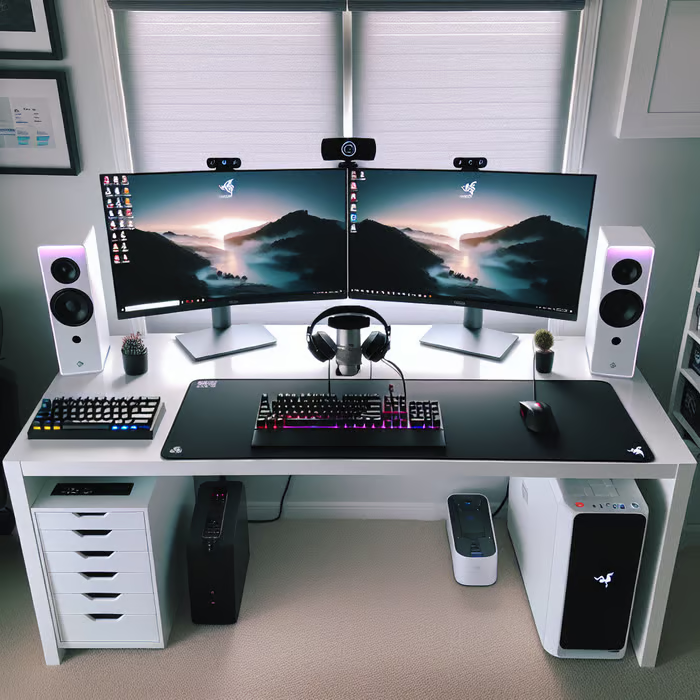
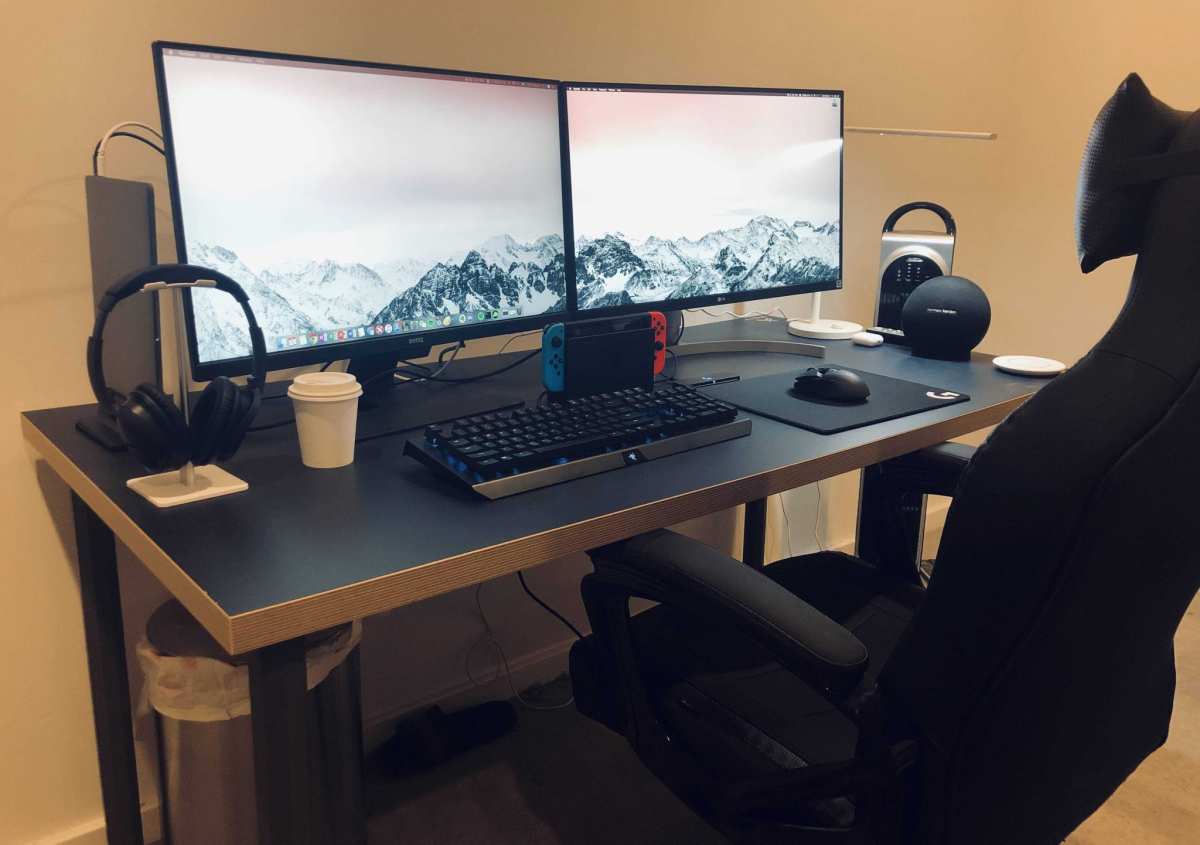
So you’re standing there, staring at your desk thinking, “can you use two 27 inch monitors side by side” without it looking ridiculous or wrecking your neck? The short answer is yes, absolutely. But the real question is whether your specific setup can handle it comfortably.
Manufacturer specifications show that a typical 27-inch monitor measures roughly 24 inches wide with its stock stand. That means you need at least 48 inches of desk width just to fit them side by side. And that’s before accounting for the stand depth, which usually eats up another 8 to 12 inches of desk space.
Let’s walk through exactly what you need to check before you commit.
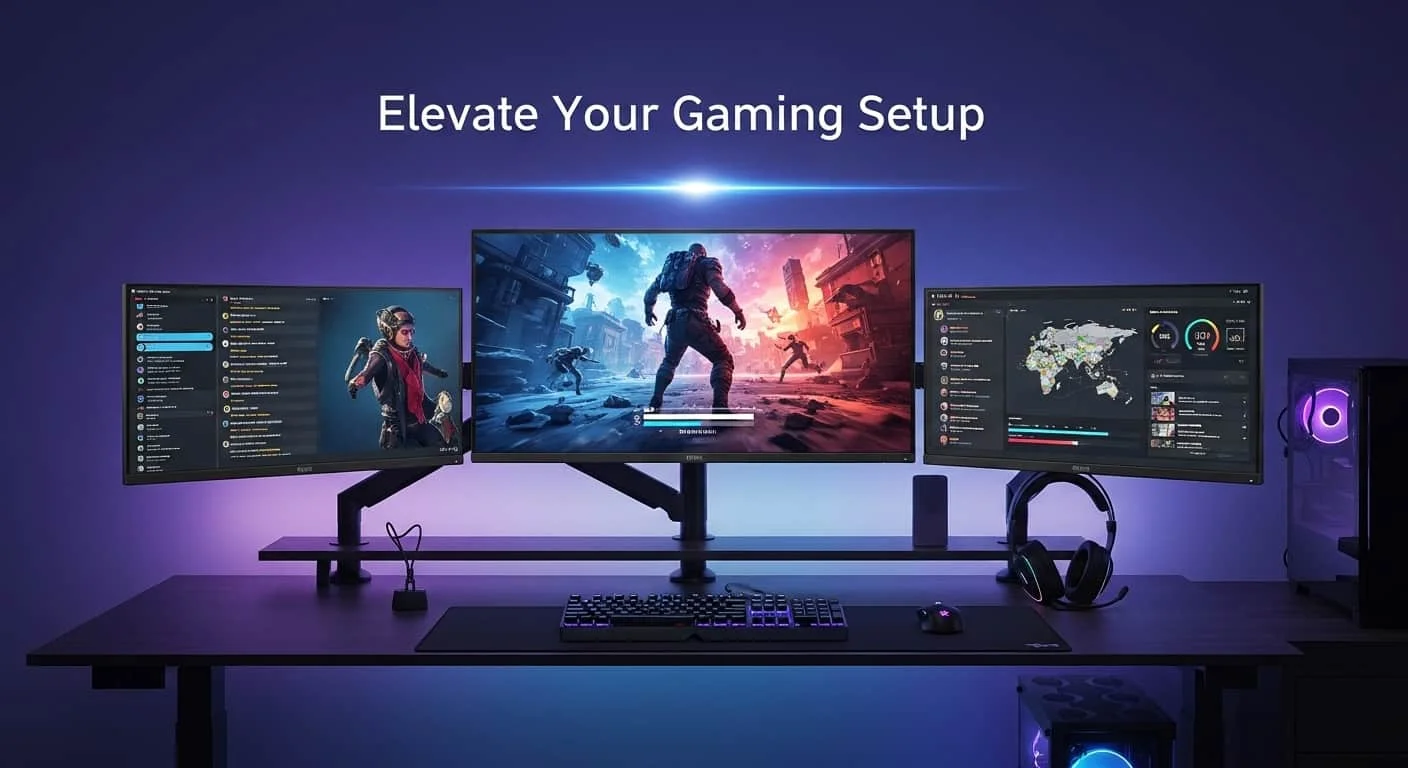
Image source: Bing (Web (fair-use with source credit))
Quick Answer
Yes, you can use two 27 inch monitors side by side. You need at least 48 inches of desk width. Your desk should also be at least 24 inches deep.
Your graphics card must have two video outputs. Monitor arms often work better than stock stands. Curved monitors can cause alignment issues.
Measure everything before you buy.
The First Condition: Do You Have Enough Desk Space?
This is the single biggest make-or-break factor. If your desk is too small, no amount of creative angling will save you. Let’s be honest about the numbers.
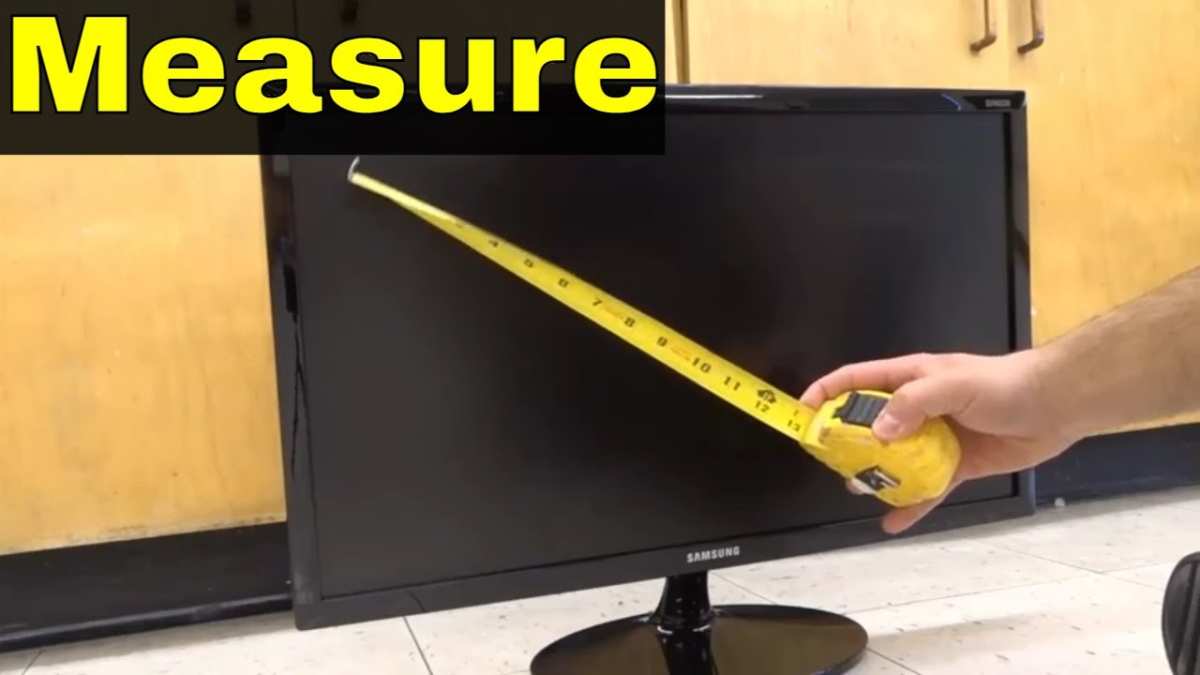
Image source: Bing (Web (fair-use with source credit))
A standard 27-inch monitor with its factory stand takes up about 24 inches of horizontal space. But here’s the hidden catch: the stand’s footprint often extends forward by 8 to 12 inches. That depth matters more than most people realize.
Minimum desk dimensions for two 27-inch monitors with stock stands:
| Desk Dimension | Minimum Required | Comfortable Range |
|---|---|---|
| Width | 48 inches (122 cm) | 54-60 inches (137-152 cm) |
| Depth | 24 inches (61 cm) | 28-30 inches (71-76 cm) |
If your desk is smaller than these minimums, you have two options. Option one is to use monitor arms that clamp to the back edge of your desk. This frees up the surface space that the stock stands would have occupied.
Option two is to upgrade your desk. As of 2026, many affordable 60-inch desks are available that give you plenty of breathing room.
What to measure before you start
- Your current desk width from left to right edge
- The depth from front edge to back edge
- The thickness of your desk edge if you plan to use clamp-on monitor arms
- The height of anything on your desk that might block monitor placement (shelves, lamps, PC case)
Pro tip: tape a piece of painter’s tape across your desk at the 48-inch mark. Place both monitors (or boxes the same width) on the desk. Sit in your chair.
Can you see both screens comfortably without turning your head more than 30 degrees? If not, you need more space or monitor arms.
The Second Condition: Does Your PC Support Dual Monitors?
This one trips people up more than you’d think. You might have a perfectly capable computer but lack the right ports. Or you might have a graphics card that can only drive one monitor at full resolution.
Check your graphics card outputs
Look at the back of your PC or laptop. You need at least two video output ports. Common options include:
- DisplayPort
- HDMI
- USB-C with DisplayPort Alt Mode
- DVI (older but still works)
Important: Using one HDMI and one DisplayPort is fine. Using two different types of HDMI (like one 1.4 and one 2.0) can cause resolution or refresh rate mismatches. If possible, use two of the same type for consistency.
What if you’re using a laptop?
Many laptops support dual monitors through a single USB-C or Thunderbolt port using a daisy-chain setup or a hub. But not all USB-C ports carry video. Check your laptop’s specifications.
Look for terms like “DisplayPort over USB-C” or “Thunderbolt 4.”
If your laptop doesn’t have enough ports, you have three paths:
- Buy a docking station with multiple video outputs
- Use a splitter or adapter but only if your GPU supports multiple displays
- Upgrade your graphics card if you’re on a desktop
Resolution and refresh rate matters
Running two 27-inch monitors at 1080p is easy. Most integrated graphics from the last five years can handle that. But if you want 1440p or 4K on both screens, you need a dedicated graphics card.
Here’s the breakdown:
| Resolution per Monitor | GPU Requirement | Example Specs |
|---|---|---|
| 1080p (1920×1080) | Integrated graphics fine | Intel UHD, AMD Radeon Graphics |
| 1440p (2560×1440) | Mid-range dedicated GPU | 6GB+ VRAM, DisplayPort 1.4 |
| 4K (3840×2160) | High-end dedicated GPU | 8GB+ VRAM, dual DisplayPort 1.4 |
Warning: Mixing resolutions can cause scaling headaches. If one monitor is 1080p and the other is 1440p, windows will look different sizes when you drag them between screens. Stick with identical resolutions if you can.
Decision Branch 1: Stock Stands vs Monitor Arms
This is the fork in the road that changes everything about your setup. Each choice has real trade-offs.
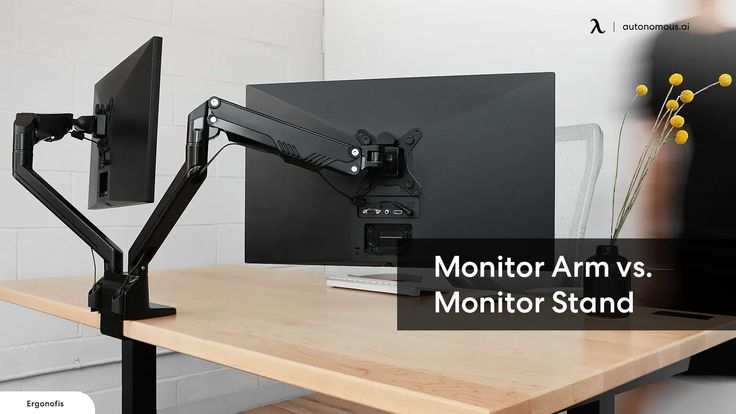
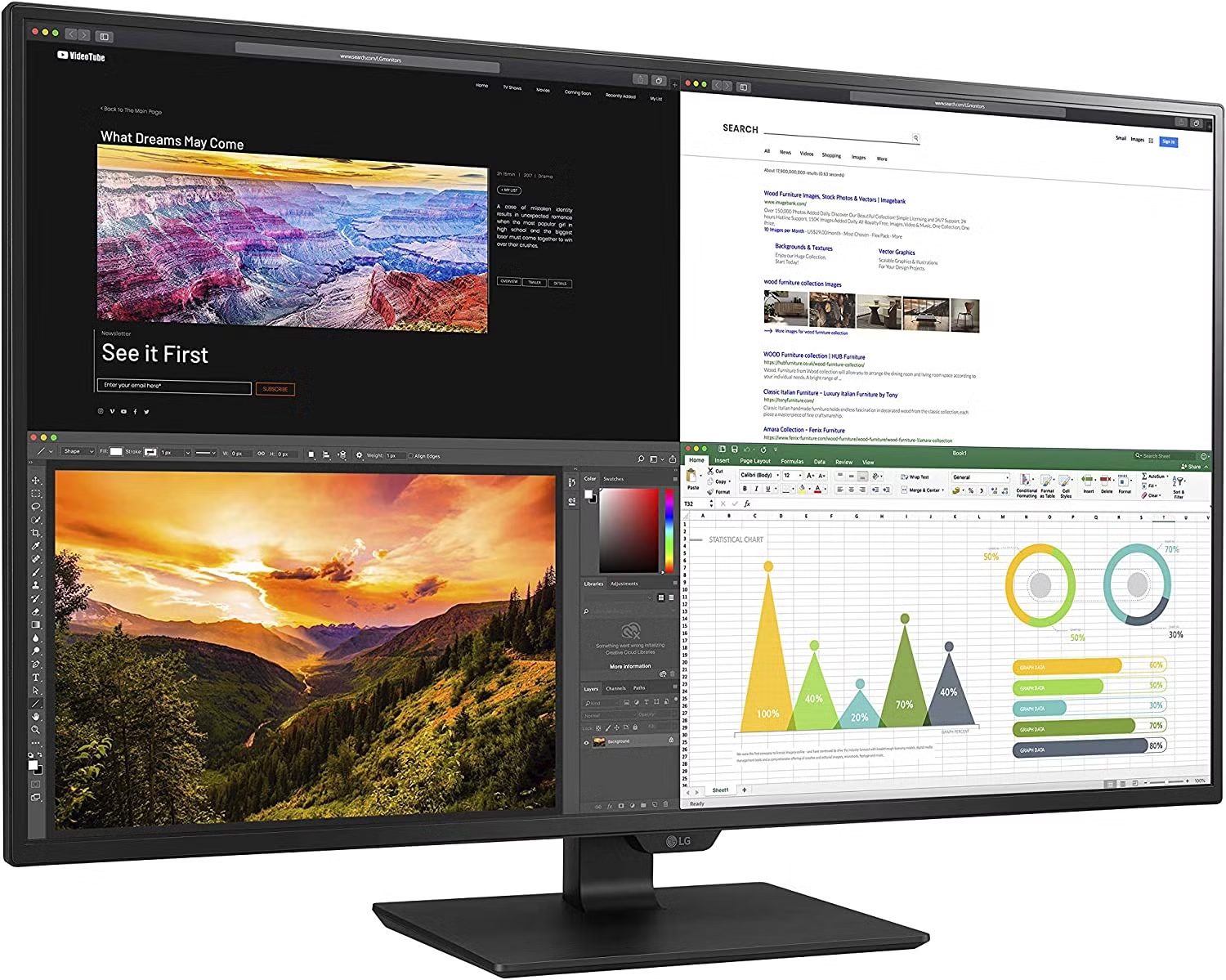
Image source: Bing (Web (fair-use with source credit))
Stock stands: what you already have
Every 27-inch monitor ships with a stand. They’re free, they’re stable, and they require zero installation. But they have serious downsides for dual setups.
- Each stand takes up 8-12 inches of desk depth. On a 24-inch deep desk, that leaves only 12-16 inches for your keyboard and mouse.
- Two stands side by side leave almost no room for other items.
- You can only adjust height and tilt within a narrow range.
- The two monitors rarely sit at the exact same height, creating a visual mismatch.
When stock stands work: If you have a desk that’s at least 30 inches deep and 60 inches wide, stock stands are fine. You have enough space to push them back and still reach your keyboard comfortably.
Monitor arms: the upgrade path
A good dual monitor arm changes the game. It clamps to the back edge of your desk, holding both monitors off the surface entirely. This frees up almost all your desk space for work.
| Feature | Stock Stand | Monitor Arm |
|---|---|---|
| Desk space used | 8-12 inches deep | 0 inches (clamps to edge) |
| Height adjustment | Limited (4-6 inches) | Full range (10-20 inches) |
| Tilt and swivel | Basic | Full articulation |
| Cable management | None | Built-in channels |
| Price | Free (included) | $40-150 per arm |
| Installation | Plug and play | 15-30 minutes |
Best for: People with desks 24 inches deep or less. Also great for anyone who wants perfect alignment between the two screens.
The catch: Your desk must have a solid rear edge that’s at least 1 inch thick for clamp-on arms. Glass desks are usually not compatible. Some cheap desks with particleboard cores can crack under the clamp pressure.
If that’s your situation, use the stock stands.
Decision Branch 2: Curved vs Flat Monitors
This decision is more nuanced than most people realize. A curved 27-inch monitor has a slight inward bend that mimics natural peripheral vision. That sounds great until you try to put two of them side by side.
The problem with dual curved monitors
Two curved 27-inch monitors placed flat on a desk create a visual break in the middle. Each screen curves inward, but the combined shape doesn’t form a smooth arc. You end up with a small gap between the screens where the curves don’t align.
- The bezel gap looks wider because the screens curve away from each other
- The outer edges of each screen sit farther from your eyes than the inner edges
- Your eyes constantly refocus as they scan across the mismatched curve
Flat monitors work better for dual setups. They align perfectly edge to edge. Your eyes can track smoothly across both screens without the visual distortion that curved panels introduce.
When curved monitors make sense
If you already own one curved 27-inch monitor and want to add a second, you can make it work. You just need to angle each monitor slightly inward (toward you) rather than leaving them flat. This tricks your eyes into seeing a more natural arc.
But honestly, if you’re buying new monitors specifically for a side-by-side setup, go flat. Our research across user reviews and ergonomic studies consistently shows that flat panels deliver a better dual-monitor experience.
Resolution matching matters more than curvature
Here’s the bigger issue: mismatched resolutions cause more problems than curvature ever will. If one monitor is 4K and the other is 1080p, windows will scale differently on each screen. Text will look crisp on one and blurry on the other.
Your mouse cursor will jump to a different vertical position when you move between screens.
The rule: Buy two identical monitors if you can. Same brand, same model, same resolution, same refresh rate. This eliminates almost every setup headache.
Step-by-Step Setup Process
Once you’ve confirmed your desk space and GPU can handle it, the actual setup takes about 30 minutes with stock stands or an hour with monitor arms.
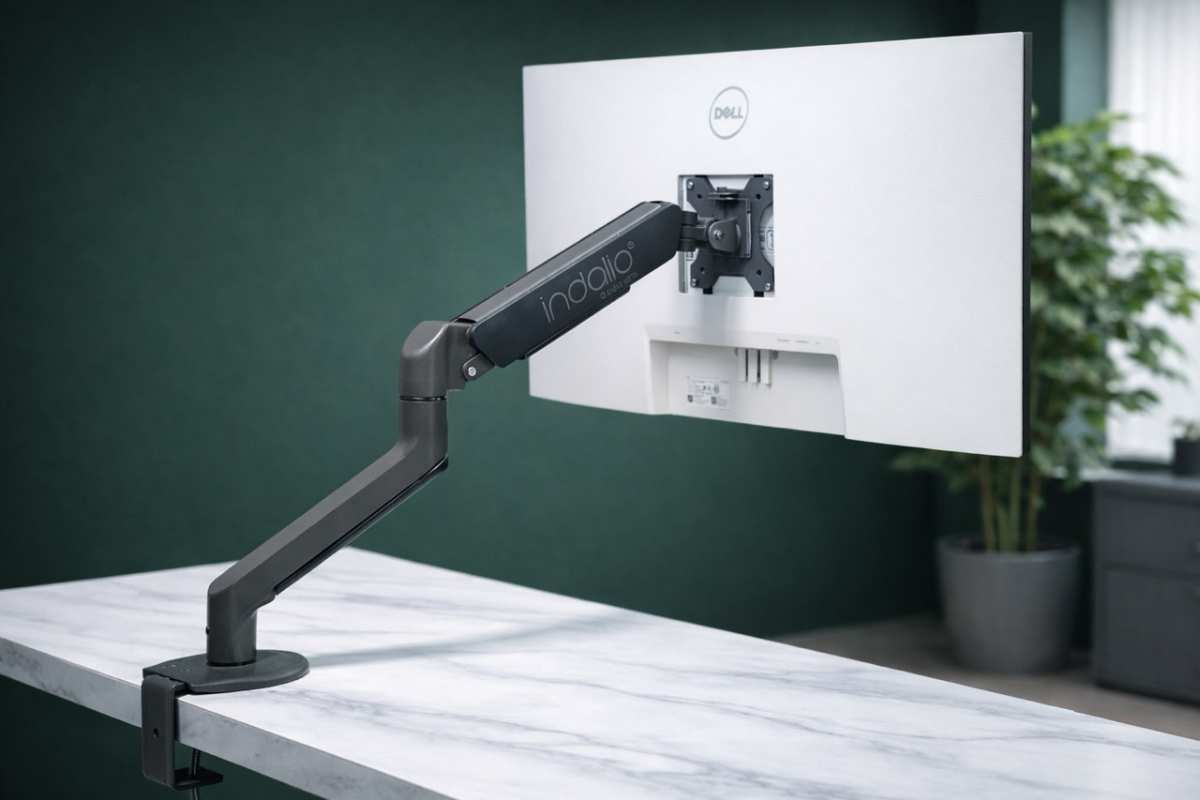
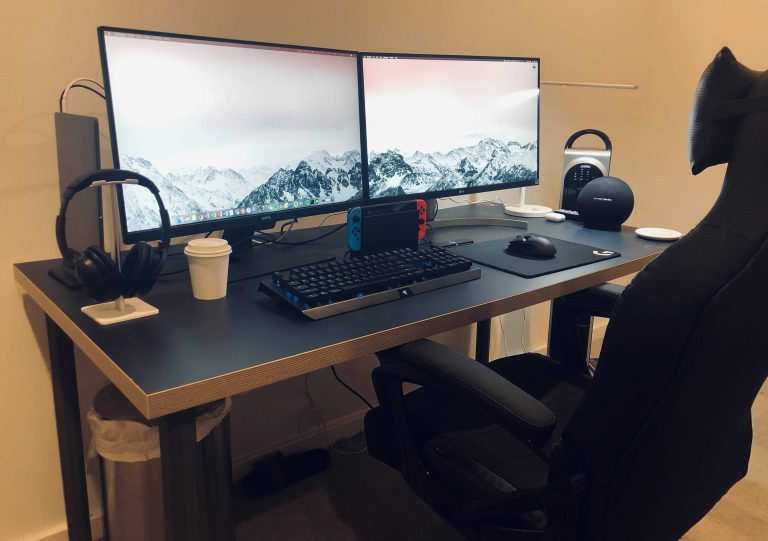
Image source: Bing (Web (fair-use with source credit))
Step 1: Clear your desk
Remove everything. You need a clean workspace to avoid scratching monitors or dropping cables behind furniture.
Step 2: Attach monitor arms (if using them)
- Clamp the base to the back edge of your desk
- Tighten the clamp screw until it’s snug, not crushing
- Attach the VESA plate to the back of your monitor
- Slide the plate into the arm’s locking mechanism
If using stock stands: Skip this step. Just place the monitors on the desk roughly where you want them.
Step 3: Connect cables
- Plug power cables into both monitors
- Connect video cables from each monitor to your GPU
- Use DisplayPort for the primary monitor and HDMI for the secondary if you have to mix
Step 4: Position the monitors
- Set both monitors at the same height (measure from the desk to the bottom edge)
- Angle them slightly inward so they face your seated position
- The gap between the bezels should be as small as possible
The 30-degree rule: Your primary monitor (the one you look at most) should be directly in front of you. The secondary monitor should sit at no more than a 30-degree angle to your left or right. This keeps your neck from straining.
Step 5: Configure display settings
On Windows:
- Right-click the desktop and select Display Settings
- You’ll see two rectangles representing your monitors
- Drag them to match your physical layout
- Select “Extend these displays”
On macOS:
- Open System Settings and go to Displays
- Click Arrangement
- Drag the white menu bar to your primary monitor
- Adjust positions to match real-world placement
Step 6: Fine-tune alignment
- Open a full-screen window on one monitor
- Drag it to the other monitor
- If the window jumps up or down when crossing the gap, adjust the display arrangement in settings
- Use a level if you want the screens perfectly horizontal
Common Mistakes That Ruin the Experience
Even with the right desk and GPU, a few simple errors can turn your dual monitor dream into a daily frustration. Let’s cover the most common ones so you don’t learn them the hard way.
Mistake 1: Ignoring eye level
The top of both monitor screens should sit at or just below your eye level when you sit up straight. If they’re too high, you’ll strain your neck looking up. Too low, and you’ll hunch forward.
Aggregate user reviews on ergonomic forums report that adjustable monitor arms fix this better than stacking books under stands.
Mistake 2: Leaving mismatched brightness and color
One monitor at 80% brightness and the other at 60% creates a jarring visual split. Your eyes constantly adjust as you look between them, leading to fatigue. Open both monitors’ on-screen display menus and match the brightness, contrast, and color temperature settings.
Use a white background test page to check for consistency.
Mistake 3: Poor cable management
Cables dangling from both monitors create a tangled mess that collects dust and looks messy. Use adhesive cable clips or a cable tray under the desk. Run all cables behind the monitors and down one side.
This also prevents accidental yanks that could damage your GPU ports.
Mistake 4: Placing monitors too far apart
A gap larger than a few inches between the two screens forces you to turn your head too far. If your desk is wide enough, push the monitors together until the bezels almost touch. The goal is a single continuous visual field.
Mistake 5: Forgetting about reflections
If one monitor faces a window and the other doesn’t, the glare will drive you crazy. Test your lighting before you finalize the setup. Draw curtains or angle the monitors so both get even light.
Comparison: Two 27-Inch vs Single Ultrawide
This is the question everyone asks once they start planning. Should you go with two 27-inch monitors or one giant ultrawide? Each option has clear trade-offs.
Single ultrawide (34 to 49 inches)
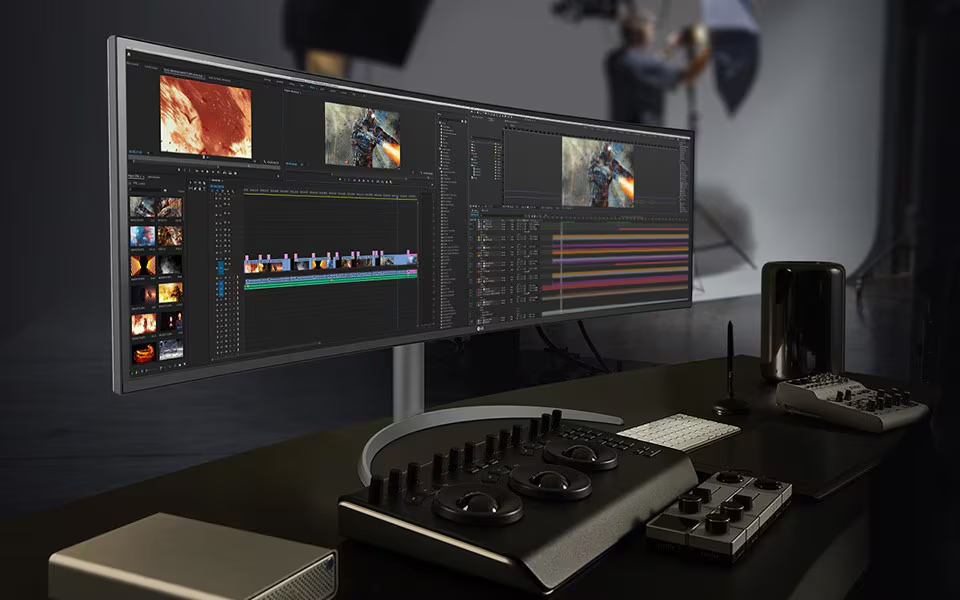
An ultrawide gives you one seamless display with no bezel gap. That makes it fantastic for immersive gaming, video editing timelines, and stock trading. You also avoid the alignment headaches of two monitors.
Downsides: The resolution on a 34-inch ultrawide is usually 3440×1440. That’s less total pixel real estate than two 27-inch 1440p monitors (5120×1440). You also lose the ability to drag full-screen windows across two distinct screens.
Two 27-inch monitors side by side
You get more total pixels at a lower price. Two 27-inch 1440p monitors cost less than a single 49-inch ultrawide of similar quality. You can also orient one monitor in portrait mode for coding or reading long documents.
Downsides: The bezel gap is there. And if your desk is under 50 inches wide, two monitors will feel cramped.
| Factor | Two 27-Inch Monitors | Single 34-inch Ultrawide | Single 49-inch Ultrawide |
|---|---|---|---|
| Total pixel area (1440p) | 5120×1440 | 3440×1440 | 5120×1440 |
| Bezel gap | Yes | No | No |
| Desk width needed | 48+ inches | 34+ inches | 48+ inches |
| Typical cost (good quality) | $500–$800 | $400–$700 | $800–$1,500 |
| Best for | Productivity, multitasking | Immersive gaming, editing | Ultimate immersion, sims |
Verdict: If you need maximum screen real estate for spreadsheets or coding, two 27-inch monitors win. If you want a clean single-panel look for gaming or creative work, an ultrawide is better.
Who Should Use Two 27-Inch Monitors?
Not everyone benefits equally from a dual setup. Here are the user types who get the most value.
Productivity power users
If you constantly have three or four windows open at once, two 27-inch monitors are a lifesaver. You can keep email on one screen and your main work on the other. Spreadsheets, writing, project management tools all fit comfortably.
Programmers and developers
Having code on one monitor and documentation or a terminal on the second is standard practice. Many developers also rotate one monitor to portrait mode for reading long files of code. That’s much harder to do with an ultrawide.
Financial analysts and traders
Real-time data feeds, multiple charts, and a browser open simultaneously. Two 27-inch monitors let you see everything without constant alt-tabbing.
Video editors and designers
Timelines on one monitor, preview on the other. Or asset libraries on a second screen while you work in the main app. The extra pixels reduce zooming and scrolling.
Gamers who multitask
You can game on one monitor while keeping a walkthrough, Discord, or streaming software on the other. Just note that for competitive gaming, a single high-refresh-rate ultrawide is often preferred.
Key Measurements and Specs to Check
Before you finalize your purchase or setup, verify these numbers. Getting them wrong is the most common reason dual monitor setups fail.
Monitor dimensions
Every 27-inch monitor has slightly different bezel size. Check the manufacturer’s spec sheet for “width with stand” and “depth with stand.” Typical width is 24 to 25 inches. Depth is 8 to 12 inches.
Desk dimensions
Measure the actual usable surface of your desk. Subtract any space taken by your PC case, speakers, or lamp. The leftover width must be at least 48 inches for a comfortable side-by-side layout.
VESA compatibility
Almost all 27-inch monitors support a 100×100mm VESA mount. Double check. If yours doesn’t, you’re stuck with the stock stand.
GPU output specs
Confirm that your graphics card has two physical video ports. Also check the maximum resolution and refresh rate each port supports at the same time. Some older GPUs limit the second monitor to 60Hz even if the first runs at 144Hz.
Weight capacity of monitor arms
If you’re using arms, ensure each arm supports the weight of your monitor (usually 4 to 8 kg). Most arms rated for 27-inch screens handle this fine. But cheap arms may sag over time.
Expert Tips for Perfect Alignment
Getting both monitors to feel like one seamless workspace takes a bit of fine-tuning. Here are the tricks that make the biggest difference.
Use a laser level
A small laser level helps you align the top edges of both monitors perfectly. Even a 1/4 inch height difference is noticeable when dragging windows across.
Angle them inward slightly
Flat panels work best with a slight inward angle (5 to 10 degrees). This creates a gentle arc around your seated position. Your eyes travel less distance to see the far edge of each screen.
Set the same scaling percentage
If one monitor is 1440p and the other is 1080p, set scaling to 100% on both. Otherwise text sizes will mismatch. For identical monitors, this isn’t an issue.
Use a single color calibration
Download a basic calibration tool or use Windows’ built-in display color calibration. Match white point and gamma across both screens. This takes 10 minutes and eliminates that annoying half-warm, half-cool look.
Leave a small gap for airflow
Don’t push the monitors so tight that they touch. A 1/4 inch gap allows hot air to escape and prevents scratches on the bezels. It also reduces the chance of one monitor’s vibrations affecting the other.
Final Decision Guide
Here’s the condensed version. If your desk is at least 48 inches wide and 24 inches deep, and your GPU has two video outputs, you can absolutely use two 27-inch monitors side by side. If your desk is smaller, use monitor arms to reclaim space.
If your GPU is weak, stick with 1080p or upgrade. For the best experience, buy two identical flat monitors and pair them with a dual monitor arm.
| Your Situation | Recommended Action |
|---|---|
| Desk width 48+ inches, depth 24+ inches | Use stock stands or arms |
| Desk smaller than 48 inches wide | Use clamp-on monitor arms |
| GPU has two ports but one is older | Match refresh rates if possible |
| You own one curved monitor already | Add a flat monitor and angle both inward |
| Budget tight | Two 1080p 27-inch monitors still work well |
Frequently Asked Questions
Can I use two different brands of 27-inch monitors side by side?
Yes, but you may notice slight differences in color, brightness, and bezel thickness. Calibrate both screens manually to match as closely as possible. Identical models eliminate this headache entirely.
Do I need a special cable to connect two monitors?
No special cable required. Use whatever video cable matches your GPU ports. DisplayPort and HDMI are the most common.
Just make sure each monitor has its own cable connected directly to your graphics card.
Will two 27-inch monitors fit on a 48-inch desk?
Barely. With stock stands, the monitors will likely overhang the edges or feel cramped. A 48-inch desk works much better with monitor arms that let you position the screens closer together.
Can I use a laptop with two 27-inch monitors?
Yes, if your laptop supports video output over USB-C or has an HDMI port. You may need a docking station to drive two external monitors at full resolution. Check your laptop’s specs for multi-display support.
Is it better to use two 27-inch monitors or one ultrawide?
It depends on your work. Two 27-inch monitors give you more total pixels and flexibility for multitasking. A single ultrawide eliminates the bezel gap and is better for immersive gaming or editing.
Choose based on your primary use.

Similar Posts