Are 27 Inch Monitors Good for Trading
So here's the thing: when someone searches "are 27 inch monitors good for trading," they're usually sitting at a desk with a laptop, squinting at charts, wondering if a bigger screen will fix their workflow. The short answer is yes, but only if you pick the right resolution and set it up properly. A 27-inch monitor can be a fantastic middle ground between portability and screen real estate, but it's not a one-size-fits-all solution.
Research on visual ergonomics (ANSI/HFES 100-2007 standards) shows that display size directly affects reading speed, error rates, and physical comfort during extended screen time. For traders who spend 8, 12 hours a day glued to price action, those factors aren't minor, they directly impact decision quality. So let's break down exactly what makes a 27-inch monitor work (or fail) for trading as of 2026.
Quick Answer
Yes, 27-inch monitors are good for trading. They offer enough space for multiple charts. The ideal resolution is 1440p (QHD).
Avoid 1080p on 27 inches. Text becomes too pixelated. 4K requires scaling and can cause headaches. Pair it with an ergonomic stand.
Why Accuracy Matters for This Decision
Choosing the wrong monitor for trading isn't just a minor annoyance. It can cost you money. Blurry charts cause misreads.
Too-small text forces you to lean in. That leads to eye strain and neck pain. Over time, fatigue clouds judgment.
Bad trades follow.
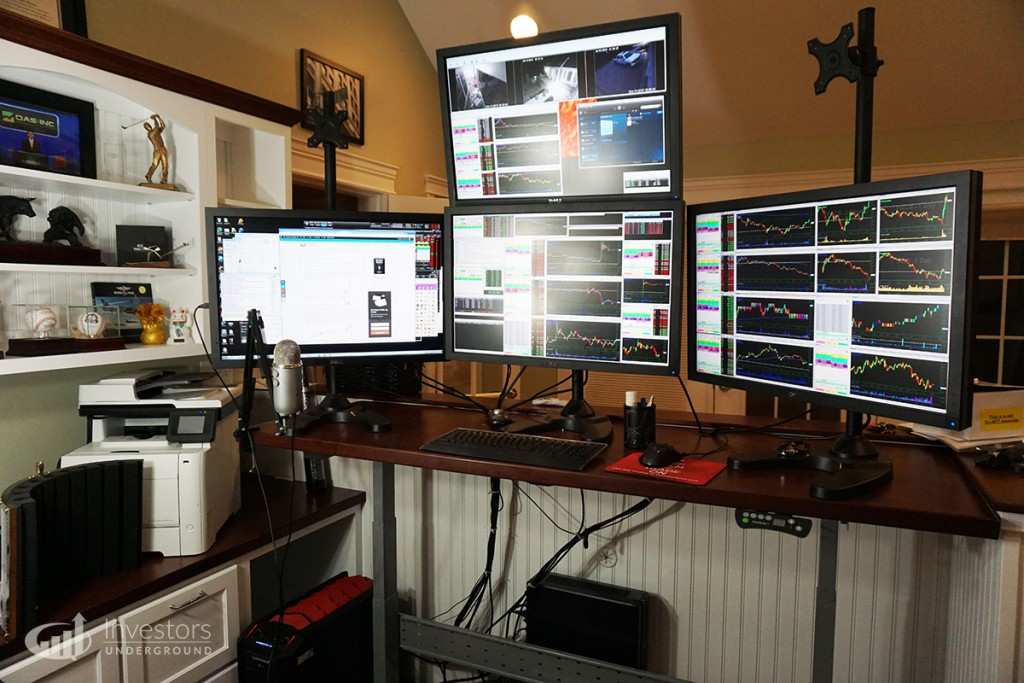
Industry research from the International Ergonomics Association confirms that screen size and resolution directly affect cognitive load during data-intensive tasks. When you're scanning dozens of candlesticks per minute, every wasted microsecond adds up. A poorly sized monitor creates friction.
A well-chosen one disappears into the background.
That's why this isn't a casual shopping decision. It's a tool purchase for your business. And like any tool, it needs to match the job.
What You Need to Know About 27-Inch Monitors for Trading
Let's start with the basics. A 27-inch monitor gives you roughly 0.27 square meters of screen area. That's enough to fit four or five timeframes side by side, plus a watchlist column.
But the key variable is resolution.
Here are the three main options you'll encounter:
| Resolution | Pixel Density (PPI) | Best for Trading? |
|---|---|---|
| 1920×1080 (1080p) | ~82 PPI | No – text and chart lines look fuzzy |
| 2560×1440 (1440p / QHD) | ~109 PPI | Yes – sharp without needing scaling |
| 3840×2160 (4K / UHD) | ~163 PPI | Yes, but requires 150% scaling in Windows |
The sweet spot for trading on a 27-inch panel is 1440p. It gives you crisp text and thin candlestick lines without the scaling headaches of 4K. Most trading platforms like TradingView and Thinkorswim render perfectly at this resolution.
Panel type matters too. For trading, IPS (In-Plane Switching) is the safe bet. It offers wide viewing angles and consistent color.
VA (Vertical Alignment) gives better contrast but can suffer from dark smearing when scrolling fast charts. OLED is beautiful but risky for static elements like chart axes, burn-in is a real concern after years of use.
Refresh rate? Don't fall for the marketing. 60Hz is plenty for trading. Charts update in milliseconds, but your eyes can't perceive 120Hz flicker on a static candlestick.
Save money there and invest in a higher quality panel instead.
The Real Risk Factors: Eye Strain, Desk Space, and Resolution Traps
The biggest trap traders fall into is buying a 27-inch 1080p monitor because it's cheap. At 82 PPI, the pixel grid is visible from a normal viewing distance. Text looks jagged.
Chart lines appear thicker than they should. Your eyes work harder to interpret data.
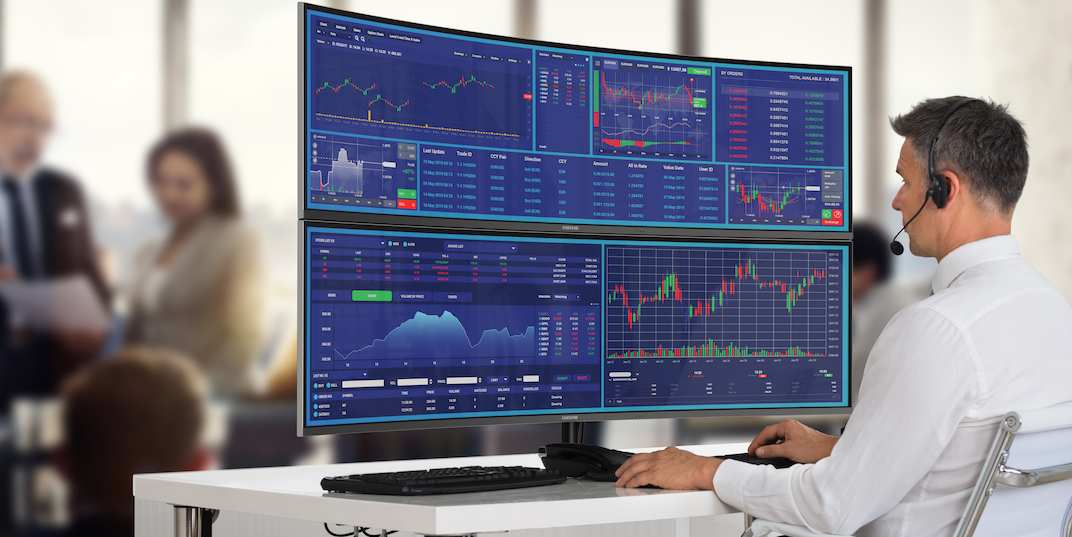
The result is faster eye fatigue. Within two hours, you may notice headaches or dry eyes. Over weeks, that adds up to chronic discomfort.
Desk depth is another overlooked factor. A 27-inch monitor needs to sit about 20, 28 inches from your eyes for optimal viewing. If your desk is only 24 inches deep, and the monitor stand adds 8 inches of depth, you're already too close.
That forces you to sit back, lean forward, or crane your neck. All three are bad.
4K on a 27-inch screen has its own problem. At native resolution, everything is tiny. You'll need to set Windows scaling to 150%.
That works for most apps, but some trading platforms (especially older broker software) don't scale well. Buttons can overlap. Text becomes blurry.
You end up running the monitor at 1440p anyway, wasting the 4K investment.
Safe Practices: Ergonomics, Scaling, and Viewing Distance
Setting up your 27-inch monitor correctly is arguably more important than the monitor itself. Good ergonomics prevent the physical strain that leads to mental errors.
Start with viewing distance. Sit at arm's length from the screen. That's roughly 20, 28 inches.
If your desk is too shallow, consider a monitor arm that clamps to the back edge. This frees up desk space and lets you push the screen exactly where it needs to be.
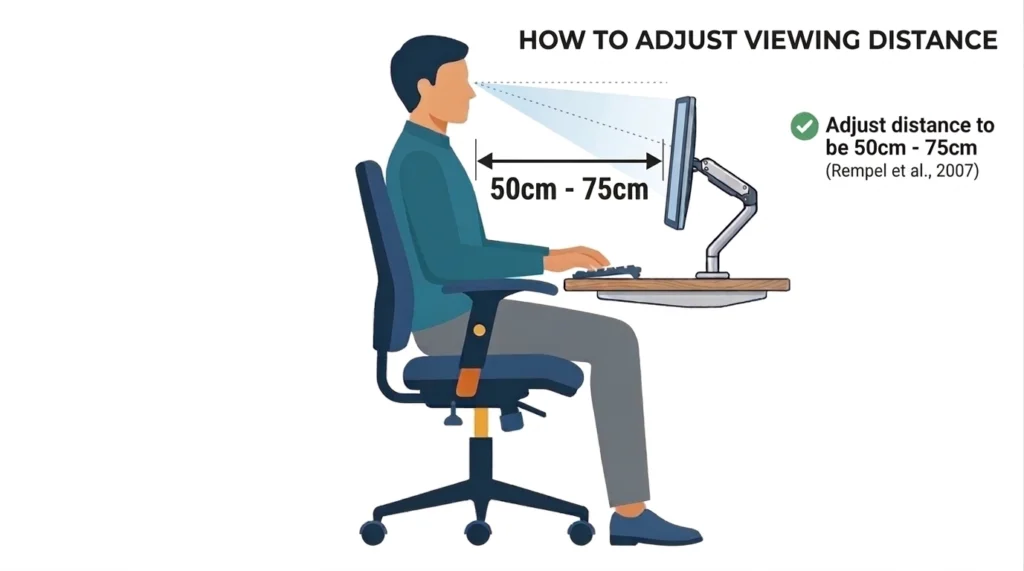
Eye level is critical. The top bezel of the monitor should sit at or slightly below your horizontal line of sight. You should look slightly down at the center of the screen, not straight ahead or up.
This reduces strain on your neck and upper back.
For scaling on a 27-inch 1440p monitor, most systems handle it natively. No scaling adjustments needed. For 4K, set scaling to 125% or 150% in Windows Display Settings.
Test it with your trading platform before buying. Some brokers offer free trials, use them to verify.
Enable the built-in blue light filter during evening trading sessions. It won't ruin chart colors because you're not doing color-critical work. It will help you sleep better after staring at screens all day.
The 20-20-20 rule is simple and effective: every 20 minutes, look at something 20 feet away for 20 seconds. Set a timer. Your eyes need breaks from the fixed focal distance.
27-Inch vs. the Alternatives (24-Inch, 32-Inch, Ultrawide, Dual Setup)
A 27-inch monitor is not the only option. Let's see how it compares to the other common trading setups.
| Option | Screen Area | Best For | Downsides |
|---|---|---|---|
| Single 24-inch | ~0.24 sq m | Laptop users, tight desks | Too small for 3+ charts |
| Single 27-inch | ~0.27 sq m | Balanced all-rounder | Needs right resolution |
| Single 32-inch | ~0.34 sq m | More charts, still one screen | Requires deeper desk (30+ inches) |
| Dual 24-inch | ~0.48 sq m | Two-screen workflow | Bezels in the middle |
| Dual 27-inch | ~0.54 sq m | Maximum chart density | Expensive, needs wide desk |
| 34-inch ultrawide | ~0.34 sq m | Single screen, wide layout | Curve can distort straight lines |
| 49-inch ultrawide | ~0.50 sq m | Replace two monitors | Very expensive, niche |
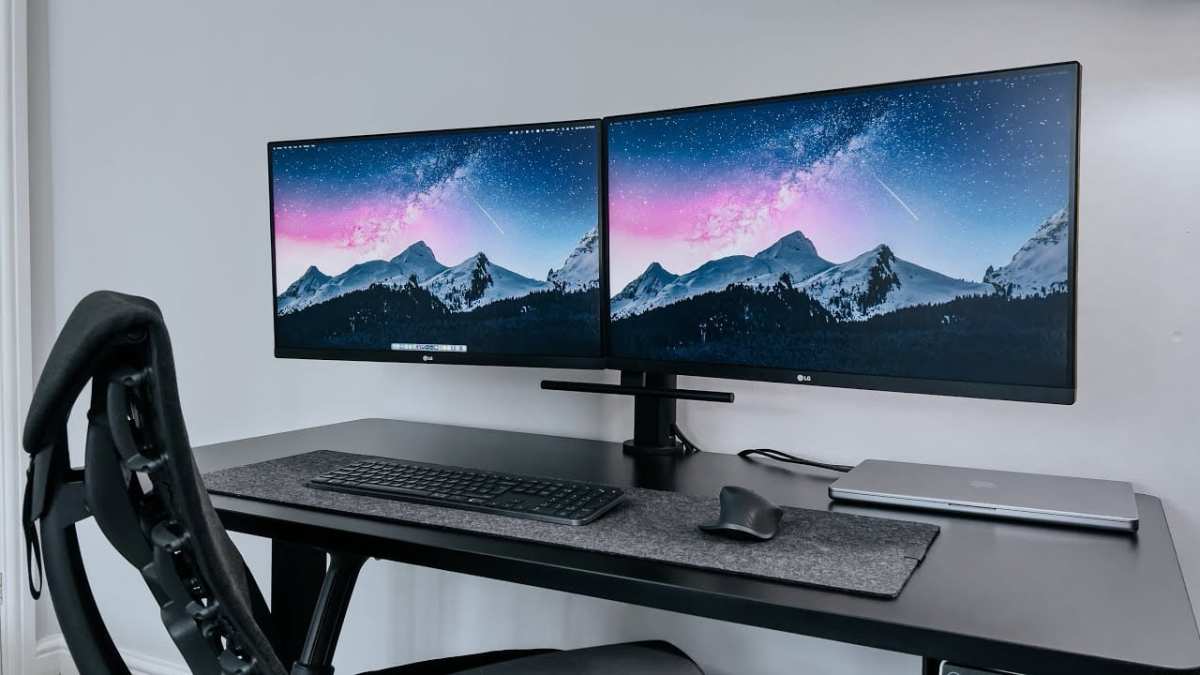
A single 27-inch 1440p monitor is the best entry point for traders who don't want to manage two screens. It's large enough to see four timeframes and a trade panel simultaneously. It fits on most standard 60-inch desks.
And it costs less than a dual setup.
If you need more screen real estate, two 27-inch monitors side by side is a proven standard among professional day traders. You can put charts on one and order execution on the other. The bezels are a minor annoyance but not a dealbreaker.
An ultrawide (34-inch or 49-inch) eliminates the bezel gap. But the curve can distort straight horizontal lines, which matters if you draw trendlines across the full width. Many traders also find the 49-inch too wide for comfortable head rotation.
A 32-inch monitor offers more vertical space than a 27-inch. That helps when you stack indicators below price action. But it demands a deeper desk and often costs more per inch of quality.
For most traders starting out, a single 27-inch 1440p IPS monitor is the smartest buy. It's affordable, easy to set up, and leaves room to add a second later if needed. That's the path of least resistance and least regret.
Pros and Cons of a 27-Inch Trading Monitor
Every monitor size involves trade-offs. A 27-inch panel sits in a sweet spot, but it is not perfect for everyone. Here is a balanced breakdown.
The Upsides
- Great balance of size and desk fit. It offers noticeably more chart space than a 24-inch without overwhelming a standard 60-inch desk. You can fit four timeframes and a watchlist comfortably.
- 1440p hits the resolution sweet spot. At 109 PPI, text is sharp enough for long sessions. No scaling headaches like 4K. No pixel fuzz like 1080p.
- Easy to pair with a second monitor. Two 27-inch screens side by side give you roughly the same area as a 49-inch ultrawide. But they cost less and allow flexible positioning.
- VESA compatible for arm mounting. Most models support standard 100×100mm mounts. That lets you position the screen exactly at eye level and free up desk space.
- Wide availability and competitive pricing. You can find quality 27-inch 1440p IPS monitors from major brands for $300 to $600. That is a reasonable entry point for a trading tool.
The Downsides
- Not enough for heavy multi-window traders. If you need six charts, a Level 2 order book, a news feed, and a trade blotter all visible at once, one 27-inch screen will feel cramped.
- 1080p is a trap at this size. Many budget models are 1080p. At 82 PPI, you get visible pixels and eye strain. Avoid them.
- Requires proper viewing distance. A desk depth under 24 inches makes it hard to maintain the recommended 20, 28 inch gap. You end up too close.
- 4K scaling issues on Windows. If you choose 4K at 27 inches, you must run 150% scaling. Some older trading apps look blurry or misaligned.
- Curved options can distort straight lines. A curved 27-inch panel is less common, but if you pick one, trendlines near the edges may appear bent.
Who It’s Right For (and Who Should Skip It)
A 27-inch monitor works best for a specific type of trader. Let's match the tool to the user.
This monitor is for you if:
- You trade from a standard or small desk. You have about 24 to 30 inches of depth and 40 to 60 inches of width. A 27-inch fits without dominating the space.
- You use 2 to 4 charts simultaneously. You run one or two timeframes per chart plus a trade entry panel. A single 27-inch 1440p screen handles that cleanly.
- You are moving up from a laptop screen. The jump from 15 inches to 27 inches is transformative. You will feel the extra room immediately.
- You plan to add a second monitor later. A 27-inch pairs naturally with another 27-inch. Matching bezels and resolutions make the transition seamless.
- You want a cost-effective trading upgrade. Spending $400 on a good 27-inch monitor delivers faster ROI than buying a $1200 49-inch ultrawide.
Skip it if:
- You scalp multiple instruments. Scalpers often need 6+ charts for different stocks or pairs. They benefit more from a 32-inch or dual 27-inch setup.
- Your desk is very shallow. Under 20 inches of depth makes a 27-inch monitor uncomfortable. Consider a 24-inch or a monitor arm.
- You rely on many small windows. If your workflow includes 10+ floating windows, more screen area via a larger single display or dual setup is better.
- You already own a 24-inch and find it too small. You are likely a power user. Jump straight to 32-inch or dual monitors instead of a minor size bump.
Common Mistakes Traders Make When Buying a 27-Inch Monitor
Even experienced traders slip up here. Avoid these errors.
Mistake 1: Buying 1080p without checking first
A 27-inch 1080p screen looks fine in a store demo showing a video. But put up a TradingView chart with 50 candles per window. The pixelation in thin lines becomes obvious.
You will regret it within a week. Always verify the resolution before buying.
Mistake 2: Ignoring desk depth
You measure the width of your desk but forget the depth. A monitor with a thick stand takes up 8 to 10 inches from front to back. That leaves only 14 inches of usable space between you and the screen.
You need 20 to 28 inches. Measure the stand depth plus your sitting distance before ordering.
Mistake 3: Assuming 60Hz is not enough
It is enough. Plenty of traders use 60Hz without issues. But some gaming monitors come with higher refresh rates and lower color accuracy.
Do not overpay for 144Hz or 240Hz if you only trade. That money is better spent on a better panel type like IPS.
Mistake 4: Forgetting about cable management
A 27-inch monitor often has multiple ports (HDMI, DisplayPort, USB-C). Cables clutter your desk quickly. Account for cable routing before mounting.
A monitor arm with built-in cable channels helps.
Mistake 5: Not testing scaling before buying 4K
If you buy a 27-inch 4K monitor without testing your trading platform at 150% scaling, you take a gamble. Some apps look fine. Others break.
Download the platform trial, set up 150% scaling on your current screen, and check interface elements for overlapping or blurry text.
What It Costs: Pricing, Specs, and What to Look For
Prices for 27-inch monitors vary widely based on resolution, panel type, and extra features. Here is a realistic guide for 2026.
| Feature | Budget ($200–$350) | Mid-Range ($350–$600) | Premium ($600–$1000) |
|---|---|---|---|
| Resolution | 1080p (avoid) | 1440p (ideal) | 1440p or 4K |
| Panel type | VA or TN | IPS | IPS or high-end VA |
| Refresh rate | 60Hz | 60–75Hz | 75–165Hz |
| Stand | Fixed tilt | Height-adjustable | Full ergonomic (height, tilt, swivel, pivot) |
| Connectivity | HDMI, VGA | HDMI, DisplayPort, USB-C | USB-C with power delivery, KVM |
| VESA mount | Often yes | Yes | Yes |
| Typical brand examples | Acer, Sceptre | Dell, ASUS, LG, BenQ | Dell UltraSharp, Eizo, NEC |
For trading, the mid-range sweet spot is where to shop. You get a 27-inch 1440p IPS panel with an adjustable stand and good connectivity. Expect to spend $400 to $500 for a reliable model that will last 5+ years.
If you need a second monitor, budget an extra $350 to $500 for the same model. Matching brands and models avoids color and bezel differences between screens.
Expert Tips for Setting Up Your 27-Inch Trading Workstation
You have the monitor. Now set it up to maximize comfort and clarity.
Position the screen at arm's length
Sit back in your chair. Extend your arm. Your fingertips should barely touch the screen.
That is your optimal viewing distance. If it feels close, your desk is too shallow. Use a monitor arm to push the screen back.
Set the height to eye level
Adjust the monitor so the top edge of the screen is at or slightly below your eye level. You should look downward at a 15 to 20 degree angle to the center. This neutral neck position reduces strain.
Disable power saving modes
Many monitors dim automatically after a few minutes of inactivity. That is annoying when you are reading a static chart. Turn off "Eco Mode" or "Power Saving" in the on-screen menu.
Calibrate brightness for your room
Brightness at 100% is unnecessary. For a typical office lighting, 120 cd/m² is comfortable. If your room is bright, go up to 150 cd/m².
At night, drop to 80 cd/m². Use the monitor's brightness button to adjust throughout the day.
Enable ClearType on Windows
Windows 10 and 11 have a built-in text sharpening tool. Search for "Adjust ClearType text" in the start menu. Run the wizard.
It makes chart labels and watchlist text noticeably crisper.
Use DisplayPort over HDMI
If your monitor and graphics card support DisplayPort, use it. It handles 1440p at higher refresh rates more reliably. HDMI works fine for 60Hz, but DisplayPort is the safer choice for consistent signal.
Arrange windows before trading starts
Set up your chart layout once. Save it as a workspace in TradingView or your broker platform. When you turn on the monitor each day, restore that layout.
No wasted minutes rearranging windows.
When to Seek Professional Help (Vision, Ergonomic Assessments)
Most monitor problems are fixable with setup adjustments. But some issues need outside help.
- Persistent headaches or eye pain. If adjusting brightness, distance, and blue light filters does not help, see an optometrist. You may need computer glasses with a slight prescription or blue-light filtering lenses.
- Wrist or elbow pain. That is not a monitor problem. It is a desk height problem. Consult an occupational therapist or ergonomic specialist. They can evaluate your chair, desk, and arm position.
- Chronic neck tension. A physical therapist can check your posture at the workstation. Sometimes a simple monitor arm or a different chair makes all the difference.
Final Verdict: Should You Buy a 27-Inch Monitor for Trading?
Yes, for most traders a 27-inch 1440p IPS monitor is a smart investment. It offers enough space for multiple charts without dominating your desk or your budget. The key is choosing the right resolution and setting it up with proper ergonomics.
If you trade from a laptop and want a single screen upgrade, start here. If you need more space later, add a second matching 27-inch. That path gives you flexibility without locking into a niche setup.
Frequently Asked Questions
What resolution is best for a 27-inch trading monitor?
2560×1440 (1440p) is the best resolution. It provides sharp text and clear chart lines without needing Windows scaling. 1080p is too pixelated. 4K requires 150% scaling and can cause compatibility issues with older trading software.
Can I use a gaming monitor for trading?
Yes, but be selective. Gaming monitors often prioritize high refresh rates over color accuracy and panel quality. Look for an IPS gaming monitor with a good contrast ratio.
Skip TN panels and avoid paying extra for 144Hz or 240Hz.
Is one 27-inch monitor enough for day trading?
It depends on your workflow. One 27-inch 1440p monitor handles 3 to 4 charts plus a trade panel. If you need more windows or a Level 2 order book, consider a second monitor.
Dual 27-inch is a common professional setup.
Should I get a curved or flat 27-inch monitor for trading?
Flat is safer for trading. Curved screens can distort straight horizontal lines near the edges. That matters when you draw trendlines across the full width.
A flat IPS panel gives you accurate geometry.

Similar Posts





















