Is 27 Inch Monitor Good for Video Editing
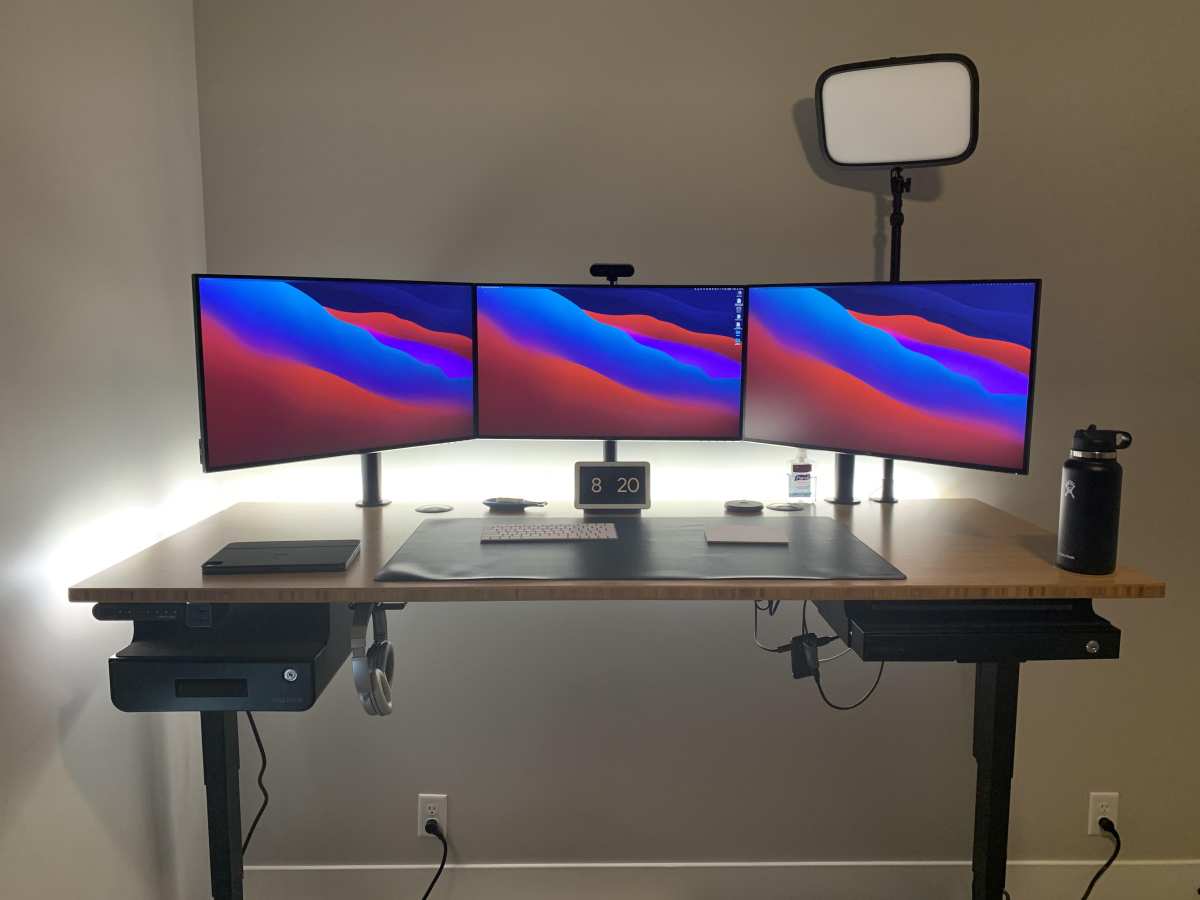
A 27-inch monitor can be excellent for video editing, but the answer depends entirely on which resolution you pick. Screen size alone doesn't tell you much. Pixel density, panel quality, and how far you sit from the display matter just as much.
Manufacturer specifications and aggregate professional reviews consistently point to 27 inches as the current sweet spot for editing work. It gives you enough timeline real estate without overwhelming a standard desk. But choosing the wrong panel or resolution at this size creates real problems.
Quick Answer
Yes, a 27-inch monitor is good for video editing. The 4K UHD resolution at this size delivers roughly 163 pixels per inch. That's sharp enough for timeline detail and color-critical work.
It fits most desks comfortably. It also costs less than larger 4K alternatives.
Why 27 Inches Is the Sweet Spot — and Where It Falls Short
A 27-inch display hits a practical middle ground that larger screens and smaller laptops can't match. You get enough room to spread out a timeline, keep a preview window visible, and still have space for bins or effects panels. Most editing interfaces from DaVinci Resolve to Premiere Pro were designed with this screen class in mind.
But the size alone doesn't guarantee a good experience. A cheap 27-inch TN panel with poor color reproduction will hurt your editing more than it helps. Viewing distance also plays a role.
If you sit closer than two feet, you may notice pixel structure on lower-resolution panels. Sit farther than three feet and you lose the benefit of that screen real estate.
The physical footprint matters too. A 27-inch monitor fits on desks that are 24 to 30 inches deep without forcing you to crane your neck. Larger displays push you into ergonomic compromises unless you have a deep desk or a monitor arm.
The Resolution Problem Most People Miss
Here's where most buying advice falls apart. People treat "27 inches" as a single category when the resolution underneath changes everything. A 27-inch screen could be 1080p, 1440p, or 4K.
Each one delivers a completely different editing experience.
27" 1080p: Why It's a Mistake for Serious Editing
A 27-inch 1080p monitor gives you roughly 82 pixels per inch. That's noticeably soft. Text looks slightly fuzzy.
Timeline clips shrink because the pixels are spread thin across the diagonal. You end up zooming in constantly, which defeats the purpose of having a larger screen.
Casual browsing and streaming look fine at this density. But editing work demands sharp text, precise clip trimming, and accurate color evaluation. 1080p at 27 inches falls short on all three.
27" 1440p: The Compromise Pick
At 2560×1440, you get around 109 PPI. That's a meaningful step up from 1080p. Text sharpens considerably.
The timeline gets more usable without constant zooming. For hobbyist editors and content creators working on shorter projects, this resolution handles the job well.
The tradeoff is that you're not getting the full pixel-level detail that 4K provides. If you're doing color grading or working with 4K source footage, you'll want to view your output at native resolution. That means either scaling down your preview window or connecting a separate reference display.
27" 4K: The Gold Standard at This Size
A 27-inch 4K monitor delivers approximately 163 PPI. That's sharp enough that you won't see individual pixels at a normal viewing distance. Text renders crisply.
Timeline elements stay readable without zooming. You can view 4K footage at 100% while still having room for your editing interface around it.
This is the configuration that professional reviews and post-production workflows consistently recommend for this screen size. The higher pixel density also helps with color accuracy evaluation. Fine detail in shadows and highlights becomes easier to judge.
PPI Explained Like You Actually Need It
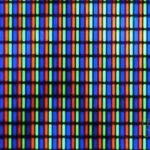
Pixel density determines how sharp your display looks at a given viewing distance. Higher PPI means smoother text, cleaner lines, and more usable screen space. Here's how the three common 27-inch resolutions compare.
| Resolution | Pixel Density (PPI) | Sharpness | Best Use Case |
|---|---|---|---|
| 1920×1080 (Full HD) | ~82 PPI | Low | Casual viewing, secondary display |
| 2560×1440 (QHD) | ~109 PPI | Moderate | General editing, content creation |
| 3840×2160 (4K UHD) | ~163 PPI | High | Professional editing, color grading |
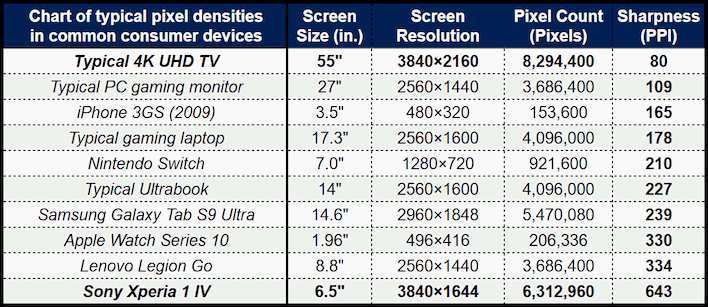
The jump from 1080p to 1440p is noticeable. The jump from 1440p to 4K is significant. Your eyes adjust quickly though.
After working on a 4K display for a week, going back to 1080p at the same size feels like looking through a screen door.
How Far Should You Sit From a 27-Inch Monitor?
Viewing distance changes everything. At 2 feet, a 27-inch 4K display looks sharp and immersive. At 4 feet, you lose the benefit of that resolution because your eyes can't distinguish the fine detail anymore.
For a 27-inch screen, the recommended viewing distance is roughly 2 to 3 feet. This keeps you close enough to see timeline detail without constant head turning. If your desk is deeper than 30 inches and you push the monitor to the back, consider a 32-inch display instead.
Your editing software's interface scaling also matters. Windows and macOS handle high-DPI displays differently. At 27 inches and 4K resolution, you'll likely want to set scaling to 150% or "looks like 2560×1440" to keep interface elements readable.
Some older editing software doesn't handle this well, so check compatibility before committing.
27-Inch vs 32-Inch: The Real Difference for Editing Workflows
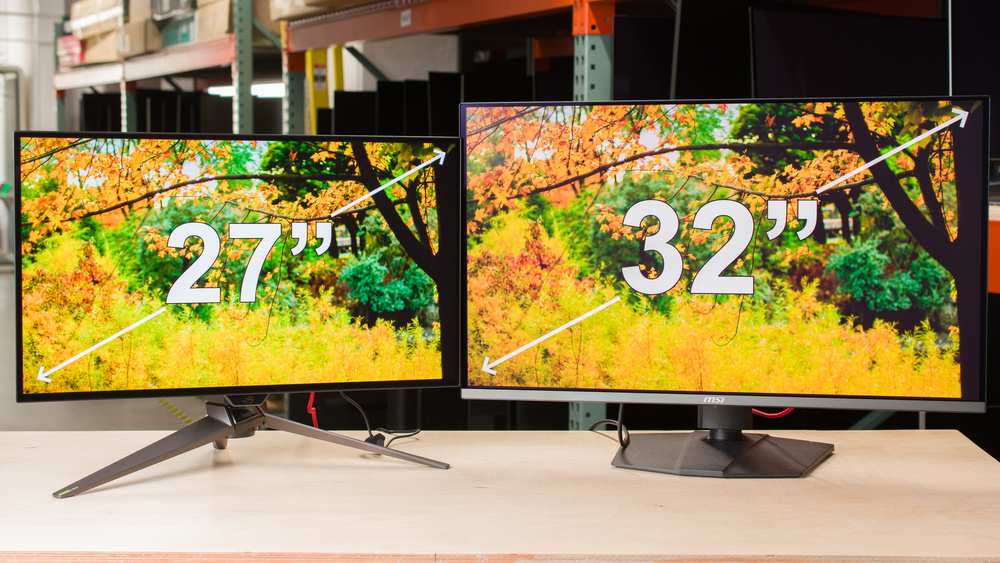
The comparison comes down to pixel density and physical comfort. A 32-inch 4K monitor has roughly 138 PPI. That's lower than a 27-inch 4K display.
Text and interface elements appear slightly softer at the same viewing distance.
But the 32-inch screen gives you about 33% more physical workspace. That translates to longer timelines, larger preview windows, and more room for effects panels. For editors who work on complex projects with multiple video tracks, that extra space reduces scrolling and zooming.
The tradeoff is desk depth. A 32-inch display works best at 3 to 4 feet away. If your desk is shallower than 30 inches, you'll feel the strain.
Your eyes and neck will notice before your workflow does.
27-Inch vs Ultrawide: Which Gives You More Usable Timeline?
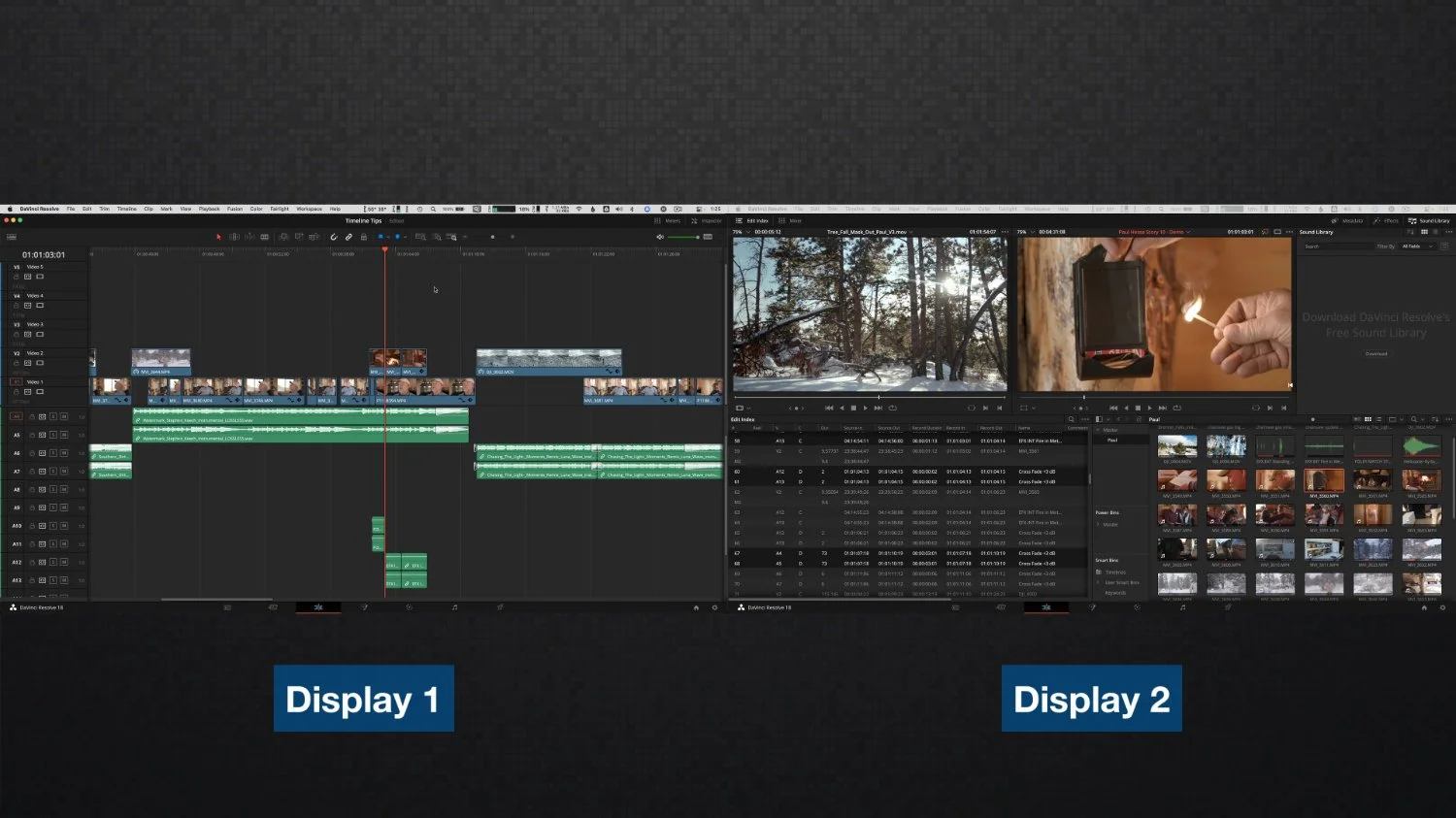
Ultrawide monitors promise a single-screen replacement for dual-monitor setups. A 34-inch ultrawide gives you roughly the same horizontal space as a 27-inch display plus a secondary screen. That sounds ideal for editing.
The problem is vertical space. Most ultrawides are 3440×1440 or similar. That's the same vertical resolution as a 1440p 27-inch monitor.
Your timeline doesn't get taller. You gain horizontal room but lose the ability to stack panels vertically.
For editing workflows that rely on tall bin structures or stacked effects controls, a standard 16:9 27-inch display often works better. Ultrawides shine for timeline-heavy work where horizontal scrolling is the main frustration.
What Type of Editor Benefits Most From 27 Inches
Not every editor needs the same setup. The 27-inch form factor serves some workflows better than others.
Solo Creators and YouTubers
If you're editing 10 to 20 minute videos with a single video track and basic graphics, a 27-inch 4K display handles everything comfortably. You can see your full timeline, preview your output, and keep your media bin visible without constant panel switching.
Freelancers Working in Tight Spaces
Home offices and co-working spaces often have limited desk depth. A 27-inch monitor fits where a 32-inch display would dominate. Pair it with a laptop screen for a portable dual-monitor setup that travels well.
Professional Colorists and Post Houses
Color-critical work demands accurate panels and proper calibration. 27-inch reference displays from manufacturers like Eizo and BenQ are standard in post-production environments. The size allows for A/B comparisons and side-by-side scopes without needing a separate grading display.
Panel Type, Color Accuracy, and Specs That Actually Matter
Screen size gets all the attention. Panel technology determines whether your edits look correct on other displays.
IPS panels offer the best color accuracy and viewing angles for most editors. They cover 99% or more of sRGB and typically hit 95% or higher on DCI-P3. VA panels provide better contrast ratios but can shift colors when viewed off-center.
OLED delivers perfect blacks and excellent color, but burn-in risk makes some editors nervous for static interface elements.
Look for Delta E values below 2 out of the factory. That's the threshold where most people can't distinguish color errors with the naked eye. If the manufacturer doesn't publish Delta E data, assume the panel isn't suitable for color-critical work.
HDR support sounds appealing but matters less than you'd think for editing. Most delivery targets are still SDR. A good SDR panel with accurate color reproduction outperforms a mediocre HDR display every time.
Common Mistakes People Make When Choosing a 27-Inch Editing Monitor
Buying based on size alone is the most common error. A 27-inch screen could be a professional reference display or a budget office monitor. The price difference reflects real capability.
Ignoring scaling compatibility causes frustration. Some older versions of editing software don't handle high-DPI displays well. Interface elements become tiny or blurry.
Check your specific software version before committing to a 4K panel.
Skipping calibration is another frequent misstep. Even accurate factory panels drift over time. A hardware calibrator pays for itself within a few projects if you're delivering color-critical work.
Best 27-Inch Monitors for Video Editing in 2025
The market offers solid options across several price tiers. What matters is matching the panel to your workflow.
Budget range ($250-$400): Look for 4K IPS panels with 99% sRGB coverage. These handle content creation and hobbyist editing well. You sacrifice some DCI-P3 coverage and factory calibration accuracy.
Mid-range ($400-$700): This tier adds better factory calibration, higher DCI-P3 coverage, and more robust connectivity. USB-C power delivery becomes common here. These monitors suit freelancers and semi-professional work.
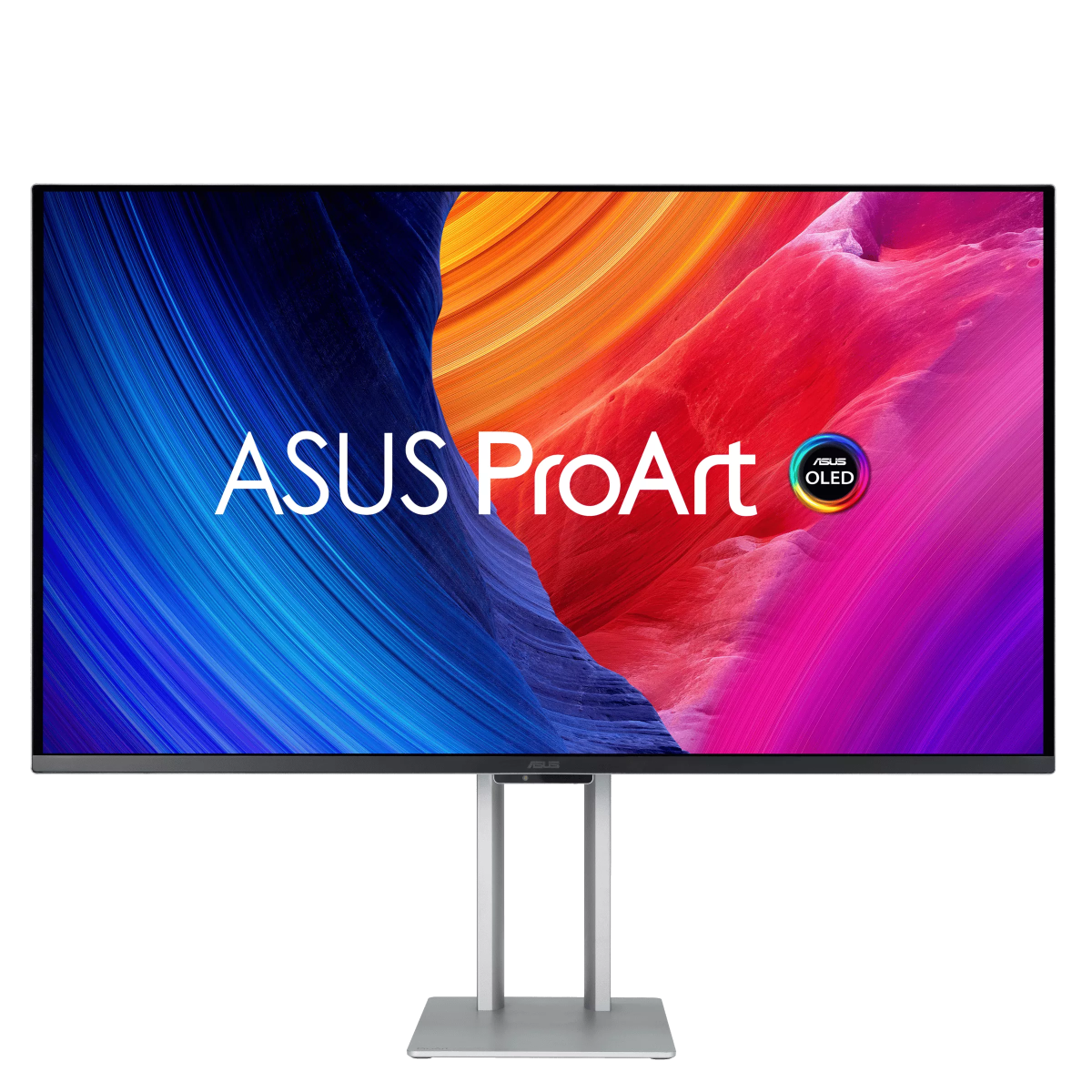
Professional ($700+): Reference-grade panels with hardware calibration support, wide gamut coverage, and consistent color accuracy. Brands like Eizo ColorEdge, BenQ SW series, and ASUS ProArt PA series dominate this space.
Check manufacturer specs for factory calibration data. A published Delta E value below 2 indicates the panel was measured and verified before shipping.
Scaling, Setup, and Configuration Tips
Getting the most from a 27-inch 4K display requires proper setup. Out of the box, many 4K monitors render interface elements too small to read comfortably.
On Windows 11, set display scaling to 150% for a 27-inch 4K screen. This gives you effective workspace similar to 2560×1440 with much sharper text. On macOS, use the "Default for display" option or select a scaled resolution that feels comfortable.
Position the top of the screen at or slightly below eye level. Your gaze should tilt slightly downward without bending your neck. A monitor arm gives you the most flexibility for finding the right height and distance.
Calibrate within the first week of use. Even factory-calibrated panels benefit from verification. A device like the Calibrite ColorChecker Display or X-Rite i1Display provides reliable results for most editing work.
When a 27-Inch Monitor Isn't Enough
Some workflows outgrow a single 27-inch display. If you regularly work with multi-cam sequences, complex motion graphics, or feature-length timelines, you'll feel constrained.
Color grading suites often benefit from a dedicated reference display separate from your editing interface. Trying to fit scopes, timeline, and a full-quality preview on one screen forces constant panel switching.
Editors working with 6K or 8K footage may need a larger preview display to evaluate fine detail. A 27-inch screen shows you the frame, but critical focus and artifact evaluation sometimes demand more physical size.
In these cases, a dual-monitor setup or a 27-inch plus ultrawide combination provides the flexibility that a single display can't match.
Frequently Asked Questions
Is a 27-inch 4K monitor good for Premiere Pro?
Yes. Premiere Pro handles high-DPI displays well on both Windows and macOS. Set scaling to 150% for comfortable interface sizing.
The 4K resolution lets you view 1080p or 4K footage at full quality with room for panels.
Is 27 inches too big for video editing?
No. Most editors find 27 inches comfortable at a viewing distance of 2 to 3 feet. It becomes problematic only if your desk is unusually shallow or you sit closer than 18 inches.
Is 1440p enough on a 27-inch monitor?
For hobbyist editing and content creation, 1440p works fine. Professional color grading and 4K source review benefit from the sharper 4K resolution. The difference is noticeable but not dramatic.
Is 27 inches good for DaVinci Resolve?
Yes. DaVinci Resolve's interface scales well on 4K displays. The node editor and color wheels benefit from the extra sharpness.
Just ensure your GPU can drive 4K resolution smoothly during playback.
Is a 27-inch monitor good for 4K video editing?
A 27-inch 4K monitor is excellent for 4K editing. You can view your timeline at native resolution while keeping interface panels visible. The 163 PPI keeps text and controls sharp during long sessions.
Final Verdict: Who Should Buy and Who Should Skip
A 27-inch 4K monitor is the right choice for most video editors. It balances workspace, sharpness, and desk compatibility better than any other size. Content creators, freelancers, and professionals working in standard post-production environments will find it handles their workload well.
Skip the 27-inch size if your desk is shallower than 24 inches or you sit closer than 18 inches to your display. In those cases, a 24-inch 4K or 32-inch 4K serves you better. If your work demands a dedicated reference display for color grading, plan for a dual-monitor setup from the start.
The resolution matters more than the size. A 27-inch 4K panel outperforms a 32-inch 1440p display for most editing tasks. Prioritize pixel density and color accuracy over raw screen area.

Similar Posts