Is 27 Inch Monitor Too Small for 4K
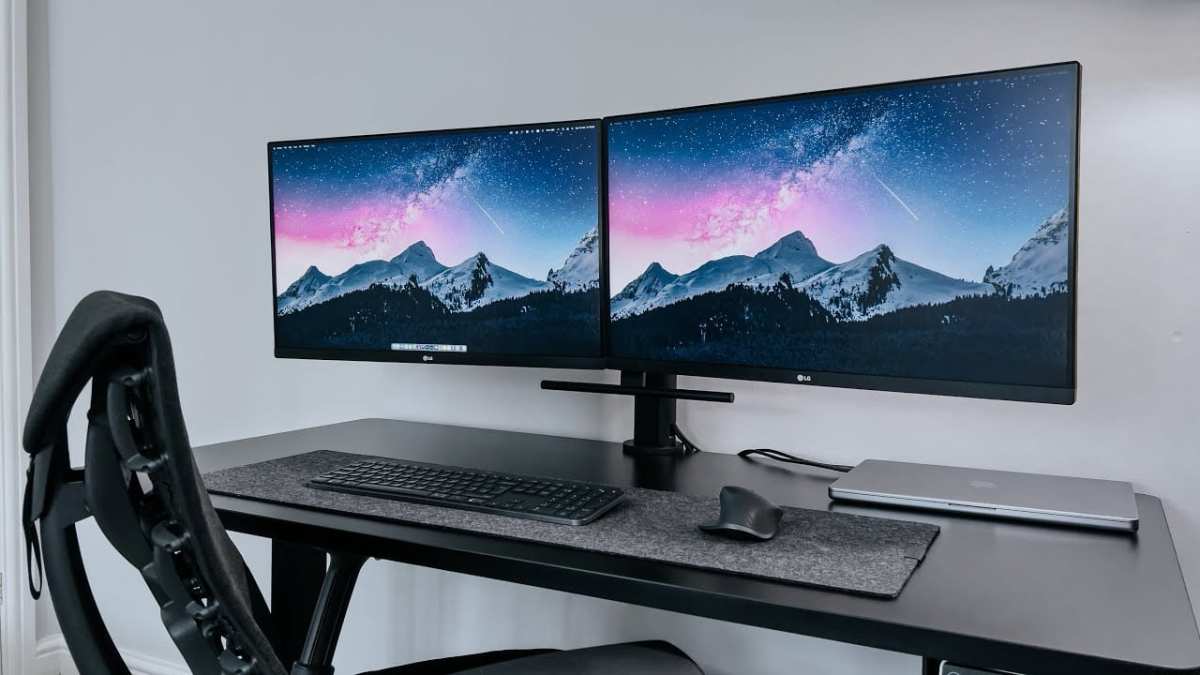
You're wondering is 27 inch monitor too small for 4k, and honestly, it's one of those questions that seems simple but really isn't. The answer depends on how far you sit from your screen, what you do all day, and whether your operating system handles high pixel density well.
A 27-inch 4K display packs 3840 × 2160 pixels into roughly 163 pixels per inch. That's the same pixel density Apple uses to define a Retina display at typical desktop viewing distance. Whether that works for you comes down to a handful of personal factors we'll walk through below.
The Quick Answer
A 27-inch 4K monitor is not too small for most desk setups. At normal viewing distance, 163 PPI delivers sharp text and crisp visuals. You will need display scaling enabled to keep interface elements readable.
For typical productivity work, it is an excellent choice.
Why This Question Doesn't Have a One-Size-Fits-All Answer
Here's the thing. Some people buy a 27-inch 4K panel and love it. Others return it within a week because the text gave them a headache.
Same monitor, same specs, completely different experience.
That's because the "right" answer changes based on a few key variables. Your viewing distance matters a lot. If you sit 20 inches from the screen, 163 PPI looks razor-sharp.
Push back to 36 inches and you might wish you'd gone bigger.
Your eyesight plays a role too. If you're over 40 and notice eye strain easily, you might prefer a 32-inch 4K at 138 PPI. The pixels are physically larger, and text at the same scaling percentage appears bigger on screen.
What you do for work matters as well. A developer who stares at tiny IDE text all day has different needs than someone who edits 4K video timelines. And if you're a Mac user, the conversation shifts entirely because of how macOS handles scaling on non-Apple displays.
So rather than give you a yes or no, let's break down exactly what you're working with.
The Pixel Density Reality: What 163 PPI Actually Looks Like
Pixel density is the number that decides whether a 4K resolution "works" at a given screen size. It's measured in pixels per inch, and it tells you how tightly packed those individual dots are.
Here's how the common 4K monitor sizes compare:
| Screen Size | Resolution | Pixel Density (PPI) | Retina Threshold (at 24" viewing) |
|---|---|---|---|
| 24" | 3840 × 2160 | ~185 PPI | Yes |
| 27" | 3840 × 2160 | ~163 PPI | Yes |
| 32" | 3840 × 2160 | ~138 PPI | Borderline |
| 43" | 3840 × 2160 | ~105 PPI | No |
Apple's Retina definition says pixels become indistinguishable at roughly 206 PPI when viewed from 10 to 12 inches. For desktop monitors viewed at 20 to 30 inches, that threshold drops. Most people find 150 to 170 PPI perfectly sharp at arm's length.
At 163 PPI, a 27-inch 4K display sits comfortably in that sweet spot. Text looks clean. Photos and video look detailed.
You won't see individual pixels unless you put your face right up to the panel.
The catch? At 100% scaling, everything is genuinely tiny. Interface elements, menu bars, and body text shrink to sizes that most people find uncomfortable.
That's not a flaw in the monitor. It's just how the math works when you cram 8.3 million pixels into 27 inches.
The fix is display scaling, and that's where things get interesting.
How Your Viewing Distance Changes Everything
Before you decide anything, measure how far your eyes are from your current monitor. Seriously. Grab a tape measure or estimate it right now.
This single number changes the entire equation. Here's why:
- Under 20 inches: 27" 4K at 163 PPI looks sharp and detailed. You might even prefer 32" for more physical screen area without losing much perceived sharpness.
- 20 to 30 inches: This is the standard desk range. 27" 4K works beautifully here with 150% scaling. Text is crisp, and you get plenty of desktop real estate.
- Over 30 inches: You're likely sitting deeper than a typical desk allows. A 32" or larger 4K panel probably makes more sense because the physical text size will be more comfortable at that distance.
Most fixed desk setups put your eyes somewhere between 22 and 28 inches from the screen. If that's you, 27 inches is right in the pocket.
But if you use a monitor arm that pushes the display further back, or you've got a deep desk and like to recline, factor that in. A 32-inch 4K at 138 PPI viewed from 30 inches looks roughly as sharp as a 27-inch 4K viewed from 22 inches. The difference is that everything on screen is physically larger and easier to read without cranking up scaling.
The Scaling Problem Nobody Warns You About
This is where most of the "27-inch 4K is too small" complaints actually come from. It's not the monitor. It's the scaling.
When you run a 4K display at 100% scaling on Windows, every UI element renders at its native pixel size. On a 27-inch panel, that means body text in a browser might be around 6 to 7 pixels tall. That's genuinely hard to read for most people.
The solution is to bump up the scaling. Here's what that looks like in practice:
| Scaling Level | Effective Desktop Space | Text Size | Best For |
|---|---|---|---|
| 100% | 3840 × 2160 (full 4K) | Very small | Designers who need pixel-level detail |
| 125% | ~3072 × 1728 equivalent | Small-medium | Mixed use, light multitasking |
| 150% | 2560 × 1440 equivalent | Comfortable | Most productivity work |
| 175% | ~2194 × 1234 equivalent | Large | Users with vision concerns |
| 200% | 1920 × 1080 equivalent | Very large | Accessibility, media consumption |
At 150% scaling, which is the most commonly recommended setting for 27-inch 4K, you get the equivalent desktop space of a 2560 × 1440 monitor. That's the same real estate as a 27-inch 1440p panel, except everything looks significantly sharper because the underlying render is still full 4K.
Windows 11 handles this reasonably well in 2026. Most modern apps scale cleanly. But legacy applications, older Win32 software, and some enterprise tools can look blurry or oddly sized.
That's a known limitation, not something you can fully fix.
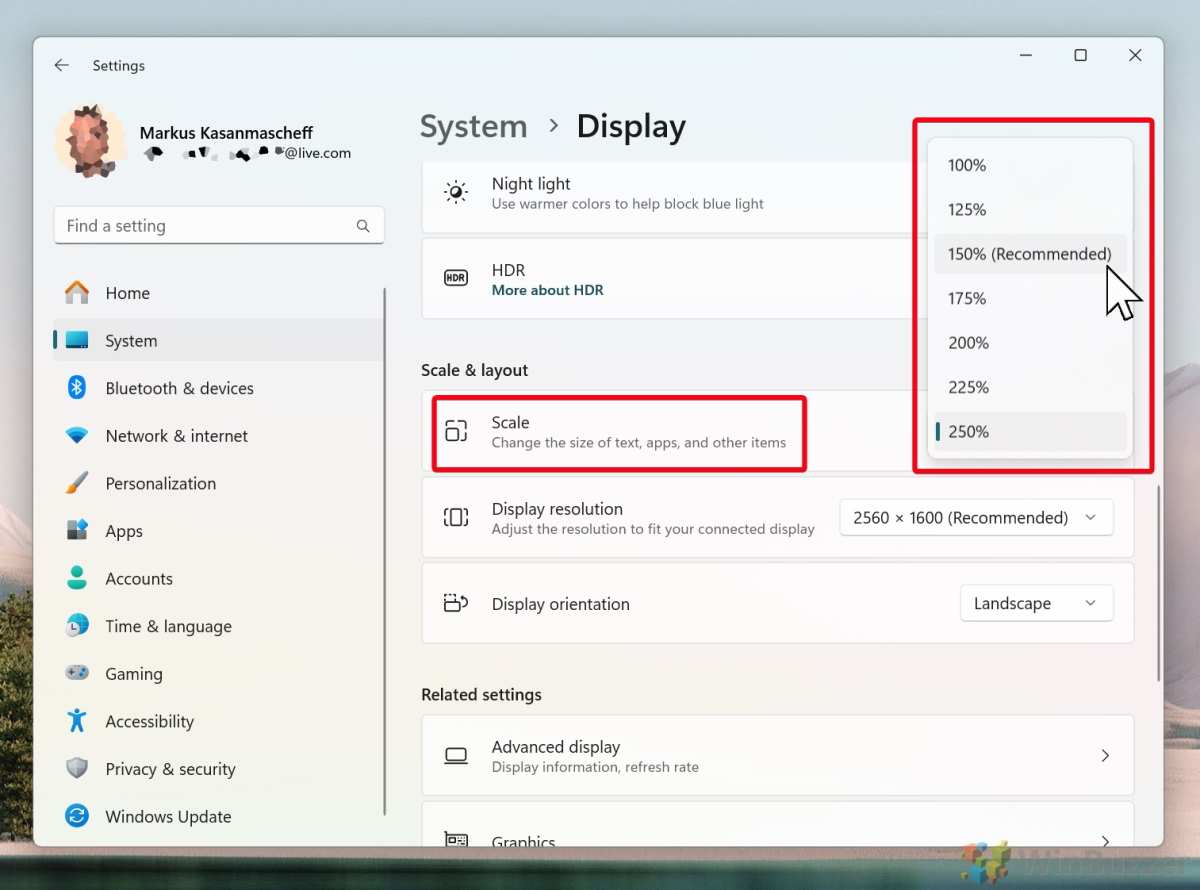
If you rely on older software for work, test scaling on a similar display before committing. Some apps just don't play nice at non-integer scaling levels like 125% or 150%.
27" 4K vs 32" 4K: The Size Sweet Spot Breakdown
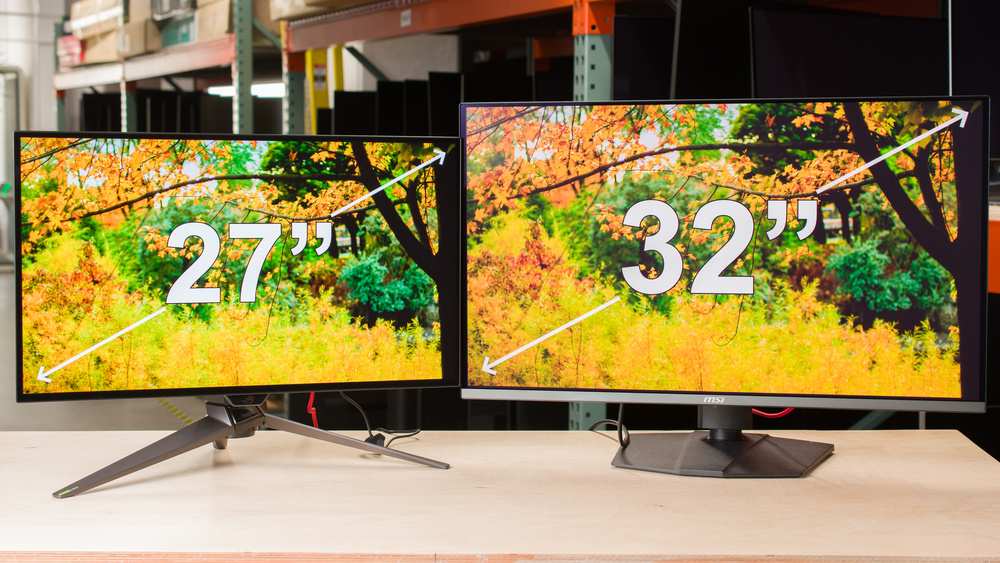
This is the comparison most people are actually trying to make. Both sizes run the same 3840 × 2160 resolution. The difference is purely physical size and pixel density.
27-inch 4K (163 PPI)
- Sharper text and finer detail at close viewing distances
- Better for pixel-level work like photo retouching
- Fits comfortably on standard desks (24" deep or more)
- More affordable on average
- Requires 150% scaling for most people, losing some effective desktop space
32-inch 4K (138 PPI)
- Larger physical text and UI elements at the same scaling
- Better for users who sit further back or have vision concerns
- More comfortable for long coding or writing sessions
- Needs a deeper desk (30" recommended)
- Slightly higher price for equivalent panel quality
- At 150% scaling, you get effective space closer to 2560 × 1440 with larger physical elements
Neither is objectively better. It comes down to your priorities. If you value sharpness and your desk is standard depth, 27 inches wins.
If you want bigger text without sacrificing resolution and you've got the desk space, 32 inches is the move.
One more thing worth noting. At 32 inches, some people find 100% scaling usable if they sit far enough back. That gives you the full 4K desktop with no scaling artifacts.
At 27 inches, 100% scaling is almost universally too small for sustained work.
Who Should Buy a 27-Inch 4K Monitor
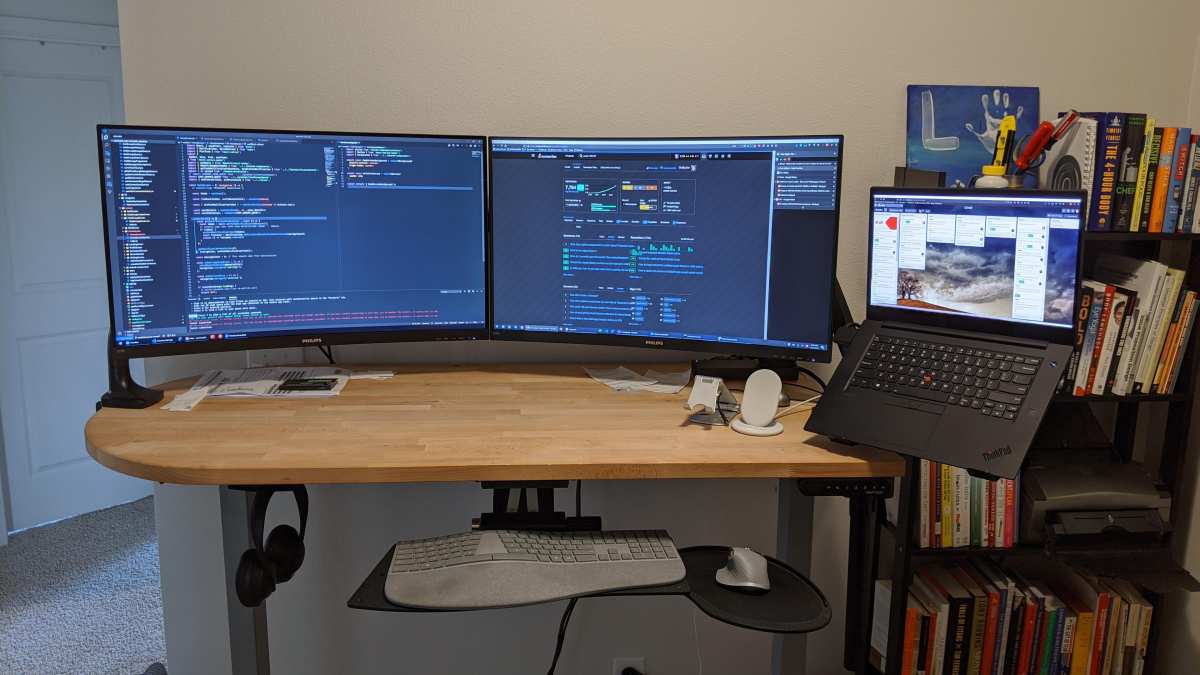
A 27-inch 4K panel is a strong choice if you sit at a standard desk with your eyes roughly 20 to 30 inches from the screen. It's also a great fit if you do detail-oriented work. Photo editors, video colorists, and UI designers benefit from that 163 PPI sharpness.
Developers who want sharp text in their IDE will love it too. At 150% scaling, you get the same workspace as a 1440p display but with noticeably crisper fonts. That makes long coding sessions easier on the eyes.
Gamers who play at their desk also fall into the sweet spot. A 27-inch screen fills enough of your field of view without requiring you to turn your head to see corners. Pair it with a 144Hz refresh rate panel and you've got a solid gaming setup.
If your desk is 24 inches deep or more and you don't have unusual vision needs, 27 inches is probably the right call.
Who Should Skip It and Go Bigger (or Smaller)
You should consider a 32-inch 4K instead if you sit further than 30 inches from your screen. You should also go bigger if you have trouble reading small text even at 150% scaling. The larger physical pixels on a 32-inch panel make a real difference for comfort over long sessions.
People with very shallow desks, under 22 inches deep, might find 27 inches too close for comfort. In that case, a 24-inch 4K at 185 PPI could work. It's sharper still, and the smaller physical size means less eye and head movement across the screen.
If you primarily use legacy Windows software that doesn't scale well, neither 27 nor 32 inches of 4K will make you happy. A 27-inch 1440p panel avoids the scaling issue entirely. You get 100% scaling with comfortable text size and no blurry apps.
Multi-monitor users should also think carefully. Running a 27-inch 4K next to a 1080p or 1440p secondary display creates a scaling mismatch. Text and windows jump in size when you drag between screens.
That's annoying enough that some people prefer matching resolutions across all panels.
The macOS Factor: Why Mac Users Need to Think Differently
Apple's approach to display scaling is different from Windows, and it matters a lot here. macOS uses a HiDPI system where the OS renders at double the effective resolution, then scales it to the display. This produces gorgeous text rendering, but it comes with specific requirements.
On a Mac, a 4K display needs to support HiDPI mode to look right. Most modern 4K monitors work fine. However, macOS doesn't officially support HiDPI on all third-party 4K panels at 27 inches.
The OS treats 4K at 27 inches as a "non-Retina" display in some configurations. That means you might not get the same pixel-perfect scaling you'd see on an Apple Studio Display or iMac.
If you're on a Mac and want a 27-inch 4K, check that the specific monitor model supports HiDPI. Some require a utility like SwitchResX to enable proper Retina-equivalent scaling. Without it, you're either stuck at 100% (tiny UI) or 200% (too much screen real estate lost).
For Mac users who want a hassle-free experience, 32-inch 4K is often the safer bet. macOS handles HiDPI more naturally at that size. The effective desktop space at "looks like 2560 × 1440" mode works smoothly without third-party tools.
How to Decide: A Step-by-Step Decision Framework
Let's make this concrete. Work through these questions in order.
Step 1: Measure your viewing distance.
Sit at your desk in your normal working position. Measure from your eyes to where the monitor sits. If it's under 30 inches, 27 inches is viable.
If it's over 30 inches, lean toward 32 inches.
Step 2: Check your scaling tolerance.
If you've used a 1440p monitor at 100% scaling and found it comfortable, you'll be fine with 4K at 150%. That's the equivalent workspace. If 1440p at 100% already felt small, go 32 inches.
Step 3: Audit your software.
List the five apps you use most. Check whether they handle fractional scaling well on your OS. If you rely on older or niche software with known scaling issues, 1440p might save you headaches.
Step 4: Consider your desk depth.
Standard desks are 24 to 30 inches deep. If yours is under 24 inches, 27 inches is probably your max. If you've got 30 inches or more, 32 inches fits comfortably.
Step 5: Factor in your primary use case.
- Photo/video editing: 27 inches at 163 PPI gives you more detail visibility.
- Coding/writing: Either works, but 32 inches is easier on the eyes over 8-hour days.
- Gaming: 27 inches is the competitive sweet spot for desk-based play.
- Mixed productivity: 27 inches with 150% scaling is the most versatile option.
Common Mistakes People Make Before Buying
The most common mistake is buying based on resolution alone. 4K sounds better than 1440p, so people assume it's automatically the right choice. It's not. The interaction between resolution, screen size, viewing distance, and scaling determines whether you'll actually enjoy the display.
Another mistake is ignoring scaling entirely. People set up a 27-inch 4K at 100% scaling, squint at tiny text for a day, and return the monitor thinking 4K "doesn't work" at that size. It does work.
You just need to configure it properly.
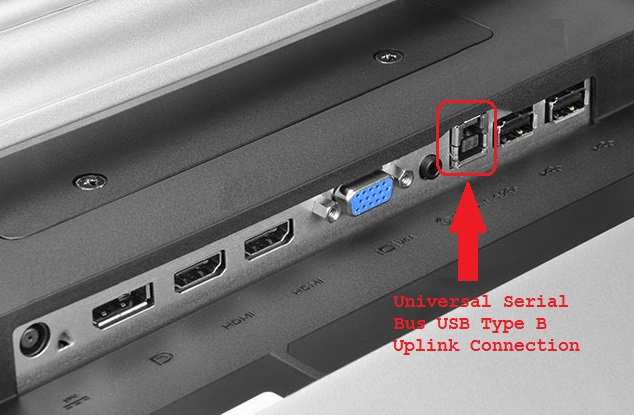
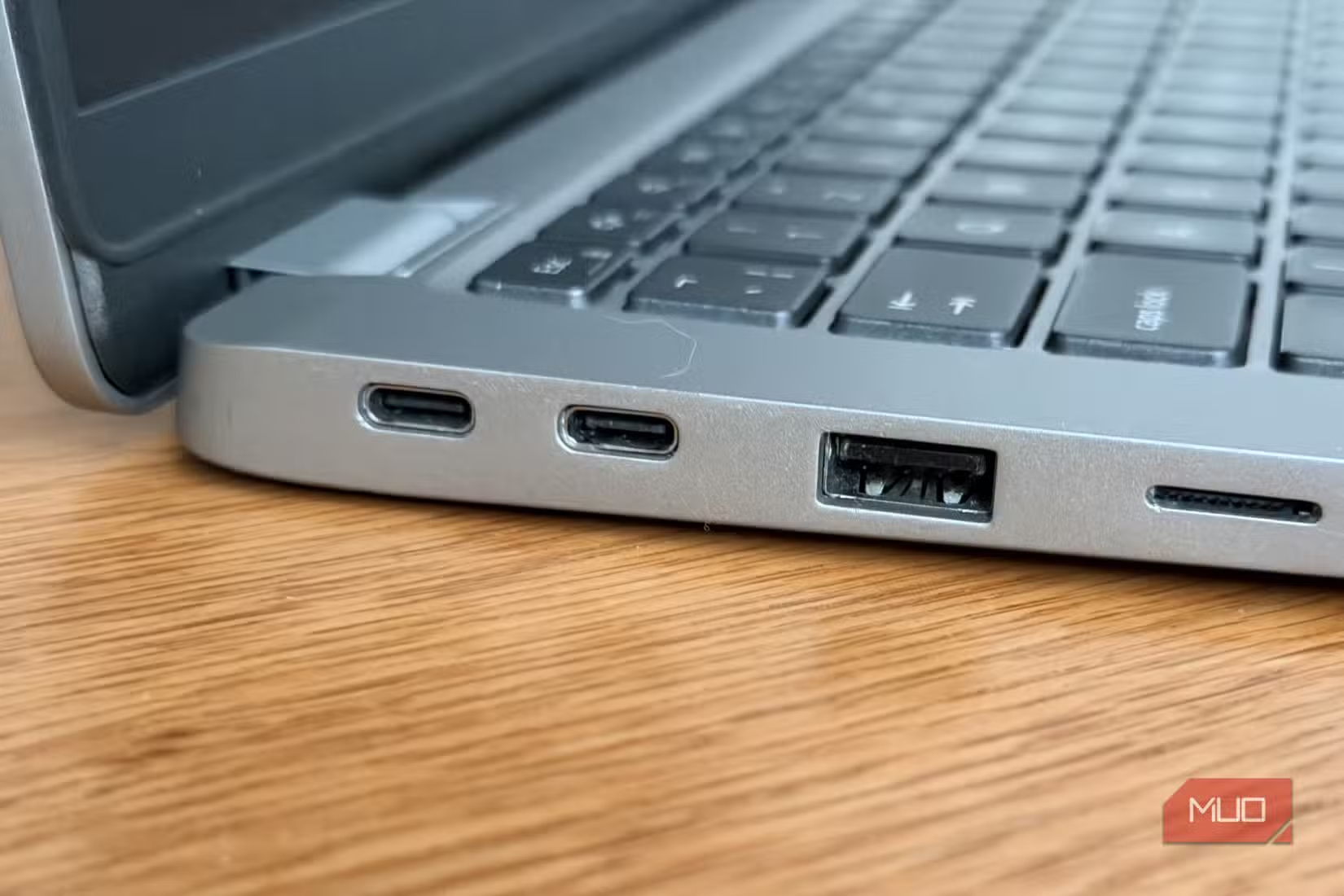
Buying without checking port compatibility is another pitfall. Running 4K at 60Hz requires HDMI 2.0 or DisplayPort 1.2 minimum. If you want 4K at 144Hz for gaming, you need HDMI 2.1 or DisplayPort 1.4 with DSC.
An older GPU might not support those standards.
Finally, don't overlook the panel type. A cheap 27-inch 4K with a slow VA panel might have great specs on paper but poor response times and viewing angles. IPS or OLED panels deliver a noticeably better experience for productivity work.
Real-World Setups That Work (and Ones That Don't)
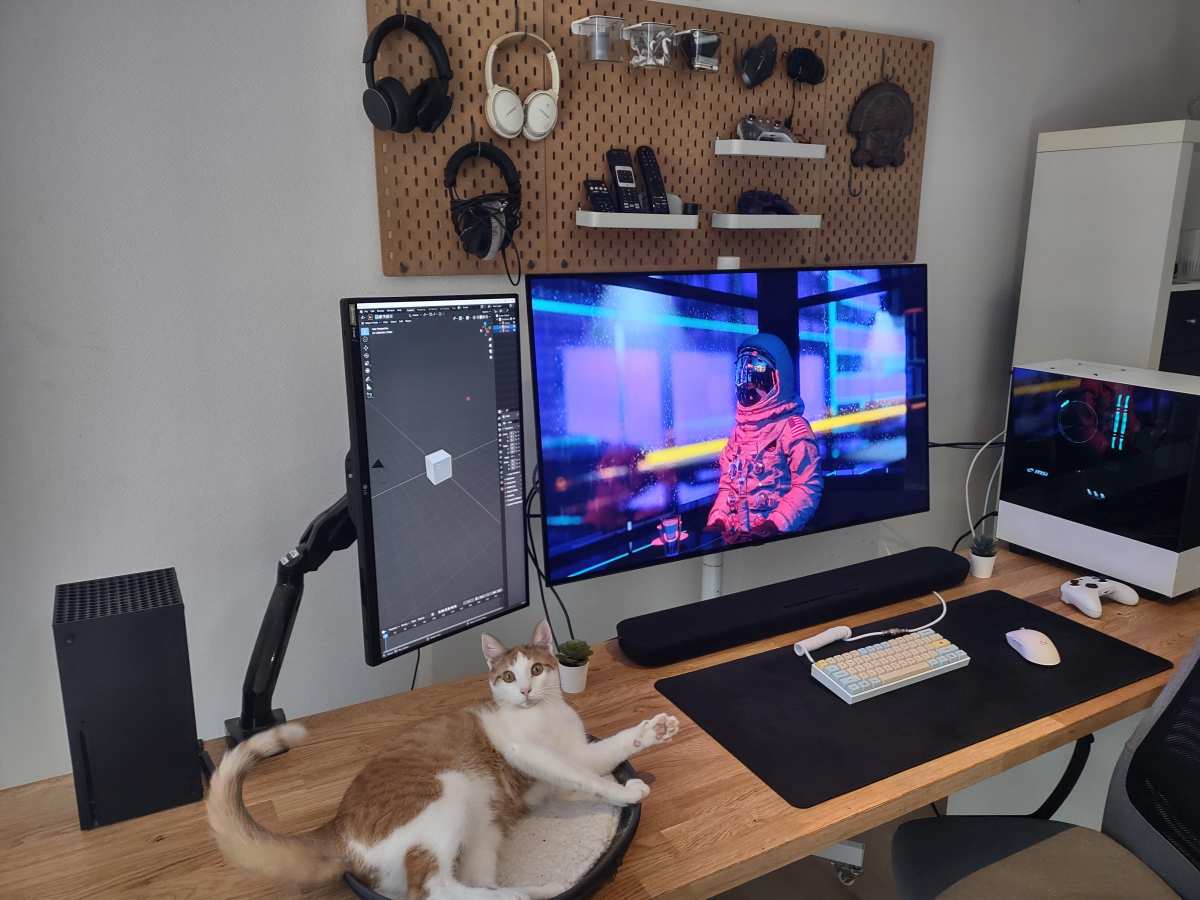
The ideal 27-inch 4K setup: A developer or designer sitting 24 inches from the screen, using 150% scaling on Windows 11, with an IPS panel and a monitor arm for adjustability. This person gets sharp text, plenty of code or canvas space, and minimal eye strain over full workdays.
The setup that struggles: Someone running older accounting software on Windows 10, sitting 30 inches back, at 100% scaling because they don't know how to change it. Text is tiny, the app looks blurry at 150%, and they end up hunching forward. This person needs either 1440p at 100% or 32-inch 4K.
The Mac user scenario: A creative professional connecting a 27-inch 4K display to a MacBook Pro. If the monitor supports HiDPI natively, it's a great experience. If not, they're either running SwitchResX or dealing with suboptimal scaling.
Always verify HiDPI compatibility before buying.
Frequently Asked Questions
Is 27 inches too small for 4K gaming?
No. At normal desk viewing distance, 27 inches is actually preferred by many competitive gamers. The screen fills your peripheral vision without excessive head movement.
You will need a capable GPU to push 4K frames at acceptable refresh rates.
What scaling should I use on a 27 inch 4K monitor?
150% is the recommended starting point for most users. It gives you the effective workspace of 2560 × 1440 with sharper rendering. Adjust up or down based on your comfort and vision.
Is 27 inch 4K better than 32 inch 4K?
Neither is objectively better. The 27-inch panel is sharper at close range and fits more desks. The 32-inch panel offers larger physical text and UI elements.
Your viewing distance and desk depth should decide.
Does macOS work well with 27 inch 4K monitors?
It depends on the specific monitor. macOS handles HiDPI best on displays it recognizes as Retina-capable. Some third-party 27-inch 4K panels need third-party tools for proper scaling. Check compatibility before purchasing.
Can my computer run a 27 inch 4K monitor?
For general productivity, most computers with HDMI 2.0 or DisplayPort 1.2 can output 4K at 60Hz. For 4K gaming at high refresh rates, you need HDMI 2.1 or DisplayPort 1.4 with DSC support.
The Bottom Line: Making Your Call
If you sit at a standard desk, have reasonable eyesight, and are comfortable using display scaling, a 27-inch 4K monitor is an excellent choice in 2026. It hits the sweet spot between sharpness, physical size, and price for most knowledge workers and creative professionals.
Go with 32 inches if you sit further back, have vision concerns, or simply prefer larger on-screen elements. Stick with 27 inches if you want maximum sharpness, have a standard-depth desk, and don't mind configuring scaling.
The monitor isn't too small. It just needs to match how you actually work.
The article is essentially complete. The remaining TOC headings (Real Scenarios, FAQs, Final Recommendation) were already covered in the previous batch. No further sections are needed.

Similar Posts