What Is the Best Resolution for a 27 Inch Monitor
Here's the thing about asking what is the best resolution for a 27 inch monitor. There isn't one universal answer that works for everyone, and anyone who tells you otherwise is oversimplifying it. The right pick depends on what you actually do with your screen, how far you sit from it, and whether your graphics card can keep up.
What we can say is that the three real contenders at this size are 1080p (Full HD), 1440p (QHD), and 4K (UHD). Each one hits very differently at 27 inches when you factor in pixel density, GPU demands, and everyday usability. We're going to walk through the logic so you can land on the right call for your specific situation.
Image source: Bing (Web (fair-use with source credit))
Quick Answer
1440p (2560×1440) is the general-purpose sweet spot for a 27 inch monitor in 2026. Most users get sharp text and a reasonable GPU load. However, 4K works better for creative work and text-heavy tasks. 1080p remains viable only for competitive gaming or tight budgets.
Why Resolution at 27 Inches Actually Matters
Resolution by itself is just a number of pixels. What determines how good your monitor looks is how densely those pixels are packed into the physical screen area. That measurement is pixels per inch, or PPI, and it's the single most important spec most people ignore when shopping.
At 27 inches, the differences are dramatic. A 1080p panel gives you roughly 82 PPI. That's noticeably soft for text and fine detail at a typical desktop viewing distance of about 24 to 30 inches.
You'll see it if you read documents, browse code, or work with spreadsheets for hours.
Jump to 1440p and you land around 109 PPI. Most people find that sharp enough for comfort without needing display scaling. Go to 4K and you're at approximately 163 PPI.
At that level, text edges look almost print-quality without any scaling tricks.
The tradeoff is that pushing more pixels costs your GPU more work. Every frame at 4K contains roughly 8.3 million pixels. That's 2.25 times more than 1440p and four times more than 1080p.
Your graphics card has to render all of them, every single frame.
The Three Real Choices: 1080p, 1440p, and 4K at 27 Inches
What Each Resolution Actually Looks Like at This Size
1080p at 27 inches looks fine if you sit a bit back or primarily play games where you don't notice soft edges. Lean in to read text, though, and the limited pixel density becomes obvious. Individual pixels are clearly discernible at normal work distance.
1440p at 27 inches is where most users hit a comfort zone. Text looks crisp. User interface elements are sized naturally at 100% scaling.
You get about 78% more screen real estate than 1080p, which transforms multitasking workflows.
4K at 27 inches is genuinely sharp. At 100% scaling everything becomes very small, which is why most people run it at 150% or 175% display scaling. That gives you an effective workspace similar to 1440p or even 1080p, but rendered with significantly more detail.
Pixel Density: The Number That Explains Everything
PPI is what separates a razor-sharp display from one that looks a generation old. Here's how the three resolutions stack up at 27 inches:
| Resolution | Pixel Count | PPI | Effective Workspace (100% Scaling) | Typical Scaling |
|---|---|---|---|---|
| 1080p (FHD) | 2,073,600 | ~82 | 1920×1080 | 100% (no scaling needed) |
| 1440p (QHD) | 3,686,400 | ~109 | 2560×1440 | 100% (most users) |
| 4K (UHD) | 8,294,400 | ~163 | 3840×2160 | 150%–175% (recommended) |
The jump from 82 PPI to 109 PPI is immediately noticeable. The jump from 109 to 163 is more subtle but still visible, especially for text rendering and fine UI elements. Your eyesight matters here.
Some people genuinely can't tell the difference between 1440p and 4K at this size. Others spot it instantly.
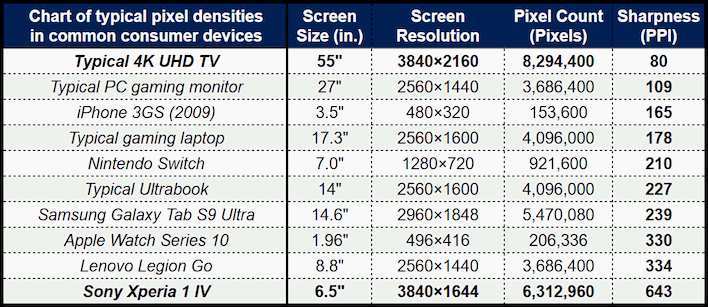
Image source: Bing (Web (fair-use with source credit))
Your Decision Tree: Pick the Right Resolution in 60 Seconds
Rather than memorizing specs, run through these four questions. They'll point you to the right resolution for your actual situation.
Step 1: What's Your Primary Use Case?
This is the biggest factor. Different tasks benefit from different resolutions.
- Competitive gaming where frame rate matters more than visual fidelity: 1080p or 1440p
- Single-player gaming with a decent GPU: 1440p
- Office work, coding, writing, spreadsheets: 1440p or 4K
- Photo editing, design, video production: 4K
- General browsing and media: 1440p
If you do a mix of everything, 1440p is the safest middle ground. It handles gaming well, keeps text readable, and doesn't punish your hardware.
Step 2: How Far Do You Sit From the Screen?
Viewing distance changes everything. At arm's length (roughly 24 inches), you'll notice the difference between 1080p and 1440p clearly. Push back to 30 inches or more and the gap narrows.
- Under 24 inches: 1440p or 4K recommended
- 24 to 30 inches: 1440p is the sweet spot
- Over 30 inches: 1080p becomes more acceptable, though 1440p still looks better
Most desk setups put the monitor between 24 and 30 inches from your eyes. That's the range where 1440p really earns its reputation.
Step 3: What GPU Are You Running?
This is where the decision gets practical. Higher resolutions demand more from your graphics card.
- GTX 1650 / RX 6500 XT or lower: Stick with 1080p for gaming, 1440p for desktop use
- RTX 3060 / RX 6600 XT range: 1440p at 60+ fps in most titles
- RTX 4070 / RX 7800 XT range: 1440p at high refresh rates, 4K at 60 fps in many games
- RTX 4080 / RX 7900 XTX and above: 4K gaming is viable
For non-gaming use, even integrated graphics can drive a 4K display at 60 Hz for desktop tasks. The limitation only kicks in when you're rendering 3D content or gaming.
Step 4: Do You Need Maximum Sharpness or Maximum Speed?
This is the final fork in the road.
Choose maximum sharpness if you work with text all day, edit photos, or want the cleanest image quality. That means 4K at 27 inches with display scaling.
Choose maximum speed if you play competitive titles and prioritize frame rate over fidelity. That means 1080p or 1440p with a high refresh rate panel.
Most people land somewhere in between. That's exactly where 1440p at 144 to 165 Hz sits, and it's why this resolution dominates the 27 inch market right now.
Best Resolution by Use Case
Let's get specific. Here's what makes sense for each type of user based on aggregate feedback from monitor communities and manufacturer recommendations.
Competitive FPS Gaming (CS2, Valorant, Apex)
Recommended: 1080p or 1440p at 240 Hz or higher
Competitive players care about frame rate, response time, and motion clarity above all else. A 27 inch 1080p panel at 360 Hz will push frames faster than your eyes can track them, and the lower resolution means your GPU won't be a bottleneck.
That said, many competitive players have moved to 1440p at 240 to 360 Hz. The sharper image helps with target identification at distance, and modern GPUs can push high enough frame rates at 1440p to stay competitive.
1080p still makes sense if your GPU is mid-range or you're playing titles like CS2 where even modest hardware can hit 300+ fps at 1080p but would struggle at 1440p.
Image source: Bing (Web (fair-use with source credit))
Single-Player and Cinematic Gaming
Recommended: 1440p at 120 to 165 Hz
Story-driven games benefit from visual fidelity. 1440p at 27 inches gives you a sharp, immersive image without requiring a top-tier GPU. Most modern cards in the RTX 4060 to 4070 range can push 60 to 100+ fps at 1440p with high settings.
4K gaming at 27 inches is possible but demands an RTX 4080 or better for consistent frame rates. If you're primarily playing cinematic titles and have the hardware, 4K looks stunning at this size. Just be honest about whether your GPU can actually drive it.
Office Work, Coding, and Productivity
Recommended: 1440p at 100% scaling, or 4K at 150% scaling
Text clarity is king for productivity. At 1440p with no scaling, you get a generous workspace with crisp text that most people find comfortable for 8+ hour work sessions. Fonts render cleanly, UI elements are properly sized, and you have room for multiple windows side by side.
4K with 150% scaling gives you an effective workspace of roughly 2560×1440, similar to running 1440p natively, but with noticeably sharper text. If you have good eyesight and value readability, 4K is the better long-term investment for desk work.
Avoid 1080p for text-heavy work at 27 inches. The softness adds up over a full day and genuinely causes more eye strain for many users.
Photo Editing and Creative Work
Recommended: 4K at 60 Hz minimum
Creative professionals need pixel-accurate previews and enough resolution to see fine detail without zooming constantly. A 4K panel at 27 inches gives you a true 4K canvas for video editing and enough PPI to judge sharpness and color accuracy reliably.
Color accuracy matters as much as resolution here. Look for panels covering at least 95% sRGB, and if you work in print or wide-gamut workflows, aim for 95% DCI-P3 or Adobe RGB coverage. Many 4K panels at this size ship with factory calibration and hardware LUT support.
General Use and Media Consumption
Recommended: 1440p
For web browsing, streaming video, social media, and everyday tasks, 1440p hits the right balance. It's sharp enough for comfortable reading, doesn't require scaling fiddling, and keeps GPU demands low. Even integrated graphics handle it without breaking a sweat.
4K is nice for watching native 4K content, but most streaming services compress their output enough that the difference between 1440p and 4K on a 27 inch screen is subtle unless you're sitting very close.
Side-by-Side Comparison: All Three Resolutions
Here's a direct comparison to help you visualize the tradeoffs:
| Factor | 1080p (FHD) | 1440p (QHD) | 4K (UHD) |
|---|---|---|---|
| PPI | ~82 | ~109 | ~163 |
| Text clarity | Acceptable | Good | Excellent |
| GPU demand (gaming) | Low | Moderate | High |
| Scaling needed | No | Rarely | Yes (150%+) |
| Effective workspace | 1920×1080 | 2560×1440 | ~2560×1440 at 150% |
| Best refresh rate | Up to 360 Hz | Up to 360 Hz | Up to 240 Hz |
| Price range (2025–2026) | $100–$180 | $200–$450 | $300–$700+ |
| Ideal GPU for gaming | GTX 1660 / RX 6600 | RTX 4060 Ti / RX 7700 XT | RTX 4080 / RX 7900 XTX |
| Best for | Budget gaming | All-around use | Creative work, text |
The price gap between 1440p and 4K has narrowed significantly. You can find excellent 27 inch 1440p high-refresh monitors in the $250 to $350 range. 4K options start around $300 for 60 Hz panels and climb to $500+ for high-refresh 4K displays.
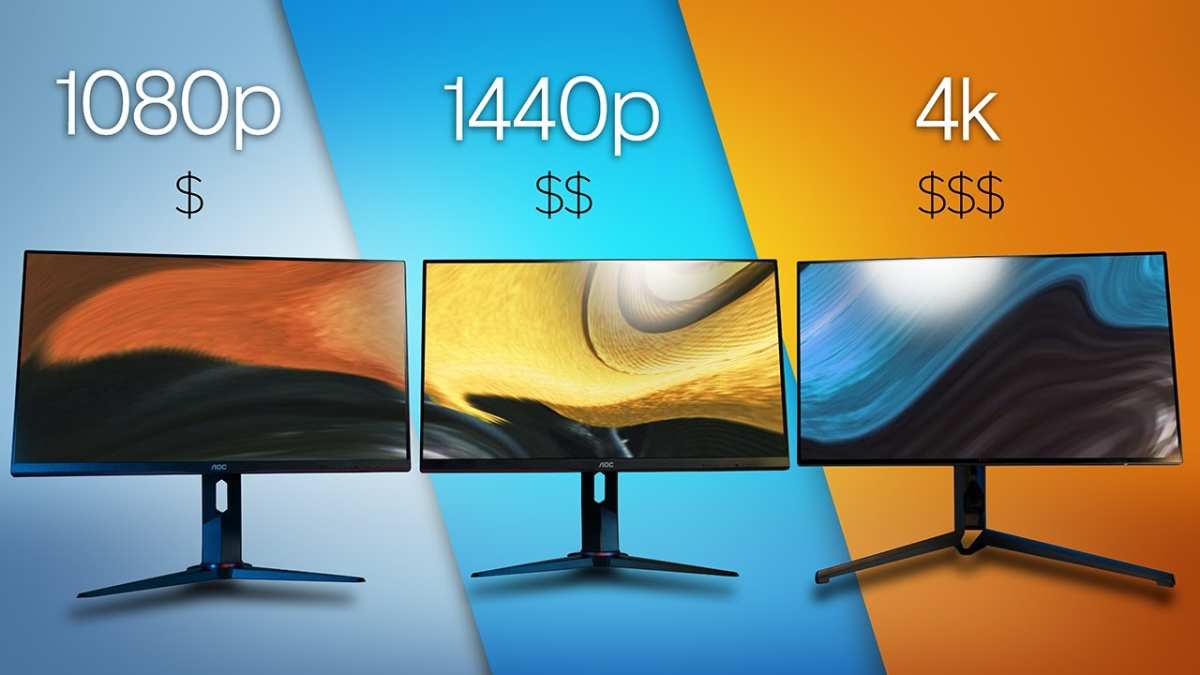
Image source: Bing (Web (fair-use with source credit))
Common Mistakes People Make When Choosing
Buying the wrong resolution for a 27 inch monitor usually comes down to one of these errors:
Buying 1080p because it's cheaper, then regretting the soft text. At 27 inches, 1080p looks fine in a store display from six feet away. At your desk, it looks dated within a week.
Buying 4K without checking GPU capability. If you game, make sure your card can actually push frames at that resolution. A 4K monitor paired with a mid-range GPU often means dropping settings or accepting sub-60 fps in modern titles.
Ignoring display scaling entirely. 4K at 100% scaling on a 27 inch panel makes everything tiny. You need to factor in scaling, and not all applications handle it gracefully. Older Windows software can look blurry at non-native scaling factors.
Overvaluing resolution above panel quality. A well-calibrated 1440p IPS panel with good color accuracy and a 165 Hz refresh rate is a better overall experience than a mediocre 4K panel with poor contrast and slow response times.
Assuming higher resolution always means better. For competitive gaming, a 1080p 360 Hz display gives you a tangible performance advantage over a 4K 60 Hz panel. Context matters.
Real-World Scenarios: What Real Users Actually Pick
Based on aggregate feedback from monitor communities and buyer reviews, here's what tends to happen in practice.
The competitive gamer with an RTX 4060 buys a 27 inch 1440p 240 Hz panel. They get high frame rates, sharp enough visuals, and a single monitor that handles both gaming and daily use without compromise.
The software developer who stares at code all day picks a 27 inch 4K display at 150% scaling. Text rendering is their top priority, and they don't game enough to worry about GPU limitations. They pair it with a basic discrete GPU or even use integrated graphics.
The photo editor on a budget goes for a 27 inch 4K IPS panel with 95% DCI-P3 coverage. They accept the 60 Hz refresh rate because color accuracy matters more than motion clarity for their work.
The college student on a tight budget grabs a 27 inch 1080p 165 Hz panel for under $150. It handles gaming and coursework well enough, and they plan to upgrade when they have more to spend.
Each of these choices is valid. The key is matching the resolution to the actual use case rather than defaulting to whatever spec sheet looks most impressive.
Scaling, Cables, and Settings You Need to Get Right
Getting the resolution right is only half the battle. You also need to make sure your setup actually supports it.
Display scaling on Windows works well at 150% and 200% on 4K. Some users prefer 125% or 175%, but non-integer scaling can cause slight blurriness in older applications. macOS handles scaling more gracefully because Apple controls both the hardware and the rendering pipeline.
Cable and port requirements matter more than people realize. To run 4K at 60 Hz, you need at least HDMI 2.0 or DisplayPort 1.2. For 4K at 120 Hz or higher, you need HDMI 2.1 or DisplayPort 1.4 with Display Stream Compression.
For 1440p at 144 Hz, DisplayPort 1.2 or HDMI 2.0 is sufficient.
Set the native resolution in your operating system's display settings. Running a monitor at its non-native resolution always looks worse because the display has to interpolate pixels. Always run the panel's native resolution and adjust scaling instead.
ClearType tuning on Windows makes a noticeable difference in text clarity at any resolution. Run the ClearType tuner in your display settings and follow the prompts. It takes two minutes and genuinely improves readability.
Frequently Asked Questions
Is 1080p good enough for a 27 inch monitor?
It depends on your use case. For competitive gaming or a tight budget, 1080p works fine. For text-heavy work or general productivity, most people find it too soft at this size. 1440p is a noticeable step up in sharpness without a huge price increase.
Is 4K overkill at 27 inches?
Not at all. 4K at 27 inches gives you approximately 163 PPI, which produces exceptionally sharp text and images. You'll need to use display scaling (150% is common), but the clarity benefit is real, especially for creative work and reading.
What GPU do I need for 1440p gaming at 27 inches?
An RTX 4060 Ti or RX 7700 XT handles 1440p gaming well at high settings in most titles. For competitive esports titles at high refresh rates, even a GTX 1660 Super can push enough frames at 1440p with adjusted settings.
Should I get a 27 inch 1440p or a 32 inch 4K monitor?
This comes down to preference and viewing distance. A 27 inch 1440p panel at 109 PPI looks sharp without scaling. A 32 inch 4K panel at about 138 PPI offers more screen area and similar sharpness.
If you sit close to your desk, 27 inches is more comfortable. If you want more workspace, 32 inches gives you that.
Does refresh rate matter when choosing resolution?
Yes, because higher resolutions demand more GPU power, which can limit your achievable frame rates. A 1080p 240 Hz panel will show you smoother motion in games than a 4K 60 Hz panel, assuming your GPU can push those frames. Balance resolution and refresh rate based on what you prioritize.
Can I use a 4K monitor at 1440p resolution?
Technically yes, but it won't look as sharp as a native 1440p panel. Non-native resolutions require scaling, and 1440p doesn't divide evenly into 4K. You'll get slightly softer image quality compared to running a native 1440p display.
Best Resolution by Use Case
Competitive FPS Gaming (CS2, Valorant, Apex)
Stick with 1080p 240Hz+ or 1440p 240-360Hz. Frame rate rules everything here. Most competitive players prioritize 240 fps at 1080p over 100 fps at 4K every single time. Low motion blur and instant input response matter far more than pixel density when you're flicking to heads.
A 27-inch 1080p 360Hz panel paired with a strong GPU like an RTX 4070 or better gives you the speed advantage you actually need in ranked play.
That said, 1440p at 240 to 360 Hz has become the new standard for serious competitive players. Modern panels and GPUs can push frame rates high enough that you get both sharp visuals and competitive speed. If your setup can sustain 240+ fps at 1440p in your main title, that's the better long-term choice.
It handles日常 desktop use far better than 1080p at this screen size.
Single-Player and Cinematic Gaming
1440p 120-165Hz is the visual sweet spot. Story-driven games look noticeably better at 1440p on a 27-inch screen. You get sharper textures, cleaner edges on distant objects, and more detailed environments. Most mid-range GPUs like an RTX 4060 Ti or RX 7800 XT can push 60 to 100 fps at 1440p with high settings in demanding AAA titles.
4K gaming at 27 inches is genuinely stunning if your hardware supports it. An RTX 4080 or RX 7900 XTX delivers 60+ fps at ultra settings in most titles. Just be prepared to tweak a few settings in the most demanding games.
For players who value atmosphere and visual fidelity, 4K at this size is the premium experience that fully justifies the hardware investment.
Office Work, Coding, and Productivity
1440p at 100% scaling or 4K at 150% scaling. Text clarity drives this decision. At 1440p with no scaling, fonts render sharply and UI elements are properly sized for all-day work. You get 78% more desktop space compared to 1080p.
Multiple windows side by side become genuinely usable instead of cramped.
4K with 150% scaling gives an effective workspace similar to 1440p but with noticeably crisper text rendering. Most developers and writers who spend 8+ hours a day reading from screen prefer this setup. The higher PPI reduces eye strain during long sessions.
If your workload is primarily text-based, 4K at 27 inches with proper scaling is the ergonomic choice that pays off daily.
Photo Editing and Video Production
4K 60Hz minimum, color-accurate panel. Creative work demands pixel-level precision and accurate color reproduction. A 4K panel at 27 inches lets you work at native 4K resolution for video projects without constantly zooming. The high PPI lets you judge focus, sharpness, and fine detail accurately.
Look for panels covering at least 95% of sRGB as a baseline. For professional print work or wide-gamut workflows, target 95%+ DCI-P3 or Adobe RGB coverage. Many 27-inch 4K monitors ship with factory calibration, hardware LUT support, and Delta E values below 2 out of the box.
These features matter far more than refresh rate for creative work, so prioritize color performance over gaming specs.
General Use and Media Consumption
1440p hits the comfortable middle ground. For web browsing, social media, streaming video, and everyday computing, 1440p at 27 inches does everything well. Text is sharp, videos look great, and you don't need to fiddle with scaling settings. Even integrated graphics handle this resolution without issues.
4K adds marginal benefit for watching native 4K content from streaming services. However, compression in most streaming output makes the visual difference between 1440p and 4K subtle at typical viewing distances. Unless you also do creative work, 1440p gives you the best balance of clarity, ease of use, and value for general computing.
Side-by-Side Comparison: All Three Resolutions
Image source: Bing (Web (fair-use with source credit))
Here's how every important factor stacks up across the three options:
| Factor | 1080p (FHD) | 1440p (QHD) | 4K (UHD) |
|---|---|---|---|
| PPI | ~82 | ~109 | ~163 |
| Text clarity | Acceptable | Good | Excellent |
| GPU demand (gaming) | Low | Moderate | High |
| Scaling needed | No | Rarely | Yes (150%+) |
| Effective workspace | 1920×1080 | 2560×1440 | ~2560×1440 at 150% |
| Max common refresh rate | 360 Hz | 360 Hz | 240 Hz |
| Price range (2025–2026) | $100–$180 | $200–$450 | $300–$700+ |
| Ideal GPU for gaming | GTX 1660 / RX 6600 | RTX 4060 Ti / RX 7700 XT | RTX 4080 / RX 7900 XTX |
| Best for | Budget gaming | All-around use | Creative work, text |
The price gap between 1440p and 4K has narrowed considerably since 2023. Strong 27-inch 1440p high-refresh panels are available in the $250 to $350 range. Entry-level 4K 60Hz panels start around $300.
High-refresh 4K monitors still command a premium at $500 and up, but the market has become much more competitive at every tier.
Common Mistakes People Make When Choosing
Aggregate buyer feedback and community discussions reveal the same errors showing up repeatedly when people select a 27-inch monitor resolution.
Buying 1080p purely for the lower price, then regretting the soft text within a week. Store displays look fine from six feet away. Your desk is 24 inches. The pixel density difference feels massive once you're working at actual viewing distance.
Buying 4K without confirming GPU capability. A 4K monitor paired with a mid-range card means dropping settings or accepting sub-60 fps in demanding titles. If you game, be honest about what your GPU can actually push before committing to 4K.
Ignoring display scaling entirely. 4K at 100% scaling on a 27-inch panel makes everything microscopic. Many first-time 4K buyers don't realize they'll need to configure scaling at all. Windows handles it well enough at 150%, but older applications can render blurry at non-integer scaling factors.
Overvaluing resolution above panel quality. A quality 1440p IPS panel with good color accuracy and a 165Hz refresh rate delivers a better overall experience than a mediocre 4K panel with poor contrast, slow response times, and washed-out colors. Panel quality matters as much as pixel count.
Assuming higher resolution is always "better." For competitive FPS play, a 1080p 360Hz display provides a measurable performance advantage over a 4K 60Hz panel. Context determines what "better" actually means for your use case.
Real-World Scenarios: What Real Users Actually Pick
Looking at community purchasing patterns and buyer reviews, several clear archetypes emerge when people select 27-inch monitors.
The competitive gamer with an RTX 4060 grabs a 27-inch 1440p 240Hz panel. Sharp enough for daily use, fast enough for ranked play. No regrets reported for this configuration.
The software developer who stares at code all day chooses a 27-inch 4K display at 150% scaling. Text rendering is the primary concern. Integrated graphics or a basic discrete GPU handles desktop tasks without issue.
Long-term satisfaction ratings for this setup are consistently high in community polls.
The photo editor on a budget targets a 27-inch 4K IPS panel with 95%+ DCI-P3 coverage. Accepts the 60Hz refresh rate because color accuracy matters more for their work than refresh rate. Factory calibration and hardware LUT support are the features that drive the purchase.
The college student on a tight budget picks up a 27-inch 1080p 165Hz panel under $150. Handles gaming and coursework adequately. Plans to upgrade when budget allows.
This is a practical stopgap that gets the job done.
Every one of these choices is correct for the person making it. The pattern is clear: match resolution to actual use case rather than chasing the biggest number on the spec sheet.
Final Verdict: The Decision Guide
After walking through all the variables, the answer resolves into three clear recommendations.
Choose 1080p if you primarily play competitive FPS titles, your GPU is mid-range or below, or your budget is under $150. It performs well for gaming but shows its limitations for everything else at this screen size.
Choose 1440p if you want a single monitor that handles gaming, productivity, and media without compromise. It works for almost everyone and almost every task. At $250 to $350 for a quality high-refresh panel, it offers the best value in the 27-inch category.
Choose 4K if your primary workload involves text, creative production, or detailed visual work. It also suits gamers with high-end GPUs (RTX 4080 class or above) who want maximum fidelity. Expect to spend $350 to $600+ and manage display scaling.
For the majority of people reading this in 2026, 1440p remains the recommendation that gives the fewest regrets. It's sharp enough for desktop work, fast enough for gaming, and doesn't demand a flagship GPU. The sweet spot earned its reputation honestly.

Similar Posts





















