Is 27 Inch Monitor Good for Office Work
A 27-inch monitor can be a solid upgrade for office work, but it's not automatically the right move for everyone. The answer really comes down to your desk setup, what resolution you pick, and how you actually spend your workday.
Research on display ergonomics consistently shows that screen size alone doesn't determine comfort or productivity. Pixel density, viewing distance, and panel quality matter just as much, sometimes more. Let's break down exactly when a 27-inch display makes sense and when it doesn't.
Quick Answer
A 27-inch monitor is good for office work under the right conditions. It works best at 1440p resolution with a viewing distance of 20 to 36 inches. It's ideal if you multitask with multiple windows or want a cleaner setup than dual monitors.
Avoid it if your desk is shallow or you're stuck at 1080p.
Why 27 Inches Isn't Automatically the Right Choice
Here's the thing most buying guides skip. A bigger screen doesn't always mean a better experience. If you sit close to a 27-inch display running at 1080p, you'll see pixels.
Text looks soft. Your eyes work harder.
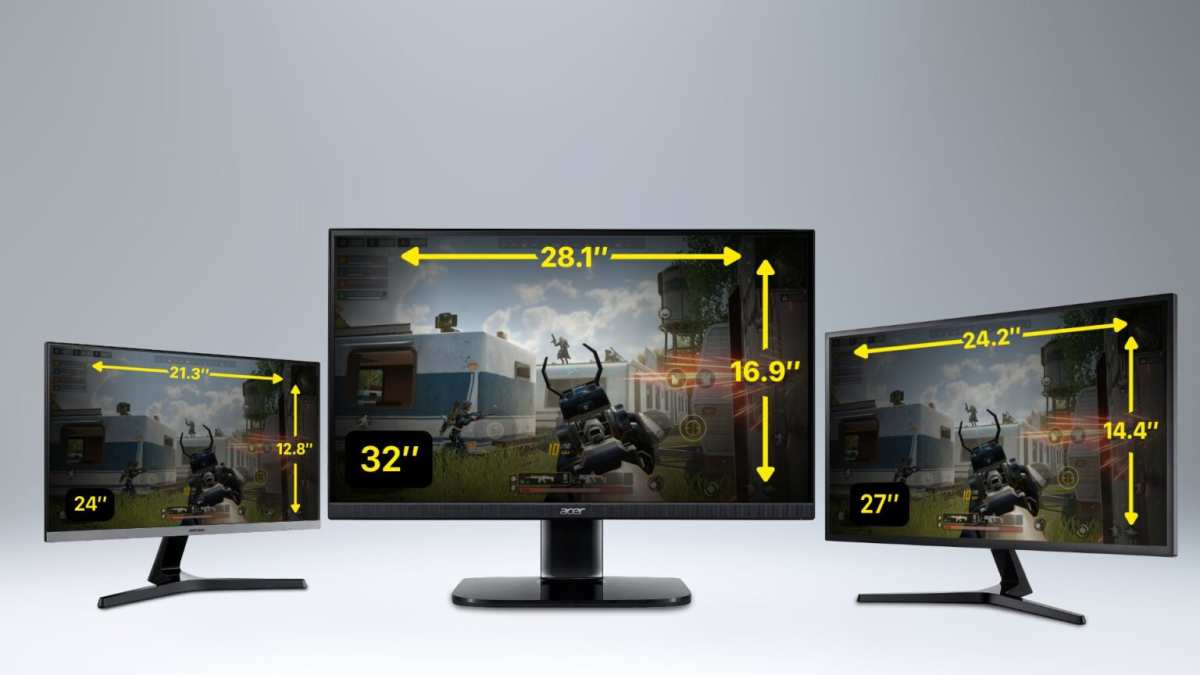
The physical size of the monitor also demands more desk real estate. A 27-inch display typically measures about 24 inches wide. That's a lot of horizontal space.
On a shallow desk, the screen ends up too close to your face. That causes neck strain and eye fatigue over a full workday.
Your resolution choice changes everything. At 27 inches, 1080p looks noticeably soft compared to what you'd see on a 24-inch screen at the same resolution. The pixel density drops from roughly 92 PPI on a 24-inch 1080p display to about 82 PPI on a 27-inch.
That's a meaningful difference when you're reading spreadsheets or documents for eight hours straight.
So before you buy, think about three things. How deep is your desk. What resolution are you planning to run.
What kind of work do you actually do day to day.
The Three Variables That Actually Decide for You
Your Desk Depth
This is the factor most people overlook. A 27-inch monitor needs at least 20 inches of viewing distance to feel comfortable. Ideally you want 24 to 36 inches between your eyes and the screen.
If your desk is only 16 to 18 inches deep, a 27-inch display will feel like sitting in the front row of a movie theater. You'll be turning your head to see the edges. Your eyes will constantly refocus.
By 3 PM you'll feel it.
Measure your desk from the wall to the front edge. If you've got 24 inches or more, a 27-inch monitor will work fine. If you're under 20 inches, stick with 24 inches or consider a monitor arm that lets you push the display back further.
Your Resolution Choice
Resolution determines how sharp everything looks at a given screen size. This is measured in pixels per inch, or PPI. Higher PPI means sharper text and cleaner images.
Here's how the numbers break down for a 27-inch display:
| Resolution | PPI | Sharpness | Best For |
|---|---|---|---|
| 1920 x 1080 (1080p) | ~82 | Low, visible pixels | Avoid at this size |
| 2560 x 1440 (1440p) | ~109 | Sharp, clear text | Office work sweet spot |
| 3840 x 2160 (4K) | ~163 | Very sharp | Design work, scaling needed |
At 1440p, a 27-inch monitor hits the sweet spot for most office workers. Text is crisp. You get plenty of screen space for side-by-side windows.
And you don't need to mess with display scaling the way you would at 4K.
Your Primary Work Type
What you actually do all day should drive this decision. If you're juggling spreadsheets, email, and a browser with 15 tabs open, a 27-inch screen gives you room to breathe. You can have two documents open side by side without squinting.
But if you mostly work in a single application, like writing in a word processor or managing a CRM, a 24-inch display might serve you just as well. You won't use all that extra screen space. You'll just be paying for it.
Resolution Is the Make-or-Break Factor at 27 Inches
This deserves its own section because it's where most people go wrong. They see a cheap 27-inch monitor on sale and grab it without checking the resolution. Then they wonder why everything looks fuzzy.
1080p at 27" — The Budget Trap
A 27-inch 1080p monitor is the most common budget option out there. It's cheap. It's available everywhere.
And for office work, it's usually a mistake.
At 82 PPI, you'll notice pixelation on text, especially with smaller fonts. If you're reading code or reviewing dense documents, your eyes will fatigue faster. The image below shows how pixel density compares across sizes at different resolutions.
Manufacturer specs for budget 27-inch 1080p panels typically list a pixel pitch of about 0.31mm. That's large enough to see individual pixels at normal viewing distance. For casual browsing it's tolerable.
For eight hours of office work, it's rough.
1440p at 27" — The Sweet Spot
This is where 27-inch monitors shine for office use. At 1440p, you get roughly 109 PPI. Text is sharp.
Icons are clean. And you get about 78% more screen space than 1080p.
Most office-focused 27-inch monitors in 2026 ship at 1440p as the standard. Prices have dropped significantly. You can find solid options from Dell, LG, and Samsung in the $200 to $300 range with IPS panels and good color accuracy.
The extra resolution also helps with multitasking. You can comfortably run two full-size documents side by side. Or keep your email client open next to your main workspace without either feeling cramped.
4K at 27" — Sharp but Requires Scaling
A 27-inch 4K monitor delivers about 163 PPI. That's extremely sharp. Text looks like print quality.
But there's a catch.
At native resolution, everything appears tiny. You'll need to enable display scaling, typically 150%, to make text and UI elements readable. Windows handles this reasonably well these days. macOS handles it better.
But some older applications still look blurry when scaled.
For office work, 4K at 27 inches is overkill unless you do photo editing, design work, or need extremely detailed visual content. The scaling headaches and higher price tag aren't worth it for spreadsheets and email.
When a 27-Inch Monitor Is the Right Call
Let's get specific about who benefits most from this size.
You Have a Deep Desk (24"+)
If your desk is at least 24 inches deep, a 27-inch monitor fits comfortably. You can position the screen at a proper viewing distance. Your eyes don't have to work overtime.
Your neck stays in a neutral position.
Deeper desks, 30 inches or more, give you even more flexibility. You can push the monitor back further and still have room for a keyboard and notepad in front of you.
You Run Multiple Windows Side by Side
This is the biggest productivity win. A 27-inch 1440p display gives you enough room to work with two or three windows simultaneously without feeling cramped.
Common setups that benefit from this:
- Email on one side, calendar or document on the other
- Reference material next to your main working window
- Code editor with a browser preview open alongside it
- Spreadsheet with a data source or dashboard visible at the same time
Research on multi-window productivity consistently shows that larger, higher-resolution displays reduce task-switching time. You spend less time alt-tabbing and more time actually working.
You Want a Cleaner Setup Than Dual Monitors
Dual 24-inch monitors work great for productivity. But they come with downsides. The bezel gap in the middle is annoying.
You need two power cables. Desk space gets tight fast.
A single 27-inch 1440p monitor gives you comparable screen real estate to dual 1080p displays. Without the bezel split. Without the cable clutter.
It's a cleaner, simpler setup that still gets the job done.
You Do Video Calls or Presentations Regularly
A 27-inch display gives you room to have your video call window open at a reasonable size while still seeing your notes or presentation slides. On a 24-inch screen, you're constantly resizing and repositioning windows during calls.
This matters more in 2026 than it did a few years ago. Remote and hybrid work are still the norm for many office workers. Video calls aren't occasional anymore.
They're a daily part of the job.
When You Should Skip It and Go Smaller or Bigger
A 27-inch monitor isn't for everyone. Here's when you should look elsewhere.
Your Desk Is Shallow (Under 20")
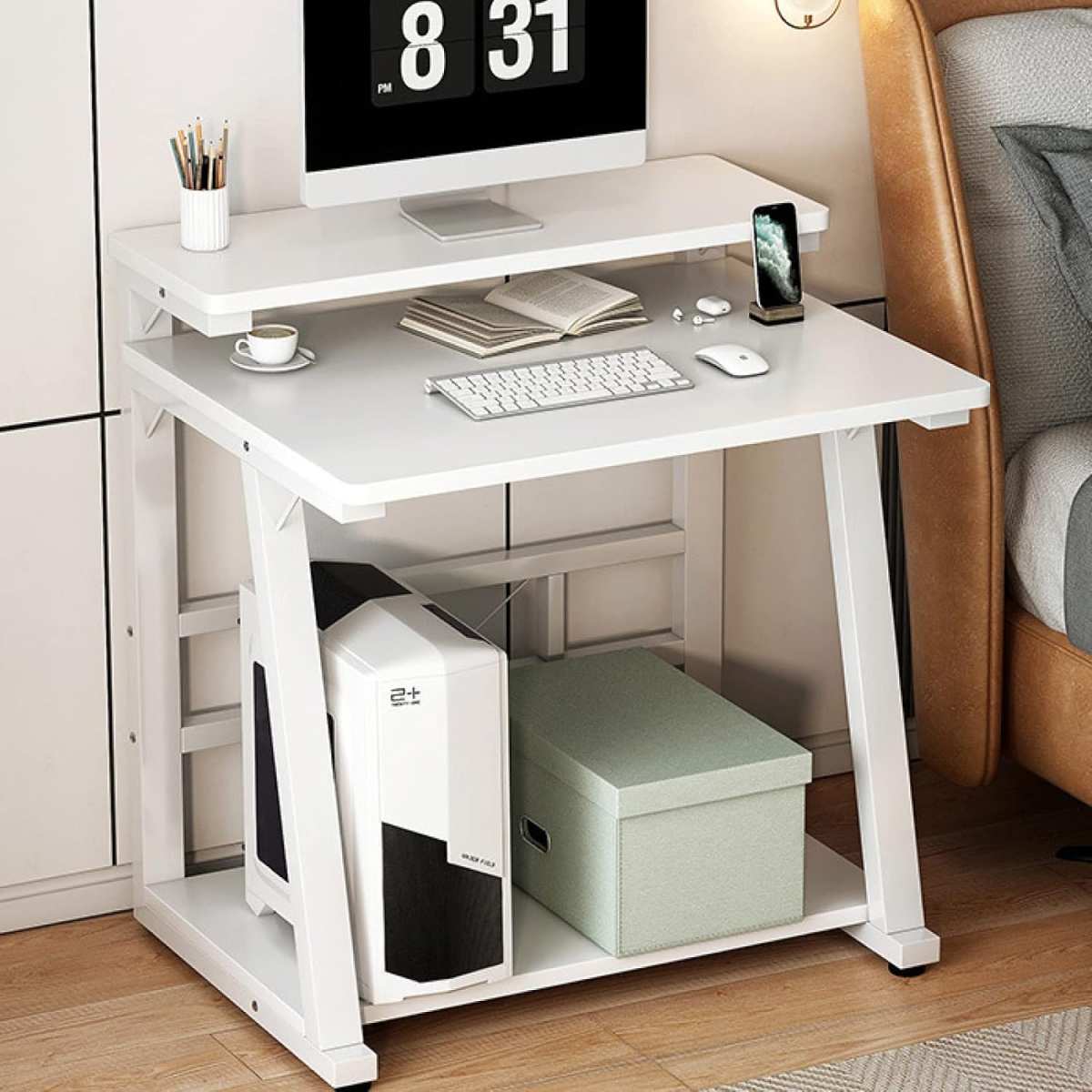
This is the dealbreaker. If your desk is less than 20 inches deep, a 27-inch monitor will be too close to your face. You'll lean back to see the edges.
Your neck will hurt by lunch.
Stick with a 24-inch display instead. At 1080p, a 24-inch monitor actually looks sharper than a 27-inch at the same resolution. The pixel density is higher.
Text is cleaner. And it fits comfortably on a shallow desk.
You Mostly Work in One Application at a Time
If your workflow revolves around a single full-screen application, like writing, coding in a full-screen IDE, or working in design software, a 27-inch screen gives you space you won't use. The extra real estate just becomes empty background.
A 24-inch monitor serves single-application workflows just as well. And it costs less.
You're on a Tight Budget
A good 27-inch 1440p monitor costs $200 to $350 as of 2026. A solid 24-inch 1080p display can be had for $100 to $150. If budget is tight, the 24-inch option leaves you money for other upgrades like a better keyboard or a monitor arm.
You Need More Vertical Space
If you work with long documents, tall spreadsheets, or code files that run deep, a 32-inch 4K monitor or a 34-inch ultrawide might serve you better. These give you more vertical pixels. You see more content without scrolling.
A 27-inch 1440p display gives you 1440 vertical pixels. A 32-inch 4K gives you 2160. That's 50% more vertical space.
For some workflows, that matters more than the diagonal size difference suggests.
27" vs 24" vs 32" — Side-by-Side Comparison
Let's put the three most common office monitor sizes head to head.
| Factor | 24" 1080p | 27" 1440p | 32" 4K |
|---|---|---|---|
| Pixel Density | ~92 PPI | ~109 PPI | ~138 PPI |
| Screen Width | ~20.9 inches | ~23.5 inches | ~27.9 inches |
| Viewing Distance | 16–24 inches | 20–36 inches | 24–40 inches |
| Desk Depth Needed | 16"+ | 24"+ | 28"+ |
| Price Range (2026) | $100–$180 | $200–$350 | $300–$500 |
| Best For | Tight budgets, small desks | Most office workers | Detail-heavy work |
| Multitasking | Limited | Good | Excellent |
The 24-inch 1080p monitor remains the safe default. It works on almost any desk. Text looks sharp enough for office work.
And it's cheap enough that replacing it in a few years doesn't sting.
The 27-inch 1440p is the upgrade pick for people who want more workspace. It hits the balance between size, sharpness, and price. Most office professionals will be happiest here.
The 32-inch 4K is the specialist option. It's fantastic for design work, data analysis, and anyone who needs to see fine detail. But it demands a deep desk and costs more.
Common Mistakes People Make With 27-Inch Monitors
Buying 1080p at 27 Inches
This is the number one mistake. People see a 27-inch monitor for $120 and think they're getting a deal. They're not.
At 82 PPI, everything looks soft. Text has jagged edges. After a few hours of reading, your eyes will let you know.
Always check the resolution before buying. If it's 27 inches and 1080p, walk away. Spend the extra $50 to $80 for a 1440p panel instead.
Sitting Too Close
Even at the right resolution, sitting too close causes strain. Your eyes have to converge more. You move your head more to see the edges.
Over a full workday, this adds up.
Keep at least 20 inches between your eyes and the screen. More is better if your desk allows it.
Ignoring the Stand Quality
A wobbly, non-adjustable stand ruins a good monitor. If you can't adjust the height, you'll end up hunching or propping it up with books. Neither is great for your neck.
Look for a stand with height adjustment, tilt, and swivel at minimum. If the monitor doesn't include one, budget $30 to $50 for a monitor arm. It's worth it.
Not Adjusting Display Settings
Out of the box, most monitors ship with default settings that are too bright and too blue-heavy for office work. This causes eye fatigue over long sessions.
Turn down the brightness to around 120 to 150 cd/m² for typical office lighting. Enable the low blue light mode if the monitor has one. Your eyes will thank you by 5 PM.
How to Set Up a 27-Inch Monitor for Comfort and Productivity
Getting the hardware is only half the battle. Proper setup makes the difference between a comfortable workday and a painful one.
Step 1: Set the Right Height
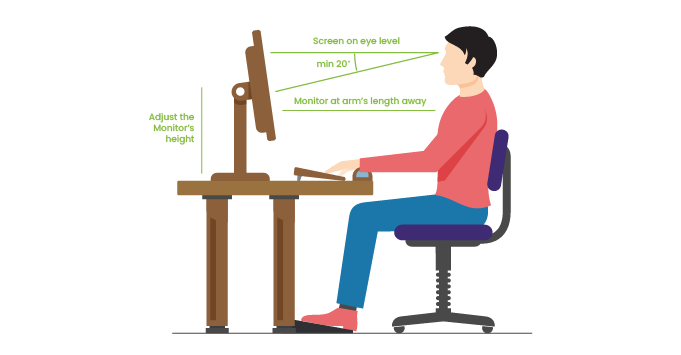
The top edge of the screen should be at or slightly below eye level. When you look straight ahead, your gaze should tilt slightly downward, about 10 to 20 degrees. This keeps your neck in a neutral position.
If the included stand doesn't go high enough, a monitor arm or a simple riser solves the problem.
Step 2: Set the Right Distance
For a 27-inch display, aim for 20 to 36 inches from your eyes to the screen. Closer than 20 inches and you'll be turning your head. Farther than 36 inches and you'll be squinting.
A good rule of thumb: extend your arm. Your fingertips should just brush the screen. That's roughly the right distance.
Step 3: Adjust Brightness and Color
Set brightness to match your room. If the monitor looks like a light source, it's too bright. It should blend with the ambient light in your room.
For color temperature, 6500K is the standard for office work. Most monitors default to a cooler, bluer tone around 7000K or higher. Switch to the sRGB or "warm" preset for more comfortable viewing.
Step 4: Configure Scaling and Resolution
Make sure you're running the monitor at its native resolution. For a 1440p display, that's 2560 x 1440. Running at a lower resolution makes everything look blurry.
On Windows, set scaling to 100% for 1440p at 27 inches. On macOS, the system handles scaling automatically, but you can adjust in System Settings if text feels too small or too large.
Real-World Scenarios: Who Benefits Most
The Spreadsheet Juggler
If you live in Excel or Google Sheets, a 27-inch 1440p monitor is a game changer. You can see more columns without scrolling. You can have two spreadsheets open side by side for comparison.
Formula auditing becomes much easier when you can see the dependent cells on another part of the screen.
The Writer and Researcher
Writers who reference multiple sources benefit from the extra space. You can have your draft on one half of the screen and your research materials on the other. No more constant tab switching.
The workflow feels smoother and less interrupted.
The Developer
Software developers often work with an IDE, a terminal, and a browser open simultaneously. A 27-inch 1440p display handles this comfortably. Code on the left, preview on the right, terminal at the bottom.
It's a layout that actually works without external monitors.
The Remote Worker
If your home office is also your dining room table, a single 27-inch monitor with USB-C connectivity simplifies everything. One cable to your laptop for power, display, and peripherals. Clean setup, easy to tear down at the end of the day.
Pricing and What to Expect at Each Tier
$120 to $180: Budget 27" 1080p
These exist, but they're hard to recommend for office work. The low pixel density works against you. You're better off with a 24-inch 1080p at this price point.
$200 to $300: Mid-Range 27" 1440p
This is the sweet spot. You get a sharp 1440p IPS panel, an adjustable stand, and often USB-C connectivity. Brands like Dell, LG, and Samsung all have strong options here.
Most office workers should shop in this range.
$300 to $450: Premium 27" 1440p or Entry 4K
At this tier, you're getting better color accuracy, thinner bezels, built-in USB hubs, and sometimes higher refresh rates. If color accuracy matters for your work, this is where you start looking. You'll also find 4K options entering this range, though they require scaling for comfortable office use.
$450+: Professional Grade
For designers, photographers, and video editors, professional-grade monitors from brands like BenQ and ASUS offer factory-calibrated color accuracy and wider gamut coverage. For general office work, this is unnecessary.
Final Decision Guide: Should You Buy a 27-Inch Monitor for Office Work?
Yes, buy a 27-inch monitor if you have a desk at least 24 inches deep, you plan to run 1440p resolution, and you regularly work with multiple windows or applications side by side. It's the best all-around size for most office professionals in 2026.
No, skip it if your desk is shallow, you're considering 1080p at this size, or you work in a single full-screen application most of the day. A 24-inch 1080p display serves those situations better and costs less.
Frequently Asked Questions
Is a 27-inch monitor too big for a normal desk?
It depends on depth. Desks 24 inches or deeper handle a 27-inch display comfortably. Shallower desks under 20 inches create uncomfortable viewing distances.
What resolution should a 27-inch monitor be for office work?
1440p (2560 x 1440) is the ideal resolution. It delivers sharp text and plenty of workspace without requiring display scaling. Avoid 1080p at this size.
Is 27 inches better than dual 24-inch monitors?
Not necessarily. Dual 24-inch displays offer more total screen space and flexible arrangement. A single 27-inch provides a cleaner setup without a bezel gap in the middle.
How far should I sit from a 27-inch monitor?
Aim for 20 to 36 inches. Your arm's length is a good reference point. This distance reduces eye strain and keeps your neck in a neutral position.
Does a 27-inch monitor cause eye strain?
It can if the resolution is too low, the brightness is too high, or you sit too close. At 1440p with proper settings and viewing distance, it's comfortable for full workdays.
Is a 27-inch monitor good for coding?
Yes, it's excellent for coding. The 1440p resolution gives you room for an IDE, terminal, and browser preview simultaneously. Many developers prefer this size over smaller displays.

Similar Posts





















