What Size Monitor Is Best for Office Work

Why One Monitor Size Doesn't Fit All Office Work
Figuring out what size monitor is best for office work sounds like it should have a straightforward answer. It doesn't. The right size depends on what you actually do all day, how much desk space you've got, and how far your face sits from the screen.
A 32-inch display might be perfect for a spreadsheet jockey but completely overkill for someone who lives in Gmail and Slack.
The good news is that once you know the key variables, the decision gets a whole lot simpler. Let's walk through it step by step so you can land on the size that actually makes your workday easier.
The Quick Answer: Match Size to Your Workflow, Not the Trend
There is no single best monitor size for office work. Your ideal size depends on your primary tasks, desk depth, and resolution needs. A 24-inch monitor works well for basic tasks at a viewing distance under 24 inches.
A 27-inch 1440p display is the current productivity sweet spot for most office workers. Ultrawide monitors suit people who multitask heavily or work with wide spreadsheets.
How to Choose the Right Monitor Size: A Decision Framework
Rather than guessing, work through four quick filters. They'll narrow your options fast.
Step 1: Measure Your Desk and Viewing Distance
Before you even look at specs, grab a tape measure. Desk depth and viewing distance are the two physical constraints most people ignore.
- Desk depth under 24 inches (60 cm): Stick with 24 inches or smaller. Anything larger forces you to sit too close.
- Desk depth 24 to 30 inches (60 to 76 cm): You've got room for 27 inches comfortably. This is the most common desk scenario.
- Desk depth over 30 inches (76 cm): You can comfortably run 32 inches or an ultrawide.
Your ideal viewing distance is roughly 20 to 40 inches from your eyes to the screen. If you can't hit that range because your desk is too shallow, the monitor will feel like it's in your face no matter what size you pick.
Step 2: Identify Your Primary Office Tasks
What you do eight hours a day matters more than any spec sheet.
- Mostly email, documents, web browsing: 24 to 27 inches handles this without overwhelming your field of view.
- Spreadsheets with lots of columns: 27 to 32 inches, or an ultrawide. You need horizontal real estate.
- Coding or software development: 27 inches at 1440p gives you readable text and enough room for an IDE plus a browser.
- Design, photo editing, video work: 27 inches minimum, ideally 32 inches at 4K for detail and color accuracy.
- Constant video calls: 27 inches lets you have a meeting window and your notes open side by side without feeling cramped.
Step 3: Match Resolution to Screen Size (PPI Matters More Than You Think)
Size without resolution is a trap. A 32-inch monitor at 1080p looks fuzzy. Text gets jagged.
Your eyes work harder.
Pixel density, measured in pixels per inch (PPI), determines how sharp everything looks. For office work, aim for roughly 100 to 140 PPI. That's the sweet spot where text is crisp without needing display scaling adjustments.
Here's how common size and resolution combos stack up:
| Size | Resolution | PPI | Verdict for Office Work |
|---|---|---|---|
| 24" | 1920×1080 (Full HD) | ~92 | Acceptable at close range |
| 24" | 2560×1440 (QHD) | ~122 | Sharp, great for small desks |
| 27" | 1920×1080 (Full HD) | ~82 | Too low, avoid for office use |
| 27" | 2560×1440 (QHD) | ~109 | The current sweet spot |
| 27" | 3840×2160 (4K) | ~163 | Very sharp, may need scaling |
| 32" | 2560×1440 (QHD) | ~93 | Decent, slightly soft |
| 32" | 3840×2160 (4K) | ~138 | Excellent for detail work |
| 34" ultrawide | 3440×1440 | ~110 | Good for multitasking |
The takeaway is simple. Don't just look at screen size. Always pair it with the right resolution for that size.
Step 4: Decide Between Single, Dual, or Ultrawide
This is where workflow really drives the decision.
- Single monitor, 27" QHD: Best all-rounder for most office workers. Clean setup, enough space, no bezel gap.
- Dual 24" monitors: Great when you need to dedicate one screen to a specific task, like a reference document or a dashboard.
- Single 34" ultrawide: Ideal replacement for dual monitors. No center bezel, seamless window arrangement.
- Single 32" 4K: Strong choice if you want one large, sharp screen and don't need to snap windows to halves as often.
If your work involves constant side-by-side window comparison, like reviewing two spreadsheets or coding while referencing documentation, dual monitors or an ultrawide will save you a ton of alt-tabbing.
Monitor Size Recommendations by Use Case
Let's get specific. Here's what works best for the most common office scenarios as of 2026.
General Office Work (Email, Documents, Web Browsing)
Best size: 24 to 27 inches at 1080p or 1440p.
If your day is mostly Outlook, Word, a browser, and maybe some light Excel, you don't need a massive display. A 24-inch 1080p monitor is perfectly functional and keeps things readable at a standard desk depth. Step up to 27 inches at 1440p if you like having two windows open side by side, like your email next to a document.
Spreadsheet-Heavy Work and Data Analysis
Best size: 27 to 32 inches, or a 34" ultrawide at 3440×1440.
When you're staring at 15 columns of financial data, every extra inch of horizontal space counts. A 27-inch 1440p display gives you a solid spreadsheet experience. But if you regularly work with wide datasets, a 34-inch ultrawide is a game changer.
You can see an entire spreadsheet without scrolling sideways, which alone can save you 20 to 30 minutes a day in reduced navigation.
Software Development and Coding
Best size: 27 inches at 1440p, or dual 24-inch monitors.
Developers tend to want one screen for their IDE and another for documentation, a terminal, or a browser. A single 27-inch 1440p monitor handles this well with split-screen window management. Some developers prefer dual 24-inch displays for the hard separation between contexts.
If you go ultrawide, the 34-inch option gives you even more room for three or four panels side by side.
Creative Work (Design, Photo Editing, Video)
Best size: 27 to 32 inches at 4K (3840×2160).
Color accuracy, detail, and resolution matter here more than in any other office scenario. A 32-inch 4K display gives you the pixel density for razor-sharp text and the screen real estate to keep your editing tools visible alongside your work. Look for IPS panels with good color accuracy specs.
This is one case where spending more on resolution pays off directly in the quality of your output.
Video Conferencing and Hybrid Meetings
Best size: 27 inches at 1440p.
If you're on Zoom or Teams most of the day, a 27-inch monitor lets you have the video call taking up one half of the screen while your notes, agenda, or shared document fills the other half. A 24-inch screen feels cramped for this. Anything larger than 27 inches doesn't add much extra value for video calls specifically.
Executive and Multi-Role Workflows
Best size: 27 inches at 1440p, or a 34" ultrawide.
Executives and managers often juggle email, dashboards, spreadsheets, and presentations in a single session. A 27-inch 1440p monitor handles this well. If you're the type who has six things open at once and hates minimizing windows, the 34-inch ultrawide gives you a desktop-like experience without the bezel interruption of a dual-monitor setup.
Size vs. Resolution: Why 27" at 1440p Is the Current Sweet Spot
There's a reason 27-inch 1440p monitors keep dominating office recommendations. It's the point where size, resolution, price, and desk compatibility all converge.
At typical office viewing distances, 27 inches at 2560×1440 gives you roughly 109 PPI. That means text is sharp and clear without needing to crank up display scaling in Windows or macOS. You get enough screen real estate to comfortably run two windows side by side.
And the physical footprint fits on the vast majority of office desks without dominating the whole surface.

Here's how the most common office monitor configurations compare:
| Configuration | Best For | Watch Out For |
|---|---|---|
| 24" 1080p | Budget setups, small desks | Limited multitasking space |
| 27" 1440p | Most office workers | Slightly higher cost than 1080p |
| 32" 4K | Detail-oriented work, design | Needs desk depth 30"+ |
| 34" ultrawide | Heavy multitasking, spreadsheets | Some software doesn't handle ultrawide well |
| Dual 24" 1080p | Task-dedicated workflows | Bezel gap in the center |
The 27-inch 1440p option hits the sweet spot because it avoids the two most common mistakes. It prevents you from buying too small a screen that leaves you squinting and alt-tabbing constantly. And it stops you from buying too large a screen that your desk can't properly accommodate.
Price-wise, as of 2026, solid 27-inch 1440p office monitors start around $200 to $250 from reputable brands. That's a reasonable investment for something you'll use every working day for five to seven years.
Common Mistakes People Made When Choosing an Office Monitor
Even with good intentions, people get this wrong all the time. Here are the most frequent pitfalls.
- Buying based on size alone. A bigger number doesn't automatically mean a better experience. A 32-inch 1080p monitor at a normal desk distance will look blurry. Always check the resolution-to-size ratio.
- Ignoring desk depth. This is the number one physical constraint people overlook. If your desk is only 24 inches deep and you buy a 32-inch monitor, you'll be sitting way too close. Your eyes will fatigue faster and you'll end up pushing the monitor back against the wall, wasting the size you paid for.
- Overestimating their multitasking needs. Not everyone needs 34 inches or dual monitors. If you primarily work in one application at a time, a large display just means a lot of empty screen space. You're paying for real estate you won't use.
- Forgetting about display scaling. High-resolution monitors on smaller screens sometimes require scaling adjustments. Windows has gotten much better at this, but some older business software still looks blurry at 125% or 150% scaling. Check whether your critical applications handle high-DPI displays well before committing.
- Choosing the cheapest large monitor available. Budget 32-inch monitors often cut corners on panel quality, color accuracy, and ergonomic stands. A mid-range 27-inch monitor will almost always outperform a budget 32-inch panel for office work.
- Not considering the stand or mount. Some monitors come with fixed-height stands that don't let you adjust the screen to the right ergonomic position. Check whether the stand offers height adjustment, or budget an extra $30 to $50 for a VESA monitor arm.
Single Monitor vs. Dual Monitors vs. Ultrawide: Which Setup Actually Wins?
This is one of the most debated questions in office setups, and the answer depends on how you work.
Single 27" monitor works best if you primarily focus on one task at a time and occasionally snap two windows side by side. It's clean, simple, and cable-free. Most people in general office roles fall into this category.
Dual 24" monitors make sense when you need hard separation between contexts. Developers who code on one screen and reference docs on the other often prefer this. Analysts who keep a live dashboard on one screen and their work on the other benefit from the physical boundary.
Single 34" ultrawide replaces the dual-monitor setup without the bezel gap right in front of your face. It's excellent for people who work with wide timelines, large spreadsheets, or multiple windows arranged across the screen. The downside is that some video conferencing apps don't share screen regions cleanly on ultrawide displays.
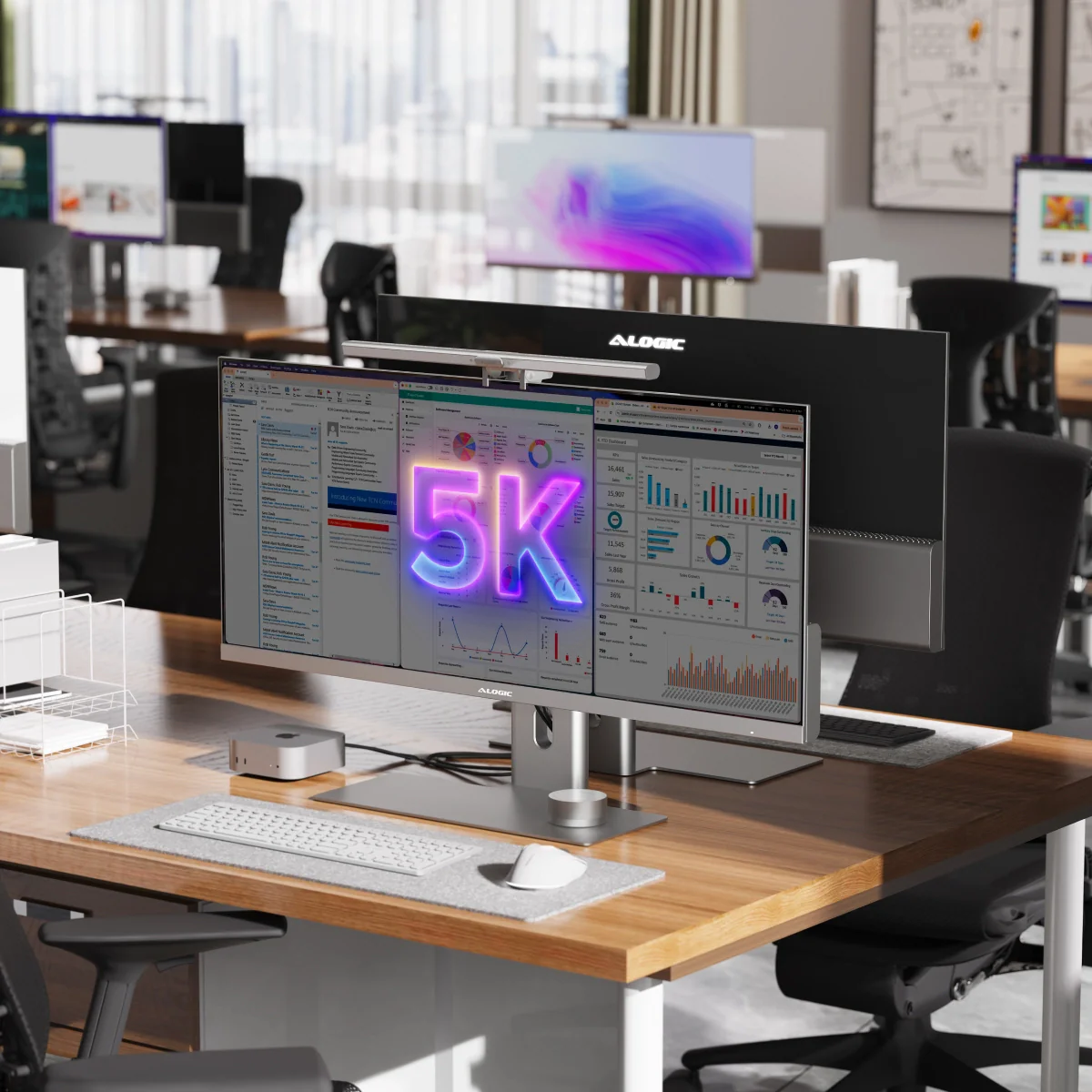
Here's a quick comparison to help you decide:
| Factor | Single 27" | Dual 24" | 34" Ultrawide |
|---|---|---|---|
| Multitasking | Good | Excellent | Excellent |
| Desk space needed | Moderate | High | Moderate |
| Seamless workspace | Yes | No (bezel gap) | Yes |
| Best for focused work | Yes | No | Somewhat |
| Video call friendly | Yes | Yes | Sometimes tricky |
| Typical cost | $200–$350 | $250–$500 (pair) | $350–$700 |
If you're still unsure, start with a single 27-inch 1440p monitor. It's the safest bet. You can always add a second monitor later if you find yourself constantly switching between windows.
Ergonomics: Why the Right Size Can Save Your Neck and Eyes
Monitor size directly affects your posture and eye comfort. Get it wrong and you'll feel it within a week.
The top of your screen should sit at or slightly below eye level. With a 24 or 27-inch monitor on a standard desk, this usually works fine with the included stand. But with 32-inch and larger displays, the screen is tall enough that the top edge may sit above your eye line.
That forces you to tilt your head back slightly, which leads to neck strain over a full workday.
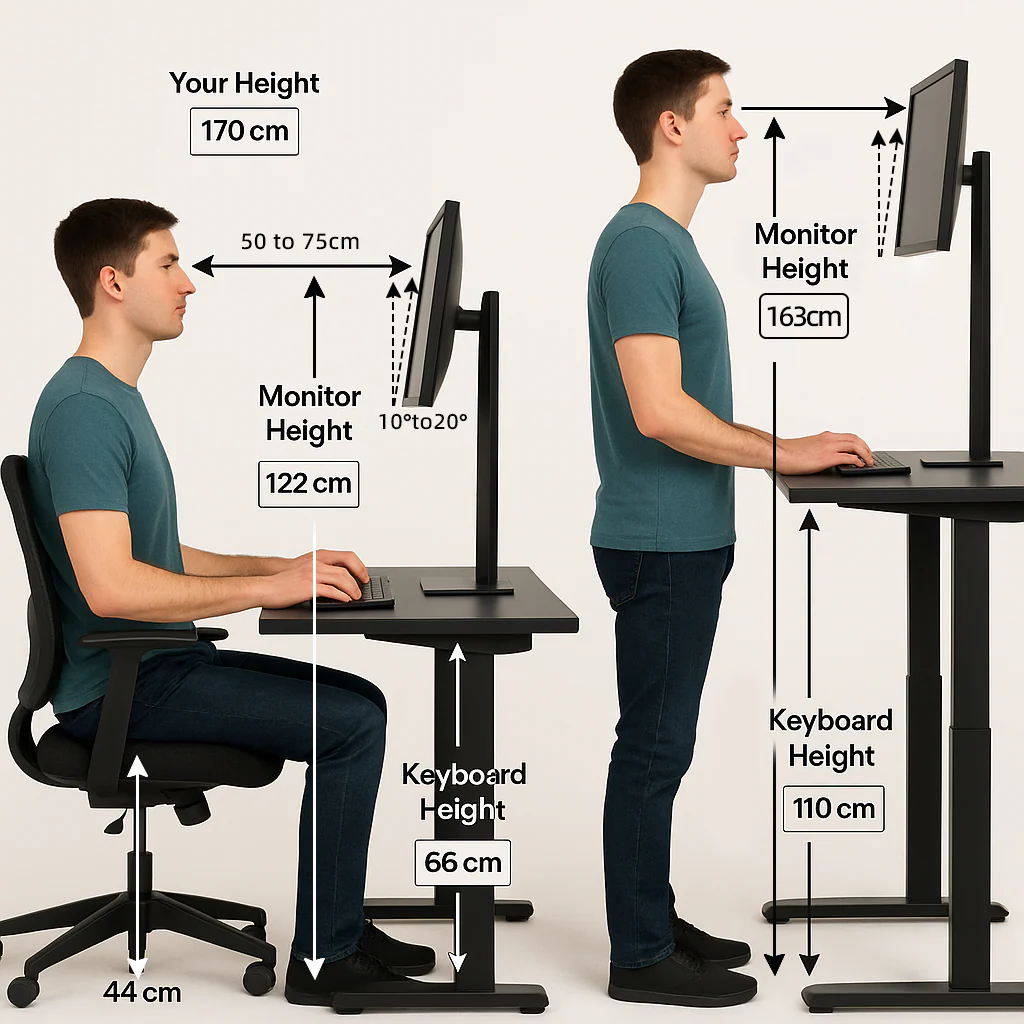
Here are the key ergonomic guidelines to follow:
- Viewing distance: Keep the screen 20 to 40 inches from your eyes. For a 27-inch monitor, that's roughly arm's length.
- Screen height: The top edge of the display should be at or just below eye level. Your gaze should tilt slightly downward, about 10 to 20 degrees.
- Monitor angle: Tilt the screen up 10 to 20 degrees to reduce glare and make the top edge easier to see.
- Text size: If you're squinting, the issue might not be the monitor size. Bump up font size or display scaling before assuming you need a bigger screen.
The UK's Health and Safety Executive Display Screen Equipment Regulations and OSHA's computer workstation guidelines both emphasize these positioning principles. They're not suggestions. They're based on real musculoskeletal disorder prevention research.
A monitor that's too large for your desk forces bad ergonomics. You lean in. You tilt your head.
You hunch forward. Over weeks and months, that adds up. The right size monitor, positioned correctly, keeps your neck neutral and your eyes comfortable through a full day of work.
Budget Guide: What You Actually Get at Each Price Point
Monitor prices vary wildly, but for office work, you don't need to spend a fortune. Here's what each tier gets you.
$150 to $200: Basic 24-inch 1080p monitors. Fine for email, documents, and light browsing. Panel quality is acceptable but not impressive.
Stands are often fixed-height.
$200 to $350: This is the sweet spot. You'll find 27-inch 1440p IPS monitors with good color accuracy, adjustable stands, and USB-C connectivity from reputable brands. This range handles 90% of office workloads well.
$350 to $600: Premium 27-inch 4K displays or 34-inch ultrawide monitors. You get higher resolution, better build quality, and often USB-C power delivery for laptops. Worth it for detail-heavy work or heavy multitasking.
$600 and up: Large 32-inch 4K panels, high-end ultrawides, and professional-grade displays with factory color calibration. Necessary for design and video work. Overkill for general office tasks.
The best value in 2026 sits firmly in that $200 to $350 range for most office workers. You get a sharp, ergonomic display that will last five to seven years. Spending less usually means compromising on panel quality or adjustability.
Spending more yields diminishing returns unless your work specifically demands higher resolution.
Real-World Setups: What Works for Different Office Scenarios
Let's put this all together with some practical examples.
Scenario 1: Standard corporate desk, general office work. A 27-inch 1440p monitor on an adjustable stand. Clean single-screen setup. Handles email, documents, spreadsheets, and video calls without any issues.
Total cost around $250 to $300.
Scenario 2: Home office with a shallow desk (22 inches deep). A 24-inch 1080p or 1440p monitor fits comfortably at this depth. Going larger would push the screen too close. Pair it with a monitor arm to save desk space.
Budget around $150 to $250.
Scenario 3: Financial analyst working with large datasets. A 34-inch ultrawide at 3440×1440 or a 32-inch 4K display. The horizontal space eliminates constant scrolling in wide spreadsheets. This is a productivity investment that pays for itself quickly.
Budget $400 to $600.
Scenario 4: Software developer. Either a 27-inch 1440p monitor for split-screen coding or dual 24-inch displays for dedicated contexts. Many developers prefer the dual setup for the hard separation between their IDE and reference materials. Budget $250 to $500 depending on the choice.
Scenario 5: Executive managing multiple priorities. A 27-inch 1440p monitor or a 34-inch ultrawide. Enough room for email, dashboards, and documents open simultaneously. Clean enough for a professional office environment.
Budget $250 to $500.
Final Decision Guide: Your 60-Second Monitor Size Pick
If you want to skip the details and just get an answer, here's a quick decision tree.
- Desk under 24 inches deep and basic tasks: 24-inch 1080p. Done.
- Standard desk, general office work: 27-inch 1440p. This is the right answer for most people.
- Spreadsheets, coding, or heavy multitasking: 27-inch 1440p minimum, or step up to a 34-inch ultrawide.
- Design, photo, or video work: 32-inch 4K with an IPS panel.
- Not sure: 27-inch 1440p. It's the safest pick that works for the widest range of office tasks and desk setups.
The monitor you pick shapes how you work every single day. Take five minutes to measure your desk, think about what you actually do all day, and match the size to that reality. You'll be glad you did.
Frequently Asked Questions
Is 27 inches too big for office work?
No. Twenty-seven inches at 1440p is widely considered the ideal office monitor size. It provides enough screen real estate for multitasking without overwhelming a standard desk.
Most office workers find it comfortable at a viewing distance of 24 to 30 inches.
Is 24 or 27 inches better for office work?
Twenty-seven inches at 1440p gives you 78% more screen area than a 24-inch 1080p display. For most office tasks, the 27-inch option is worth the small price increase. Choose 24 inches only if your desk is shallow or your budget is very tight.
Is a 32-inch monitor good for office work?
A 32-inch 4K monitor works well for detail-oriented tasks like design, data analysis, and video editing. It requires a desk depth of at least 30 inches for comfortable viewing. For general office work, it's more screen than most people need.
What is the best monitor size for spreadsheets?
A 27-inch 1440p monitor handles spreadsheets well for most people. If you work with very wide datasets, a 34-inch ultrawide or 32-inch 4K display gives you significantly more horizontal space. This reduces scrolling and makes it easier to see full rows and columns at once.
Should I get one large monitor or two smaller monitors?
It depends on your workflow. A single 27-inch 1440p monitor is simpler and cleaner for general use. Dual 24-inch monitors work better when you need hard separation between tasks.
A 34-inch ultrawide replaces dual monitors without the center bezel gap.
Common Mistakes People Make When Choosing an Office Monitor
Even with good intentions, people get this wrong all the time. Here are the most frequent pitfalls.
- Buying based on size alone. A bigger number doesn't automatically mean a better experience. A 32-inch 1080p monitor at a normal desk distance will look blurry. Always check the resolution-to-size ratio.
- Ignoring desk depth. This is the number one physical constraint people overlook. If your desk is only 24 inches deep and you buy a 32-inch monitor, you'll be sitting way too close. Your eyes will fatigue faster and you'll end up pushing the monitor back against the wall, wasting the size you paid for.
- Overestimating their multitasking needs. Not everyone needs 34 inches or dual monitors. If you primarily work in one application at a time, a large display just means a lot of empty screen space. You're paying for real estate you won't use.
- Forgetting about display scaling. High-resolution monitors on smaller screens sometimes require scaling adjustments. Windows has gotten much better at this, but some older business software still looks blurry at 125% or 150% scaling. Check whether your critical applications handle high-DPI displays well before committing.
- Choosing the cheapest large monitor available. Budget 32-inch monitors often cut corners on panel quality, color accuracy, and ergonomic stands. A mid-range 27-inch monitor will almost always outperform a budget 32-inch panel for office work.
- Not considering the stand or mount. Some monitors come with fixed-height stands that don't let you adjust the screen to the right ergonomic position. Check whether the stand offers height adjustment, or budget an extra $30 to $50 for a VESA monitor arm.
Single Monitor vs. Dual Monitors vs. Ultrawide: Which Setup Actually Wins?
This is one of the most debated questions in office setups, and the answer depends on how you work.
Single 27" monitor works best if you primarily focus on one task at a time and occasionally snap two windows side by side. It's clean, simple, and cable-free. Most people in general office roles fall into this category.
Dual 24" monitors make sense when you need hard separation between contexts. Developers who code on one screen and reference docs on the other often prefer this. Analysts who keep a live dashboard on one screen and their work on the other benefit from the physical boundary.
Single 34" ultrawide replaces the dual-monitor setup without the bezel gap right in front of your face. It's excellent for people who work with wide timelines, large spreadsheets, or multiple windows arranged across the screen. The downside is that some video conferencing apps don't share screen regions cleanly on ultrawide displays.
Here's a quick comparison to help you decide:
| Factor | Single 27" | Dual 24" | 34" Ultrawide |
|---|---|---|---|
| Multitasking | Good | Excellent | Excellent |
| Desk space needed | Moderate | High | Moderate |
| Seamless workspace | Yes | No (bezel gap) | Yes |
| Best for focused work | Yes | No | Somewhat |
| Video call friendly | Yes | Yes | Sometimes tricky |
| Typical cost | $200–$350 | $250–$500 (pair) | $350–$700 |
If you're still unsure, start with a single 27-inch 1440p monitor. It's the safest bet. You can always add a second monitor later if you find yourself constantly switching between windows.
Ergonomics: Why the Right Size Can Save Your Neck and Eyes
Monitor size directly affects your posture and eye comfort. Get it wrong and you'll feel it within a week.
The top of your screen should sit at or slightly below eye level. With a 24 or 27-inch monitor on a standard desk, this usually works fine with the included stand. But with 32-inch and larger displays, the screen is tall enough that the top edge may sit above your eye line.
That forces you to tilt your head back slightly, which leads to neck strain over a full workday.
Here are the key ergonomic guidelines to follow:
- Viewing distance: Keep the screen 20 to 40 inches from your eyes. For a 27-inch monitor, that's roughly arm's length.
- Screen height: The top edge of the display should be at or just below eye level. Your gaze should tilt slightly downward, about 10 to 20 degrees.
- Monitor angle: Tilt the screen up 10 to 20 degrees to reduce glare and make the top edge easier to see.
- Text size: If you're squinting, the issue might not be the monitor size. Bump up font size or display scaling before assuming you need a bigger screen.
The UK's Health and Safety Executive Display Screen Equipment Regulations and OSHA's computer workstation guidelines both emphasize these positioning principles. They're not suggestions. They're based on real musculoskeletal disorder prevention research.
A monitor that's too large for your desk forces bad ergonomics. You lean in. You tilt your head.
You hunch forward. Over weeks and months, that adds up. The right size monitor, positioned correctly, keeps your neck neutral and your eyes comfortable through a full day of work.
Budget Guide: What You Actually Get at Each Price Point
Monitor prices vary wildly, but for office work, you don't need to spend a fortune. Here's what each tier gets you.
$150 to $200: Basic 24-inch 1080p monitors. Fine for email, documents, and light browsing. Panel quality is acceptable but not impressive.
Stands are often fixed-height.
$200 to $350: This is the sweet spot. You'll find 27-inch 1440p IPS monitors with good color accuracy, adjustable stands, and USB-C connectivity from reputable brands. This range handles 90% of office workloads well.
$350 to $600: Premium 27-inch 4K displays or 34-inch ultrawide monitors. You get higher resolution, better build quality, and often USB-C power delivery for laptops. Worth it for detail-heavy work or heavy multitasking.
$600 and up: Large 32-inch 4K panels, high-end ultrawides, and professional-grade displays with factory color calibration. Necessary for design and video work. Overkill for general office tasks.
The best value in 2026 sits firmly in that $200 to $350 range for most office workers. You get a sharp, ergonomic display that will last five to seven years. Spending less usually means compromising on panel quality or adjustability.
Spending more yields diminishing returns unless your work specifically demands higher resolution.
Real-World Setups: What Works for Different Office Scenarios
Let's put this all together with some practical examples.
Scenario 1: Standard corporate desk, general office work. A 27-inch 1440p monitor on an adjustable stand. Clean single-screen setup. Handles email, documents, spreadsheets, and video calls without any issues.
Total cost around $250 to $300.
Scenario 2: Home office with a shallow desk (22 inches deep). A 24-inch 1080p or 1440p monitor fits comfortably at this depth. Going larger would push the screen too close. Pair it with a monitor arm to save desk space.
Budget around $150 to $250.
Scenario 3: Financial analyst working with large datasets. A 34-inch ultrawide at 3440×1440 or a 32-inch 4K display. The horizontal space eliminates constant scrolling in wide spreadsheets. This is a productivity investment that pays for itself quickly.
Budget $400 to $600.
Scenario 4: Software developer. Either a 27-inch 1440p monitor for split-screen coding or dual 24-inch displays for dedicated contexts. Many developers prefer the dual setup for the hard separation between their IDE and reference materials. Budget $250 to $500 depending on the choice.
Scenario 5: Executive managing multiple priorities. A 27-inch 1440p monitor or a 34-inch ultrawide. Enough room for email, dashboards, and documents open simultaneously. Clean enough for a professional office environment.
Budget $250 to $500.
Final Decision Guide: Your 60-Second Monitor Size Pick
If you want to skip the details and just get an answer, here's a quick decision tree.
- Desk under 24 inches deep and basic tasks: 24-inch 1080p. Done.
- Standard desk, general office work: 27-inch 1440p. This is the right answer for most people.
- Spreadsheets, coding, or heavy multitasking: 27-inch 1440p minimum, or step up to a 34-inch ultrawide.
- Design, photo, or video work: 32-inch 4K with an IPS panel.
- Not sure: 27-inch 1440p. It's the safest pick that works for the widest range of office tasks and desk setups.
The monitor you pick shapes how you work every single day. Take five minutes to measure your desk, think about what you actually do all day, and match the size to that reality. You'll be glad you did.
Frequently Asked Questions
Is 27 inches too big for office work?
No. Twenty-seven inches at 1440p is widely considered the ideal office monitor size. It provides enough screen real estate for multitasking without overwhelming a standard desk.
Most office workers find it comfortable at a viewing distance of 24 to 30 inches.
Is 24 or 27 inches better for office work?
Twenty-seven inches at 1440p gives you 78% more screen area than a 24-inch 1080p display. For most office tasks, the 27-inch option is worth the small price increase. Choose 24 inches only if your desk is shallow or your budget is very tight.
Is a 32-inch monitor good for office work?
A 32-inch 4K monitor works well for detail-oriented tasks like design, data analysis, and video editing. It requires a desk depth of at least 30 inches for comfortable viewing. For general office work, it's more screen than most people need.
What is the best monitor size for spreadsheets?
A 27-inch 1440p monitor handles spreadsheets well for most people. If you work with very wide datasets, a 34-inch ultrawide or 32-inch 4K display gives you significantly more horizontal space. This reduces scrolling and makes it easier to see full rows and columns at once.
Should I get one large monitor or two smaller monitors?
It depends on your workflow. A single 27-inch 1440p monitor is simpler and cleaner for general use. Dual 24-inch monitors work better when you need hard separation between tasks.
A 34-inch ultrawide replaces dual monitors without the center bezel gap.

Similar Posts





















