Is 4K Monitor Worth It for Office Use
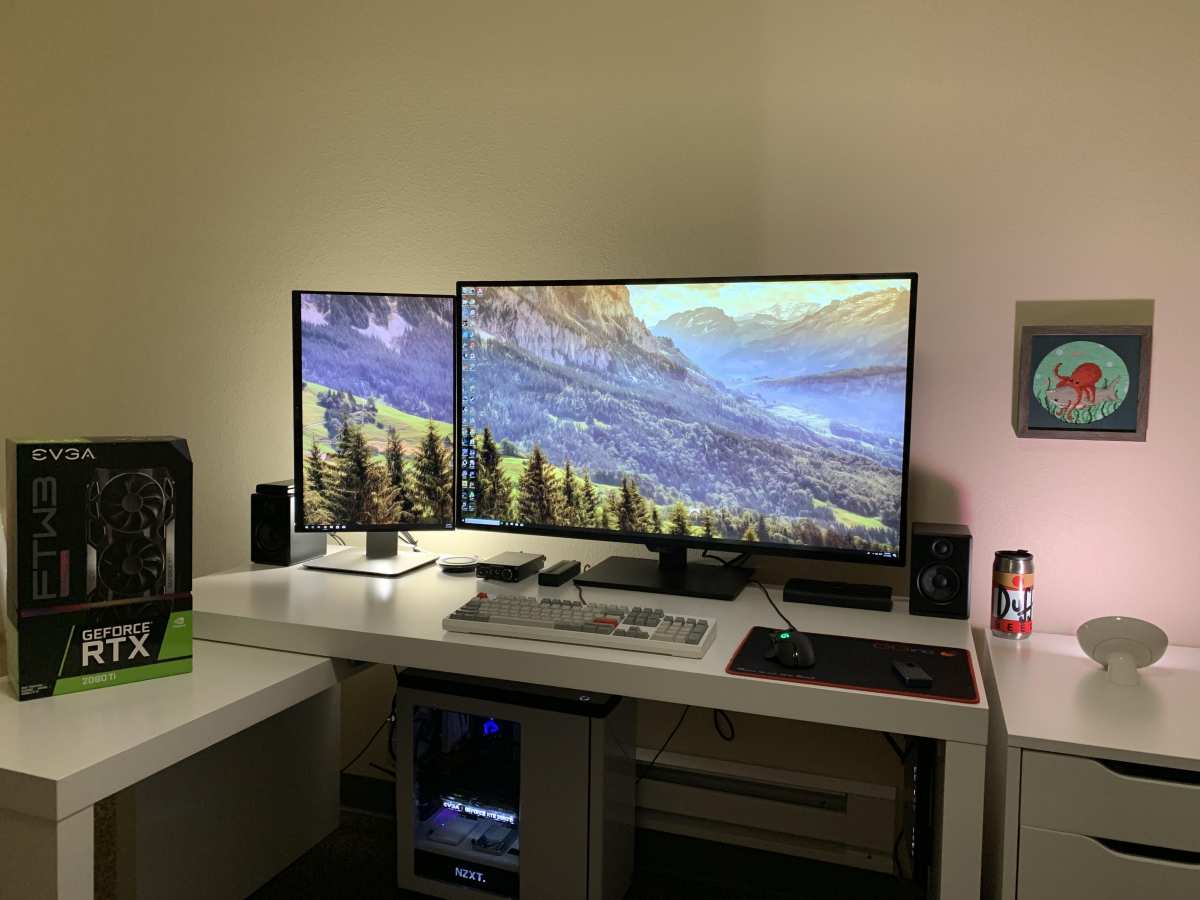
Is 4K monitor worth it for office use? The honest answer depends entirely on what you do eight hours a day at your desk.
If you're staring at spreadsheets and emails, a 4K display is a nice upgrade but far from essential. If you're coding, managing multiple windows, or doing any visual work, the jump in screen real estate genuinely changes how productive you feel. Manufacturer specifications indicate a 4K panel pushes roughly 8.3 million pixels, four times what 1080p delivers.
That's a massive difference in clarity and workspace, provided your workflow actually benefits from it. Let's figure out which camp you fall into.
Quick Answer
A 4K monitor is worth it for office work under specific conditions. It suits developers, data analysts, and creative professionals well. For basic email and document tasks at 27 inches or smaller, 1440p offers better value.
Your graphics hardware must support 3840×2160 at 60Hz. Check your ports and GPU before buying anything. This decision hinges on your actual workflow and budget.
The Real Question: What's Your Office Workflow?
Before spec sheets and price tags, the question comes down to one thing. What applications dominate your screen time? The answer splits cleanly into four categories, and each one gets a different recommendation.
Let's walk through them.
![4K office monitor on a modern desk][Hero image]
Spreadsheets, Email, and Documents (The Majority)
Most office workers live in a browser, Outlook or Gmail, and Microsoft Office or Google Workspace. For this group, a 4K monitor is a quality-of-life upgrade, not a necessity.
Here's the thing. At 27 inches, a 4K display gives you about 163 pixels per inch. That's crisp enough to render fonts beautifully.
But if you're mainly reading emails and typing in Word, the extra sharpness is pleasant, not transformative.
The real benefit? You get 3840×2160 pixels to work with. That means two full documents side by side, each comfortable to read.
No squinting, no constant alt-tabbing. It's genuinely nice, but a 1440p monitor at 27 inches gives you a similar multitasking experience for less money.
Coding, Development, and Multi-Window Work
Developers and engineers are where 4K starts earning its price tag. If you juggle an IDE, a terminal, a browser with documentation, and maybe a database client simultaneously, screen space is currency.
A 27-inch 4K panel at 150% scaling gives you roughly the same physical workspace as a 2560×1440 display, except everything looks razor-sharp. More importantly, you can drop that scaling to 125% and suddenly fit three code columns across the screen. That's a real productivity shift.
For DevOps folks managing dashboards, log streams, and configuration panels, the density is a game-changer. One monitor replaces what used to require two. Development environments like VS Code, JetBrains IDEs, and Docker Desktop all handle high-DPI displays well, though some plugins may need updates.
![Programmer using 4K monitor for multi-window development][Coding section image]
Creative and Visual Work (Design, Video, Photo)
If your work involves Adobe Creative Suite, Figma, DaVinci Resolve, or similar tools, 4K moves from "nice to have" to "you probably already need one." Detail work at native resolution means seeing your project at full fidelity without constant zooming.
Color accuracy matters here too. A 4K IPS panel covering at least 95% of the sRGB standard is the baseline for any serious creative work. Many professional 4K monitors also cover significant portions of DCI-P3 and Adobe RGB.
Look for VESA DisplayHDR 400 certification or higher if HDR preview matters for your workflow.
The "I Just Want a Nice Screen" Crowd
Plenty of people simply prefer having a beautiful, sharp display. There's nothing wrong with that. A 4K monitor at 27 or 32 inches looks stunning, and if the budget allows, the daily experience of using a crisp, well-calibrated panel is genuinely satisfying.
This is subjective, but it's a valid reason. If you spend eight-plus hours a day staring at a screen, enjoying what you see counts for something.
How 4K Actually Feels at Your Desk
Pixel density and physical screen size interact in ways most guides gloss over. Understanding this makes or breaks the 4K experience for office use.
Pixel Density and Why Size Matters More Than You Think
Pixel density is measured in pixels per inch, and it determines how sharp the image looks at a given viewing distance. Here's a quick comparison for common office monitor sizes at 4K resolution.
| Screen Size | Pixel Density (PPI) | Recommended Scaling | Effective Workspace |
|---|---|---|---|
| 24 inches | ~184 PPI | 200% | 1920×1080 equivalent |
| 27 inches | ~163 PPI | 150% | 2560×1440 equivalent |
| 32 inches | ~138 PPI | 125% | 3072×1728 equivalent |
| 40 inches | ~110 PPI | 100% | 3840×2160 equivalent |
At 24 inches, a 4K display is arguably overkill without aggressive scaling. You'd run it at 200% scaling, giving you a sharp but effectively 1080p-sized workspace. At 27 inches, the density and scaling sweet spot align beautifully for most office workers.
That's why 27-inch 4K panels dominate the conversation.
The Scaling Problem Nobody Warns You About
This is where things get tricky, especially on Windows. Operating system scaling makes text and UI elements readable at high densities, but not every application plays nicely. Windows 11 handles this far better than older versions, yet legacy software and some enterprise applications still render blurry or incorrectly sized elements.
macOS takes a different approach. Apple's Retina scaling on external displays works well with native Mac apps, but running a non-native resolution introduces slight blurring since macOS scales the output. The experience is generally smoother than Windows, but it's not flawless.
If your company runs older custom software or line-of-business apps that haven't been updated for high-DPI, test before you buy. Nothing kills the 4K dream faster than blurry interfaces across half your applications.
Text Clarity: The Genuine Game-Changer
Where 4K absolutely delivers on its promise is text rendering. Once you've worked on a properly configured 27-inch 4K display for a week, going back to 1080p feels like someone smeared vaseline on your screen. Fonts are noticeably smoother, subpixel rendering shines, and long reading sessions feel less fatiguing.
This benefit transcends workflow categories. Email, documents, code, web browsing, all of it looks better. Your eyes genuinely notice the difference after extended use, which means less squinting and less end-of-day fatigue.
The Compatibility Check You Need to Do First

Don't spend a dime until you verify your setup can handle 4K at 60Hz. This catches more people off guard than spec sheets suggest.
Can Your Computer Actually Run It?
Driving 3840×2160 at 60Hz requires specific hardware support. Here's what's needed.
Minimum GPU requirements for 4K@60Hz:
- Intel: UHD Graphics 630 or newer (8th-gen Core or later)
- AMD: Radeon Vega 8 integrated or any dedicated GPU with DisplayPort 1.2+
- Any dedicated GPU from NVIDIA or AMD with DisplayPort 1.2 or HDMI 2.0+
Older integrated graphics, think Intel HD 620 or prior, may support 4K but only at 30Hz over HDMI. That means choppy mouse movement, visible lag during scrolling, and an overall miserable experience. At 60Hz, everything feels fluid.
At 30Hz, it feels broken.
Check your specific CPU or GPU model against manufacturer documentation. Intel and AMD both publish supported resolution specs on their product pages.
Cable and Connection Gotchas
The cable matters as much as the port. Here's a quick reference.
| Connection Type | Max Bandwidth | Supports 4K@60Hz | Notes |
|---|---|---|---|
| HDMI 1.4 | 10.2 Gbps | No (limited to 30Hz) | Common on older monitors and laptops |
| HDMI 2.0 | 18 Gbps | Yes | Most common modern option |
| DisplayPort 1.2 | 17.28 Gbps | Yes | Common on desktop GPUs |
| DisplayPort 1.4 | 25.92 Gbps | Yes (up to 120Hz with DSC) | Found on newer GPUs and monitors |
| USB-C (DP Alt Mode) | Varies | Yes | Check your laptop supports DP Alt Mode |
If your laptop only has HDMI 1.4, you're stuck at 4K@30Hz unless you use a USB-C to DisplayPort adapter. Verify your specific port version before assuming it works. Manufacturer specs list this information, and it's worth the two-minute check.
![Windows display scaling slider in settings][Scaling settings image]
Laptop Users: Pay Extra Attention Here
Most modern laptops with USB-C Thunderbolt 3, Thunderbolt 4, or USB4 support 4K output through that port. However, many budget and mid-range laptops only have HDMI 1.4, which means 4K@30Hz.
The workaround is a USB-C to DisplayPort cable or dock. If your laptop supports DisplayPort over USB-C (look for the DP icon next to the port or check the spec sheet), this solves the problem cleanly. Docks with Power Delivery also let you charge the laptop through the same cable.
That's a nice bonus for keeping your desk tidy.
Another consideration: driving a 4K external display increases GPU load. Expect slightly reduced battery life when running the external monitor. On a desktop, this isn't an issue.
On a laptop unplugged for hours, it's worth knowing.
4K vs. the Alternatives: What Else Could You Buy?
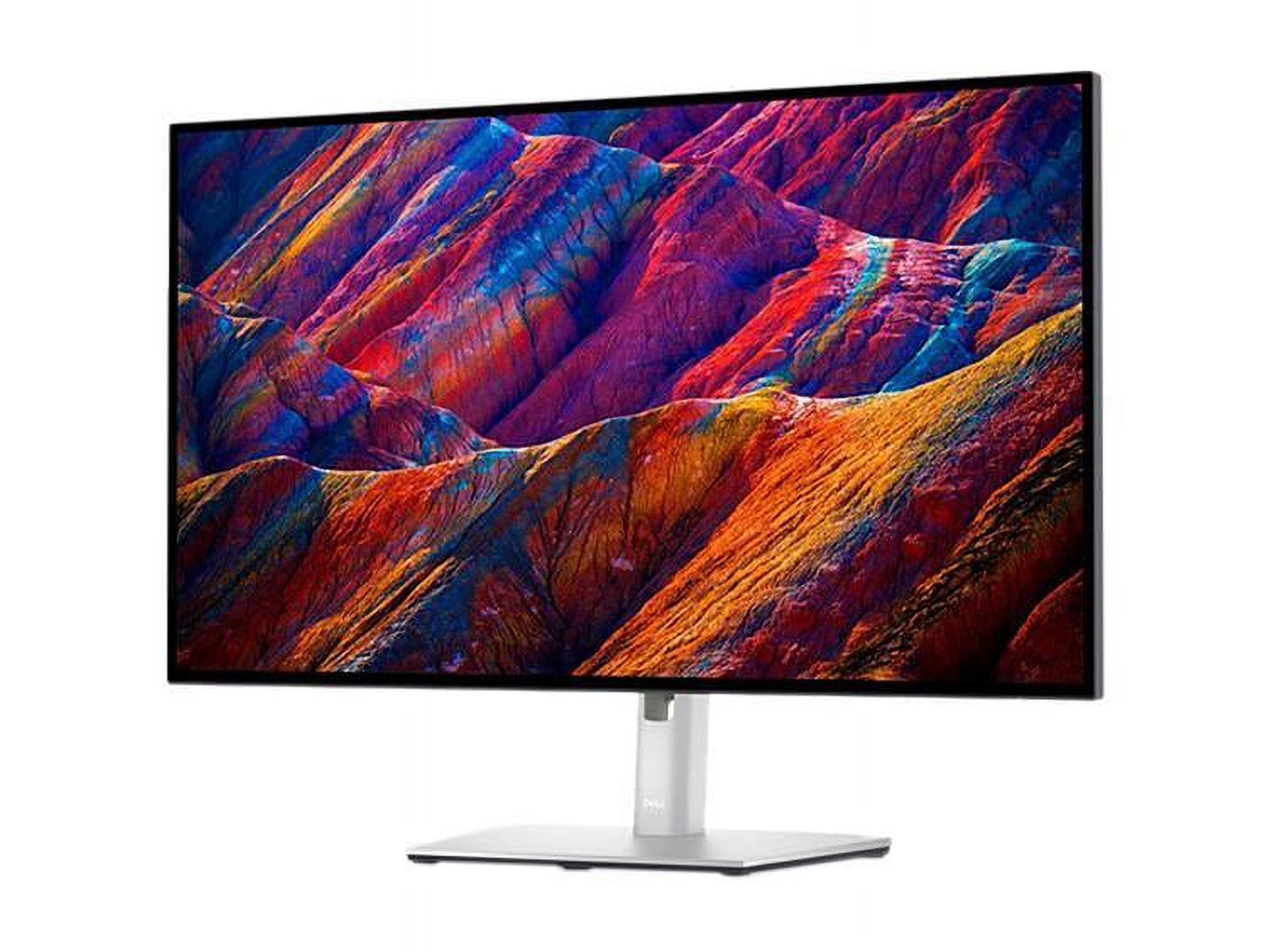
A 4K monitor isn't the only option on the table. Understanding the alternatives helps you spend smarter.
4K vs. 1440p (QHD): The Sweet Spot Debate
A 27-inch 1440p monitor gives you 2560×1440 pixels. That's a meaningful step up from 1080p without pushing your GPU or your budget too hard. At 109 PPI, text looks clean without requiring aggressive scaling, which means fewer compatibility headaches.
The cost difference is real. A solid 27-inch 1440p office monitor runs $200 to $350. A comparable 4K panel runs $300 to $550, sometimes more for professional-grade models.
If your workflow is primarily documents and email, 1440p delivers 80% of the 4K experience at roughly 60% of the price.
Where 4K wins is text sharpness and effective screen real estate at higher scaling levels. At 150% scaling on a 27-inch 4K display, you get the same physical workspace as 1440p but with noticeably crisper rendering. It's a polish difference, not a functional one, unless you spend hours reading and writing daily.
Single 4K vs. Dual Monitors
Two 24-inch 1080p monitors give you 3840×1080 total resolution. A single 27-inch 4K gives you 3840×2160. More vertical space makes a real difference for code, documents, and web browsing.
Dual monitors excel when you need two completely separate contexts. Think email on one screen and a report on the other, or a reference document beside an active project. The physical bezel creates a natural separation that some people prefer.
A single 4K display creates a cleaner, more seamless workspace. No bezel gap, fewer cables, one power plug. You can still create virtual desktops or snap windows into zones using tools like Microsoft PowerToys FancyZones or macOS Stage Manager.
The result mimics multi-monitor setups without the hardware clutter.
Your choice depends on workflow preference. If you like clear physical separation between tasks, dual monitors work well. If you value minimalism and a unified workspace, a single 4K panel is the better pick.
4K vs. Ultrawide: Different Tools for Different Jobs
![Dell 4K monitor next to 1440p display][Comparison image]
An ultrawide at 3440×1440 gives you the width of roughly one and a half standard monitors. At 3840×1640 ultrawide, the horizontal real estate is massive. It's excellent for timelines, wide spreadsheets, and placing three or four windows side by side.
But ultrawide panels are typically 34 to 38 inches across. Pixel density at that size and resolution sits around 108 to 118 PPI, which isn't as sharp as 1440p at 27 inches, let alone 4K. Text rendering is adequate but noticeably softer than a dense 4K panel.
If your priority is raw workspace width, ultrawide wins. If your priority is pixel-perfect sharpness and robust multitasking in a moderate footprint, a 27-inch or 32-inch 4K display wins.
Who Should Actually Buy a 4K Monitor for Office Work?
Let's convert the analysis into a clear go/no-go decision matrix based on user profile.
Worth It: The Use Cases That Justify the Cost
- Software developers especially those using multiple IDEs, terminals, and reference windows
- Data analysts and financial modelers working with large spreadsheets and dashboards
- UX/UI designers and visual artists who need accurate, detailed displays
- Writers and editors who spend long hours reading and revising text
- IT professionals and system administrators managing multiple monitoring tools and remote sessions
- Researchers and academics with multiple papers, datasets, and reference materials open simultaneously
Notice a pattern. Every "yes" use case involves either heavy text consumption or significant multitasking across multiple windows. Those are the two scenarios where 4K provides functional benefits beyond aesthetics.
Skip It: When 4K Doesn't Make Sense
- Light office work only (email, calendar, basic documents) especially at 24 inches or smaller
- Older hardware that can't support 6K@60Hz without expensive upgrades
- Strict budgets where $400 to $600 is hard to justify over a $200 to $250 1440p panel
- Legacy software environments where high-DPI scaling causes rendering problems
- Situations requiring color-accurate certification where professional 4K monitors cost $800 plus
Common Mistakes People Making When Buying
Buyer's remorse with 4K monitors usually traces back to a handful of oversights. Here's what to watch for.
Buying 4K at 24 Inches
A 24-inch 4K monitor packs pixels so densely that you'll run scaling at 200% just to read anything comfortably. That effectively gives you a very sharp 1080p display. You're paying for 4K resolution while using half of it for practical purposes.
The exception is professional color work where pixel density itself matters for accuracy. For standard office use, start at 27 inches minimum, with 32 inches offering a relaxed experience that many users prefer for all-day comfort.
Ignoring Scaling Issues Before Purchase
Windows 11's scaling has improved dramatically, but it's still not universal. Some older applications, custom enterprise software, and certain Java-based tools can render at the wrong size or blurry on high-DPI displays. Check your critical daily applications on a display before committing to the switch.
macOS users face less hassle here since entire ecosystems scale more consistently. However, running a non-native resolution on an external Mac display can blur everything. Use macOS's native Retina resolutions whenever possible.
Cheap Cable, Expensive Monitor
Someone spends $500 on a premium 4K IPS monitor and connects it with an old HDMI 1.4 cable. Everything looks janky because they're stuck at 30Hz. The fix costs $15 for a certified HDMI 2.0 or DisplayPort cable.
Make sure your cable matches your port's version.
Look for cables explicitly rated for the resolution and refresh rate you need. "High speed" HDMI cables handle 18 Gbps, which covers 4K@60Hz. "Ultra High Speed" covers HDMI 2.1's 48 Gbps bandwidth.
Shop by spec, not by packaging hype.
Assuming All 4K Monitors Are the Same
All 4K monitors share a resolution. Beyond that, they vary enormously. An IPS panel gives you wide viewing angles and pleasing color.
An IPS Black panel, like Dell's U2723QE, provides higher contrast. VA panels offer excellent contrast but may exhibit color shift at angles. TN panels are fast, cheap, and look washed out at the office.
Beyond panel type, consider ergonomics. Does the stand adjust height, tilt, and pivot? Is there a built-in USB hub or KVM switch?
What about a blue light filter or flicker-free certification from TÜV Rheinland? These details add up to a comfortable day. Ignoring them leads to neck strain and frustration within a week.
What You'll Actually Spend
Budget planning helps set expectations before you fall in love with a specific model.
Real Price Tiers and What You Get
- Budget ($250 to $350): 27-inch 4K IPS panels with basic stands. Good image quality for the price, limited ergonomics. Examples include the Samsung UR55 series or older Dell P2723D models.
- Mid-range ($350 to $600): Better color accuracy, height-adjustable stands, integrated USB hubs, and USB-C power delivery up to 90W. Dell UltraSharp U2723QE, LG 27UN850, and BenQ PD2700U fit here.
- Professional ($600 plus): Color calibration, wide gamut coverage, hardware calibration support, and premium build. Eizo ColorEdge and NEC MultiSync PA series occupy this space for fields where exact color matters.
Most office workers find the sweet spot in the $400 to $500 range. Below that, you're compromising on comfort and connectivity. Above that, you're paying for color-critical features that standard office work doesn't need.
The Total Cost (Cables, Arms, Adapters)
Monitor prices don't include everything you'll need. Budget an extra $50 to $100 for:
- A quality DisplayPort or USB-C cable rated for your resolution and refresh rate
- A VESA monitor arm if desk space is tight. Many budget monitors come with fixed stands only
- A USB-C dock (optional) to run video, power, and peripherals through one cable
- Calibration tools or apps if color accuracy matters for your work
A $450 monitor setup often lands around $500 to $550 total once accessories enter. It's still reasonable, but worth factoring into the purchase upfront.
The Decision Framework: Should You Buy One?
A clear, direct framework removes guesswork. Let's make this practical.
Walk Through Your Workflow
Go through this checklist honestly. Each "yes" tilts toward 4K.
- Do you regularly work with three or more application windows simultaneously?
- Do you code, analyze data, or edit visual content for more than two hours a day?
- Do you notice eye strain or fatigue after long screen sessions?
- Does your current monitor feel cramped or limiting?
- Does your hardware support 4K@60Hz natively?
Two or more yes answers, 4K is a sound investment. One or fewer, consider 1440p and save the difference.
The Five-Minute Compatibility Check
Before ordering, verify these five things.
- GPU Support: Check your graphics processing unit's maximum resolution specs. Confirm support for 3840×2160 at 60Hz.
- Port Version: Identify whether your computer has HDMI 2.0, DisplayPort 1.2, or USB-C with DisplayPort Alt Mode. Older ports limit you to 4K@30Hz.
- Cable Rating: Ensure your cable matches the port version. A certified HDMI 2.0 or DisplayPort 1.2 cable handles 4K@60Hz.
- Scaling Comfort: Test scaling on a friend's high-DPI display or in-store. Make sure your primary applications render correctly at 125% to 150% scaling.
- Physical Space: Measure your desk depth. At 27 to 32 inches, the monitor sits roughly 24 to 32 inches away. Ensure your desk accommodates that comfortably.
Quick Reference: Yes or No by User Type
| User Type | Recommended Resolution | Notes |
|---|---|---|
| Email, documents, web browsing | 1440p | Comfortable text, sharp enough for most tasks |
| Spreadsheet power users | 4K or ultrawide | More cells visible, clearer small fonts |
| Software developers | 4K | Text clarity and multi-window density pay off |
| Data analysts | 4K | Dashboards and large datasets benefit from density |
| UX/UI designers | 4K | Need accurate pixel-level detail |
| Video editors | 4K minimum | Real-time preview at native resolution |
| Writers and editors | 4K or high-PPI 1440p | Extended reading demands sharp text |
| Accountants/bookkeepers | 1440p to 4K | Depends on spreadsheet complexity |
| IT and systems support | 4K | Multiple monitoring tools and documentation |
The table above distills our research into one scan. Use this to match your daily reality, not your aspirational workflow.
Frequently Asked Questions
Is a 4K monitor good for everyday office work?
A 4K monitor works well for everyday office work, especially at 27 inches with proper scaling. Text looks noticeably sharper than 1080p. For purely light tasks, 1440p offers 90% of the benefit at a lower price.
The premium margin is real but not huge.
Can my laptop support a 4K external monitor?
Most laptops made after 2018 support 4K output via USB-C DisplayPort Alt Mode or dedicated HDMI 2.0 ports. Check your specific model's spec sheet for maximum supported resolution and refresh rate. Budget laptops with only HDMI 1.4 limit you to 30Hz, which feels laggy.
What size 4K monitor is best for office use?
Twenty-seven inches is the sweet spot for 4K in office work. It gives 163 PPI with pleasant scaling at 150%. Thirty-two inches offers a more relaxed viewing experience but slightly lower pixel density.
Twenty-four inches is generally too small due to excessive scaling requirements.
Does 4K cause eye strain?
A properly configured 4K monitor reduces eye strain through sharper text and clearer rendering. Problems arise from excessive brightness, poor desk ergonomics, or sitting too close. Follow the 20-20-20 rule: every 20 minutes, look 20 feet away for 20 seconds.
Is 4K worth it for Excel and spreadsheets?
For general Excel work, 1440p is adequate. If you build complex financial models, work with hundreds of rows and columns, or frequently compare multiple spreadsheets, the extra resolution pays off in visibility and reduced scrolling. Your workflow complexity decides this.
How do I fix blurry apps on a 4K monitor?
On Windows 11, right-click the application shortcut, select Properties, then Compatibility, and click "Change high DPI settings." Override the scaling behavior and set it to "Application" or "System (Enhanced)." On macOS, running native Retina resolutions minimizes blur since the system scales the entire desktop consistently.
Final Verdict: The Honest Bottom Line
A 4K monitor is worth it for office use when your daily work demands more screen real estate, sharper text, or detailed visual rendering. Developers, data professionals, designers, and heavy multitaskers will notice immediate, tangible benefits. For lighter tasks, 1440p delivers most of the experience at a friendlier price.
The crucial step is checking your hardware compatibility and testing scaling behavior in your specific office environment before committing. A few minutes of verification with your current GPU specs and daily setup prevents the two most common regrets: a monitor that stutters at 30Hz or an interface full of blurry text from poorly optimized applications.
Buy based on your actual workflow, not marketing hype, and a 4K display becomes one of the most satisfying productivity upgrades you can make in 2026.
Who Should Actually Buy a 4K Monitor for Office Work?
Let's get specific. Not everyone benefits equally from 4K at their desk.
Worth It: The Use Cases That Justify the Cost
- Software developers especially those using multiple IDEs, terminals, and reference windows
- Data analysts and financial modelers working with large spreadsheets and dashboards
- UX/UI designers and visual artists who need accurate, detailed displays
- Writers and editors who spend long hours reading and revising text
- IT professionals and system administrators managing multiple monitoring tools and remote sessions
- Researchers and academics with multiple papers, datasets, and reference materials open simultaneously
Notice a pattern. Every "yes" use case involves either heavy text consumption or significant multitasking across multiple windows. Those are the two scenarios where 4K provides functional benefits beyond aesthetics.
Skip It: When 4K Doesn't Make Sense
- Light office work only (email, calendar, basic documents) especially at 24 inches or smaller
- Older hardware that can't support 4K@60Hz without expensive upgrades
- Strict budgets where $400 to $600 is hard to justify over a $200 to $250 1440p panel
- Legacy software environments where high-DPI scaling causes rendering problems
- Situations requiring color-accurate certification where professional 4K monitors cost $800 plus
Common Mistakes People Make When Buying
Buyer's remorse with 4K monitors usually traces back to a handful of oversights. Here's what to watch for.
Buying 4K at 24 Inches
A 24-inch 4K monitor packs pixels so densely that you'll run scaling at 200% just to read anything comfortably. That effectively gives you a very sharp 1080p display. You're paying for 4K resolution while using half of it for practical purposes.
The exception is professional color work where pixel density itself matters for accuracy. For standard office use, start at 27 inches minimum, with 32 inches offering a relaxed experience that many users prefer for all-day comfort.
Ignoring Scaling Issues Before Purchase
Windows 11's scaling has improved dramatically, but it's still not universal. Some older applications, custom enterprise software, and certain Java-based tools can render at the wrong size or blurry on high-DPI displays. Check your critical daily applications on a display before committing to the switch.
macOS users face less hassle here since entire ecosystems scale more consistently. However, running a non-native resolution on an external Mac display can blur everything. Use macOS's native Retina resolutions whenever possible.
Cheap Cable, Expensive Monitor
Someone spends $500 on a premium 4K IPS monitor and connects it with an old HDMI 1.4 cable. Everything looks janky because they're stuck at 30Hz. The fix costs $15 for a certified HDMI 2.0 or DisplayPort cable.
Make sure your cable matches your port's version.
Look for cables explicitly rated for the resolution and refresh rate you need. "High speed" HDMI cables handle 18 Gbps, which covers 4K@60Hz. "Ultra High Speed" covers HDMI 2.1's 48 Gbps bandwidth.
Shop by spec, not by packaging hype.
Assuming All 4K Monitors Are the Same
All 4K monitors share a resolution. Beyond that, they vary enormously. An IPS panel gives you wide viewing angles and pleasing color.
An IPS Black panel, like Dell's U2723QE, provides higher contrast. VA panels offer excellent contrast but may exhibit color shift at angles. TN panels are fast, cheap, and look washed out at the office.
Beyond panel type, consider ergonomics. Does the stand adjust height, tilt, and pivot? Is there a built-in USB hub or KVM switch?
What about a blue light filter or flicker-free certification from TÜV Rheinland? These details add up to a comfortable day. Ignoring them leads to neck strain and frustration within a week.
What You'll Actually Spend
Budget planning helps set expectations before you fall in love with a specific model.
Real Price Tiers and What You Get
- Budget ($250 to $350): 27-inch 4K IPS panels with basic stands. Good image quality for the price, limited ergonomics. Examples include the Samsung UR55 series or older Dell P2723D models.
- Mid-range ($350 to $600): Better color accuracy, height-adjustable stands, integrated USB hubs, and USB-C power delivery up to 90W. Dell UltraSharp U2723QE, LG 27UN850, and BenQ PD2700U fit here.
- Professional ($600 plus): Color calibration, wide gamut coverage, hardware calibration support, and premium build. Eizo ColorEdge and NEC MultiSync PA series occupy this space for fields where exact color matters.
Most office workers find the sweet spot in the $400 to $500 range. Below that, you're compromising on comfort and connectivity. Above that, you're paying for color-critical features that standard office work doesn't need.
The Total Cost (Cables, Arms, Adapters)
Monitor prices don't include everything you'll need. Budget an extra $50 to $100 for:
- A quality DisplayPort or USB-C cable rated for your resolution and refresh rate
- A VESA monitor arm if desk space is tight. Many budget monitors come with fixed stands only
- A USB-C dock (optional) to run video, power, and peripherals through one cable
- Calibration tools or apps if color accuracy matters for your work
A $450 monitor setup often lands around $500 to $550 total once accessories enter. It's still reasonable, but worth factoring into the purchase upfront.
The Decision Framework: Should You Buy One?
A clear, direct framework removes guesswork. Let's make this practical.
Walk Through Your Workflow
Go through this checklist honestly. Each "yes" tilts toward 4K.
- Do you regularly work with three or more application windows simultaneously?
- Do you code, analyze data, or edit visual content for more than two hours a day?
- Do you notice eye strain or fatigue after long screen sessions?
- Does your current monitor feel cramped or limiting?
- Does your hardware support 4K@60Hz natively?
Two or more yes answers, 4K is a sound investment. One or fewer, consider 1440p and save the difference.
The Five-Minute Compatibility Check
Before ordering, verify these five things.
- GPU Support: Check your graphics processing unit's maximum resolution specs. Confirm support for 3840×2160 at 60Hz.
- Port Version: Identify whether your computer has HDMI 2.0, DisplayPort 1.2, or USB-C with DisplayPort Alt Mode. Older ports limit you to 4K@30Hz.
- Cable Rating: Ensure your cable matches the port version. A certified HDMI 2.0 or DisplayPort 1.2 cable handles 4K@60Hz.
- Scaling Comfort: Test scaling on a friend's high-DPI display or in-store. Make sure your primary applications render correctly at 125% to 150% scaling.
- Physical Space: Measure your desk depth. At 27 to 32 inches, the monitor sits roughly 24 to 32 inches away. Ensure your desk accommodates that comfortably.
Quick Reference: Yes or No by User Type
| User Type | Recommended Resolution | Notes |
|---|---|---|
| Email, documents, web browsing | 1440p | Comfortable text, sharp enough for most tasks |
| Spreadsheet power users | 4K or ultrawide | More cells visible, clearer small fonts |
| Software developers | 4K | Text clarity and multi-window density pay off |
| Data analysts | 4K | Dashboards and large datasets benefit from density |
| UX/UI designers | 4K | Need accurate pixel-level detail |
| Video editors | 4K minimum | Real-time preview at native resolution |
| Writers and editors | 4K or high-PPI 1440p | Extended reading demands sharp text |
| Accountants/bookkeepers | 1440p to 4K | Depends on spreadsheet complexity |
| IT and systems support | 4K | Multiple monitoring tools and documentation |
The table above distills our research into one scan. Use this to match your daily reality, not your aspirational workflow.
Frequently Asked Questions
Is a 4K monitor good for everyday office work?
A 4K monitor works well for everyday office work, especially at 27 inches with proper scaling. Text looks noticeably sharper than 1080p. For purely light tasks, 1440p offers 90% of the benefit at a lower price.
The premium margin is real but not huge.
Can my laptop support a 4K external monitor?
Most laptops made after 2018 support 4K output via USB-C DisplayPort Alt Mode or dedicated HDMI 2.0 ports. Check your specific model's spec sheet for maximum supported resolution and refresh rate. Budget laptops with only HDMI 1.4 limit you to 30Hz, which feels laggy.
What size 4K monitor is best for office use?
Twenty-seven inches is the sweet spot for 4K in office work. It gives 163 PPI with pleasant scaling at 150%. Thirty-two inches offers a more relaxed viewing experience but slightly lower pixel density.
Twenty-four inches is generally too small due to excessive scaling requirements.
Does 4K cause eye strain?
A properly configured 4K monitor reduces eye strain through sharper text and clearer rendering. Problems arise from excessive brightness, poor desk ergonomics, or sitting too close. Follow the 20-20-20 rule: every 20 minutes, look 20 feet away for 20 seconds.
Is 4K worth it for Excel and spreadsheets?
For general Excel work, 1440p is adequate. If you build complex financial models, work with hundreds of rows and columns, or frequently compare multiple spreadsheets, the extra resolution pays off in visibility and reduced scrolling. Your workflow complexity decides this.
How do I fix blurry apps on a 4K monitor?
On Windows 11, right-click the application shortcut, select Properties, then Compatibility, and click "Change high DPI settings." Override the scaling behavior and set it to "Application" or "System (Enhanced)." On macOS, running native Retina resolutions minimizes blur since the system scales the entire desktop consistently.
Final Verdict: The Honest Bottom Line
A 4K monitor is worth it for office use when your daily work demands more screen real estate, sharper text, or detailed visual rendering. Developers, data professionals, designers, and heavy multitaskers will notice immediate, tangible benefits. For lighter tasks, 1440p delivers most of the experience at a friendlier price.
The crucial step is checking your hardware compatibility and testing scaling behavior in your specific office environment before committing. A few minutes of verification with your current GPU specs and daily setup prevents the two most common regrets: a monitor that stutters at 30Hz or an interface full of blurry text from poorly optimized applications.
Buy based on your actual workflow, not marketing hype, and a 4K display becomes one of the most satisfying productivity upgrades you can make in 2026.


Similar Posts





















