How to Use Dual Monitors with Graphics Card
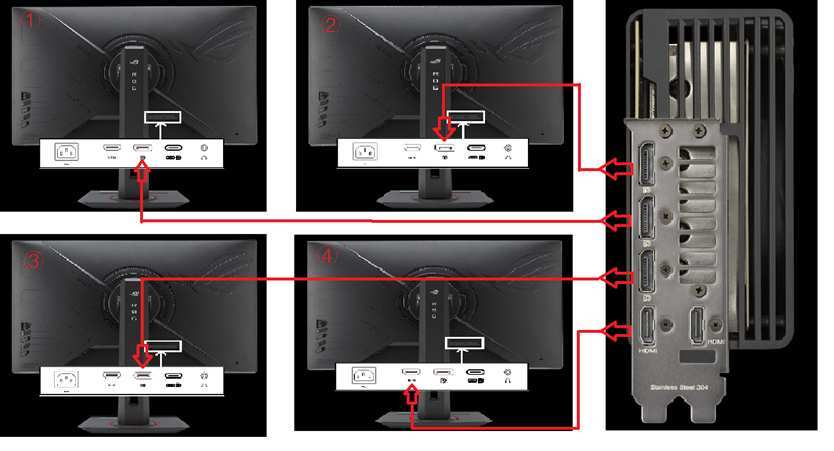
Figuring out how to use dual monitors with a graphics card trips up more people than it should. The process itself is straightforward, but one wrong connection or overlooked setting can leave you staring at a blank screen.
Most modern GPUs support at least three simultaneous displays out of the box, according to current manufacturer specifications. You just need to know which ports to use, how to configure the displays once they're connected, and what to do when something doesn't work. Let me walk you through every step.
Quick Answer
Connect both monitors directly to your graphics card's video output ports using compatible cables. Then open Windows Display Settings or your GPU control panel to enable and arrange the displays. You can extend your desktop across both screens or mirror them, depending on your preference.
More details on each step below.
Image source: Bing (Web (fair-use with source credit))
Quick Setup Overview: What Actually Happens When You Connect Dual Monitors to a GPU
Here's the short version before we get into the details.
When you plug two monitors into your graphics card, Windows sees them as separate displays. It won't automatically arrange them the way your physical desk is set up, though. You get to decide how they relate to each other.
There are two main modes you'll choose from. Extended desktop treats both monitors as one big workspace, letting you drag windows between them. Duplicate mode shows the same image on both screens, which is useful for presentations.
The whole setup process comes down to four things: checking what ports you have, plugging monitors into the right place, enabling the second display in software, and dialing in resolution and refresh rate settings. Once you've done it correctly the first time, it becomes second nature.
Let's break it down step by step.
Step 1: Check Your GPU's Available Ports Before You Do Anything Else
This is where most people go wrong before they even start. You need to look at the actual outputs on your graphics card and know what you're working with.
Not every GPU has the same ports. Some have three DisplayPorts and one HDMI. Others mix in a USB-C port that carries video.
Budget cards might only have two outputs total.
Here's a quick reference for common GPU output configurations:
| GPU Tier | Typical Ports | Max Displays | Notes |
|---|---|---|---|
| Budget / Entry | 1x HDMI, 1x DisplayPort, 1x DVI | 2–3 | DVI may not support 4K at 60Hz |
| Mid-Range | 2–3x DisplayPort, 1x HDMI | 4 | Most common layout as of 2026 |
| High-End | 3x DisplayPort, 1x HDMI, 1x USB-C | 4+ | USB-C provides alt-mode video |
Grab your GPU's spec sheet or physically look at the back of your computer. Count the available ports and note what type each one is. Compare that to the inputs on your monitors.
If your GPU has fewer ports than monitors you want to connect, don't panic yet. We'll cover workarounds later in this guide, including MST hubs and DisplayLink adapters.
One important note about cable matching. You don't need to use the same cable type for both monitors. If your primary monitor supports DisplayPort and your second only has HDMI, use DisplayPort for one and HDMI for the other.
That's completely fine. Just make sure the cable version supports the resolution and refresh rate you're targeting. DisplayPort 1.4 handles 4K at 120Hz, and HDMI 2.1 does the same.
Older versions may cap you at lower specs.
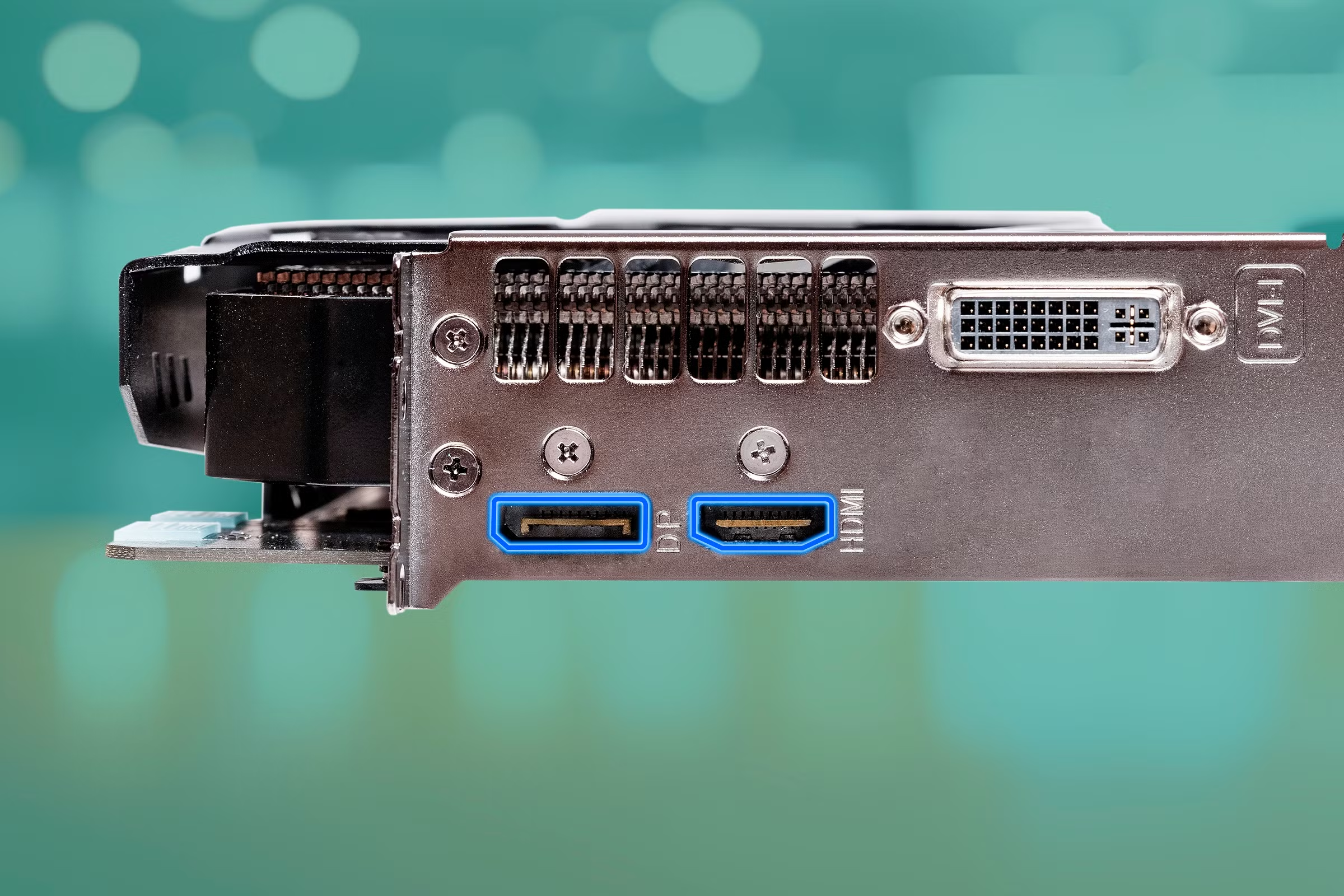
Image source: Bing (Web (fair-use with source credit))
Step 2: Connect Your Monitors to the Graphics Card — Not the Motherboard
I cannot stress this enough. Plug your monitors into the graphics card, not the motherboard.
Here's why this matters so much. When you install a dedicated GPU, many motherboards automatically disable the integrated graphics processor (iGPU). That means the video ports on your motherboard stop working entirely.
You plug a monitor into the back of the motherboard and get nothing.
Even if your system keeps the iGPU active, routing one monitor through the motherboard and another through the GPU creates a split workload that causes performance issues and detection problems. Don't do it.
The graphics card's ports are located lower in the case, usually near the bottom of the rear I/O panel where the card sits in its PCIe slot. The motherboard's video ports are higher up, clustered near the USB ports and audio jacks. If you're unsure which is which, look inside your case.
Any port connected directly to the large horizontal card with fans on it belongs to your GPU.
What If You're Using a Laptop
Laptops handle this differently. Most laptops with a discrete GPU route external video outputs through the integrated graphics anyway. That means plugging into the laptop's HDMI or USB-C port works regardless.
But if you notice poor performance on the external display, check your laptop's GPU switching software. Some models have a "MUX switch" or a performance mode that changes which GPU drives the outputs.
What If Your GPU Only Has Two Ports but You Want Three Monitors?
You have a few options. An MST (Multi-Stream Transport) hub splits one DisplayPort into multiple outputs. A DisplayLink USB adapter adds another display through a USB port.
Or, if your CPU has integrated graphics and your BIOS allows it, you can enable the iGPU alongside your discrete GPU and use the motherboard ports for a third screen.
For most people, though, two monitors is the target. And any modern GPU built in the last several years handles that without breaking a sweat.
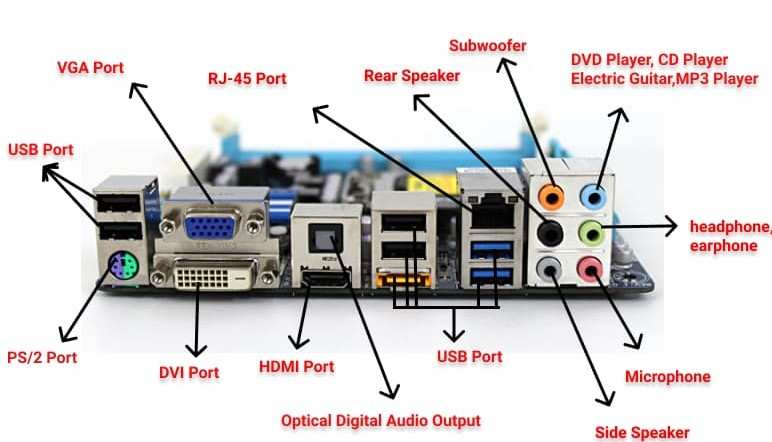
Image source: Bing (Web (fair-use with source credit))
Step 3: Tell Your Computer What to Do With the Second Screen
You've got both monitors plugged into the GPU. They're powered on. Now you need to make your operating system recognize and configure them.
Windows Display Settings and the Win + P Shortcut
The fastest way to get started on Windows is pressing Win + P. This brings up a sidebar with four display modes:
- PC screen only, Only your primary monitor is active
- Duplicate, Both monitors show the same image
- Extend, Both monitors act as one big desktop
- Second screen only, Only your secondary monitor is active
For productivity, you almost always want Extend. This gives you independent screen space on each monitor. You can drag windows between them, keep your browser on one screen and your email on the other, or watch a video on the second display while working on the primary.
After selecting Extend via Win + P, right-click on your desktop and choose Display settings. Here you'll see numbered rectangles representing your monitors. If one display shows up as disconnected or grayed out, click the Detect button.
Click on each numbered display to configure it individually. Set the resolution to the monitor's native resolution, choose the correct orientation, and set the refresh rate under Advanced display settings. A 144Hz gaming monitor won't run at 144Hz unless you explicitly set it there, since Windows often defaults to 60Hz.
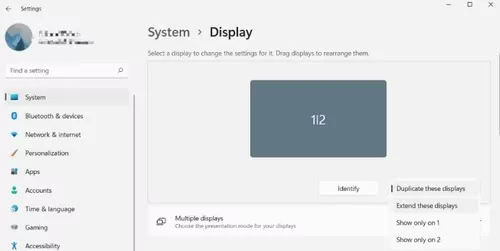
Image source: Bing (Web (fair-use with source credit))
NVIDIA Control Panel for Advanced Configuration
If you're running an NVIDIA GPU, the NVIDIA Control Panel gives you more granular control than Windows offers. Right-click the desktop and select it from the menu, or search for it in the Start menu.
Under Display > Set up multiple displays, you can enable or disable individual monitors, rearrange them, and set the primary display. The Change resolution section lets you set color depth, dynamic range, and custom resolutions for each output.
NVIDIA users also get access to Surround mode for gaming across multiple displays. Three or more monitors can act as one giant display in supported games, creating an ultrawide field of view. This is more of an enthusiast feature, but it's there if you want it.
The Adjust desktop size and position section handles scaling. If your two monitors have different pixel densities, say one is 4K and the other is 1080p, you can adjust scaling individually so windows don't look weird when you drag them between screens.
AMD Radeon Software for Advanced Configuration
AMD users get similar control through driver software. Recent versions offer a cleaner interface with display-specific settings tucked under a dedicated tab.
You can enable or disable individual displays, set refresh rates, toggle FreeSync per monitor, and configure Eyefinity mode for multi-display gaming. Eyfinity works like NVIDIA's Surround, combining multiple displays into a single logical display for games.
One thing AMD handles particularly well is color calibration per monitor. If your two displays have different panel types or color profiles, you can adjust each one independently through the driver software without third-party tools.
Step 4: Arrange, Set Resolution, and Lock In Refresh Rates
This is where everything comes together. You've got both monitors detected and extended. Now you need to make sure the arrangement matches your physical desk layout.
In Windows Display Settings, drag the numbered monitor icons so they match how your monitors sit on your desk. If your second monitor is physically to the left of your primary, drag its icon to the left side of the primary. This determines how your mouse cursor moves between screens.
Get this wrong and your mouse will seem to "jump" or disappear when it shouldn't.
Resolution Best Practices
Always set each monitor to its native resolution. This is the maximum resolution the panel was designed to display. Running a 4K monitor at 1080p looks blurry because the image has to be scaled up.
Running a 1080p monitor at 4K doesn't work at all in most cases.
If you're mixing a 4K monitor with a 1080p monitor, Windows handles this through per-display scaling. Set scaling to 150% or 200% on the 4K display and 100% on the 1080p display. Text and UI elements will appear roughly the same physical size on both screens, even though the pixel counts are very different.
Refresh Rate Configuration
Check your refresh rate settings for every monitor. Gaming monitors often support 120Hz, 144Hz, or even 240Hz, but Windows defaults to 60Hz. Go to Display settings > Advanced display settings > Display adapter properties and look for the Monitor tab to set the correct refresh rate.
For your secondary monitor that you use for browsing and documents, 60Hz is perfectly fine. But if you game on the secondary display or just want smoother cursor movement, bump it up to whatever the panel supports.
Setting the Primary Display
Your primary display is where new windows open and where your taskbar appears by default. In Windows Display Settings, select the monitor you want as primary and check Make this my main display. This setting matters more than people think.
Full-screen applications, game launches, and notification popups all default to the primary monitor.
If you're using NVIDIA or AMD software, you can also set the primary display there. Both control panels offer a right-click option on the monitor icon to designate it as primary.
When One Monitor Works and the Other Doesn't: Troubleshooting Decision Tree
This is the part most guides skip, and it's exactly where you're probably stuck right now. Let's fix it step by step.
Monitor Not Detected at All
Start with the basics. Is the monitor powered on? Is it set to the correct input source?
Many monitors have multiple inputs and won't auto-switch reliably.
If the monitor is on and set to the right input, check the cable. Reseat both ends. Try a different cable if you have one.
Cable failures are more common than people realize, especially with cheaper HDMI cables that don't fully comply with spec.
If a different cable doesn't help, try plugging the undetected monitor into a port you know works. Swap the two monitors' cables at the GPU. If the problem follows the monitor, the monitor or its cable is the issue.
If the problem stays on the same GPU port, that port may be disabled or faulty.
In Windows Display Settings, click Detect. If that does nothing, open your GPU control panel and look for a multi-display section. Sometimes a disabled output needs to be manually enabled there.
Detected but Wrong Resolution or Refresh Rate
This usually points to a cable bandwidth limitation or a driver issue. An HDMI 1.4 cable physically cannot output 4K at 60Hz. You need HDMI 2.0 or higher, or DisplayPort 1.2 or higher.
Update your GPU drivers. Outdated drivers frequently cause resolution and refresh rate options to be missing or incorrect. Download the latest version directly from NVIDIA or AMD rather than relying on Windows Update.
In the GPU control panel, check for custom resolution options. Sometimes you need to manually create a resolution profile if the monitor's EDID data isn't being read correctly.
Laptop Won't Use Discrete GPU for External Monitors
This is a common frustration with gaming laptops. Many models route external video outputs through the integrated GPU by design, even when a powerful discrete GPU is present.
Check your laptop manufacturer's software. ASUS has Armoury Crate, Lenovo has Vantage, and Dell has the Alienware Command Center. These utilities often include GPU switching options.
Look for a "MUX Switch" or "Discrete GPU Mode" toggle.
If your laptop supports it, enabling MUX switch routes external outputs directly through the discrete GPU. This can improve performance on the external display by 10 to 20 percent in GPU-intensive applications, according to aggregate user benchmarks.
Can You Mix and Match Cables and Monitor Brands?
Yes, absolutely. There's no requirement that both monitors use the same cable type or come from the same manufacturer.
You might have a gaming monitor connected via DisplayPort and a secondary office monitor connected via HDMI. That works perfectly. Each output on your GPU operates independently.
Mixing refresh rates is also fine. Your primary monitor can run at 144Hz while your secondary stays at 60Hz. Windows handles this without issue.
Just set each display's refresh rate individually in the display settings.
Where mixing monitors gets tricky is with different pixel densities. A 27-inch 4K display next to a 27-inch 1080p display will make windows look dramatically different in size when you move them between screens. Set per-display scaling in Windows to compensate.
It won't be perfect, but it makes the experience much more usable.
Integrated Graphics vs. Discrete GPU: Why It Matters for Dual Monitors
Understanding which GPU drives your displays helps you avoid the most common setup mistake.
When you install a dedicated graphics card, most motherboards disable the integrated graphics by default. The video ports on the motherboard stop sending signal. This is why plugging your monitor into the motherboard yields a black screen.
Some CPUs, particularly Intel models without an "F" suffix, include integrated graphics that can coexist with a discrete GPU. You need to enable this in the BIOS. Look for a setting called Multi-Monitor Support, iGPU Multi-Monitor, or Integrated Graphics and set it to enabled.
Why would you want this? It lets you connect additional monitors through the motherboard when your discrete GPU runs out of ports. It's a practical workaround for three or more displays on a budget GPU.
The downside is that monitors connected to the motherboard are driven by the weaker integrated GPU. Don't expect to game on that display or run GPU-accelerated applications smoothly. It's fine for web browsing, documents, and video playback.
What to Do When Your GPU Doesn't Have Enough Ports
Your GPU has two video outputs but you want three monitors. Here are your options, ranked from best to worst.
MST Hub (DisplayPort Multi-Stream Transport): This is the cleanest solution if your GPU has at least one DisplayPort 1.2 or newer. An MST hub splits one DisplayPort output into two or more independent displays. You can run two 4K monitors at 60Hz from a single DisplayPort 1.4 output.
MST hubs typically cost $30 to $100.
DisplayLink USB Adapter: This uses a USB 3.0 port to add a video output through software-driven display technology. It works well for productivity tasks but isn't suitable for gaming or video playback due to compression and latency. DisplayLink adapters range from $40 to $80.
Enable Integrated Graphics: As mentioned above, if your CPU has integrated graphics and your motherboard supports it, you can use the motherboard's video ports for an additional display. This costs nothing but requires a BIOS change.
Upgrade Your GPU: If you consistently need more displays and your current GPU can't deliver, a card with more outputs might be the right move. Most mid-range and high-end GPUs from recent generations support four displays simultaneously.
Real Scenarios: Common Dual-Monitor + GPU Setups
Let's walk through the configurations people actually use day to day.
Two Identical Office Monitors on a Budget GPU
This is the most common productivity setup. Two 24-inch 1080p monitors connected to a modest GPU like an NVIDIA GTX 1650 or AMD RX 6400. Both monitors run through HDMI and DisplayPort respectively.
Setup takes about ten minutes, and the total hardware cost beyond the monitors themselves is minimal.
High-Refresh Gaming Monitor + Secondary 60Hz Screen
A 144Hz or 240Hz gaming monitor connected via DisplayPort as the primary display, paired with a standard 60Hz monitor for Discord, guides, or streaming chat. The GPU needs enough horsepower to drive the gaming monitor at high frame rates while also handling the secondary display. A mid-range card like an RTX 4060 or RX 7600 handles this comfortably.
Laptop Connected to One External Monitor via USB-C
Many modern laptops support video output through USB-C with DisplayPort Alt Mode. A single cable can carry video signal and charge the laptop simultaneously if the monitor provides power delivery. Check your laptop's USB-C port specifications, since not all USB-C ports support video output.
Common Mistakes People Make With Dual Monitor + GPU Setups
These are the errors that come up again and again in user reports and tech support forums.
Plugging one monitor into the motherboard and one into the GPU. This causes the discrete GPU to not fully engage for both displays, leading to inconsistent performance and potential detection issues.
Using the wrong cable version for your target resolution. An HDMI 1.4 cable limits 4K to 30Hz. That feels awful for desktop use. Use HDMI 2.0 or DisplayPort 1.2 or newer for 4K at 60Hz.
Forgetting to set the refresh rate. Your 144Hz gaming monitor won't run at 144Hz just because the cable supports it. You have to manually set it in Windows Display Settings or the GPU control panel.
Ignoring physical monitor arrangement in software. If your second monitor sits to the left of your primary but Windows thinks it's on the right, your mouse behavior will feel broken. Take thirty seconds to arrange the display icons correctly.
Not updating GPU drivers after connecting a new display. Fresh driver releases frequently include improved multi-display support and EDID handling. Running old drivers can cause resolution options to disappear or monitors to flicker.
Frequently Asked Questions
Do I need the same monitors for a dual setup?
No. You can mix different sizes, resolutions, refresh rates, and brands. Each monitor is configured independently.
The main compromise is visual inconsistency when moving windows between screens with different pixel densities.
Does running two monitors slow down my GPU?
Yes, slightly. The GPU must render and output frames for both displays. For everyday tasks, the performance difference is imperceptible.
For gaming, running a game on one monitor while displaying content on the other uses a small amount of additional VRAM and processing power.
Can I use dual monitors with any graphics card?
Almost any GPU from the last decade supports at least two simultaneous displays. Check the specific model's specifications for the maximum number of supported displays and available port types.
Do I need Active or passive adapters for DVI or VGA connections?
For single-link DVI at 1080p, a passive adapter usually works. For dual-link DVI or higher resolutions, you may need an active adapter. VGA connections require active conversion since VGA is analog and modern GPUs output digital signals.
What if my second monitor has no signal?
Check that the monitor is powered on and set to the correct input. Reseat the cable at both ends. Try a different cable or port on the GPU.
If none of that works, test the monitor with another device to rule out a hardware fault.

Similar Posts































