Do Mini LED Monitors Need Special Cables
No, mini LED monitors don't need special cables in the way most people think. What they need is a cable that's spec-matched to what the monitor can actually display. The Mini LED part is about the backlighting behind the panel.
It changes how the screen looks, not what cable connects it to your device.
The real question is whether your existing cable can push enough data for high resolution, high refresh rate, and HDR all at once. That almost always comes down to bandwidth. A DisplayPort 1.4 or HDMI 2.1 cable handles most mini LED setups just fine.
The key is matching the cable to the exact output you want.
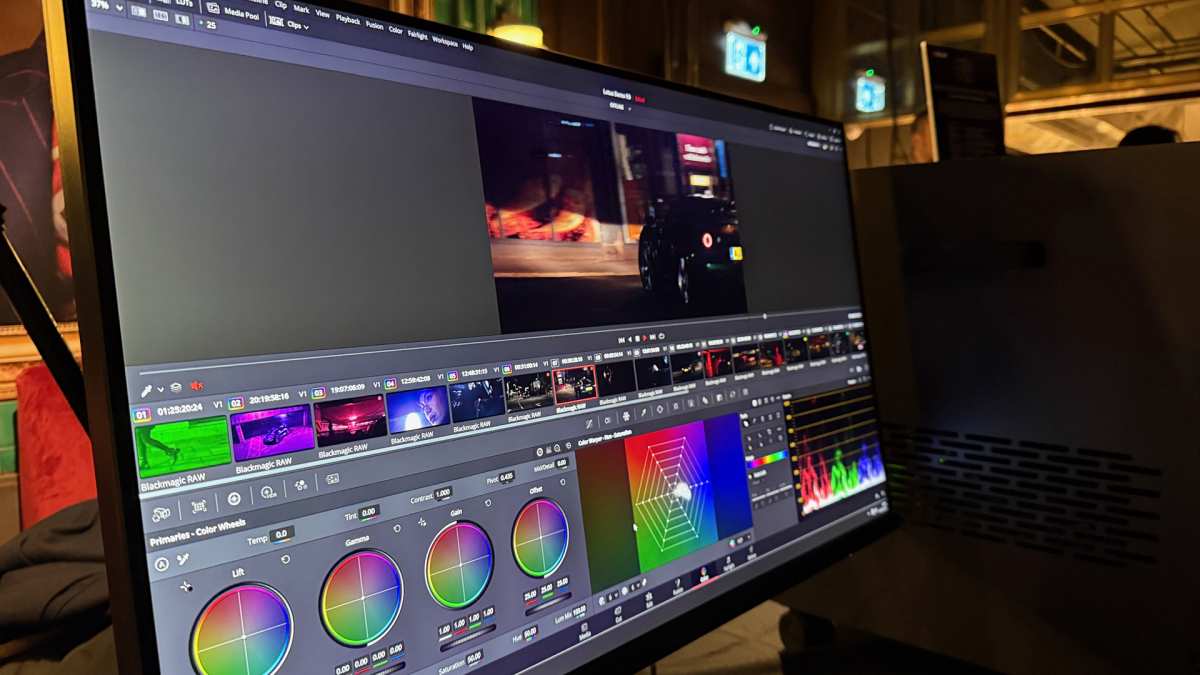
"Close-up of a Mini LED monitor with HDR content displayed."
The Short Answer: No Special Cables, But You Need the Right Specs
Mini LED monitors do not require proprietary or unique cables. Standard DisplayPort, HDMI, or USB-C cables work perfectly well. What matters is the version and bandwidth rating of the cable, not the connector type itself.
A high-quality DisplayPort 1.4 or HDMI 2.1 cable covers nearly every mini LED monitor as of 2026.
You do not need to buy anything labeled "mini LED certified" or "HDR cable." Those products do not exist as any kind of official standard. What you do need is a cable rated for the bandwidth your specific resolution, refresh rate, and HDR format require. That requirement depends on your monitor model and your graphics card or laptop output.
Quick Answer
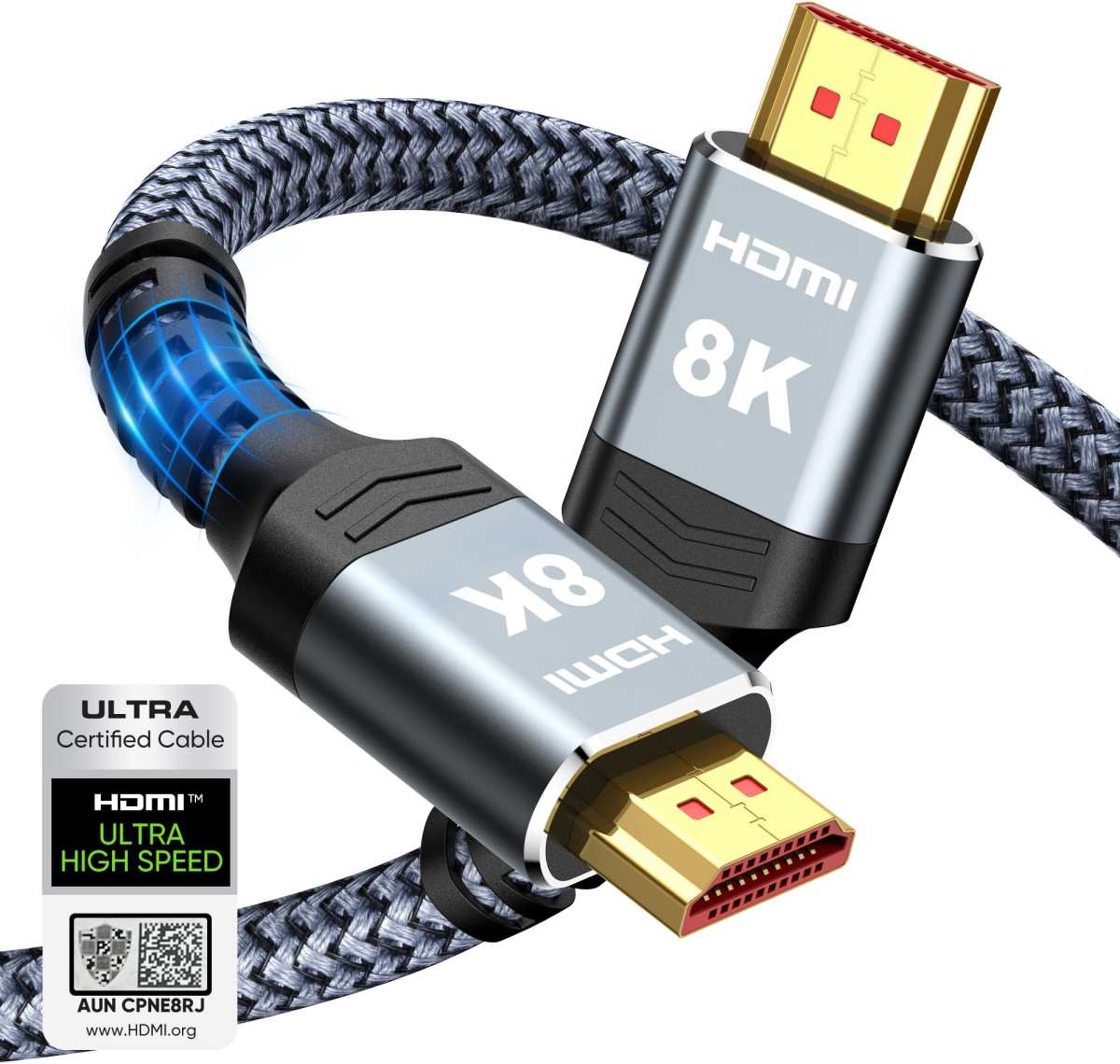
Mini LED monitors do not need special cables. They work with standard DisplayPort, HDMI, or USB-C cables that match the required bandwidth. A VESA-certified DisplayPort 1.4 or Ultra High Speed HDMI 2.1 cable handles most setups.
Check your monitor's maximum resolution and refresh rate before buying a cable. The mini LED backlighting does not change cable requirements.
Why This Question Keeps Coming Up
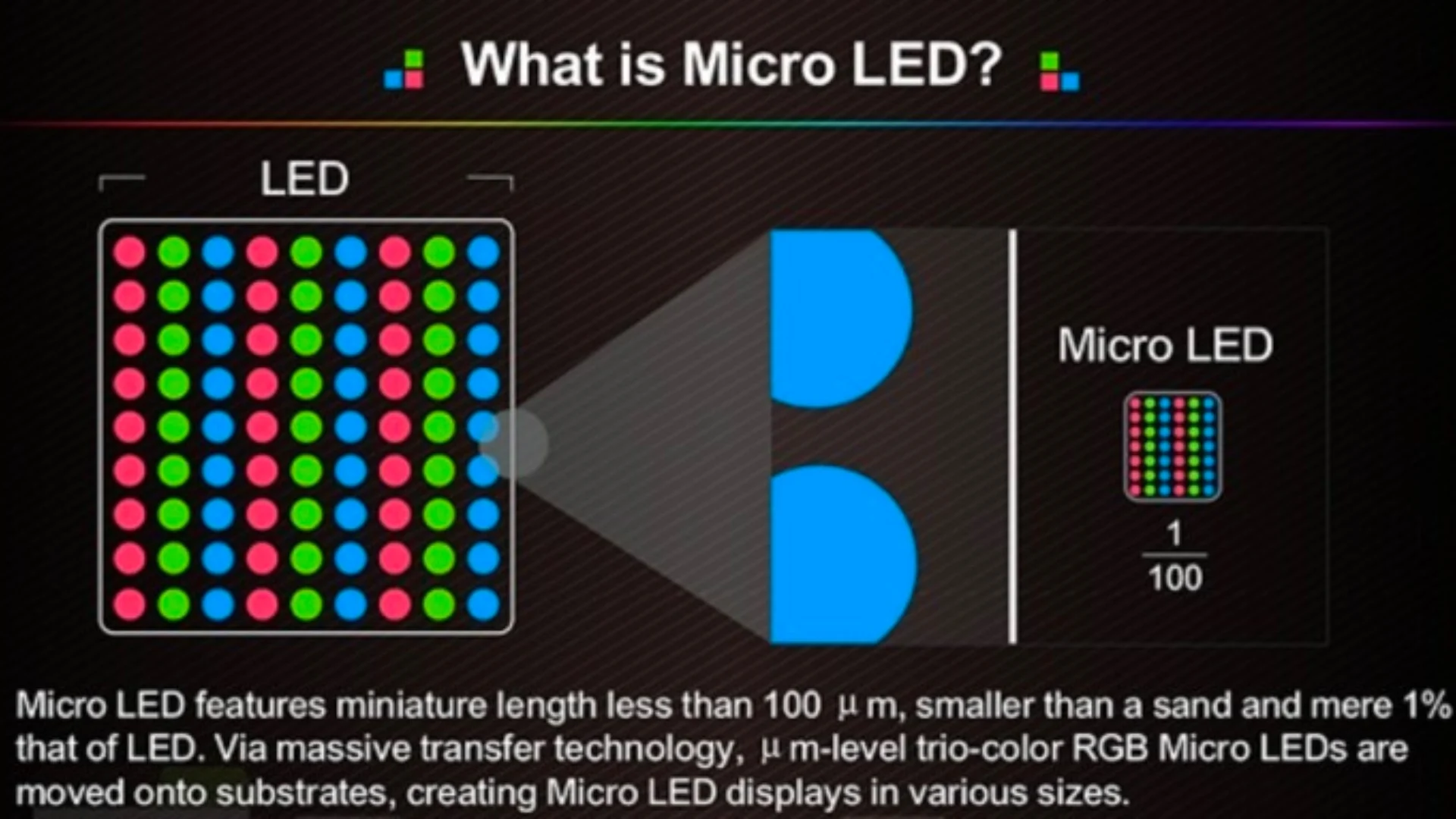
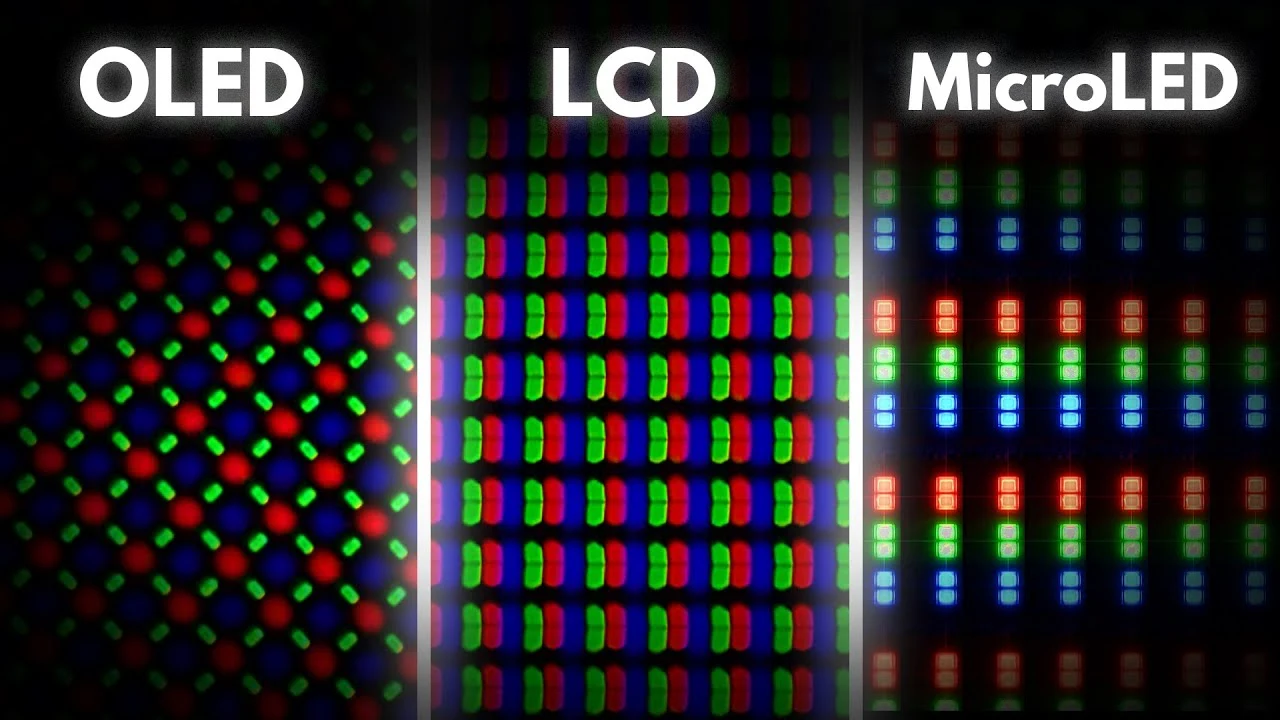
Mini LED monitors have exploded in popularity over the past couple of years. You'll find them everywhere now, from 4K 144Hz gaming displays to professional HDR reference panels. They're bright, they get deep blacks for an LCD, and they don't burn in like OLED.
All that marketing hype leads people to wonder if the connection side is equally special too.
Add in the confusion around HDMI 2.1 cables, DisplayPort versions, USB-C Alt Mode, and DSC (Display Stream Compression), and cable shopping turns into a mess. Every forum has threads where someone asks what cable they "need," and half the answers contradict each other.
The truth is genuinely simpler than the internet makes it seem. The mini LED technology affects the display's backlight zones and peak brightness. It has zero impact on the cable interface.
Your cable requirement comes down to the panel's native resolution, refresh rate, color depth, and HDR capability. Those specs matter. The backlight type does not.
What Actually Drives Your Cable Choice
Forget the mini LED label for a moment. What your cable needs to handle comes down to four things:
- Native resolution of the panel
- Maximum refresh rate
- HDR format and color depth
- Adaptive sync support (G-Sync or FreeSync)
Each of these factors consumes bandwidth. Combine them all, and you get a total data rate that your cable has to support. If the cable can't keep up, you'll get one of three outcomes.
The monitor runs at a lower refresh rate, HDR gets disabled, or chroma subsampling kicks in and softens the image.
Here's what that looks like in practice. A standard 4K 60Hz monitor with HDR and 10-bit color needs roughly 17.8 Gbps of bandwidth. HDMI 2.0 handles that at 18 Gbps, and DisplayPort 1.4 handles it easily at 32.4 Gbps.
No special cable required.
Now step up to 4K 144Hz with HDR and 10-bit color. That jumps to around 40 Gbps or more, depending on the exact timing. HDMI 2.1 at 48 Gbps covers it.
DisplayPort 1.4 alone does not have enough raw bandwidth, but DisplayStream Compression bridges that gap without visible quality loss.
Understanding Bandwidth: The Real Bottleneck
Bandwidth is the single most important cable spec for mini LED monitors. Higher resolution, faster refresh rates, and HDR all eat more bandwidth. If your cable can't deliver enough, the monitor won't run at its full spec.
Here's a quick comparison of the three main cable standards and what they can actually push:
| Standard | Max Bandwidth | Typical Use Case |
|---|---|---|
| HDMI 2.0 | 18 Gbps | 4K 60Hz HDR, office and media |
| HDMI 2.1 | 48 Gbps | 4K 144Hz HDR, 4K 240Hz with DSC |
| DisplayPort 1.4 | 32.4 Gbps (HBR3) | 4K 144Hz with DSC, 1440p 240Hz HDR |
| DisplayPort 2.1 | 80 Gbps (UHBR20) | 4K 240Hz+ HDR, dual 4K setups |
mini LED monitors commonly land in the 4K 144Hz to 4K 240Hz range. That means HDMI 2.1 or DisplayPort 1.4 with DSC covers most models. If you're running a 1440p mini LED display at high refresh, even DisplayPort 1.4 has plenty of headroom.
One important note: Display Stream Compression is not a compromise. It's a visually lossless compression standard VESA ratified, and both NVIDIA and AMD GPUs support it. Most mini LED monitors at 4K 144Hz rely on it over DisplayPort 1.4.
The image quality difference is essentially zero in real-world use.
DisplayPort vs HDMI vs USB-C for Mini LED Monitors
All three work. Each has a different strength depending on your setup.
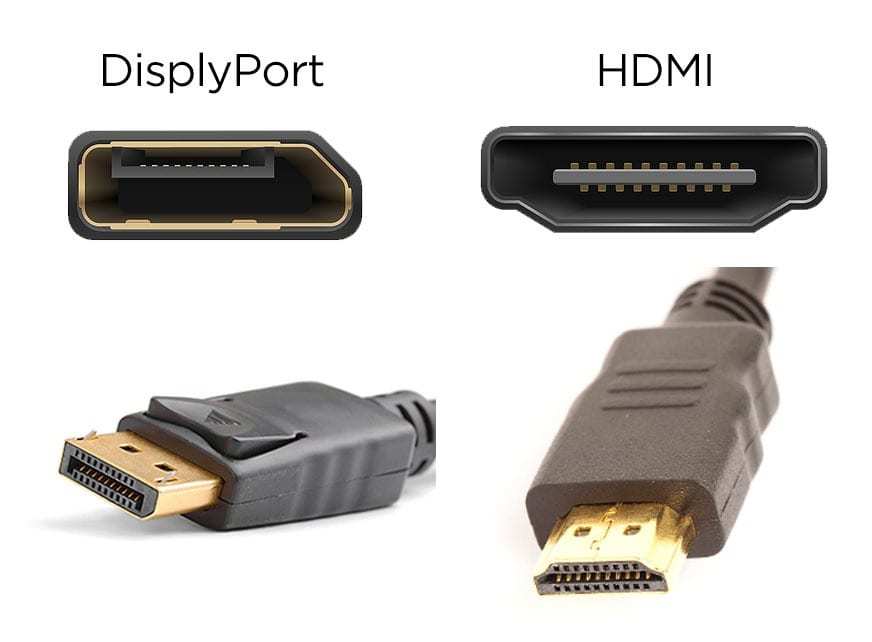
"DisplayPort and HDMI cable connectors side by side."
DisplayPort 1.4 is the go-to for PC gaming monitors. It supports DSC, works flawlessly with G-Sync and FreeSync Premium Pro, and most mini LED desktop monitors favor it as the primary input. If you're connecting a dedicated GPU to a desktop mini LED display, this is usually your best option.
HDMI 2.1 matters most for console gaming and home theater setups. The PlayStation 5 and Xbox Series X both output over HDMI, and they support 4K 144Hz HDR through HDMI 2.1. Several mini LED monitors ship with HDMI 2.1 specifically to target that console audience.
Just confirm your monitor actually has HDMI 2.1 and not just HDMI 2.0.
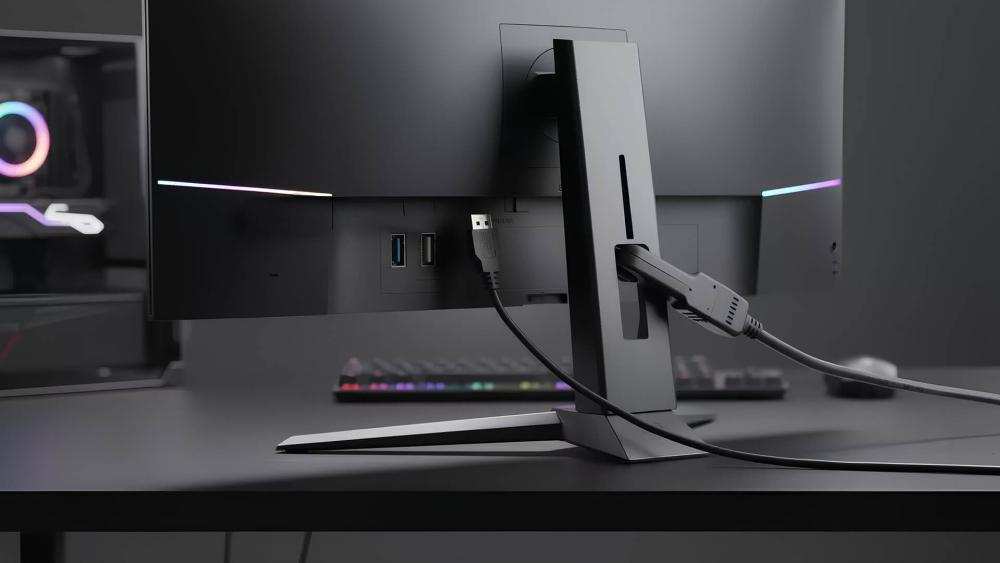
USB-C with DisplayPort Alt Mode is the practical choice for laptop docking. Many modern laptops output DisplayPort over USB-C, and a single USB-C cable can carry video signal and charge your laptop simultaneously. The catch is verifying that your laptop's USB-C port actually supports DisplayPort Alt Mode.
Not all of them do.
Thunderbolt 3 and Thunderbolt 4 ports support DisplayPort output natively and handle mini LED bandwidth requirements without issue. If your laptop has Thunderbolt, a USB-C to DisplayPort cable or a direct USB-C connection works perfectly.
 ✓
✓Chris Nolan
Senior Hardware & Tech Editor · Lead Benchmark SpecialistChris Nolan leads consumer electronics benchmarking and hardware diagnostics at TechBink. With over 15 years of laboratory stress-testing experience across mobile silicon, PC computing architectures, and cutting-edge gadgetry, Chris provides objective, data-backed hardware reviews and teardowns.

Similar Posts