Are Mini LED Monitors Compatible with Ps4 Pro
So you've got a PS4 Pro and you're eyeing one of those shiny mini LED monitors. Maybe you want something smaller than a TV, or you've already got a gaming monitor on your desk and you're wondering if it'll work. The short answer is yes, but with some real caveats that can make or break your experience.
The PS4 Pro outputs a maximum of 4K resolution at 60Hz through its HDMI 2.0a port. That means your mini LED monitor needs to have an HDMI 2.0 port at minimum, and a lot of these monitors skimp on that detail. Let's walk through exactly what you need to check before you buy or connect anything.
Quick Answer
Mini LED monitors are compatible with the PS4 Pro. The monitor needs an HDMI 2.0 port for 4K at 60Hz. HDR works on most mini LED monitors.
Some settings require manual adjustment on both devices.
The Short Answer (Before We Get Into the Details)
Yes, you can use a mini LED monitor with your PS4 Pro. It's not plug-and-play perfect out of the box in every case, but it absolutely works. The key is knowing what your specific monitor supports and what the PS4 Pro can actually send out.
Here's the thing most people miss. The PS4 Pro is a 2016 console. It uses HDMI 2.0a, not the newer 2.1 standard.
Most mini LED monitors released as of 2026 are built with PC gamers in mind, and many prioritize DisplayPort over HDMI. So the first thing you need to verify is what kind of HDMI port your monitor actually has.
If your monitor has HDMI 2.0 or higher, you're golden for 4K at 60Hz. If it's stuck at HDMI 1.4, you'll be limited to either 4K at 30Hz or 1080p at 60Hz. Neither is ideal for gaming.
Why This Isn't a Simple Yes or No
The compatibility question depends entirely on which mini LED monitor you're looking at. Not all mini LED monitors are created equal, and the spec sheet can be misleading if you don't know what to look for.
Let's break down the variables that actually matter:
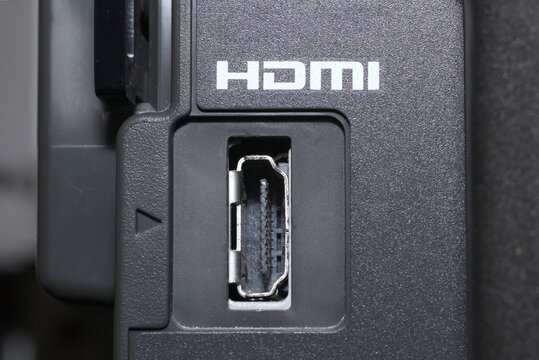
- HDMI port version: This is the single biggest factor. HDMI 2.0 gets you 4K/60Hz. HDMI 1.4 caps you at 4K/30Hz or 1080p/60Hz.
- HDR support: The PS4 Pro outputs HDR10. Your monitor needs to actually support HDR10, not just claim "HDR compatible" in the marketing.
- HDCP 2.2 compliance: Required for protected 4K content. Most monitors have this, but budget models sometimes don't.
- 1440p handling: The PS4 Pro doesn't natively output 1440p. If your monitor is 1440p, the console will either downscale from 4K or upscale from 1080p, and the results vary.
- Audio output: Most monitors don't have great speakers. You'll likely need a separate audio solution.
The frustrating part is that monitor manufacturers don't always make the HDMI version obvious. You'll see "4K monitor" on the box and assume it works perfectly. Then you plug in your PS4 Pro and wonder why everything looks choppy at 4K.
What Your PS4 Pro Can Actually Output
Let's get specific about the PS4 Pro's capabilities so you know exactly what you're working with.
The PS4 Pro's HDMI port is version 2.0a. That gives you a maximum bandwidth of 18 Gbps. Here's what that translates to in practical terms:
| Output | Resolution | Refresh Rate | HDR | Color Depth |
|---|---|---|---|---|
| Maximum | 3840 × 2160 (4K) | 60Hz | Yes (HDR10) | 8-bit |
| Standard | 1920 × 1080 (Full HD) | 60Hz | Yes | 8-bit |
| Streaming | 3840 × 2160 (4K) | 30Hz | Yes | 8-bit |
The PS4 Pro does not support 1440p output natively. This is a common point of confusion. If you have a 1440p mini LED monitor, the PS4 Pro will either output at 4K and let the monitor downscale, or you'll need to set it to 1080p and the monitor will upscale.
Neither scenario is ideal, and the visual quality depends heavily on the monitor's scaler.
The console also doesn't support variable refresh rate (VRR) or FreeSync. So if your mini LED monitor boasts AdaptiveSync or G-Sync, those features won't do anything when the PS4 Pro is the source. You're locked to a fixed 60Hz or 30Hz output.
What to Check on Your Mini LED Monitor First
Before you connect anything, grab your monitor's spec sheet or look up the exact model online. Here's your checklist:
Must-have specs for a good PS4 Pro experience:
- HDMI 2.0a port (minimum HDMI 2.0)
- HDCP 2.2 support
- HDR10 acceptance (not just "HDR ready" which sometimes means it just accepts an HDR signal without actually displaying it well)
- 4K resolution (3840 × 2160)
Nice to have but not required:
- Low input lag (under 10ms is great for gaming)
- Game Mode in the monitor's on-screen display (OSD)
- Good local dimming implementation (this is where mini LED shines, pun intended)
Red flags to watch for:
- Only HDMI 1.4 ports
- Only DisplayPort and no HDMI at all (you'd need an active adapter, which adds cost and potential issues)
- "HDR400" certification (this usually means the monitor can't actually display HDR well despite accepting the signal)
- No user-accessible RGB range setting (you'll need this to match the PS4 Pro's output)
The HDMI Version Problem Nobody Talks About
This is where most people get burned. They buy a mini LED monitor that looks amazing on paper, bring it home, plug in their PS4 Pro, and get a 4K image that runs at 30 frames per second. It feels sluggish.
Menus lag. Games feel unresponsive. The culprit is almost always HDMI 1.4.
Here's why this happens so often. Many mini LED monitors, especially those aimed at PC gamers, assume you'll be using DisplayPort. The HDMI port gets treated as an afterthought.
It's there for convenience, but it's often HDMI 1.4, which maxes out at 4K/30Hz.
The PS4 Pro doesn't have a DisplayPort output. It's HDMI only. So you're stuck with whatever HDMI port the monitor gives you.
How to check before you buy:
- Look at the full spec sheet, not just the marketing page
- Search for "HDMI 2.0" in the product manual or Q&A section
- Check user reviews for mentions of PS4 or Xbox compatibility
- Contact the manufacturer directly if the specs are unclear
If you already own a monitor with only HDMI 1.4, you have two options. You can drop the resolution to 1080p to get 60Hz, or you can live with 4K at 30Hz. For slower-paced games, 30Hz is tolerable.
For anything fast-paced, it's going to feel rough.
HDR on PS4 Pro: What Works and What's Disappointing
Mini LED technology is genuinely great for HDR. The local dimming zones allow deep blacks right next to bright highlights. That's the whole point of mini LED over standard edge-lit displays.
In theory, pairing a mini LED monitor with the PS4 Pro's HDR capability should be a match made in heaven.
In practice, it's complicated.
The PS4 Pro outputs HDR10, which is the base standard. Most mini LED monitors accept HDR10 signals. So the handshake works.
But actually displaying HDR well requires the monitor to have good local dimming and high peak brightness. This is where the "HDR400" trap comes in.
A monitor with HDR400 certification can accept an HDR signal but only reaches 400 nits of peak brightness. That's barely enough to make HDR content look different from SDR. You want at least HDR600 or HDR1000 for HDR to actually look impressive.
Many mini LED monitors hit HDR1000 or higher, which is where the technology really pays off.
The real issue is tone mapping. Monitors generally don't tone map HDR content as well as TVs do. The PS4 Pro sends an HDR signal expecting a certain display response, and if the monitor's tone mapping is poorly implemented, you'll get washed-out colors or crushed blacks. Some monitors let you adjust this in the OSD.
Others don't give you any control.
What to do:
- Enable HDR in the PS4 Pro settings (Settings > Sound and Screen > Video Output Settings > HDR > Automatic)
- Turn on the monitor's HDR mode in its OSD
- Test with an HDR-enabled game and toggle HDR on and off to see if it actually looks better
- If HDR looks worse than SDR on your specific monitor, just leave it off
The 1440p Issue You Need to Know
This one catches a lot of people off guard. The PS4 Pro does not output a native 1440p signal. It's not in the console's video output options.
You get 1080p or 4K, and that's it.
So what happens when you connect a 1440p mini LED monitor? One of two things:
The PS4 Pro outputs 4K and the monitor downscales to 1440p. This works, but the quality depends entirely on the monitor's internal scaler. Some monitors handle this well. Others produce a soft, slightly blurry image.
You set the PS4 Pro to 1080p and the monitor upscales to 1440p. This usually looks worse because you're asking the monitor to stretch a lower resolution across more pixels.
Neither option gives you a pixel-perfect image. If you're buying a monitor specifically for PS4 Pro, a 4K mini LED monitor is the better choice. If you already own a 1440p mini LED monitor, it'll work, but you might notice the image isn't as sharp as you'd expect.
Some users report that setting the PS4 Pro to 4K and letting a 1440p monitor downscale actually looks decent in practice. It varies by model. The only way to know for sure is to try it with your specific hardware.
Step-by-Step: How to Set Up Your PS4 Pro on a Mini LED Monitor
Let's walk through the full setup process. Getting the settings right on both devices makes a noticeable difference in image quality and responsiveness.
What you'll need:
- PS4 Pro console
- Mini LED monitor with HDMI 2.0 or higher
- High-speed HDMI cable (the one that came with your PS4 Pro works fine for 4K/60Hz)
- Optional: USB headset or external speakers for audio
Step 1: Connect the HDMI cable
Plug one end into the PS4 Pro's HDMI OUT port and the other into your monitor's HDMI input. Make sure you're using the correct HDMI port if your monitor has multiple. Some monitors only support full bandwidth on specific ports (often labeled HDMI 2.0 or HDMI 2.1).
Step 2: Power on and select the input
Turn on the PS4 Pro and switch your monitor to the correct HDMI input. You should see the PS4 Pro boot screen. If you get no signal, double-check that you're on the right input and that the cable is fully seated.
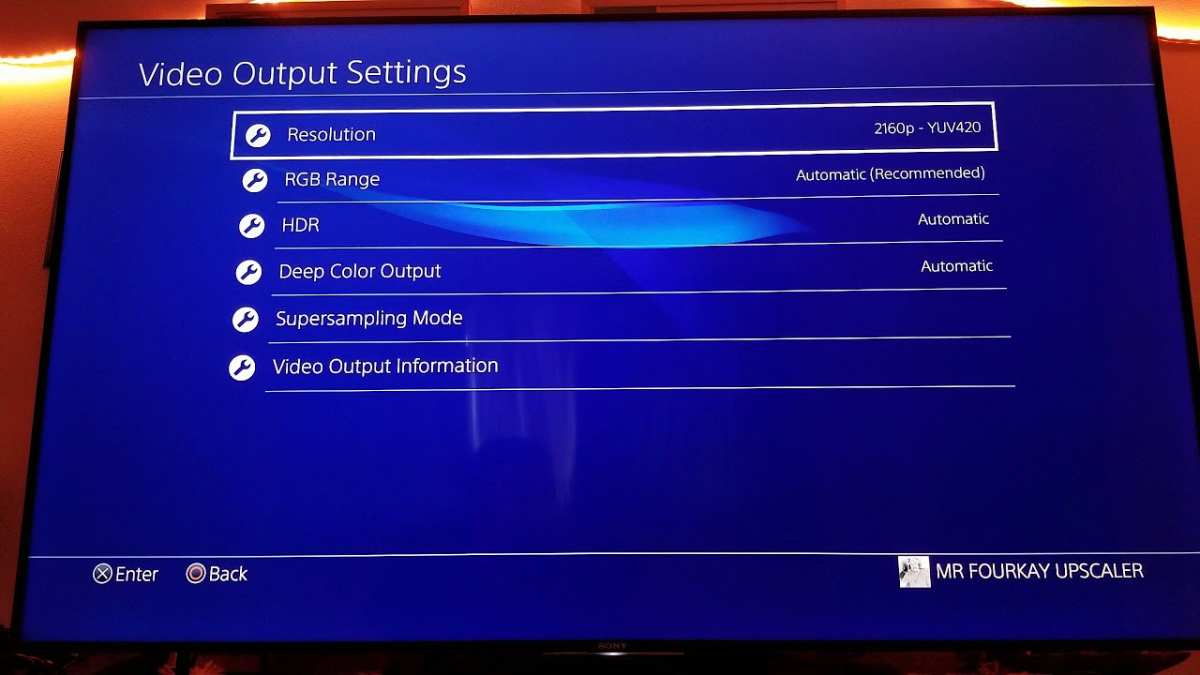
Step 3: Configure PS4 Pro video output
Go to Settings > Sound and Screen > Video Output Settings. Set the following:
- Resolution: Automatic (this lets the PS4 Pro detect and use the highest available)
- RGB Range: Automatic (you may need to change this later if the monitor expects Full or Limited)
- HDR: Automatic
- Deep Color Output: Automatic
Step 4: Adjust monitor settings
Open the monitor's on-screen display menu. Look for:
- Input mode: Make sure it's set to the HDMI version that supports full bandwidth (some monitors have a setting for HDMI 1.4 vs 2.0 mode)
- Game Mode: Turn this on to minimize input lag
- HDR Mode: Enable if available
- Local Dimming: Set to the highest quality option (this affects how well HDR and contrast look)
Step 5: Fine-tune the RGB range
If the image looks too dark or colors appear washed out, you may have a mismatch between the PS4 Pro's RGB output and the monitor's expected range. Go back to the PS4 Pro's Video Output Settings and manually set RGB Range to Full or Limited. Then check your monitor's settings for a matching option (often called HDMI RGB Range or Black Level).
Step 6: Handle audio
Your mini LED monitor probably doesn't have speakers, or if it does, they're not great. Options for audio:
- Plug a headset directly into the PS4 Pro controller's 3.5mm jack
- Use the PS4 Pro's optical audio out to connect to a soundbar or external speakers
- Use a USB headset connected to the PS4 Pro
Real Compatibility Scenarios: Will YOUR Setup Work?
Let's look at some common situations and whether they'll work well, work with compromises, or just won't work at all.
Scenario 1: 4K mini LED monitor with HDMI 2.0+
This is the ideal setup. You'll get 4K at 60Hz with HDR. The mini LED backlighting will give you excellent contrast and brightness.
This is as good as it gets for PS4 Pro on a monitor.
Scenario 2: 4K mini LED monitor with HDMI 1.4 only
You'll get 4K, but only at 30Hz. For slower games like RPGs or strategy titles, this is playable. For action games, shooters, or anything fast-paced, the 30fps cap will feel limiting.
Alternatively, drop to 1080p/60Hz for smoother gameplay.
Scenario 3: 1440p mini LED monitor with HDMI 2.0+
The PS4 Pro will output 4K and the monitor will downscale. Image quality depends on the monitor's scaler. HDR and 60Hz will work.
It's not pixel-perfect, but it's a solid experience for most games.
Scenario 4: Mini LED monitor with DisplayPort only, no HDMI
This won't work without an active DisplayPort to HDMI adapter. Even then, compatibility is hit or miss. Active adapters that support 4K/60Hz with HDR exist but cost $30-50 or more.
This is a frustrating situation and one to avoid entirely.
Scenario 5: Budget mini LED monitor with poor HDR implementation
The monitor accepts HDR10 but has low peak brightness and minimal local dimming zones. HDR content may actually look worse than SDR. In this case, keep HDR off on the PS4 Pro and enjoy the higher resolution and 60Hz refresh rate without it.
Common Mistakes That Cause Headaches
After researching user reports and compatibility complaints, these are the mistakes that come up again and again:
Mistake 1: Assuming all HDMI ports are the same.
A monitor might have two HDMI ports, one at 2.0 and one at 1.4. Check which one you're using. The port labeled for "console" or with a specific HDMI version is usually the right one.
Mistake 2: Not enabling Game Mode.
Without Game Mode, your monitor may add significant input lag through image processing. This makes games feel sluggish and unresponsive. Always turn on Game Mode when gaming.
Mistake 3: Leaving RGB range on auto when it looks wrong.
The PS4 Pro and your monitor might disagree on whether to use Full or Limited RGB range. If blacks look crushed or the image seems washed out, manually set this on both devices until they match.
Mistake 4: Expecting HDR to automatically look amazing.
HDR implementation varies wildly between monitors. Test it with actual HDR content and compare it to SDR. If it doesn't look better, there's no shame in turning it off.
Mistake 5: Using a cheap or old HDMI cable.
The cable that came with your PS4 Pro supports 4K/60Hz. If you're using an older or very cheap cable, it might not have the bandwidth for full HDMI 2.0 signals. Look for cables labeled "High Speed" or "Premium High Speed."
Mistake 6: Ignoring firmware updates.
Some monitors receive firmware updates that improve HDMI compatibility or HDR performance. Check the manufacturer's website for your specific model.
Mini LED Monitors Worth Considering for PS4 Pro
Without making this a buying guide, here are a few mini LED monitors that tend to work well with the PS4 Pro based on their specs and user reports:
| Monitor | Resolution | HDMI Version | HDR | Local Dimming Zones | Notes |
|---|---|---|---|---|---|
| Samsung Odyssey Neo G7 (32") | 4K | 2.1 | HDR1000 | 384 | Excellent HDR, 144Hz, works great at 60Hz for console |
| Cooler Master Tempest GP27U | 4K | 2.0 | HDR400 | 576 | Good value, solid local dimming |
| KTC M27P20 Pro | 4K | 2.0 | HDR1000 | 576 | Budget-friendly mini LED with strong HDR |
| ASUS ROG Swift PG27UQ | 4K | 2.0 | HDR1000 | 384 | Older but still capable, good input lag |
The Samsung Odyssey Neo G7 stands out because it has HDMI 2.1, which is backward compatible with the PS4 Pro's HDMI 2.0a output. It also has excellent HDR performance with 3840 local dimming zones in the 32-inch model. The Cooler Master and KTC options are more budget-friendly while still offering genuine mini LED backlighting with meaningful zone counts.
Avoid monitors that only list DisplayPort as their primary connection. The ASUS ROG Swift PG27UQ, for example, has HDMI 2.0 but also relies heavily on DisplayPort for its full feature set. It works with PS4 Pro, but you won't get the 144Hz refresh rate since the console is capped at 60Hz.
Mini LED Monitor vs TV for PS4 Pro: Which Makes More Sense?
This is the question that really matters. If you're deciding between a mini LED monitor and a TV for your PS4 Pro, here's how they stack up:
| Factor | Mini LED Monitor | TV |
|---|---|---|
| Input lag | 1-10ms typically | 10-30ms typically |
| Screen size | 27-34 inches | 43-65+ inches |
| Viewing distance | Desk (2-3 feet) | Couch (6-10 feet) |
| HDR quality | Varies, can be excellent | Generally better tone mapping |
| Price (4K, good HDR) | $400-1,200 | $300-800 |
| Audio | Usually poor or none | Built-in speakers |
| Space required | Minimal | Significant |
Mini LED monitors win on input lag and desk-friendly size. They're ideal if you're sitting at a desk and want the most responsive experience possible. The smaller screen at close viewing distance also means you notice the improved contrast and brightness of mini LED more than you would on a TV across the room.
TVs win on sheer size, better HDR tone mapping in most cases, and built-in audio. If you're playing from a couch and want an immersive experience, a TV is still the better choice for most people.
The honest answer is that both work. It comes down to how you play. Desk gamer who values responsiveness?
Mini LED monitor. Living room gamer who wants immersion? TV.
Frequently Asked Questions
Can I use a mini LED monitor with PS4 Pro for 4K gaming?
Yes, as long as the monitor has an HDMI 2.0 port or higher. The PS4 Pro outputs 4K at 60Hz through HDMI 2.0a. If your monitor supports that, you'll get a full 4K/60Hz experience.
Does HDR work when connecting PS4 Pro to a mini LED monitor?
HDR10 works on most mini LED monitors with the PS4 Pro. However, the quality of HDR depends on the monitor's peak brightness and local dimming implementation. Monitors with HDR1000 or higher deliver noticeably better HDR than HDR400 models.
Will a 1440p mini LED monitor work with PS4 Pro?
It will work, but the PS4 Pro doesn't output a native 1440p signal. The console will either downscale from 4K or upscale from 1080p, and the results depend on your monitor's scaler. A 4K monitor is a better match for PS4 Pro.
Do I need a special HDMI cable for PS4 Pro on a mini LED monitor?
The HDMI cable included with your PS4 Pro supports 4K at 60Hz. If you need a longer cable, make sure it's rated as "High Speed" or "Premium High Speed" to ensure it can handle the full 18 Gbps bandwidth of HDMI 2.0.
Can I get 120Hz from PS4 Pro on a mini LED monitor?
No. The PS4 Pro is capped at 60Hz output. Even if your monitor supports 120Hz or 144Hz, the console won't output more than 60 frames per second.
The higher refresh rate is only useful if you also use the monitor with a PC.
What about audio when using a mini LED monitor with PS4 Pro?
Most mini LED monitors either lack speakers or have very basic ones. Your best options are plugging a headset into the PS4 Pro controller's 3.5mm jack, using the console's optical audio output to connect external speakers, or using a USB headset.
The Bottom Line: Should You Do This?
If you already own a mini LED monitor with HDMI 2.0 or higher, absolutely connect your PS4 Pro to it. The experience is genuinely good. You'll get low input lag, sharp 4K resolution at 60Hz, and the mini LED backlighting makes games look better than on a standard IPS or VA panel.
If you're buying a monitor specifically for PS4 Pro, a 4K mini LED monitor with HDMI 2.0 or 2.1 is the sweet spot. You'll future-proof yourself for a potential PS5 upgrade too, since the PS5 also uses HDMI for output and benefits from the same specs.
The only scenario where I'd say don't bother is if you're looking at a monitor that only has HDMI 1.4 or lacks HDMI entirely. The compromises aren't worth it when there are plenty of good options that work properly with your console.
Check your specs, match your ports, and you'll be gaming on that mini LED display without any issues.

Similar Posts