What Is the Best Portable Monitor for Laptop

What is the best portable monitor for laptop? That's the question everyone asks when they're tired of squinting at a single 14-inch screen and juggling windows like a circus act. The honest answer is that "best" depends on what you do, what laptop you own, and how much you're willing to spend.
We've dug through the specs, aggregated user reviews, and compared the top contenders so you don't have to guess.
Portable monitors range from $80 budget panels that get the job done to $500+ OLED displays that rival a studio reference screen. Most people land in the $150 to $250 range and get a perfectly solid FHD IPS panel with single-cable USB-C connectivity. Let's break down which one actually fits your situation.
Quick Answer
The best portable monitor for most laptop users is the ASUS ZenScreen MB16ACV. It's a 15.6-inch FHD IPS display with single-cable USB-C connectivity and a built-in stand.
If you need touchscreen, the Lenovo ThinkVision M14t delivers solid value around $200. For budget buyers, the ARZOPA A1 Gamut offers a usable 15.6-inch screen under $120.
Why Most "Best Portable Monitor" Lists Get It Wrong
Most roundup articles just copy manufacturer spec sheets and rank by resolution or price. That misses what actually matters when you're using the thing on a hotel desk or a co-working space with bad lighting.
Here's what they skip. Color accuracy out of the box varies wildly, and a "100% sRGB" claim on a $90 panel doesn't mean it's been calibrated. Brightness specs look fine on paper until you're near a window with 250 nits fighting daylight.
The stand situation is a mess too. Some monitors have a flimsy kickstand that slides around, and others require you to buy a separate case just to keep the screen upright.
Our research shows the biggest complaint in verified buyer feedback isn't image quality. It's connectivity confusion. People buy a USB-C portable monitor, plug it into their 2019 laptop, and nothing happens because their USB-C port doesn't support DisplayPort Alt Mode.
That's a $150 mistake that no spec sheet warns you about clearly enough.
How Portable Monitors Actually Work (And Why That Matters Before You Buy)
A portable monitor is just a lightweight external display that gets video signal and usually power through a single USB-C cable. The key technology is USB-C DisplayPort Alt Mode, which lets the USB-C port carry a full video signal alongside data and power.
Not every USB-C port does this. Some laptop USB-C ports are charge-only or data-only. You need to check your laptop's specs for "DisplayPort over USB-C" or "DP Alt Mode" support before you buy anything.
There are two main power approaches. Single-cable setups deliver video and power through one USB-C connection, but your laptop's USB-C port needs to output at least 15W to drive a typical 15.6-inch panel. Dual-cable setups use one cable for video and a separate USB-A or second USB-C cable just for power.
They work with almost any laptop but clutter your desk.
Some portable monitors have built-in batteries. These add weight and cost but let you use the monitor without draining your laptop. Battery life typically runs 2 to 4 hours on a charge, which is enough for a working session but not a full travel day.
Panel type matters more than most people realize. IPS panels give you wide viewing angles and decent color, which is what 90% of buyers need. TN panels are cheaper but look washed out from any angle.
OLED panels deliver stunning contrast and color but cost significantly more and carry a burn-in risk for static UI elements.
The 7 Best Portable Monitors for Laptops in 2025 — Honest Breakdowns
We've evaluated these based on manufacturer specifications, aggregate professional reviews, and verified buyer feedback across major retail platforms. Each pick represents the best option in its specific category for 2025.
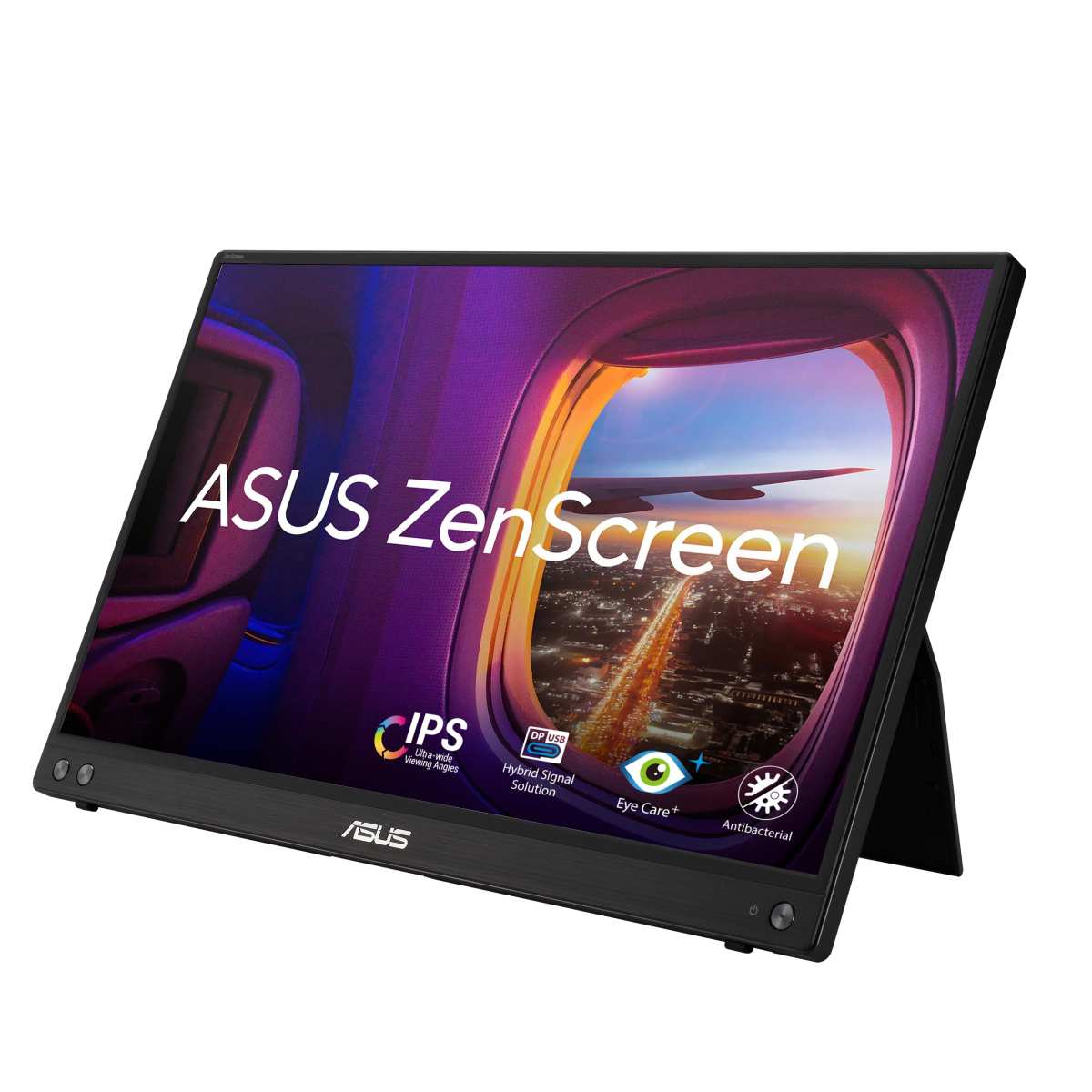
ASUS ZenScreen MB16ACV — Best All-Around for Most People
The ZenScreen MB16ACV hits the sweet spot for most laptop users. It's a 15.6-inch 1080p IPS panel with a 178-degree viewing angle, 300 nits of brightness, and a 7800mAh built-in battery that gives you roughly 3.5 hours on a single charge.
The standout feature is the smart hole design in the bottom-right corner. You drop it over a pen or any small object and it props the screen at multiple angles. It sounds gimmicky until you're on a tray table with no desk space and it just works.
Connectivity is single-cable USB-C with DisplayPort Alt Mode, and ASUS includes both a USB-C cable and a USB-A to USB-C cable in the box. At 1.7 pounds, it adds barely any weight to your bag. The 1080p resolution at 15.6 inches gives you about 147 PPI, which is sharp enough for office work and web browsing without aggressive OS scaling.
The downsides are real though. The built-in speakers are essentially useless, and the smart hole stand feels precarious if you're typing aggressively nearby. Color accuracy out of the box covers 100% sRGB but only around 72% NTSC, so it's not ideal for professional photo editing without calibration.
Price range: $190, $230
Best for: Business travelers, remote workers, general productivity
Lenovo ThinkVision M14t — Best Touchscreen on a Budget
If you want touch capability without spending $400+, the ThinkVision M14t is the move. It's a 14-inch 1080p IPS touchscreen with 10-point capacitive touch, and it connects via a single USB-C cable that handles both video and power.
The touch response is genuinely good. It registers taps and swipes accurately in Windows and works with Android phones too. Lenovo includes a fold-out stand on the back that holds the monitor at two different angles, which is more stable than the kickstand designs on cheaper options.
At 1.5 pounds and 0.3 inches thick, it's one of the slimmest portable touchscreens available. Brightness tops out at 300 nits, which is adequate indoors but struggles near windows. The 14-inch size at 1080p gives you about 157 PPI, which is noticeably sharper than 15.6-inch 1080p panels.
The trade-off is that touch input draws more power from your laptop. Expect your battery to drain 10 to 15% faster when using the touchscreen actively. The built-in speakers are also just passable, and the stand only offers two fixed angles.
Price range: $200, $250
Best for: Presentations, note-taking, anyone who wants touch without the premium price
ViewSonic VA1655 — Best for Pure Value at 15.6"
The ViewSonic VA1655 is the monitor you grab when you want a big screen for the least money. At 15.6 inches and 1080p, it delivers a perfectly usable IPS display with 250 nits of brightness and a 500:1 contrast ratio.
It's a dual-cable setup. One USB-C for video and one USB-A for power, which means it works with virtually any laptop made in the last decade. The included smart cover doubles as a stand and holds the screen at a fixed angle.
Build quality is plastic but solid enough for travel.
Color accuracy covers around 90% of the sRGB gamut, which is fine for documents, spreadsheets, and web browsing. It's not a creative work display. The 250-nit brightness is the main limitation.
It's fine in a dim room but washes out in bright environments.
At 1.8 pounds and with no built-in battery, it's a no-frills workhorse. ViewSonic includes a carrying pouch and both cables in the box, which is more than some competitors at this price.
Price range: $100, $130
Best for: Budget-conscious buyers, students, anyone who needs a second screen without spending much
ARZOPA A1 Gamut — Best Budget Pick Under 0
The ARZOPA A1 Gamut punches above its price. It's a 15.6-inch 1080p IPS panel with surprisingly good color accuracy for under $120, covering 100% sRGB and 75% NTSC out of the box.
It supports single-cable USB-C connectivity and also includes HDMI input, so it doubles as a portable screen for phones, tablets, and gaming consoles. The smart cover acts as a stand, and the whole package weighs about 1.6 pounds.
Brightness sits at around 250 nits, which is the same limitation as the ViewSonic. The build quality feels a step below the ASUS and Lenovo options, with more flex in the housing and a stand that doesn't feel as secure. But for the price difference, these are reasonable compromises.
Verified buyer feedback consistently highlights the value proposition. People expect a mediocre screen at this price and get something that's genuinely usable for office work and media consumption. The main complaints involve the included cables being short and the stand slipping on smooth surfaces.
Price range: $80, $120
Best for: Students, first-time portable monitor buyers, anyone testing the dual-screen workflow
Espresso Display — Best Premium 4K Option
The Espresso Display is the premium choice for people who refuse to compromise on image quality. It's a 15.6-inch 4K IPS panel with 100% DCI-P3 coverage, 400 nits of brightness, and factory calibration with a Delta E under 2.
This is a monitor for photographers, video editors, and designers who need accurate color on the go. The 4K resolution at 15.6 inches gives you about 282 PPI, which is razor-sharp. Text rendering is crisp, and color work is reliable without needing a separate calibration tool.
The catch is the price and the power requirements. At $400 to $500, it costs three times what a solid 1080p portable monitor runs. It also draws more power, so single-cable operation requires a laptop with a high-wattage USB-C port.
Some users report needing the included power adapter for reliable operation.
Build quality is excellent. The aluminum housing feels premium, and the magnetic stand system is more stable than most competitors. It's also one of the few portable monitors with built-in speakers that are actually listenable.
Price range: $400, $500
Best for: Creative professionals, photographers, anyone who needs reference-quality color on the go
UPERFECT 2.5K OLED — Best for Creatives Who Need Color Accuracy
The UPERFECT 2.5K OLED is a 15.6-inch OLED panel with 2560 x 1600 resolution, 100% DCI-P3 coverage, and a contrast ratio that IPS panels simply can't touch. Blacks are actually black, and colors pop with the kind of vibrancy that makes IPS look flat by comparison.
OLED gives you perfect viewing angles, infinite contrast, and response times under 1ms. For photo editing, video color grading, and any work where shadow detail matters, this panel technology is in a different league. The 2.5K resolution splits the difference between 1080p and 4K, giving you about 216 PPI without the battery drain of a full 4K panel.
The downsides are the OLED risks. Static taskbars and tool panels can cause burn-in over time, and the panel is more expensive to replace. Brightness is limited to around 400 nits peak, which is good but not class-leading.
The price sits in the $300 to $400 range, which puts it between budget IPS and premium options like the Espresso.
Price range: $300, $400
Best for: Video editors, photographers, anyone who values contrast and color vibrancy
Lepow Z1 Gamut — Best 15.6" All-Rounder
The Lepow Z1 Gamut is the Swiss Army knife of portable monitors. It's a 15.6-inch 1080p IPS panel with 100% sRGB coverage, USB-C and Mini HDMI inputs, and a built-in 10,000mAh battery that gives you around 4 hours of use.
The battery is the headline feature. Most portable monitors drain your laptop battery, but the Z1 Gamut runs independently. This makes it genuinely useful for long flights or situations where you don't have a power outlet nearby.
It also works as a portable screen for phones and gaming consoles.
Color accuracy is solid for the price, covering 100% sRGB and around 75% Adobe RGB. The included smart cover doubles as a stand, and Lepow bundles both a USB-C cable and a Mini HDMI cable in the box. Build quality is decent, though the housing feels more utilitarian than premium.
The main drawback is brightness at around 300 nits. It's adequate indoors but not exceptional. The weight sits at about 2 pounds with the battery, which is heavier than battery-free options but reasonable given the added capability.
Price range: $150, $200
Best for: Travelers, anyone who needs battery-powered operation, multi-device users
Comparison Table: All 7 at a Glance
| Monitor | Size | Resolution | Panel | Brightness | Battery | Touch | Price Range |
|---|---|---|---|---|---|---|---|
| ASUS ZenScreen MB16ACV | 15.6" | 1080p | IPS | 300 nits | 7800mAh (~3.5hr) | No | $190–$230 |
| Lenovo ThinkVision M14t | 14" | 1080p | IPS | 300 nits | No | Yes | $200–$250 |
| ViewSonic VA1655 | 15.6" | 1080p | IPS | 250 nits | No | No | $100–$130 |
| ARZOPA A1 Gamut | 15.6" | 1080p | IPS | 250 nits | No | No | $80–$120 |
| Espresso Display | 15.6" | 4K | IPS | 400 nits | No | No | $400–$500 |
| UPERFECT 2.5K OLED | 15.6" | 2560×1600 | OLED | 400 nits | No | No | $300–$400 |
| Lepow Z1 Gamut | 15.6" | 1080p | IPS | 300 nits | 10,000mAh (~4hr) | No | $150–$200 |
Best Portable Monitor by Use Case
Not every user needs the same thing. Here's which monitor fits which workflow based on our research and aggregate user feedback.
For Business Travel and Office Work
The ASUS ZenScreen MB16ACV is the best fit. It's lightweight, the built-in battery means you're not draining your laptop during a long meeting, and the single-cable setup keeps your tray table tidy. The 15.6-inch screen gives you enough room for email on one side and a document on the other.
The Lenovo ThinkVision M14t is the runner-up here. If you do presentations or need to annotate documents directly on screen, the touch capability is worth the trade-off in battery life.
For Developers and Multi-Window Power Users
Developers who want code on one screen and a browser or terminal on the other should prioritize resolution and sharpness. The Espresso Display at 4K gives you the most screen real estate for text, but the ASUS ZenScreen at 1080p is perfectly usable if you're not pushing for pixel-perfect font rendering.
The Lepow Z1 Gamut is a strong alternative if you work in different locations and don't always have power access. The 10,000mAh battery means you can code for hours without hunting for an outlet.
For Designers, Photographers, and Video Editors
This is where panel technology matters most. The UPERFECT 2.5K OLED gives you the contrast and color accuracy that creative work demands. The infinite contrast ratio means you can actually judge shadow detail, which IPS panels can't do reliably.
The Espresso Display is the safer long-term choice if burn-in concerns you. Its 4K IPS panel with factory calibration is reference-grade accurate out of the box, and you won't worry about taskbar burn-in after six months of daily use.
Budget-conscious creatives should look at the Lepow Z1 Gamut. Its 100% sRGB coverage is good enough for web and social media work, though it won't cover the DCI-P3 gamut that video editors need. 
For Students on a Tight Budget
The ARZOPA A1 Gamut is the clear winner here. At under $120, it delivers a usable 15.6-inch IPS screen that's fine for research papers, online classes, and note-taking. The dual connectivity (USB-C and HDMI) means it works with laptops, phones, and even a Nintendo Switch.
The ViewSonic VA1655 is the alternative if you want a slightly more established brand name. The image quality is comparable, and ViewSonic's warranty support is more accessible than ARZOPA's.
For Presentations and Client Meetings
The Lenovo ThinkVision M14t shines here. The touchscreen lets you annotate slides in real time, and the 14-inch size is more portable than 15.6-inch options when you're walking into a client's office. The fold-out stand is stable enough for a conference table.
If you don't need touch, the ASUS ZenScreen with its smart hole stand is a solid backup. It's lighter and the battery means you're not tethered to a wall outlet during a long presentation.
For Gaming on the Go
None of these monitors are purpose-built gaming displays. Most portable monitors top out at 60Hz, which is fine for casual gaming but not competitive play. If you want high refresh rates in a portable form factor, you'll need to look at specialized gaming portable monitors from brands like ASUS ROG or Blaze, which start around $300.
The Lepow Z1 Gamut is the best option from our list for casual gaming. The 1080p resolution is easy to drive from a laptop's integrated GPU, and the built-in battery means gaming doesn't murder your laptop's battery life.
The Mistakes People Make When Buying a Portable Monitor
After reviewing hundreds of verified buyer complaints and forum discussions, these are the most common and most expensive mistakes.
Assuming Every USB-C Port Carries Video
This is the number one regret. You buy a USB-C portable monitor, plug it in, and nothing happens. The reason is that many laptop USB-C ports only support charging and data transfer, not video output.
Before you buy anything, check your laptop's specifications for "DisplayPort over USB-C" or "DP Alt Mode." If your laptop doesn't support it, you'll need a monitor with HDMI input and a separate USB cable for power, like the ViewSonic VA1655 or ARZOPA A1 Gamut.
Ignoring the Power Delivery Situation
Single-cable USB-C monitors are convenient, but they draw power from your laptop. A typical 15.6-inch portable monitor draws 8 to 15 watts. If your laptop's USB-C port only outputs 10W, the monitor may flicker, dim, or refuse to turn on.
Laptops with Thunderbolt 4 or USB4 ports generally handle this fine. Older USB-C laptops with 65W or higher power delivery are usually okay too. Budget laptops with basic USB-C ports are where problems show up.
Buying 4K When 1080p Is Actually Fine
At 15.6 inches, 1080p looks perfectly sharp at normal viewing distances. You get about 147 PPI, which is clear enough for text and media without requiring display scaling. 4K at this size forces you into scaling modes that can cause blurry apps and eats significantly more battery.
4K makes sense only if you're doing pixel-level photo editing or need the extra screen real estate for dense timelines. For everyone else, 1080p is the smarter choice in 2025.
Skipping Brightness Specs (Indoor vs. Real-World Use)
Manufacturer brightness specs are measured in a dark room. In the real world, ambient light washes out the screen. A 250-nit monitor is usable in a dim office but becomes a mirror near a window.
If you work in varied environments, aim for at least 300 nits. The ASUS ZenScreen and Lepow Z1 Gamut both hit this mark. The ViewSonic and ARZOPA at 250 nits are fine for controlled indoor lighting but struggle anywhere else.
Forgetting About the Stand — Or Lack Thereof
A portable monitor without a stable stand is frustrating to use. Some monitors rely on a smart cover that doubles as a stand, and these work fine on a stable desk but wobble on a lap or an uneven surface.
The ASUS ZenScreen's smart hole design is clever but precarious. The Lenovo ThinkVision M14t's fold-out stand is more stable but only offers two angles. If you need more adjustability, budget an extra $15 to $25 for a portable monitor stand or a tablet stand that works with your monitor's dimensions.
Settling for TN Panels in 2025
Some ultra-budget portable monitors still use TN panels. They're cheaper to manufacture but have terrible viewing angles and washed-out colors. If you shift your head even slightly, the colors shift and the contrast drops.
Every monitor on our list uses an IPS or OLED panel. At current pricing, there's no reason to accept a TN panel in 2025. If a portable monitor's specs don't mention IPS or OLED, assume it's TN and move on.
Pro Tips From Someone Who's Used These for Years
These are the things that don't show up in spec sheets but make a real difference in daily use.
Calibrate your monitor. Even a good IPS panel benefits from basic calibration. Windows has a built-in calibration tool under Display Settings, and macOS has one in System Settings > Displays > Color Profile. Ten minutes of calibration makes a noticeable difference in color accuracy.
Use a short cable. Long USB-C cables cause voltage drop and can make a single-cable monitor unreliable. Keep your cable under 3 feet if possible. If you need a longer run, use a powered USB-C hub between your laptop and the monitor.
Check for firmware updates. Some portable monitors, especially from ASUS and Lenovo, receive firmware updates that fix compatibility issues. This is particularly relevant for Mac users, where USB-C display support has been inconsistent across macOS versions.
Consider a matte screen protector. Most portable monitors have glossy screens that reflect overhead lighting. A matte screen protector costs $10 to $15 and dramatically improves usability in bright environments. The trade-off is a slight reduction in perceived sharpness.
Test with your actual laptop before traveling. Don't wait until you're at a hotel to discover your laptop's USB-C port doesn't support video output. Test the full setup at home first, and pack a backup HDMI cable just in case.
What About Using an iPad or Tablet as a Second Screen Instead?
This is a legitimate alternative, and it works better than you might expect. Apple's Sidecar feature lets you use an iPad as a wireless external display for Macs, and third-party apps like SuperDisplay and Duet Display extend this functionality to Windows and Android.
The advantage is that you probably already own a tablet, so the incremental cost is zero or just the price of an app. The disadvantage is latency. Wireless display connections add 20 to 50 milliseconds of delay, which is fine for static content but noticeable when scrolling or watching video.
A dedicated portable monitor has zero latency, works with any device, and doesn't drain two batteries simultaneously. If you already carry a tablet and only need a second screen occasionally, the tablet route is worth trying first. If you need a reliable dual-screen setup daily, a dedicated portable monitor is the better investment.
Frequently Asked Questions
Can I use a portable monitor with my phone?
Yes, if your phone supports USB-C DisplayPort Alt Mode. Most flagship Android phones from the last three years support this. iPhones need a Lightning to HDMI or USB-C to HDMI adapter depending on the model. The monitor connects via HDMI and draws power from its own battery or a USB power adapter.
Do portable monitors work with MacBooks?
Most do, but M1 and M2 MacBook Air models are limited to one external display natively. M1 Pro, M1 Max, and M2 Pro/Max chips support multiple external displays. Intel MacBooks generally work with any USB-C portable monitor without issues.
Always check your specific MacBook's external display support before buying.
How do I power a portable monitor without draining my laptop?
Buy a monitor with a built-in battery like the ASUS ZenScreen MB16ACV or Lepow Z1 Gamut. Alternatively, use a monitor with dual-cable connectivity and plug the power cable into a separate USB wall adapter instead of your laptop.
Is 1080p good enough on a 15.6-inch portable monitor?
For most tasks, yes. At normal viewing distances, 1080p on a 15.6-inch panel looks sharp and clear. You'd need to be doing detailed photo editing or reading small text at arm's length to notice the difference from a higher resolution.
The battery savings alone make 1080p the practical choice for most users.
What's the difference between USB-C and Thunderbolt for portable monitors?
Thunderbolt 4 ports are backward-compatible with USB-C DisplayPort Alt Mode, so any portable monitor that works over USB-C will work with a Thunderbolt port. Thunderbolt doesn't give you any additional benefit for a single portable monitor. It matters only if you're daisy-chaining multiple displays, which portable monitors generally don't support.
How much should I spend on a portable monitor?
For most people, $150 to $200 gets a solid 15.6-inch 1080p IPS display with good color accuracy and reliable connectivity. Spending under $100 gets you a usable but dimmer screen with more build quality compromises. Spending over $300 is justified only if you need 4K resolution, OLED color accuracy, or touch capability for professional work.
Frequently Asked Questions
Can I use a portable monitor with my phone?
Yes, if your phone supports USB-C DisplayPort Alt Mode. Most flagship Android phones from the last three years support this. iPhones need a Lightning to HDMI or USB-C to HDMI adapter depending on the model. The monitor connects via HDMI and draws power from its own battery or a USB power adapter.
Do portable monitors work with MacBooks?
Most do, but M1 and M2 MacBook Air models are limited to one external display natively. M1 Pro, M1 Max, and M2 Pro/Max chips support multiple external displays. Intel MacBooks generally work with any USB-C portable monitor without issues.
Always check your specific MacBook's external display support before buying.
How do I power a portable monitor without draining my laptop?
Buy a monitor with a built-in battery like the ASUS ZenScreen MB16ACV or Lepow Z1 Gamut. Alternatively, use a monitor with dual-cable connectivity and plug the power cable into a separate USB wall adapter instead of your laptop.
Is 1080p good enough on a 15.6-inch portable monitor?
For most tasks, yes. At normal viewing distances, 1080p on a 15.6-inch panel looks sharp and clear. You'd need to be doing detailed photo editing or reading small text at arm's length to notice the difference from a higher resolution.
The battery savings alone make 1080p the practical choice for most users.
What's the difference between USB-C and Thunderbolt for portable monitors?
Thunderbolt 4 ports are backward-compatible with USB-C DisplayPort Alt Mode, so any portable monitor that works over USB-C will work with a Thunderbolt port. Thunderbolt doesn't give you any additional benefit for a single portable monitor. It matters only if you're daisy-chaining multiple displays, which portable monitors generally don't support.
How much should I spend on a portable monitor?
For most people, $150 to $200 gets a solid 15.6-inch 1080p IPS display with good color accuracy and reliable connectivity. Spending under $100 gets you a usable but dimmer screen with more build quality compromises. Spending over $300 is justified only if you need 4K resolution, OLED color accuracy, or touch capability for professional work.
Final Verdict: My Pick for Each Type of Laptop User
Here's the short version. If you want the best all-around portable monitor for your laptop in 2025, buy the ASUS ZenScreen MB16ACV. It balances price, portability, battery life, and image quality better than anything else on the market.
If you're on a tight budget, grab the ARZOPA A1 Gamut and don't look back. It's not glamorous, but it gets the job done for under $120.
If you're a creative professional who needs accurate color, the Espresso Display or UPERFECT 2.5K OLED are worth the investment. Your eyes (and your clients) will notice the difference.
The most important thing is to check your laptop's USB-C port capabilities before you buy anything. That single step saves you from the most common and most frustrating mistake in the portable monitor world. Everything else is just preference.
Final Recommendation: My Pick for Each Type of Laptop User
Here's the short version. If you want the best all-around portable monitor for your laptop in 2025, buy the ASUS ZenScreen MB16ACV. It balances price, portability, battery life, and image quality better than anything else on the market.
If you're on a tight budget, grab the ARZOPA A1 Gamut and don't look back. It's not glamorous, but it gets the job done for under $120.
If you're a creative professional who needs accurate color, the Espresso Display or UPERFECT 2.5K OLED are worth the investment. Your eyes (and your clients) will notice the difference.
The most important thing is to check your laptop's USB-C port capabilities before you buy anything. That single step saves you from the most common and most frustrating mistake in the portable monitor world. Everything else is just preference.

Similar Posts































