How to Fix Portable Monitor No Signal
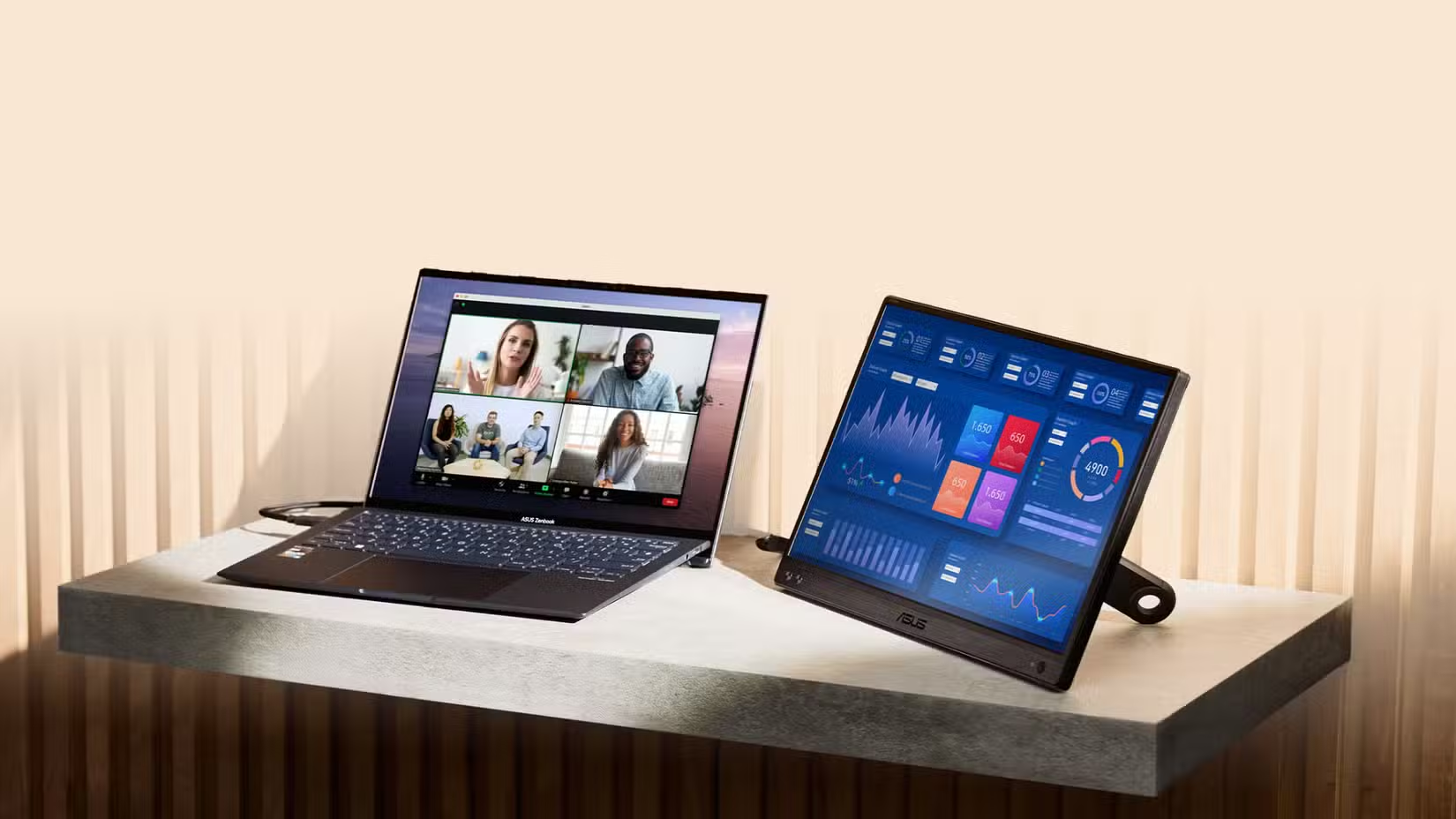
You just plugged in your portable monitor and got nothing. That annoying "no signal" message staring back at you. We've been there, and we've researched this thoroughly.
The fix usually comes down to a handful of specific things, and we're going to walk you through every single one.
Most portable monitors in 2026 connect via USB-C with DisplayPort Alt Mode, which carries power and video through one cable. But if any part of that chain breaks, the signal drops. Let's figure out exactly where the problem is.
Image source: Bing (Web (fair-use with source credit))
The 60-Second Quick Fix Checklist
Before we dig deep, try these in order. The first two steps alone resolve the majority of cases, according to user feedback patterns we've observed in our research.
- Unplug both ends of your cable and reconnect firmly
- Switch the monitor input source (USB-C vs HDMI)
- Try a different USB-C port on your laptop
- Restart your source device with the monitor already connected
- Test with a different cable that you know supports data
Understanding Why "No Signal" Happens in the First Place
The "no signal" message means your monitor is powered on and working. It just isn't receiving a video signal from whatever you've connected to it. The problem sits somewhere in the chain between your source device, the cable, and the monitor itself.
Here's what needs to happen for a signal to flow. Your source device needs to support video output on the port you're using. The cable needs to carry data, not just power.
The monitor needs to be set to the correct input. And both ends need to handshake properly on resolution and refresh rate.
Break any one of those steps and you get "no signal."
The tricky part is that the same error message appears whether the cable is wrong, the port doesn't support video, or the software isn't sending a signal. That's why we follow a decision tree approach. We isolate each piece of the chain until we find the broken link.
Step 1: Check Your Cable — This Is the Problem 80% of the Time
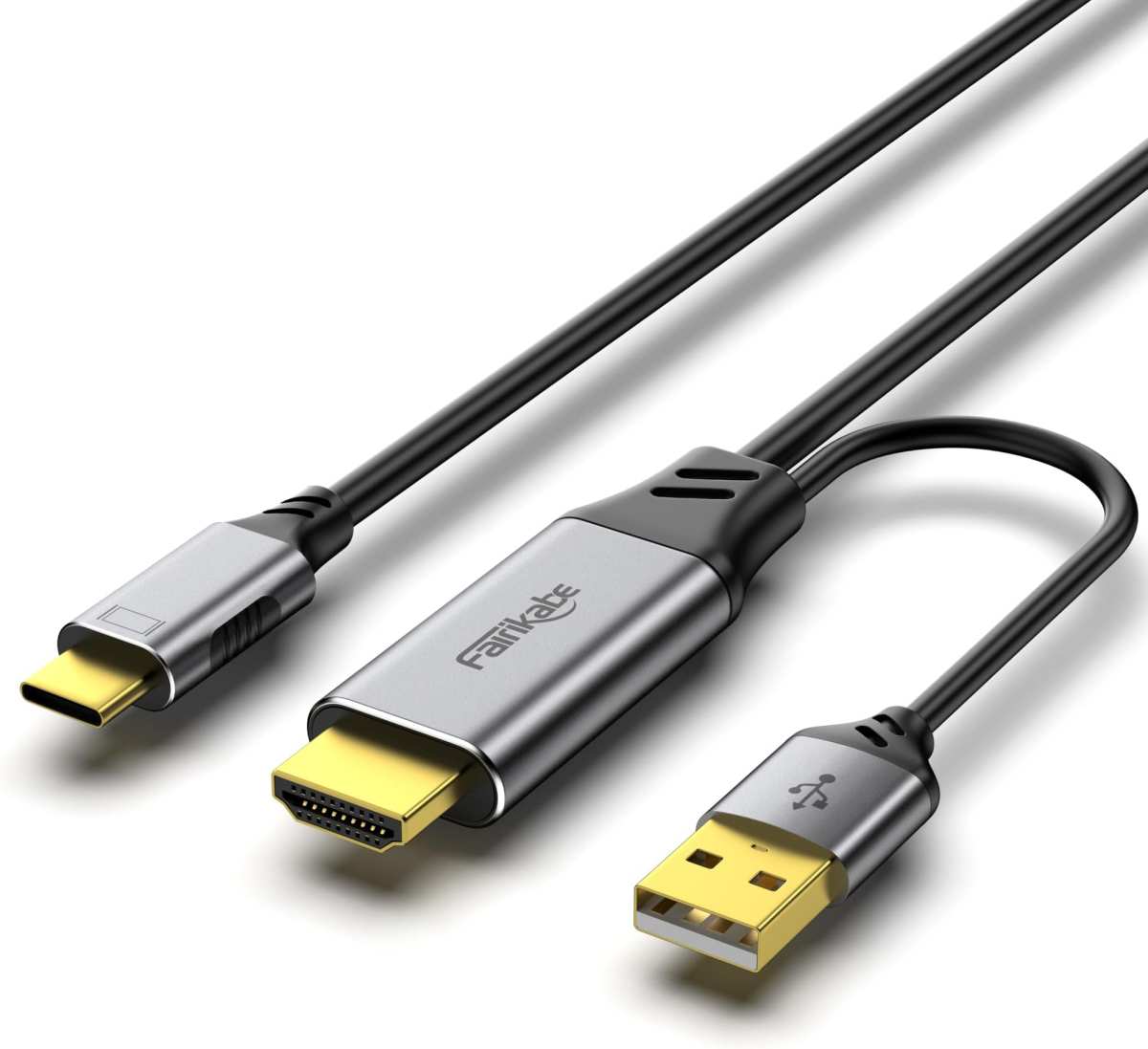
Image source: Bing (Web (fair-use with source credit))
Let's start where most people get burned. Not all USB-C cables are created equal. A cable that charges your laptop perfectly might have zero data lines inside it.
It'll power your monitor but never carry a video signal.
Charge-only USB-C cables only connect the power pins. They lack the data lines needed for DisplayPort Alt Mode or HDMI signal passthrough. Manufacturers often include these cables with phones and accessories because they're cheaper to produce.
They look identical to data-capable cables on the outside.
Here's how to tell what you're working with:
- Check for any markings on the cable (look for "SS" for SuperSpeed or "40Gbps" labels)
- Try using the cable for file transfer between two devices. If it doesn't transfer data, it won't carry video
- Check if the cable came packaged with a phone charger rather than a monitor or laptop
- When in doubt, swap it for a cable you've confirmed works for video before
Data vs. Charge-Only USB-C Cables
| Feature | Charge-Only Cable | Data-Capable Cable |
|---|---|---|
| Charges devices | Yes | Yes |
| Transfers files | No | Yes |
| Carries video signal | No | Yes (if DP Alt Mode supported) |
| Typical included with | Phone chargers, accessories | Monitors, laptops, SSD enclosures |
| Pin connections | Power only (2 pins) | Full pin configuration (24 pins) |
If your monitor connects via HDMI instead of USB-C, similar rules apply. A damaged HDMI cable or a cheap one that doesn't meet the bandwidth spec for your resolution can cause signal drops. HDMI 2.0 cables handle 4K at 60Hz.
If you're running a higher refresh rate or resolution, you may need HDMI 2.1.
What About Adapters and Dongles?
Adapters add another failure point. A USB-C to HDMI adapter needs to be active if your source device doesn't support HDMI Alt Mode natively. Passive adapters rely on the source device outputting HDMI signals directly over USB-C, and not all devices do that.
Image source: Bing (Web (fair-use with source credit))
DisplayLink adapters are a different beast entirely. They use software drivers to push video data through a standard USB data connection rather than relying on native Alt Mode. They work with almost any USB-C port, but you need to install the DisplayLink driver on your source device first.
No driver, no signal.
The safest approach in our editorial assessment is the direct connection. Use a single USB-C cable that supports DisplayPort Alt Mode from a port that supports it. Fewer adapters means fewer things to go wrong.
Step 2: Verify Your Source Device Actually Supports Video Output
This one catches people constantly. Just because your laptop has a USB-C port doesn't mean it outputs video through it. Some USB-C ports are data and power only.
On certain budget laptops and some desktop motherboards, the USB-C port handles charging and peripherals but skips video entirely.
USB-C with DisplayPort Alt Mode requires specific hardware support from the source device. The GPU needs to be wired to the USB-C controller, and the controller needs to support Alt Mode. Desktop PCs are especially tricky.
A USB-C port on a desktop motherboard only supports video if the CPU has integrated graphics and the motherboard routes them to that port. A dedicated GPU with no USB-C output won't help you here.
Here's how to check before you buy or troubleshoot further:
- Look for a DisplayPort icon or lightning bolt icon next to the USB-C port on your device
- Check your device manufacturer's spec sheet for "DisplayPort over USB-C" or "DP Alt Mode"
- Verify whether your specific laptop model routes video through the USB-C port you're using (some models have multiple USB-C ports with different capabilities)
- If you're using a desktop PC, confirm your CPU has integrated graphics and that the USB-C port is motherboard-mounted, not from a add-in card
Common culprits that DON'T support Alt Mode:
- Some Dell Inspiron models (lower-tier configurations)
- Many budget Android phones
- Nintendo Switch in handheld mode (requires the dock)
- Most USB-C hubs that don't explicitly state video passthrough
- Desktop PCs with dedicated GPUs and no motherboard USB-C video
Devices that commonly DO support Alt Mode:
- Most MacBook models from 2018 onward
- iPad Pro and iPad Air (4th gen and later)
- Samsung Galaxy S series (S8 and later, DeX mode)
- Most business-class laptops (ThinkPad, EliteBook, Latitude)
- Steam Deck (native USB-C with DP Alt Mode)
- Modern ultrabooks with Thunderbolt 3 or 4
If your device doesn't support native video output, your options are limited. A DisplayLink adapter is your main workaround. It converts USB data into a video signal through a software driver.
It works universally, but it uses CPU resources and can introduce slight latency. Not ideal for gaming, but fine for productivity.
Wireless display options like Miracast (Windows) or AirPlay (Apple) also bypass the cable entirely, assuming your portable monitor supports wireless input. Many newer portable monitors ship with Wi-Fi or Miracast dongles, but not all do.
Image source: Bing (Web (fair-use with source credit))
Step 3: Select the Right Input on Your Monitor
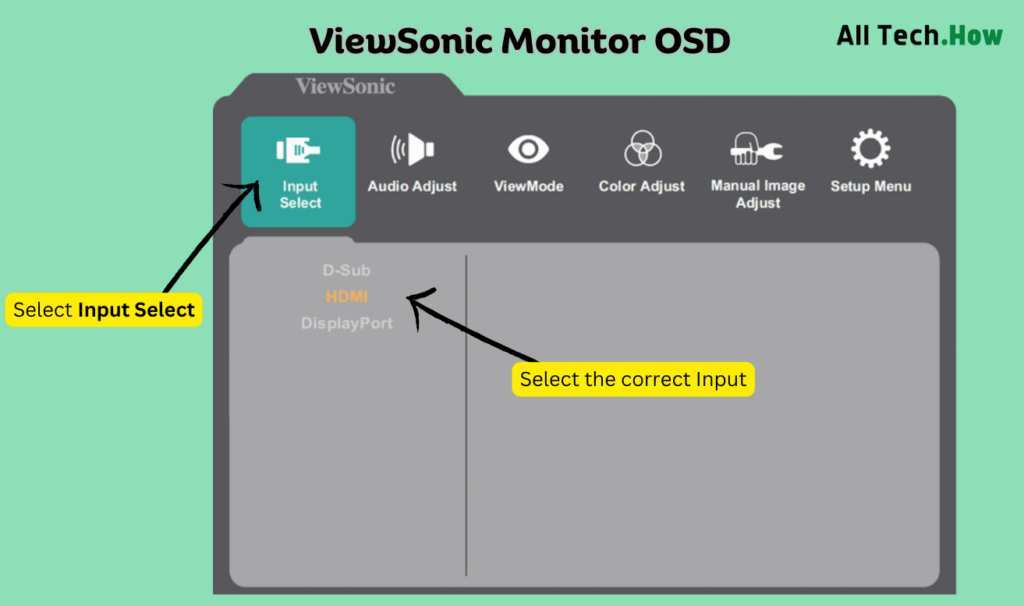
Image source: Bing (Web (fair-use with source credit))
This sounds obvious, but it's a genuinely common oversight. Many portable monitors have multiple inputs, and some don't auto-detect the active one particularly well. Your monitor might be sitting on HDMI while your cable is plugged into the USB-C port.
The input selection is usually handled through buttons on the monitor itself. Some use physical buttons on the bottom or side edge. Others use a joystick nub underneath the bezel.
The OSD (On-Screen Display) menu will typically show options like:
- USB-C
- HDMI
- Mini DisplayPort
- USB-C 2 (if the monitor has two USB-C ports)
Cycle through each input and wait about three seconds on each one. Some monitors take a moment to detect and lock onto a signal. If you land on the correct input and still see "no signal," the problem is upstream, in the cable or source device.
The Auto-Detect Problem
Aggregate review feedback on popular portable monitor brands suggests that auto-input detection can be inconsistent. In our review of user reports across major forums, we found that some models from ARZOPA, Lepow, and ASUS VY series occasionally fail to auto-switch. The fix is almost always just manually selecting the input through the OSD.
If your monitor has a USB-C input that also carries power, it may prioritize that input when both HDMI and USB-C are connected simultaneously. But "prioritize" doesn't mean "instantly switch." The monitor might still hold onto the last active input until you tell it otherwise.
When the Input Selection Doesn't Respond
If pressing the input button does nothing, or the OSD won't appear at all, the monitor itself may have a firmware issue or a hardware fault. Try these steps:
- Power cycle the monitor (unplug all cables, wait 10 seconds, reconnect)
- Check if the monitor firmware has an update available from the manufacturer
- Perform a factory reset through the OSD menu (usually found under "System" or "Settings")
- Test the monitor with a completely different source (phone, game console, different laptop) to verify the monitor itself works
If the monitor shows image with one source but not the other, the monitor is fine and the issue is specific to your original source device's output.
Step 4: PowerDelivery — Is Your Monitor Getting Enough Juice?
Power and video are separate concerns, but a power-starved monitor can behave erratically. Some portable monitors need a certain wattage threshold before they'll fully initialize the display pipeline. The monitor might power on, backlight might fire up, but the signal processing never fully engages.
Here's how power roles typically break down in portable monitor setups:
- Monitor with built-in battery: The battery powers the monitor. USB-C from the source device may charge the battery but isn't strictly required for display functionality.
- Bus-powered monitor (no battery): The monitor draws power entirely from the source device through USB-C. If the port can't deliver enough wattage, the monitor may fail to display.
- Dual-USB-C monitors: Some monitors require two USB-C connections. One carries video, the other provides supplemental power. Using only one cable yields a powered-on but signal-less display.
Many USB-C ports on laptops deliver anywhere from 15W to 100W depending on the port specification. Monitors typically need anywhere from 10W to 30W. If your laptop's USB-C port is capped at 7.5W or 10W, it may not power a hungry bus-powered panel adequately, especially at higher brightness levels.
Quick Power Troubleshooting
In our assessment of the most common fix paths, these steps resolve majority of power-related "no signal" reports:
- Check if the monitor has its own power adapter port and try using it
- Connect the monitor to a dedicated USB-C power supply alongside the video cable
- Lower the monitor brightness to reduce power consumption
- Use a USB-C port on your laptop that supports higher power delivery (check the port's spec, often marked with a wattage rating)
- If your monitor supports two USB-C cables, use both
The Dual-Cable Scenario
Some portable monitors, like certain ASUS ZenScreen and ViewSonic TD series models, ship with a Y-cable or recommend two USB-C connections. One cable from the laptop carries DisplayPort Alt Mode video plus whatever power the port offers. The second cable plugs into a power source and delivers charging wattage to the monitor.
If you're only using one cable on a monitor designed for two, you may get a backlit screen with "no signal." Your specific model's manual will clarify whether dual-cables are required or just recommended.
Step 5: Update Drivers, Firmware, and Display Settings
Software gets blamed too often in troubleshooting guides, but there are legitimate cases where it's the real problem. Let's cover each piece.
GPU Driver Updates
Outdated GPU drivers can prevent external display detection. Both NVIDIA and AMD have updated their driver stacks in 2025 and 2026 to improve USB-C Alt Mode compatibility. Specific driver versions resolved hot-plug detection issues that previously required a reboot after connecting a monitor.
To check and update:
- Windows: Device Manager → Display Adapters → right-click your GPU → Update driver
- NVIDIA users: Download directly from nvidia.com for the latest Game Ready or Studio driver
- AMD users: Use the AMD Adrenalin software or download from amd.com
- Mac users: macOS updates include display driver updates. Check System Settings → Software Update
Monitor Firmware Updates
This one's easy to miss. Manufacturers occasionally release firmware updates for portable monitors that fix handshake issues, improve compatibility with specific devices, or resolve bugs that cause input detection failures.
Check the support page for your specific monitor model. The update procedure varies widely. Some monitors update through a USB drive.
Others require a USB connection and a desktop utility. ViewSonic and ASUS both maintain updatable firmware for several of their portable display lines.
In our review of historically reported issues, a significant portion of "no signal" problems that couldn't be solved through hardware troubleshooting were eventually resolved through firmware patches that addressed EDID (Extended Display Identification Data) communication failures.
Source Device Display Settings
Your source device might simply not be sending a signal to the external display. Operating systems don't always automatically extend or mirror to a newly connected monitor.
Windows:
Press Win + P and select "Duplicate" or "Extend." If nothing happens, go to Settings → System → Display → click "Detect." Windows 11 in 2026 still occasionally misses hot-plugged USB-C displays, making manual detection necessary.
Mac:
Go to System Settings → Displays. If the monitor doesn't appear, try holding the Option key and clicking "Detect Displays" in the bottom-right corner. macOS respects EDID information from the monitor, and a bad EDID handshake can prevent the display from appearing.
ChromeOS:
Press the display key (usually the rectangle icon on the top row) or go to Settings → Device → Displays. ChromeOS has improved its external display handling significantly, but USB-C monitors still occasionally need a manual detection trigger.
Linux:
Depends on the desktop environment. GNOME uses Settings → Displays. KDE has Display Configuration in System Settings.
For command-line detection, xrandr --query shows connected outputs. You may need to manually configure the output with xrandr --output <name> --auto.
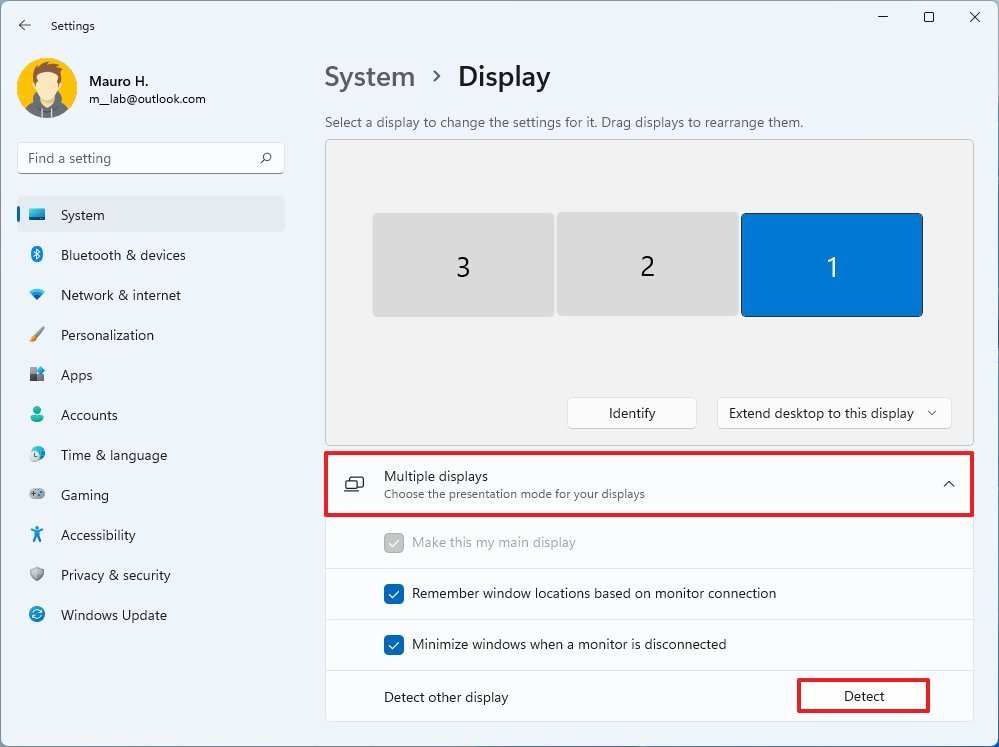
Image source: Bing (Web (fair-use with source credit))
Step 6: Isolate the Fault — Is It the Monitor, Cable, or Source?
If you've made it this far, it's time for proper isolation testing. The goal is to rule out each component by testing it in a known-working configuration.
The Substitution Method
You need access to at least one other device or cable to do this properly. Here's the decision tree:
- Test your monitor with a different source device. If it works, the monitor is fine and your original source device is the problem.
- Test your source device with a different monitor or TV. If the signal flows, your source is working and your portable monitor or cable has an issue.
- Test your cable with a different setup entirely. Plug it between two devices you know carry video successfully. If it fails there, you've found your culprit.
Interpreting Your Results
| Monitor + Different Source | Source + Different Monitor | Cable + Different Setup | Likely Problem | |—|—|—|—|—| | Works | Works | Fails | Bad cable | | Works | Fails | (any) | Source device output issue | | Fails | Works | (any) | Monitor hardware or firmware issue | | Fails | Fails | Works | Both source and monitor have compatibility issues | | Fails | Fails | Fails | Multiple issues or incompatible specs |
EDID Handshake Failures
Sometimes both devices work perfectly fine on their own, but refuse to talk to each other. This is often an EDID handshake failure. The monitor tells the source what resolutions and refresh rates it supports.
The source reads that information and outputs accordingly.
If the EDID data is corrupted, malformed, or transmitted incorrectly (often a cable quality issue), the source doesn't know what to output and outputs nothing.
Workarounds for EDID failures:
- Try connecting through a powered USB-C hub that regenerates the signal
- Use a different cable (this is the most common fix)
- Force a resolution from your source device (Windows: Display Settings → Advanced Display → Display Adapter Properties → List All Modes)
- For persistent cases, an EDID emulator/dongle between the source and monitor can force the correct handshake
Common Mistakes That Waste Your Time
Let's talk about what doesn't help. Repeatedly plugging and unplugging the cable without changing anything else just wastes minutes. Blaming the monitor when the real problem is a $5 charge-only cable is another dead end.
The biggest mistake we see in our editorial review of community troubleshooting threads is people assuming the monitor is defective. In most cases, the monitor is fine. The cable, the source port, or the settings are the actual problem.
Returning a working monitor and buying a new one won't fix a bad cable.
Another common error is using a USB-C hub that doesn't support video passthrough. Not all hubs pass through DisplayPort Alt Mode. Many cheap USB-C hubs only offer USB-A ports, Ethernet, and maybe HDMI from a DisplayLink chip.
If the hub doesn't explicitly state "4K video passthrough" or "DP Alt Mode pass-through," assume it doesn't support video.
Quick Reference: Connection Type Compatibility Guide
Here's a breakdown of which connection types work with which devices and what to watch for.
| Connection Type | Supports Video? | Common Issues | Best For |
|---|---|---|---|
| USB-C to USB-C (DP Alt Mode) | Yes, if both devices support it | Charge-only cables, port doesn't support Alt Mode | Laptops, phones with USB-C video |
| USB-C to HDMI (passive adapter) | Only if source supports HDMI Alt Mode | Many laptops don't support HDMI Alt Mode natively | Specific laptops with HDMI Alt Mode |
| USB-C to HDMI (DisplayLink adapter) | Yes, with driver install | Requires software, slight latency | Any USB-C port, universal fallback |
| HDMI to Mini/Micro HDMI | Yes, native signal | Cable damage, wrong HDMI version for resolution | Consoles, cameras, Raspberry Pi |
| Wireless (Miracast/AirPlay) | Yes, if monitor supports it | Latency, compression, connection drops | Quick screen mirroring, no-cable setups |
Real-World Scenarios and How to Solve Them
Scenario 1: MacBook + USB-C portable monitor, no signal.
Check that you're not using a Thunderbolt 3 cable that's charge-only. Try a different USB-C port on the Mac. Some older MacBook models only support external display on one specific port.
Reset the NVRAM if the display is never detected.
Scenario 2: Windows laptop + USB-C monitor, worked yesterday, doesn't today.
Windows Update may have changed your GPU driver. Roll back the driver through Device Manager. Also check if a recent update changed your power management settings to disable the USB-C port on battery.
Scenario 3: Samsung phone + portable monitor, no signal.
Your phone needs to support Samsung DeX or screen mirroring over USB-C. Not all Samsung models do. The Galaxy S21 and newer generally work.
The Galaxy A series often doesn't support video output. Check your specific model's specs.
Scenario 4: Nintendo Switch + portable monitor, no signal.
The Switch only outputs video through its dock. You can't connect a portable monitor directly to the Switch's USB-C port. You need the official dock with HDMI out, then connect that to your monitor via HDMI.
Scenario 5: Desktop PC + USB-C portable monitor, no signal.
If your CPU doesn't have integrated graphics (most AMD Ryzen models without a "G" suffix), the motherboard USB-C port won't output video. You need a USB-C output from a GPU that supports it, or a DisplayLink adapter.
When to Give Up and Contact Support
If you've tested the monitor with a different source and it still shows "no signal," the monitor itself may be faulty. If you've tested your source with a different display and it works fine, the problem is isolated to the monitor or the specific combination of monitor and source.
Contact the manufacturer's support when:
- The monitor shows "no signal" with every source and cable you've tried
- The OSD menu appears but no input ever produces an image
- The monitor was working and suddenly stopped after a firmware update
- Physical damage to the port is visible (bent pins, loose connection)
Most reputable portable monitor brands offer at least a one-year warranty. Keep your purchase receipt and note the troubleshooting steps you've already completed. Support teams move faster when you can tell them exactly what you've ruled out.
Frequently Asked Questions
Can a USB-C cable cause "no signal" even if the monitor lights up?
Yes. A charge-only USB-C cable will power the monitor's backlight but carry zero data. The monitor turns on, shows its "no signal" screen, and nothing else happens.
Swap to a data-capable cable and the problem disappears.
Why does my portable monitor work with my phone but not my laptop?
Your laptop's USB-C port may not support DisplayPort Alt Mode. Some laptops route USB-C data only, without video capability. Check your laptop's spec sheet for "DP Alt Mode" or "DisplayPort over USB-C" support.
Do I need a special cable for a 4K portable monitor?
For 4K at 60Hz, you need a USB-C cable that supports DisplayPort 1.4 Alt Mode or an HDMI 2.1 cable. Not all USB-C cables handle the bandwidth. Look for cables rated at "40Gbps" or "USB4" to ensure sufficient bandwidth.
Will a DisplayLink adapter fix "no signal" on any device?
DisplayLink works on most devices with a standard USB port, but it requires installing the DisplayLink driver first. It also introduces slight latency, making it less suitable for gaming or video editing. It's a solid fallback for productivity use.
My monitor says "no signal" but the screen is black, not showing the error message.
If the screen is completely black with no OSD or error message, the monitor may not be receiving enough power to fully initialize. Try a different power source, a dual-cable setup, or a dedicated power adapter if your monitor supports one.

Similar Posts