How to Fix Flickering on HDR Monitor
If you're trying to figure out how to fix flickering on an HDR monitor, the answer depends entirely on what's actually causing it. HDR flicker can come from a bad cable, a GPU setting mismatch, aggressive local dimming, Adaptive-Sync conflicts, or a genuine panel defect. Each cause requires a completely different fix.
Per VESA's DisplayHDR testing methodology, flicker is one of the explicit certification parameters measured during compliance review. That means a properly functioning HDR monitor shouldn't flicker under normal conditions. When it does, something in your signal chain is misbehaving.
Let's walk through each possibility systematically and fix it.
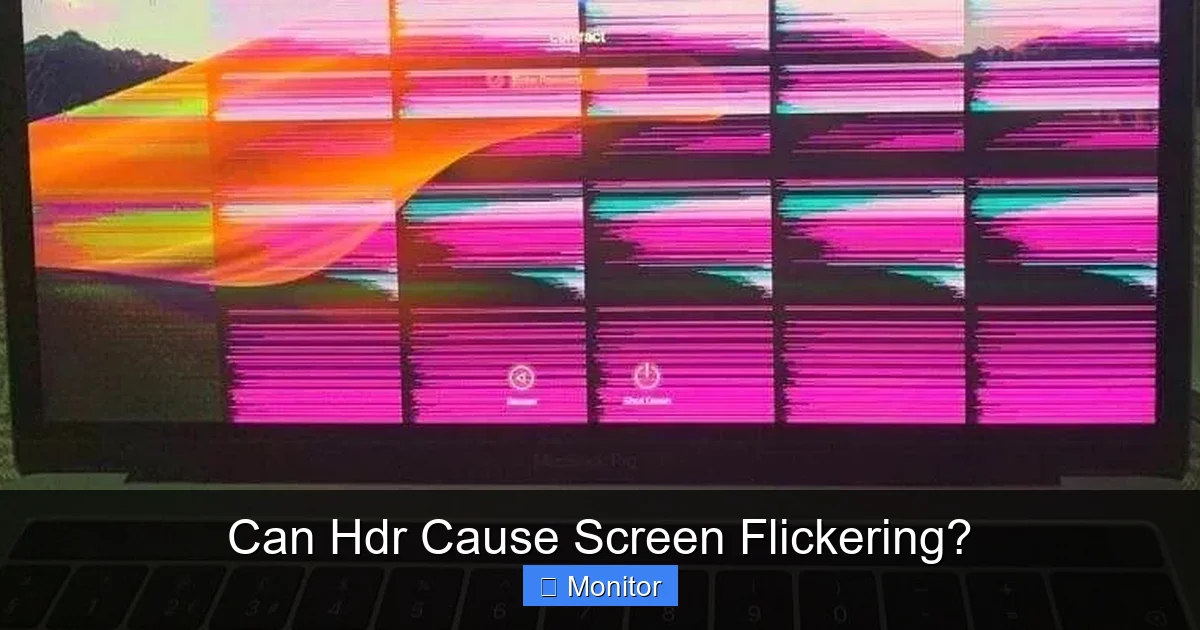
The 30-Second Diagnostic: Is It Really Flicker or Something Else?
People use the word "flicker" to describe at least four visually distinct behaviors. Identifying which one you're actually seeing saves hours of wasted troubleshooting.
- Rapid strobing on bright scenes during HDR content. This is often Adaptive-Sync or local dimming pulsing between brightness levels on a per-scene basis.
- Brief black screens that repeat at irregular intervals. This is usually a cable or handshake problem. The monitor briefly loses the signal and re-syncs.
- Subtle shimmering or crawling on static UI elements in HDR mode. This can indicate frame-rate control (FRC) dithering artifacts, common on 8-bit panels simulating 10-bit HDR.
- Image flicker that disappears in SDR mode. If this happens, the issue is almost certainly confined to the HDR signal path: either the GPU's HDR output settings, the handshake metadata, or the monitor's tone-mapping engine.
Here's a quick test. Switch your display to SDR mode and use it normally for 10 to 15 minutes. If the flickering vanishes entirely, you've confirmed the problem is HDR-specific.
That narrows your culprits dramatically.
Quick Answer
Fix HDR monitor flickering by isolating the cause step by step. First, verify the flicker happens only in HDR mode. Second, replace your cable with a certified Ultra High Speed HDMI or DisplayPort cable.
Third, force your GPU to output the correct color depth and dynamic range. Fourth, disable Adaptive-Sync temporarily and add it back after other fixes. Fifth, test with local dimming off.
If all five steps fail, update your monitor firmware.
Step 1: Isolate Whether the Flicker Is HDR-Specific
This is the single most important diagnostic step. Everything downstream of a "yes" answer is completely different from what you'd do if the flicker happens in SDR mode too.
Turn off HDR on your source device. On Windows, that's Settings, System, Display, HDR (toggle off). On a PS5, go to Settings, Screen and Video, Video Output, HDR, Off. On Xbox, Settings, General, TV and Display Options, Video Modes, uncheck HDR10 and Dolby Vision.
Use the monitor in SDR for a session that covers the same content types where you noticed the flicker. If the display is rock-solid in SDR, you know the HDR signal path is where the problem lives. If it still flickers in SDR, stop here, the cause is likely hardware-level: a failing panel, a bad cable, or a power delivery issue.
Once you've confirmed HDR-specific flicker, you can safely ignore general monitor troubleshooting guides that talk about refresh rate flickering or backlight degradation. Your problem is narrower and solvable.
Step 2: Check Your Cable and Port — The Most Common Fix
This fixes more HDR flicker cases than any other single step. An inadequate cable is the number one culprit behind HDR flickering, especially on high-resolution, high-refresh-rate displays. The amount of data required for a 4K HDR signal at high refresh rates easily exceeds the bandwidth of older or passive HDMI cables, and even some cables marketed as "high-speed" can't maintain a stable connection under that load.
What you need:
| Connection Type | Minimum Cable Spec | Bandwidth |
|---|---|---|
| HDMI 2.0 | Premium High Speed HDMI (18 Gbps) | 18 Gbps |
| HDMI 2.1 | Ultra High Speed HDMI (48 Gbps) | 48 Gbps |
| DisplayPort 1.4 | DP 1.4 with DSC support | 32.4 Gbps |
| DisplayPort 2.0 / 2.1 | DP 2.0 / 2.1 certified | 80 Gbps |
Make sure the cable is officially certified. Look for the "Ultra High Speed" label with the official QR-code hologram on HDMI cables. For any cable longer than 2 meters, an active cable is recommended to maintain signal integrity.
Also try a different port. If your monitor and GPU both have DisplayPort and HDMI, switch to the other type and see if the flicker persists. A single faulty port on either end can cause intermittent signal loss that looks like flicker.
Step 3: Verify Your GPU Output Settings Match What the Monitor Expects
Even with a perfect cable, the GPU can send a signal the monitor doesn't handle well. This mismatch is HDR flicker hiding in plain sight.
For NVIDIA GPUs (GeForce RTX series, GTX 10-series and newer):
Open NVIDIA Control Panel, navigate to Change Resolution, and scroll down to the bottom. Apply these settings:
- Output color depth: 8 bpc is the safest starting point. If the monitor supports 10-bit, set it to 10 bpc and test.
- Output color format: RGB for SDR/HDR mixed use. YCbCr420 only if the monitor fails to handshake at RGB at your target resolution and refresh rate.
- Output dynamic range: Full (0-255), not Limited (16-235). Limited is a TV standard. On a PC monitor, it crushes black levels and can cause perceived flicker in dark HDR scenes.
For AMD GPUs (Radeon RX 5000-series and newer):
Open AMD Software, Settings, Display, and verify the following:
- Pixel format: RGB 4:4:4 Full, unless the monitor's EDID forces a different default.
- Color depth: Match it to the monitor's native panel. If the panel is 8-bit + FRC, set 8 bpc and retest before trying 10 bpc.
For Windows specifically:
Go to Settings, System, Display, HDR, and toggle "Use HDR" off and back on. Also check "Advanced color settings" and make sure "Auto HDR" is disabled during testing. Auto HDR intercepts SDR content and applies tone mapping that can produce visible brightening and dimming between scenes, which many people mistake for display flicker.
If changing the GPU output settings resolves the issue, you have your fix, and you'll want to note the correct combination so you can restore it after future driver updates.
Step 4: Test Adaptive-Sync as the Flicker Source

Adaptive-Sync technologies like AMD FreeSync Premium Pro and NVIDIA G-Sync Compatible are designed to eliminate tearing by dynamically matching the display's refresh rate to the GPU's frame output. At low frame rates, the panel may stay at a reduced refresh rate, which dims the image. When frame rates climb, the refresh rate rises and brightness increases.
That cycle can cause visible pulsing that looks like flicker.
Per VESA's Adaptive-Sync test specification, refresh rates under 48 Hz are outside the officially guaranteed flicker-free zone. If your game's frame rate is dipping below that threshold, you are almost certainly seeing a normal physical behavior of the panel, not a defect.
How to test this:
- Open your monitor's OSD and disable FreeSync or G-Sync. This locks the panel at its fixed refresh rate (e.g., 144 Hz).
- Launch the same HDR content where the flicker was occurring.
- If the flickering stops completely, Adaptive-Sync is your cause.
Fixes if Adaptive-Sync is the culprit:
- Set a minimum frame rate limiter to stay above 48 fps. Use your game's own frame limiter or cap globally via NVIDIA Control Panel (Max Frame Rate) or AMD Software (Frame Rate Target Control).
- Enable AMD FreeSync Premium Pro's Low Framerate Compensation (LFC) if supported. LFC multiplies refresh rates below the minimum range to keep the panel within its flicker-free zone. This isn't available on monitors outside of FreeSync Premium Pro certified models.
- Enable NVIDIA G-Sync and pair it with V-Sync set to "On" globally in NVIDIA Control Panel (and "Off" in each game). This prevents the GPU from dropping below the panel's Adaptive-Sync range.
As of 2026, GPU manufacturers have claimed that HDR and Adaptive-Sync combinations work without flicker, but that assumes frame rates stay within spec and your cable is adequate. Your experience may differ depending on the specific hardware combination.
Step 5: Evaluate Whether Local Dimming Is Causing Brightness Pulsing
This is the most misunderstood source of HDR flicker, and it's not actually flicker in the traditional sense. It's your monitor's local dimming algorithm adjusting backlight zones in real time as scene content changes.
How to tell if local dimming is the cause:
The flicker correlates directly with on-screen content changes. A dark scene cuts to a bright explosion. A white subtitle appears over a black bar.
The whole screen shifts brightness within a fraction of a second, and it repeats as the scene changes again.
Budget HDR monitors with edge-lit backlights and fewer dimming zones are the worst offenders. Monitors with Full-Array Local Dimming (FALD) and higher zone counts handle transitions more smoothly, though no local dimming system is immune to visible stepping.
The test is simple. Open your monitor's OSD and set local dimming to "Off." HDR stays on, but now the entire backlight operates as one zone (or however many physical zones your panel uses in its most basic mode). If the perceived pulsing vanishes entirely, local dimming is your cause. This behavior is not a defect, it's a physical limitation of zone count and response time.
The fix is choosing a monitor with more and faster zones, or living with local dimming off in HDR mode if you find it distracting.
Step 6: Update Monitor Firmware and GPU Drivers
HDR tone mapping, backlight control algorithms, and Adaptive-Sync reliability can all improve through firmware and driver updates. If your monitor's chipset received a fix for a known EDID bug or a backlight timing issue, updating could resolve your flickering in minutes.
Where to find monitor firmware:
- Manufacturer support page (e.g., Dell Display Manager, LG Customer Support, ASUS support site)
- Some monitors accept firmware updates via USB flash drive through a dedicated service port
- Some monitors support firmware updates through their built-in SoC OS (common on smart monitors and some Samsung, Dell, and Dell Alienware models)
Where to find GPU drivers:
- NVIDIA: Download the latest Game Ready driver for your card, select "Clean install" during installation
- AMD: Use AMD Software Auto-Detect, or grab the driver directly from the support page for your GPU series
- Intel Arc: Intel Driver & Support Assistant lets you install the latest driver from a browser shortcut
Aggregator forums like AVS Forum and Reddit's r/Monitors often surface firmware and driver thread discussions where the exact monitor model and driver version combination fixes HDR flicker. If your monitor has a known issue, someone on this kind of community forum very likely already posted a thread about it. Searching with your specific monitor model, "HDR flicker" and "driver version" is often one of the fastest ways to find a fix before updating to a firmware revision.
Step 7: Test the Monitor With a Different Source to Rule Out the GPU
You've ruled out cables, GPU output settings, Adaptive-Sync, local dimming, and drivers. The next diagnostic step is isolation. Connect a different source device to the same monitor, using a different cable, and enable HDR on that source.
If the flicker persists, the monitor is very likely responsible. If it disappears, the GPU or its driver profile in combination with your monitor is at fault.
Sources you might use for this test:
- A game console capable of HDR (PS5, Xbox Series X)
- A streaming device (Apple TV 4K, dedicated media player)
- A second GPU or integrated graphics from the CPU (if you have them)
When It's Actually a Hardware Defect (And What to Do)
If the flicker persists across multiple cables, multiple source devices, multiple ports, and after firmware updates, then the monitor likely has a hardware-level defect. That could be a failing power delivery board, a faulty scalar chip, or a backlight driver component on its way out.
What to do:
- Document it on video. Film the flicker occurring while showing the OSD menu overlay. This proves the flicker is not software-generated.
- Contact the manufacturer's support. Ask for a firmware re-flash before requesting an RMA. Some manufacturers can push an ISP re-flash via USB if your model supports it.
- If the monitor is under warranty, request a replacement. Most manufacturers consider persistent signal-path flicker a qualifying defect under normal warranty terms.
Common Mistakes People Make When Troubleshooting HDR Flicker
- Replacing the monitor before ruling out the cable. A $10 cable swap resolves the issue far more often than a new panel does.
- Confusing local dimming pulsing with a defect. If the pulsing disappears when local dimming is off, it's expected behavior, not a hardware failure.
- Leaving Auto HDR on during testing. Windows Auto HDR's tone-mapping layer can mimic flicker independently of any monitor issue.
- Running GPU drivers from several major versions behind. HDR signal-path fixes ship in driver updates regularly. Running old drivers is a common self-inflicted problem.
- Blaming the GPU when the monitor's EDID is misreporting capabilities. A monitor that claims HDR1000 capability but has a mediocre FRC engine causes visible artifacts that look like flicker but stem from the EDID mismatch.
Quick-Reference Decision Tree: Match Your Symptom to the Fix
| Symptom | Most Likely Cause | Fix |
|---|---|---|
| Brief repeating black screen drops | Cable or handshake failure | Swap to certified cable, test ports |
| Flickering only on HDR bright scenes | Adaptive-Sync / low frame rate | Cap min fps above 48, enable LFC if available |
| Brightness pulse on scene transitions | Local dimming stepping | Reduce local dimming zones/count or leave it off |
| Static UI shimmer in HDR | FRC dithering | Match driver color depth to panel spec |
| Flicker persists in SDR and HDR | Hardware defect | Document on video, pursue warranty or repair |
Frequently Asked Questions
Can HDR itself cause monitor flicker?
Yes. HDR increases the dynamic range and bandwidth demands on your signal chain. Any weak link in that chain (cable, port, scalar chip, local dimming engine) becomes visible under load.
SDR often works fine because the signal demands are lower.
Does FreeSync or G-Sync cause HDR flicker?
It can, especially when frame rates drop below 48 fps. Adaptive-Sync varies the refresh rate dynamically, and some panels exhibit visible brightness shifts during those transitions. This issue is more common in monitors without flicker-free certification, where the variance is not actively compensated for by the hardware.
Is flickering in HDR mode a sign my monitor is dying?
Usually not. In most cases, it is a settings, cable, or signal mismatch rather than a hardware failure. Persistently recurring flicker across all inputs and cables after full troubleshooting is when a hardware fault becomes more likely.
Do I need an HDMI 2.1 cable for HDR?
Depends on your resolution, refresh rate, and color depth. 4K HDR at 60 Hz with 4:4:4 chroma works on a Premium High Speed HDMI cable (18 Gbps). 4K HDR at 120 Hz with 10-bit color requires HDMI 2.1 (48 Gbps) or DisplayPort 1.4 with DSC.
Why does my monitor flicker only in certain HDR games?
Some games send HDR metadata with extreme MaxCLL or MaxFALL values. The monitor's tone mapping has to work harder to compress that range, which can expose pulsing or stepping artifacts. This is more common on monitors with less sophisticated tone-mapping hardware.

Similar Posts





















