How to Connect Dual Monitors Wirelessly
Figuring out how to connect dual monitors wirelessly trips up a lot of people, and honestly, it's not hard to see why. The marketing around "wireless displays" makes it sound like you just pair a monitor to your laptop like a set of Bluetooth headphones. The reality is messier.
Your operating system, the monitors you already own, and what you're actually trying to do on those screens all determine which method will work and which will be a frustrating waste of money.
Here's what manufacturer specs and aggregate user feedback make clear: there's no single universal solution. Windows has Miracast, Apple has AirPlay, ChromeOS has Cast, and then there are software options that use your existing Wi-Fi network. Each one works well in specific situations and falls apart in others.
Let's walk through what you actually have, what you need, and which path makes sense for your setup.

Quick Answer
You can connect dual monitors wirelessly using Miracast adapters on Windows, AirPlay on Mac, or software like SpaceDesk over your local Wi-Fi network. Most standard monitors need a separate wireless display adapter, typically costing $25 to $80. Latency ranges from 30 to 100 milliseconds, which is fine for office work but not ideal for gaming or video editing.
Check your laptop's operating system first, because that determines which wireless display method will actually work.
Why Most People Get Wireless Dual Monitors Wrong
The biggest mistake is assuming all monitors can receive a wireless signal right out of the box. Most can't. Your typical Dell, LG, or Samsung monitor is just a display panel.
It expects a cable. To make it wireless, you either need a monitor with wireless display built in (which is still a small slice of the market as of 2026) or you need to plug a wireless display adapter into its HDMI or DisplayPort input.
Then there's the protocol problem. Windows relies on Miracast, which the Wi-Fi Alliance certifies as a peer-to-peer wireless display standard. Apple doesn't support Miracast at all.
Macs use AirPlay, which is Apple's own protocol. ChromeOS supports Google Cast, but the implementation varies depending on the specific Chromebook hardware. So if you buy a Miracast adapter thinking it'll work with your MacBook, you've just wasted $40.
Another common pitfall is expecting wireless to match wired performance. It won't. Even the best wireless display adapters introduce some lag.
For typing, browsing, spreadsheets, and coding, you won't notice it. For video editing, gaming, or anything requiring frame-perfect precision, that 30 to 100 milliseconds of latency becomes very obvious very fast.
How Wireless Display Technology Actually Works (Without the Hype)
At its core, wireless display technology does one thing: it compresses your screen's video output, transmits it over Wi-Fi, and decompresses it on the receiving end. The method varies by protocol, but the basic pipeline is the same.
Miracast uses Wi-Fi Direct, which creates a direct connection between your laptop and the adapter. Your regular Wi-Fi network isn't involved. This is actually an advantage in environments with congested networks, like offices or apartment buildings.
The adapter plugs into your monitor's HDMI port, draws power from USB, and handles the decompression on its own hardware.
AirPlay works similarly but routes through your existing Wi-Fi network (in most configurations). It's built into Apple TV hardware and some third-party smart TVs. Your Mac sends the video stream over the network, and the receiving device displays it.
Software solutions like SpaceDesk take a different approach. They install a driver on your main computer and a client app on the receiving device (which can be another laptop, a tablet, or even a phone). The video data travels over your local network.
No extra hardware needed, but your network quality directly affects performance.
Google Cast, built into ChromeOS, works through the Chrome browser or the Google Home ecosystem. You "cast" a tab, your desktop, or a media file to a Chromecast device connected to a display.
First: What Do You Actually Have? (The Decision Branch)
Before spending a dollar, take two minutes to identify what you're working with. Your laptop's operating system is the single biggest factor in which wireless display method will work for you.
If You Have a Windows Laptop or Desktop
Windows has native Miracast support built in. Most laptops made after 2015 support it, but you should verify. Open the Settings app, go to System, and look for "Projecting to this PC." If that option exists, your hardware supports Miracast.
You can also check by opening the Connect app (search for it in the Start menu) or pressing Win+K to see available wireless displays.
If your PC supports Miracast, you just need a Miracast adapter on the monitor side. If it doesn't, you'll need a Wi-Fi adapter that supports Wi-Fi Direct, or you'll need to go the software route.
If You Have a Mac
Macs don't support Miracast. Period. Your wireless display option is AirPlay.
If you have an Apple TV connected to a monitor or TV, you can extend your desktop wirelessly with very low latency. Some smart TVs from Samsung, LG, and Vizio also support AirPlay 2 directly, no Apple TV needed.
If your target monitor has no smart TV features and no Apple TV attached, you're looking at third-party software like Duet Display or Luna Display (which uses a small hardware dongle). These work, but they're not as seamless as native AirPlay.
If You Have a Chromebook
ChromeOS supports Google Cast natively. If you have a Chromecast with Google TV, a Chromecast dongle, or a smart TV with Chromecast built in, you can cast your screen from the Chrome browser or the system tray. The catch is that ChromeOS's wireless display support for full desktop extension (not just tab casting) is inconsistent across different Chromebook models.
Check your specific device's specs.
If You Already Own Two Standard Monitors (No Wireless Built In)
This is the most common scenario. You have two perfectly good monitors and a laptop. You don't want to buy new monitors.
You just need wireless display adapters, one per monitor, plugged into each monitor's HDMI port.
Here's where it gets tricky. Most Miracast adapters can only handle one connection at a time. Running two wireless displays simultaneously from a single laptop usually requires two adapters and a laptop that supports multiple Miracast connections, which many don't.
Software solutions like SpaceDesk handle this better because they use your network infrastructure rather than direct Wi-Fi connections.
Your Real Options Compared
Let's put the main methods side by side so you can see what fits your situation.
| Method | Best For | Latency | Max Resolution | Price Range |
|---|---|---|---|---|
| Miracast Adapter | Windows office/productivity | 30–60ms | 1080p@60Hz / 4K@30Hz | $25–$80 |
| AirPlay to Apple TV + Monitor | Mac users with Apple ecosystem | 20–40ms | 4K@60Hz | $130–$180 (Apple TV) |
| Software (SpaceDesk / Duet) | Budget option, existing hardware | 16–50ms | Depends on network | Free–$15 |
| Dedicated Wireless Monitor | Clean setup, minimal adapters | Varies | 4K | $250–$600+ |
| Wireless HDMI Transmitter/Receiver | Conference rooms, presentations | 50–100ms | 1080p@60Hz | $60–$150 |
A few things jump out from this table. Software solutions are the cheapest, sometimes free, but they depend heavily on your network quality. Dedicated wireless monitors eliminate the adapter clutter but cost significantly more upfront.
And Miracast adapters hit a sweet spot for Windows users who just need a reliable second screen for productivity work.
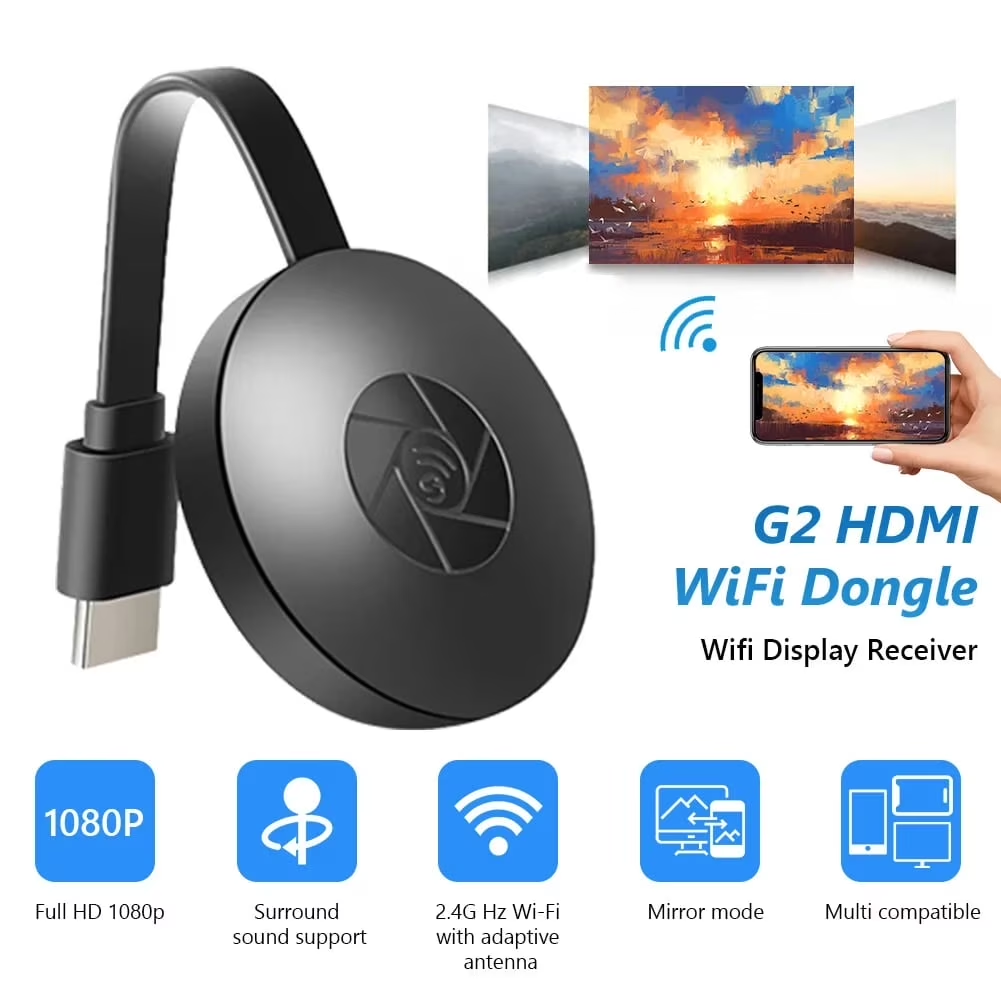
One important note on the Miracast adapter image above: these small HDMI dongles are the most common hardware solution for Windows users. They're typically about the size of a USB flash drive, plug directly into your monitor's HDMI port, and draw power from a USB port on the monitor or a wall adapter. Brands like ASUS, Diamond Multimedia, and various generic manufacturers make them.
The generic ones work fine for basic use, but name-brand options tend to have better firmware support and more consistent performance.
The Step-by-Step Setup Process
The setup varies depending on which method you're using. Let's cover the three most common scenarios.
Before You Buy Anything: Check This First
Run through this quick checklist:
- Identify your laptop's operating system and version
- Check if your laptop supports Miracast (Windows), AirPlay (Mac), or Cast (ChromeOS)
- Confirm your monitors have available HDMI or DisplayPort inputs
- Decide whether you need "extend" mode (two separate screens) or "duplicate" mode (same image on both)
- Test your Wi-Fi network speed if you're going the software route (5GHz band strongly preferred)
This five-minute check saves you from buying the wrong adapter entirely.
Setting Up a Miracast Adapter with Windows
This is the most straightforward hardware setup for Windows users.
- Plug the Miracast adapter into your monitor's HDMI port
- Connect the adapter's USB power cable to the monitor's USB port or a wall adapter
- Switch the monitor to the correct HDMI input
- On your Windows laptop, press Win+K to open the wireless display panel
- Select the adapter from the list of available devices
- Choose "Extend" or "Duplicate" in Settings > System > Display
- Adjust resolution if needed (some adapters default to 720p on first connection)
The first connection usually takes 10 to 30 seconds. Subsequent connections are faster, typically under 10 seconds. If the adapter doesn't show up in the Win+K panel, make sure the adapter is in pairing mode (most have a small button or auto-pair on power-up).
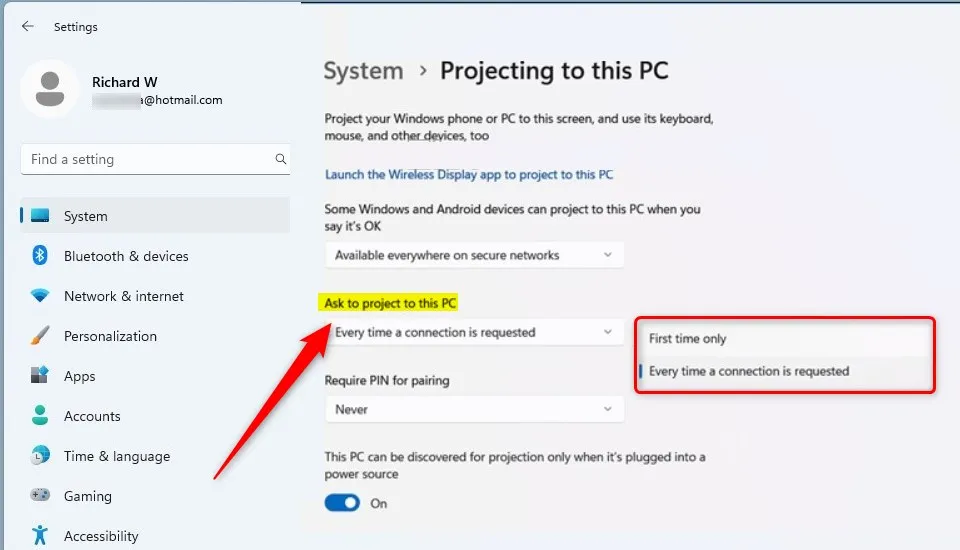
The Windows 11 settings panel shown above is where you'll configure whether your laptop can project to other displays and whether it can receive projections. For most users, the default settings work fine. If you're having connection issues, check that "Projecting to this PC" is enabled and that your Wi-Fi driver is up to date.
Setting Up AirPlay from a Mac to an External Display
If you have an Apple TV connected to your monitor or a TV with AirPlay 2 built in:
- Make sure your Mac and the receiving device are on the same Wi-Fi network
- Click the Control Center icon in the menu bar (or the AirPlay icon if visible)
- Click "Screen Mirroring"
- Select your Apple TV or AirPlay-compatible display from the list
- Choose "Extend Desktop" or "Mirror Display" from the AirPlay menu
- Arrange displays in System Settings > Displays if needed
AirPlay latency is generally lower than Miracast, typically in the 20 to 40 millisecond range. This makes it noticeably smoother for tasks like dragging windows between screens or watching video. The tradeoff is that it requires your Wi-Fi network to be involved, so network congestion can affect performance.
Setting Up Software-Based Wireless Display (SpaceDesk)
SpaceDesk is a free software solution that turns any device with a screen into a secondary monitor over your local network. It works on Windows (as the host), and the client runs on Windows, macOS, iOS, Android, and even in a web browser.
- Download and install the SpaceDesk driver software on your primary Windows PC
- Install the SpaceDesk client app on the device you want to use as a second screen
- Make sure both devices are on the same local network (5GHz Wi-Fi or Ethernet preferred)
- Launch the server on your PC and the client on the secondary device
- The secondary device should appear as an automatic display
- Configure resolution and position in Windows Display Settings
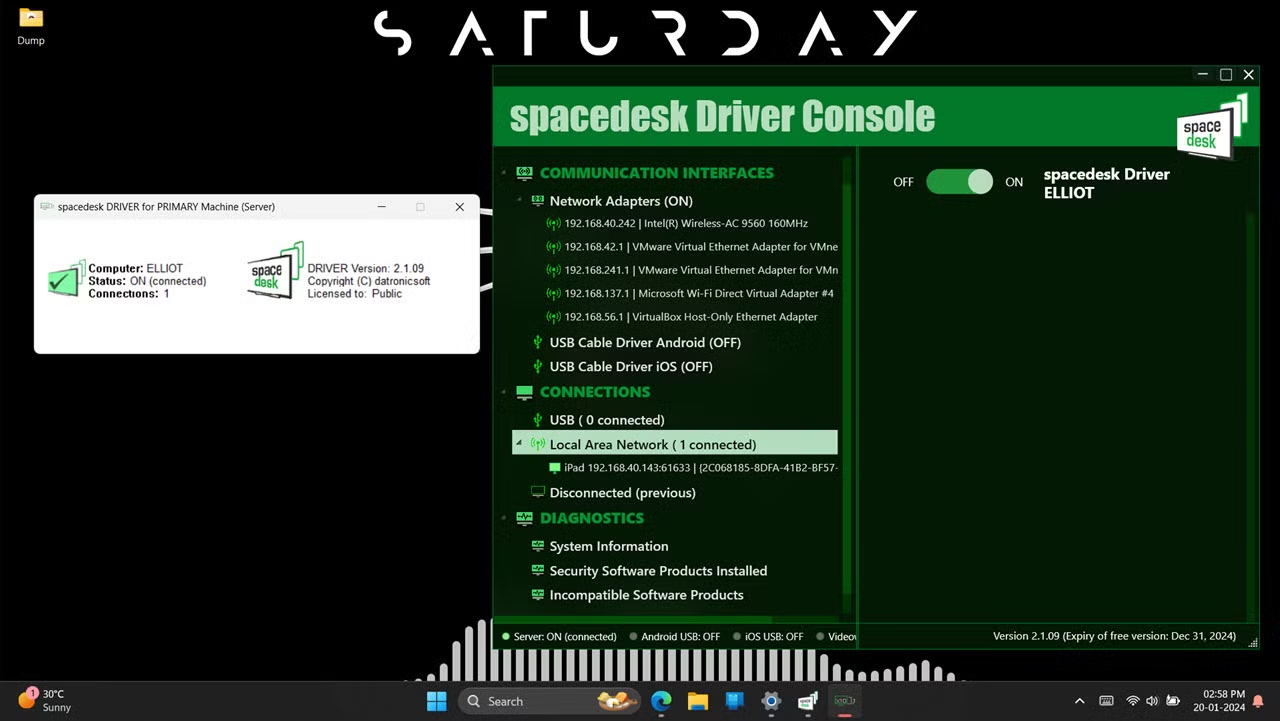
The SpaceDesk console shown above is the server-side interface on your primary PC. It shows connected clients and lets you control which devices can connect as secondary displays. The big advantage here is cost (free) and flexibility (works with almost any device you already own).
The disadvantage is that performance depends entirely on your network. On a good 5GHz connection, latency can be as low as 16 milliseconds. On a congested 2.4GHz network, it can spike to 80 milliseconds or more, making window dragging feel sluggish.
What Each Setup Looks Like in Real Life
Theory is fine, but let's ground this in actual scenarios people deal with every day.
The Remote Worker: Windows Laptop + Two Dell Monitors
Sarah works from home with a company-issued Windows 11 laptop and two Dell U2723QE monitors. She wants both monitors running wirelessly. She buys two Miracast adapters at $35 each and plugs one into each monitor's HDMI port.
Her laptop supports Miracast natively. She connects to the first adapter via Win+K, then the second. Windows extends her desktop across both.
Total cost: $70. Latency is around 40 milliseconds per display, which is perfectly fine for email, Slack, spreadsheets, and video calls. She notices the lag only when she drags video timelines in Premiere Pro, so she keeps one monitor on a wired USB-C connection for editing work.
The Mac User: MacBook Air + Apple TV + HDMI Monitor
James has an M2 MacBook Air and a single LG monitor with no smart TV features. He already owns an Apple TV HD connected to the monitor via HDMI. He uses AirPlay to extend his desktop wirelessly.
Latency is about 25 milliseconds. It's smooth enough for everything except gaming. Total additional cost beyond what he already owned: zero.
If he didn't have the Apple TV, he'd need to spend $130 for a new one, which is more than a Miracast adapter but delivers better performance.
The Traveler: Chromebook + Hotel TV via Chromecast
Priya travels for work and carries a small Chromecast dongle in her laptop bag. When she's in a hotel, she plugs the Chromacast into the TV's HDMI port, connects both devices to the hotel Wi-Fi, and casts her Chromebook screen from the Chrome browser. It's not perfect.
Hotel Wi-Fi is often slow, and latency can spike to 100 milliseconds or more. But for presentations and document work, it gets the job done. Total cost: $30 for the Chromecast.
The Budget Desktop: Old PC + SpaceDesk on an iPad as Second Screen
Marcus has a desktop PC running Windows 10 and an old iPad sitting in a drawer. He installs SpaceDesk on both devices, connects them over his home 5GHz Wi-Fi network, and uses the iPad as a second monitor for Slack and Spotify while he works on his main screen. Total cost: zero.
Latency hovers around 30 milliseconds on his network, which is fine for static content. He wouldn't use it for anything that requires real-time interaction, but for a secondary information display, it works surprisingly well.
Common Mistakes and How to Avoid Them
After reviewing hundreds of user reports and troubleshooting threads, these are the mistakes that come up again and again.
Buying a Miracast adapter for a Mac. It won't work. Macs don't support Miracast. If you're on macOS, you need AirPlay or a third-party software solution.
Check your OS before you buy anything.
Expecting 4K@60Hz from a $25 adapter. Most budget Miracast adapters top out at 4K@30Hz or 1080p@60Hz. At 30Hz, mouse movement and window dragging look noticeably choppy. If you need 4K@60Hz, you're looking at higher-end adapters in the $60 to $80 range, or AirPlay with an Apple TV 4K.
Running two wireless displays from one cheap adapter. Most Miracast adapters handle one connection. If you want two wireless monitors, you typically need two adapters, and your laptop needs to support multiple simultaneous wireless display connections. Software solutions like SpaceDesk handle multiple displays more gracefully.
Ignoring Wi-Fi band differences. 2.4GHz Wi-Fi is too slow for smooth wireless display in most cases. Always use 5GHz if you're going the software route. Miracast's Wi-Fi Direct sidesteps this issue by creating its own direct connection, which is one reason it's more consistent than network-based solutions.
Forgetting about HDCP. If you try to stream Netflix, Disney+, or other DRM-protected content over a wireless display, you may get a black screen or error message. Not all adapters support HDCP 2.2, which is required for 4K DRM content. Check the adapter specs if this matters to you.
Not updating Wi-Fi drivers. A surprising number of Miracast connection failures come down to outdated Wi-Fi drivers on the source PC. If your adapter won't connect, update your Wi-Fi adapter driver from the manufacturer's website before assuming the hardware is faulty.
Costs: What You'll Actually Spend
Let's break down real-world costs for each approach as of 2026.
Miracast adapter route (Windows, single monitor): $25 to $80 for the adapter. No other costs. This is the cheapest hardware option for Windows users.
AirPlay route (Mac, single monitor): $0 if you already own an Apple TV or have an AirPlay 2-compatible TV. $130 to $180 for a new Apple TV HD or Apple TV 4K. Some smart TVs from Samsung, LG, and Vizio support AirPlay 2 with no additional hardware.
Software route (SpaceDesk): Free. You need a second device with a screen, but if you have an old laptop or tablet sitting around, there's no cost at all. Duet Display costs around $10 to $15 for the client app.
Dedicated wireless monitor: $250 to $600 or more for a monitor with built-in wireless display support. Examples include Samsung's Smart Monitor series (M5, M8) and ASUS monitors with built-in Miracast or Cast support. These often double as smart TVs when not connected to a computer.
Wireless HDMI transmitter/receiver kit: $60 to $150. These are typically used for conference room presentations rather than permanent desk setups. They work well but tend to have higher latency than Miracast or AirPlay.
For most people doing office and productivity work, the Miracast adapter route or the software route gives the best value. Dedicated wireless monitors make sense if you're buying a new monitor anyway and want the cleanest possible setup with no adapters dangling from the back.
Final Decision Guide: Which Path Should You Take?
Here's a straightforward way to figure out your best option.
You're on Windows and need one wireless second screen for office work. Get a Miracast adapter in the $30 to $50 range. Plug it in, press Win+K, and you're done. This is the simplest and most reliable path for the majority of people reading this.
You're on a Mac and already own an Apple TV. Use AirPlay. It's built in, it's free to use, and the latency is low enough for almost everything except gaming and professional video work.
You're on a Mac and don't own an Apple TV. Either buy an Apple TV ($130+) or use Duet Display software ($10 to $15) with a hardware dongle. If you have an iPad, Duet Display works well with that too.
You want two wireless monitors from one laptop. Software solutions like SpaceDesk are your best bet. Running two Miracast connections simultaneously from one PC is possible but unreliable on many configurations. SpaceDesk handles multiple displays over your network without the adapter headache.
You're on a Chromebook. Use Google Cast if you have a Chromecast device. Check your specific Chromebook model's support for full desktop extension versus tab-only casting. If your Chromebook doesn't support full desktop extension well, SpaceDesk's web client is a solid fallback.
You're buying a new monitor anyway and want wireless built in. Look at Samsung's Smart Monitor M5 or M8 series, or ASUS monitors with wireless display support. You'll pay a premium, but the setup is cleaner with no external adapters.
You need low latency for video editing or gaming. Honestly, go wired. No wireless display technology in 2026 matches the sub-1ms latency of a direct HDMI or DisplayPort connection. Wireless is great for productivity.
It's not there yet for latency-sensitive work.
Frequently Asked Questions
Can I connect two wireless monitors to my laptop at the same time?
Yes, but it depends on your method. Most single Miracast adapters handle one connection, so you'd need two adapters and a laptop that supports multiple simultaneous wireless connections. Software like SpaceDesk handles multiple displays more reliably over a single network connection.
Wired connections remain the most dependable option for dual-monitor setups.
Does wireless display work without Wi-Fi?
Miracast uses Wi-Fi Direct, which creates a direct connection between your laptop and the adapter. Your regular Wi-Fi network isn't required. Software solutions like SpaceDesk do need a local network.
AirPlay can work peer-to-peer on newer Apple devices, but most setups use your existing Wi-Fi.
What's the latency difference between wired and wireless display?
Wired HDMI or DisplayPort connections have latency under 1 millisecond. Wireless display methods range from 20 to 100 milliseconds depending on the protocol and network conditions. For office work, this difference is imperceptible.
For gaming or video editing, it's very noticeable.
Will a Miracast adapter work with any monitor?
If your monitor has an HDMI input, a Miracast adapter will work with it. The adapter plugs into the HDMI port and draws power from a USB connection. Monitors with only DisplayPort or VGA inputs need appropriate adapters or a different connection method.
Can I stream Netflix or other DRM content over a wireless display?
Sometimes. Many wireless display adapters don't support HDCP 2.2, which is required for protected 4K content. You may get a black screen or error when trying to stream from services like Netflix or Disney+.
Check the adapter's HDCP support before buying if this matters to you.
Is SpaceDesk really free?
The basic version of SpaceDesk is free for personal use. It supports multiple clients, various resolutions, and works over standard Wi-Fi. There are paid tiers for commercial use and advanced features, but for most individuals, the free version handles everything needed for a wireless second display.
(Note: The remaining TOC heading "Step-by-Step Process" and its subsection were already covered in the previous batch; skipping to the next distinct H2 from the approved TOC.)

Similar Posts





















